Kirk, if you just use t or a formula like t-12, the t remains and will be recalculated whenever the toolpath is recalculated (if the thickness changes, it will impact that calculation). But if you type in t and then PRESS ‘=’, it replaces the contents of the field with the calculation - and that’s only done that one time.
2 Likes
We just uploaded Build 711 to fix the rest pocketing to https://carbide3d.com/carbidecreate/beta
2 Likes
Definitely an improvement in the rest machining. Not sure how dogmatic you want to be about stamping overlap out, there’s a bit left over, but it’s definitely a marked improvement over 710’s rest machining.
If you’re wanting to see, just look at the file I attached in my previous comment.
Not sure the level of difficulty, but seeing rest machining integrated into the advanced v-carve would be fantastic as well. The file I posted has a fair bit of blank space to mill out, doing so in a more expedient fashion would be very cool.
I think there’s overlap equal to the rest pocketing tool radius (the smaller tool) in this build.
The code is very similar between the Advanced V-carve toolpath and Rest pockets, but the Advanced V-carve doesn’t have any overlap and it can be a little more cavalier about calculating the rest areas because you know that the V cutter is profiling around the whole area anyway.
Edward and I were just joking about doing 3-stage V-carving but that’s not on the to-do list yet.
4 Likes
DEFECT [BETA 711]:
I am not seeing toolpaths regenerate after editing:
Started with this design:

And set up these toolpaths (by selected items)
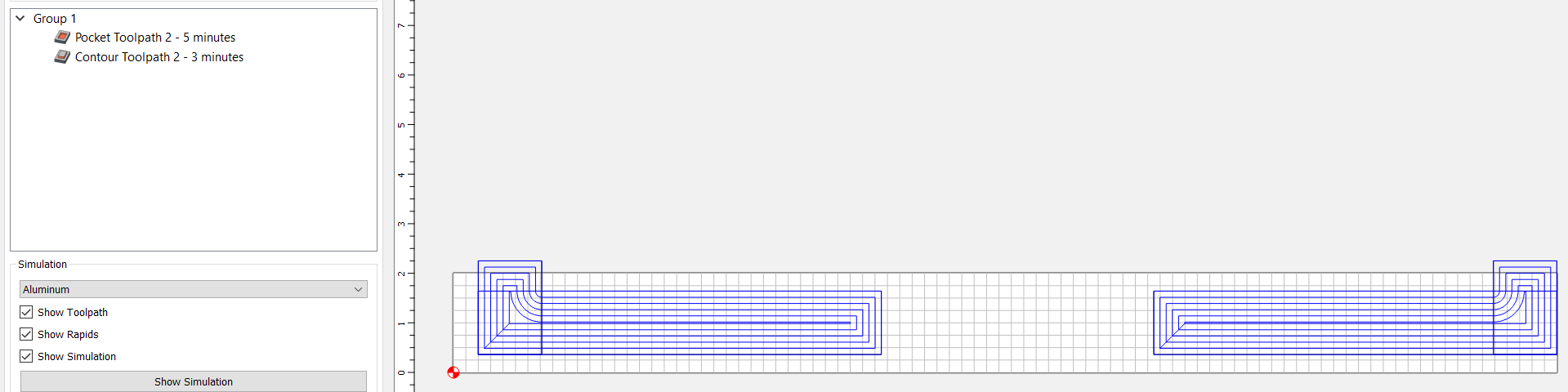
Then went into the Design and Unioned one of the pairs of shapes
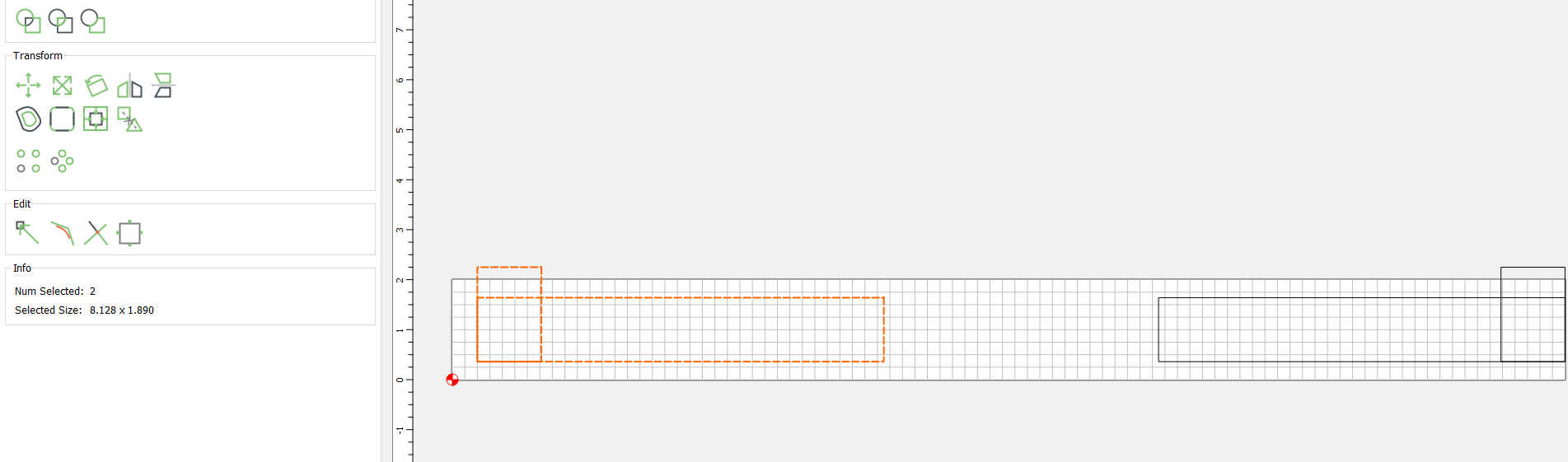

Then went to put the toolpath back for this item:
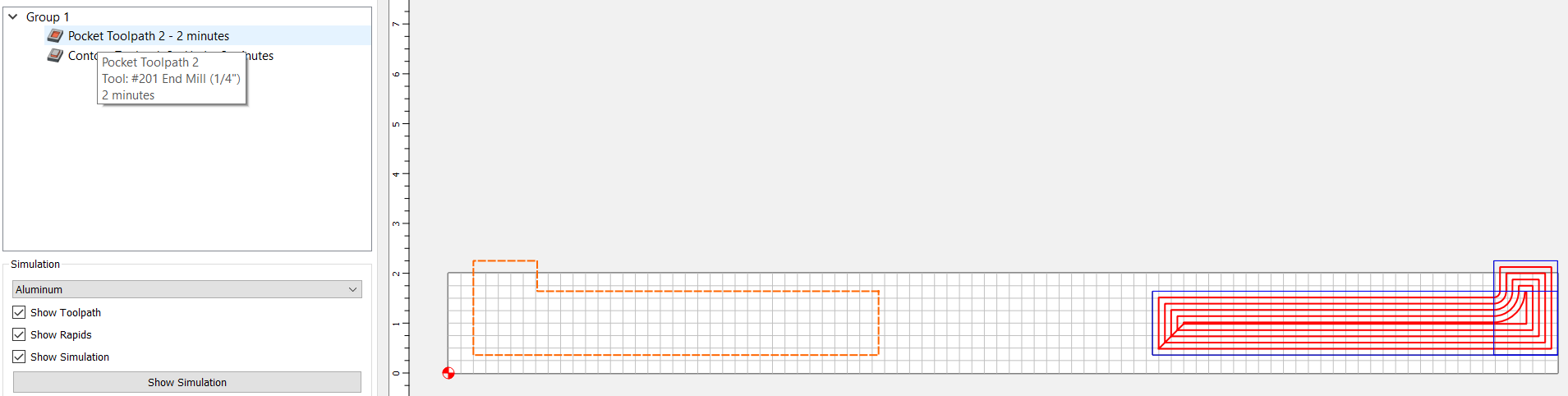
Double clicked on the existing toolpath (with the intent to add in the other object):
But as you can see, the old object is not selected with the pocket…and my new object is.
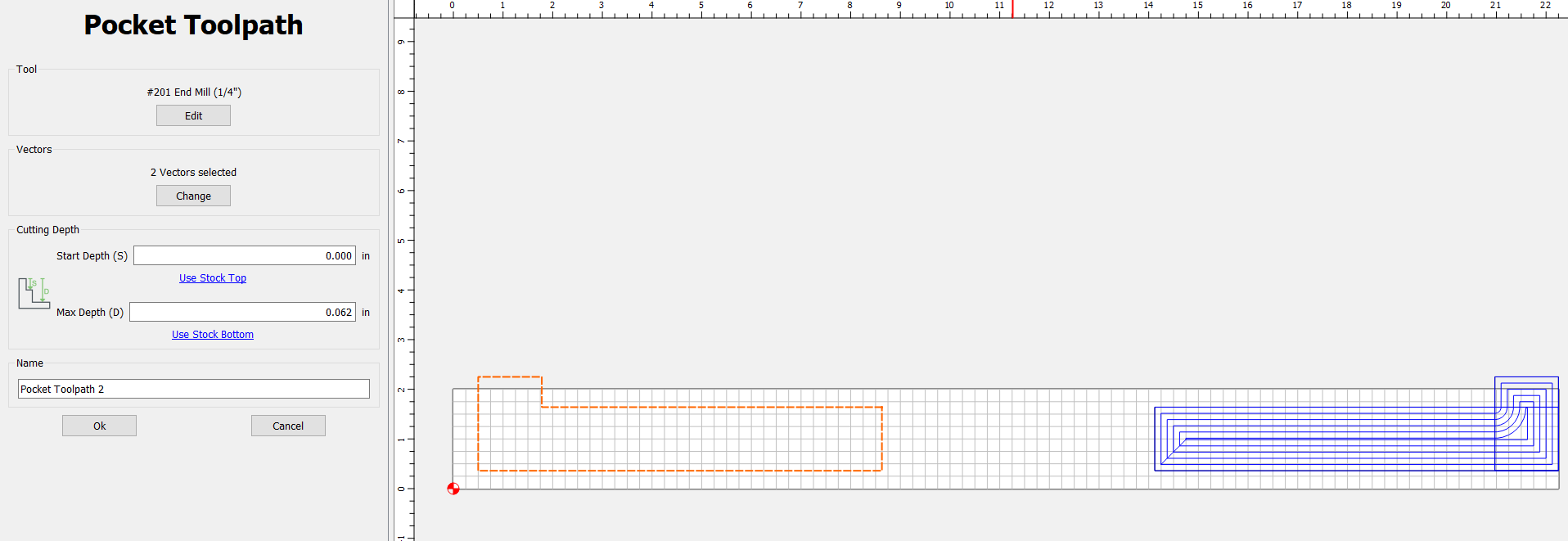
Selecting both objects at this point and pressing OK, does not add in the left object:
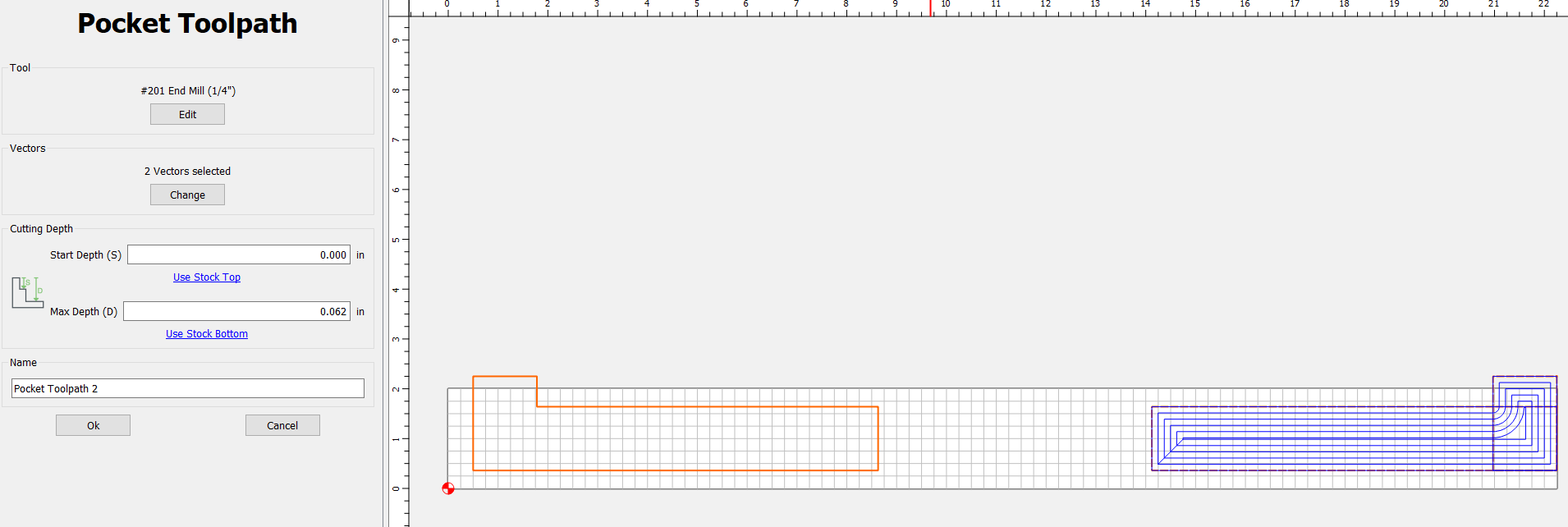
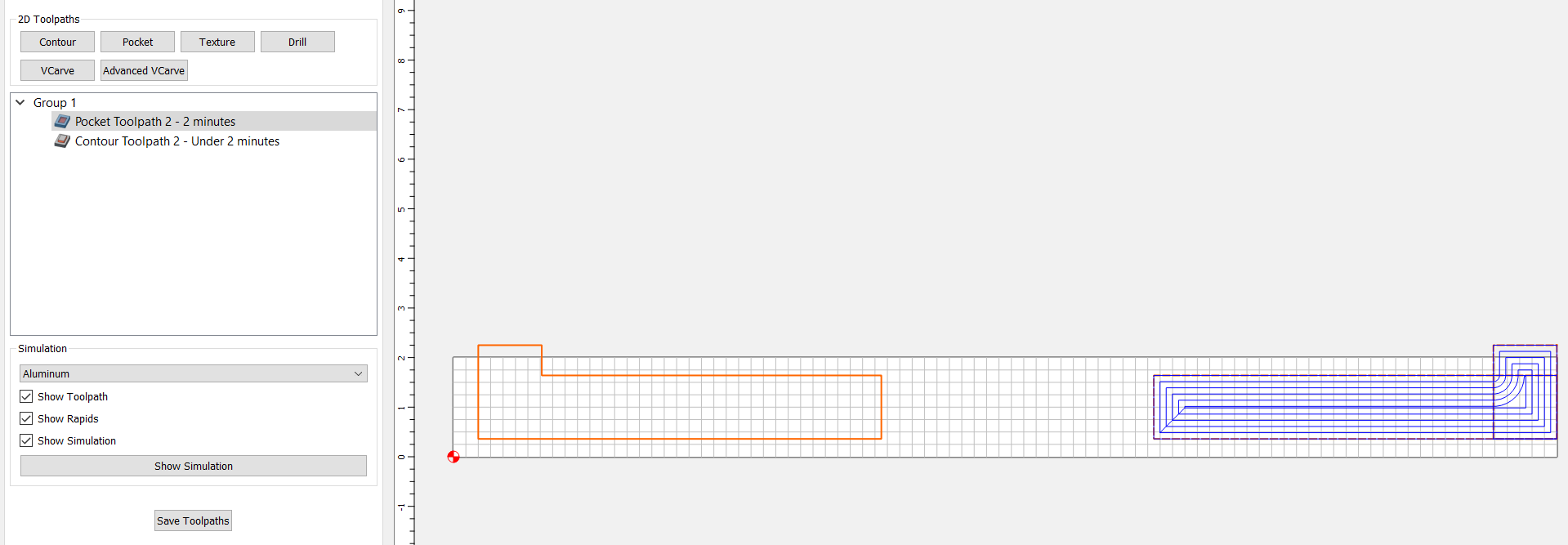
As you can see, the toolpath recalculated, but does not include the newly joined object.
NOTE: When you double click on a toolpath, it does NOT select the objects for that toolpath. This is definitely a change. Furthermore, when you add in new objects by selecting them with the toolpath dialog up, it does not add those objects.
I upgraded to V710; now V711 beta. I have noticed when saving a CC file using V711 it starts to save 5-6 seconds then says “not responding” then after 10 seconds or so reconnects and is done saving? I did same process using V652 and no issue with saving file and communication? This is stand alone laptop used for Carbide 3D only. Any idea on what may be going on.
In V7, you need to click the “Change” button in the “Vectors” section to use the current selection.
[EDIT] This falls under those UI changes around vectors and layers, and how to handled them in V7 that we’ll look to solidify once we get more feedback.
Can you shoot me your file to take a look?
2 Likes
It seems to take a long time for V711 and previously 710 to save in Windows 10. I get the “Not Responding” message if I click on the application while it is grayed out. Here are two snapshots of my task manager before saving a c2d file and one while saving a c2d file.
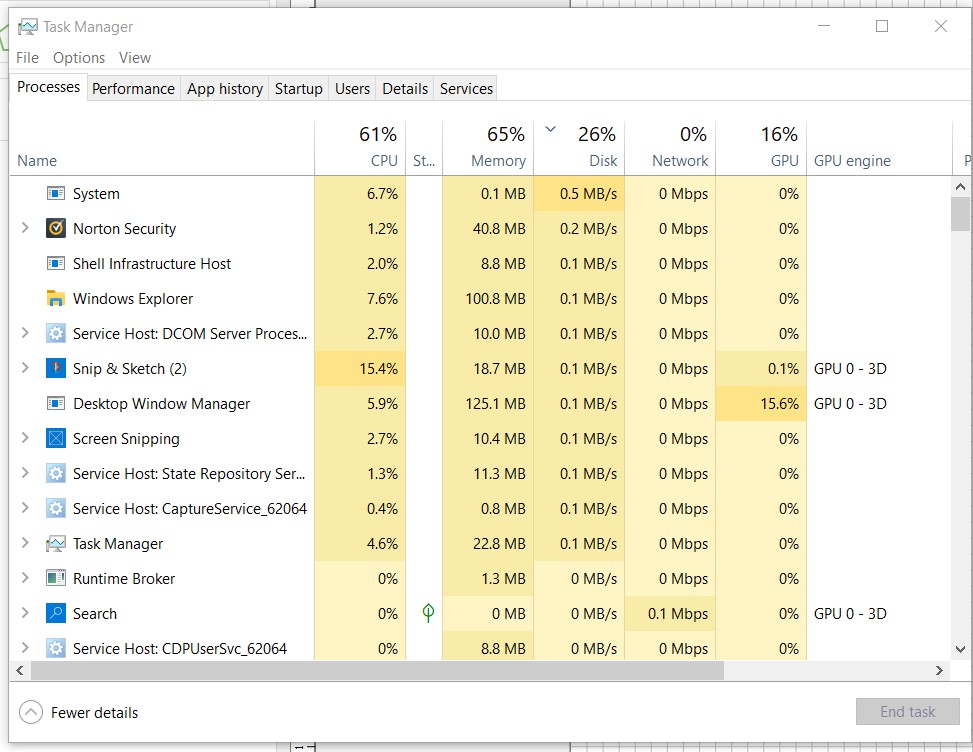
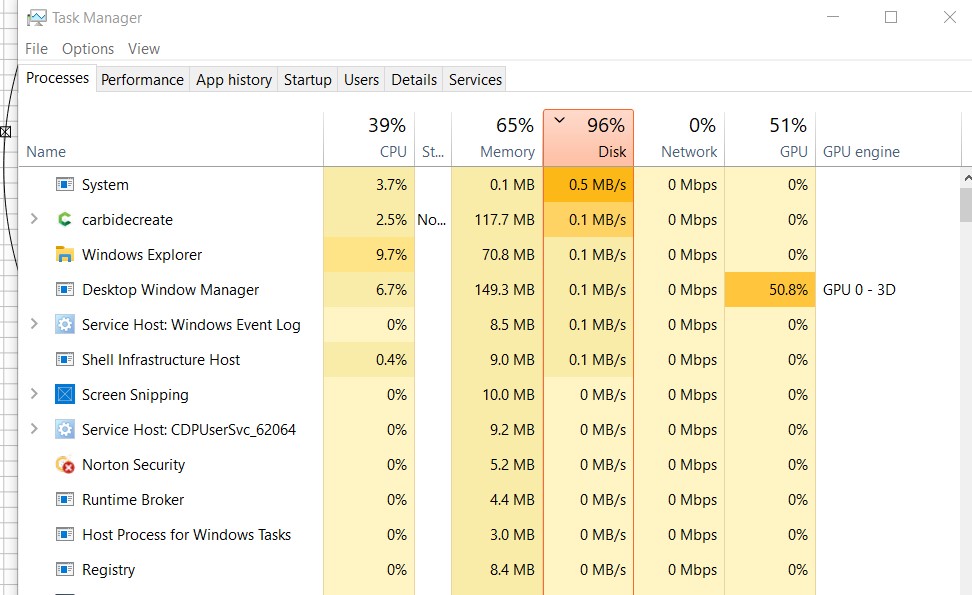
You can see that I get a spike in disk activity. I would have thought that CPU usage would go up but this is a snapshot that as soon as I hit save I jumped over to Task Manager and then to the Snip and Sketch Windows tool to capture the task manager window.
1 Like
here is the cc file.
HAWAIAN BBQ.c2d (2.4 MB)
This thread is getting quite long so something someone maybe have already asked.
I have bitsetter but sometimes want to run individual toolpaths. So in v7 you creare multiple toolpaths and disable all but 1 and save c2d file with unique name then repeat with other toolpaths until you have multiple c2d files. Then run each file with a single toolpath sequentially until all are done?
That would be the intended workflow. You end up with a series of C2D files to run instead of NC files.
1 Like
@robgrz
Have been using v7 in actual projects over the past few days and want to add my compliments to the chief/chef…The ability to save without having to generate GCODE files separately is really nice. Streamlines my processing immensely. Updating existing projects is simpler - just CTRL-S and everything is done. Very nice. I’ve had the need to save mirror images of designs, which normally would be GCODE files and I simply did a save-as and moved on. Very nice. Very clean. No confusions. (I am naming my “master” file with “master” in the title - so if I should come back to it some time from now, I’ll know which file to edit).
Good change.
Not sold on toolpaths on layers YET…but maybe some day you’ll win me over with that one. In the meantime - PLEASE get rid of that dialog box every time I want to create a toolpath…PLEASE.
- Gary
5 Likes
Issue opening c2d file on a Mac (macOS 12.4) as follows:
Nothing is loaded in CC v7 beta by “double clicking” on the file name via Finder window. However, the file will load properly when using the “File–>Open” dialogue within CCv7.
tourist info: the file c2d was created with ccv7 and ccv7 opens when the file is ‘double clicked’, so the file-to-app association is correct.
Pattern etching tool paths in the new CC are incomplete.
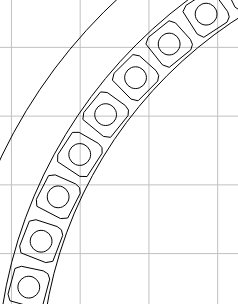
This is what it should be:
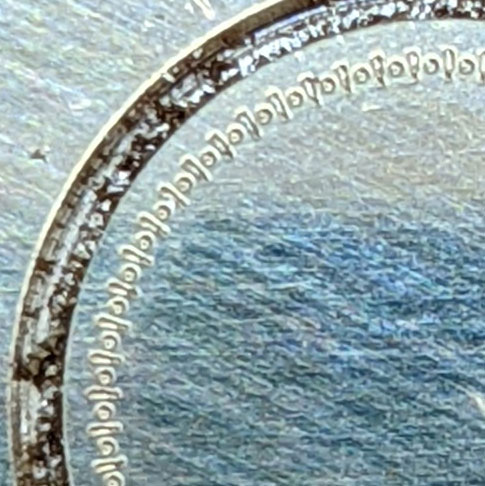
This is what it’s creating:
Single Test Issue New.c2d (160 KB)
There are some tolerance values built into CC that are used to reduce the toolpath density and other calculations. I suspect that since the circles are .3mm and then those are inset further by the tool radius, the toolpath points are collapsing onto each other. This is a good test case to evaluate changes but I’m not sure when/if we’d change those internal values.
EDIT- Also, always look at the toolpath simulation to see the real path. We have to further reduce the toolpath in the 2D view to keep the display from bogging down. This is purely a visual thing, it has no effect on the actual toolpath in the machine and the simulation toolpath is always correct. Your file looks much better in the toolpath simulation view.
1 Like
Thank you for your quick reply.
I’m afraid I don’t understand what you mean when you say " This is a good test case to evaluate changes but I’m not sure when/if we’d change those internal values" ?
The tool paths for this same pattern work in the previous iteration of CC. Do I need to roll back?
Oh, I’ll have to take a look at that. I don’t recall a change that should have this effect but I’ll see if I can duplicate it.
3 posts were split to a new topic: Issues cutting concentrically
So, looking into it, you have MC Etcher defined as .127 mm in diameter and the distance between the bottoms of the two adjacent squares is .126mm, so the cutter cannot fit and the shapes will be merged. You should probably change the offset from “Inside” to “No Offset” to get what you’re looking for.
I agree with WIll that the lack of concentricity is likely due to flexing somewhere, or play in the tip of the drag bit. You might find that repeating the toolpath twice but using a lower pressure will change the outcome.
1 Like
Rob, thank you for pointing this out. I must have forgotten to set the Offset to “No Offset”.
This solves the etching issue.
I would be extremely grateful if you could, however, have a look at the concentricity issue that Will Adams has moved to it’s own thread here:
(Issues cutting concentrically - #6 by WillAdams)
Much appreciated,
Gunter