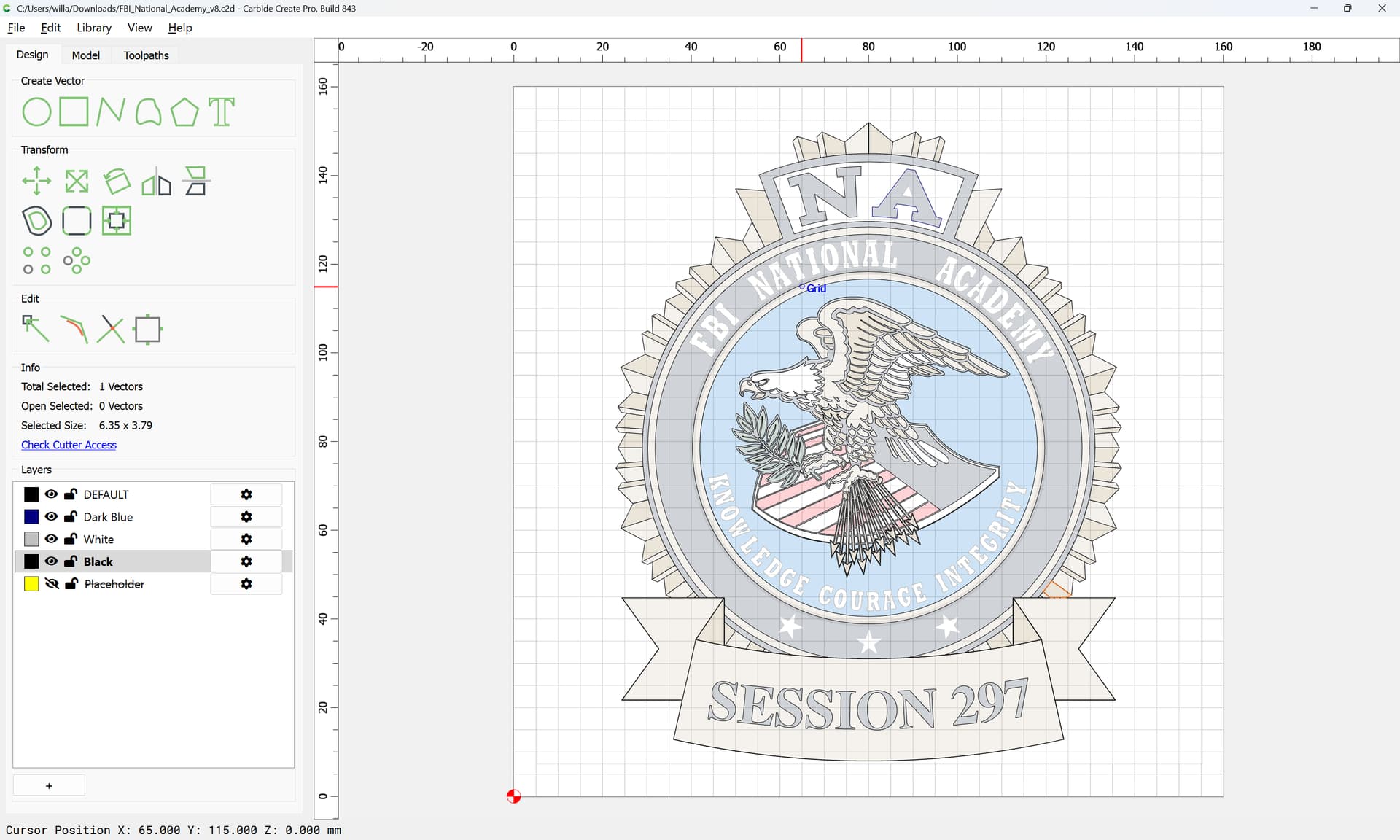
I am trying to make this file work for a flag and it won’t convert over to a clean file.
I am trying to make this file work for a flag and it won’t convert over to a clean file.
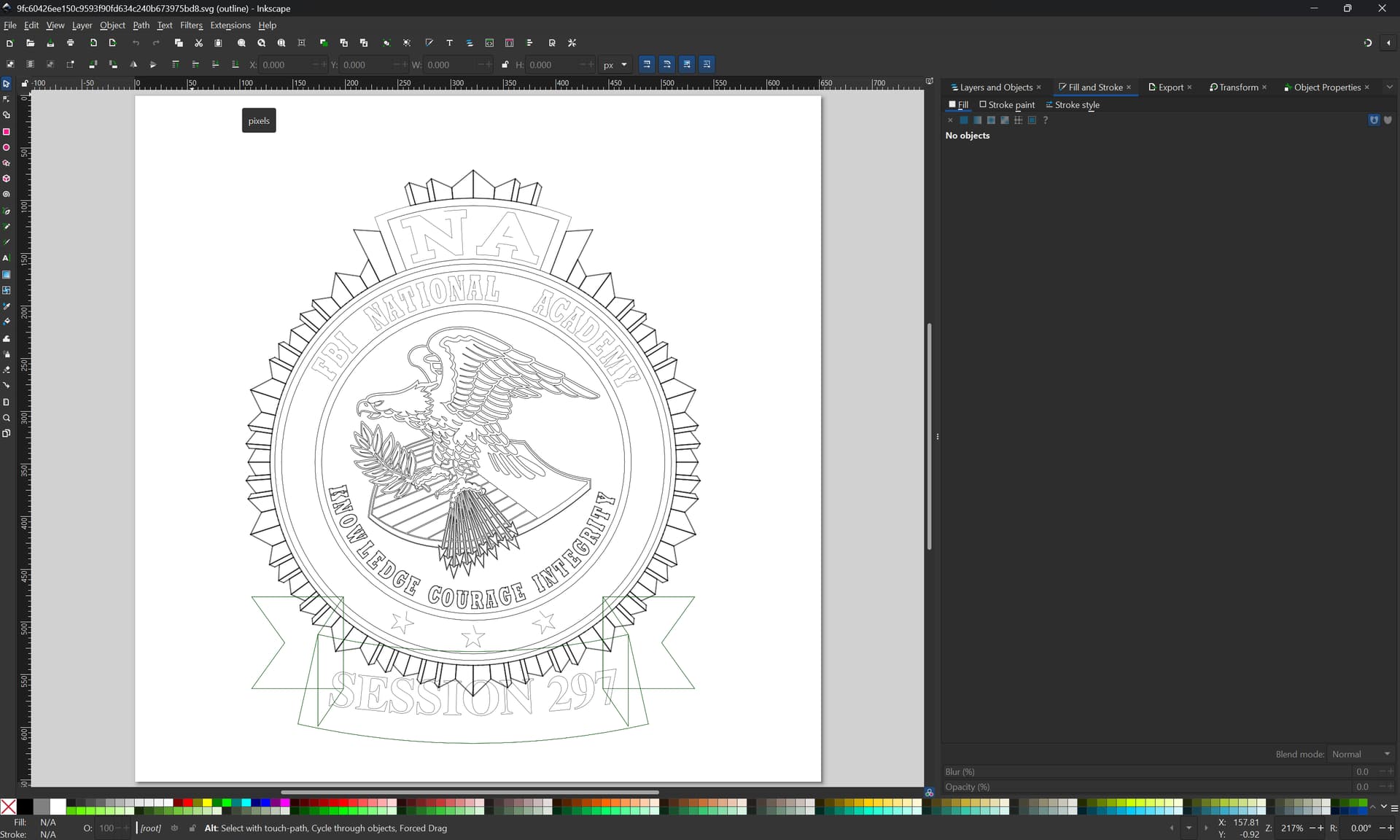
The file in question is an SVG:
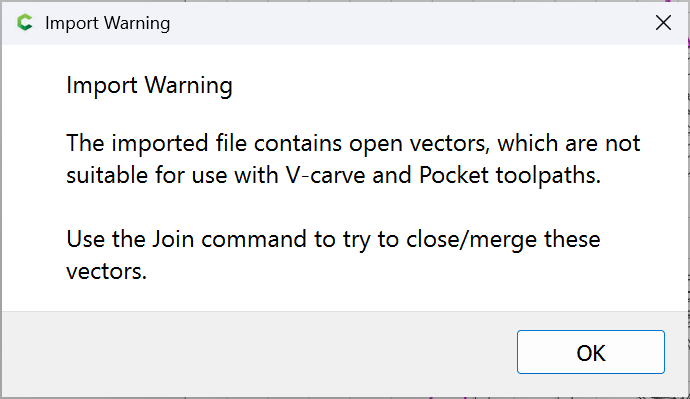
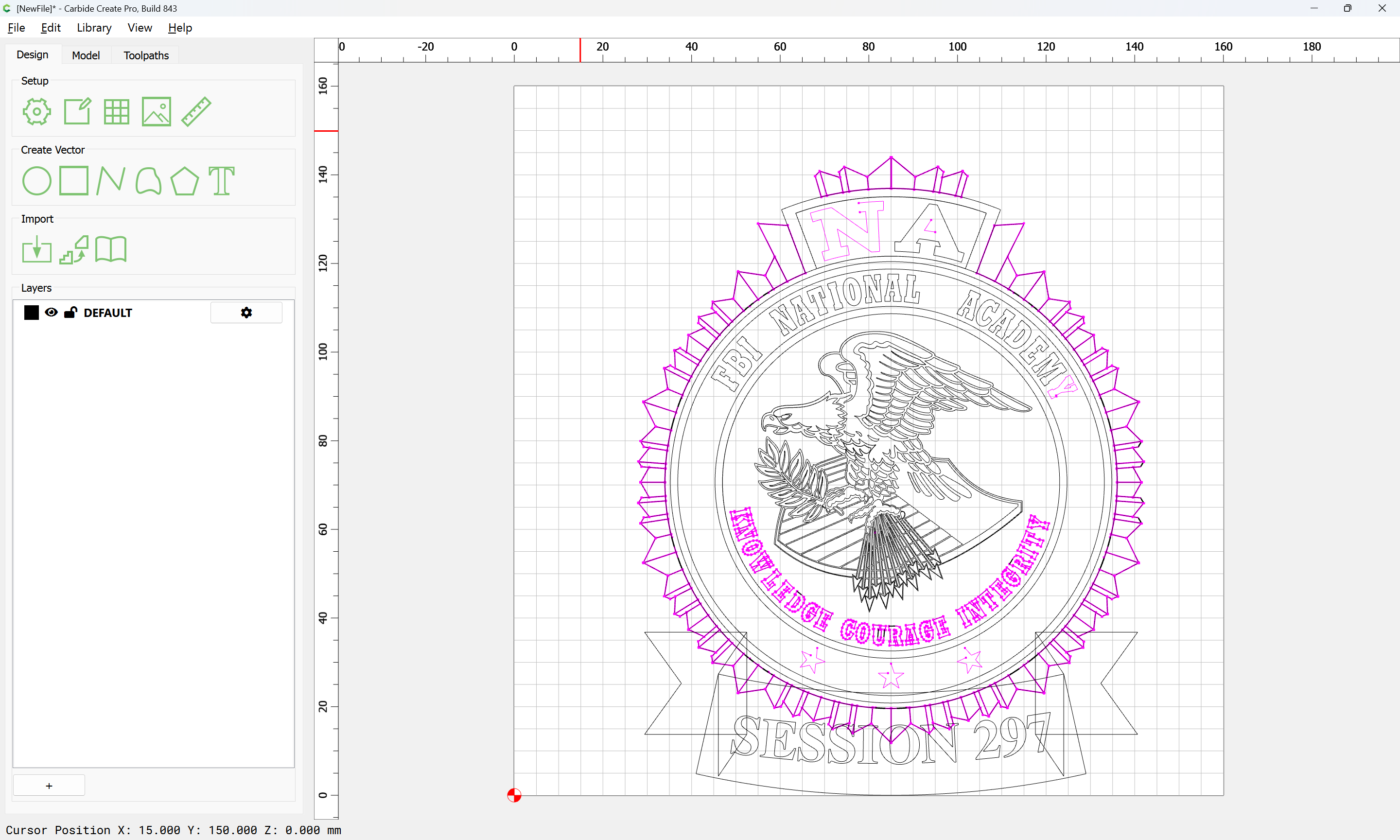
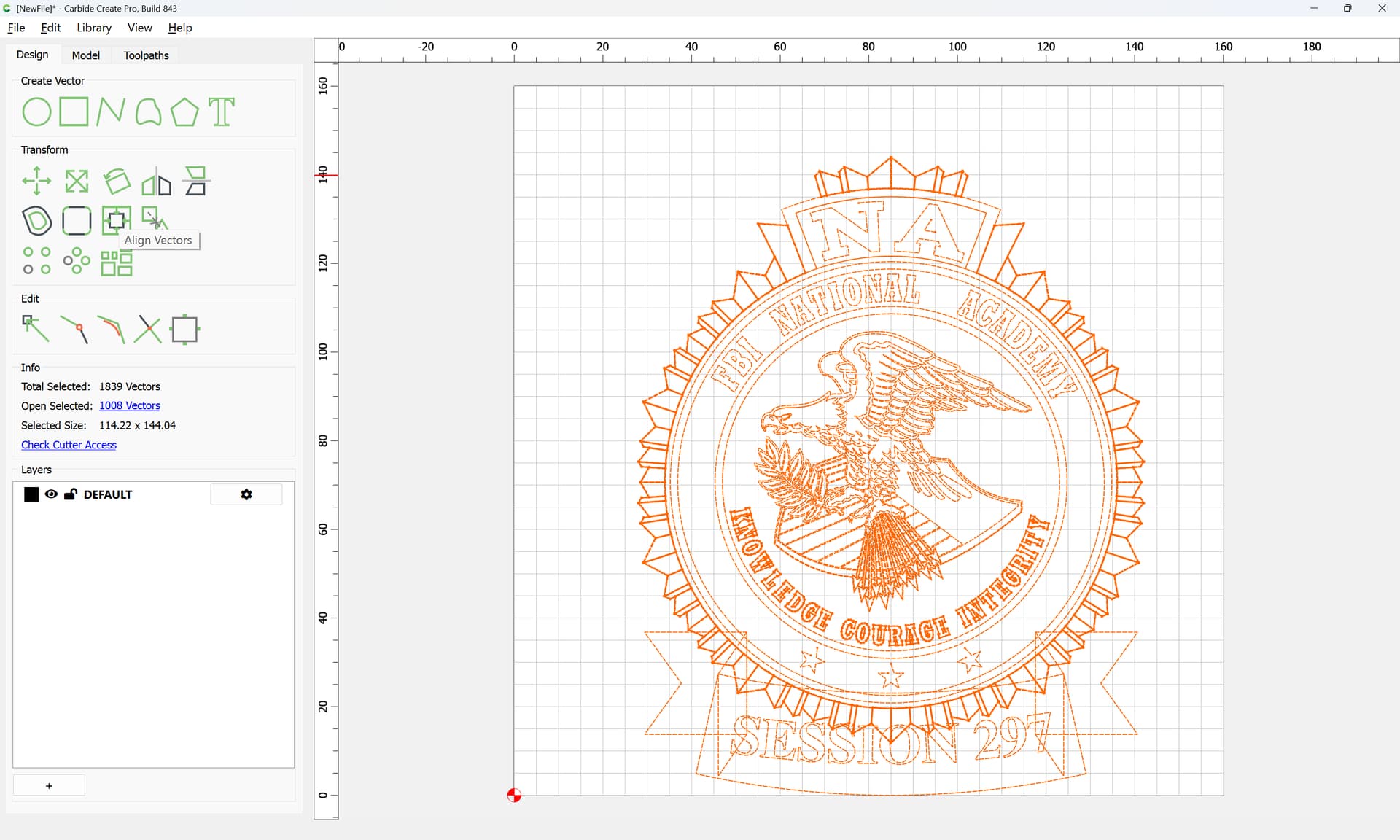
so should just import, though it does so with this warning:
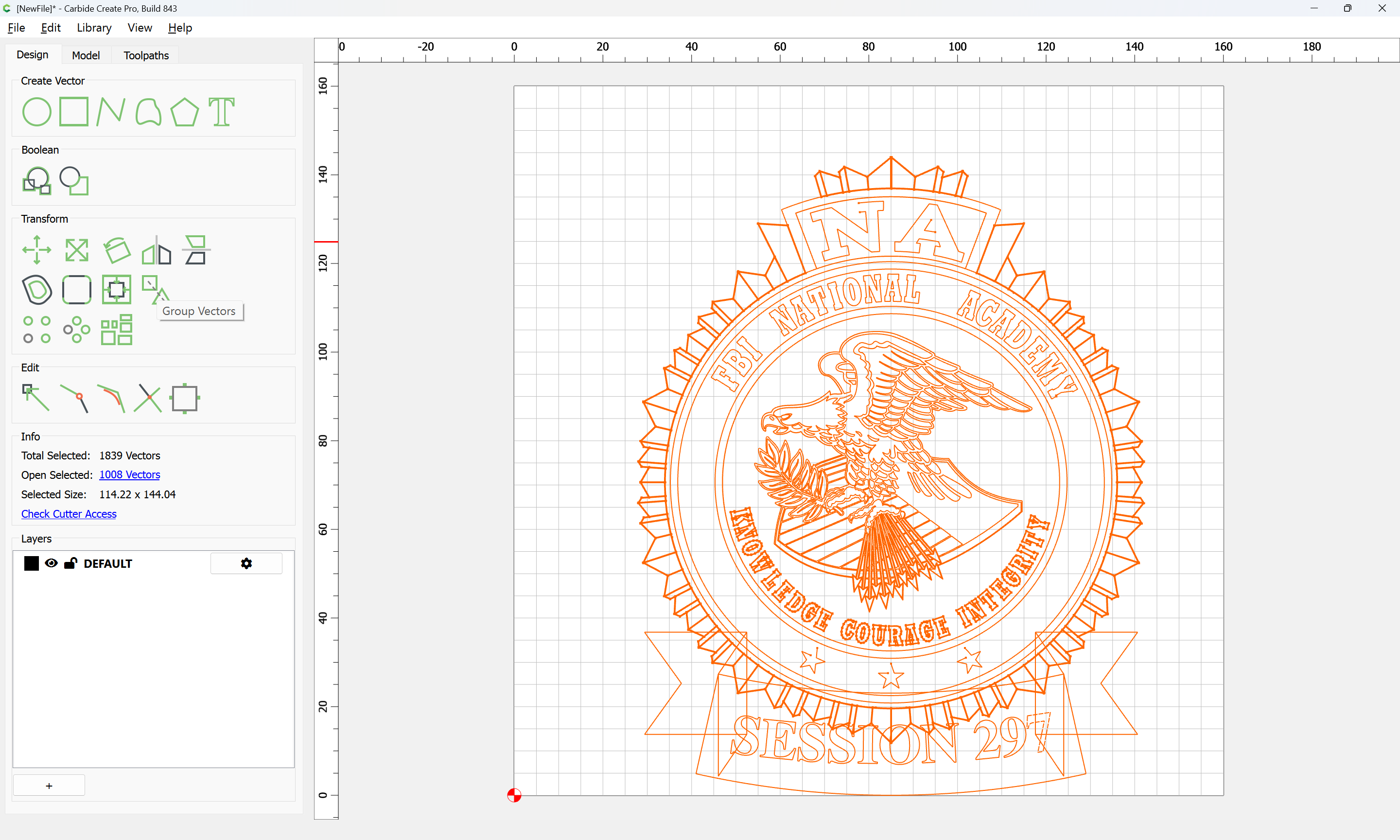
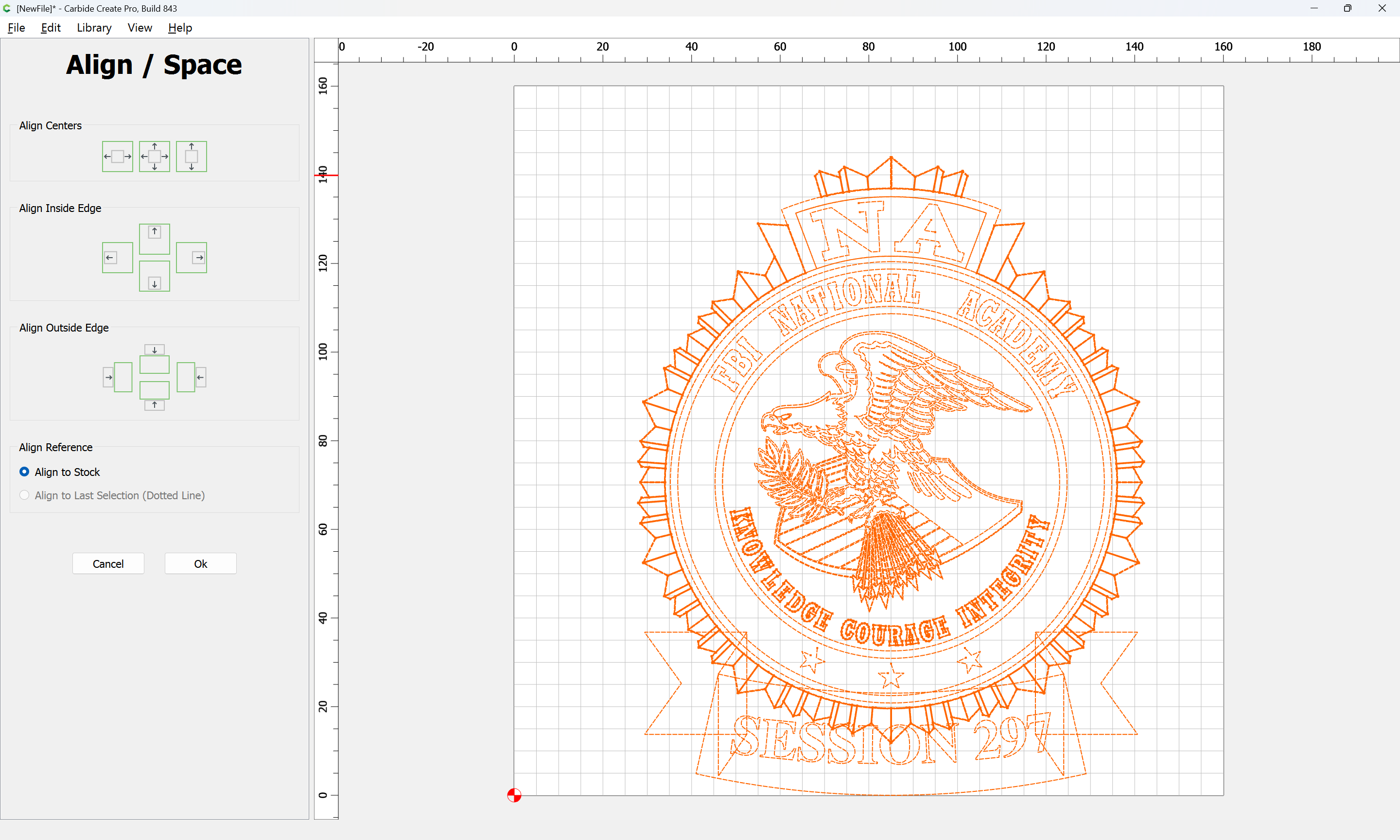
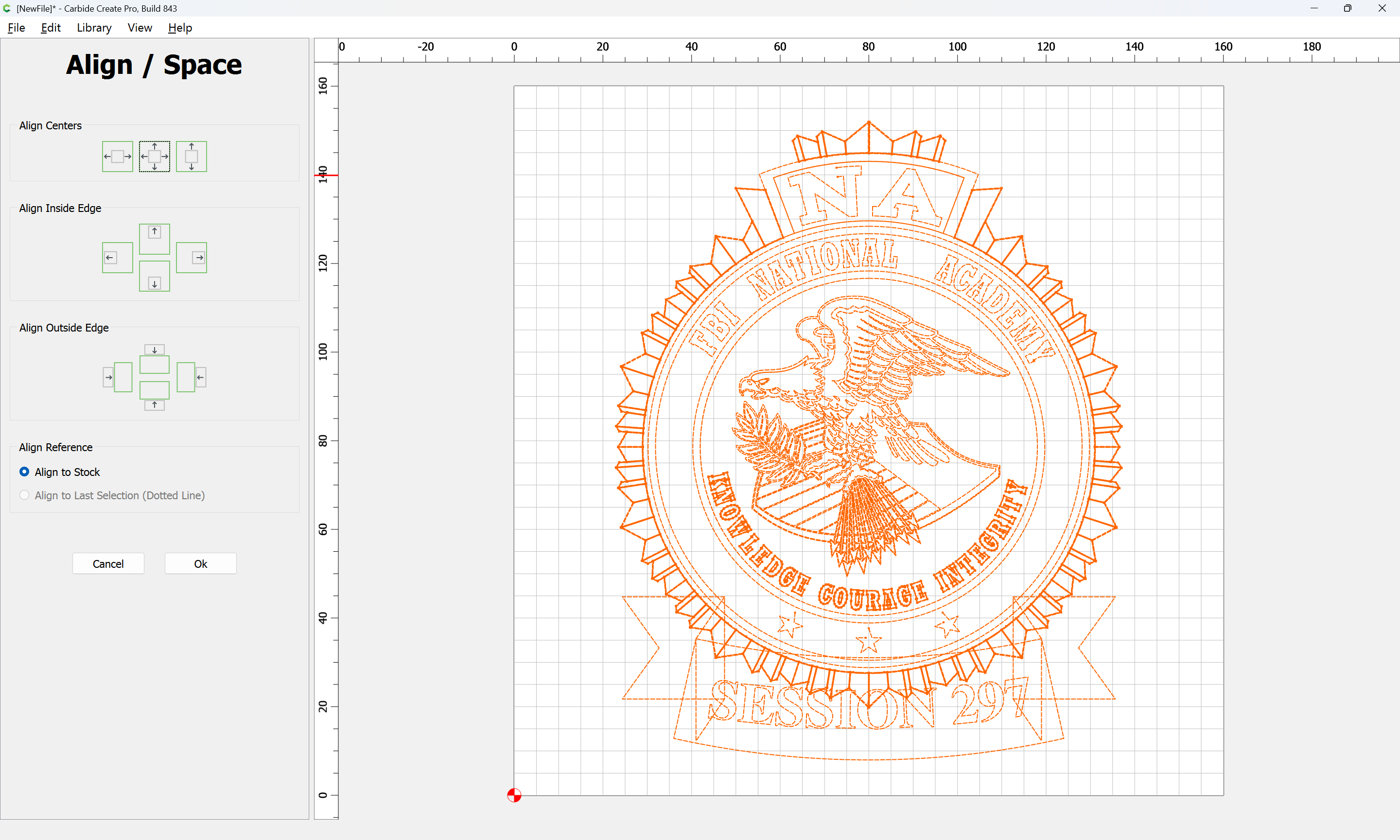
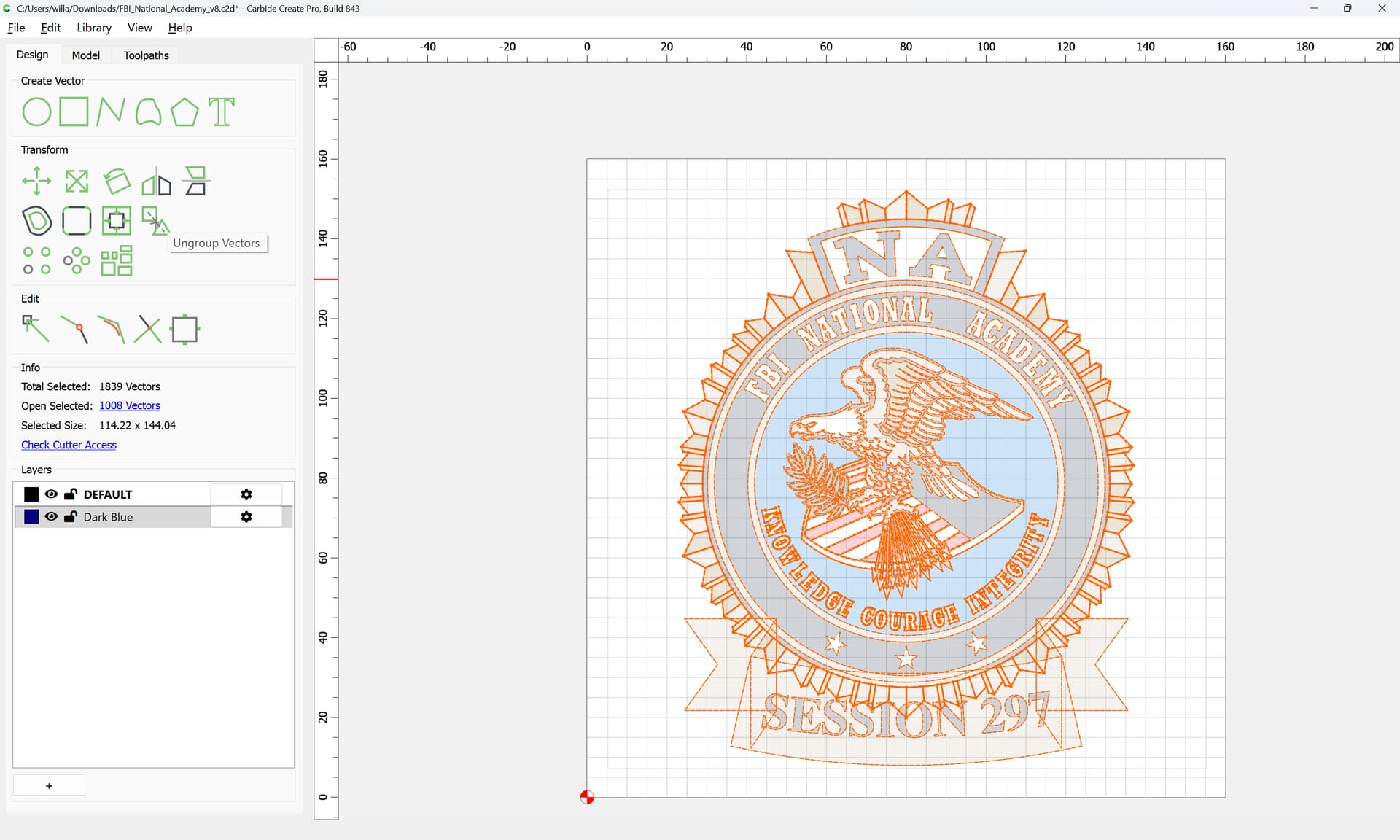
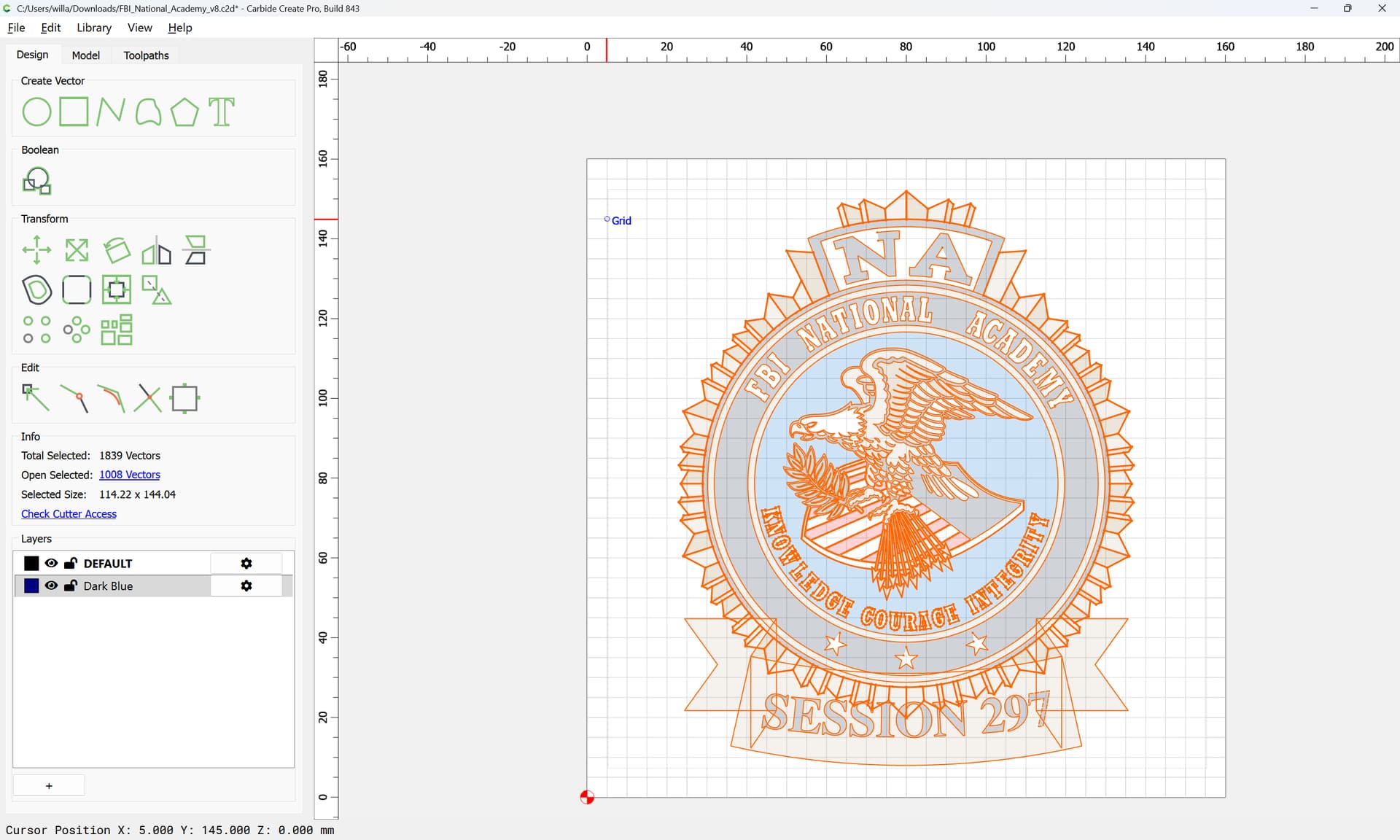
Grouping everything, we can move things to the center of the Stock:
Ok
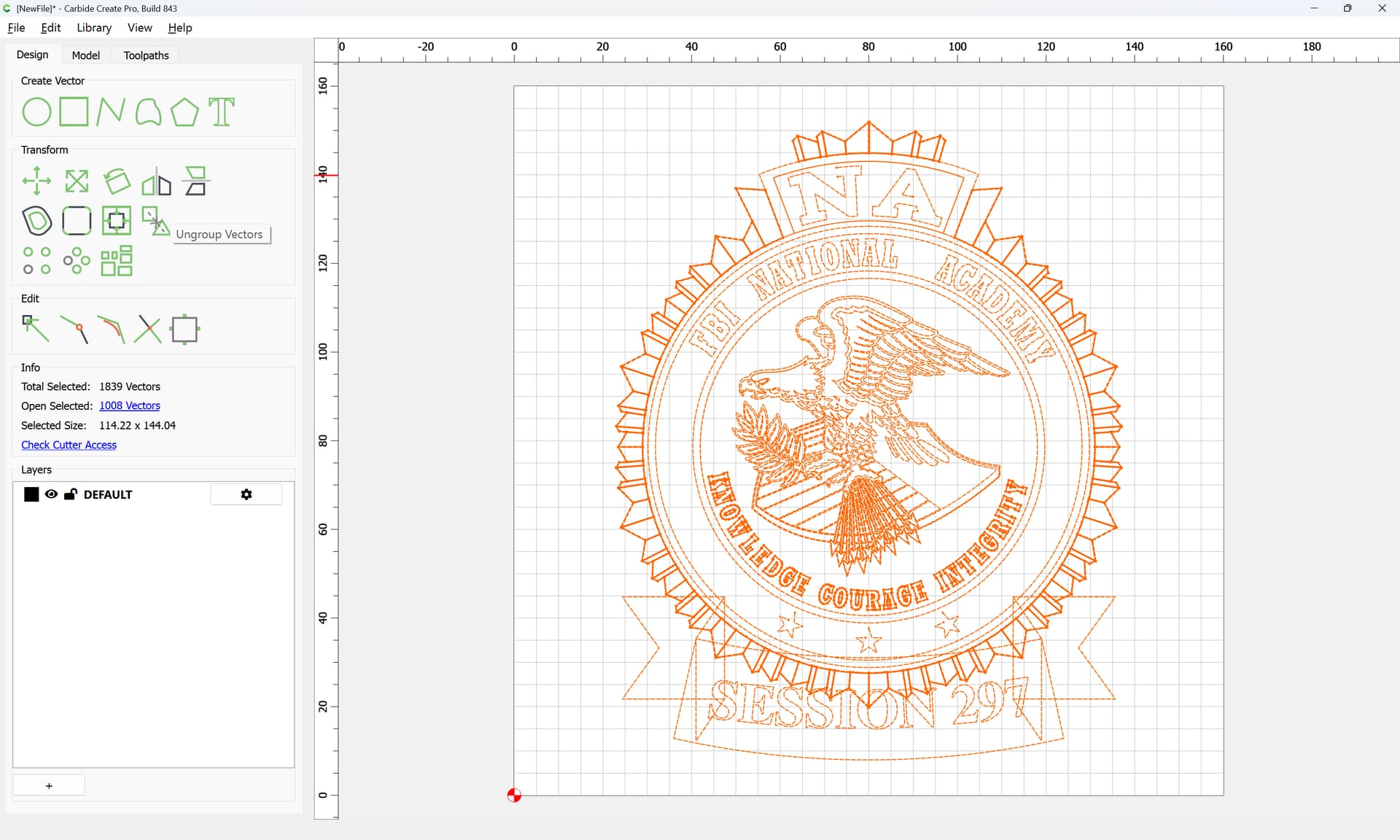
and we ungroup.
To make things a bit more manageable, we export a pixel image of the file, though the attempt at doing this:
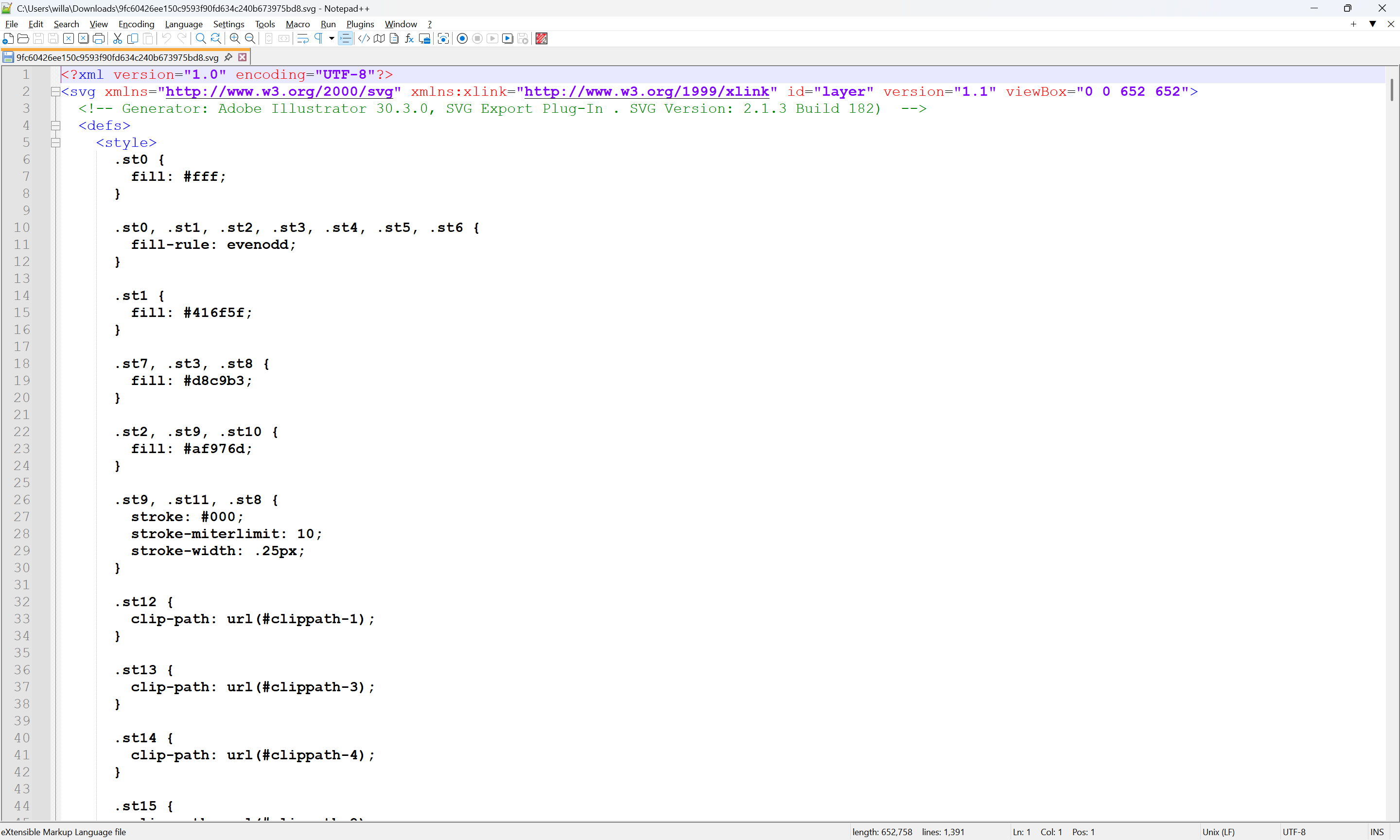
shows that it was made with Adobe Illustrator:
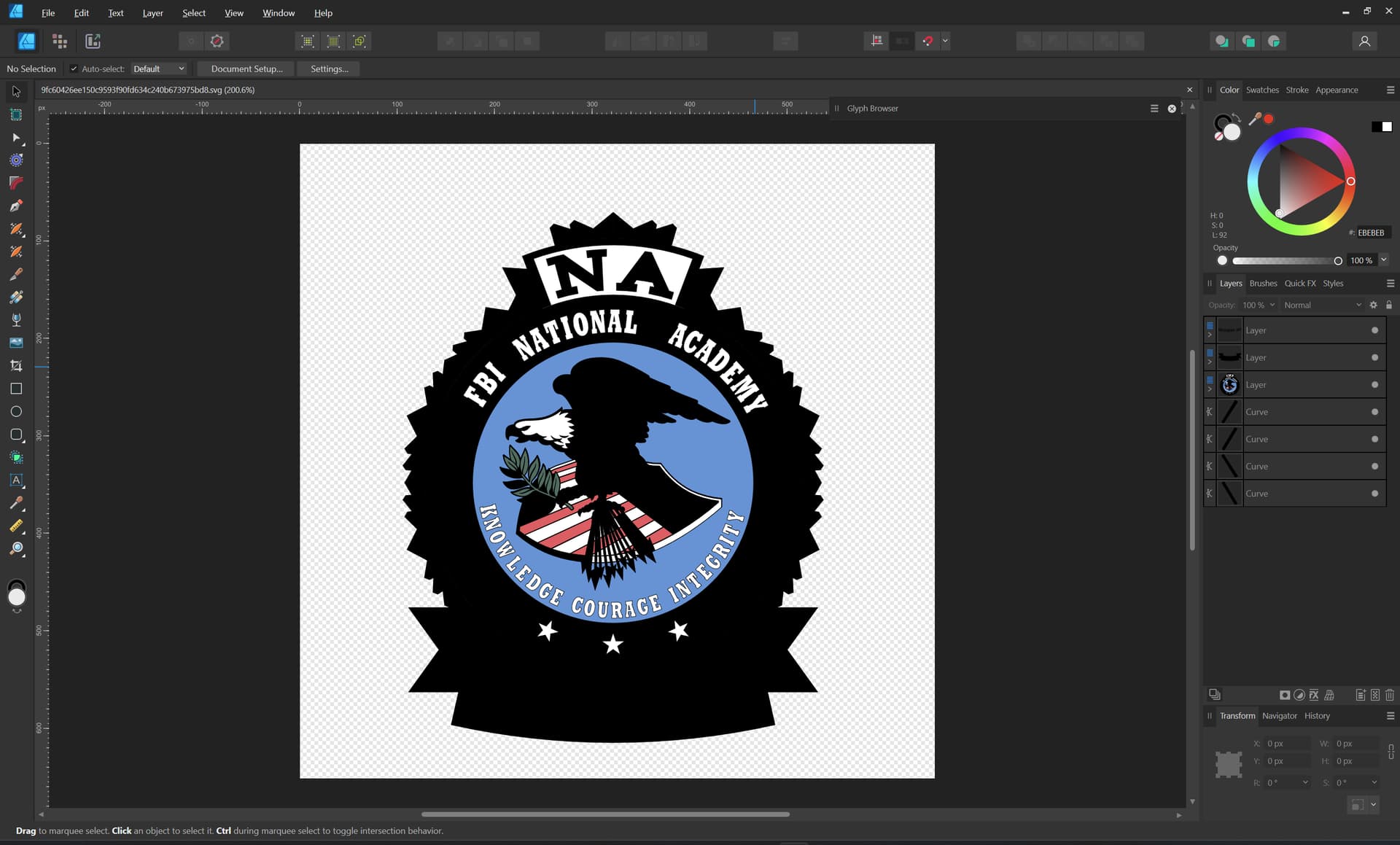
So, we use a screen grab from Inkscape instead:
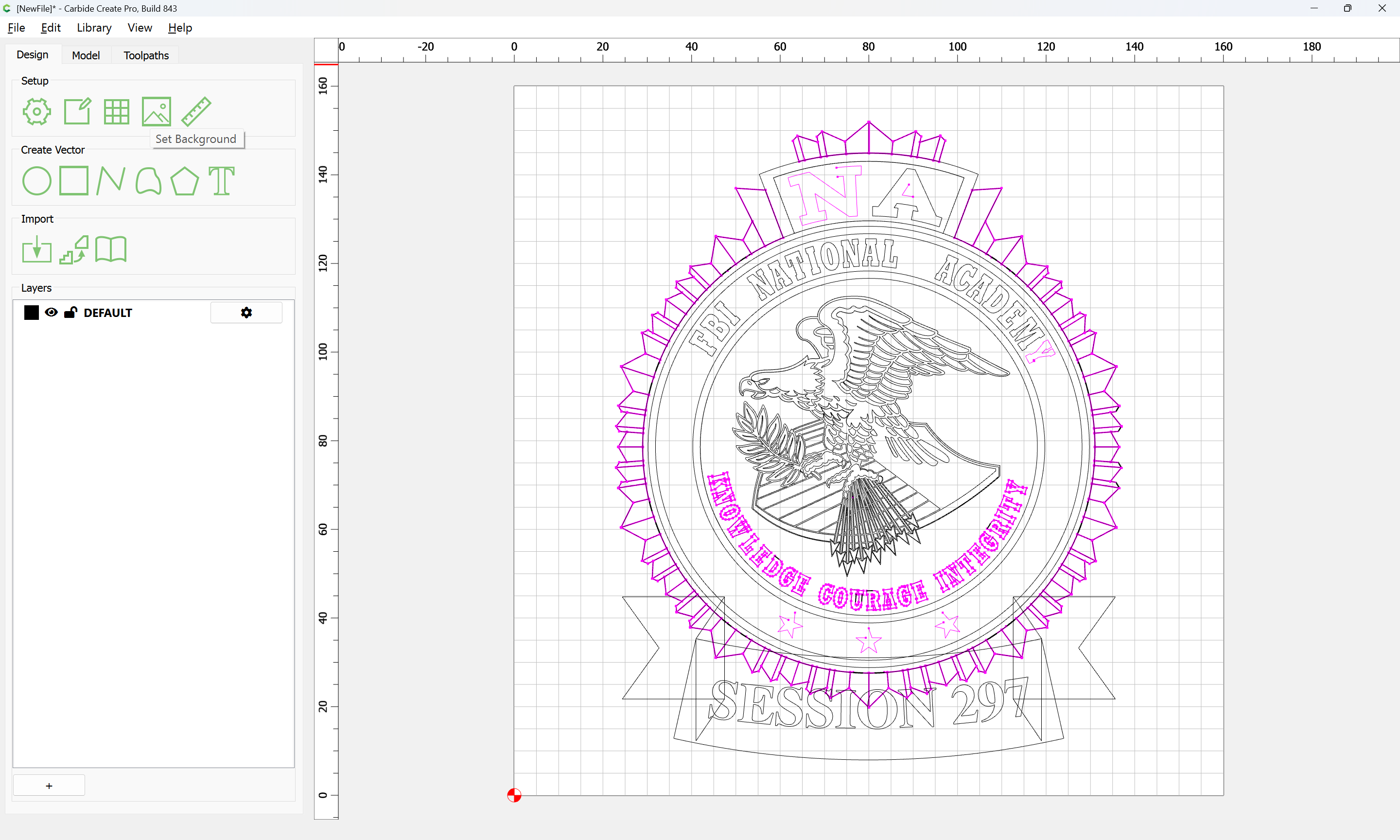
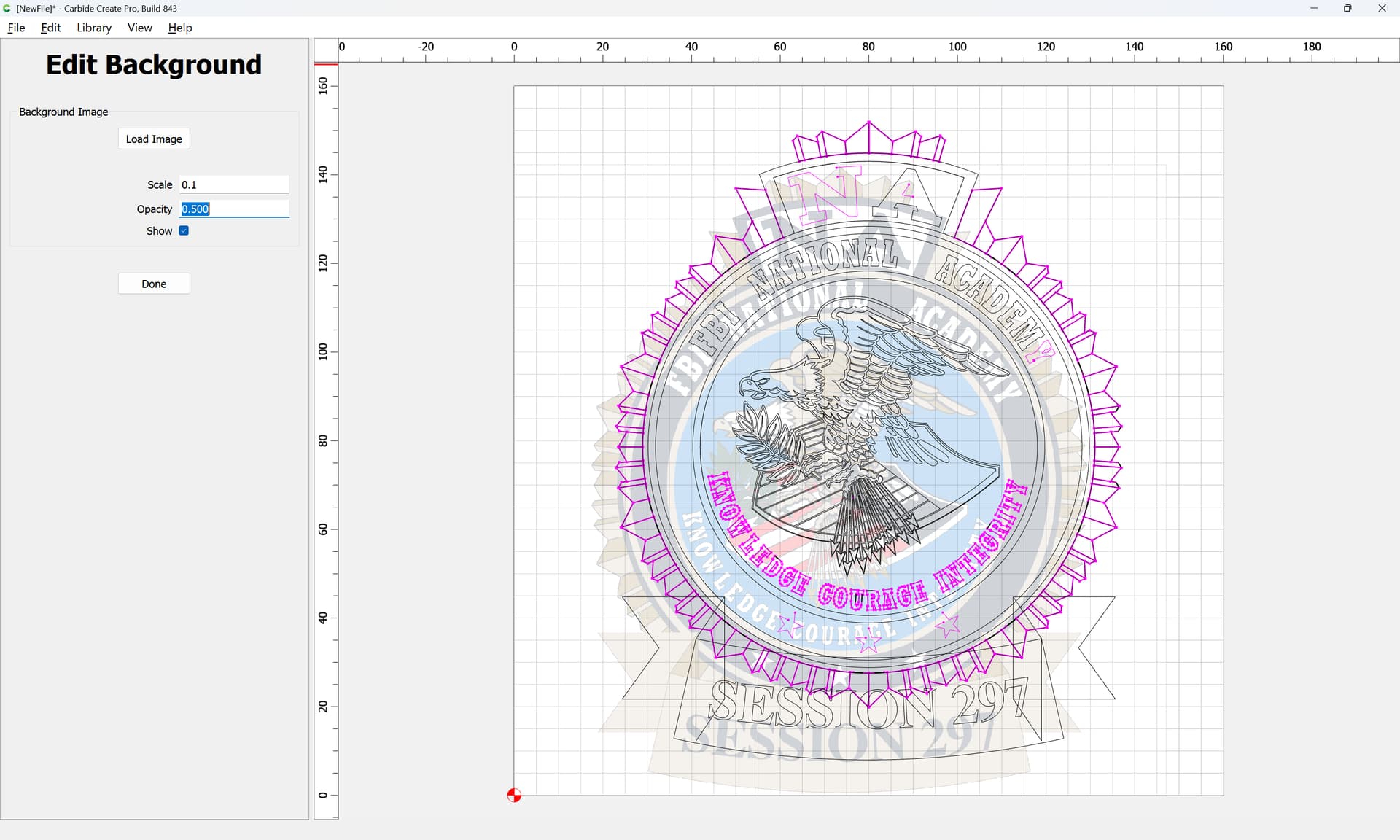
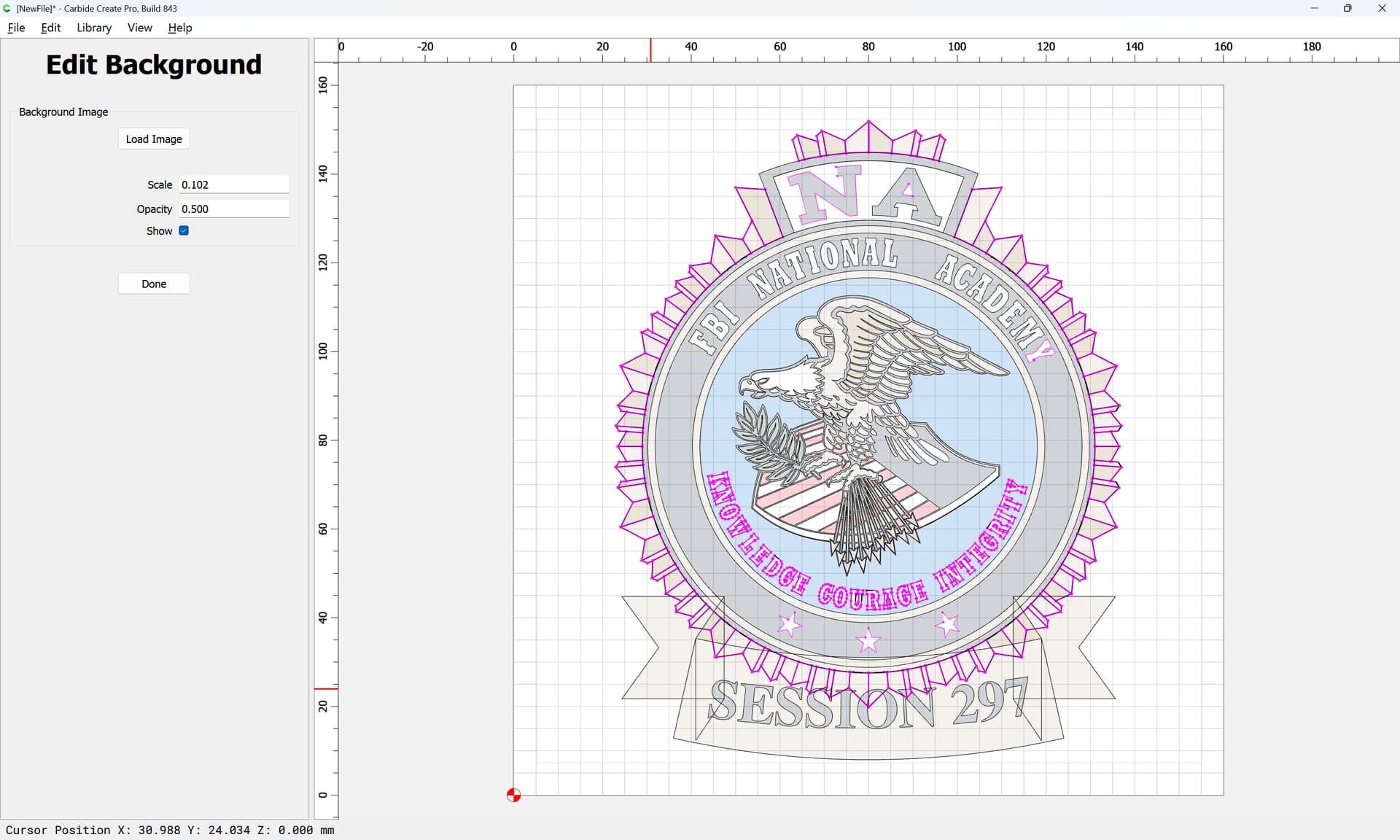
Set Background
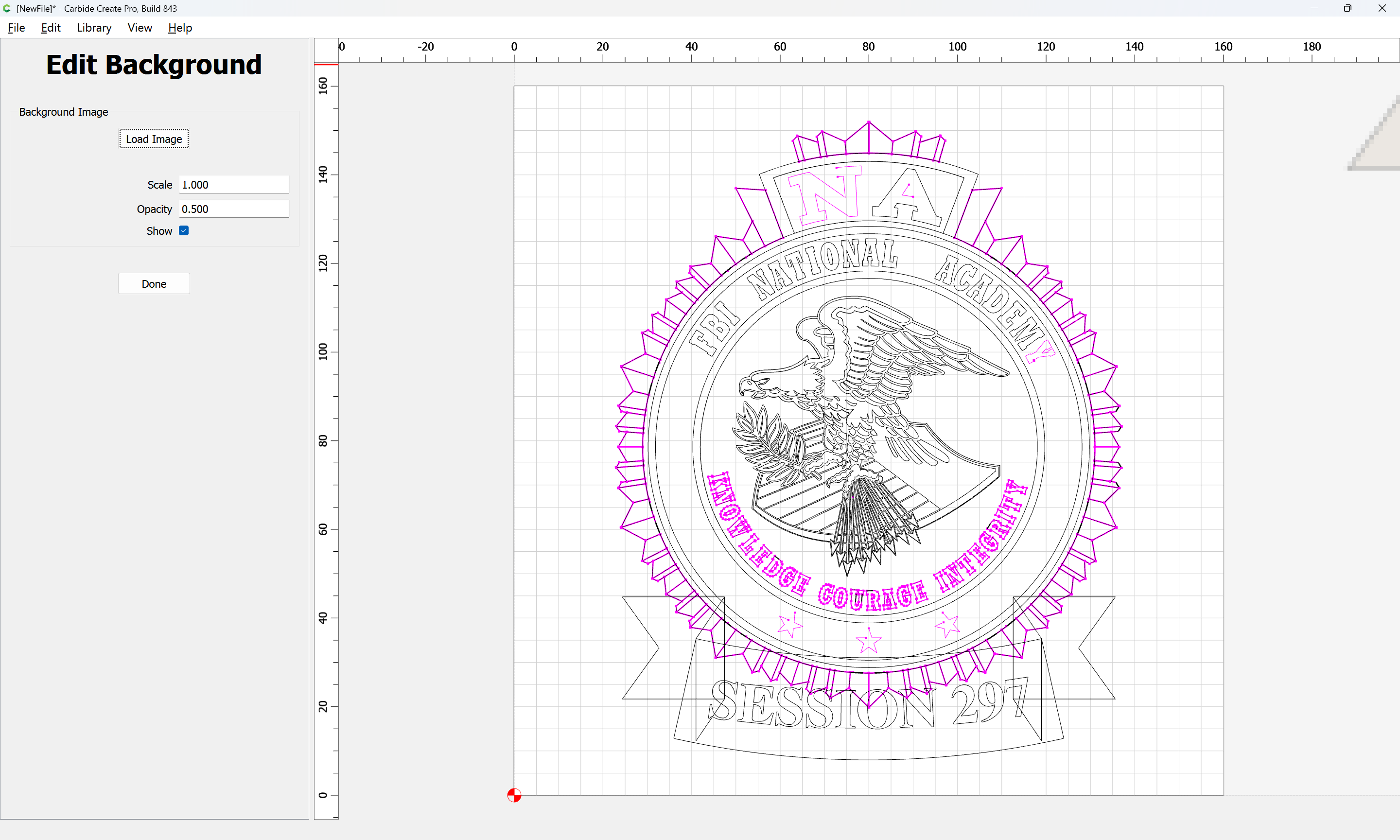
and adjust until things line up:
then it’s just a matter of fixing things.
Strategy:
Probably, you’d do much better with a monochrome version of this file, ideally one made using a graphics program which does not allow unclosed regions to be filled as Adobe Illustrator does.
Attached as a v8 file.
FBI_National_Academy_v8.c2d (3.9 MB)
This is the stuff I have to learn. It’s much more difficult for me, because I really don’t understand exactly what you mean.
So should start selecting lines and deleting them and then use the Boolean to get the layers right?
In addition to the video training at:
I wrote up a bit at:
and
and you may find a text such as:
helpful
As noted, there are just a few things which need to be done here (if you can’t source a file which was made by a competent illustrator):
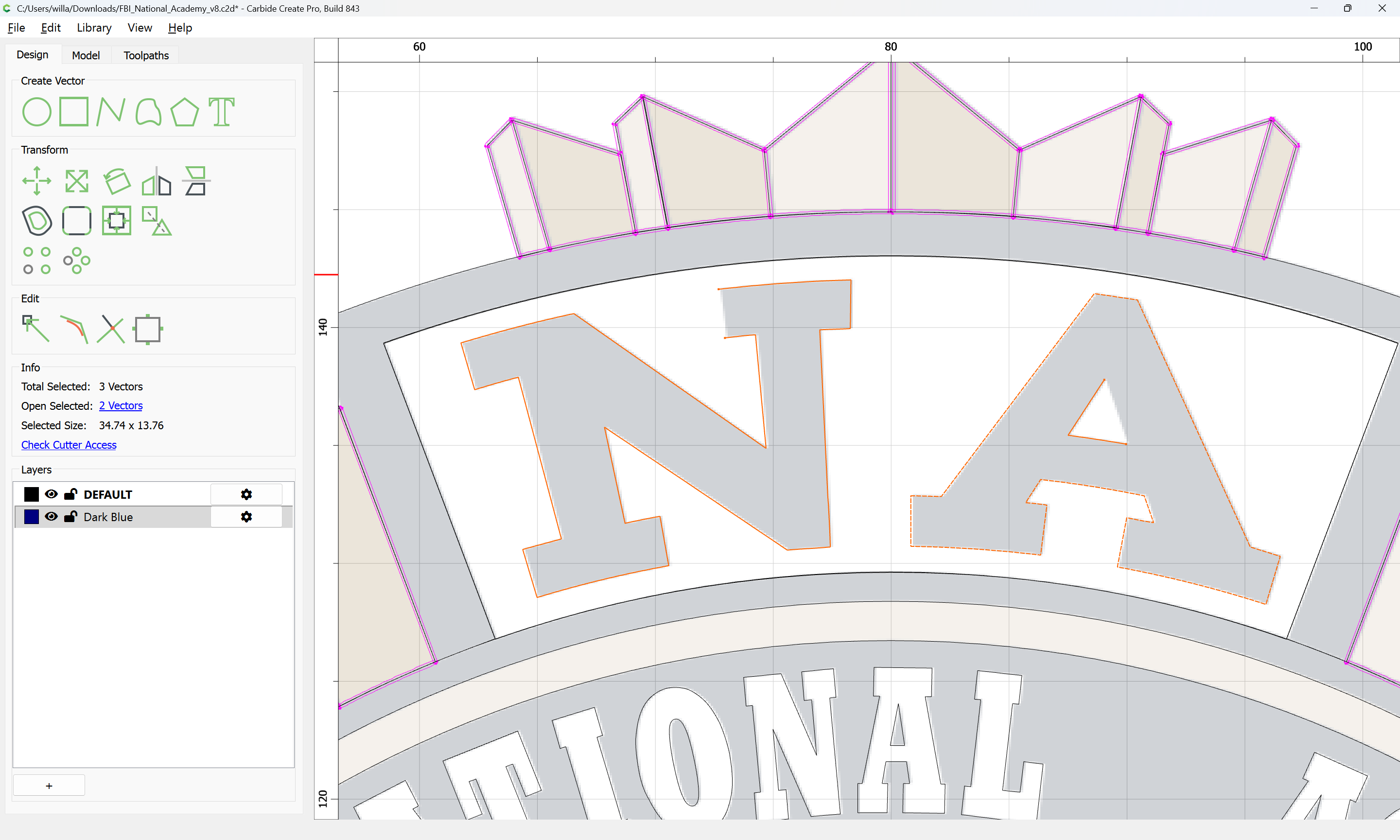
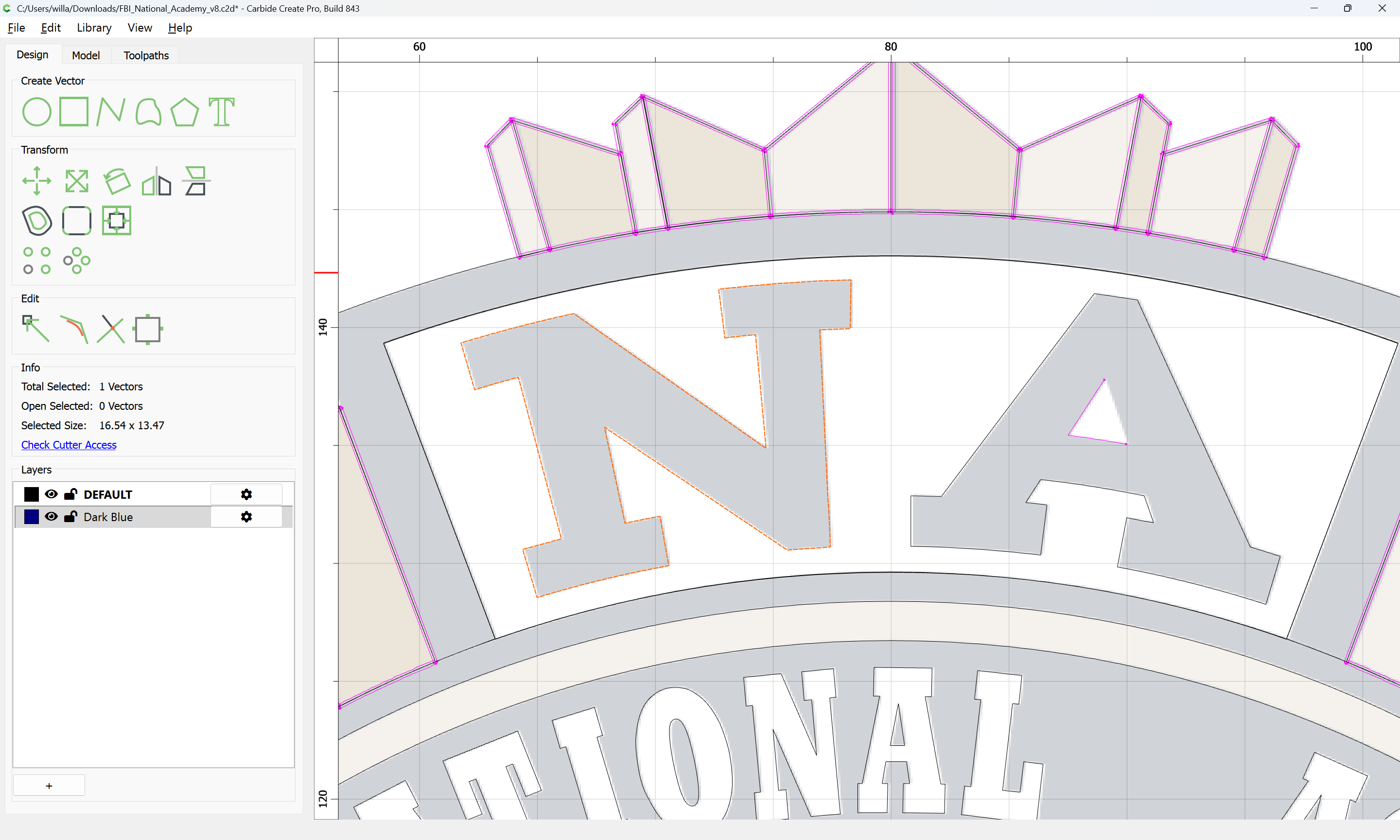
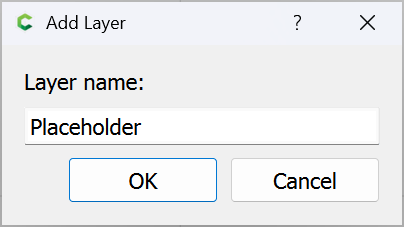
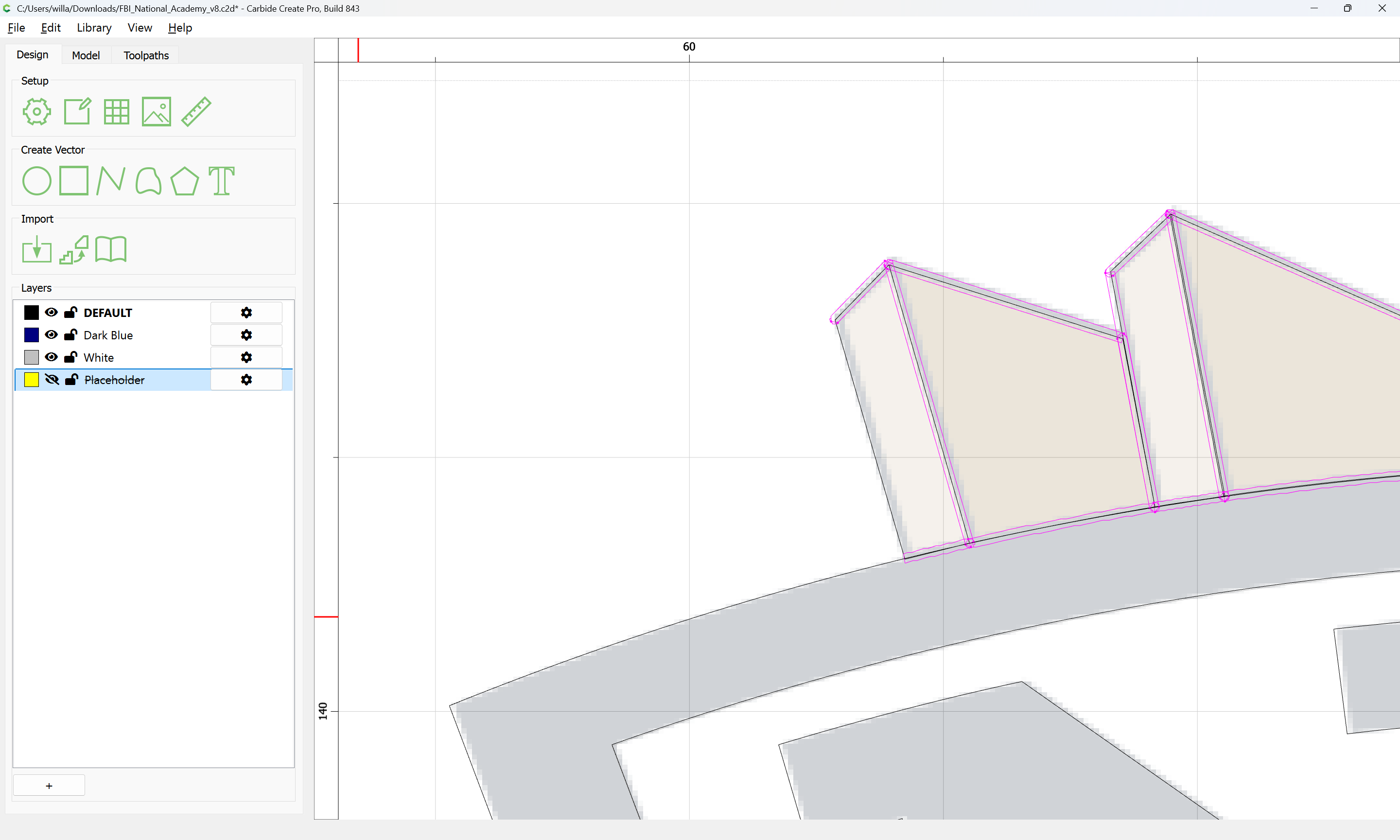
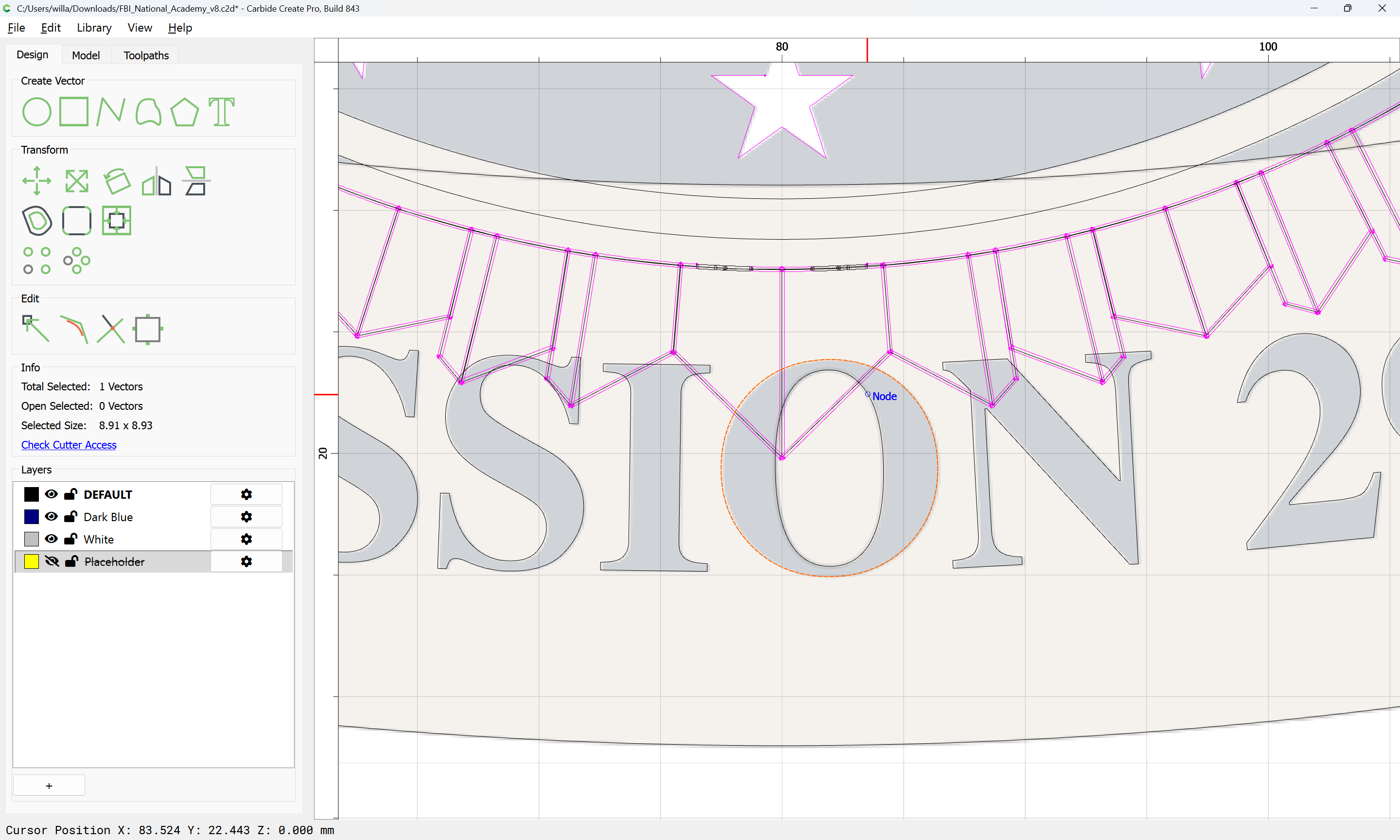
Where extraneous geometry occurs, delete, or move to a placeholder layer:
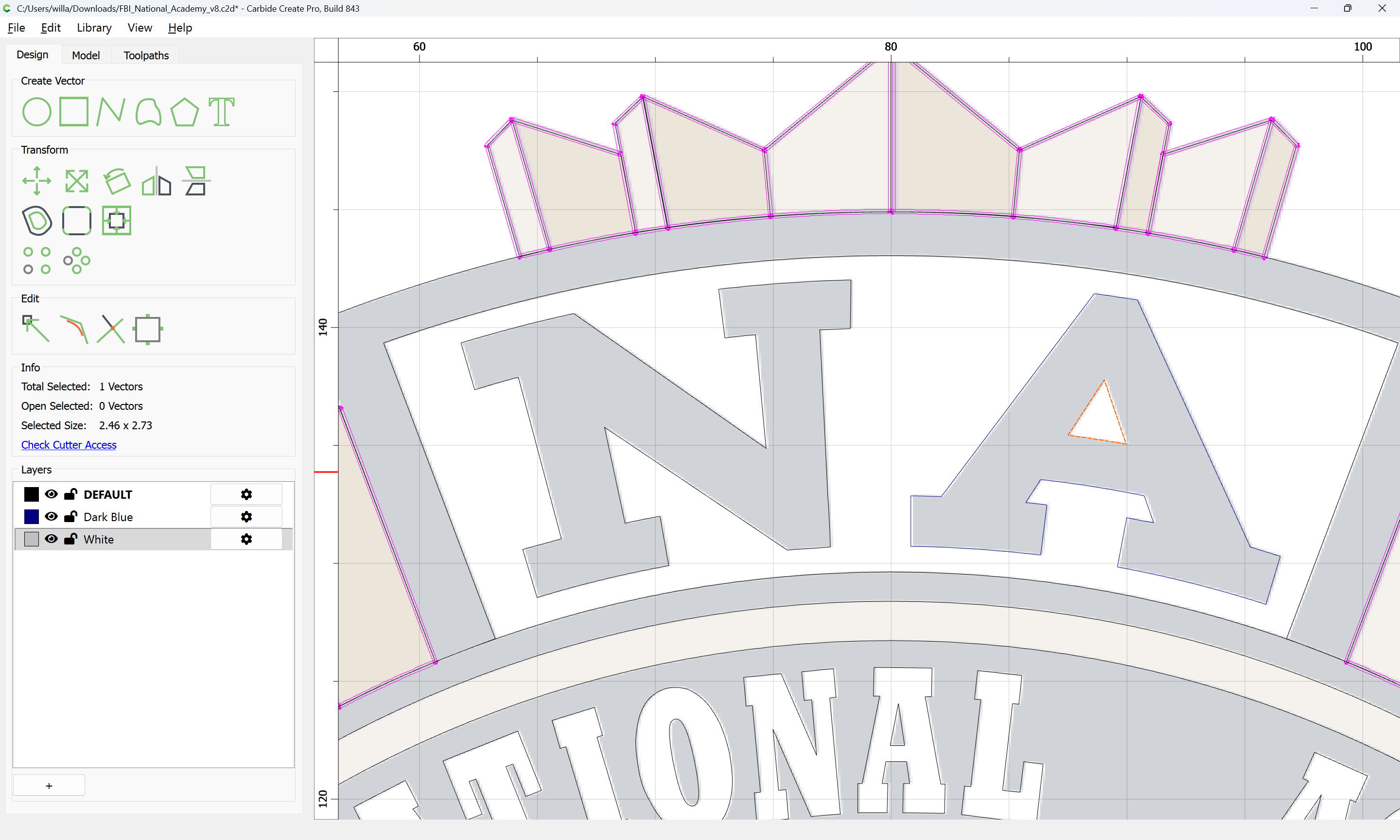
Where elements which should not cross cross:
Select:
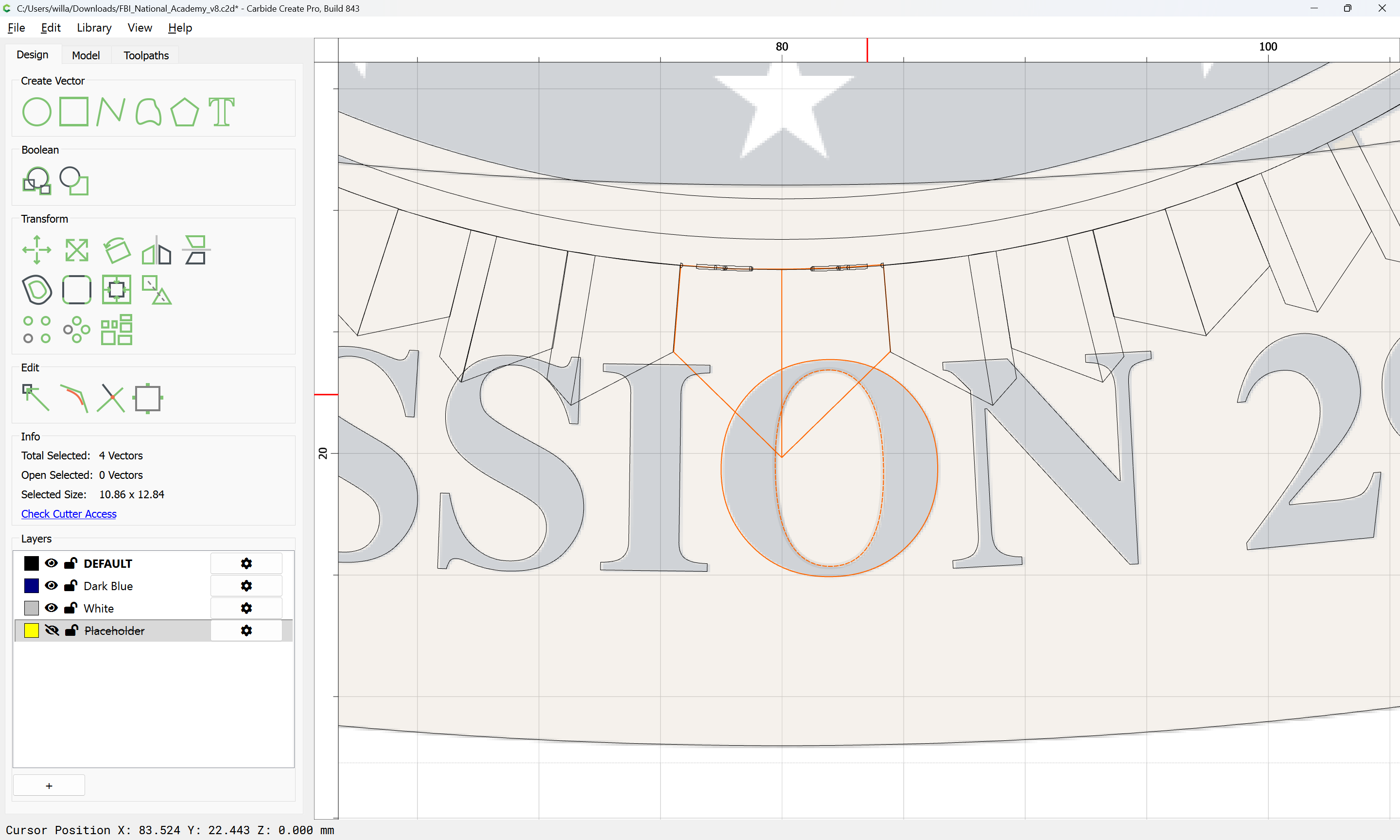
Duplicate in place by copying, then pasting with the cursor outside the drawing area:
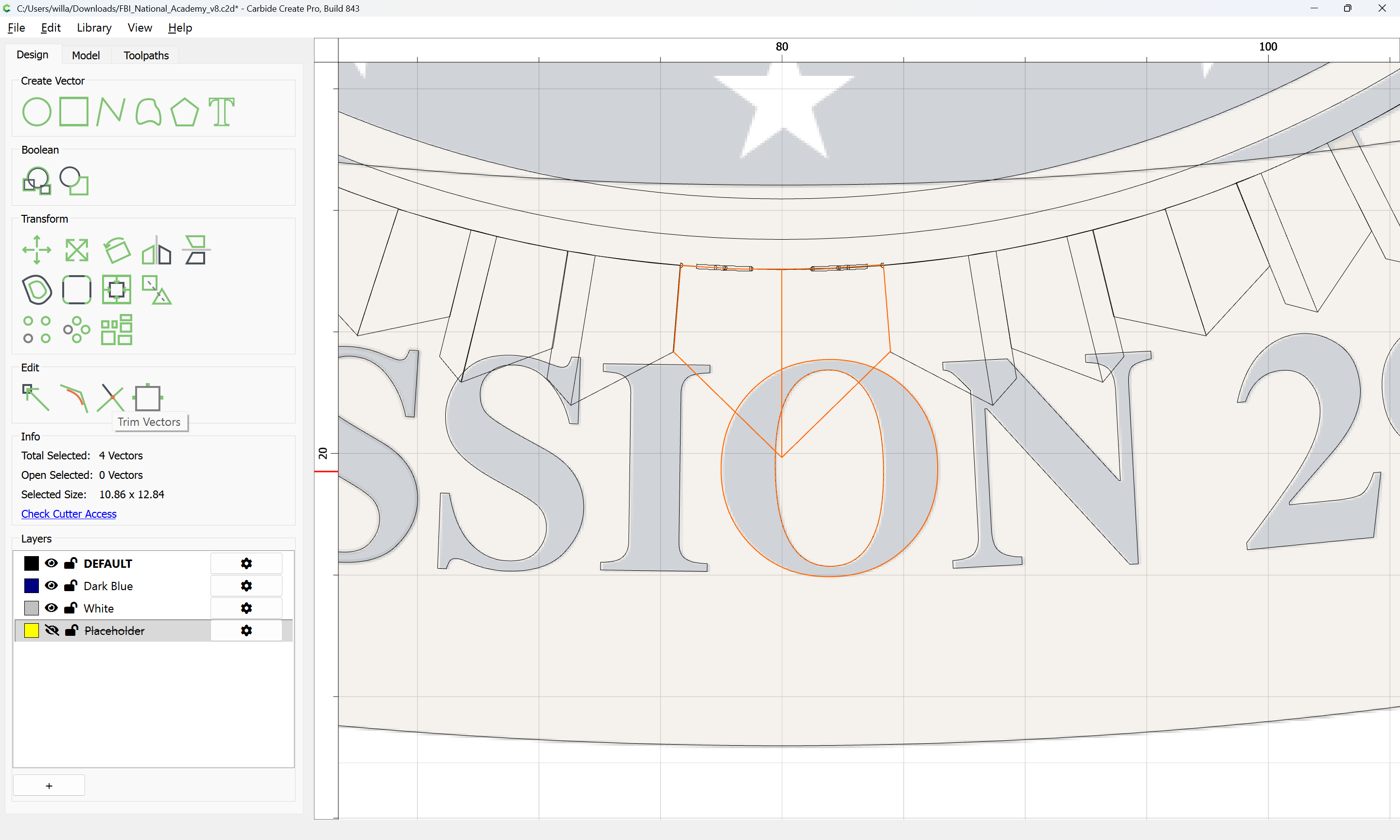
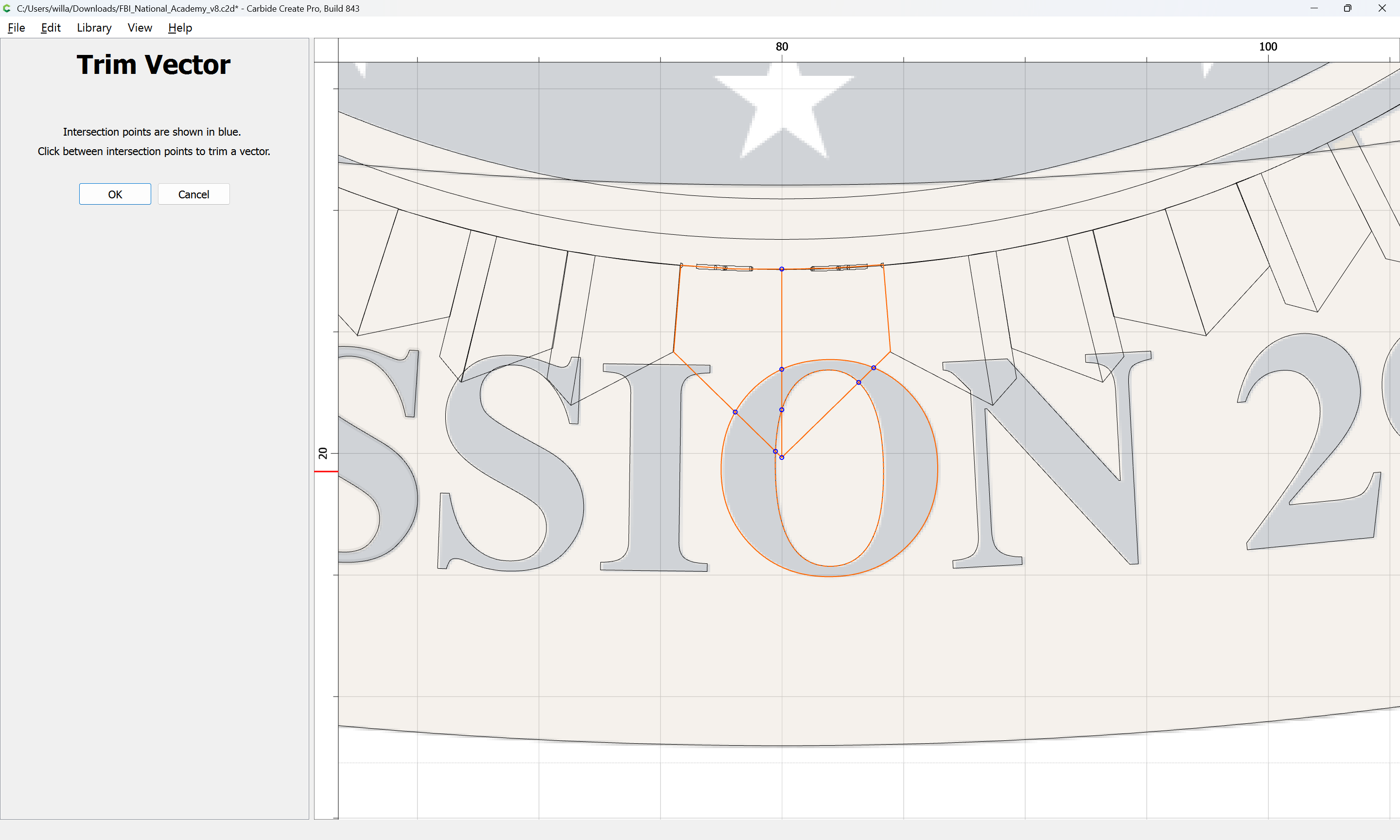
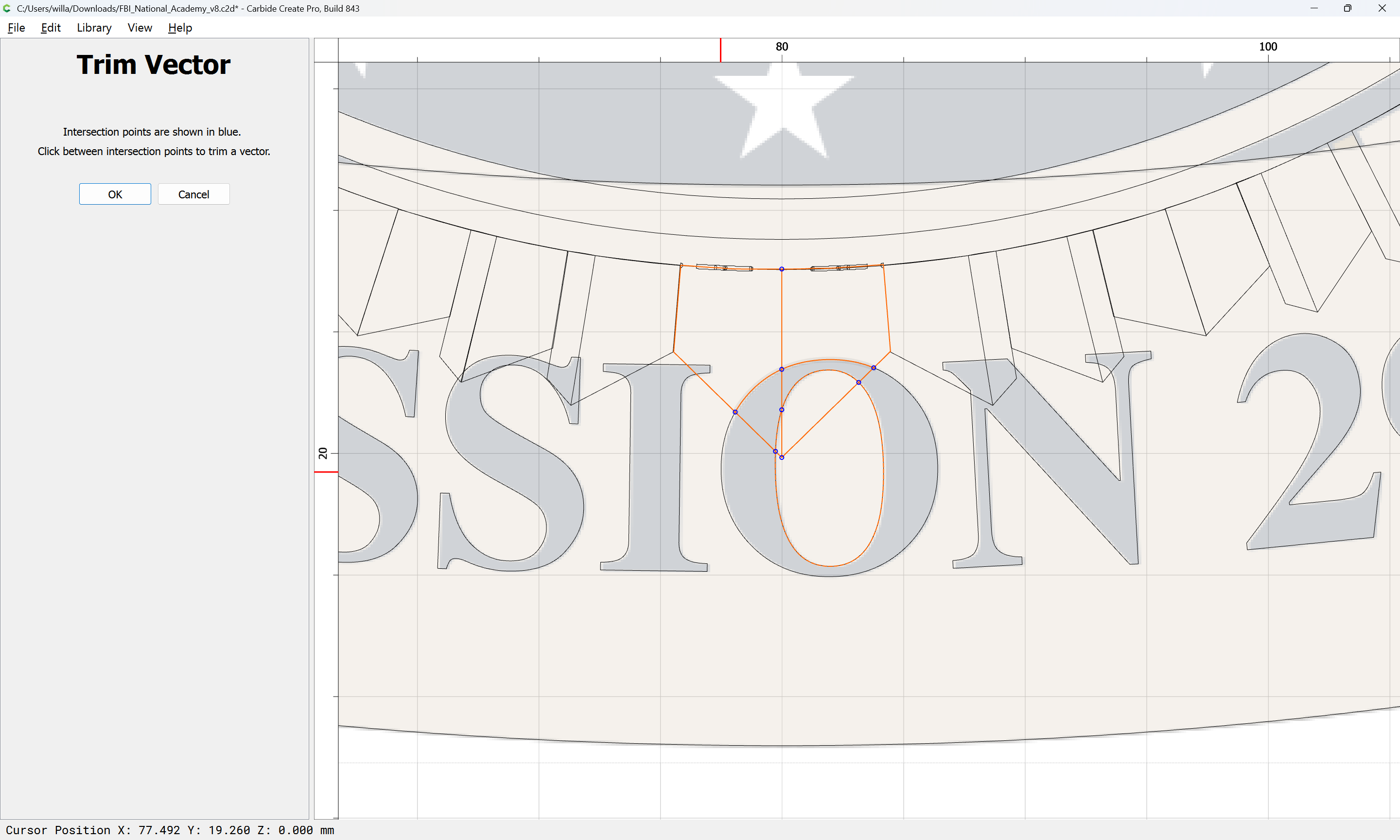
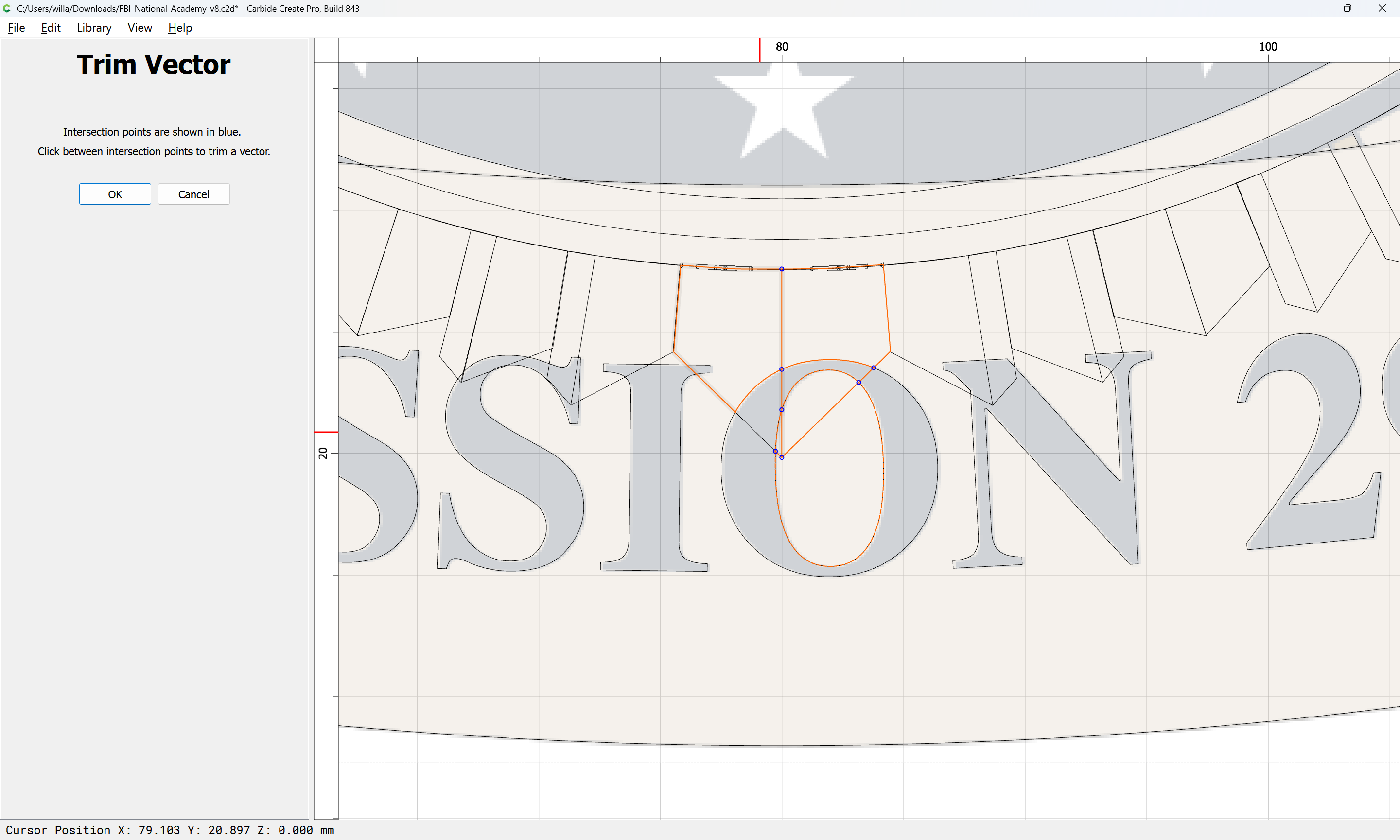
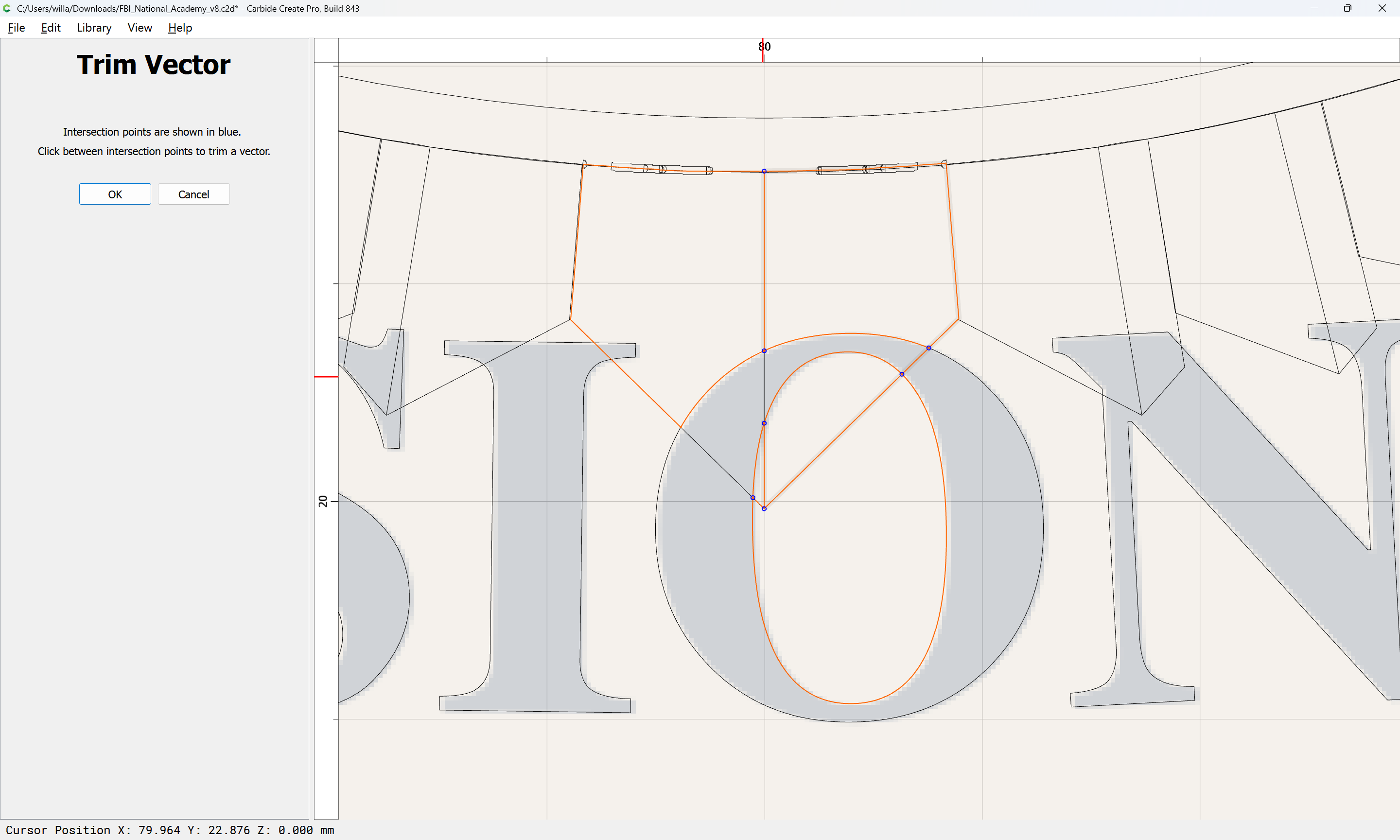
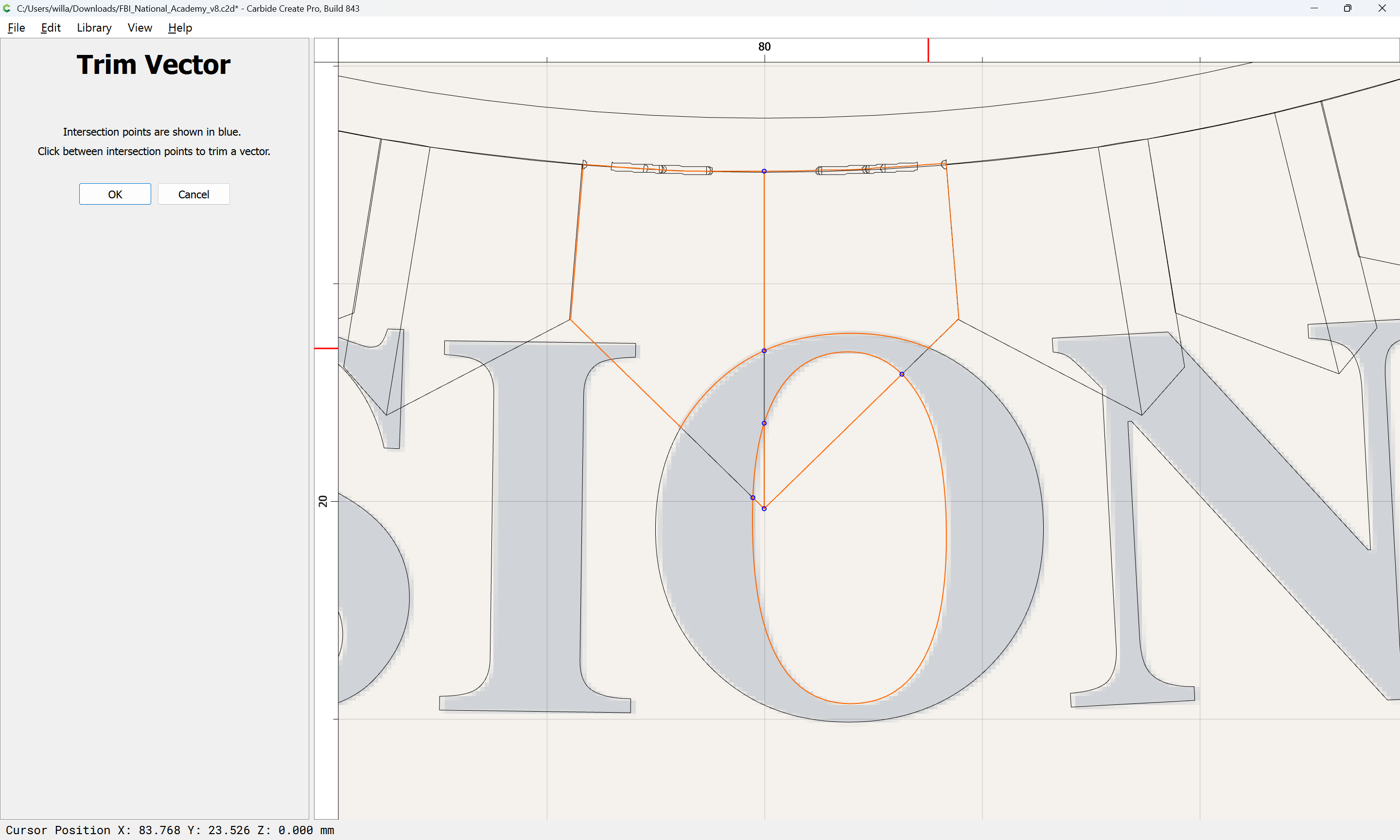
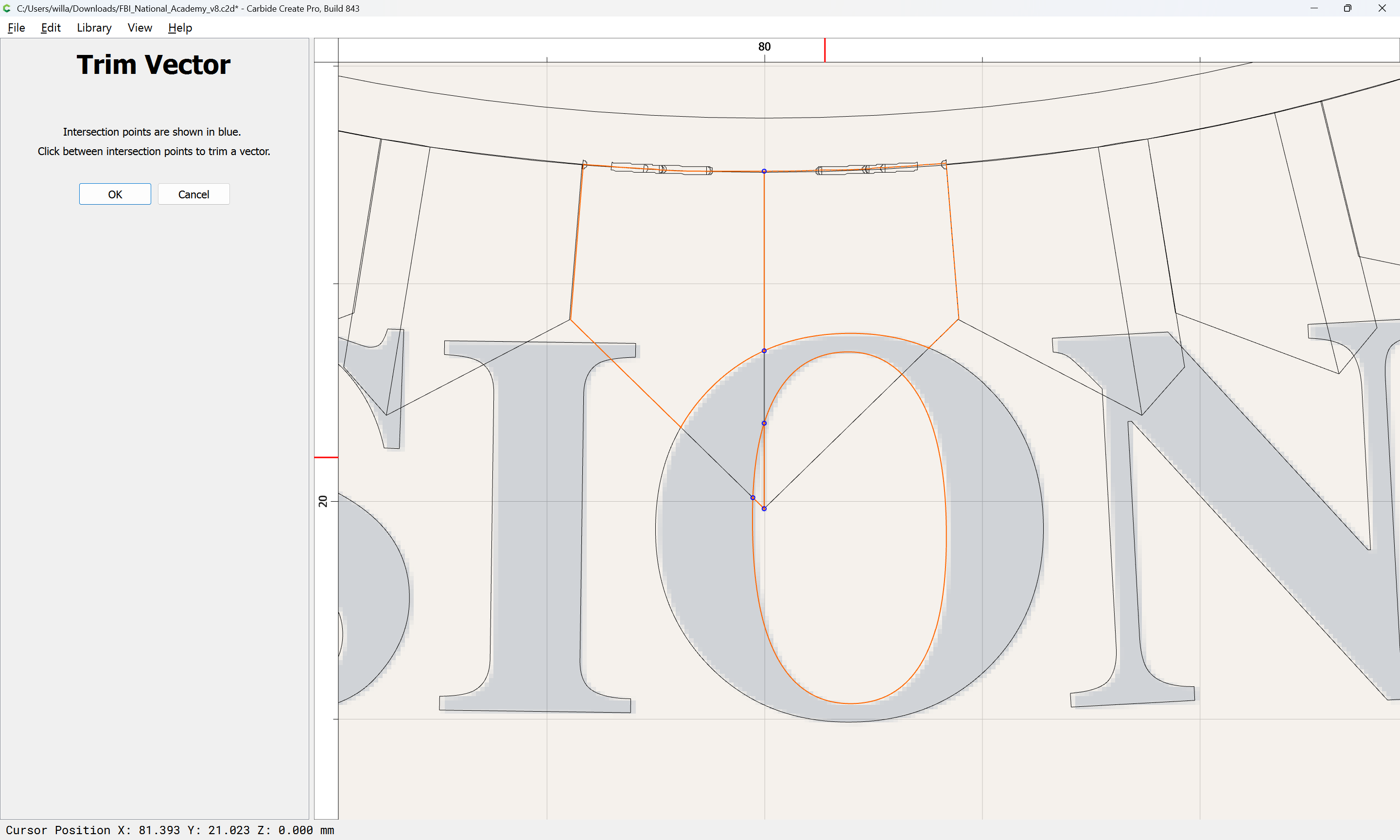
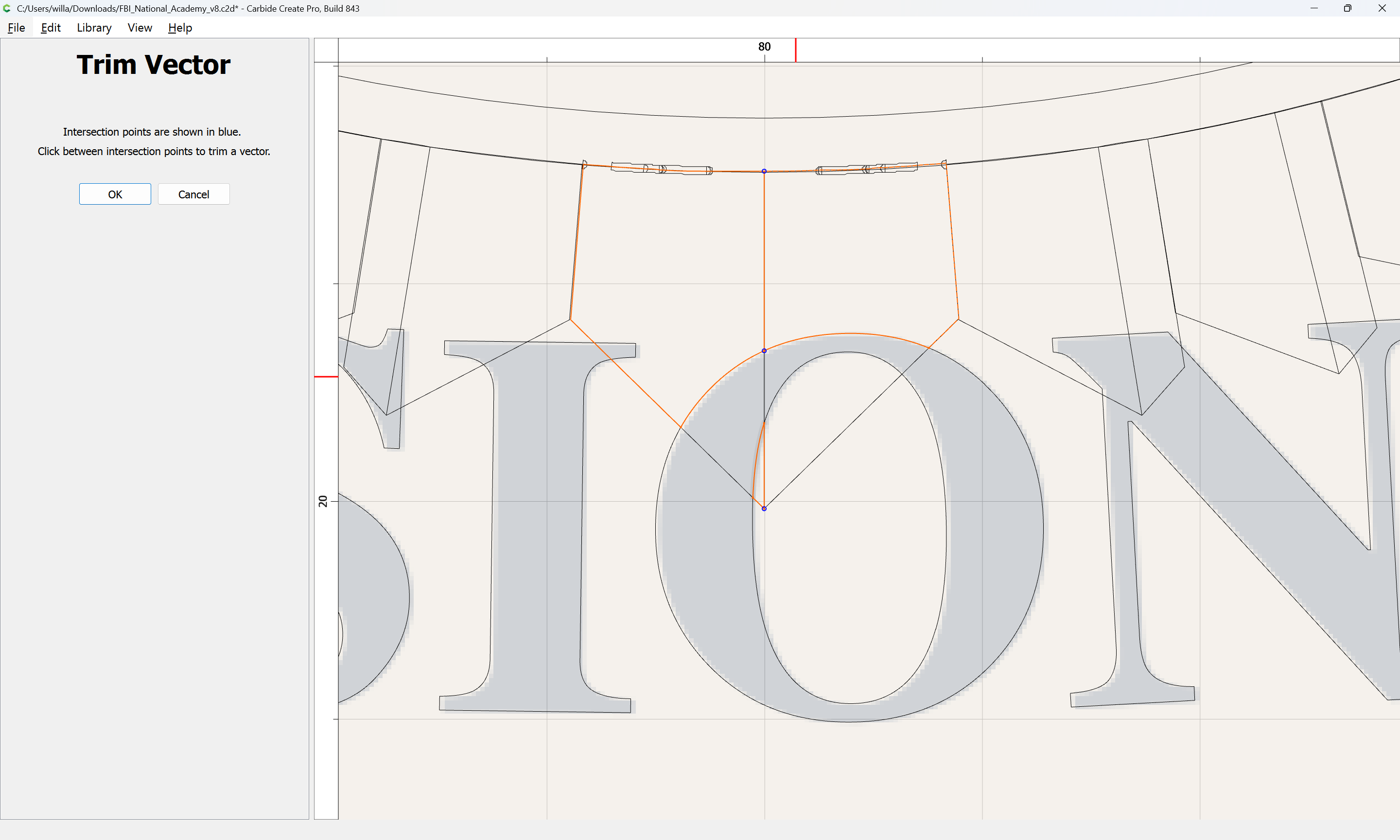
and then use Trim Vectors to make a set of geometry which define the background regions:
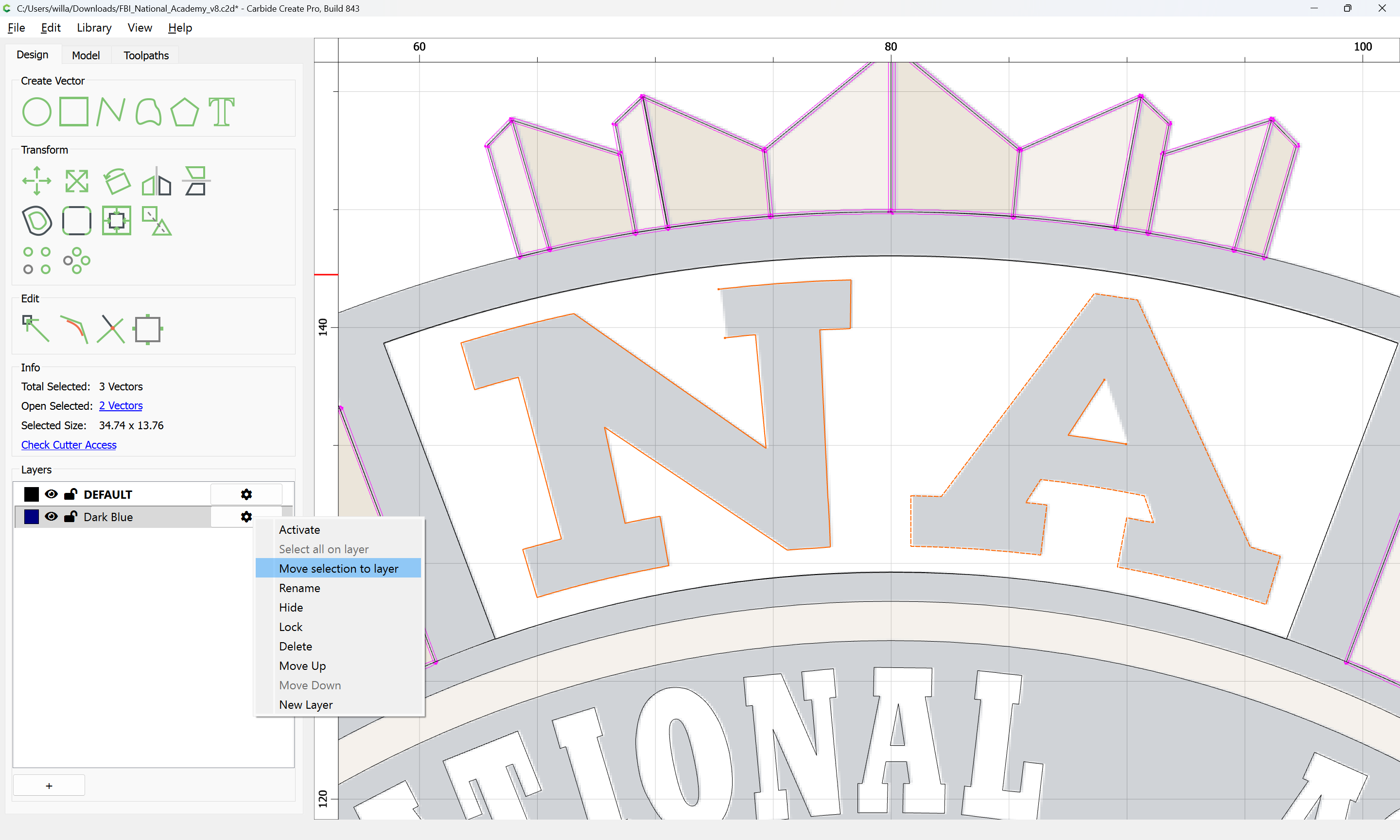
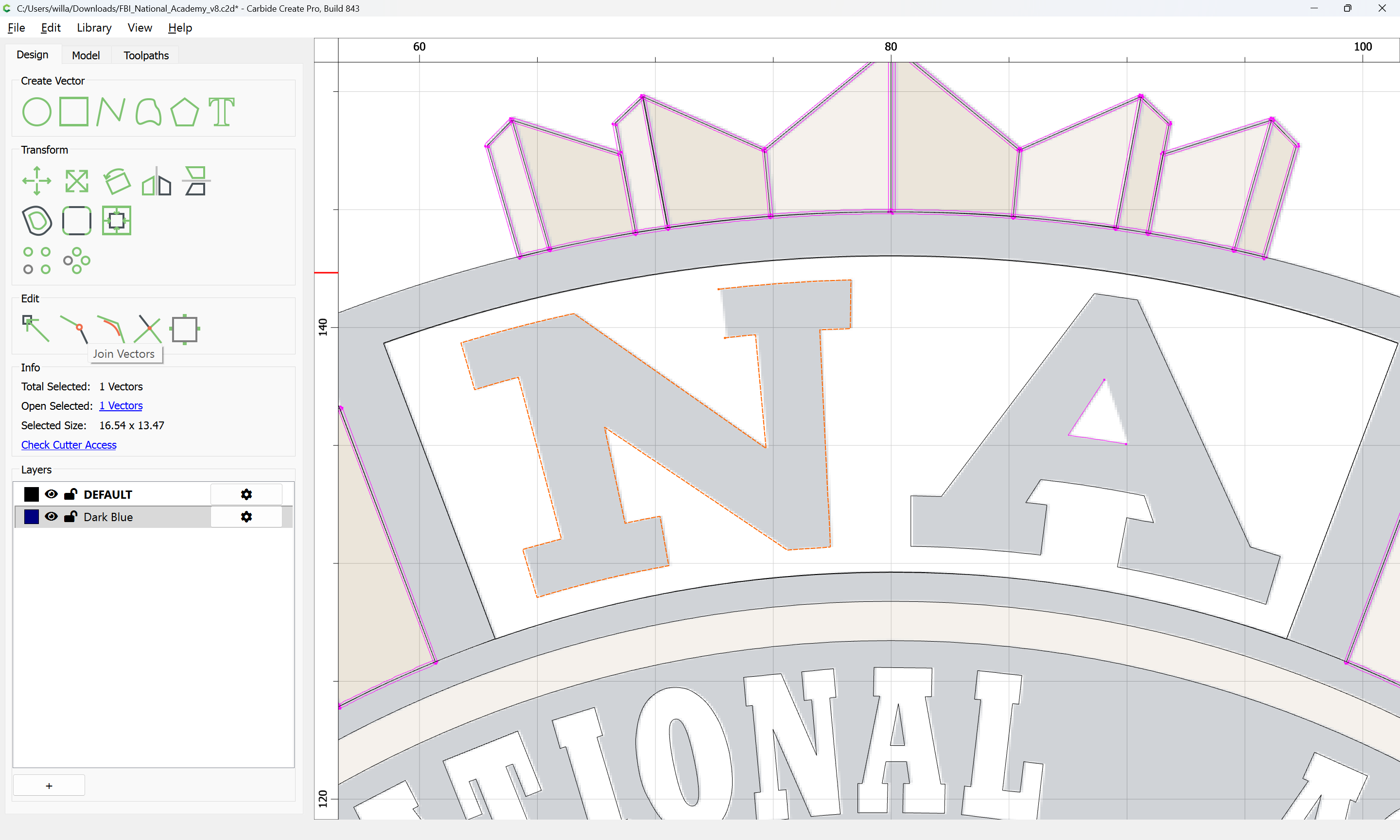
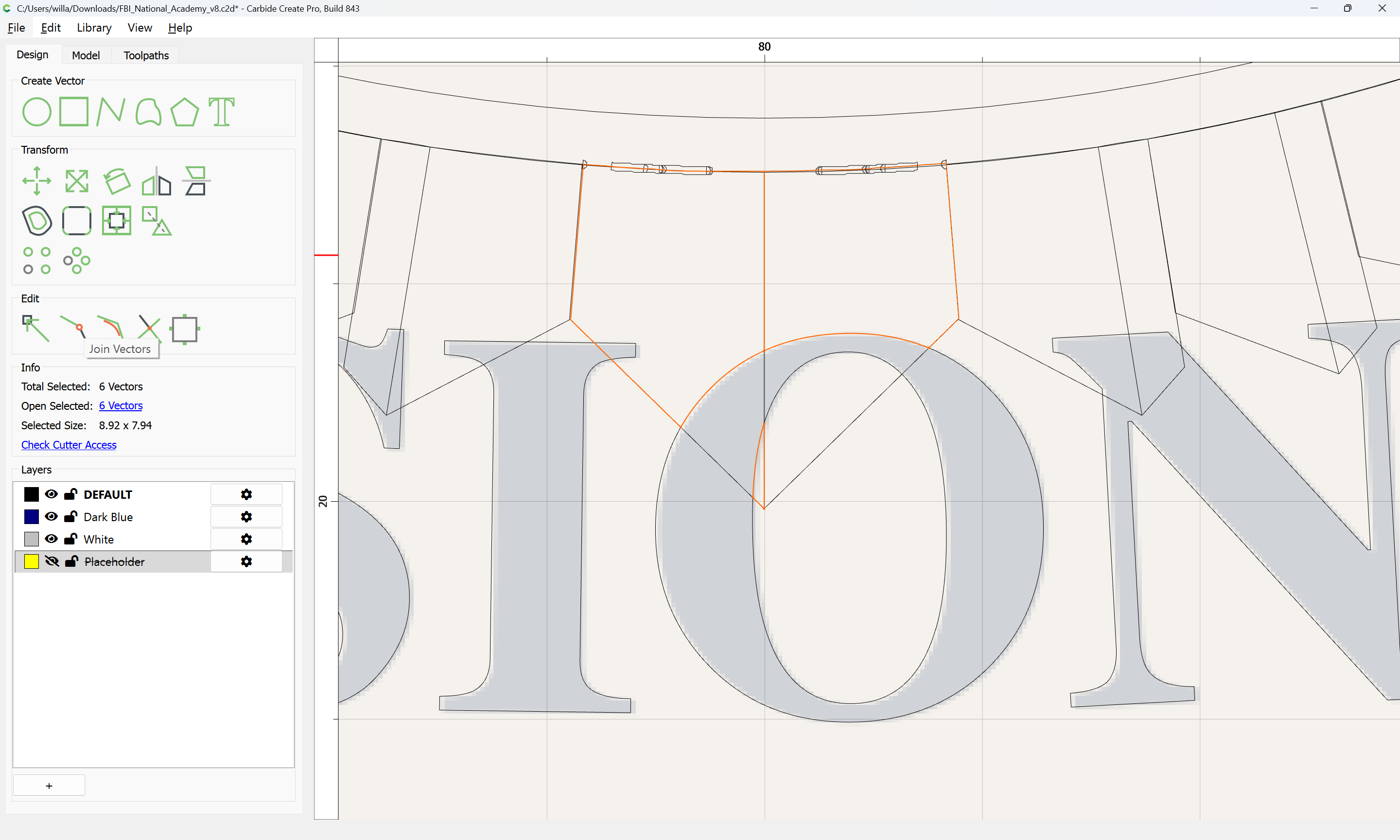
Then use Join Vectors to close the regions in question and move them to the appropriate layers.
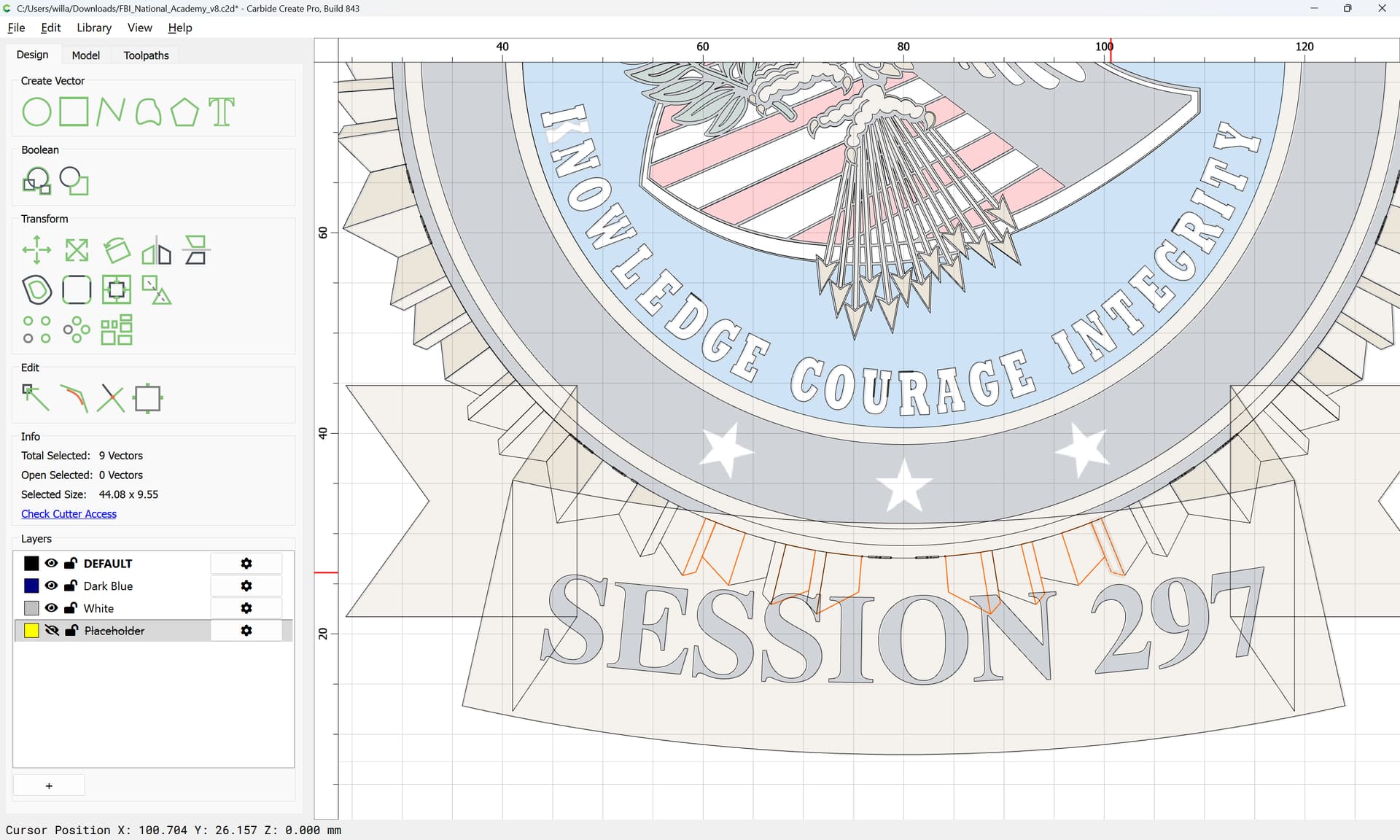
EDIT: actually, the above could simply be deleted:
since it falls on the ribbon area surrounding the text at the bottom — the principle still stands, and would instead be applied to the ribbon.
Repeat the above steps for each and every element — or, explain to the people who provided this graphic that it was created using Adobe Illustrator, which allows filling regions which are not actually closed and has overlapping regions which make it unsuitable for this usage.
If you wish, you could use a training session, either one bundled w/ a machine:
or a purchased one:
for further instruction.
EDIT: Mostly finished file:
FBI_National_Academy_v8.c2d (3.5 MB)
Layer association and redundant vectors will need to be sorted out.
This topic was automatically closed after 30 days. New replies are no longer allowed.