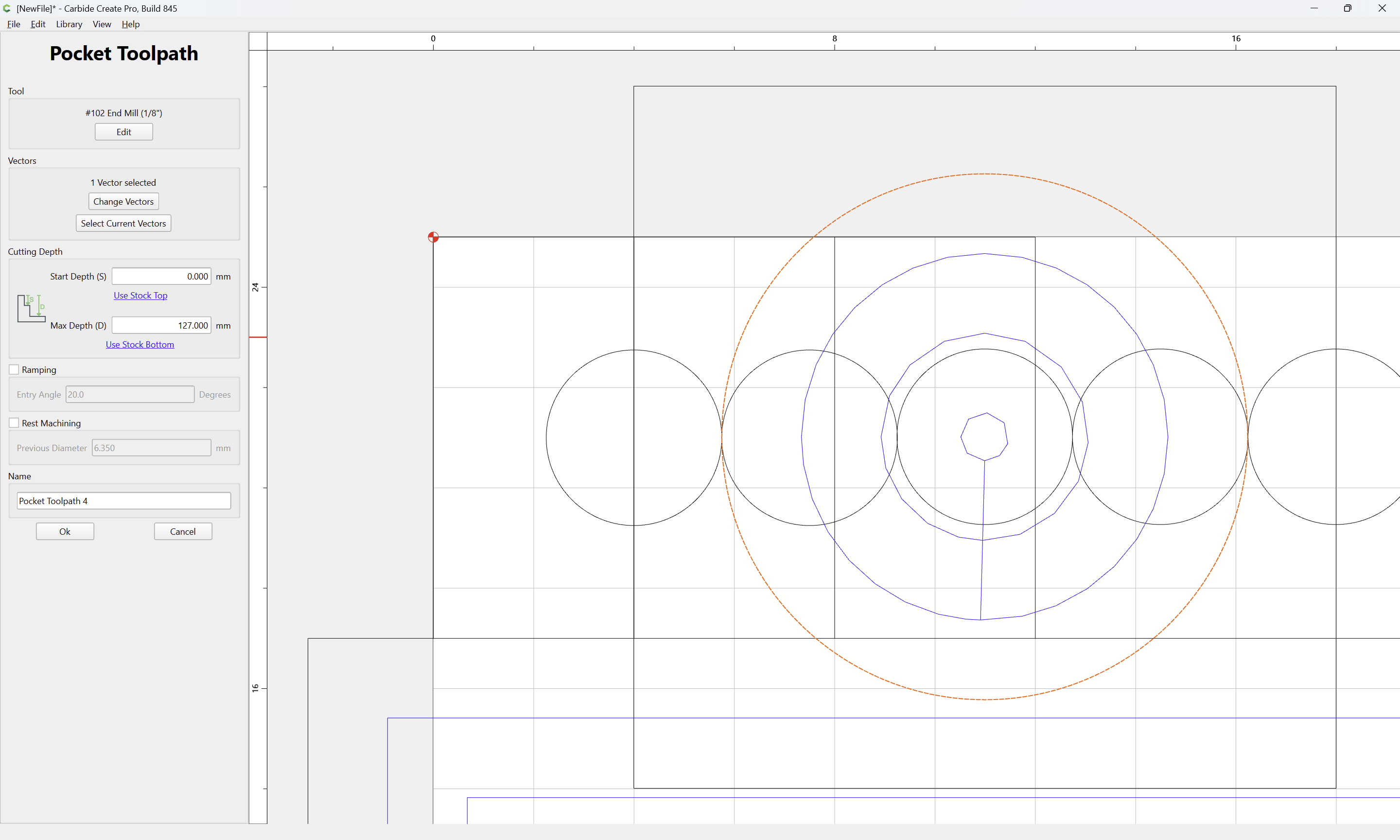
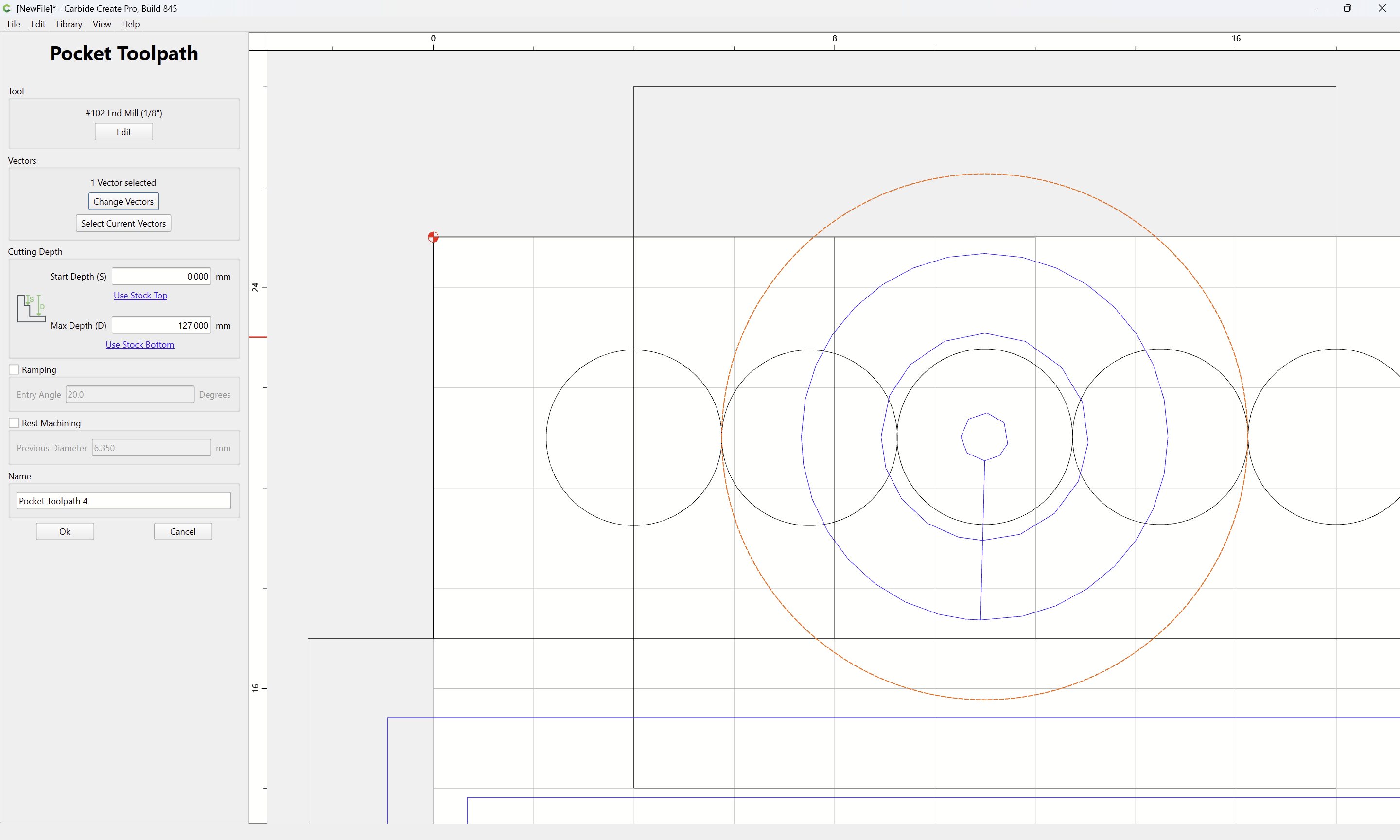
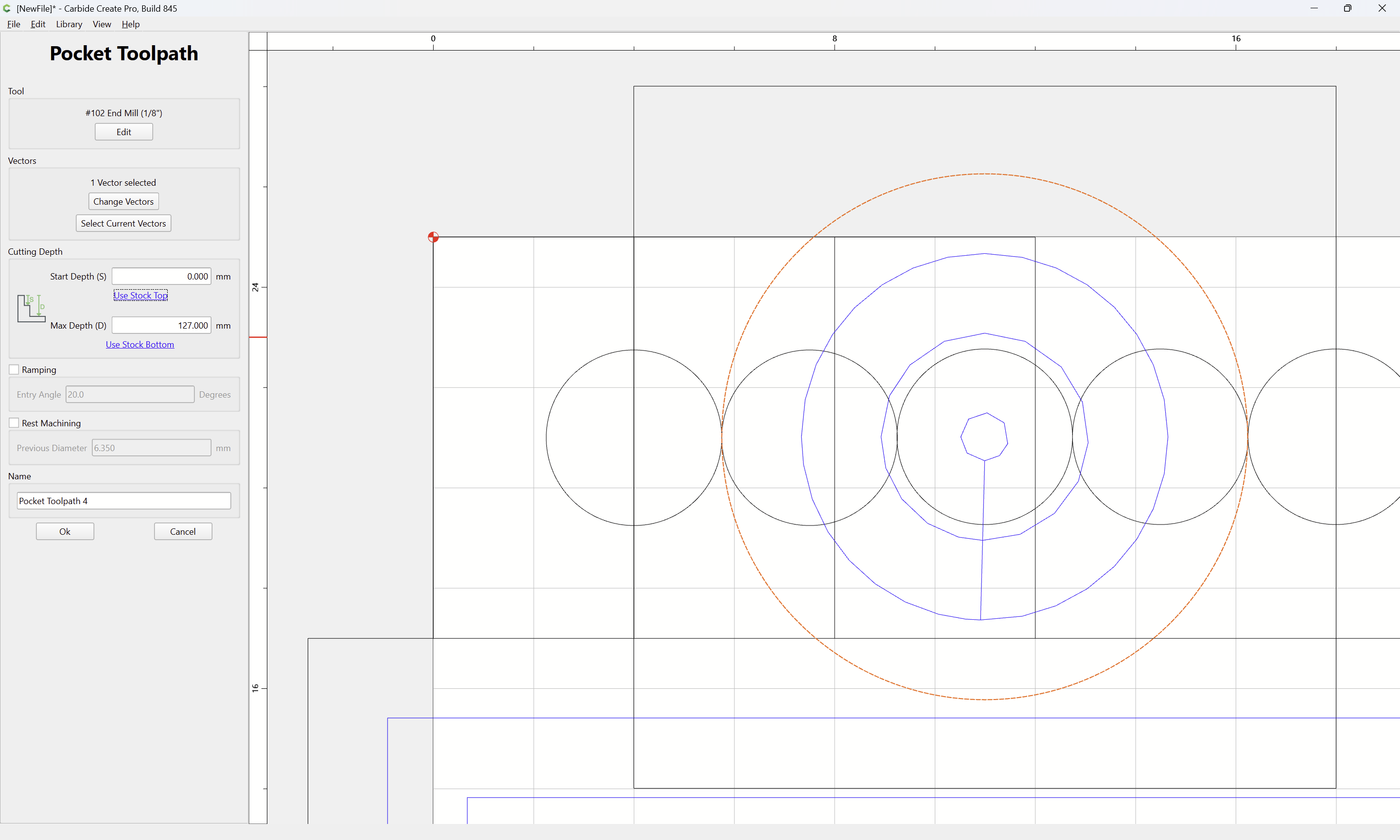
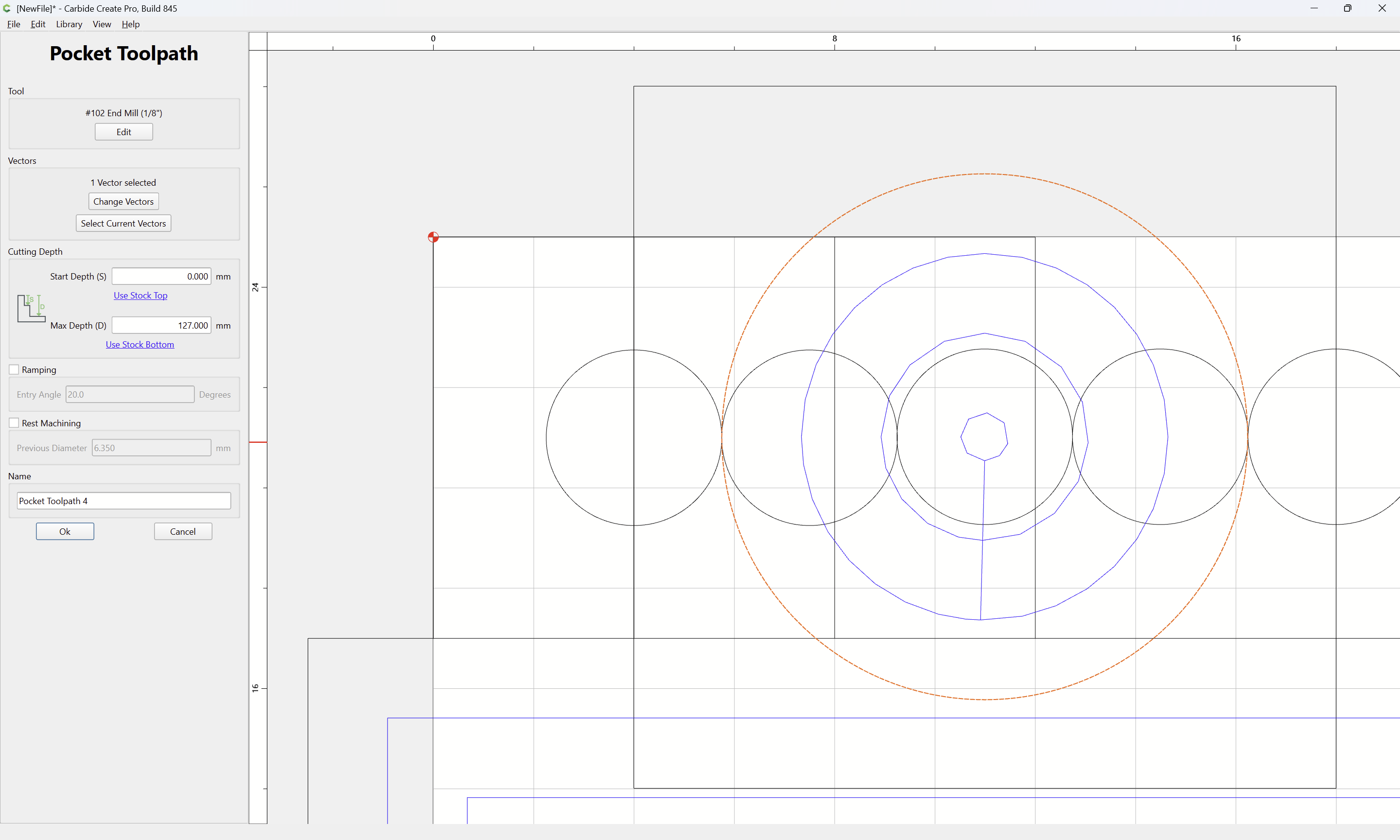
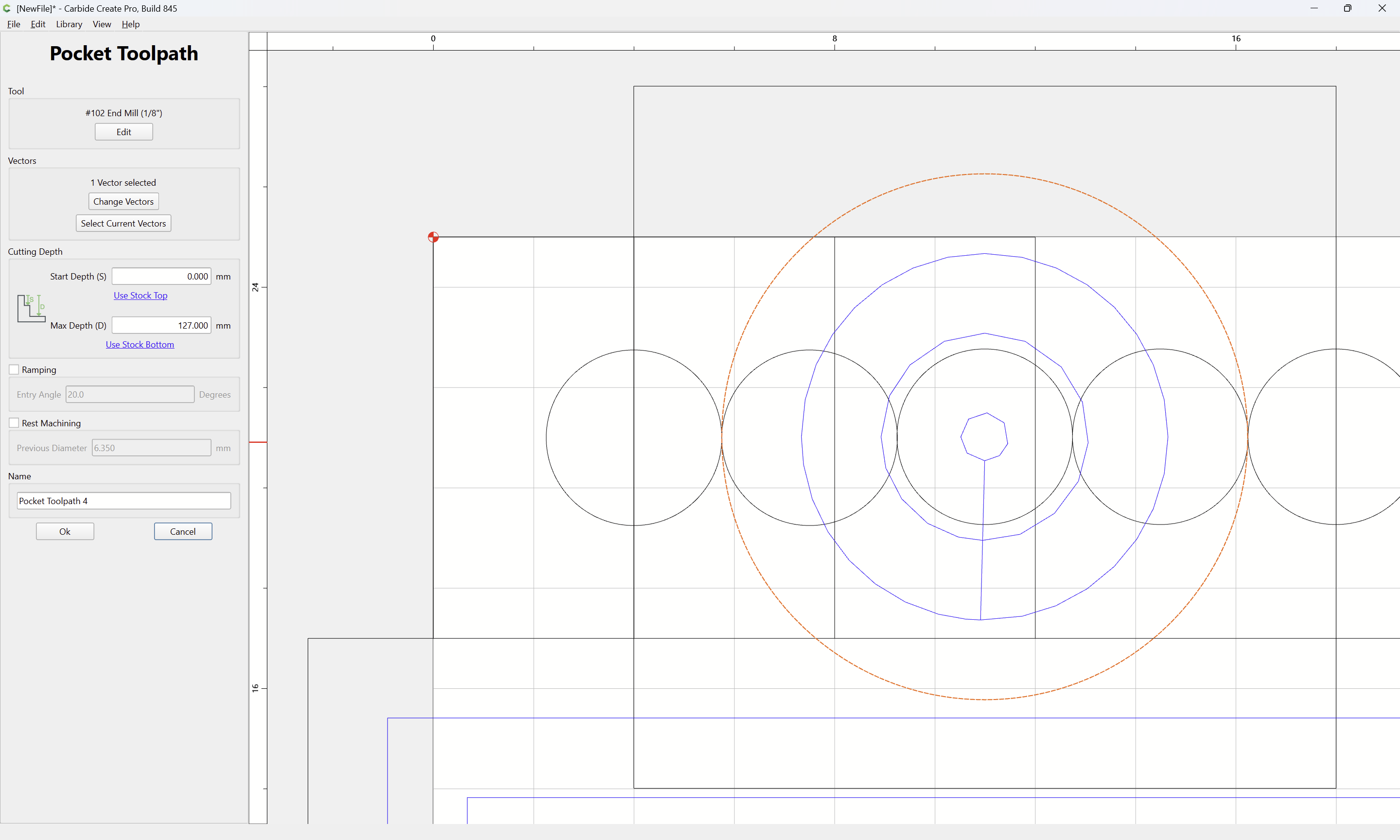
Please add tab stops for each control area, especially the OK button.
This would be a workaround for a different issue, but it might be easier and less risky to do than a bigger fix for an older system.
I’ve run into an issue a few times where the application screen is taller than my display area (it may be the same as my display area, but fails to allow room for the system menu at the top, so it’s effectively too tall and I can’t see or reach the tool path name or buttons below. I didn’t really try to figure out the cause for the screen condition) and having tab stops would allow me to save my tool path.
I haven’t tried to recreate the issue on demand, but suspect it may have something to do with minimizing, restoring etc. over several days. A restart corrects everything temporarily, so not crisis, just an annoying inconvenience, as you can’t save your file with the dialogue open, so not only is the current tool path going to be lost, all of your changes up to that point will be as well.
CC v842
macOS Tahoe 26.4.1
MacBook Pro (M1 2020) 13", 16MB RAM
Built-In Display, Default Settings
Just FYI: I get a similar problem when I’m on my tablet…the bottom buttons are not visible and there is no easy way to scroll the screen to get to them. Tab Stops would be a big help.
From just a quick run-through using Pocket as the example:
There isn’t an obvious starting position; hitting enter doesn’t do anything (I’m good with that, just noting it), so I hit Tab until the location was visible. At each Tab stop, I hit enter to activate the function in case it was in that position, but not visibly so.
Start Depth
nowhere
Use Stock Top link
Max Depth
nowhere
nowhere
nowhere
Name text box
nowhere
nowhere
After 10, it returns to Start Depth (#1).
The bigger issue doesn’t appear to be isolated to just the Toolpath area, but the whole application which cannot be resized manually.
I’ve been trying to work around the issue by maximizing the application space and restoring it and I’ve even maximized the display resolution to “More Space” (1680 x 1050), which still leaves the bottom edge of the app behind the Dock, but at least the button controls are accessible.
I’ll continue to dork-around with it and see if I can force the app screen to resize by changing the display resolutions, but it’s about beer time here, so… to be continued.
If you haven’t, please update and try the new beta:
In the current beta version, while it’s not indicated, the Edit (Tool) button has focus, and if one immediately hits the space button, will be pressed.
From there, tabbing works as expected until one tabs out of “Start Depth” — I believe the focus goes to the main drawing area, then hitting tab again continues at “Use Stock Top”:
It looks like the Beta will provide the workaround solution for tab stops, but after falling down the ‘screen resolution rabbit hole’, the issue, if it continues, seems more disruptive than the initial inconvenience that prompted my initial post.
I was eventually able to get the app screen to reset to within the accessible part of my display area by closing the app, adjusting the resolution to the lowest level, restarting the app (it didn’t fit) and then repeating the process at the Default resolution where the app then opened with the width and height reset.
I haven’t changed my display resolution in years, so it seems to me something on the app side has either changed, or needed to reset. I’ll post an update if it reoccurs.
EDIT: A double-click in the CC title bar (where path & filename are displayed) will resize the app to fit the accessible display area, even with the Toolpath control open.