Fixing a DXF from a BobCAD

as requested on support…

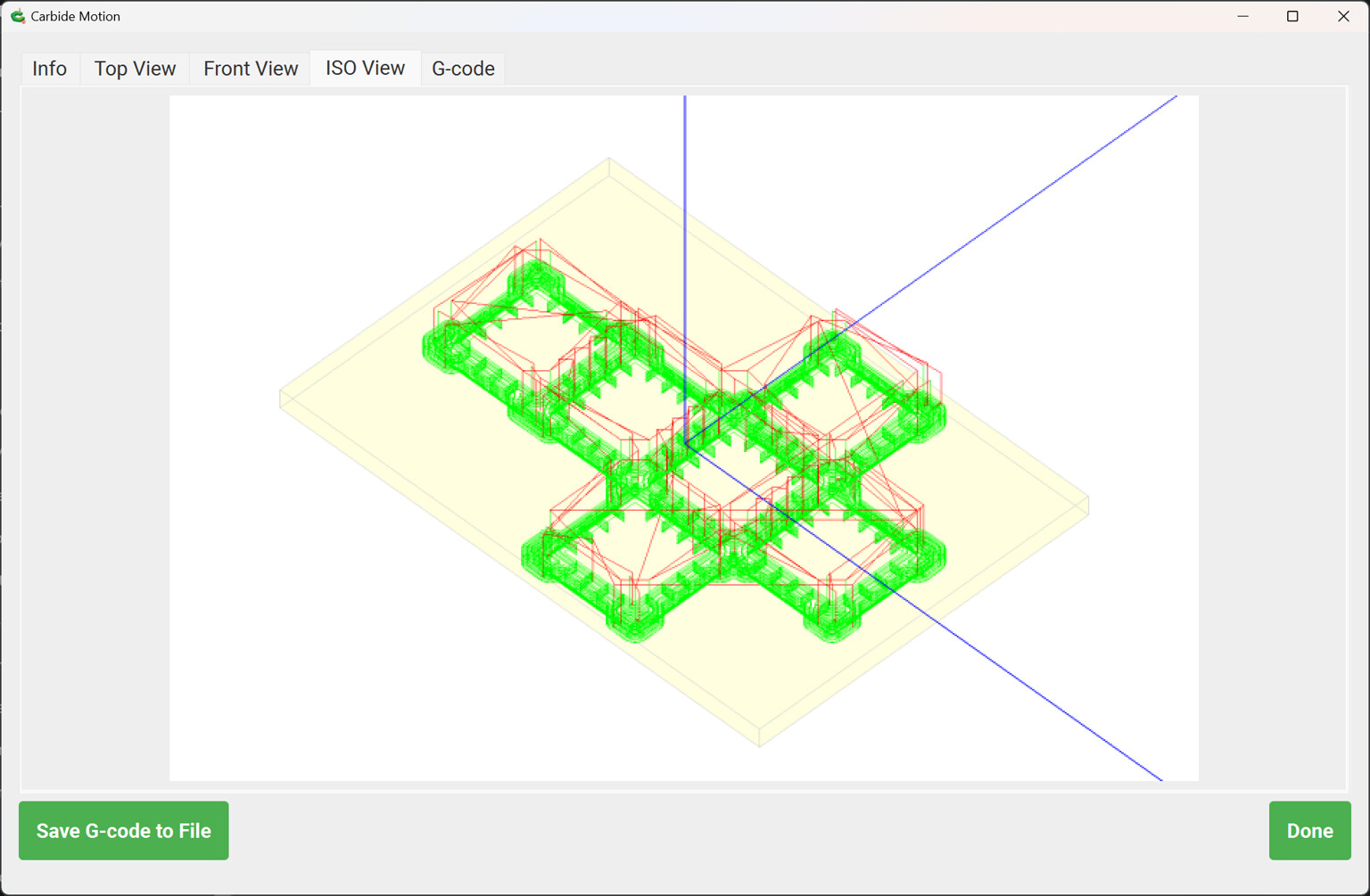
See how it’s cutting on the inside on some lines but on the outside of other lines.

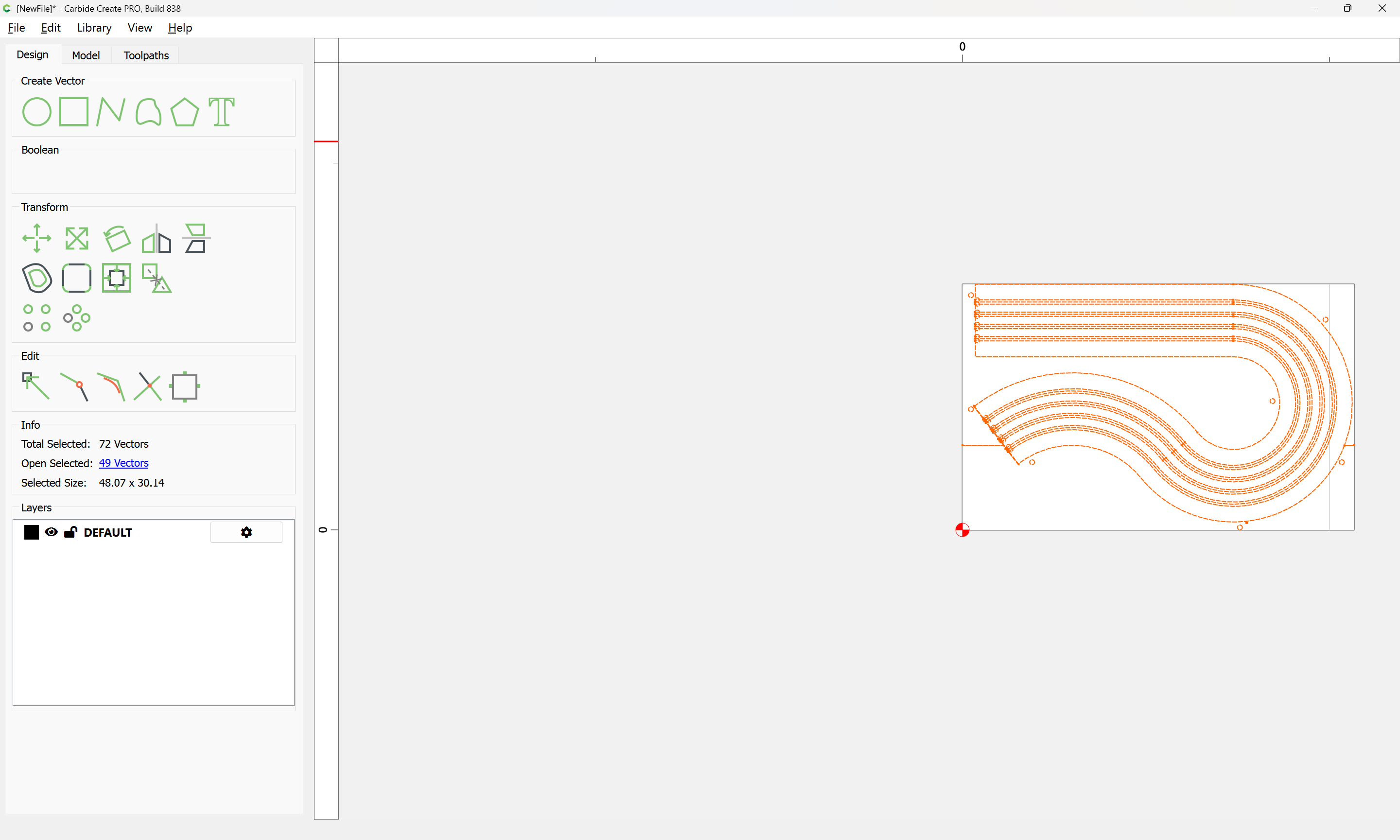
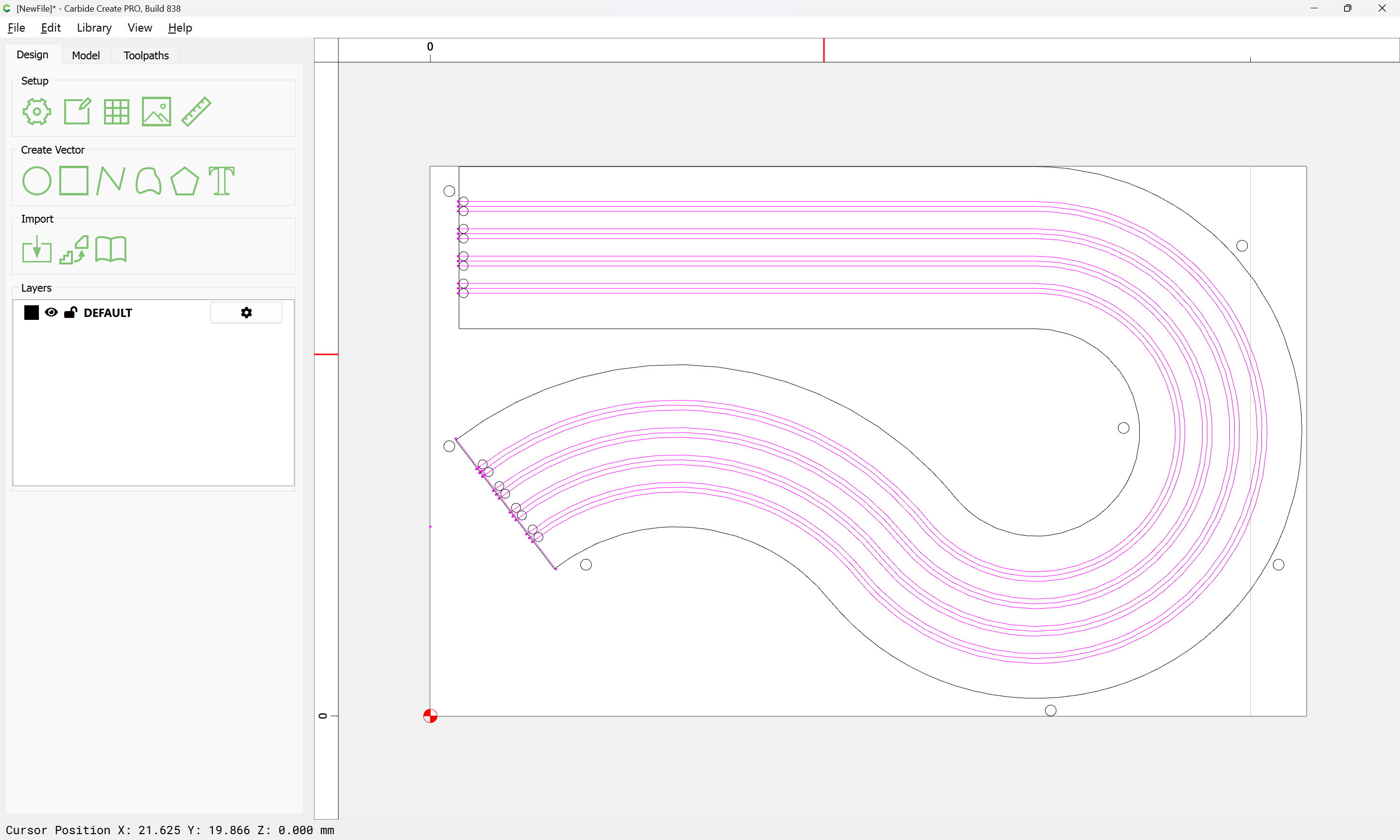
when working from an imported DXF:

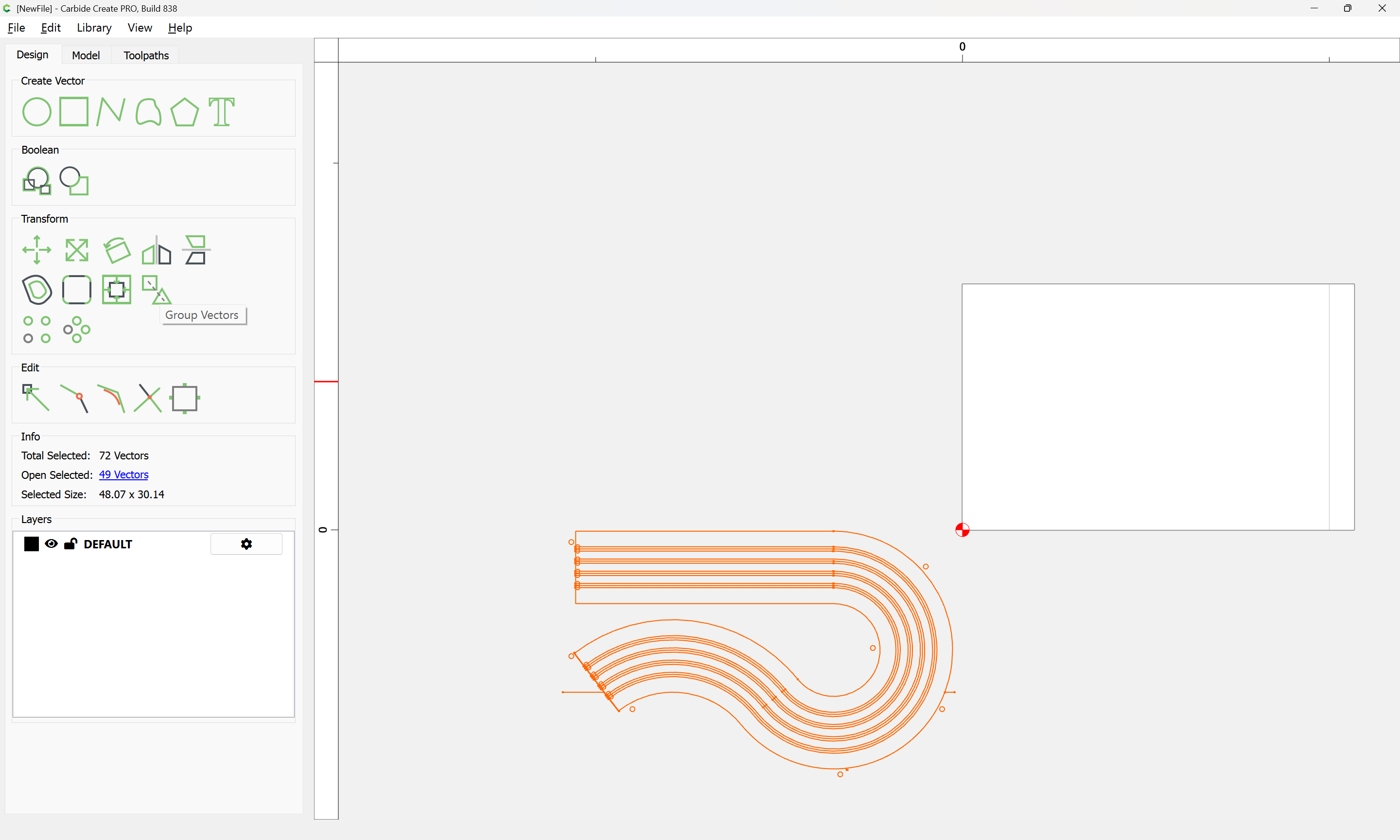
which imports as:

the question becomes how to join the lines so as to have a design which can be cut as expected…

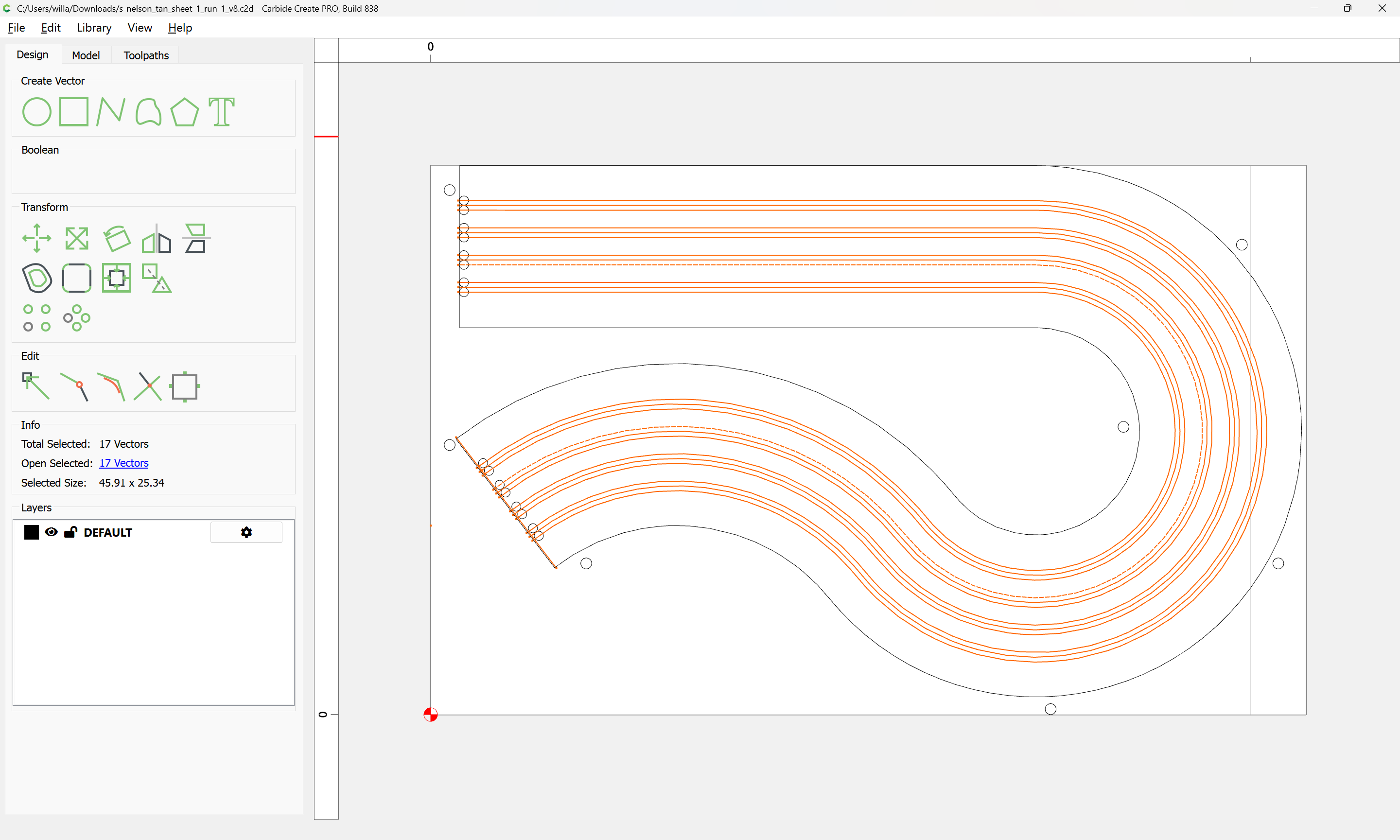
First, select everything:

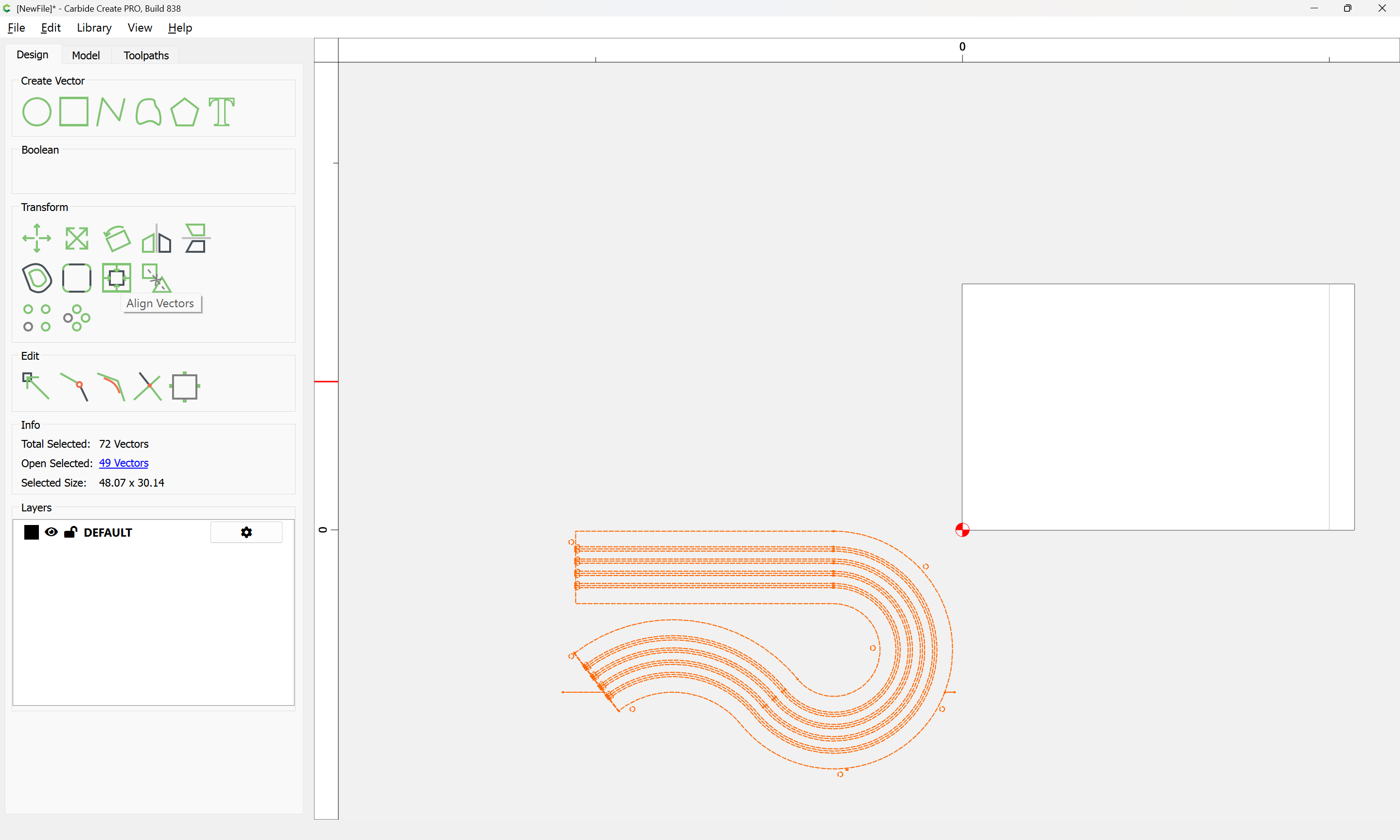
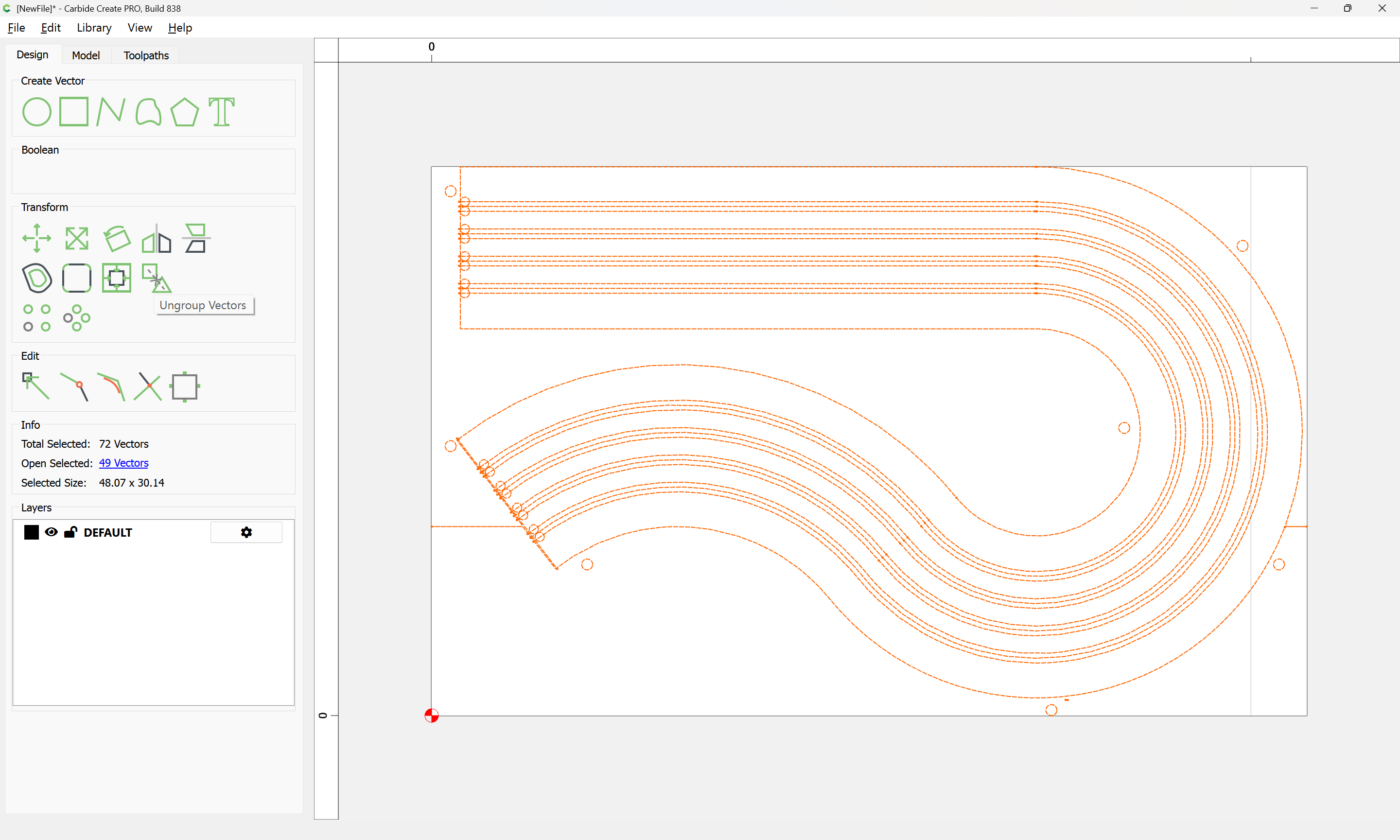
and group:

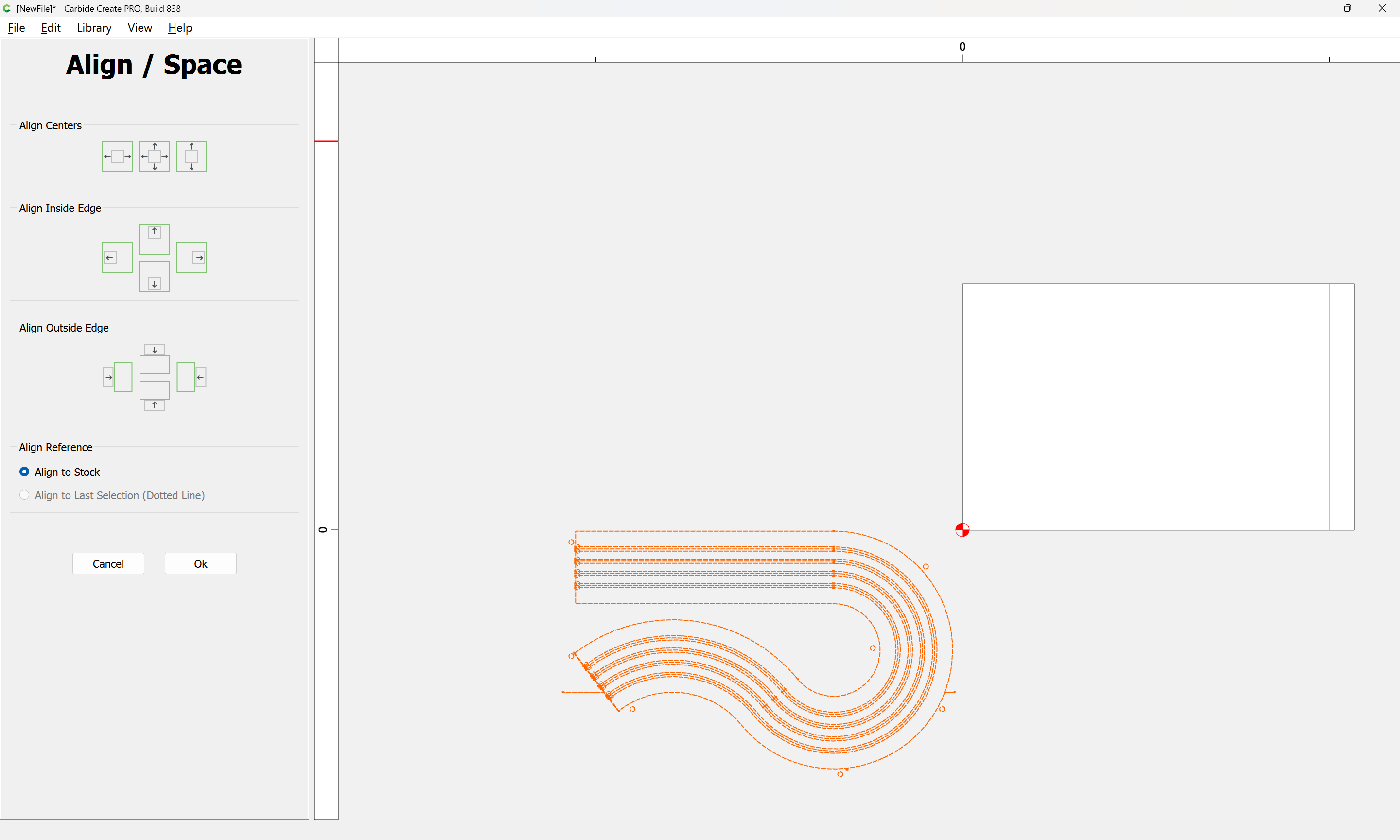
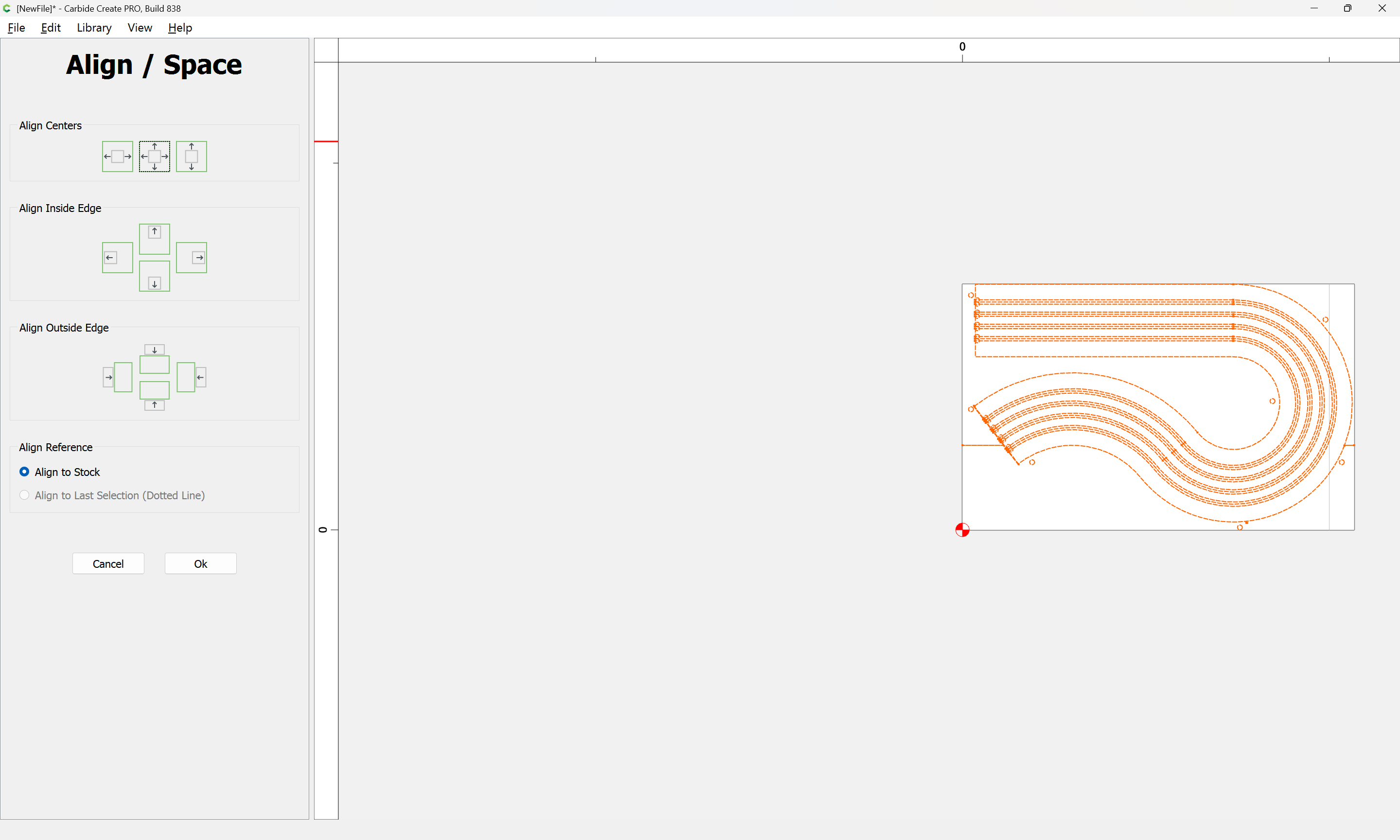
and Align Vectors:

Ok

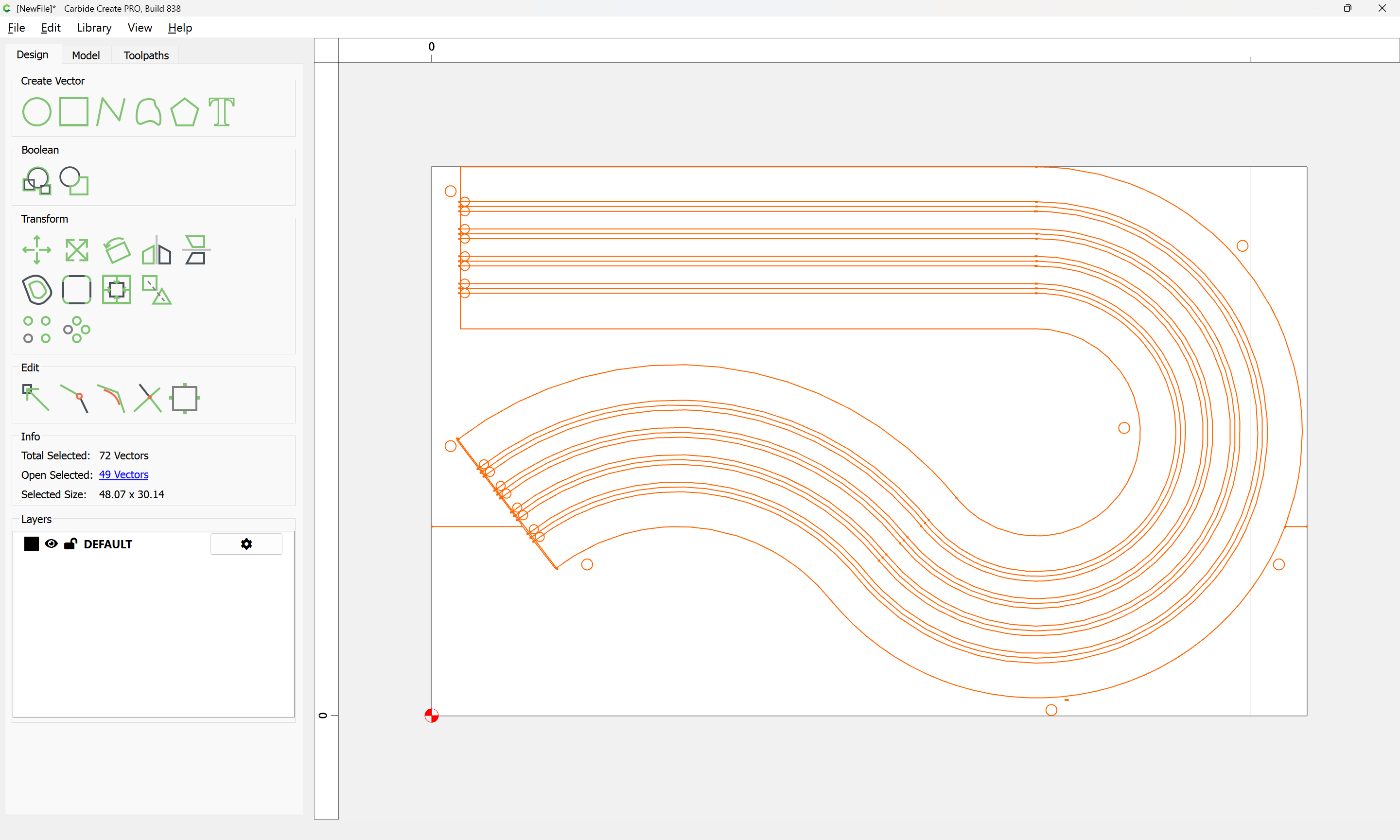
then Ungroup:

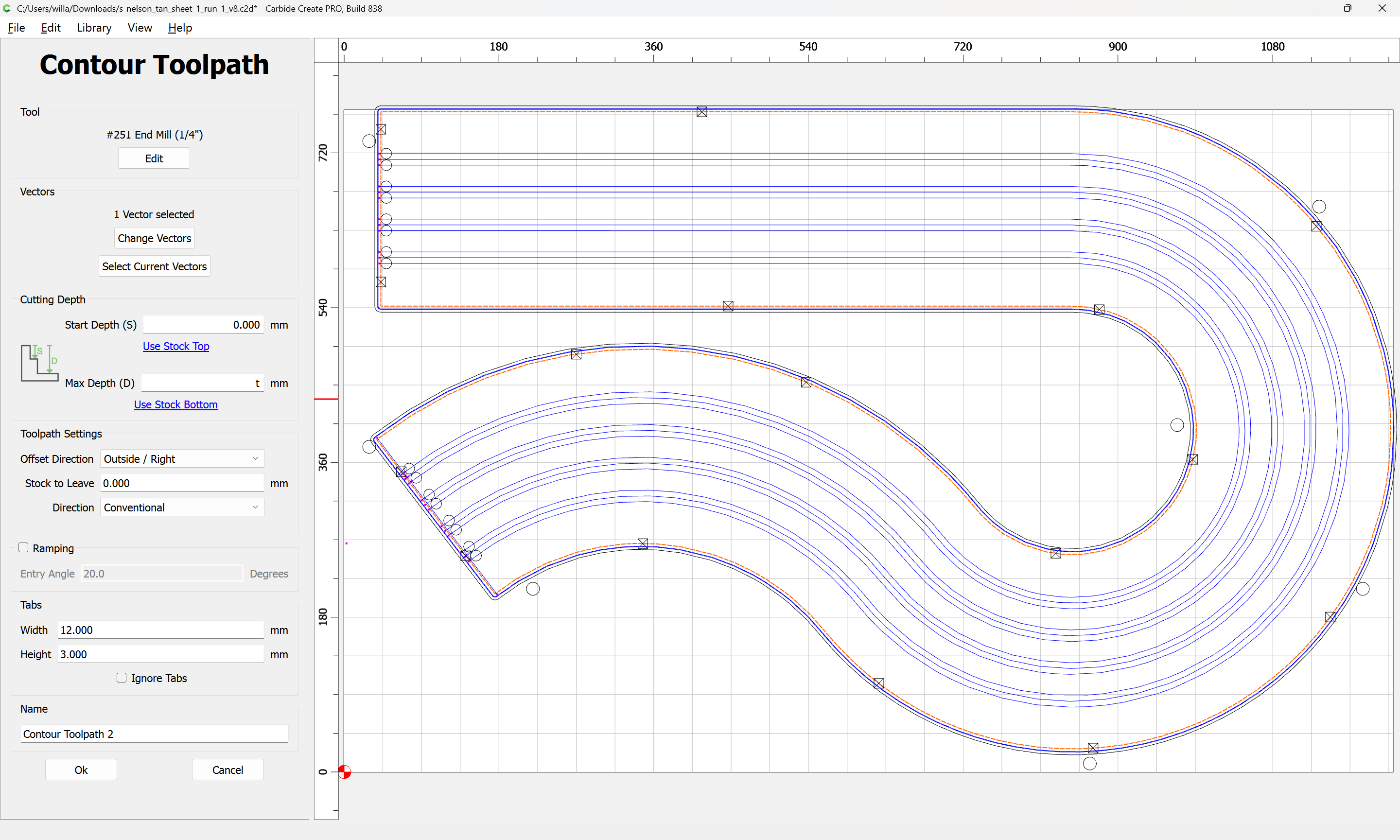
I drew perimeter cut as the toolpath only. And It still isn’t one loop in Carbide.
Even after I tried to “combine vectors”.
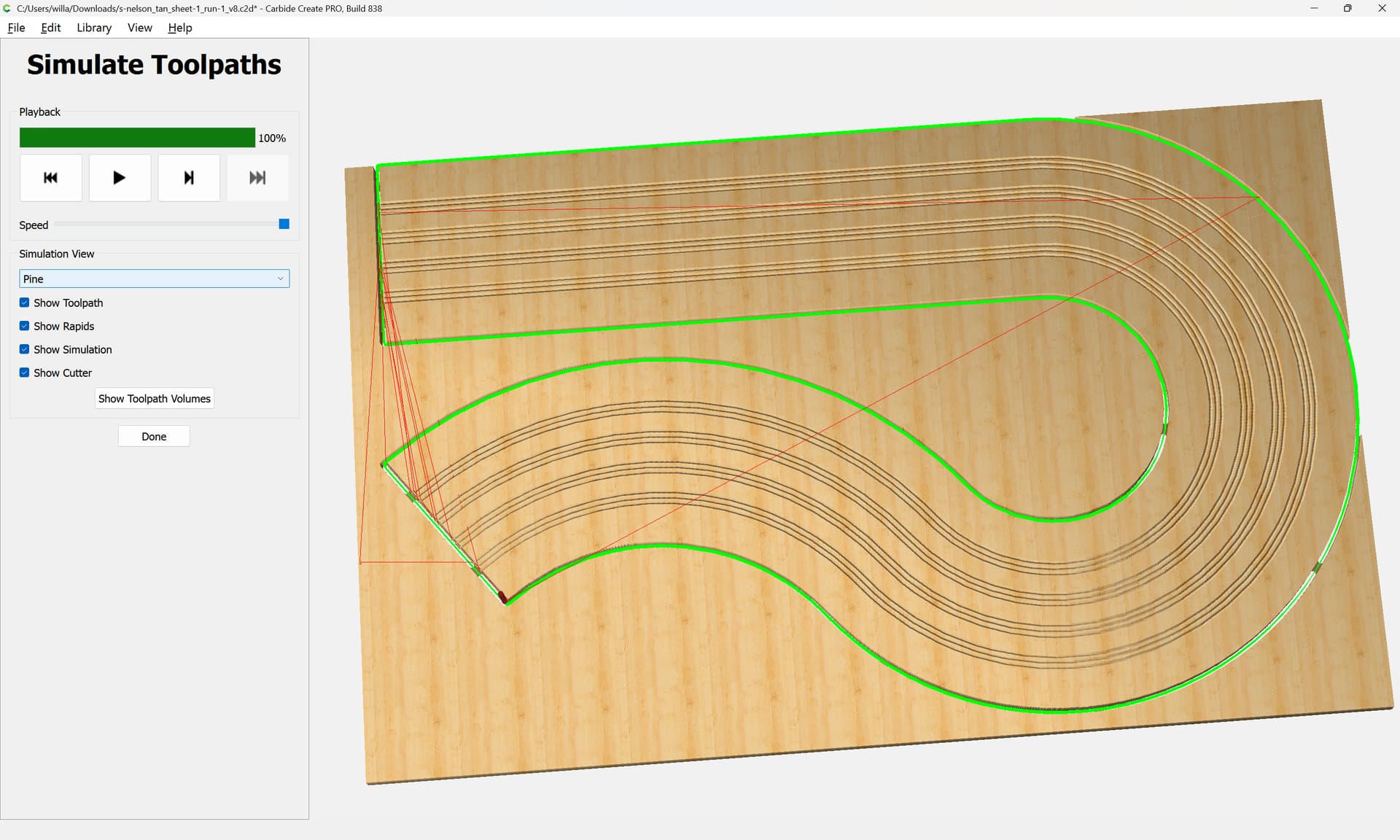
When I generate the toolpath, it zig zags all over the place.
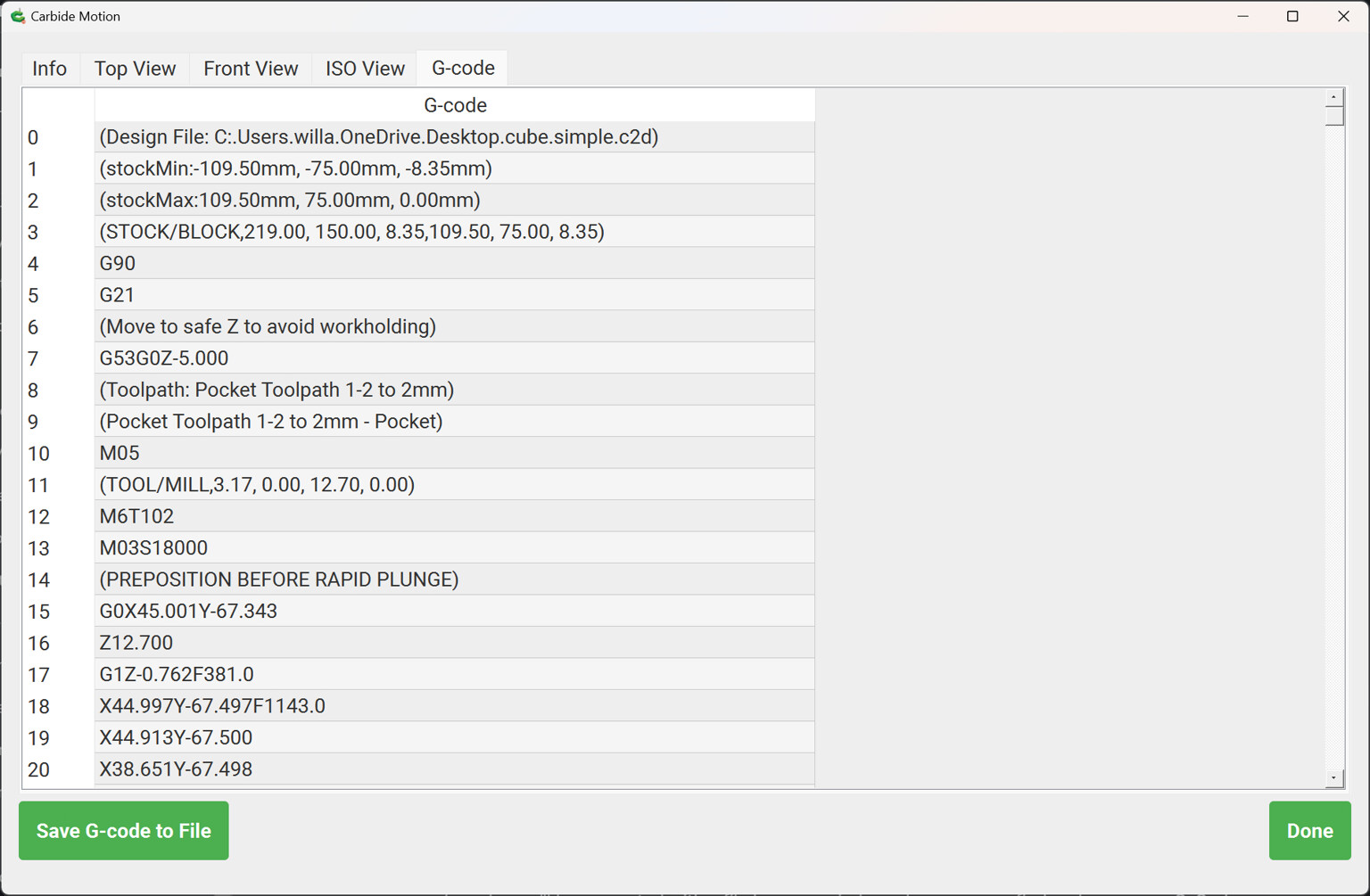
Anyways, I can edit the G code to do it more efficiently.
So I saved it.
Unfortunately, I have no way to read the G code. My last software (ArtCAM) saved as a .txt file
that I can read in Notepad.
I don’t recognize what type of file Carbide saved as. It saved it as an .nc file.

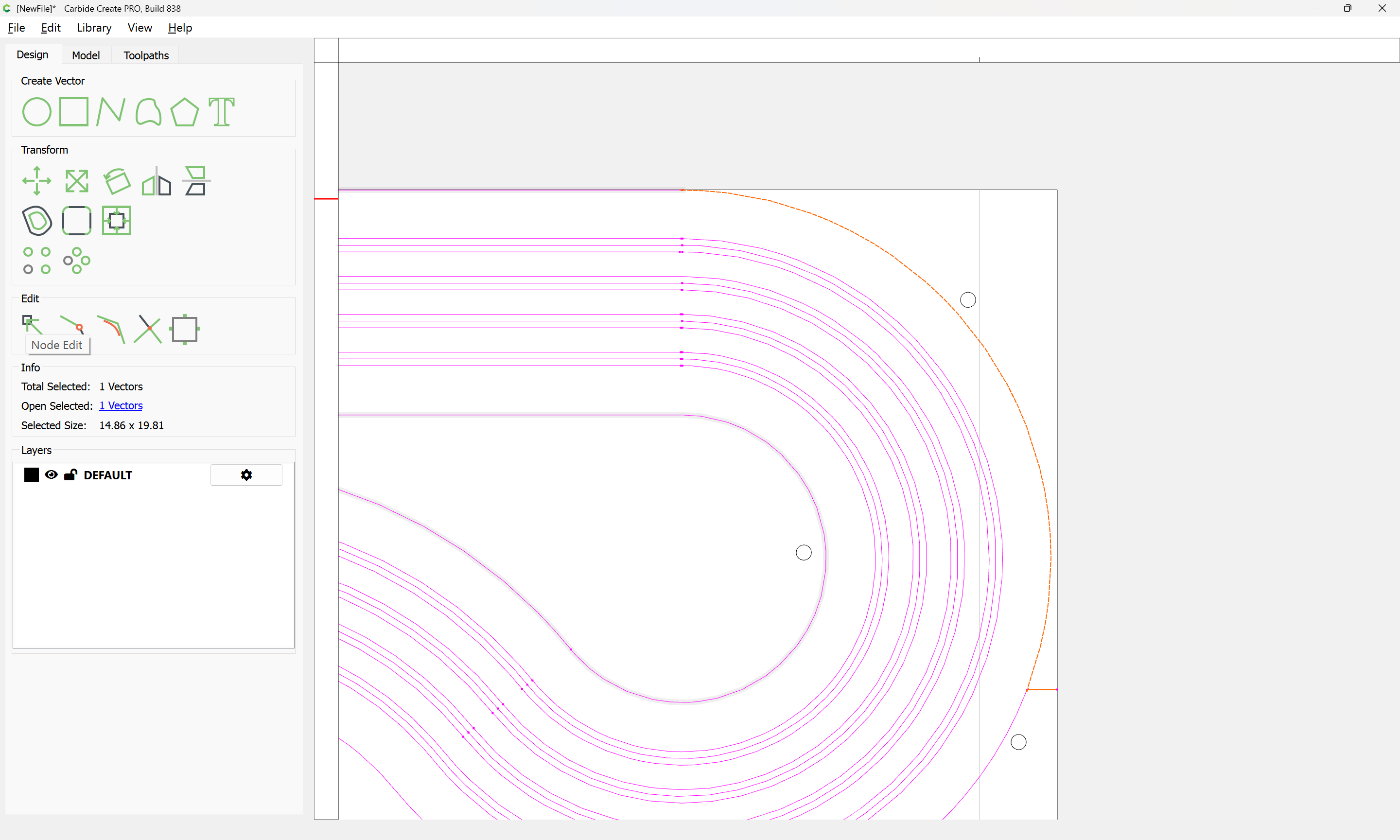
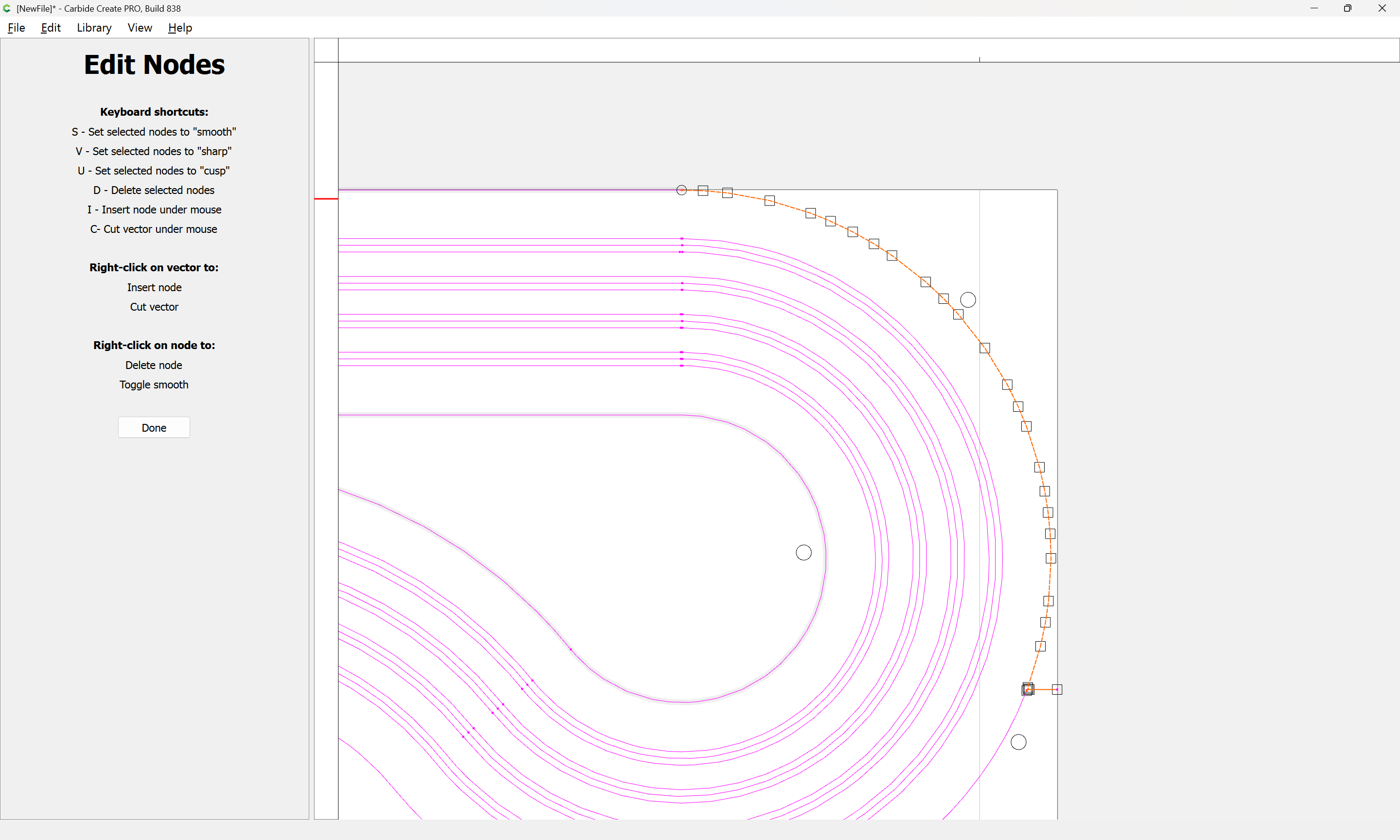
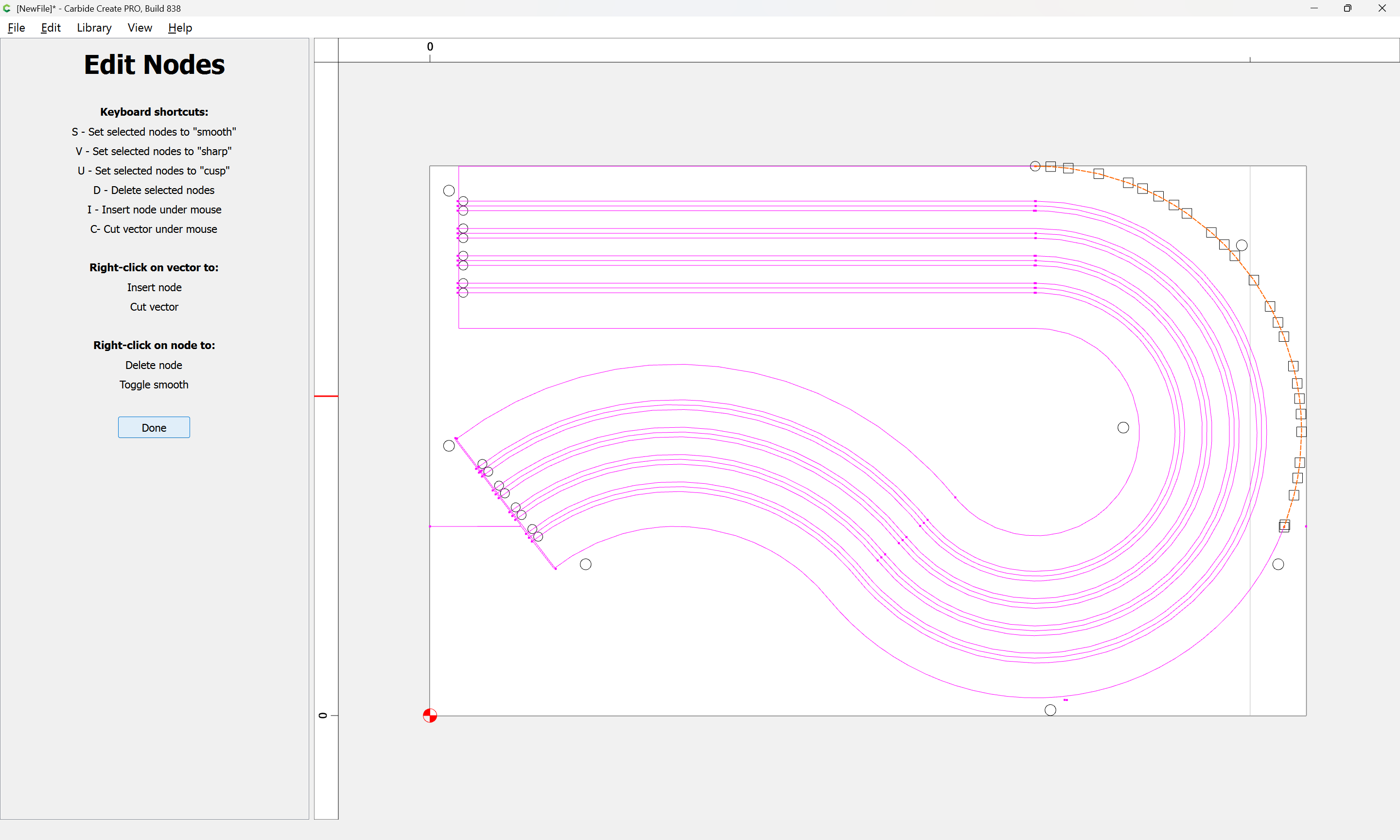
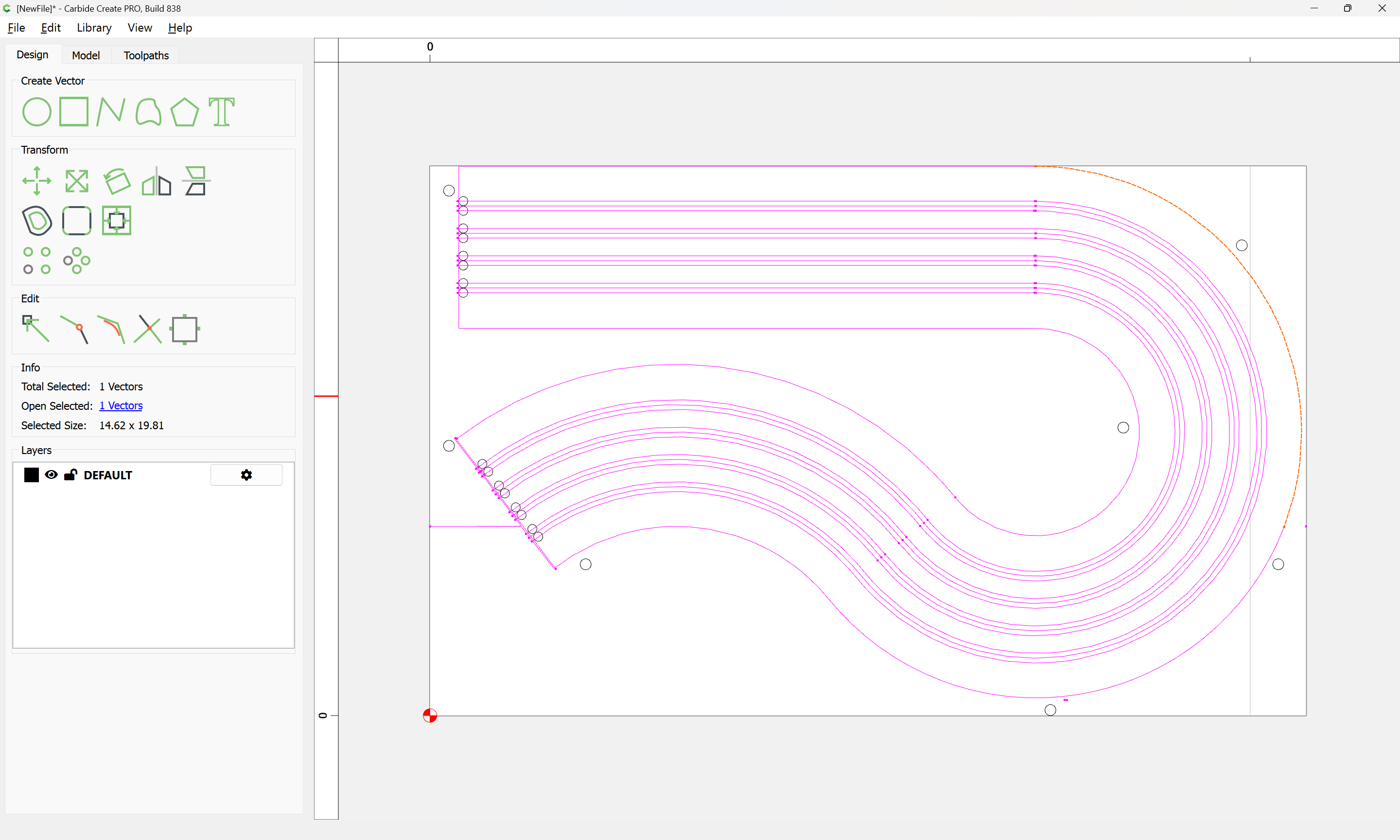
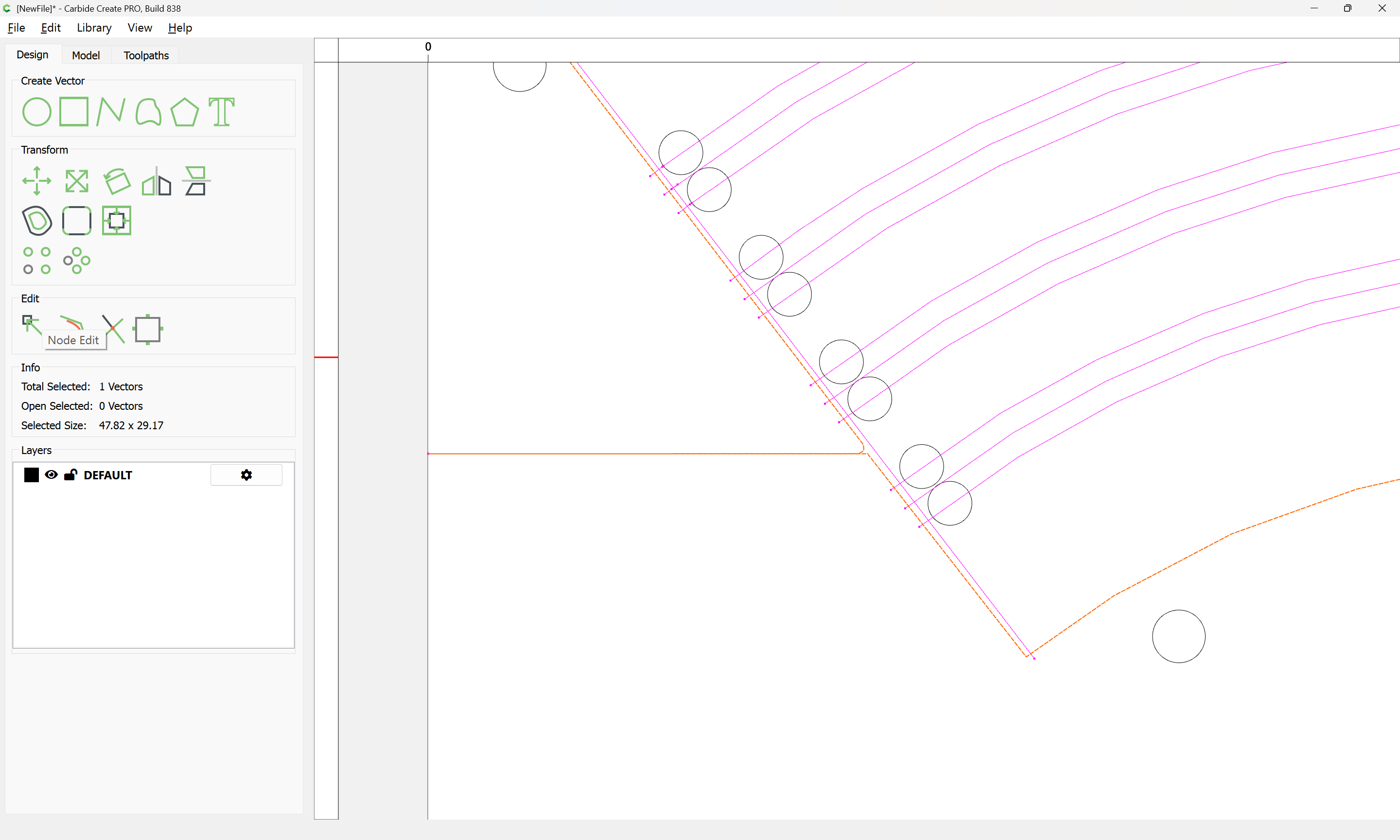
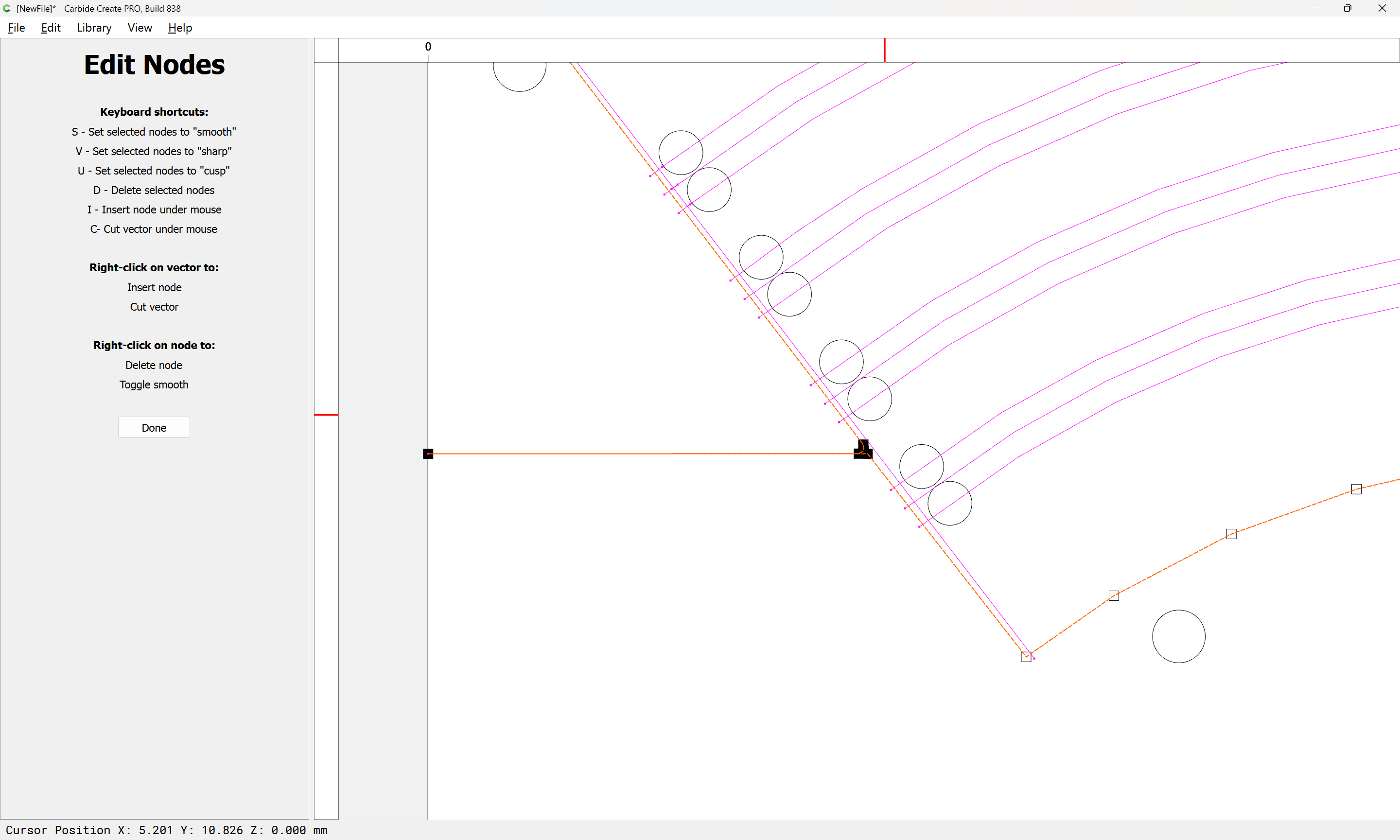
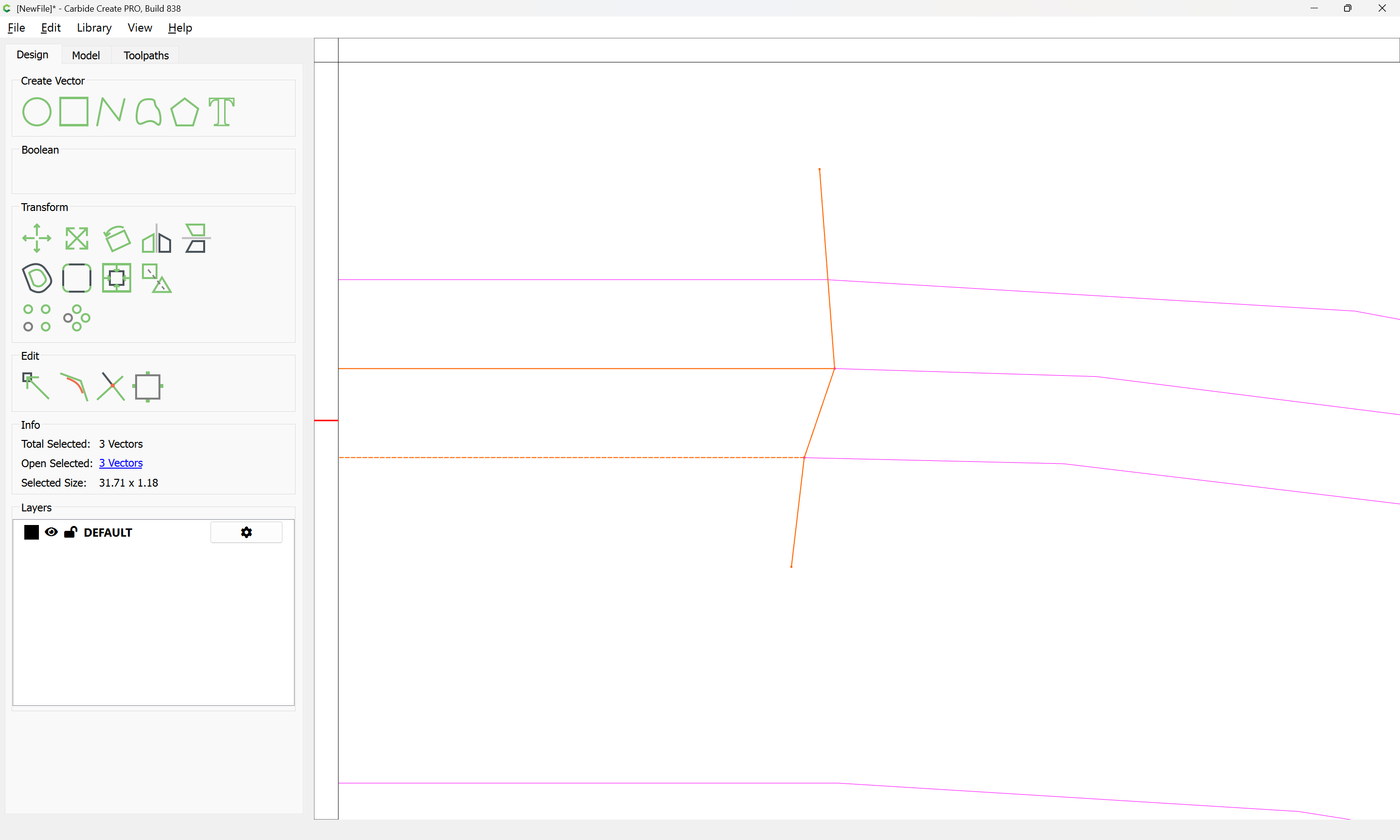
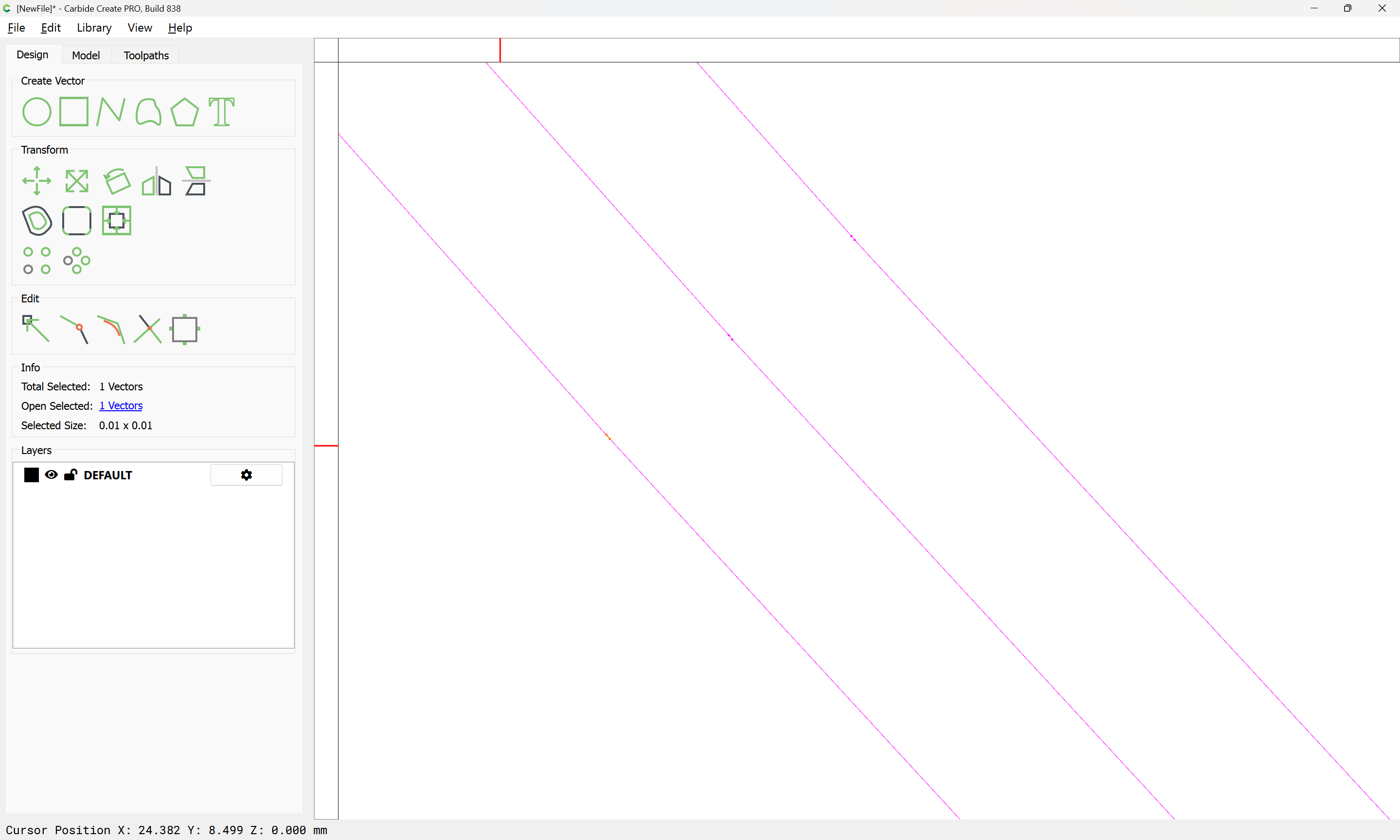
Selecting individual elements, we find that some have extraneous lines/nodes:

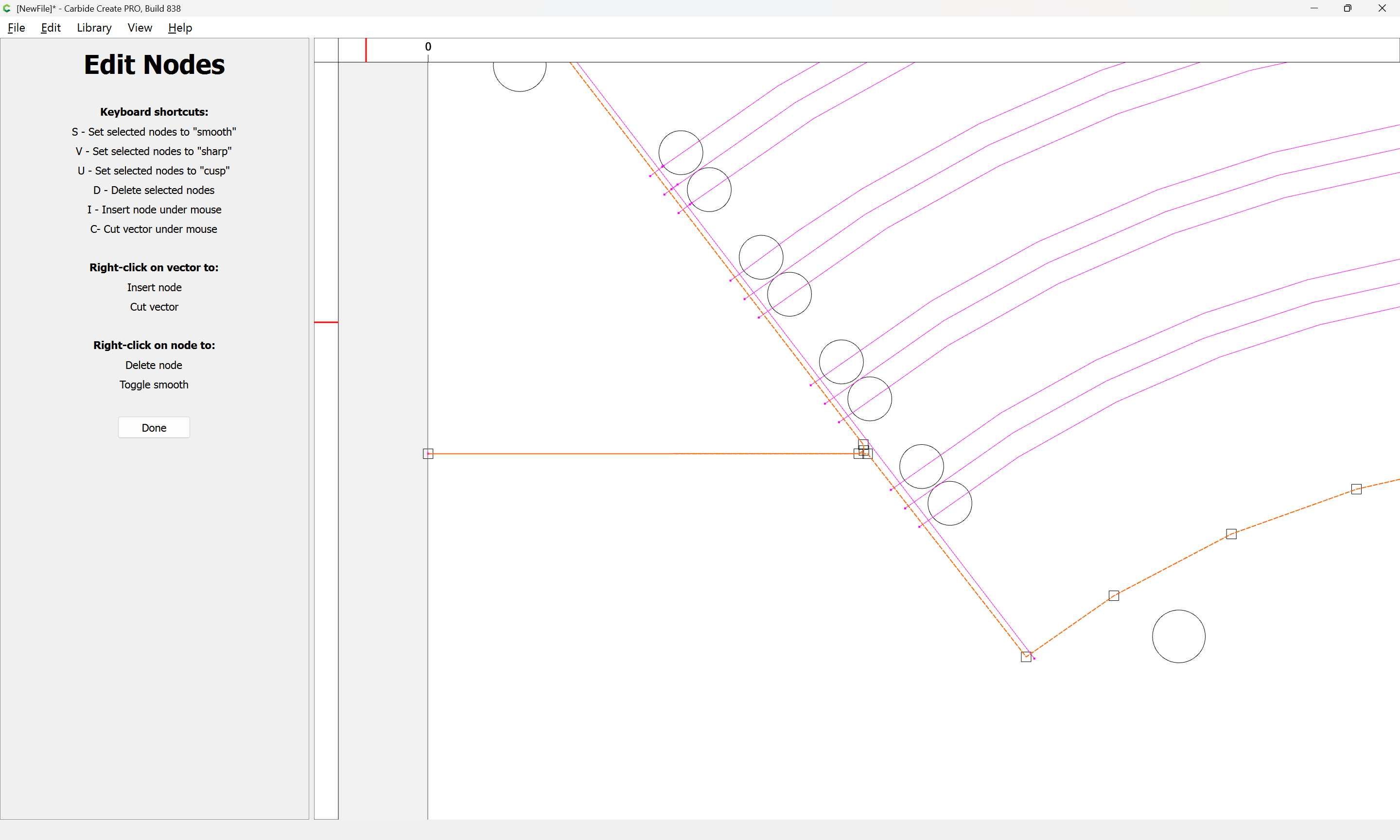
so we go into Node Edit mode:

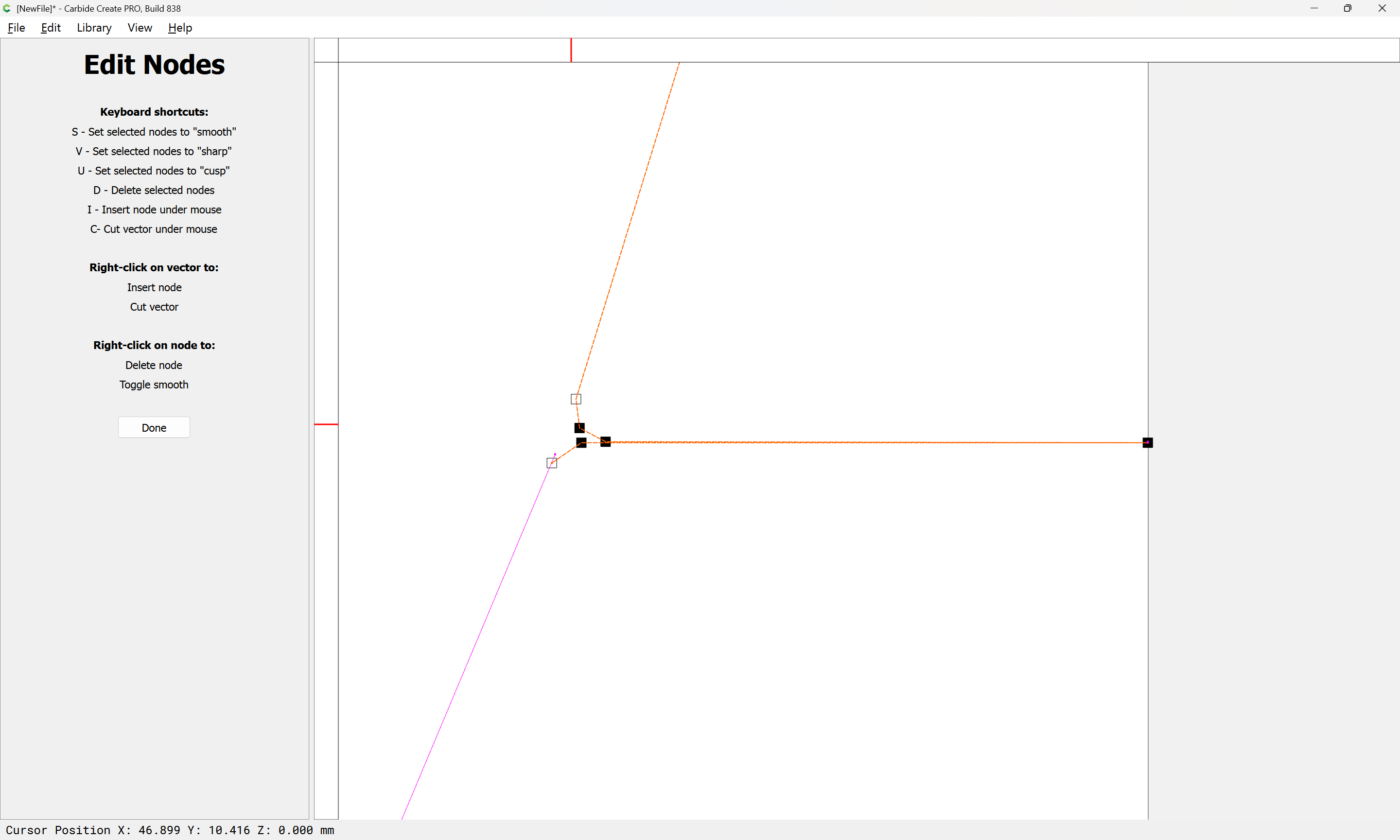
zoom in:

select what is not wanted:

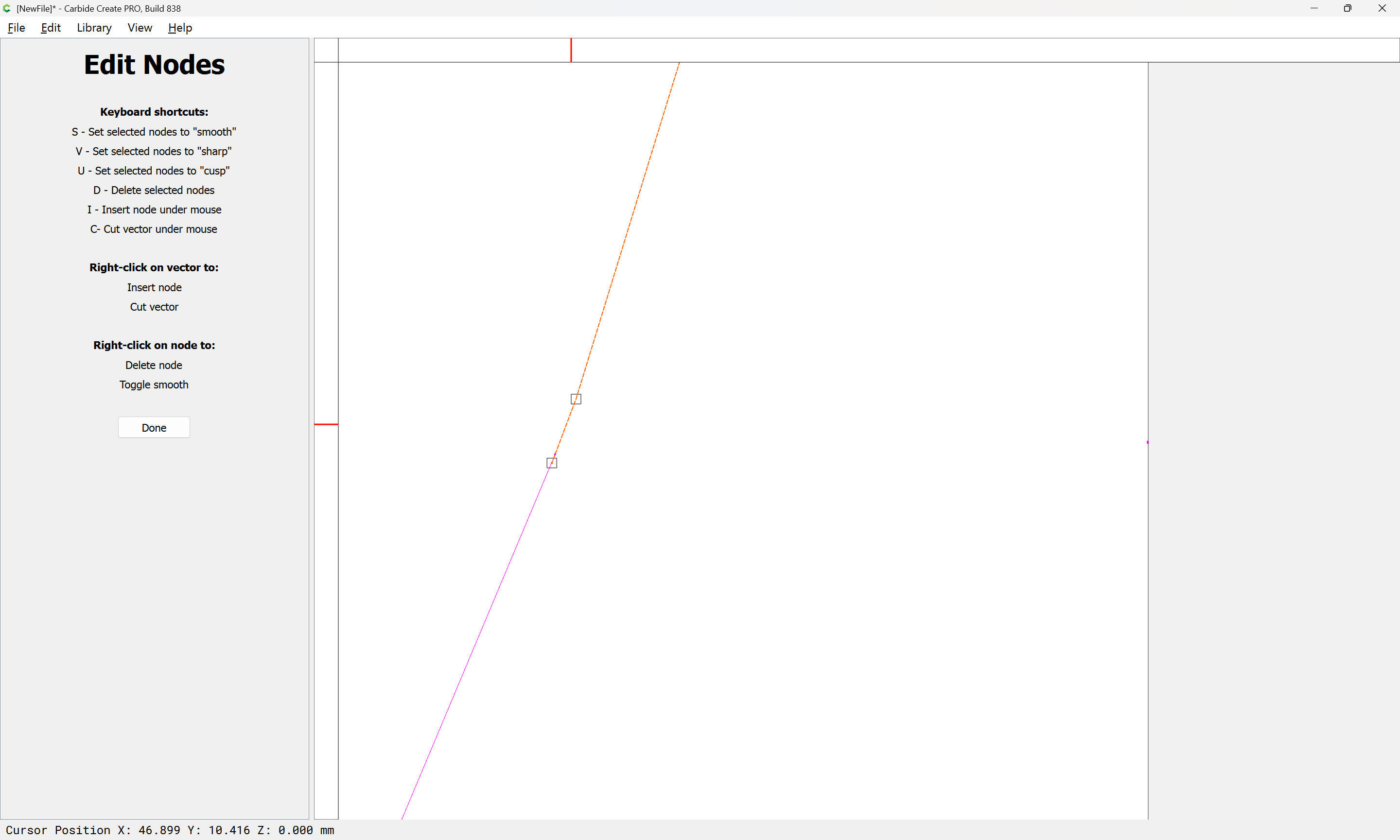
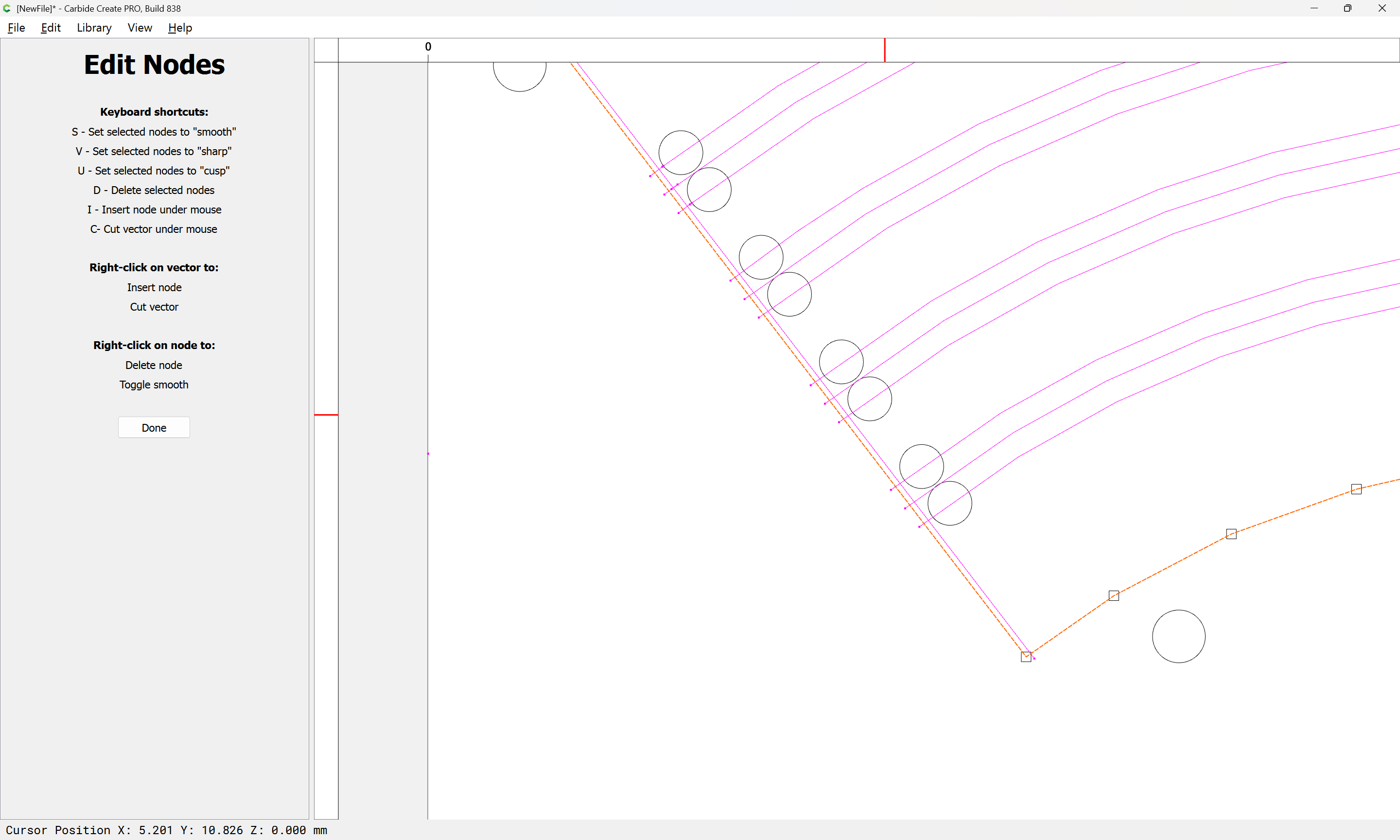
and delete (by pressing d)

Done

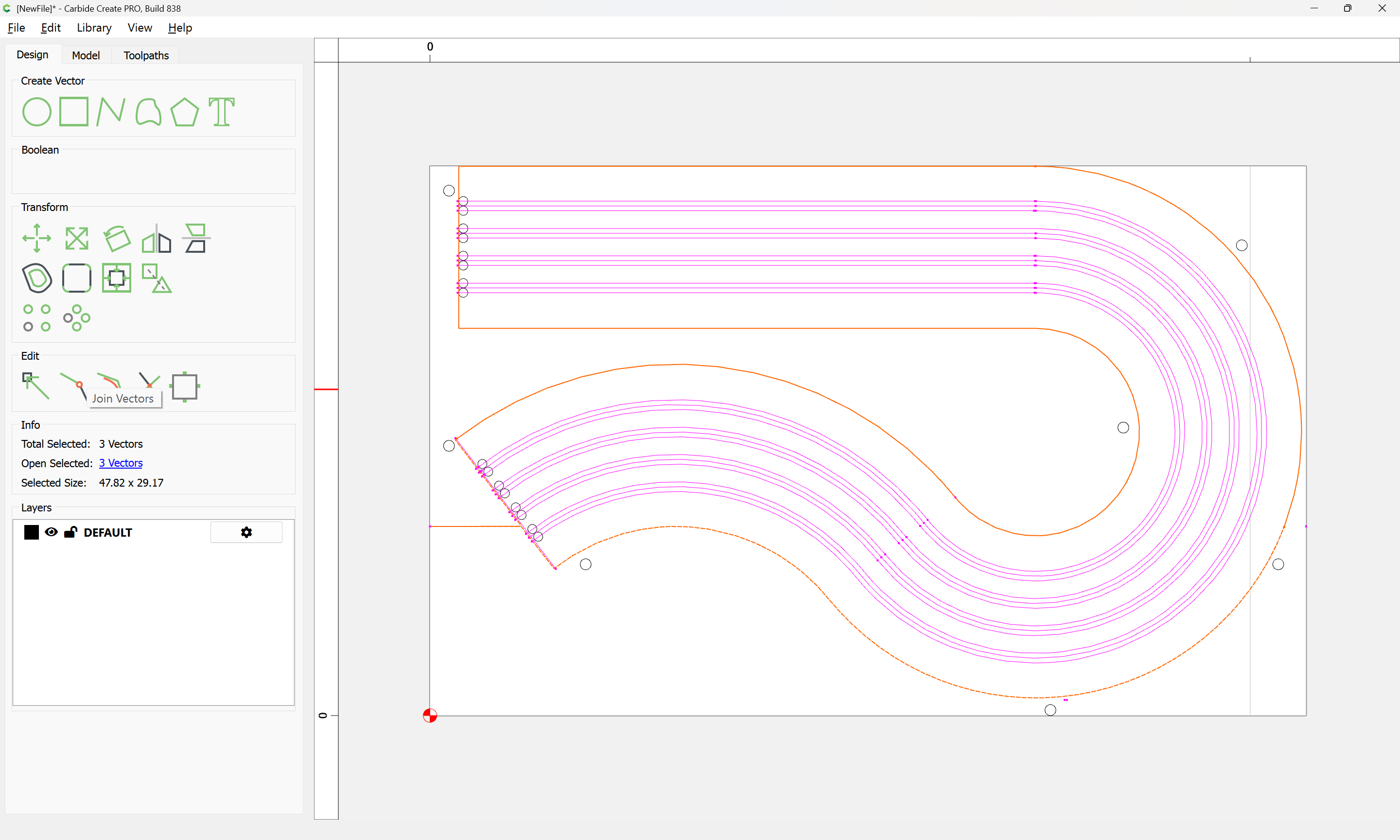
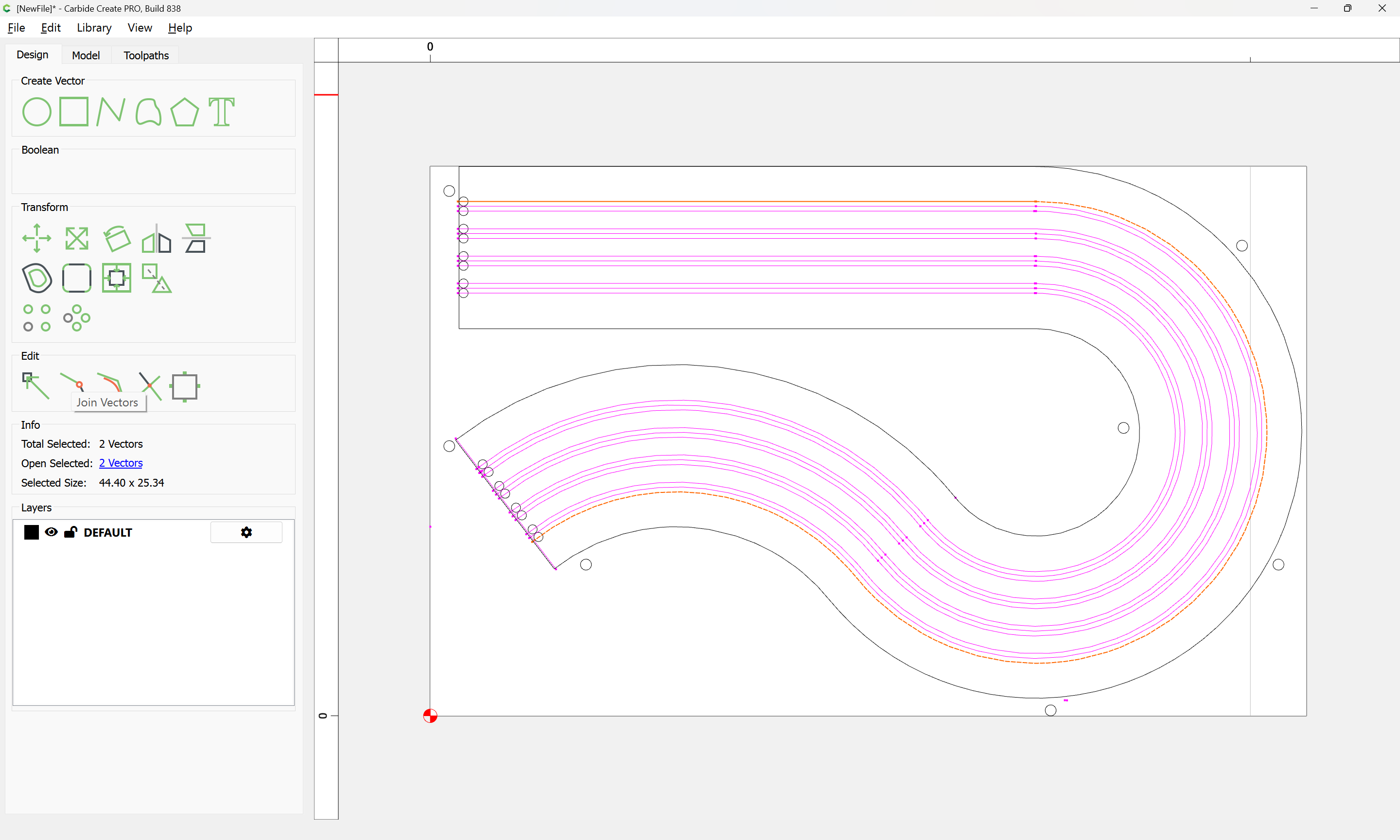
It should then work to select the elements which make up the perimeter:

and use Join Vectors

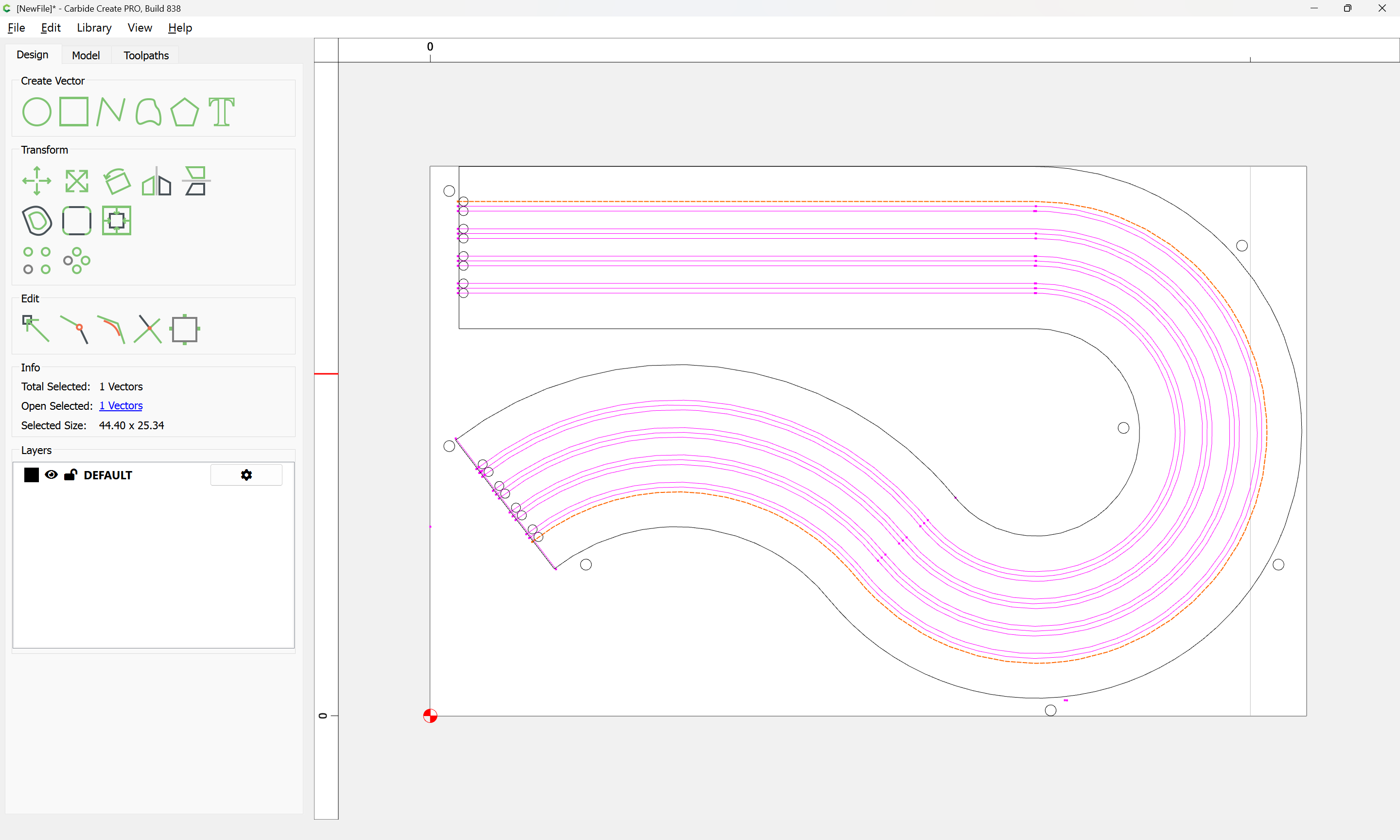
Continue to remove what is not needed and join what should be joined…

If you have Carbide Create Pro you can export as a G-code file, with .nc file extension which can then be loaded into any text editor:

https://carbide3d.com/hub/courses/create-pro/g-code-output/

If you don’t have Pro, a G-code file may be extracted from the .c2d file by loading into Carbide Create:

Note that even the joined perimeter needs some cleanup:

Node Edit:

drag to select:

d to delete

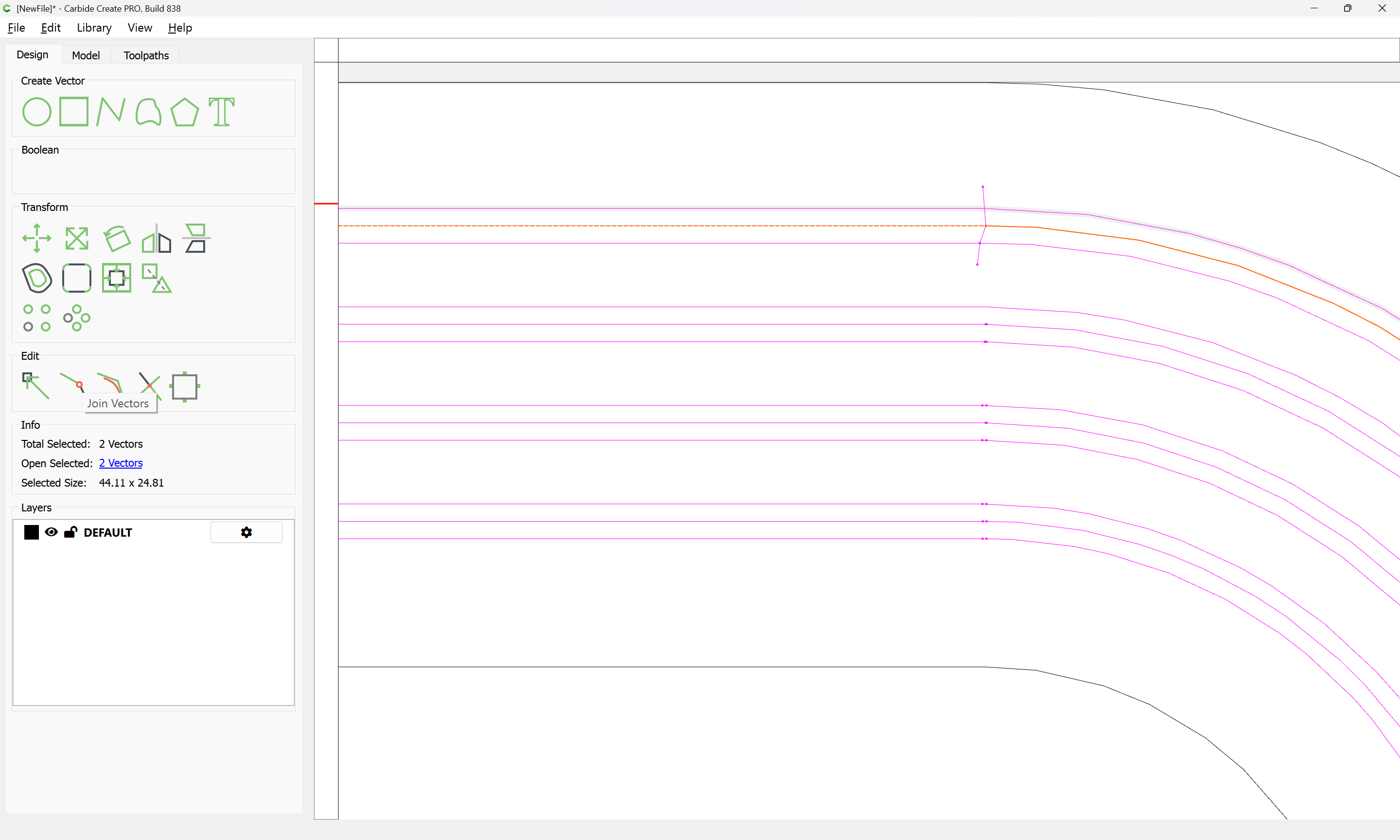
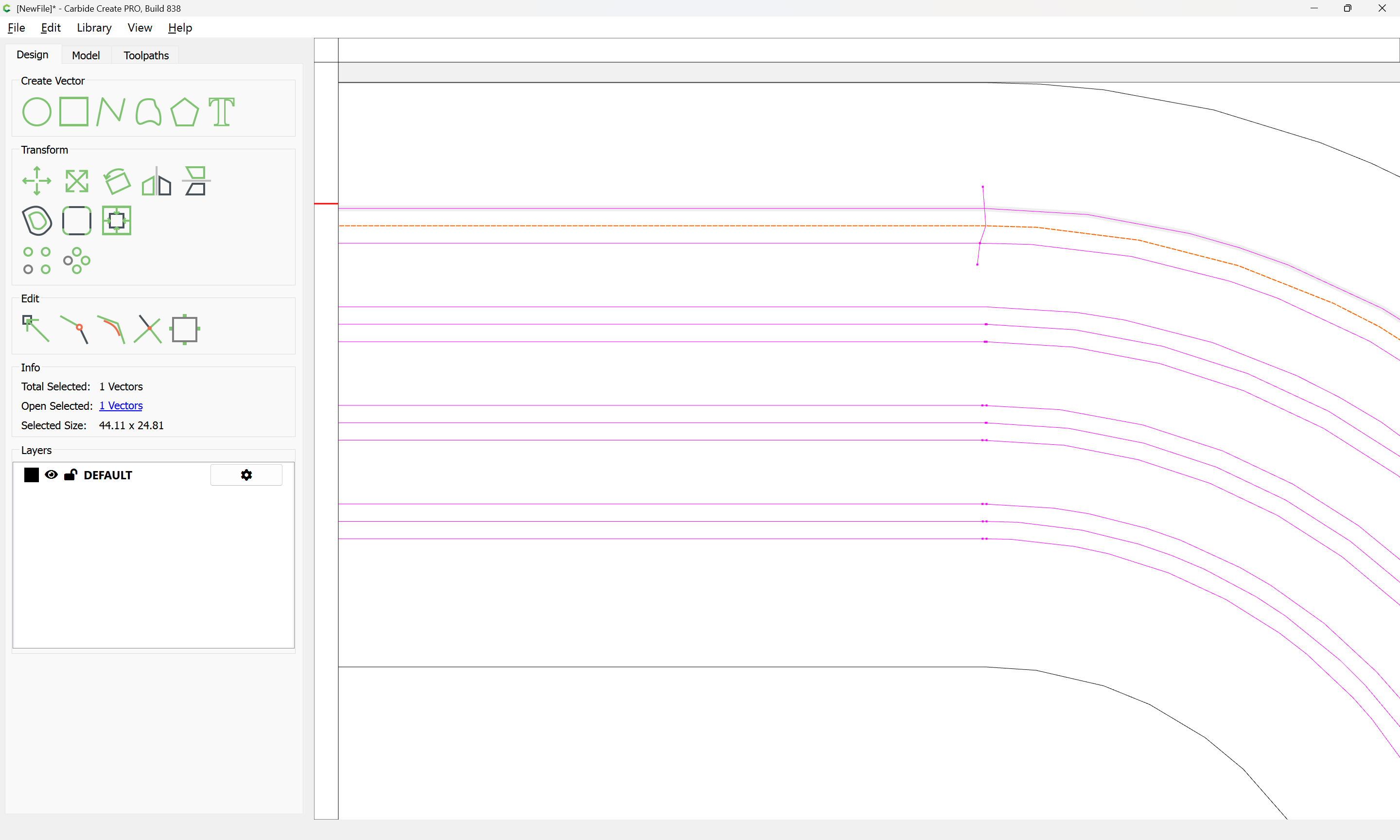
The elements which make up each line should be selected:

and then joined using Join Vectors:

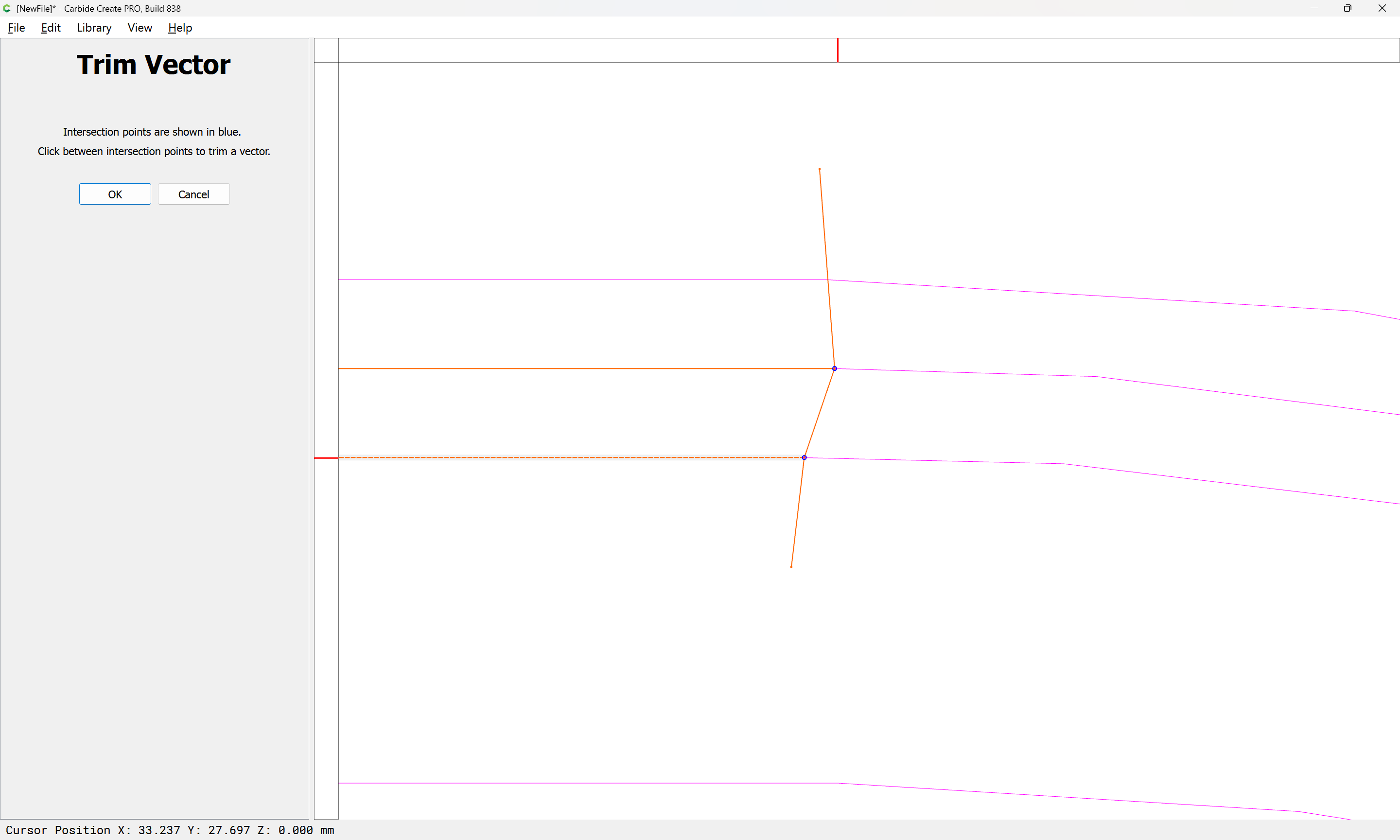
Note that some lines do not line up at their ends:

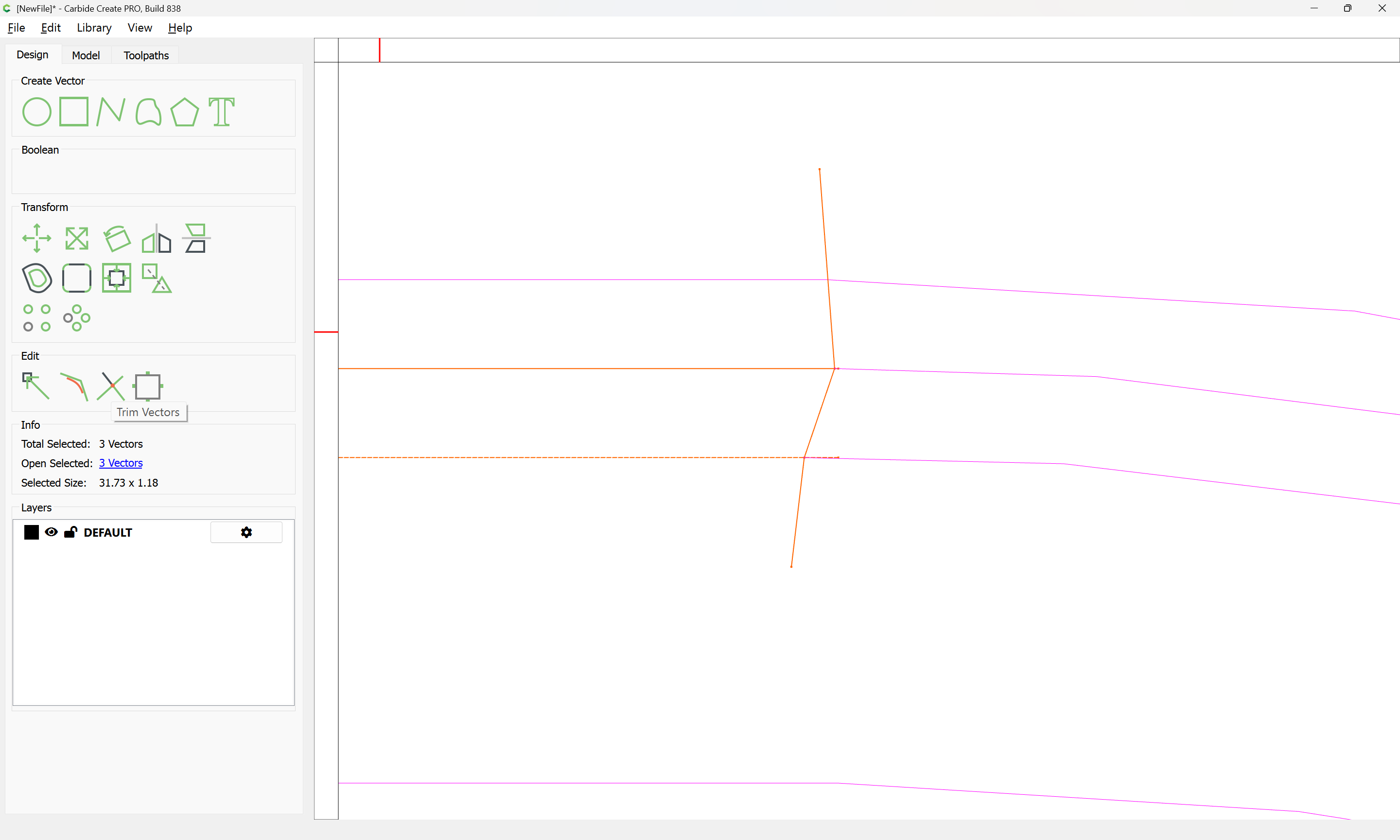
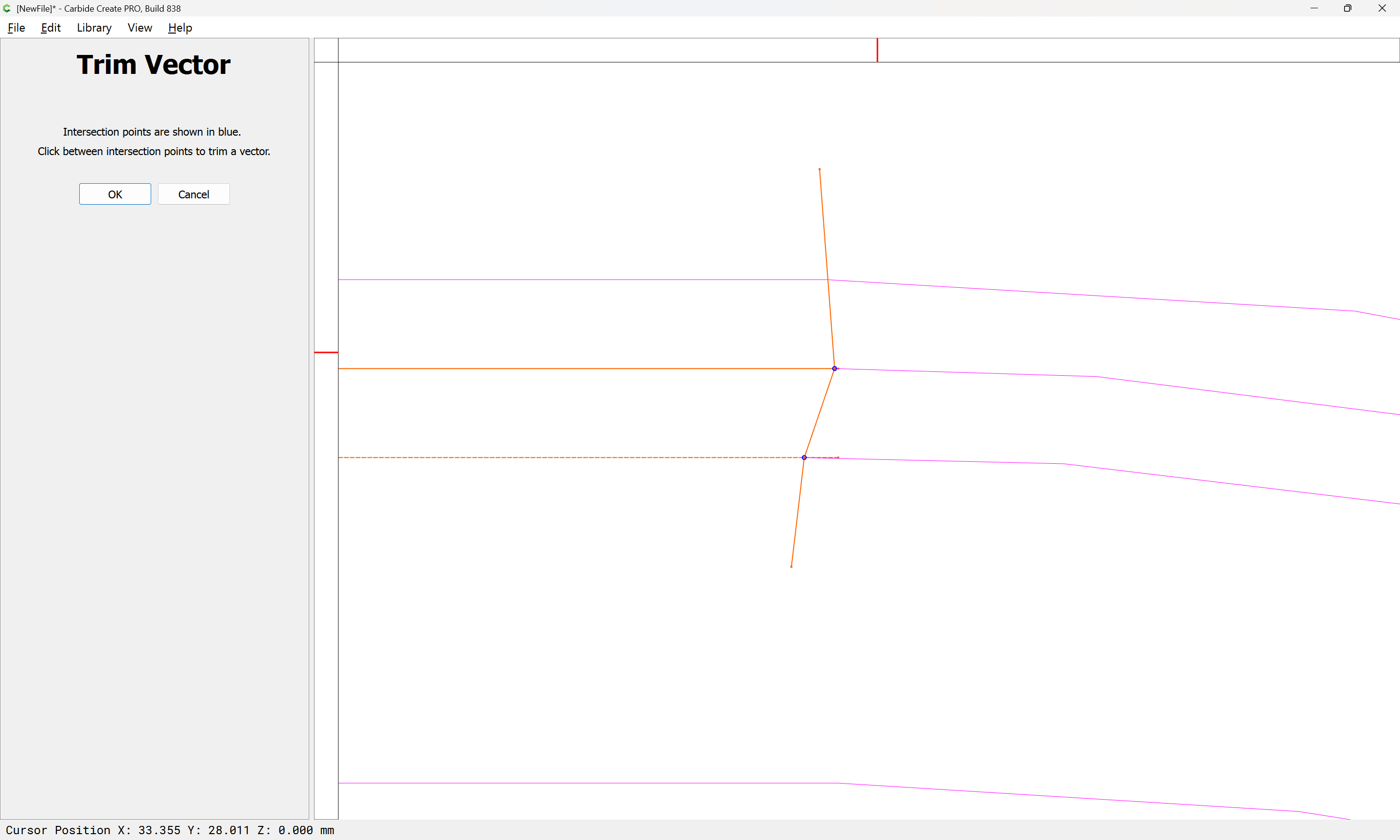
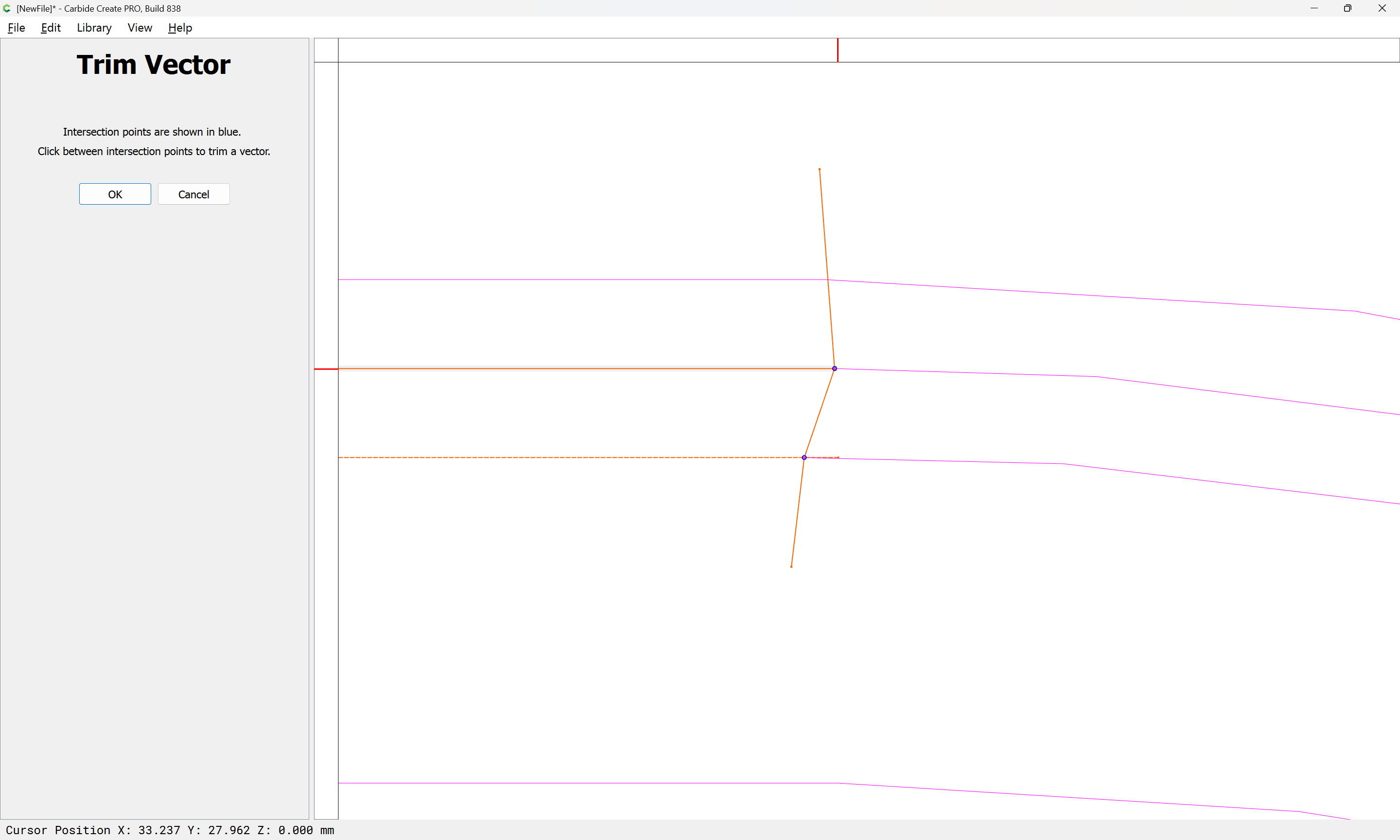
So it will be necessary to use Node Editing or Trim Vectors to get things to line up.

Trim Vectors

OK

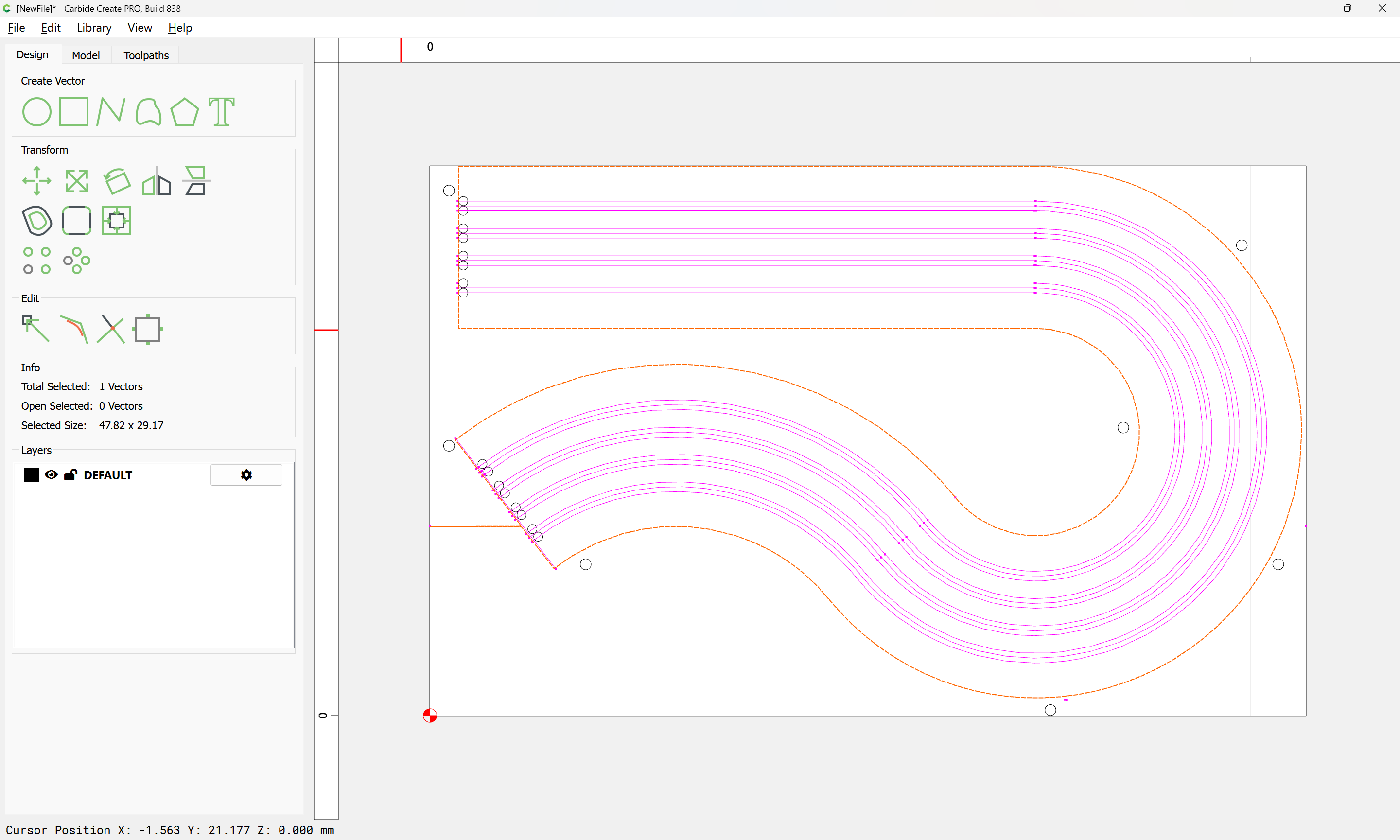
Once the ends are coincident it is possible to select:

and use Join Vectors:

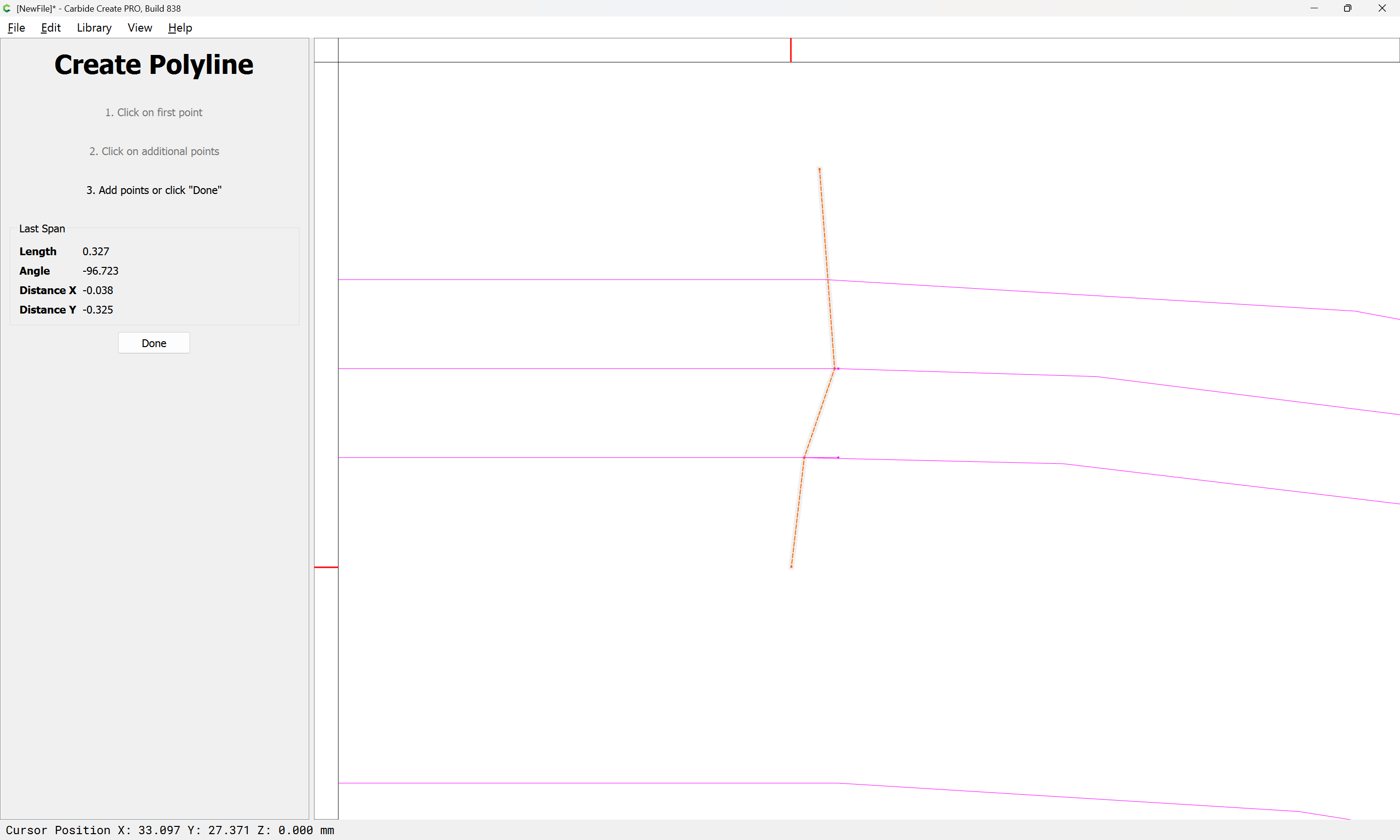
Note that some short redundant line elements will need to be cleaned up:

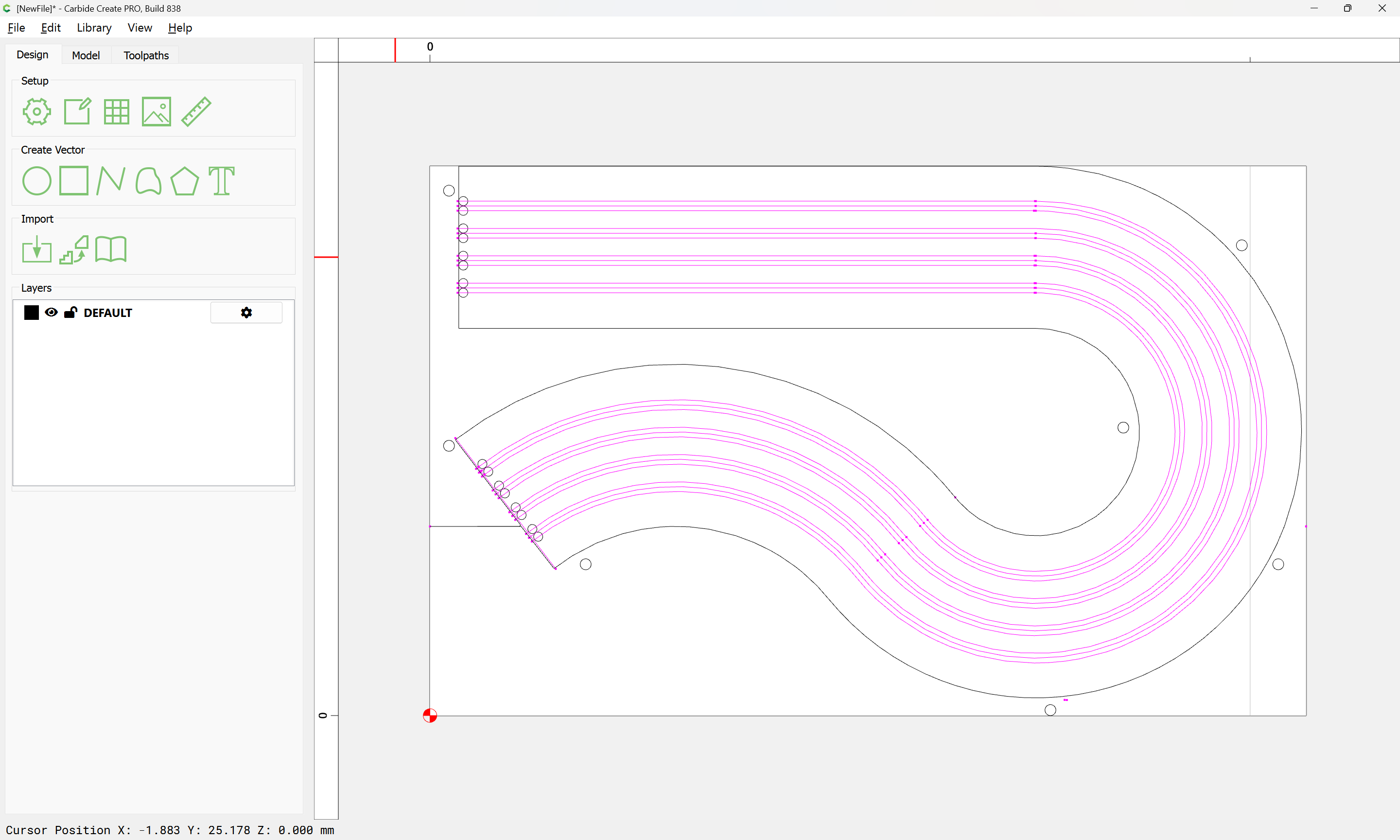
Repeat this for all other elements until one arrives at:

As I told Brandon…Those are there on purpose. They part off the excess material so the material can be moved up for the next cut without interfering with the spoil board.

This helped me today! Thank you!

It should be a straight-forward matter to edit said lines back in.

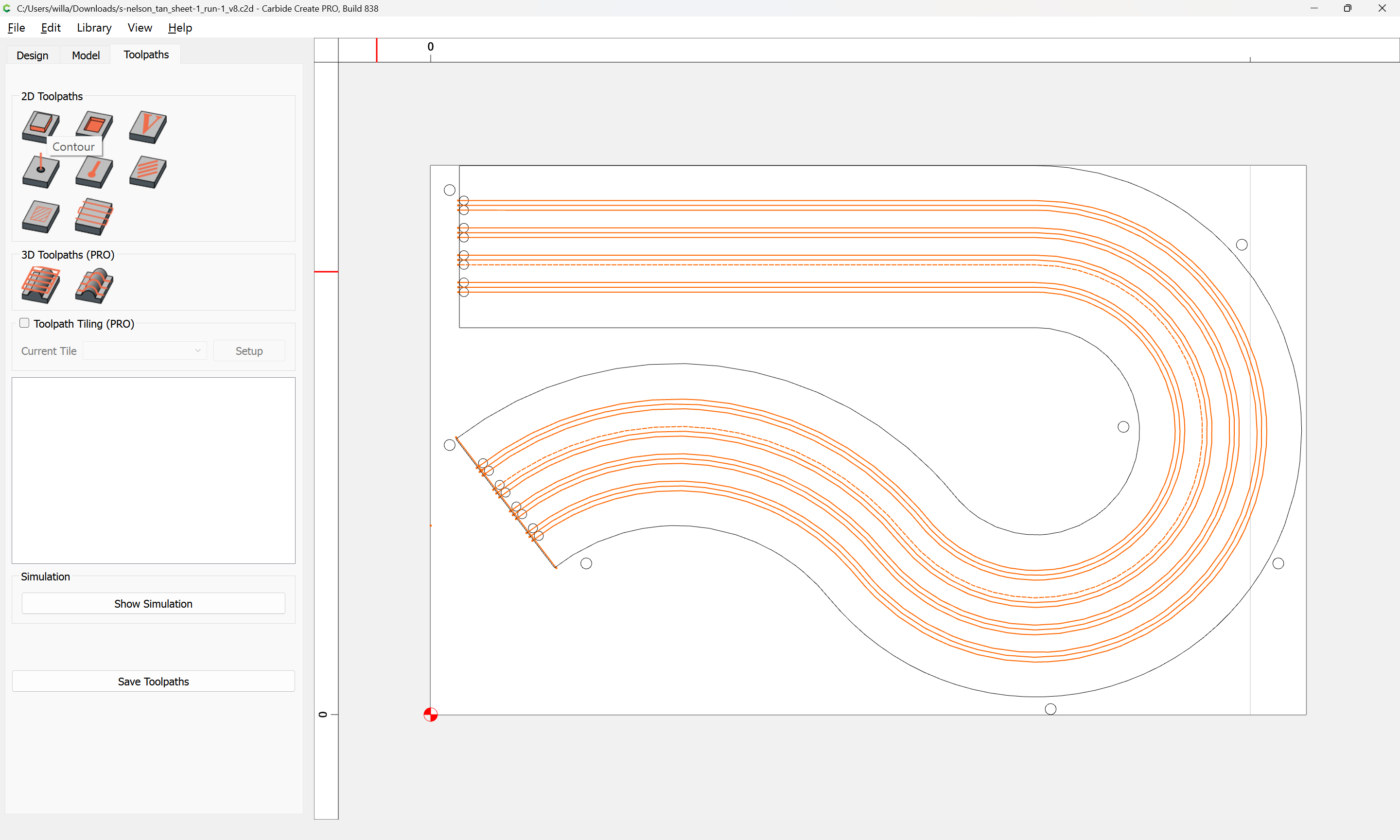
With the files fixed, one can select the decorative elements:

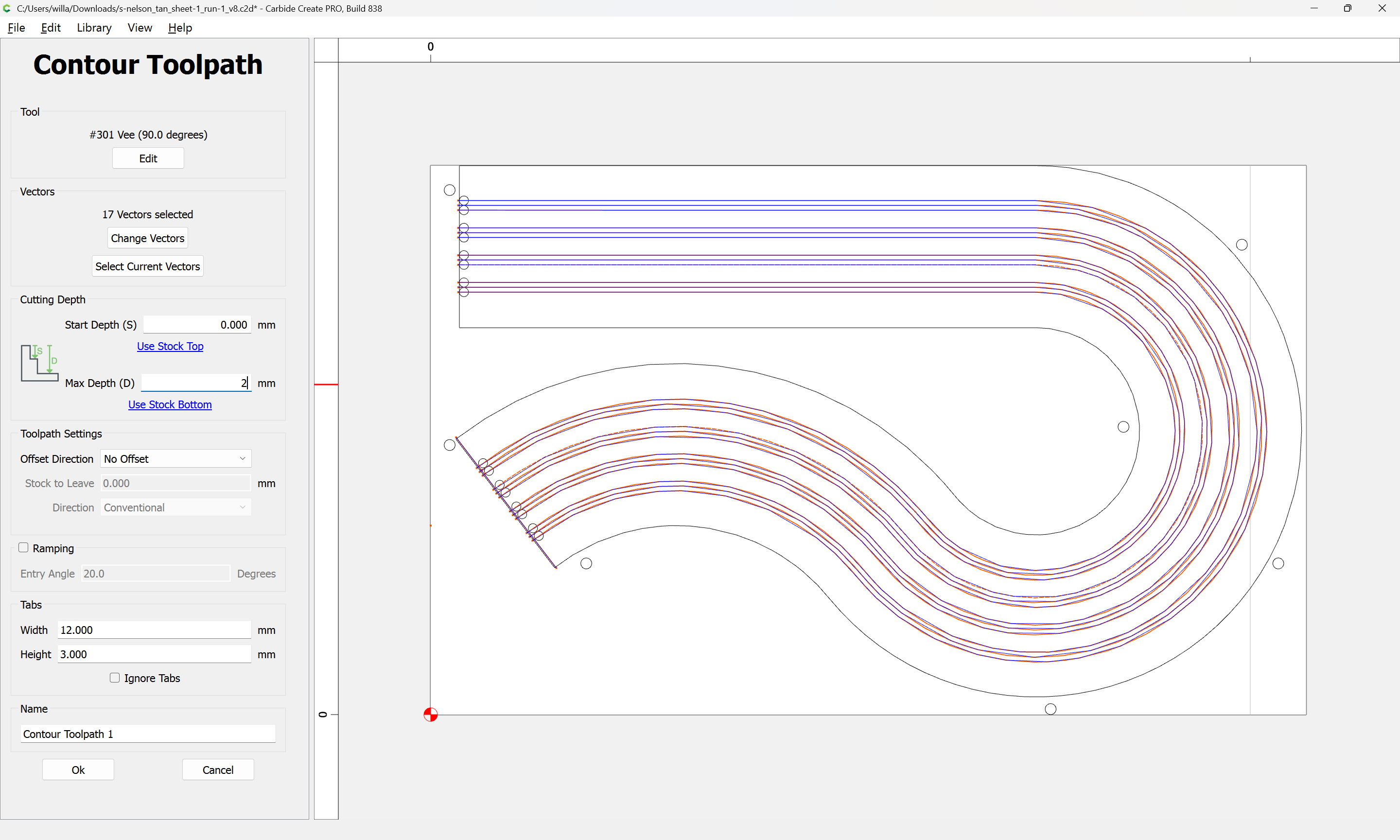
and assign a No Offset Contour toolpath:

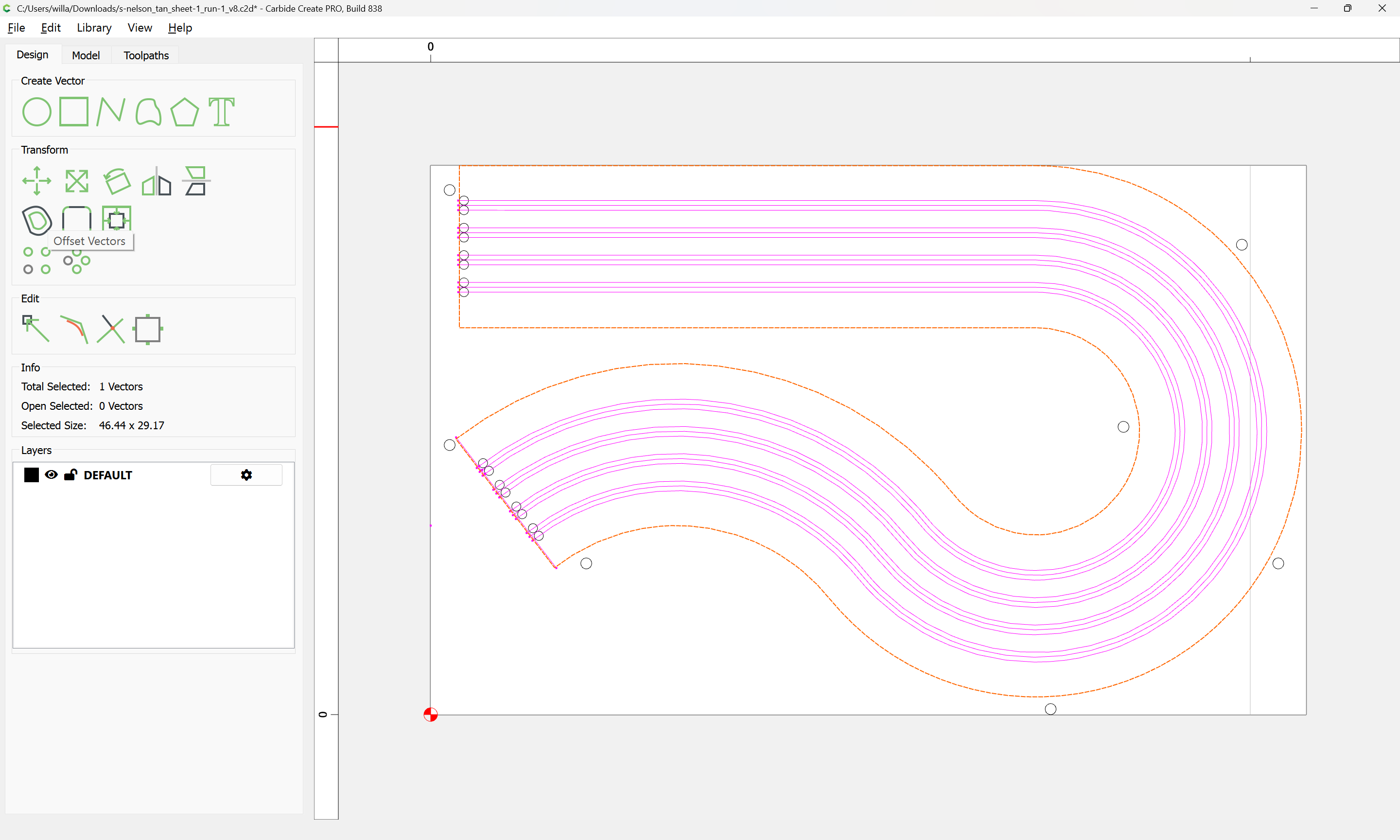
and for the perimeter:

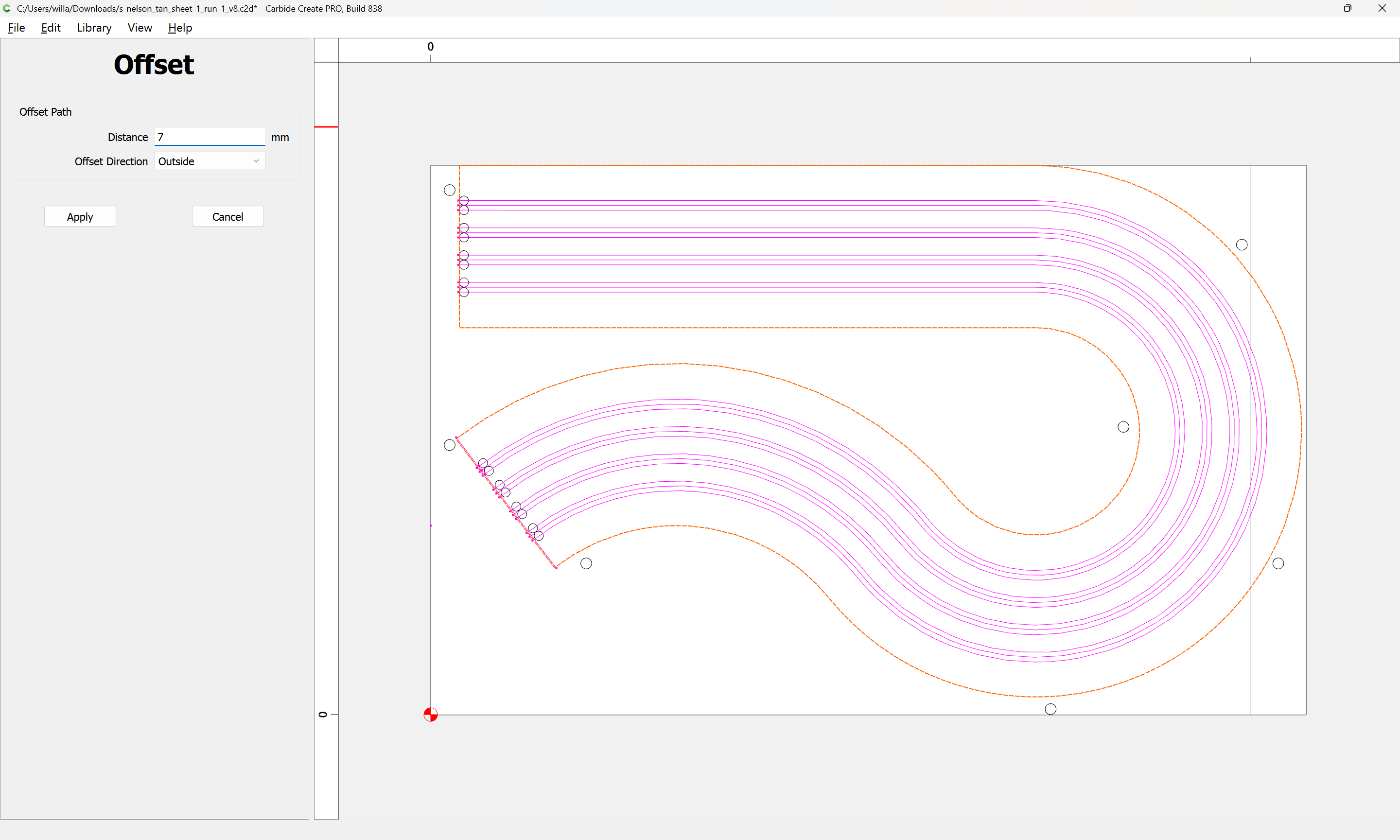
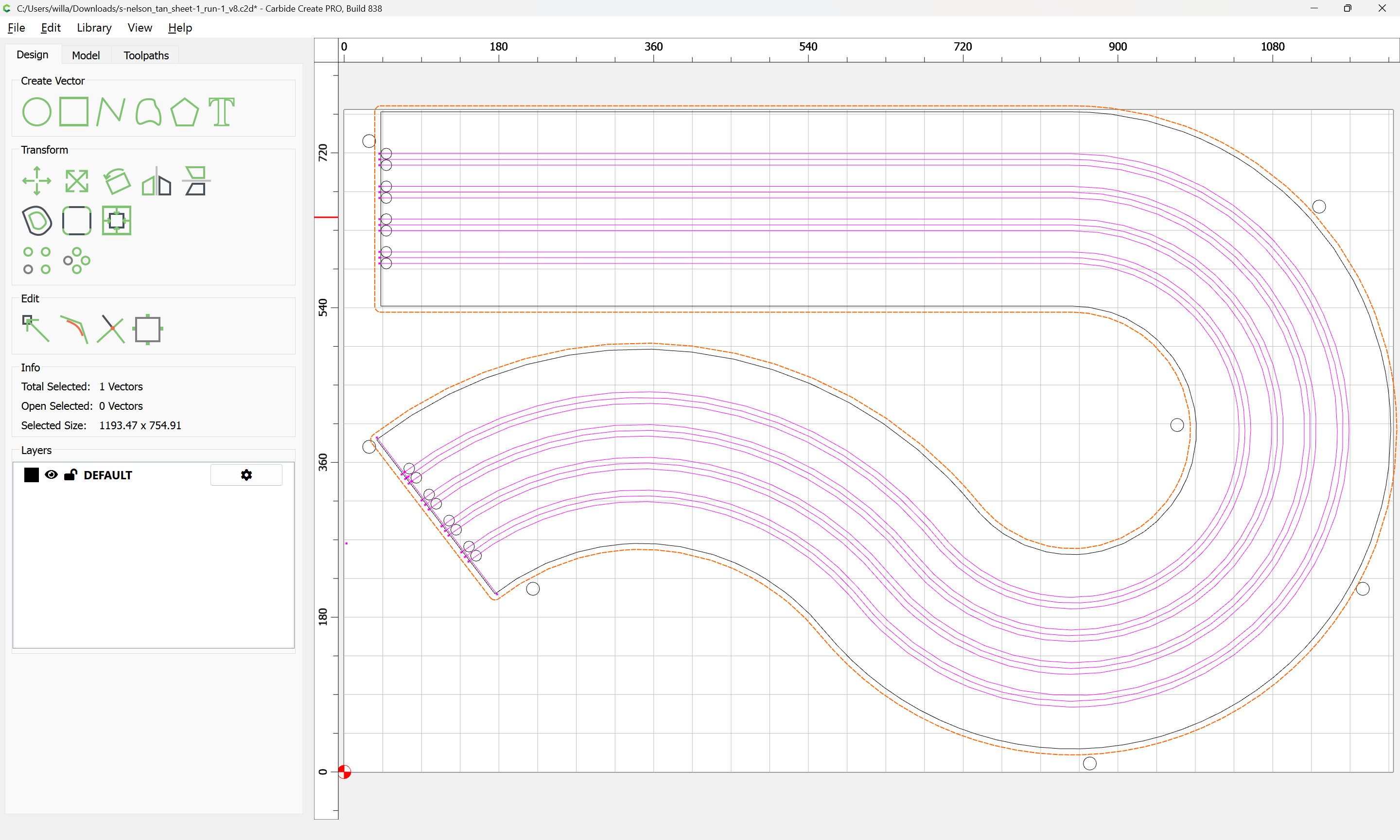
Offset by tool diameter plus 10% or so:

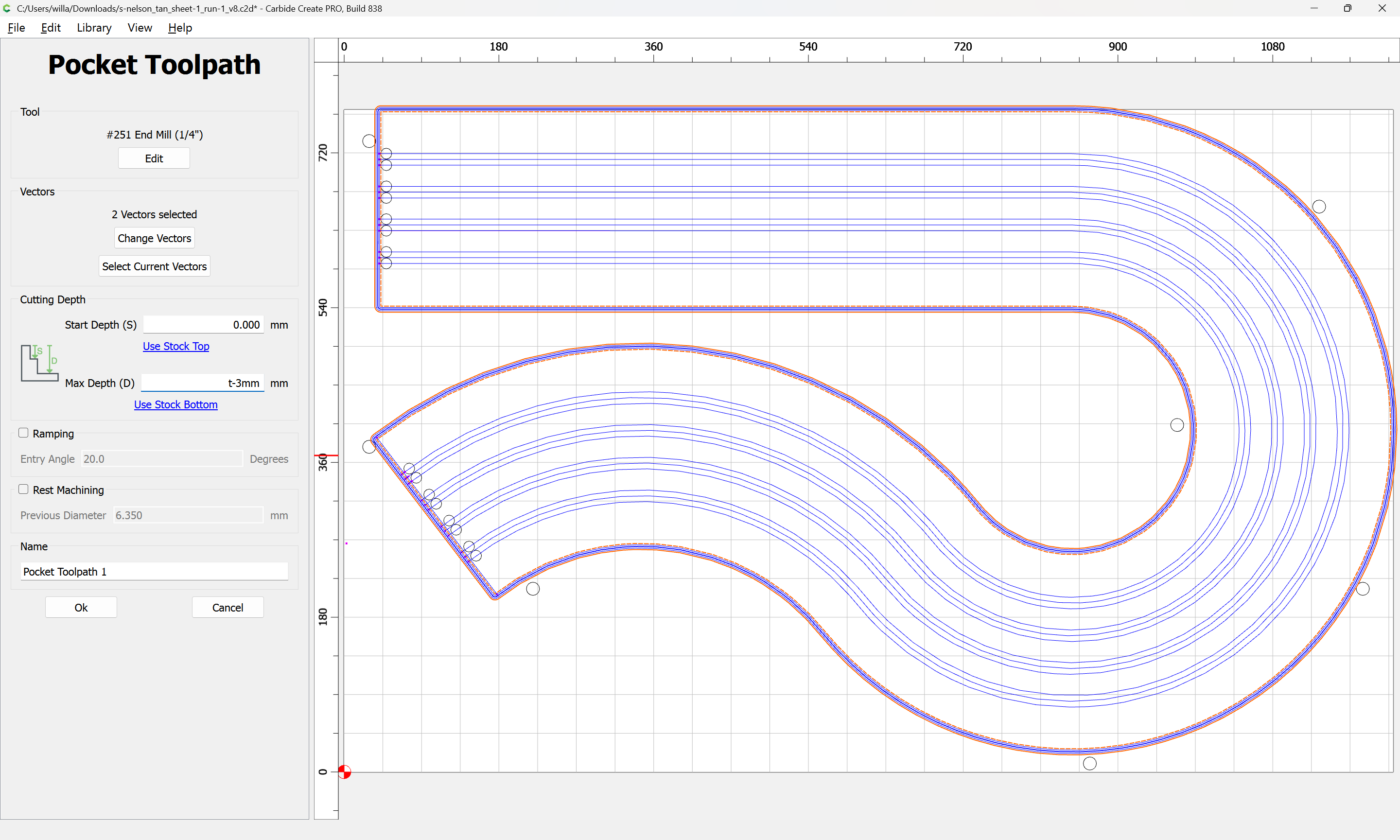
Then the original and offset geometry may be cut as a pocket down to tab height:

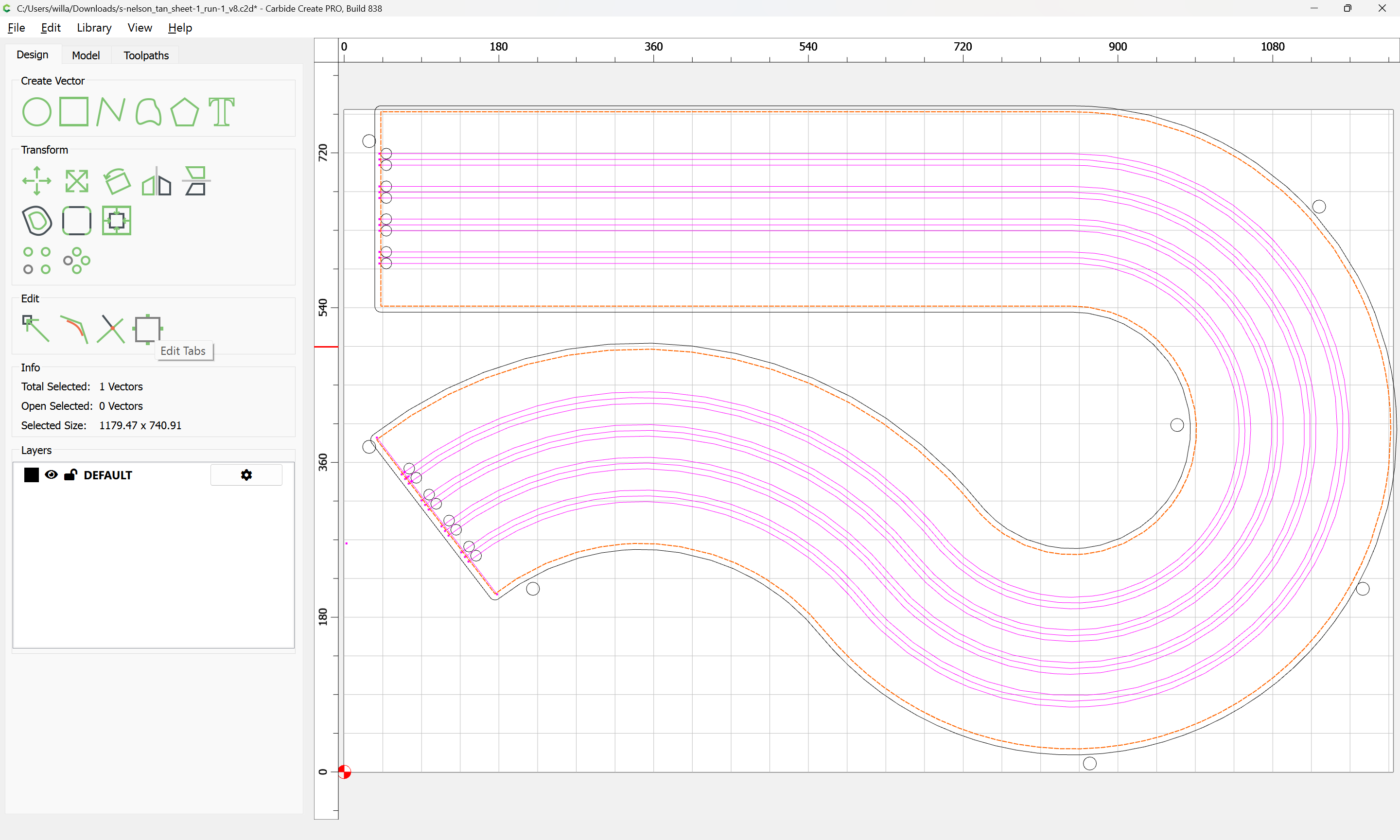
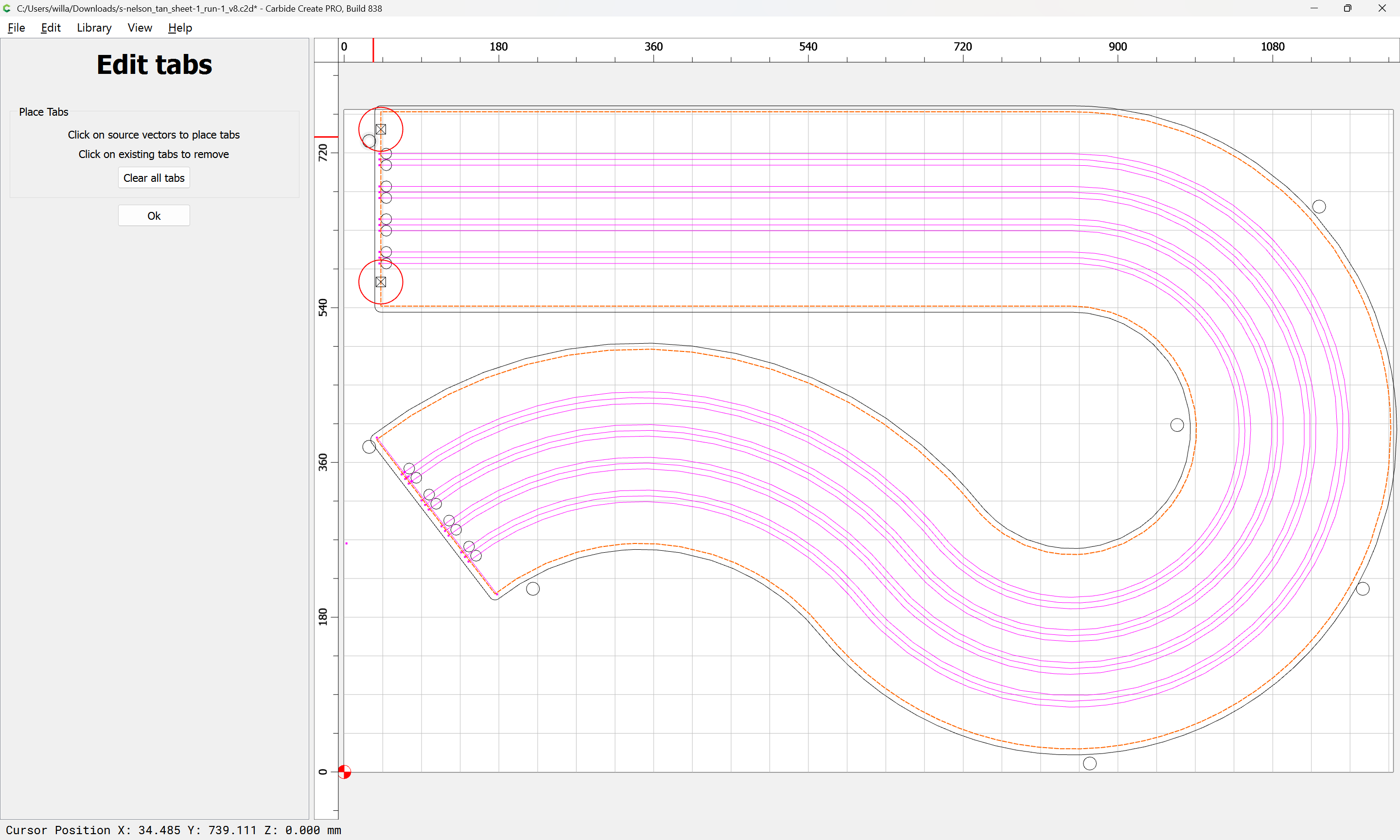
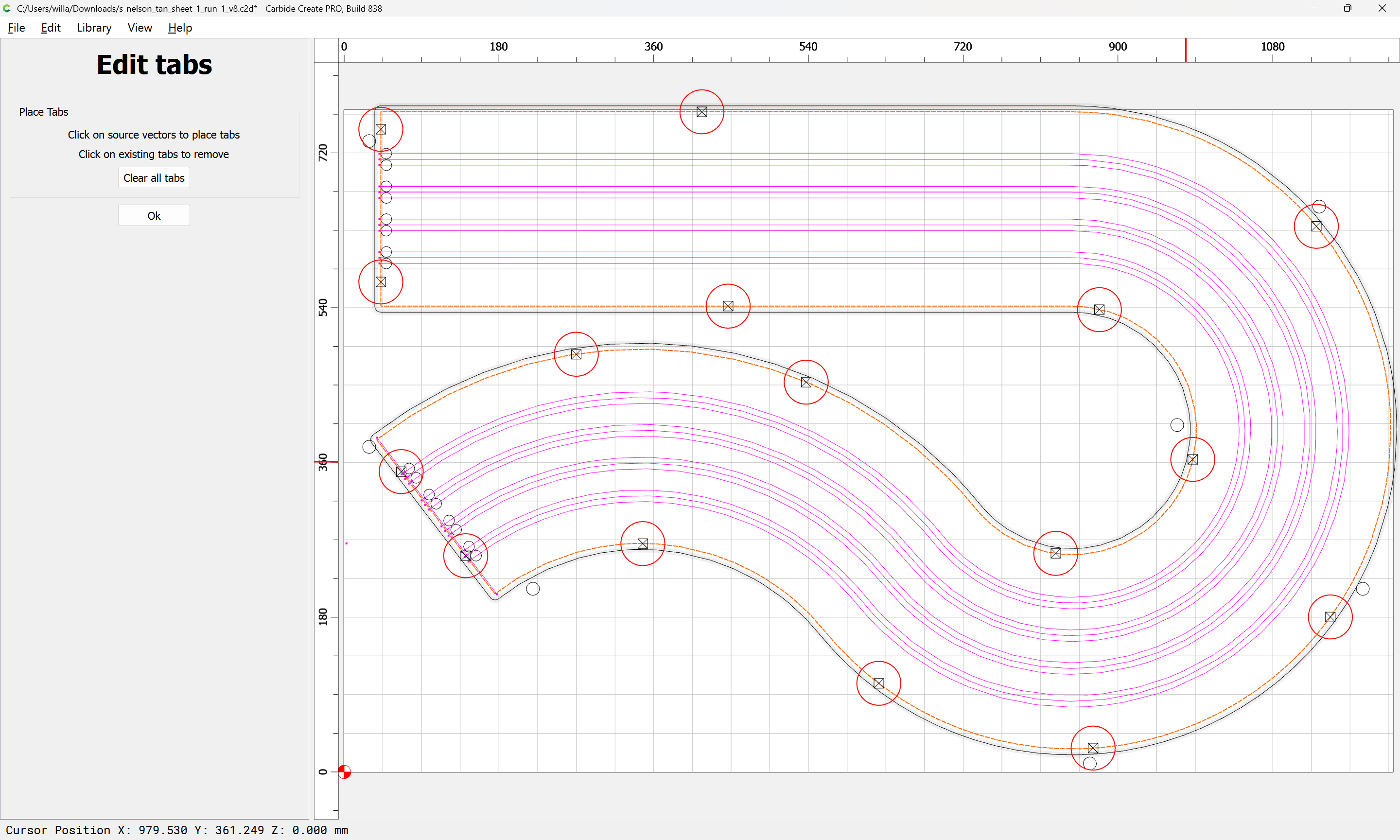
If need be, tabs added:

and then the perimeter cut:

which previews as:

Naturally the toolpaths and geometry may be adjusted as necessary to arrive at the desired result.

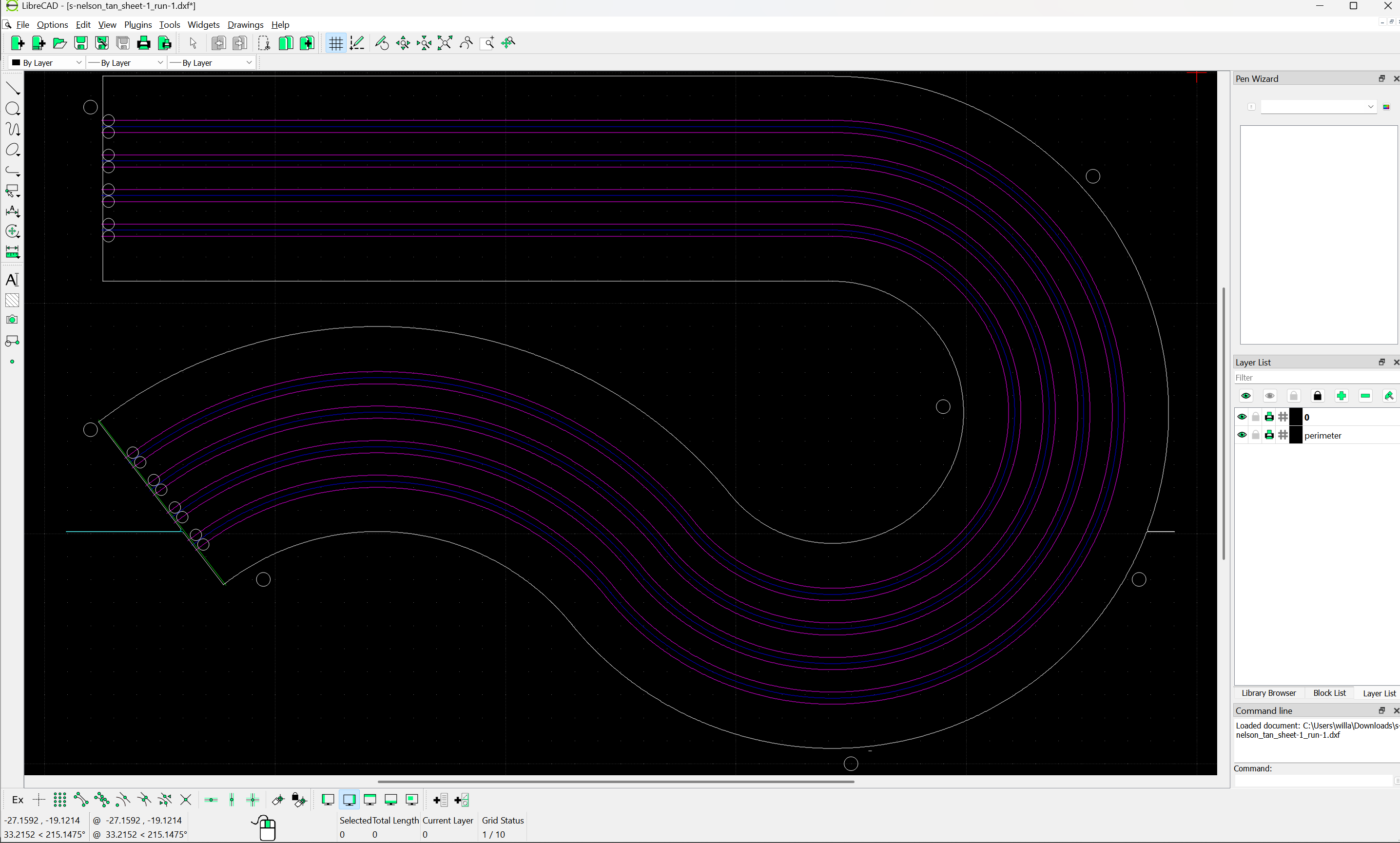
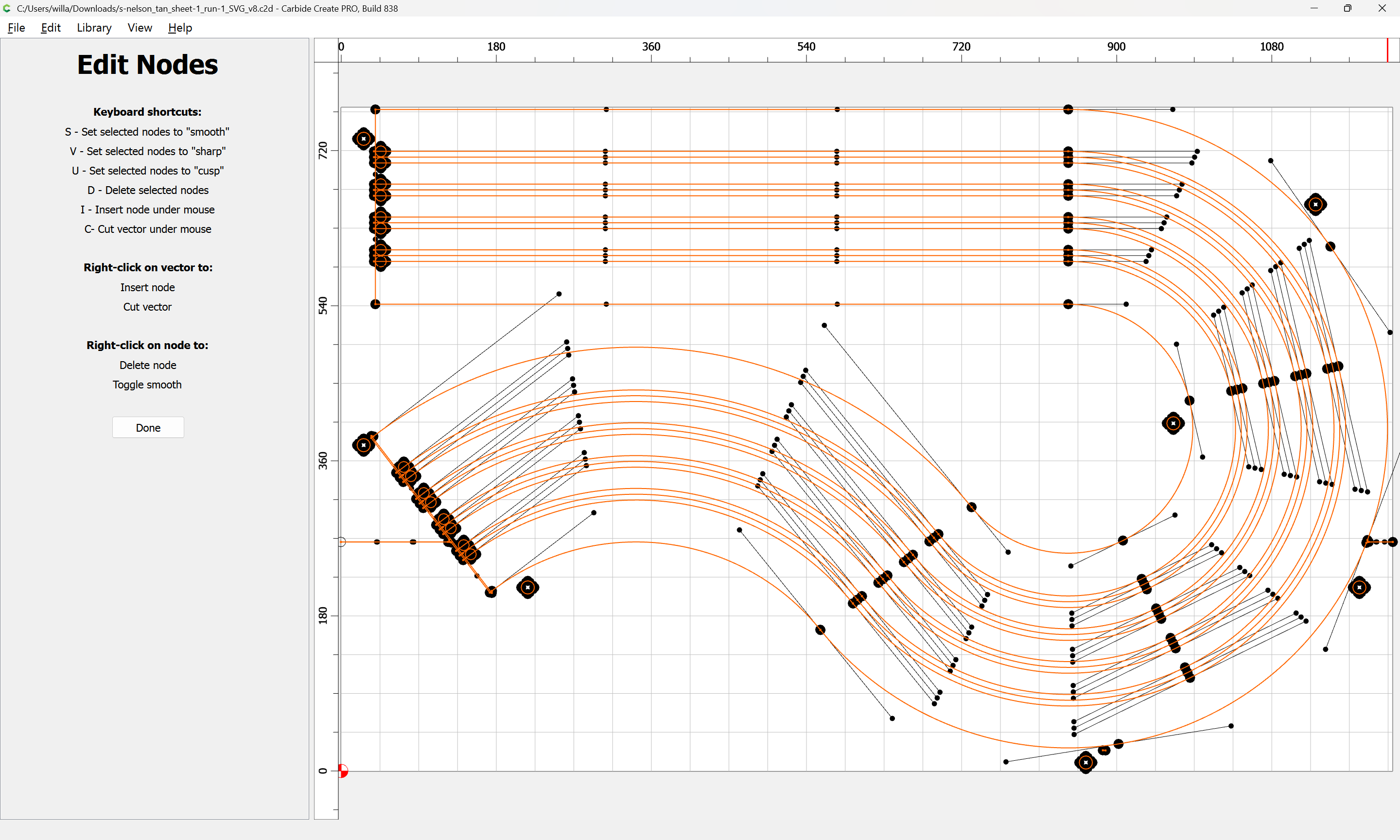
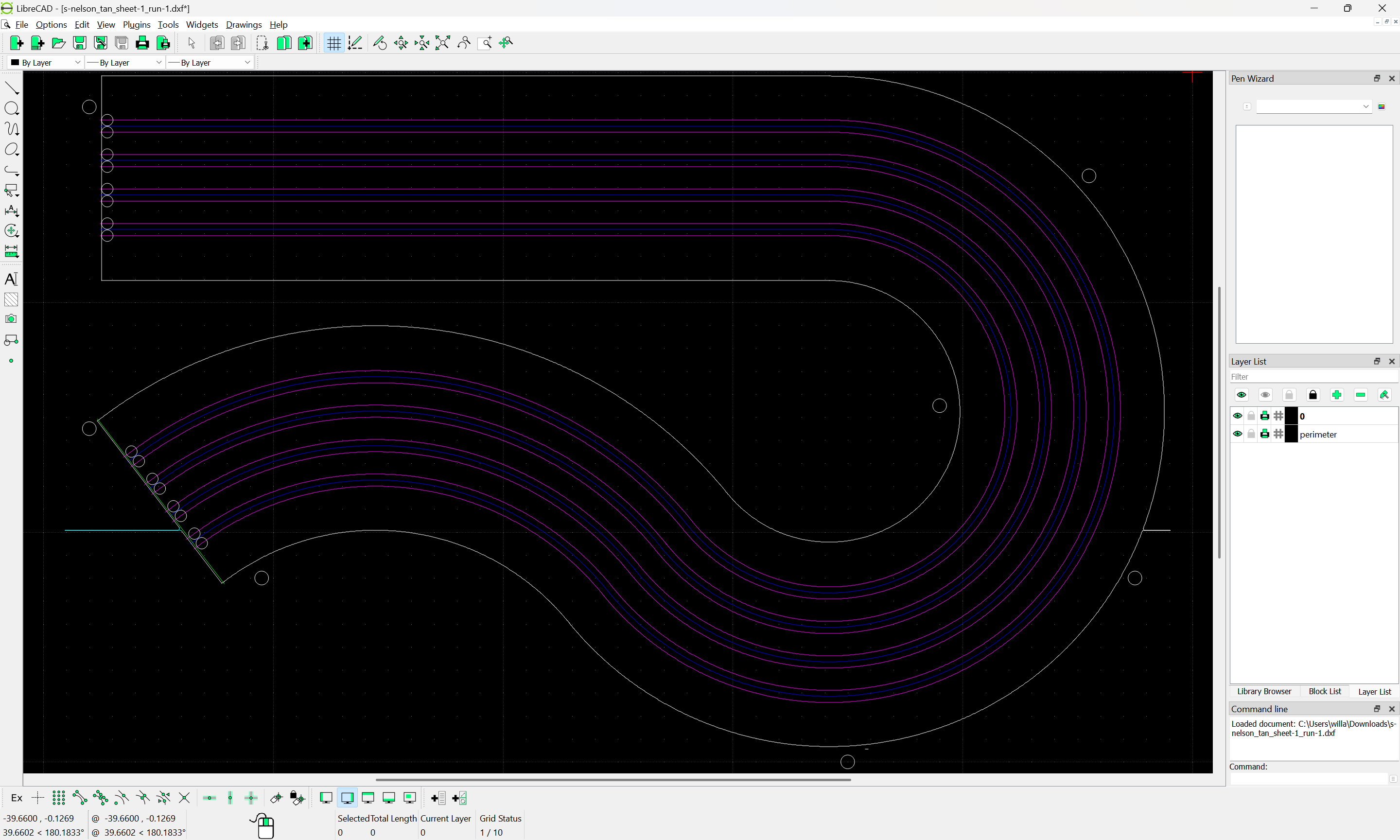
Note that if one wants curves as curves, then open the DXF in LibreCAD:

export as an SVG:

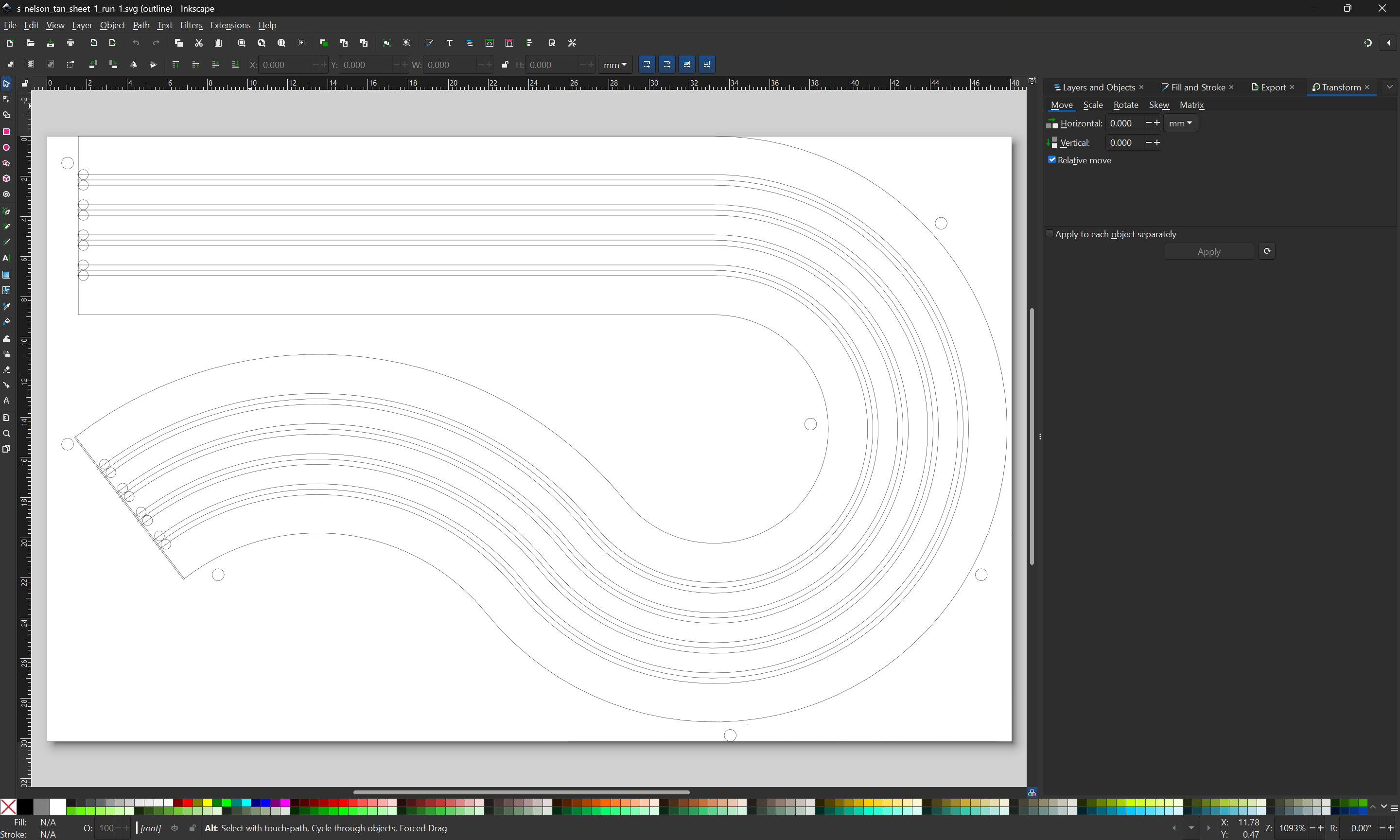
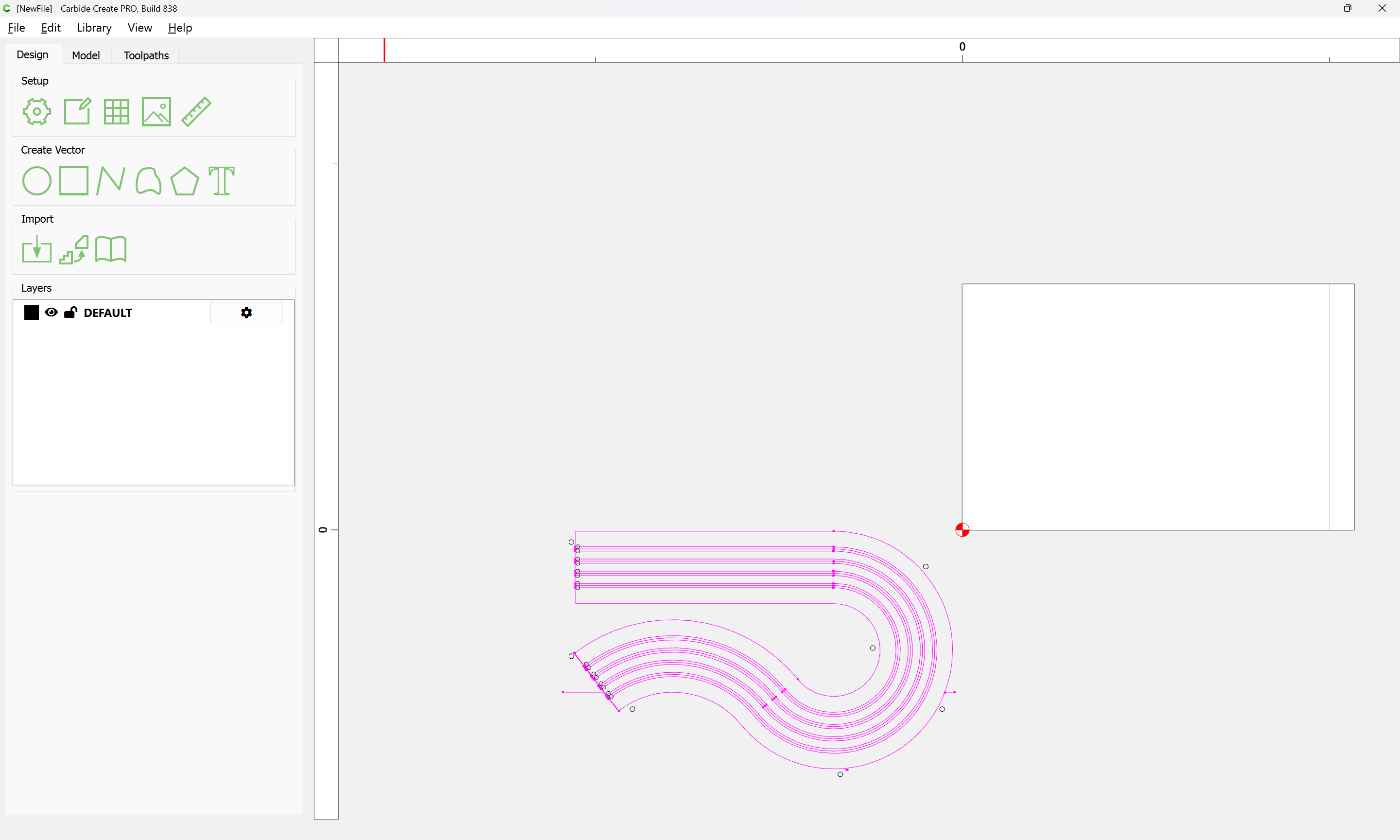
which imports as curves:

I don’t know if this will help but PixelCNC automatically joins DXF elements into a path, and there’s a tolerance setting for how large of a gap that can exist between endpoints before it stops auto-joining geometry when loading a DXF. You could import the DXF as a paths-layer and generate your toolpaths in there, or turn around and export the paths-layer as an SVG to load into CC.
This topic was automatically closed 30 days after the last reply. New replies are no longer allowed.