I just got the trial version of CCPro and have a question.
I have a cube about 3 1/2" square and 1 1/2" thick.
I want to put a 30 degree angle from all four sides of the top perimeter down to 1/2" from the bottom. Can CCPro do this?
I just got the trial version of CCPro and have a question.
I have a cube about 3 1/2" square and 1 1/2" thick.
I want to put a 30 degree angle from all four sides of the top perimeter down to 1/2" from the bottom. Can CCPro do this?
Yes, but what material are you cutting?
Using what tooling?
Have you sourced long-reach tooling?
Two ways to go about this:
We’ll do both here, and use the twain to verify.
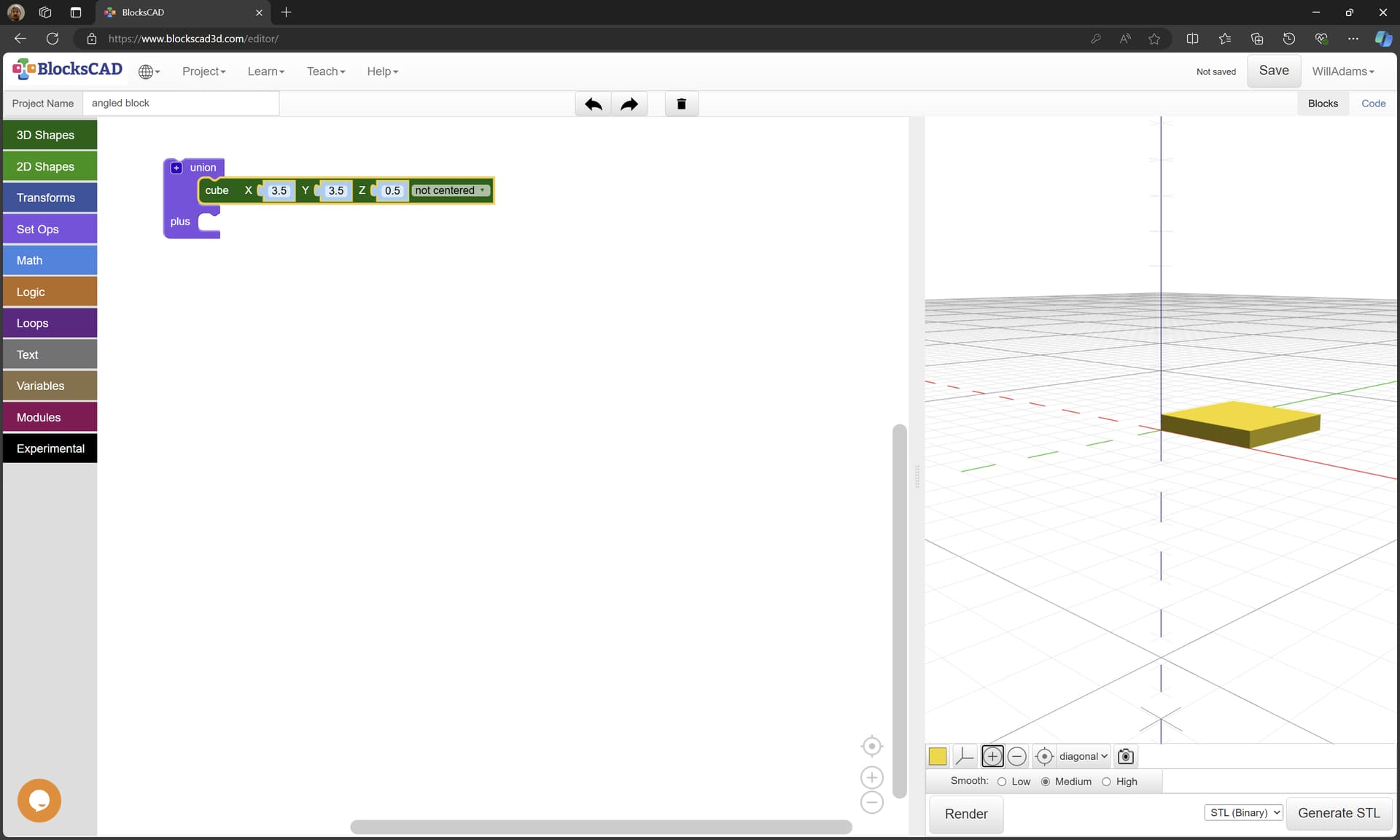
First is a 3D CAD — a free/opensource/online option is BlockSCAD:
https://www.blockscad3d.com/editor/
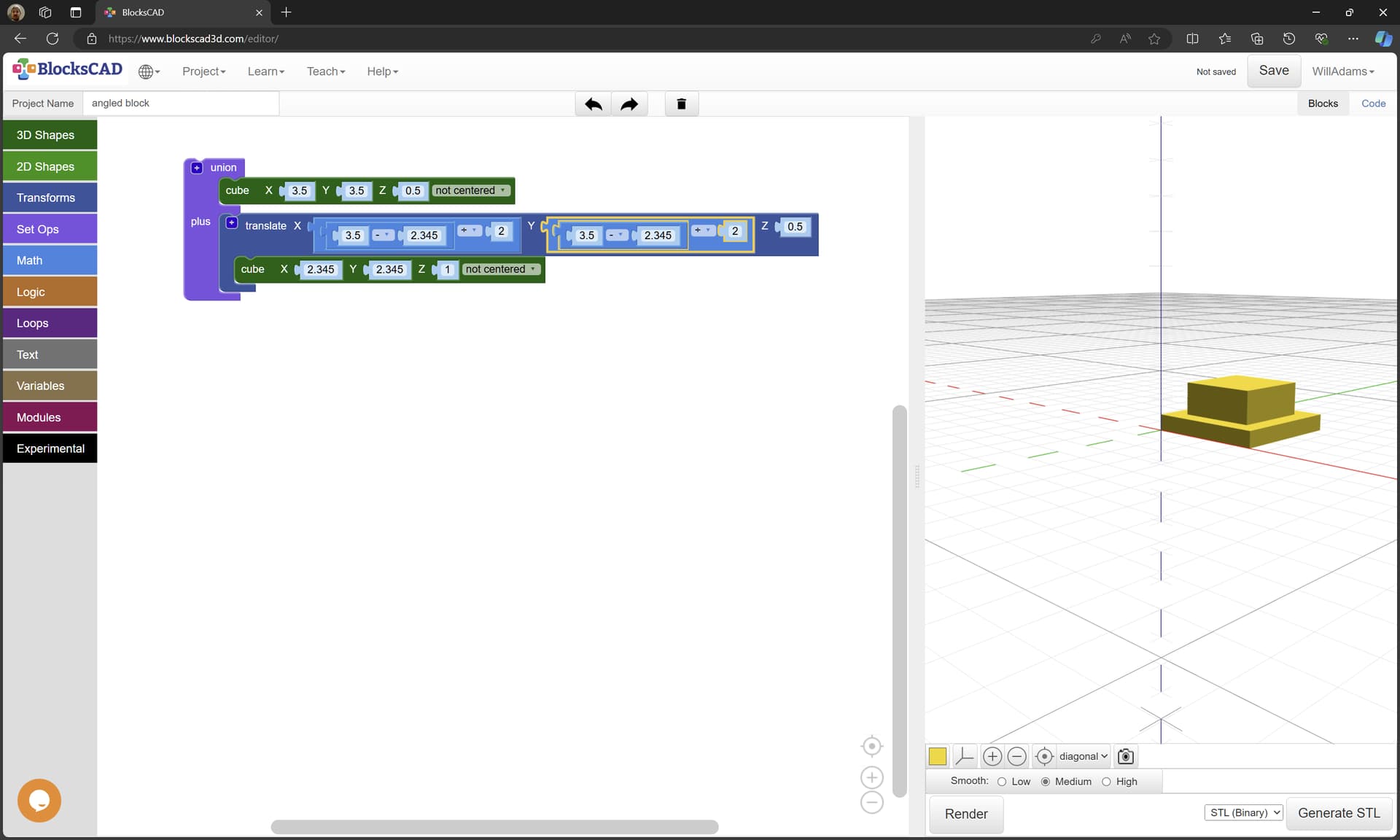
The base is quite simple:
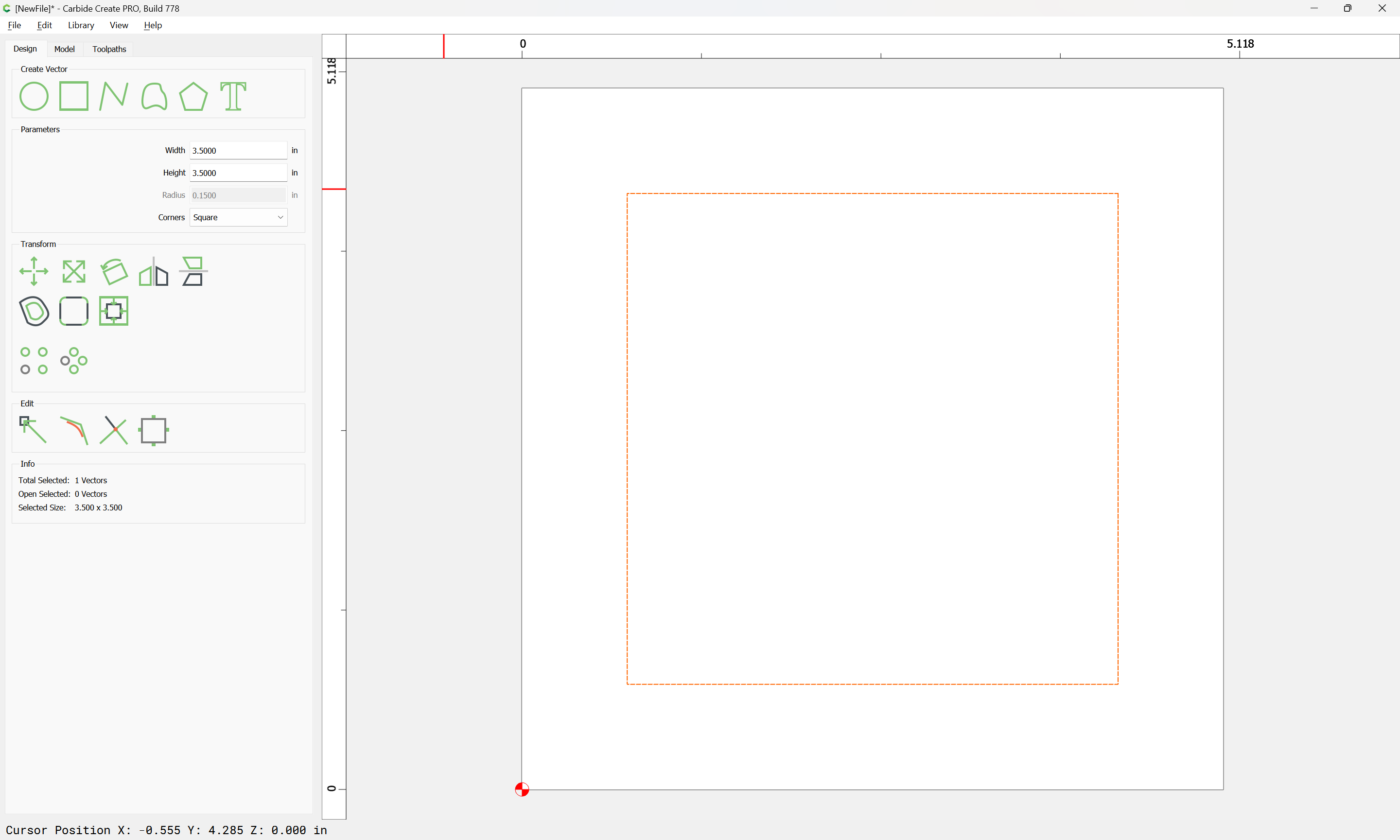
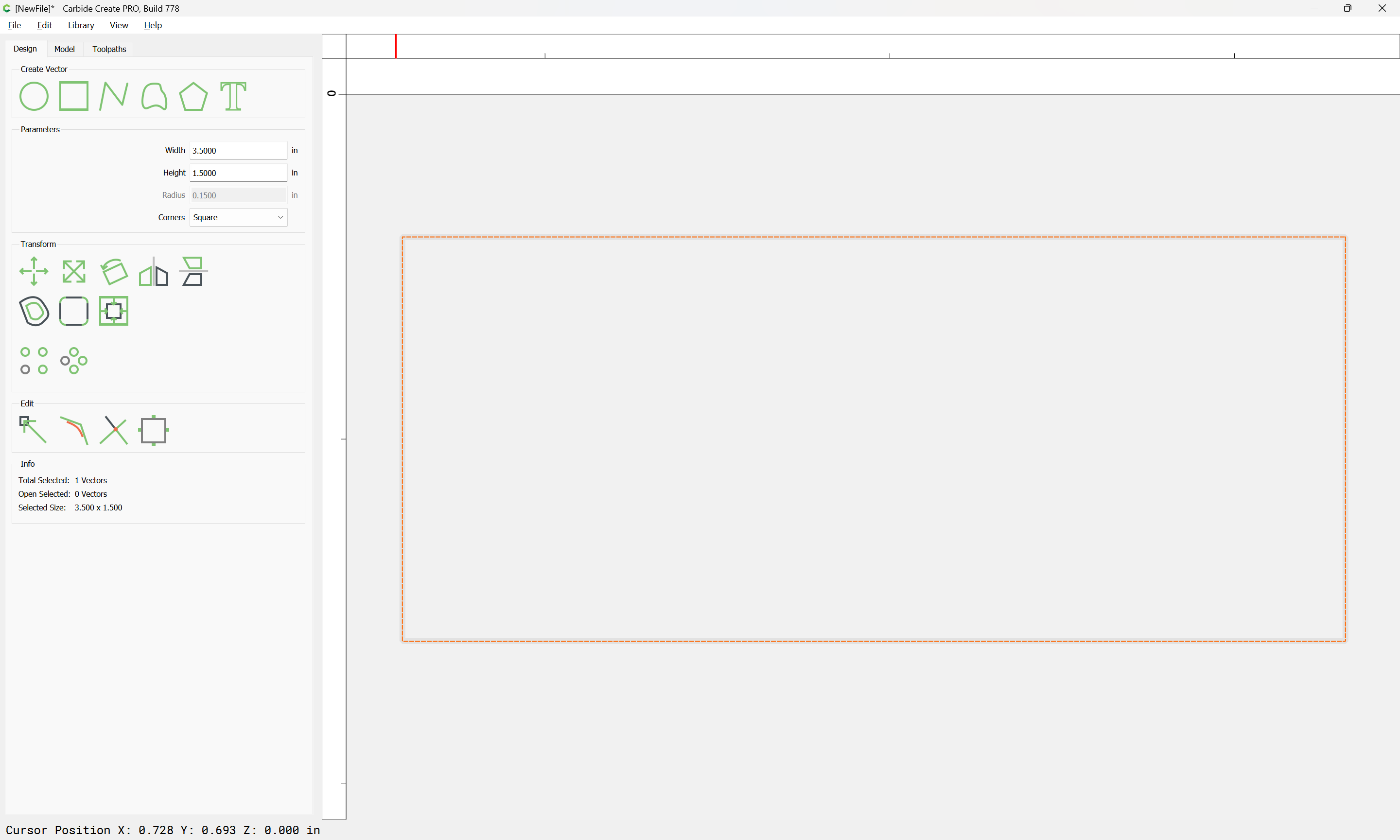
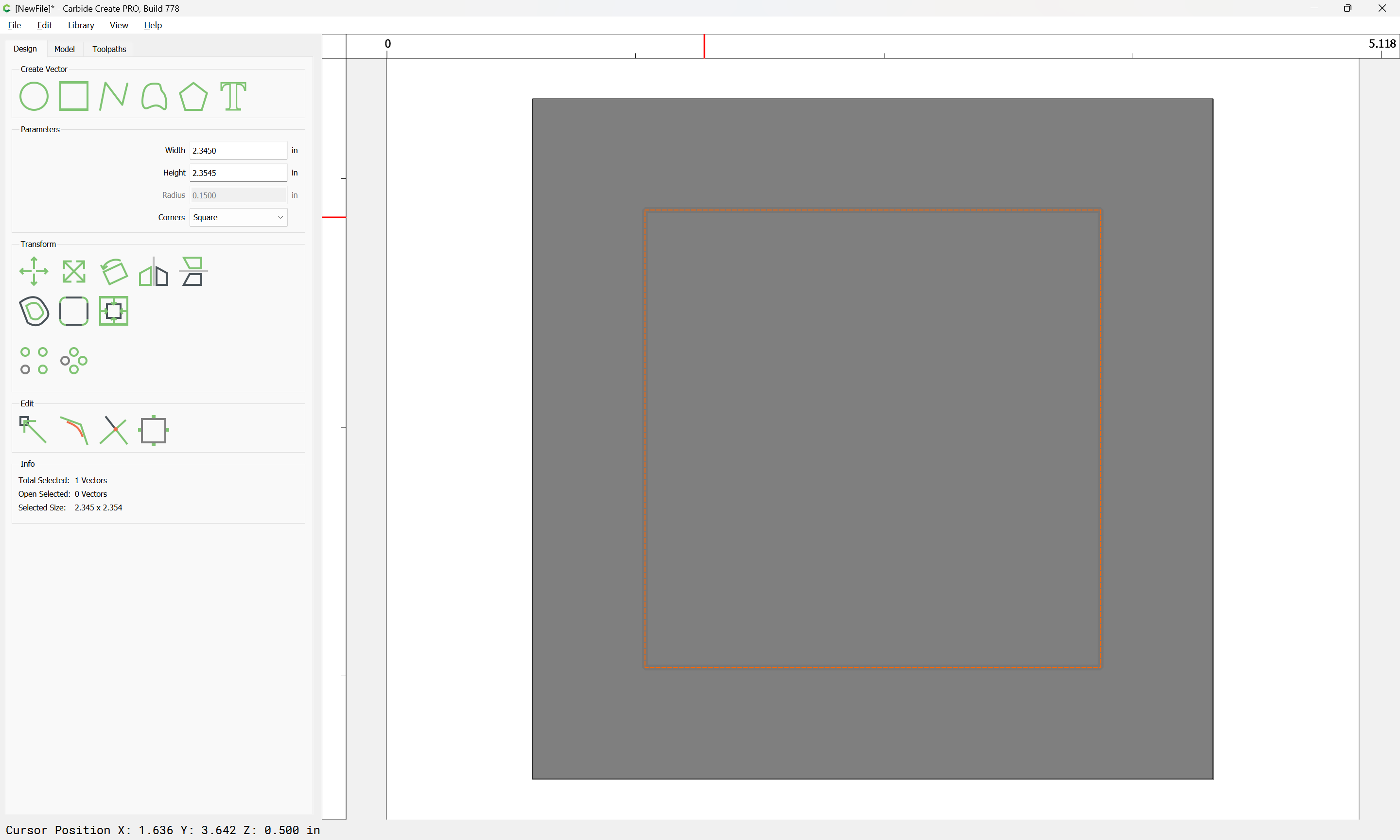
and making the same thing in Carbide Create is likewise quick/simple:
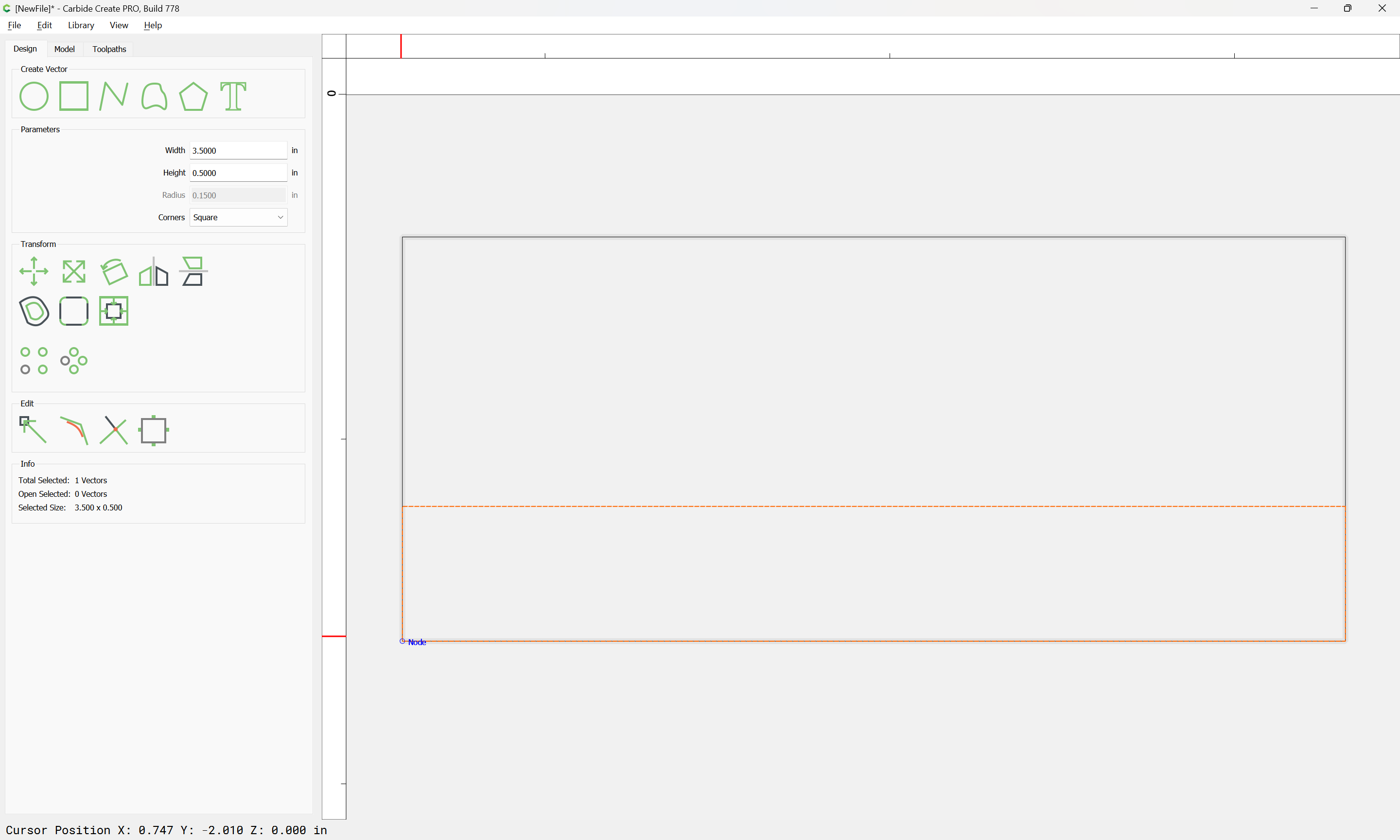
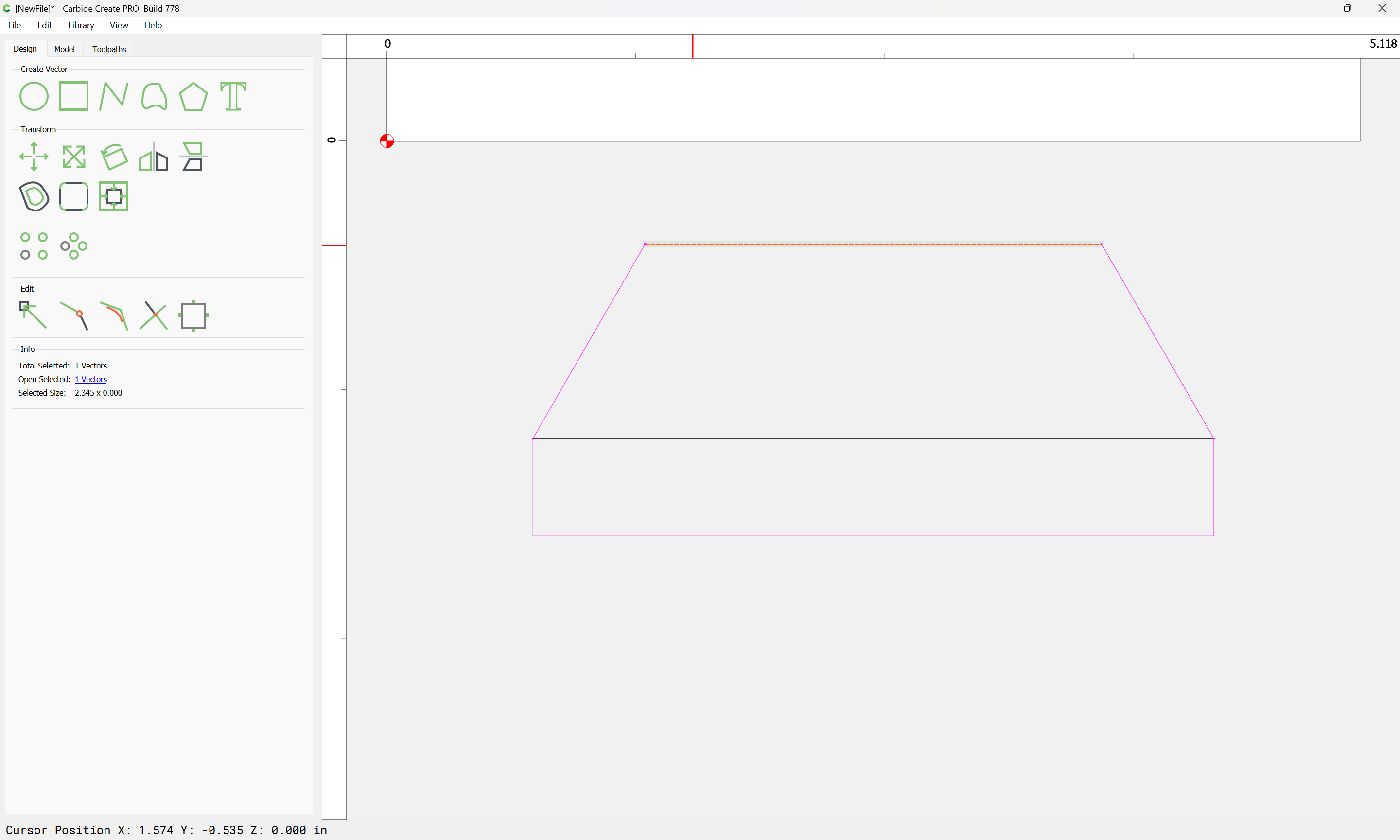
Next we need to draw things up in profile:
and then work up the angled line:
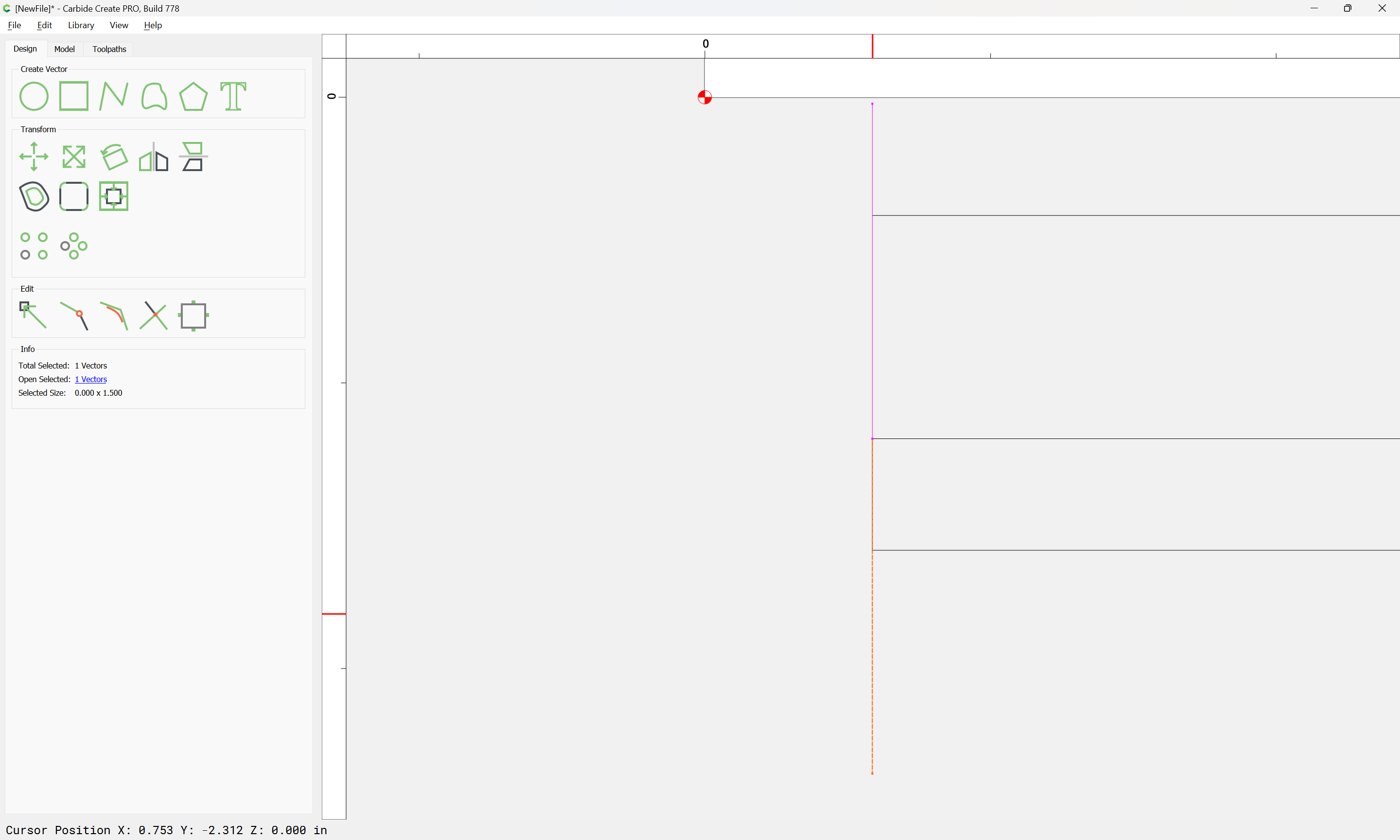
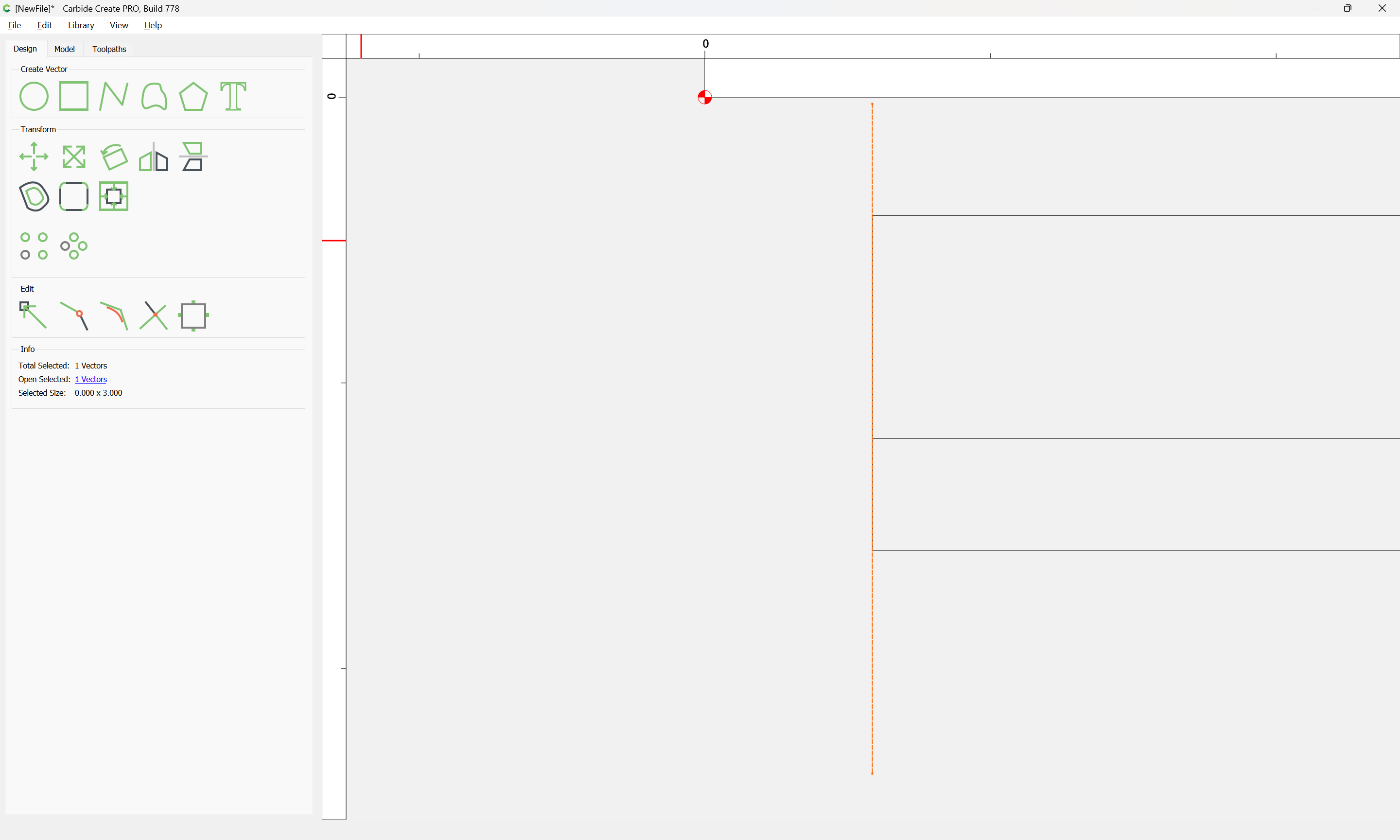
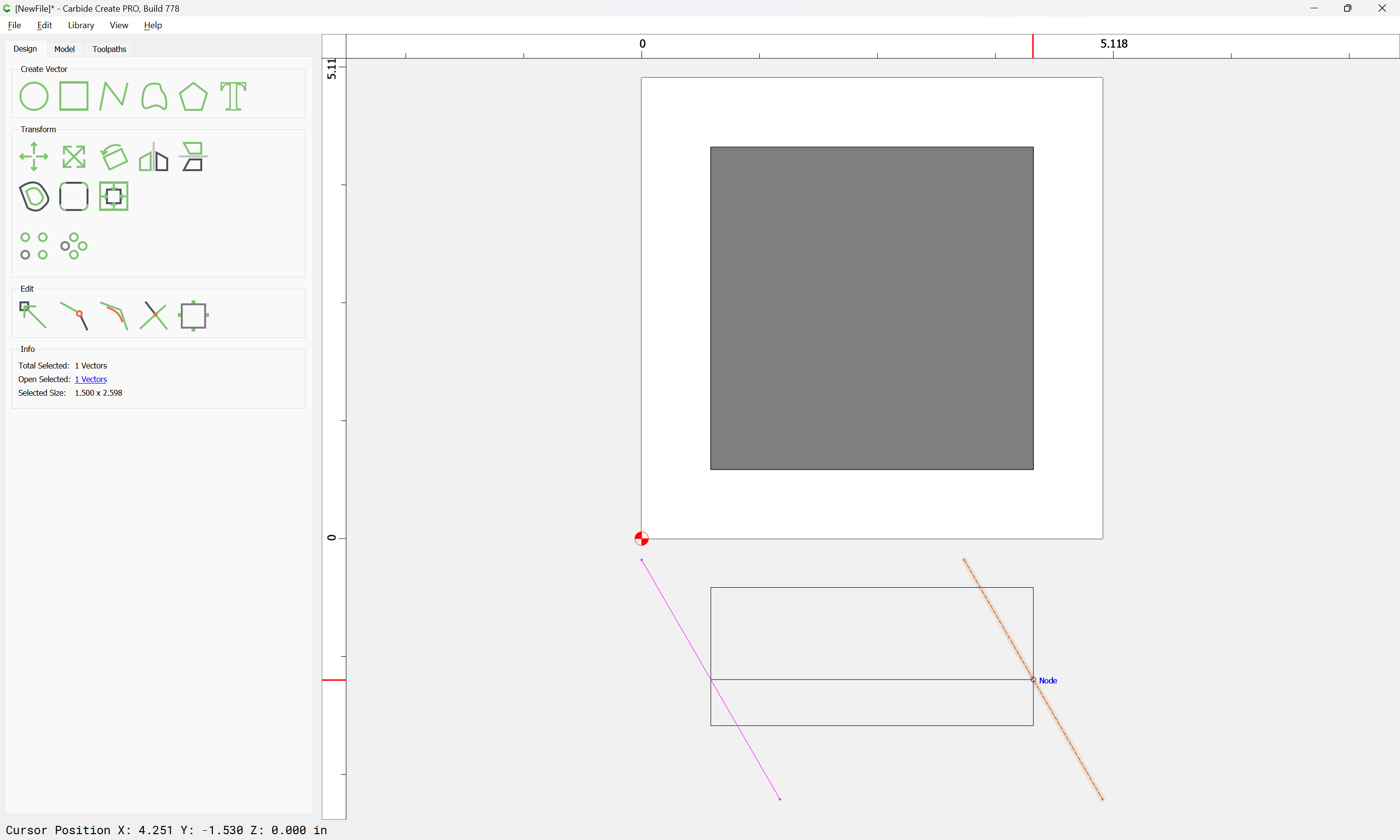
Draw two lines:
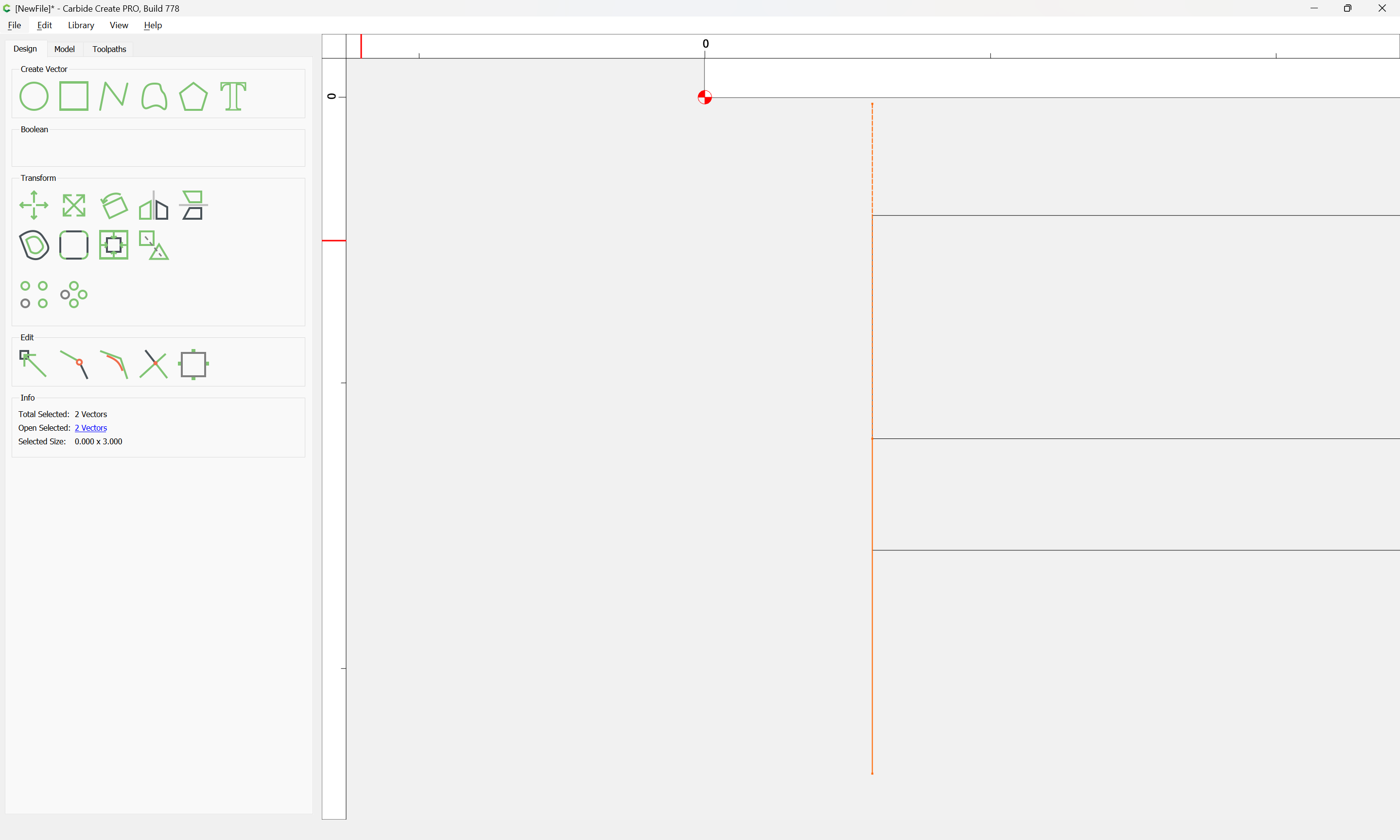
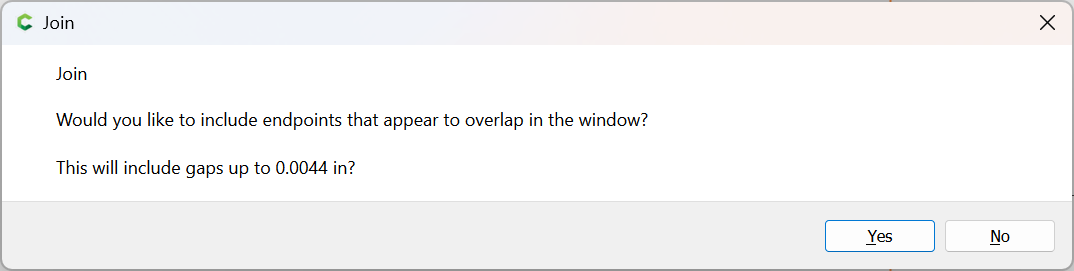
and join them:
Yes
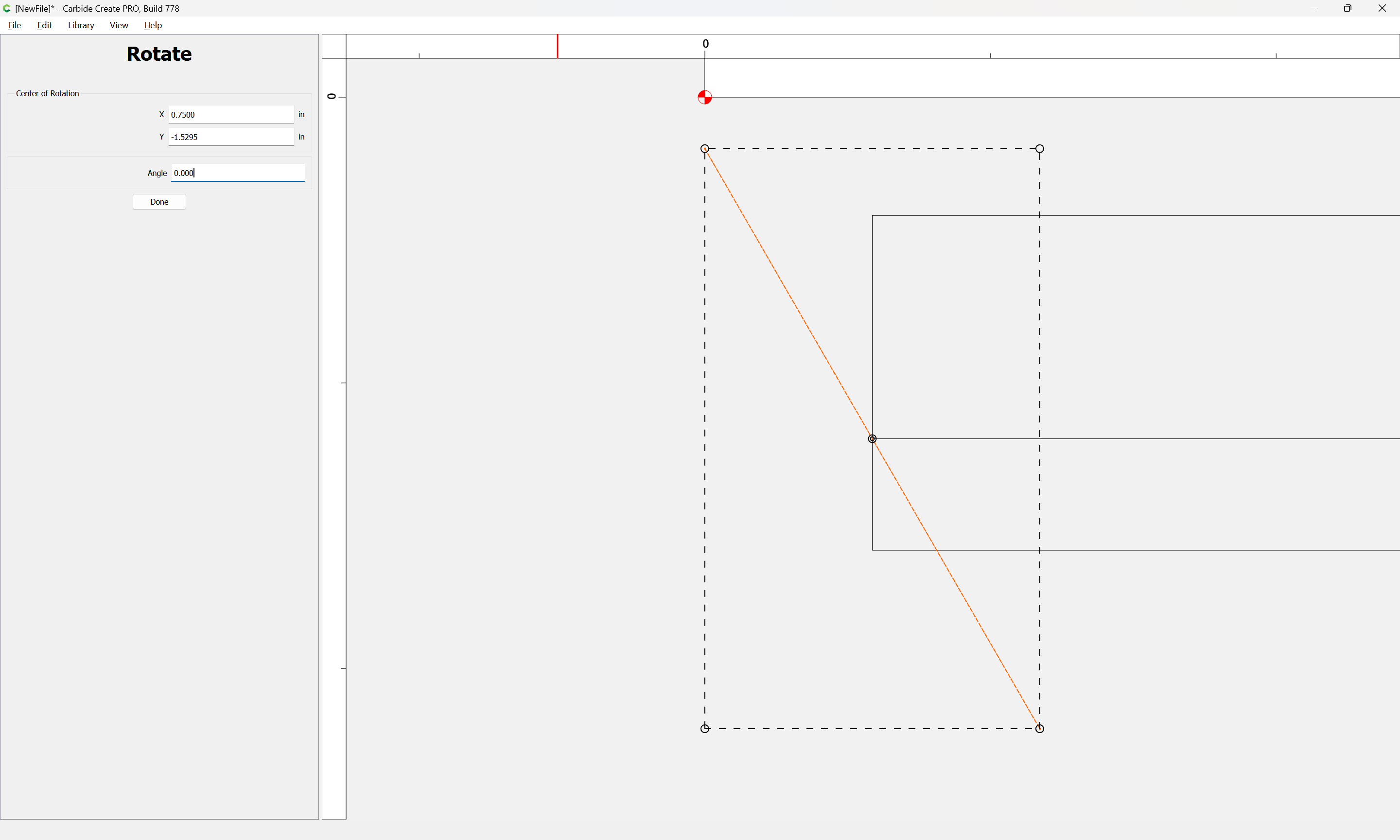
Then rotate 30 degrees:
Done
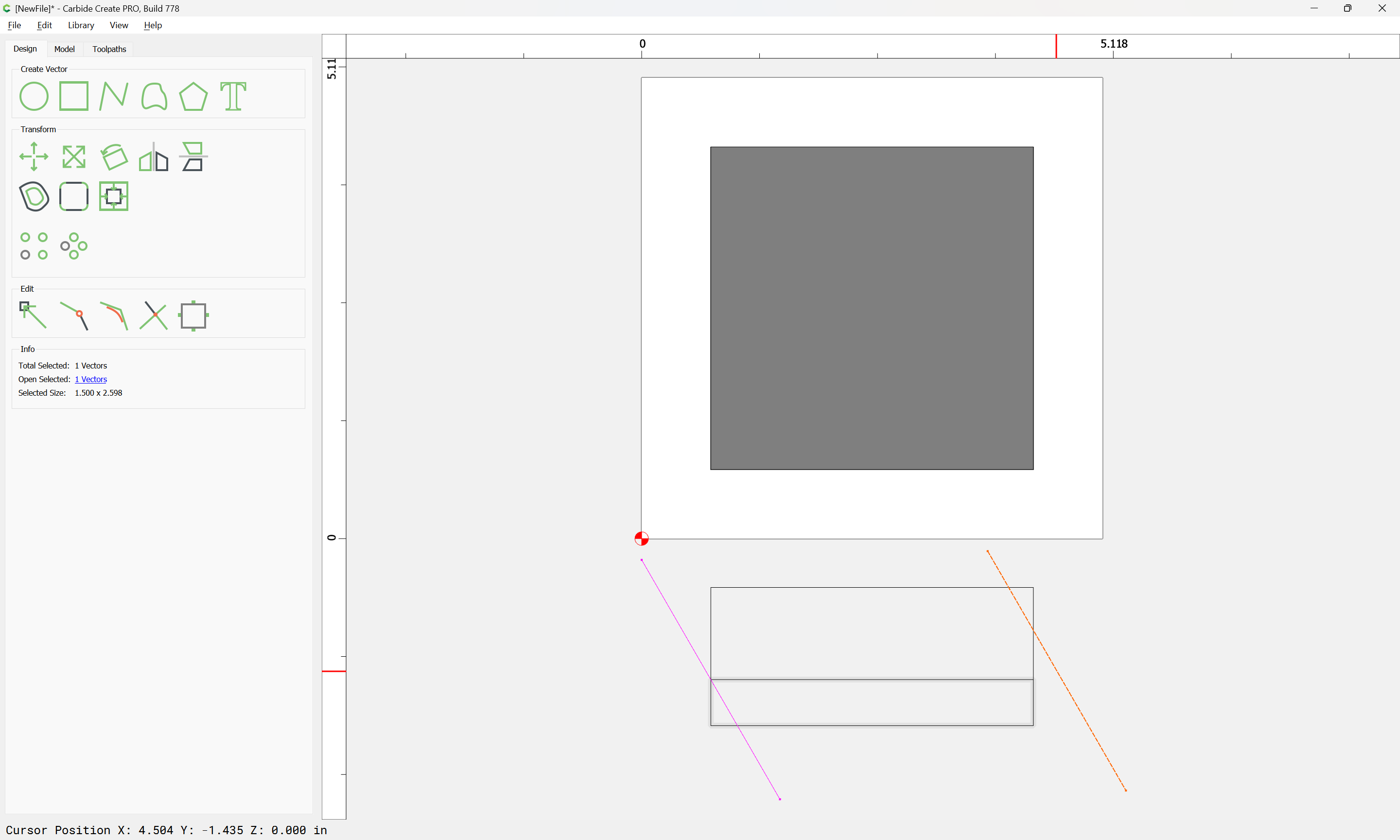
copy-paste
then drag into alignment:
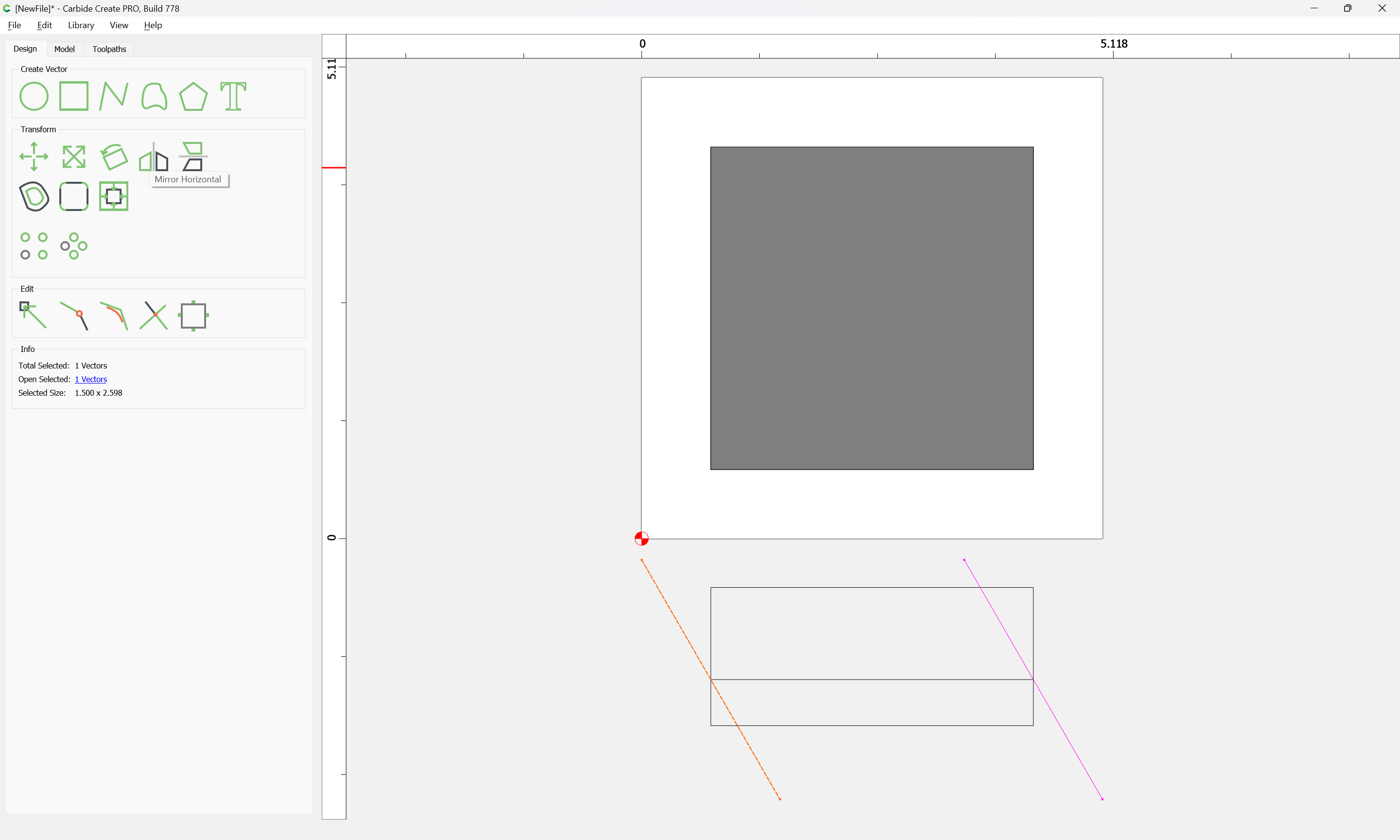
Then select the other:
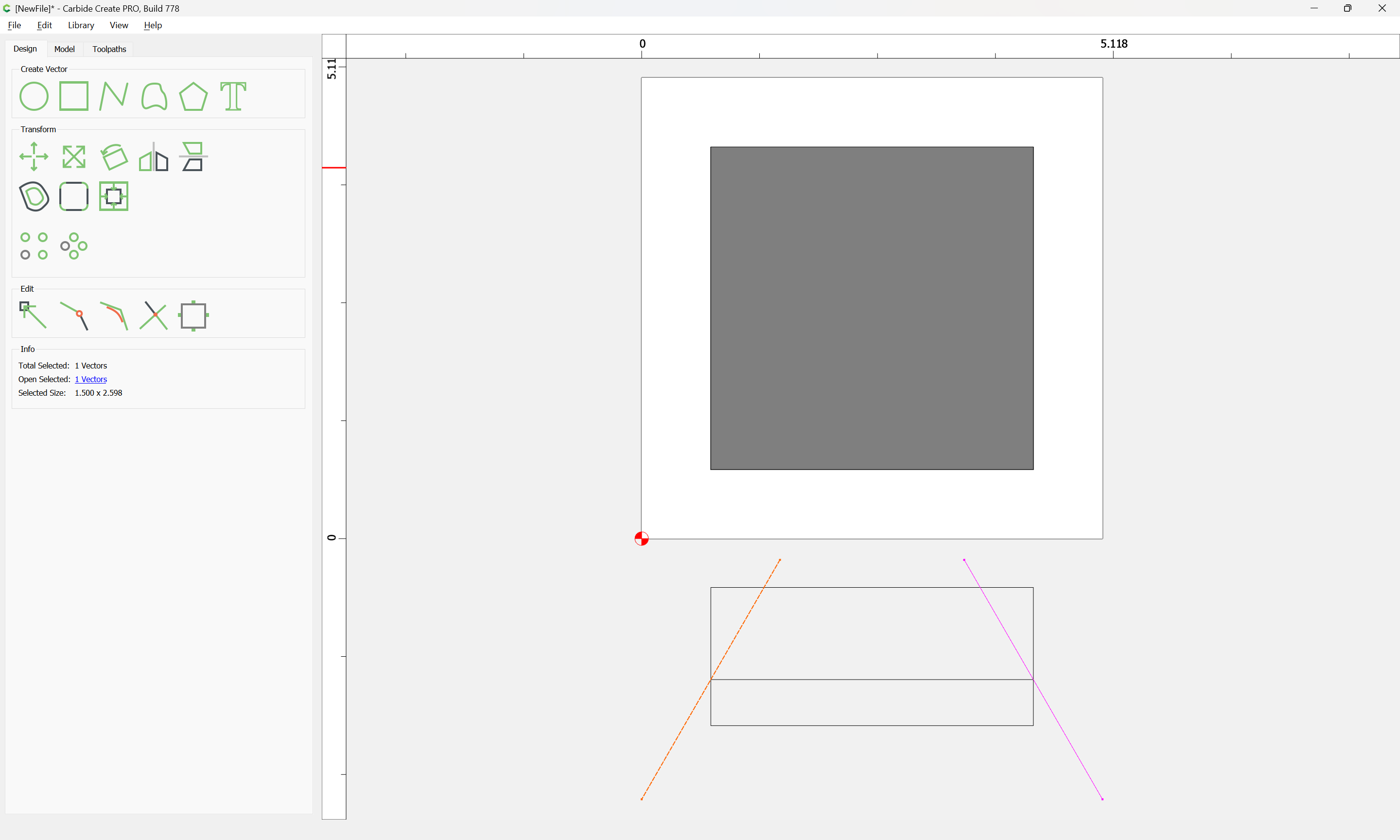
and mirror it:
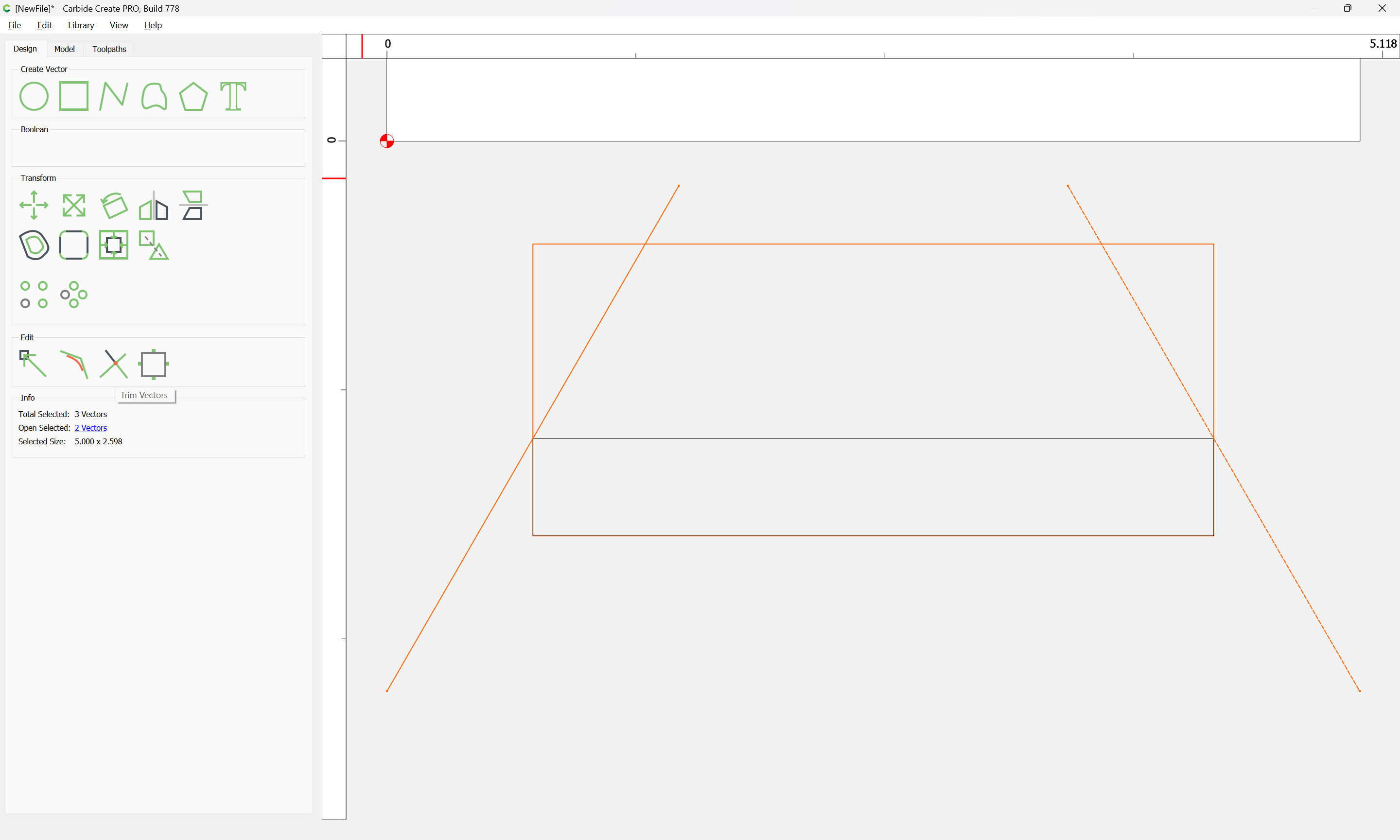
Select the geometries:
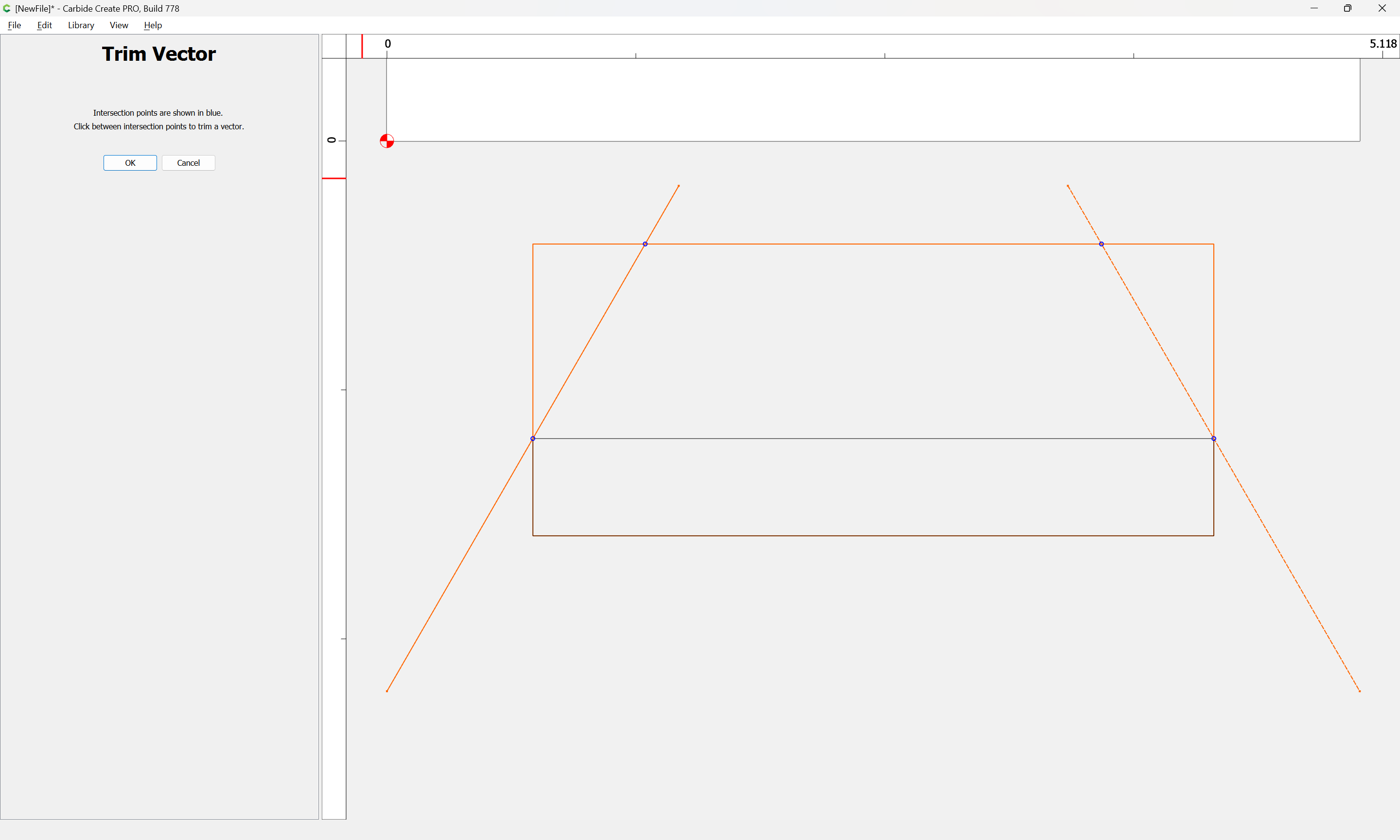
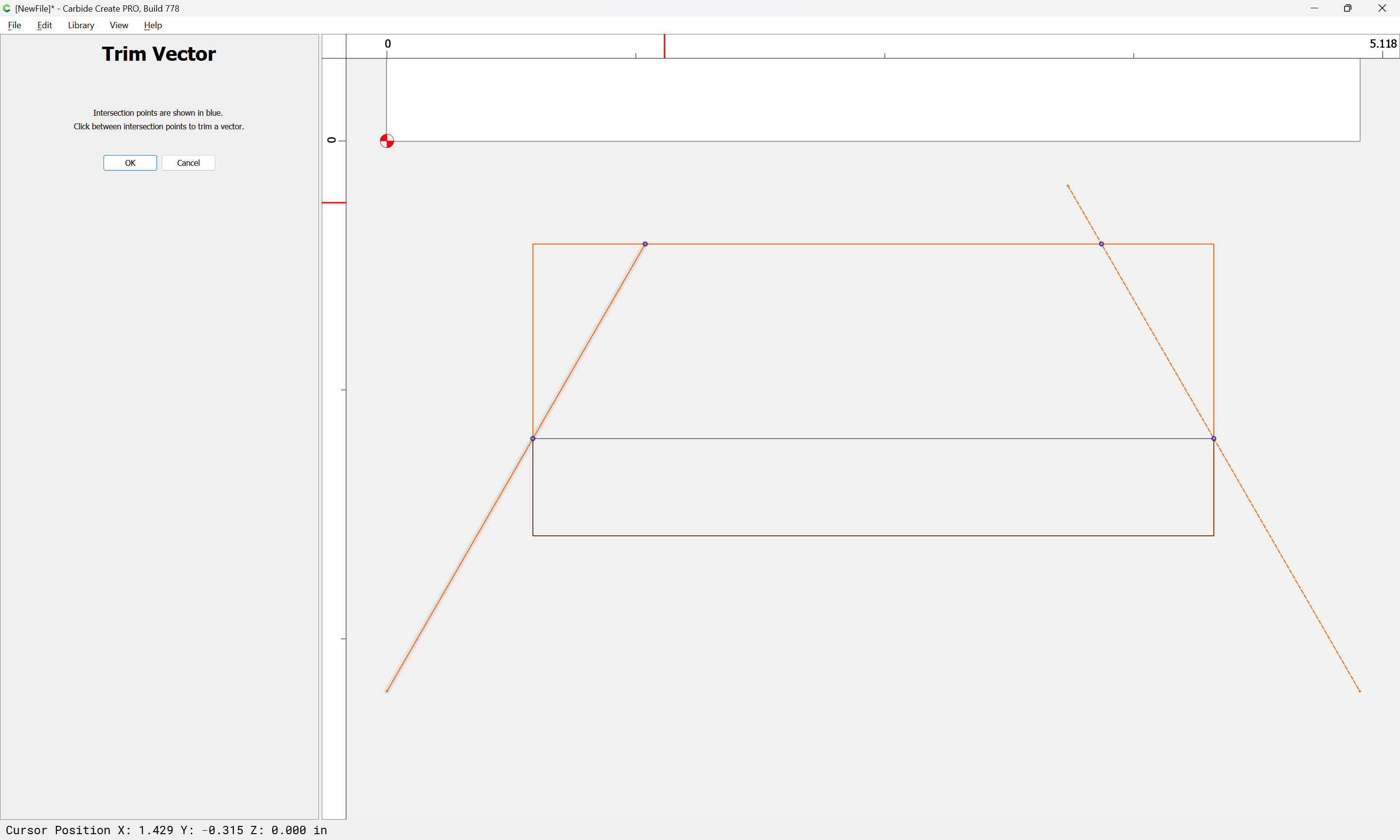
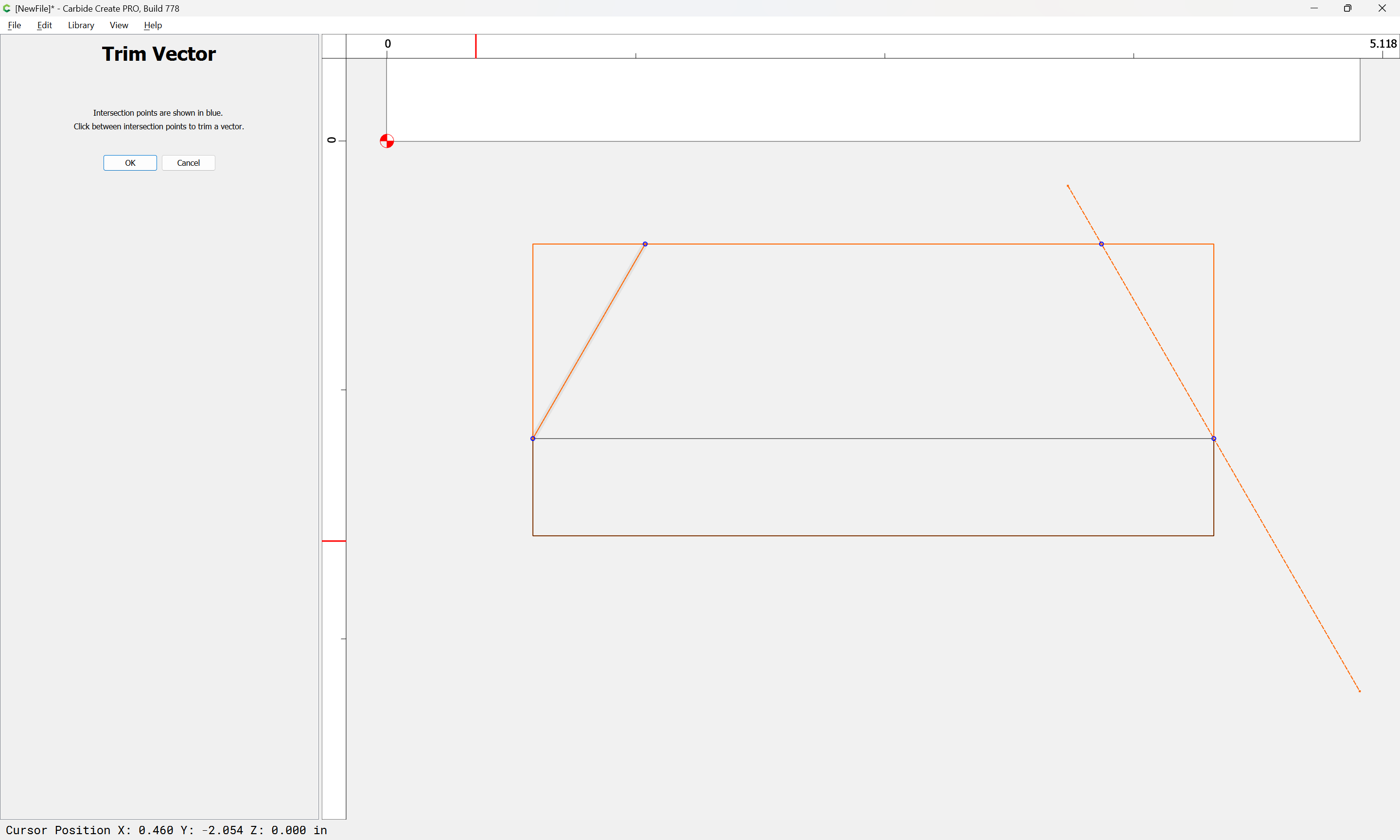
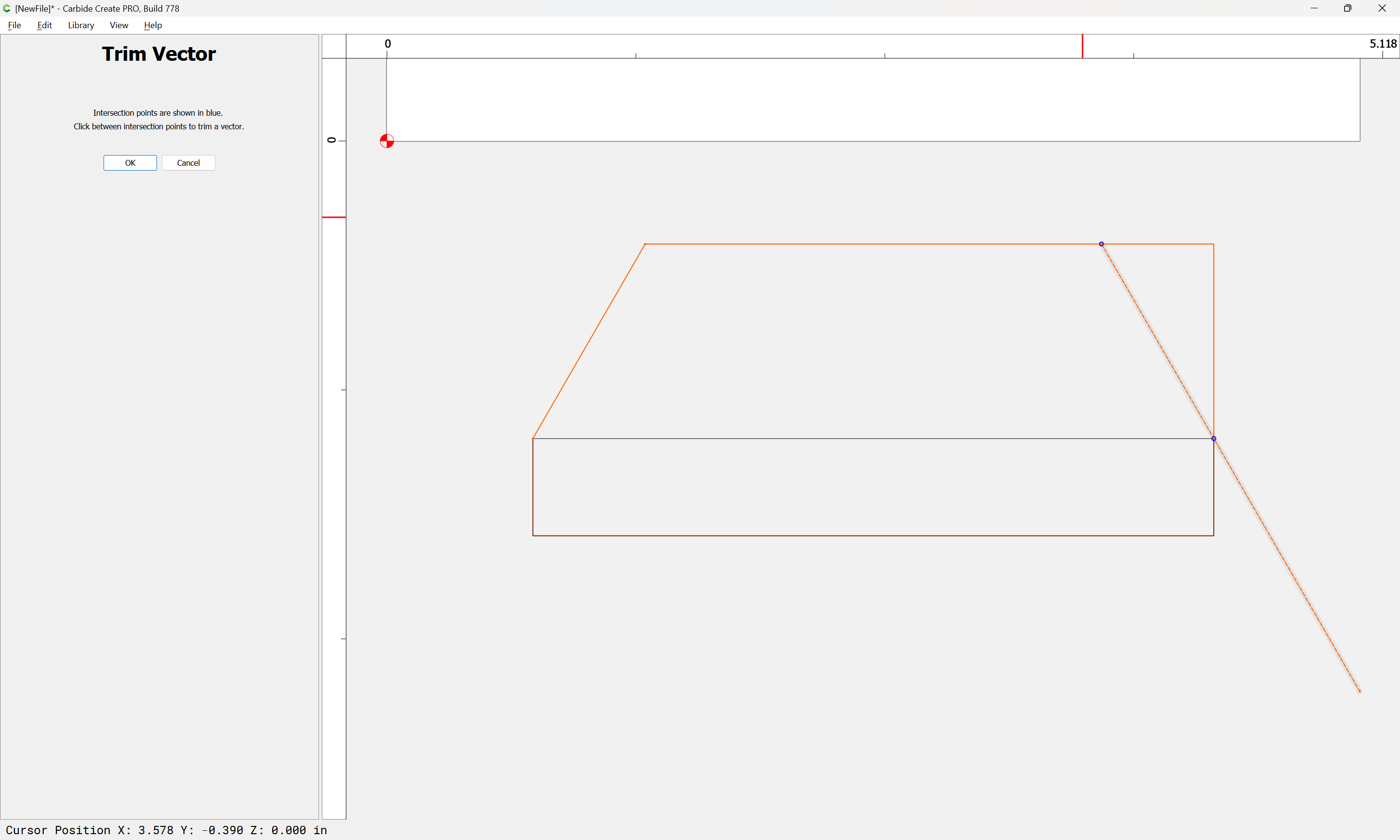
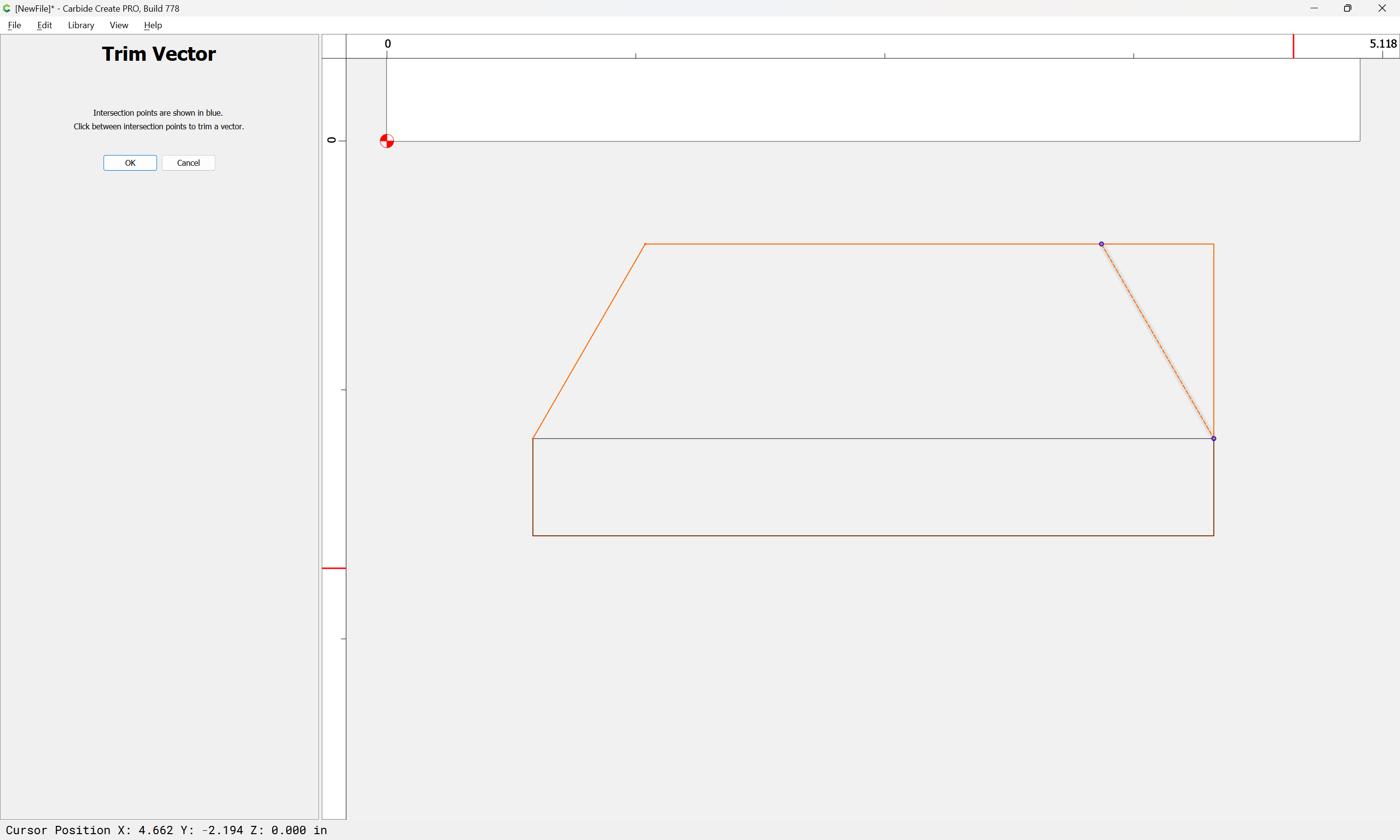
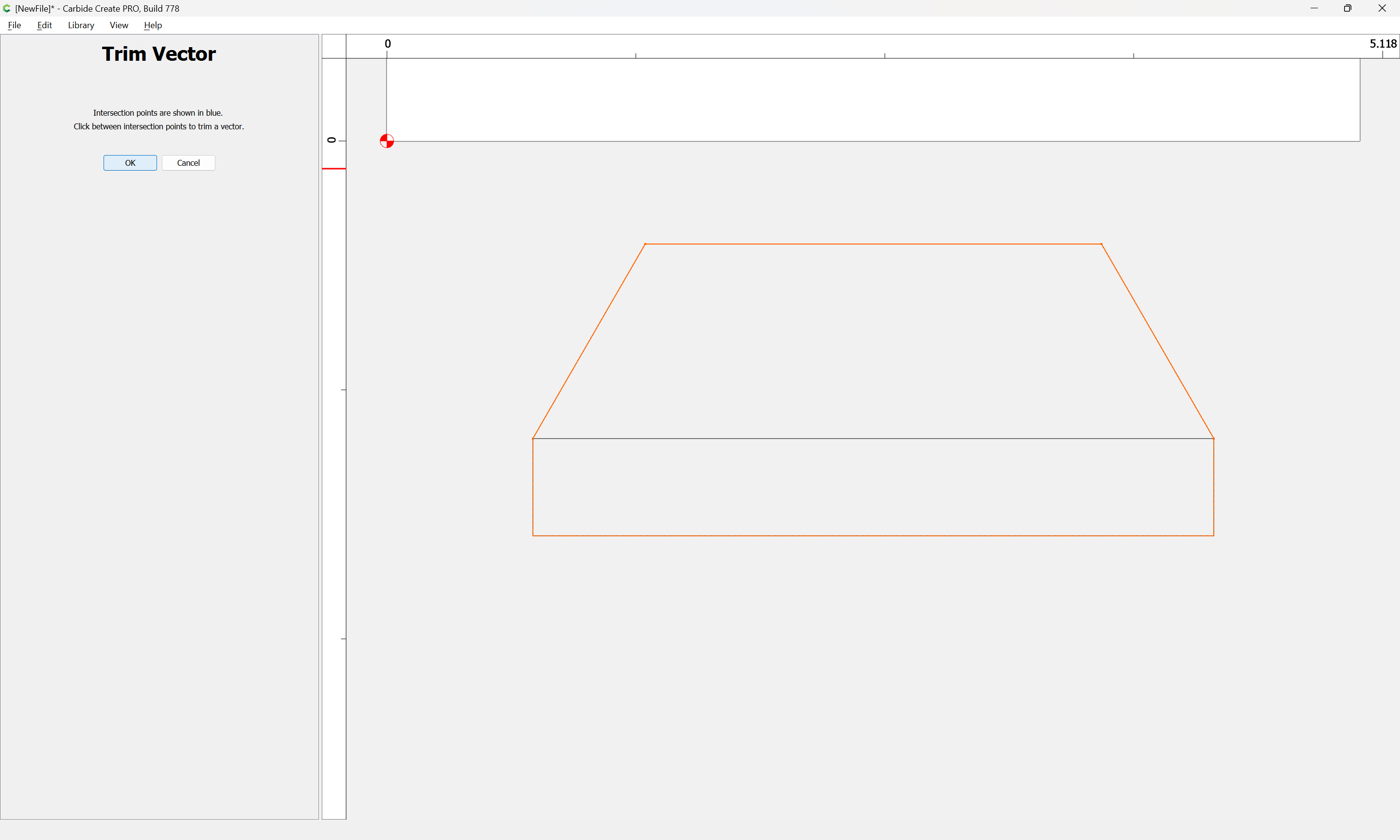
and use the Trim Vectors tool to remove what is not wanted:
OK
OK
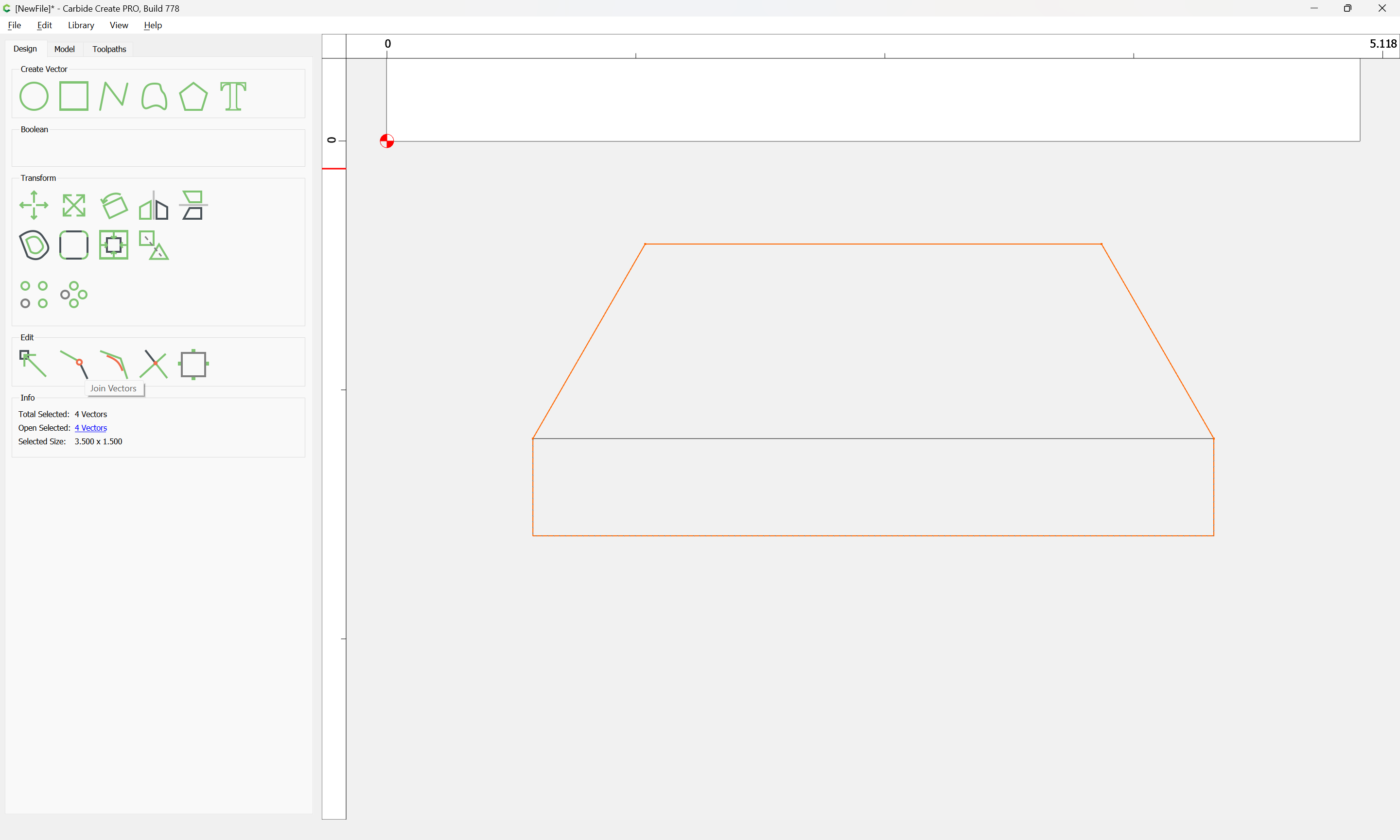
If desired, use Join Vectors.
The necessary point is to get the side of the square:
so we make a square of that dimension:
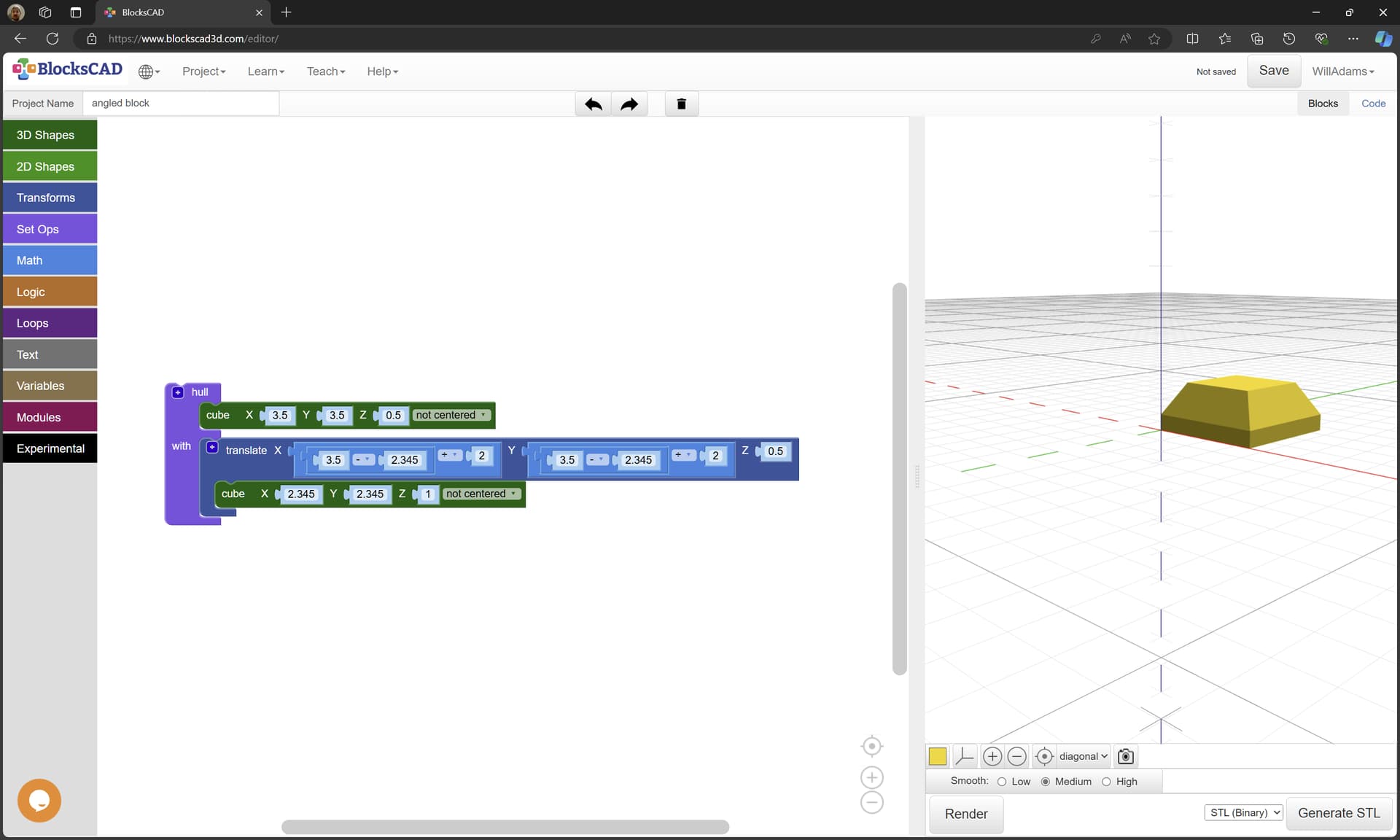
and knowing this dimension we can finish making the 3D model:
which just requires changing the bounding operation from Union to Hull:
which may then be exported as an STL:
angled block.stl (1.1 KB)
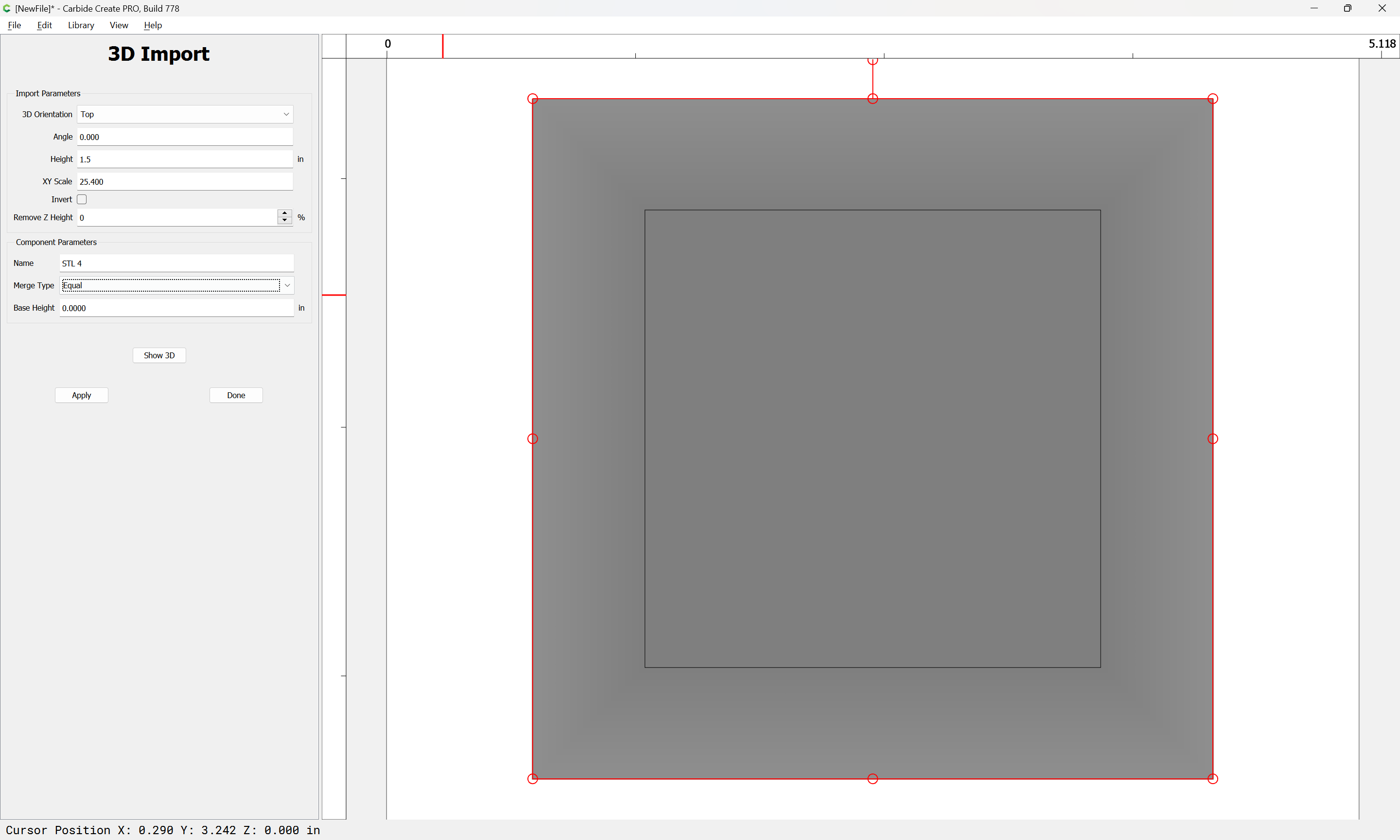
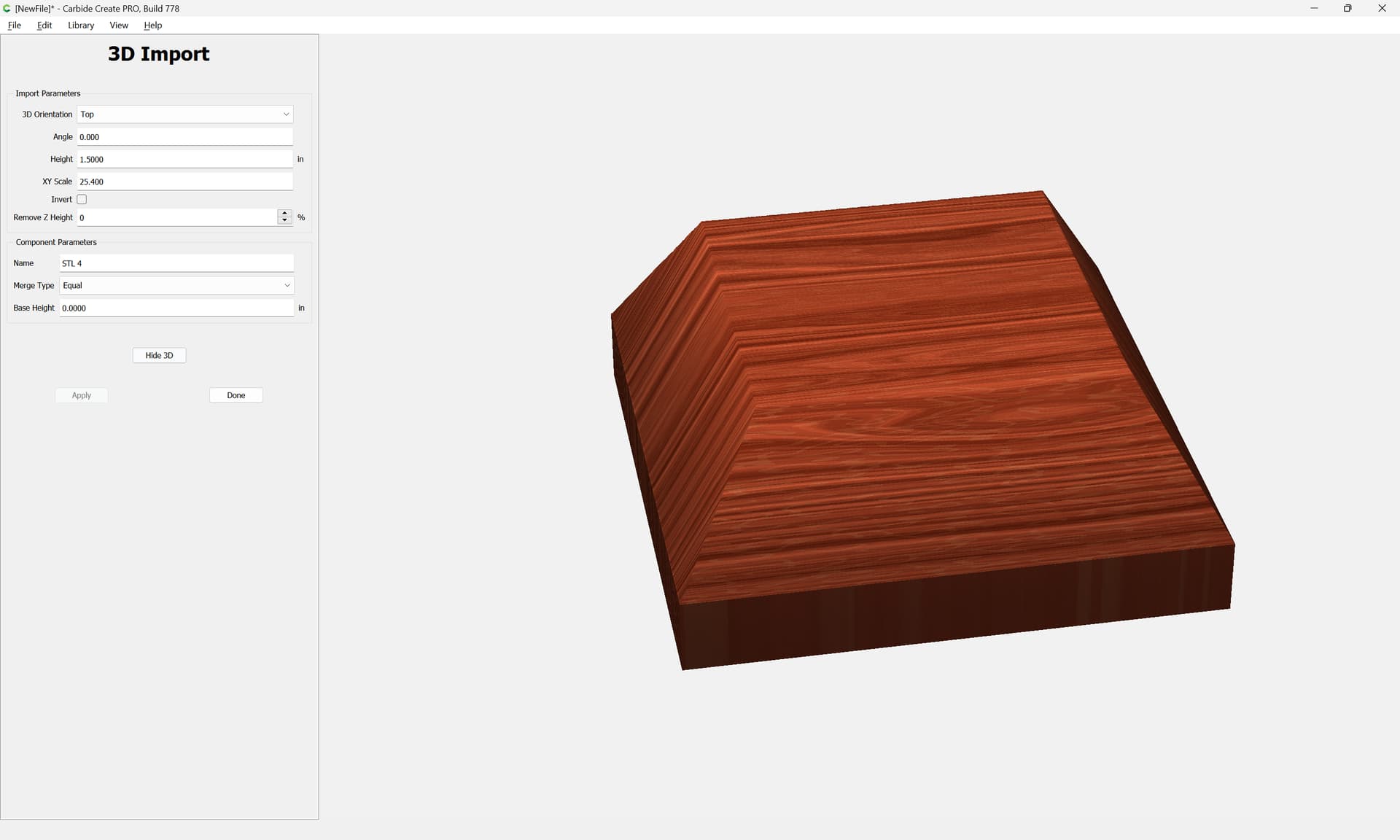
which may be imported to make the 3D Model:
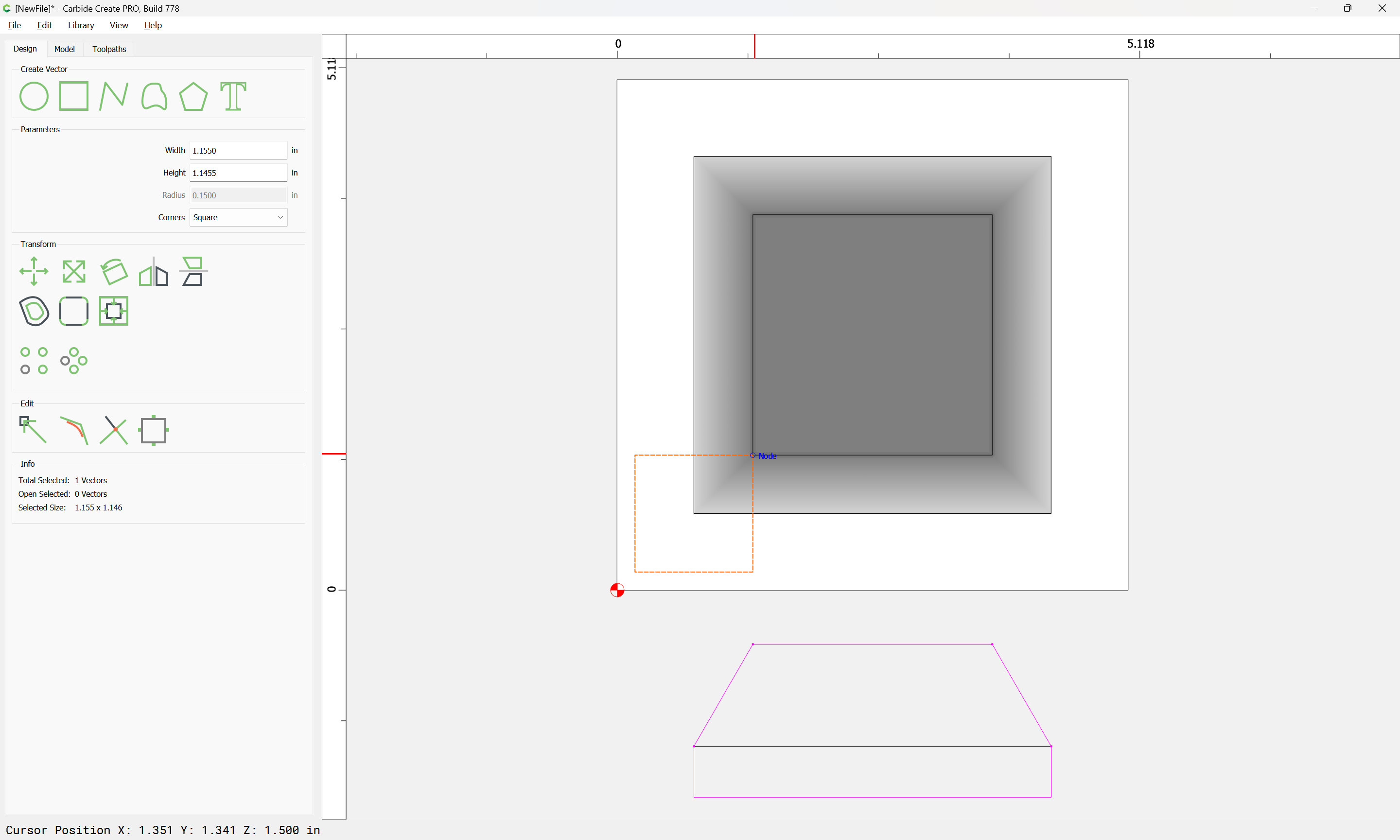
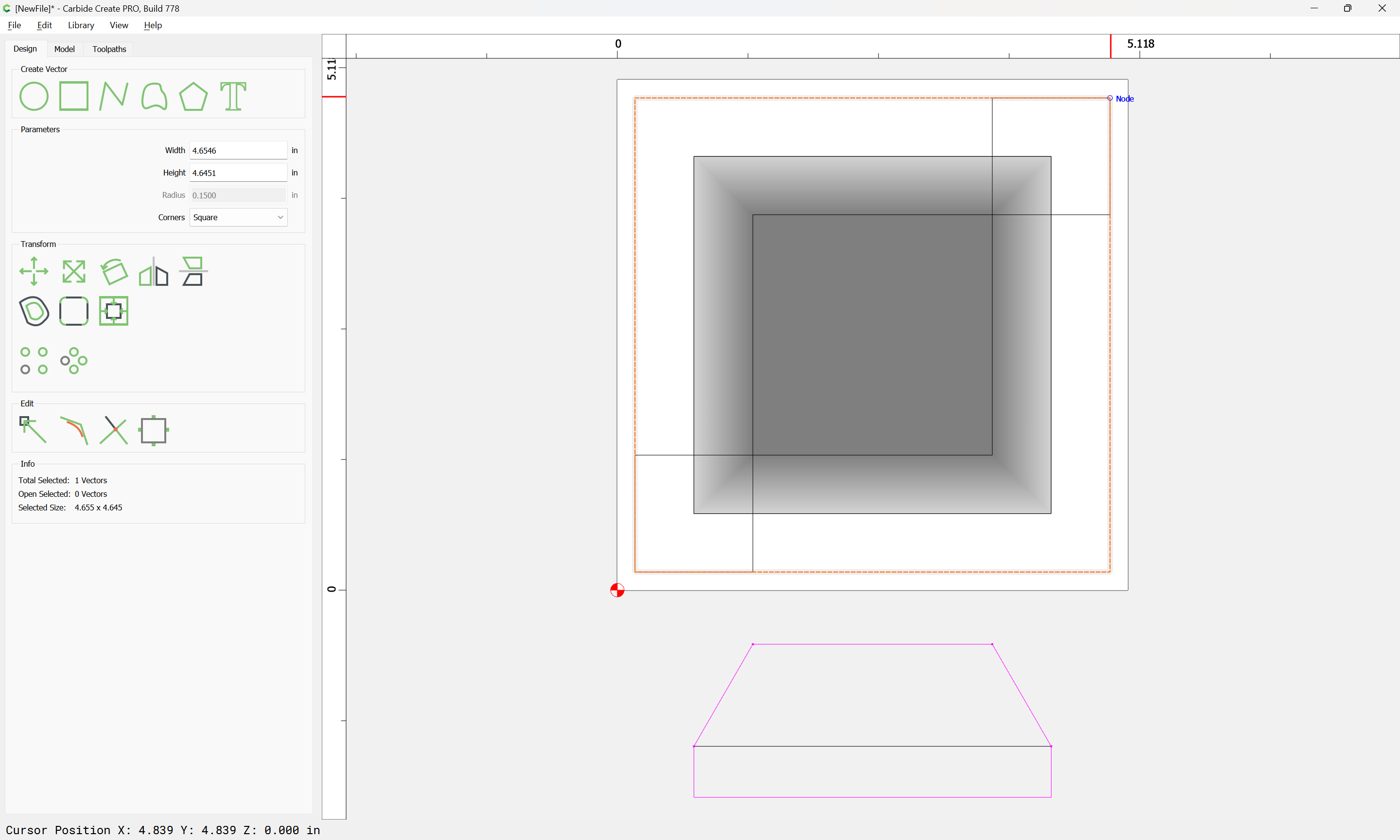
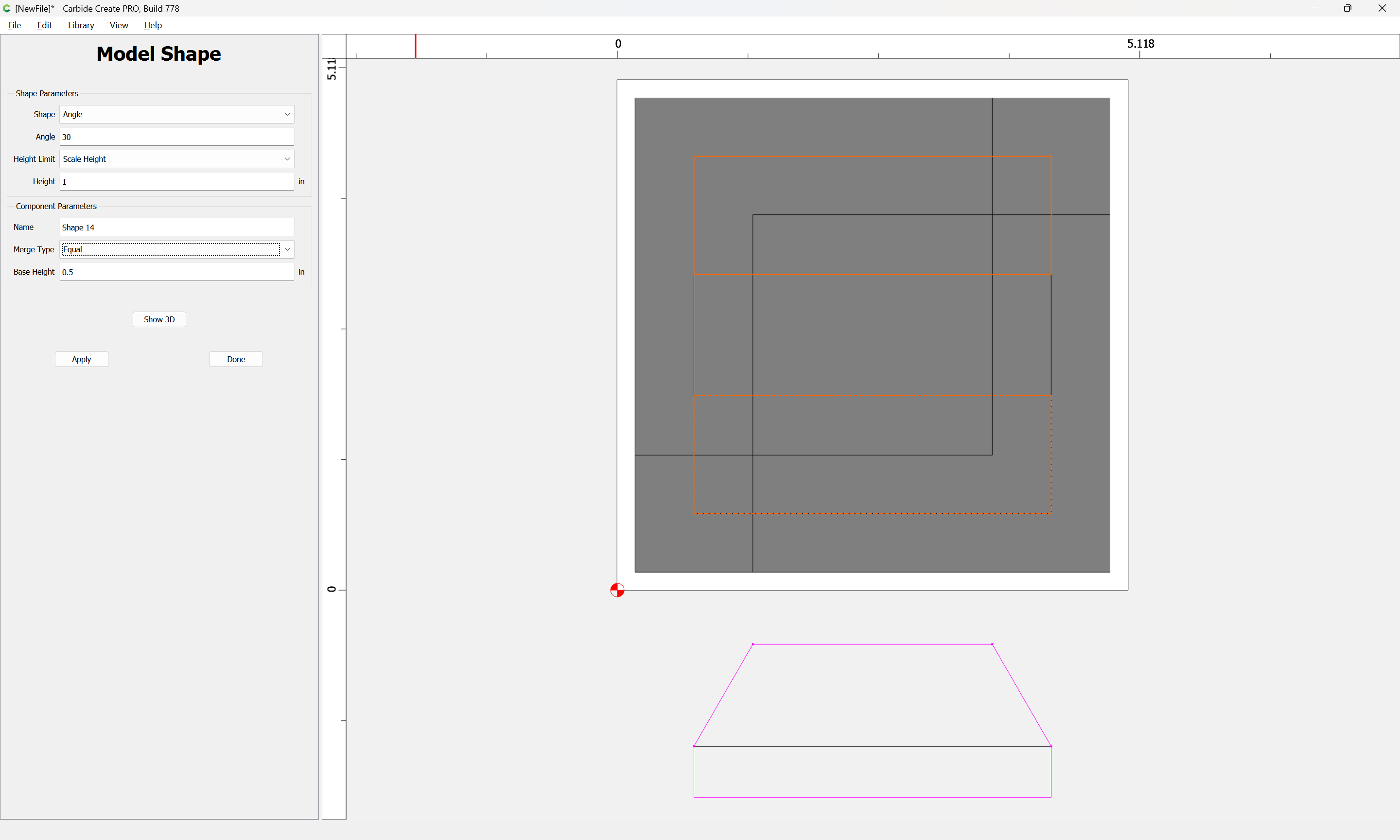
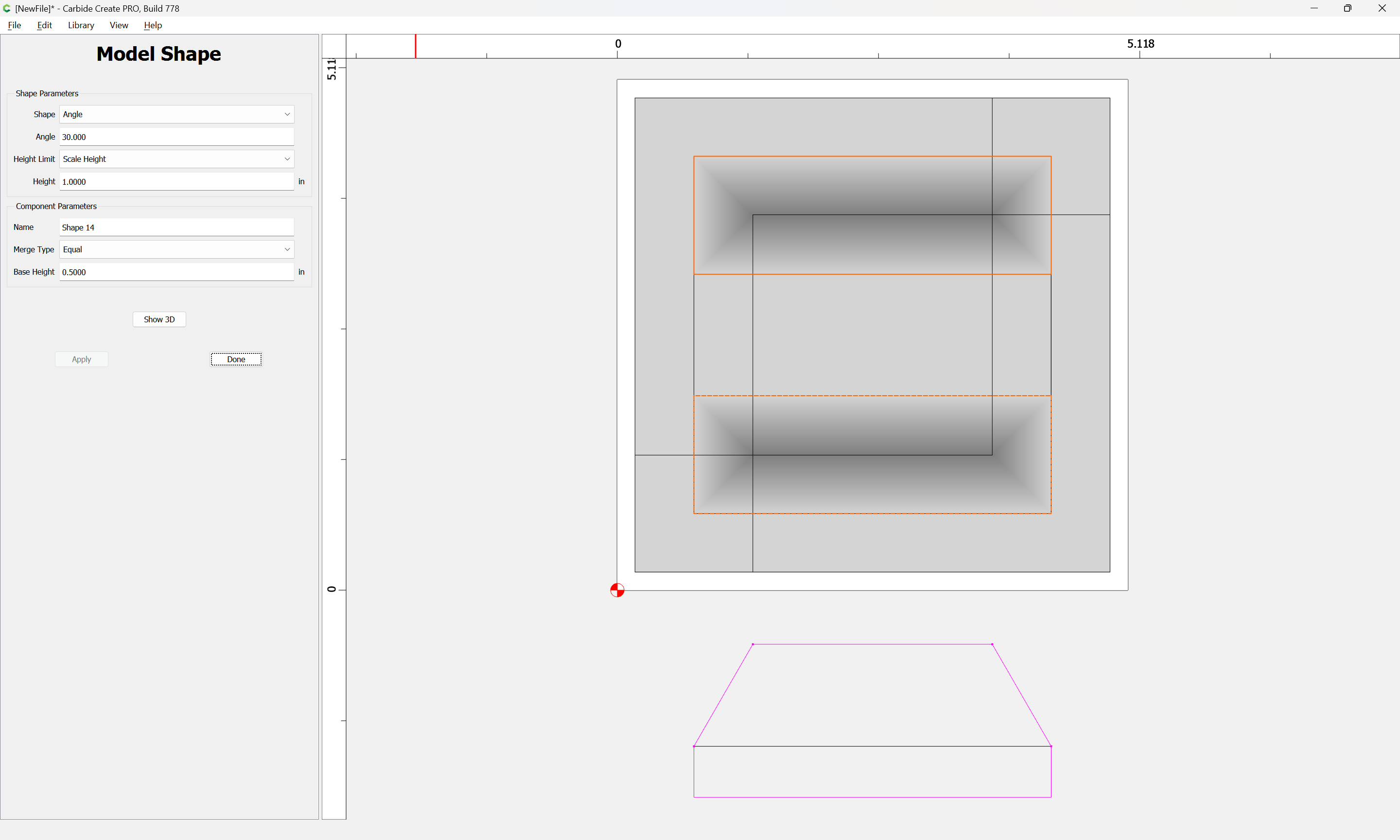
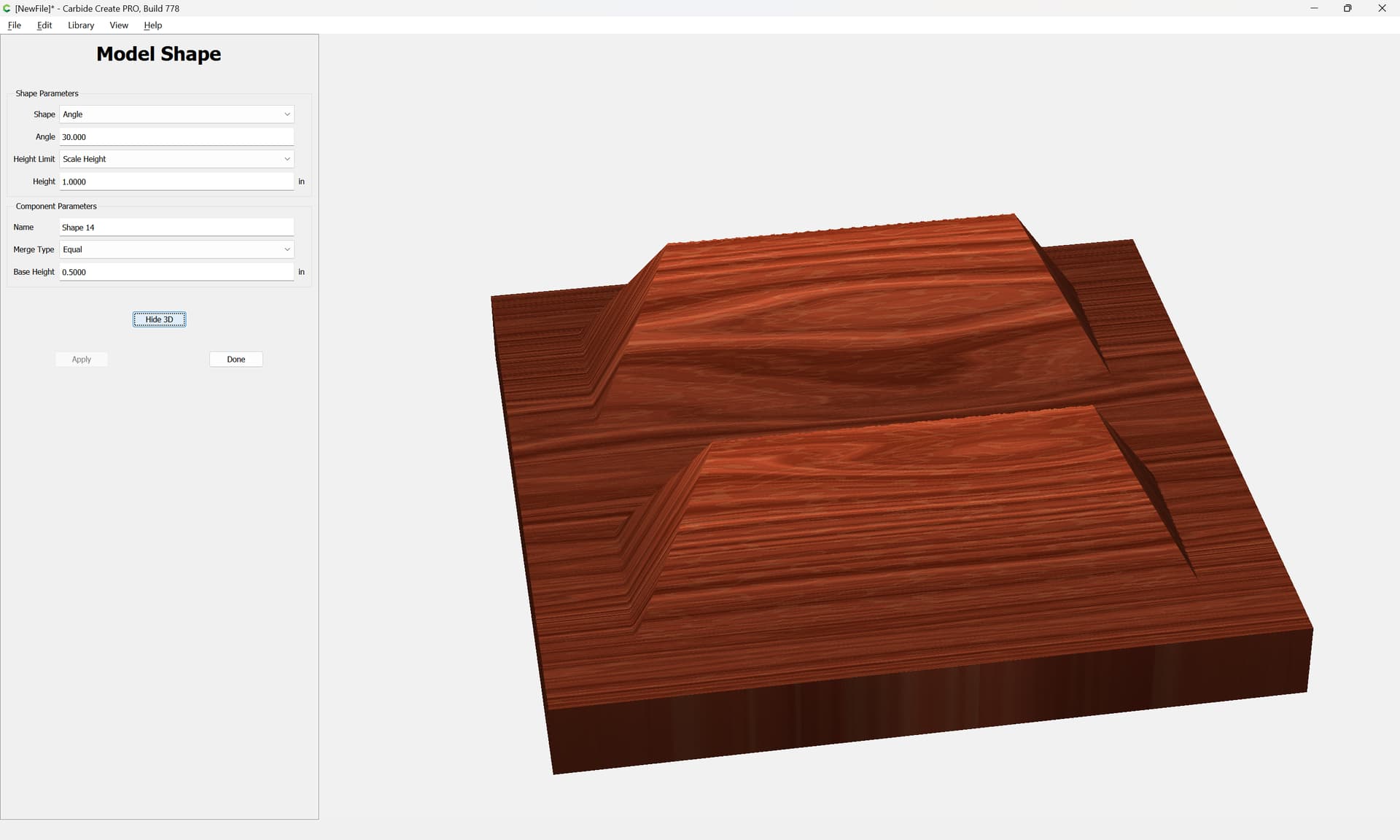
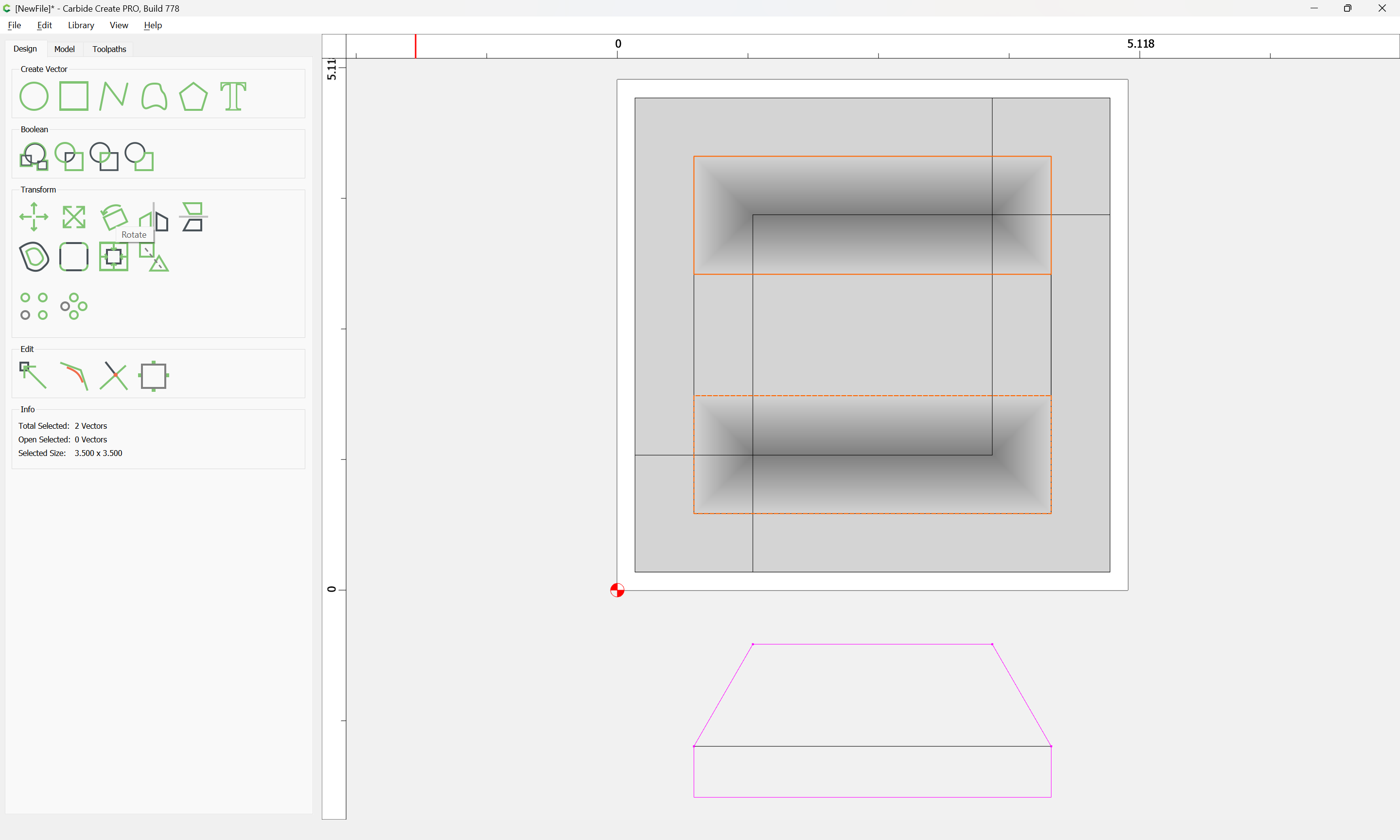
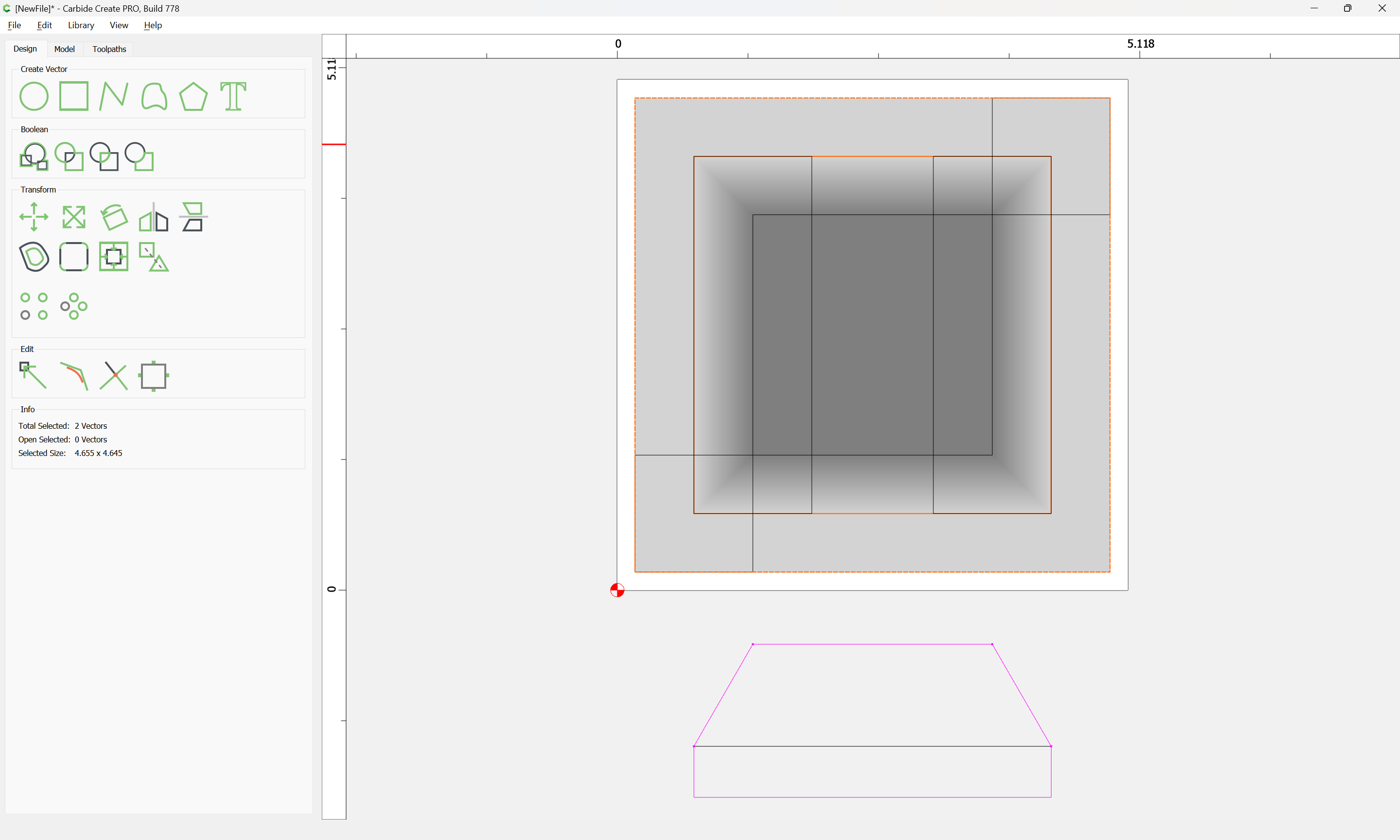
To make the equivalent in Carbide Create Pro requires drawing in some more geometry:
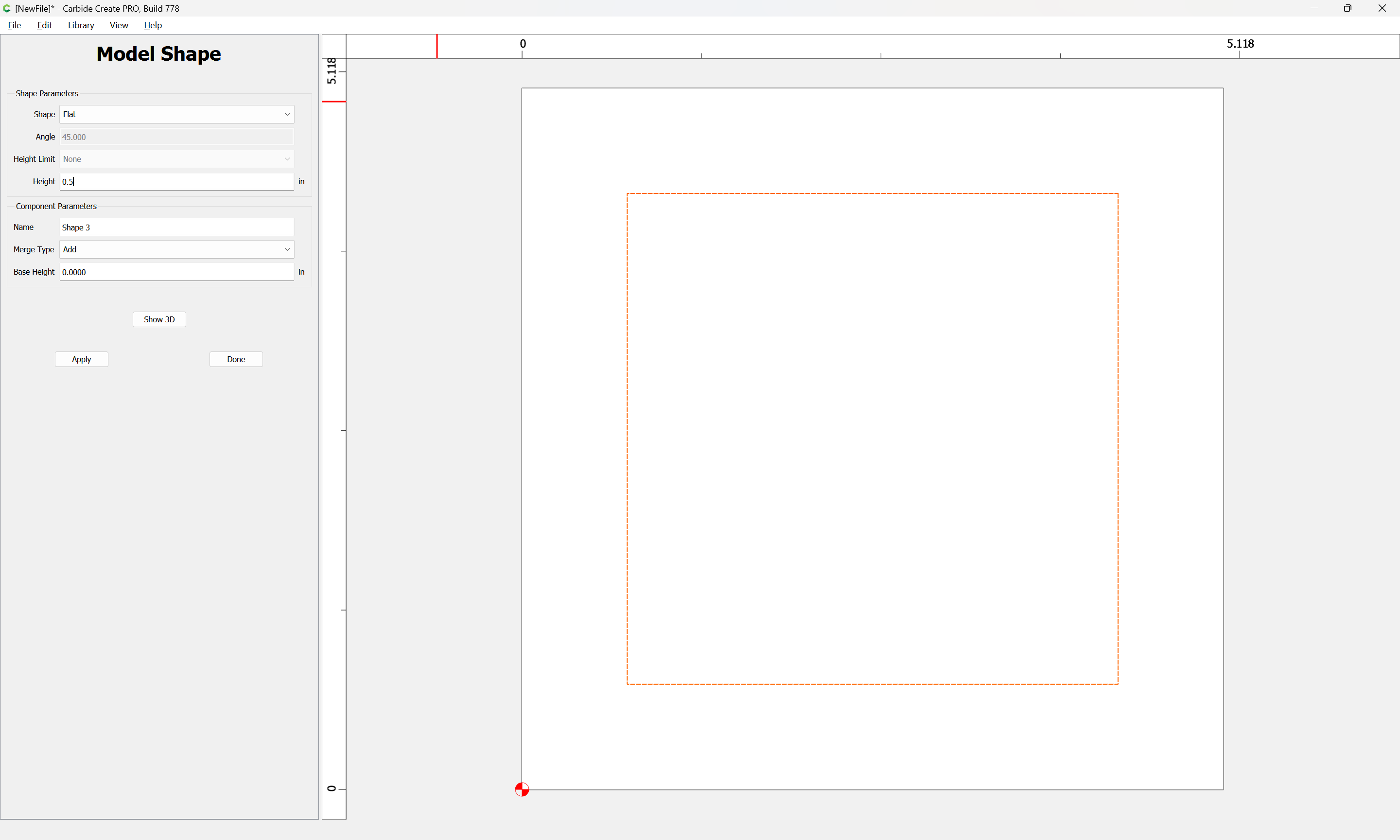
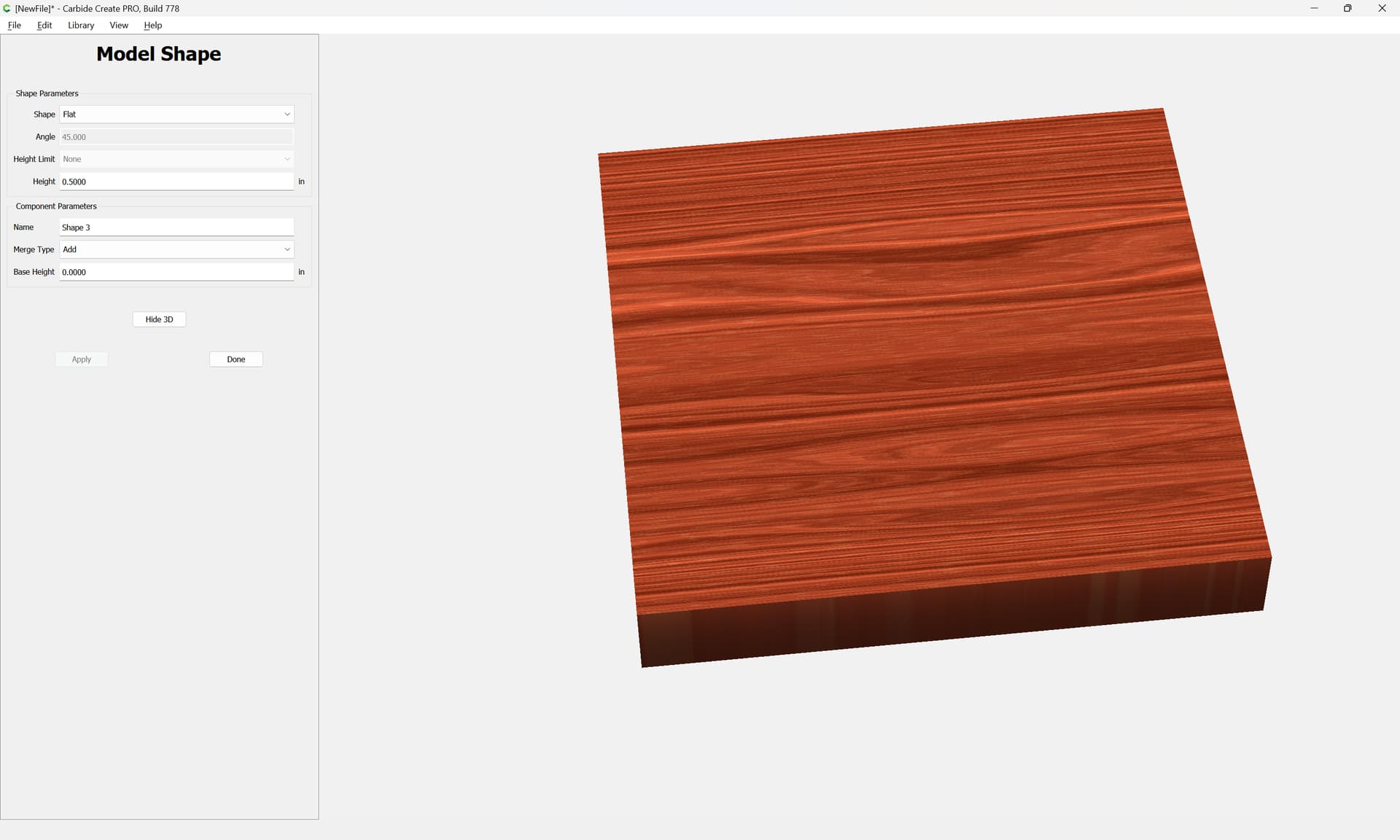
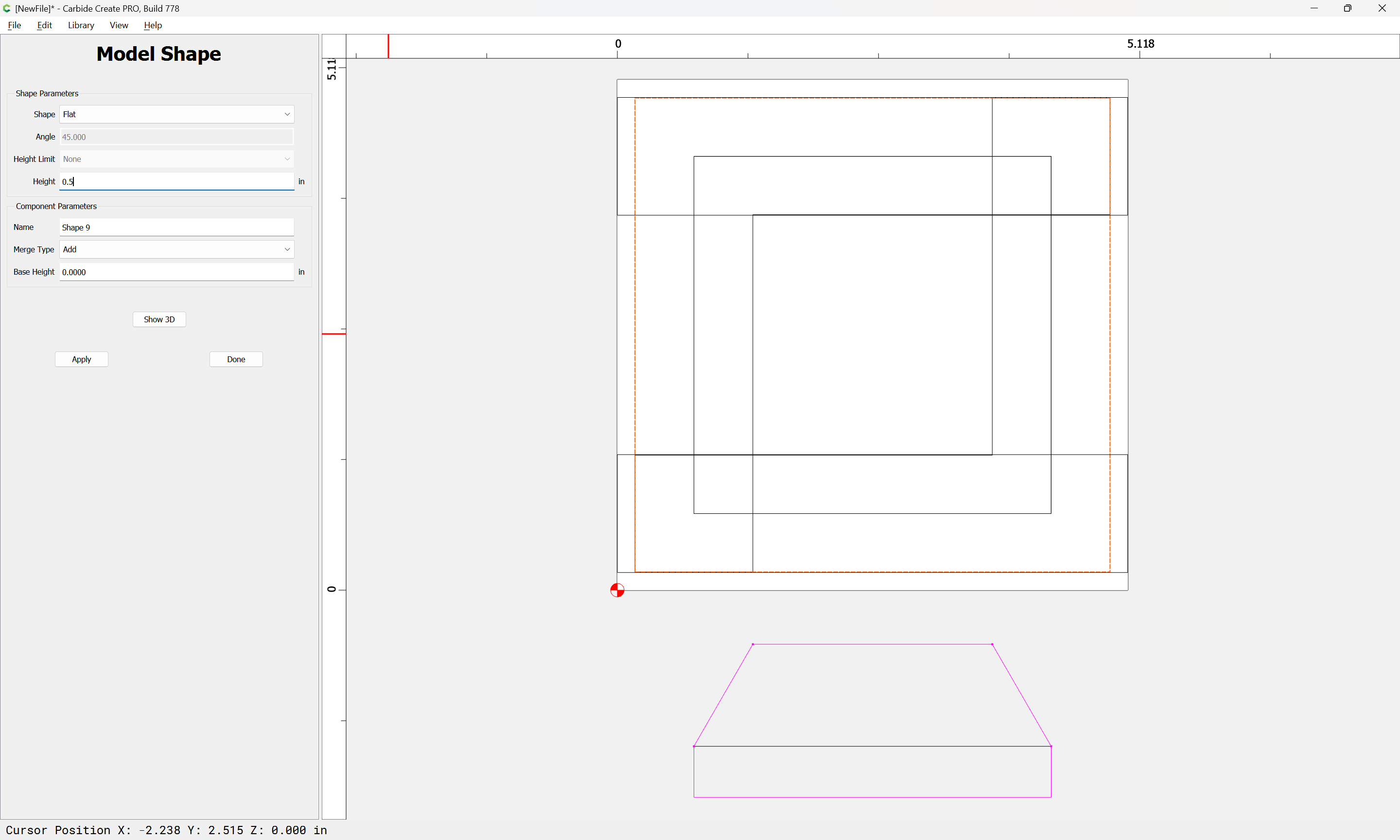
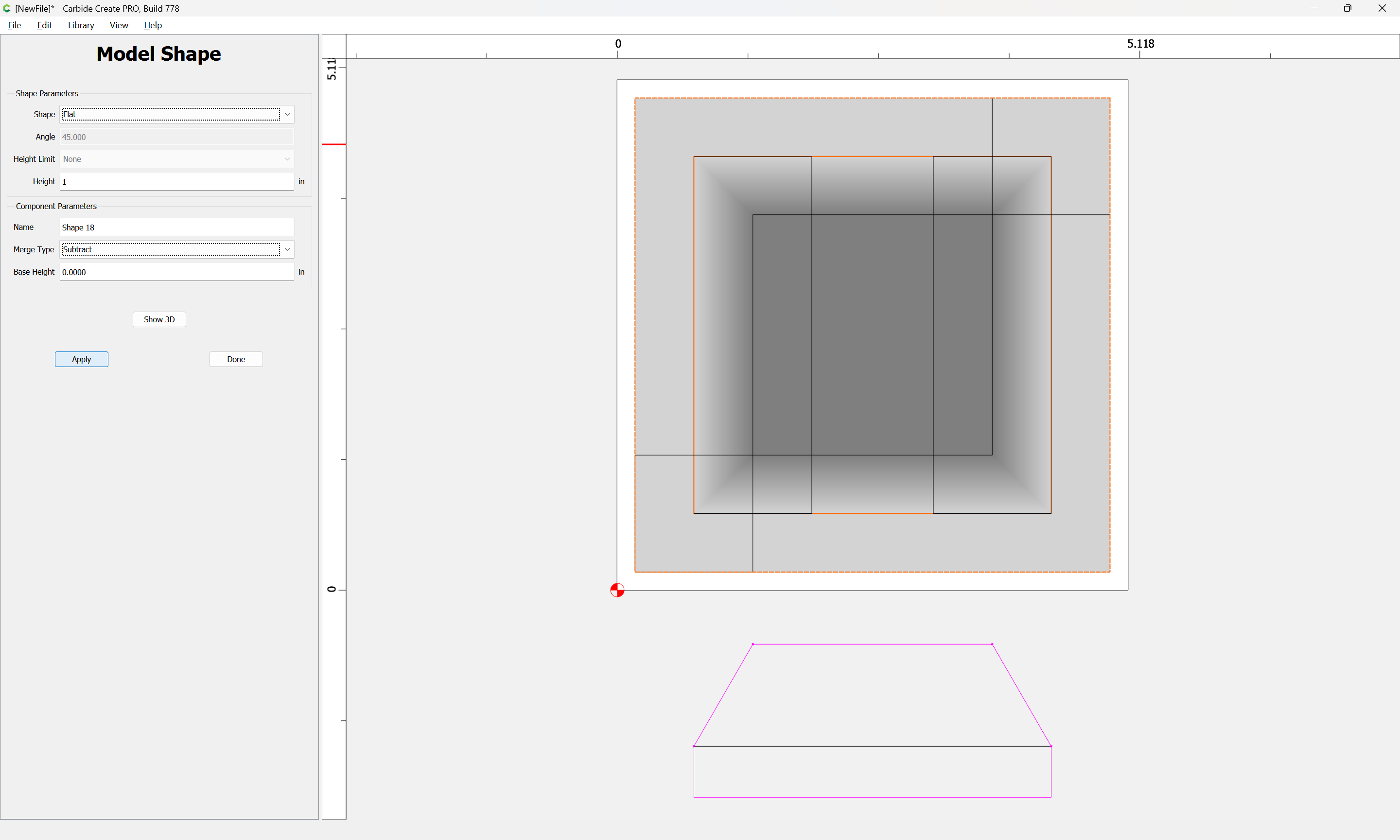
Model this to the thickness of the base:
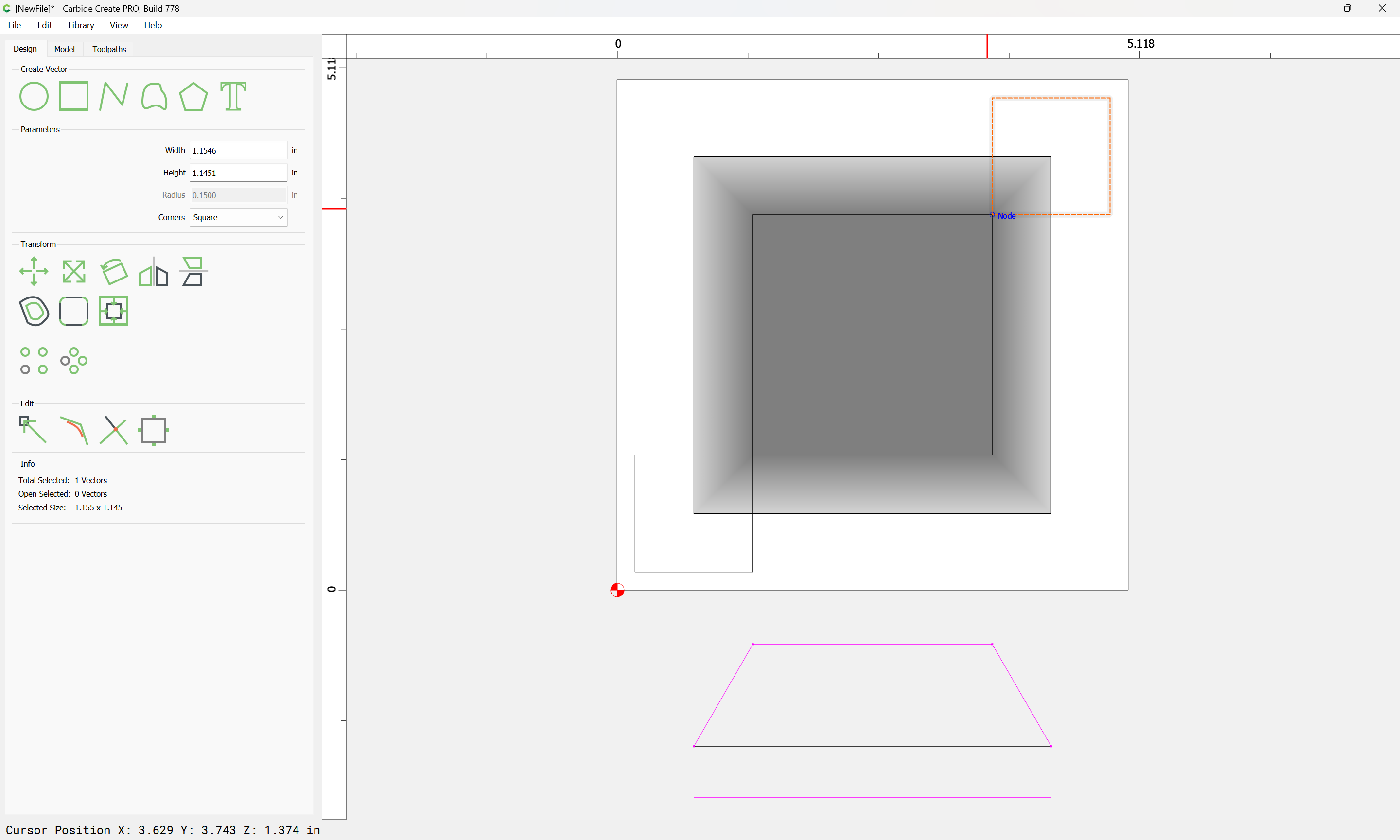
Then draw in additional geometry for the angles:
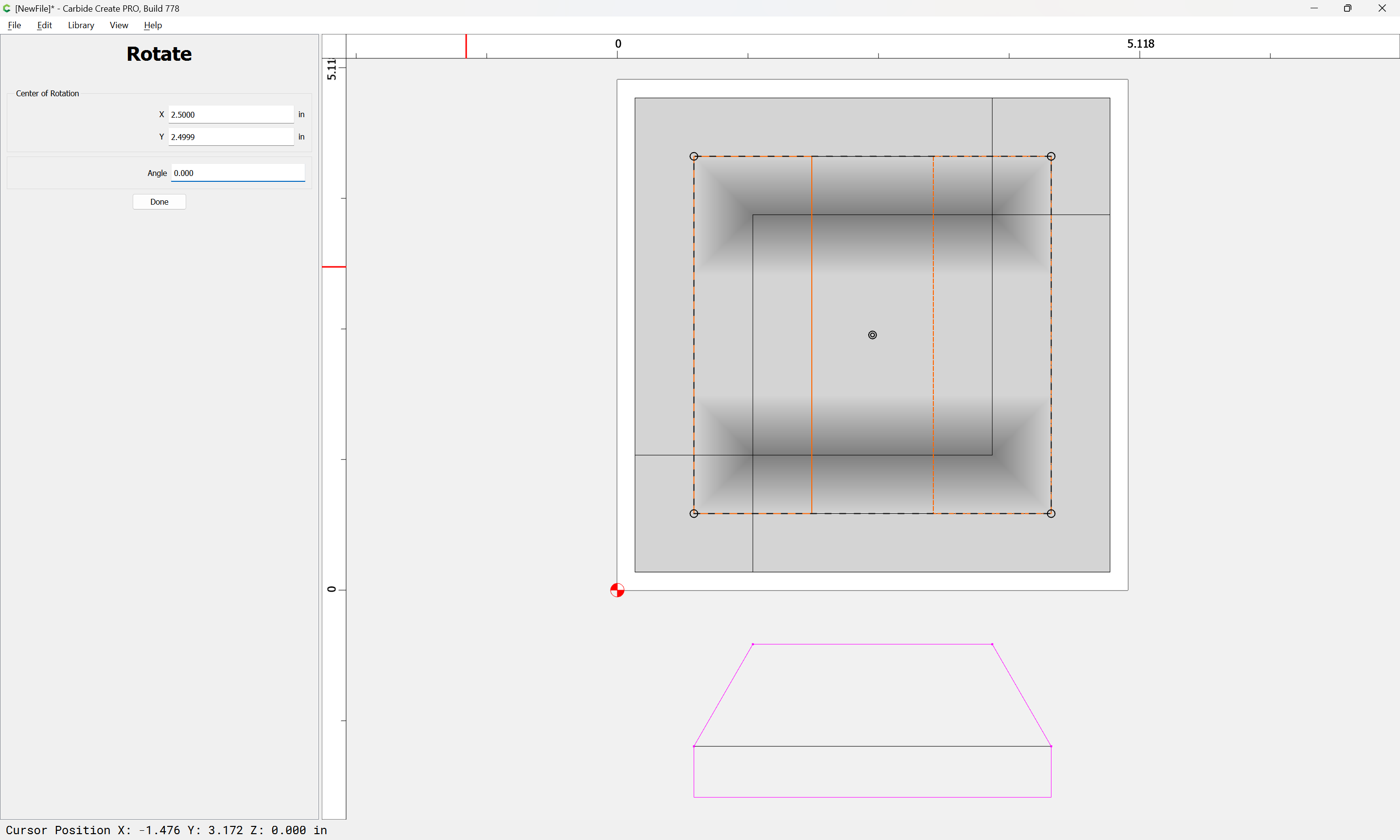
Rotate the geometry 90 degrees:
Apply
Done
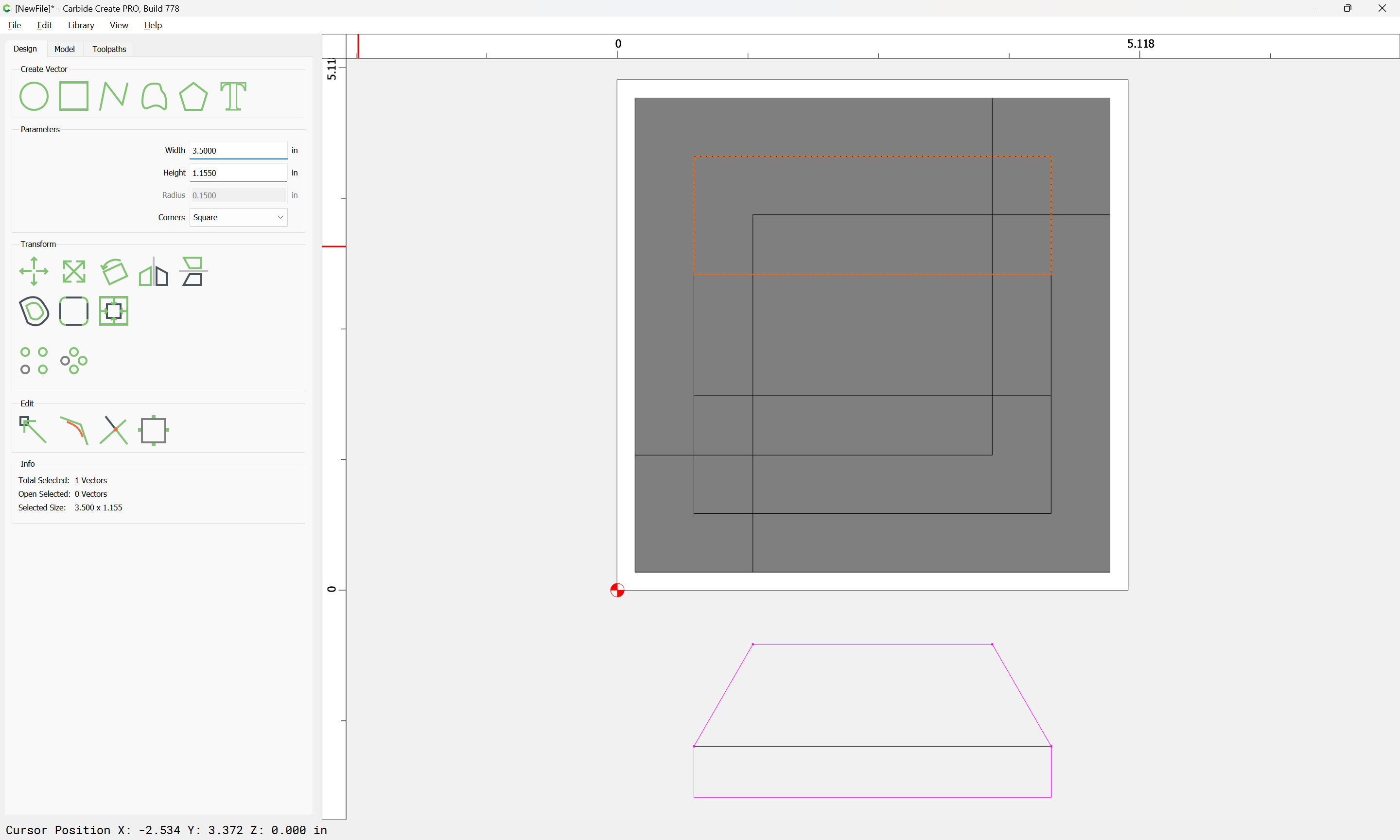
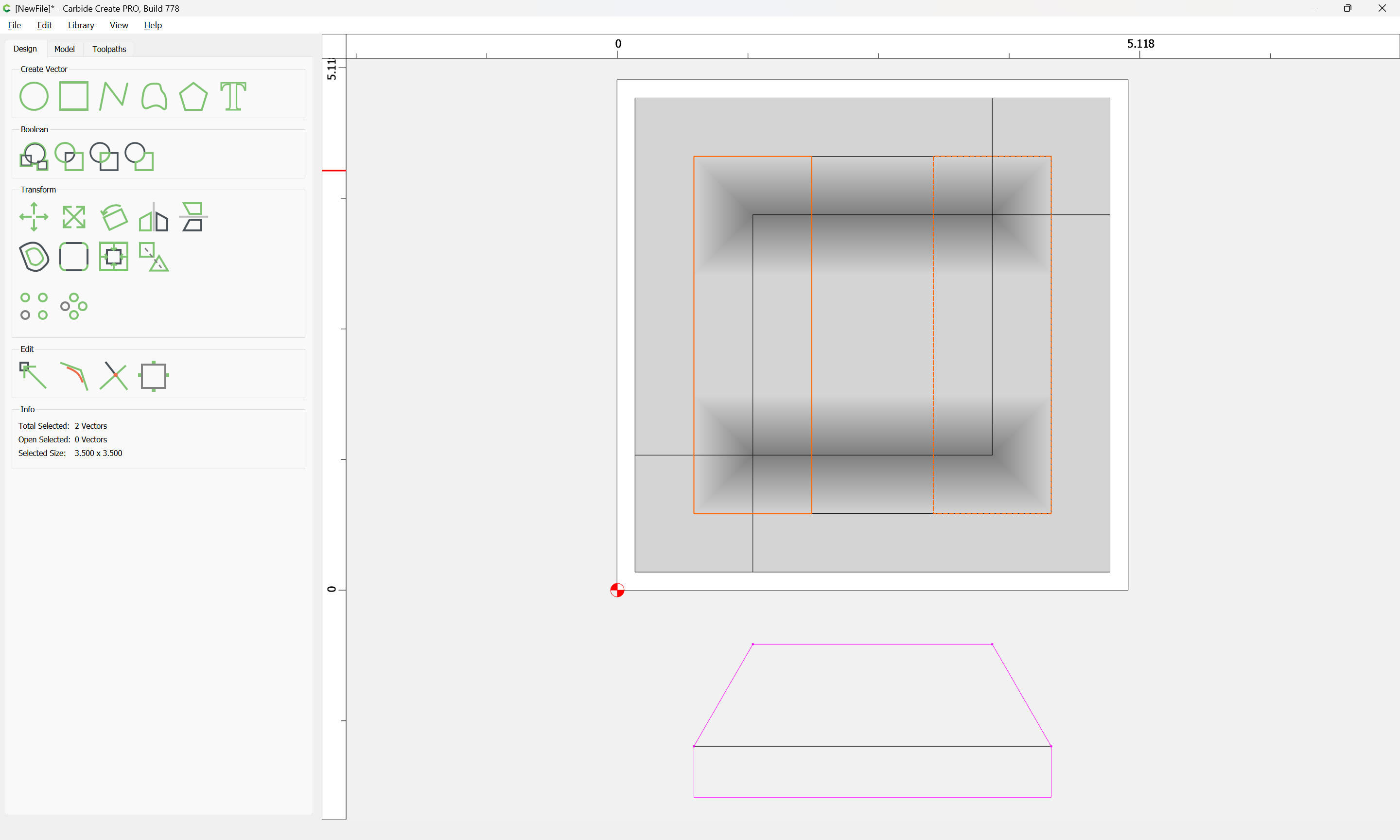
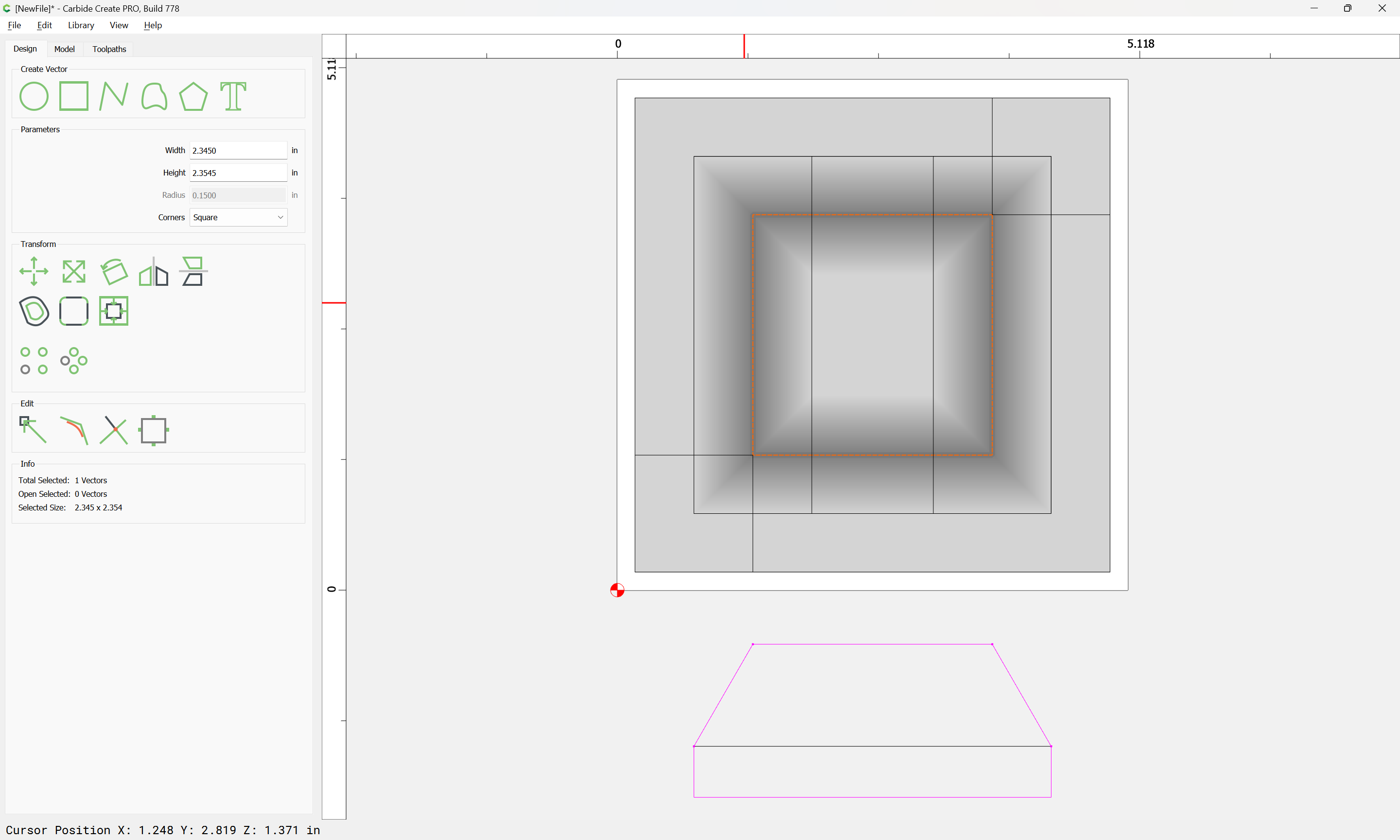
Select the inner square:
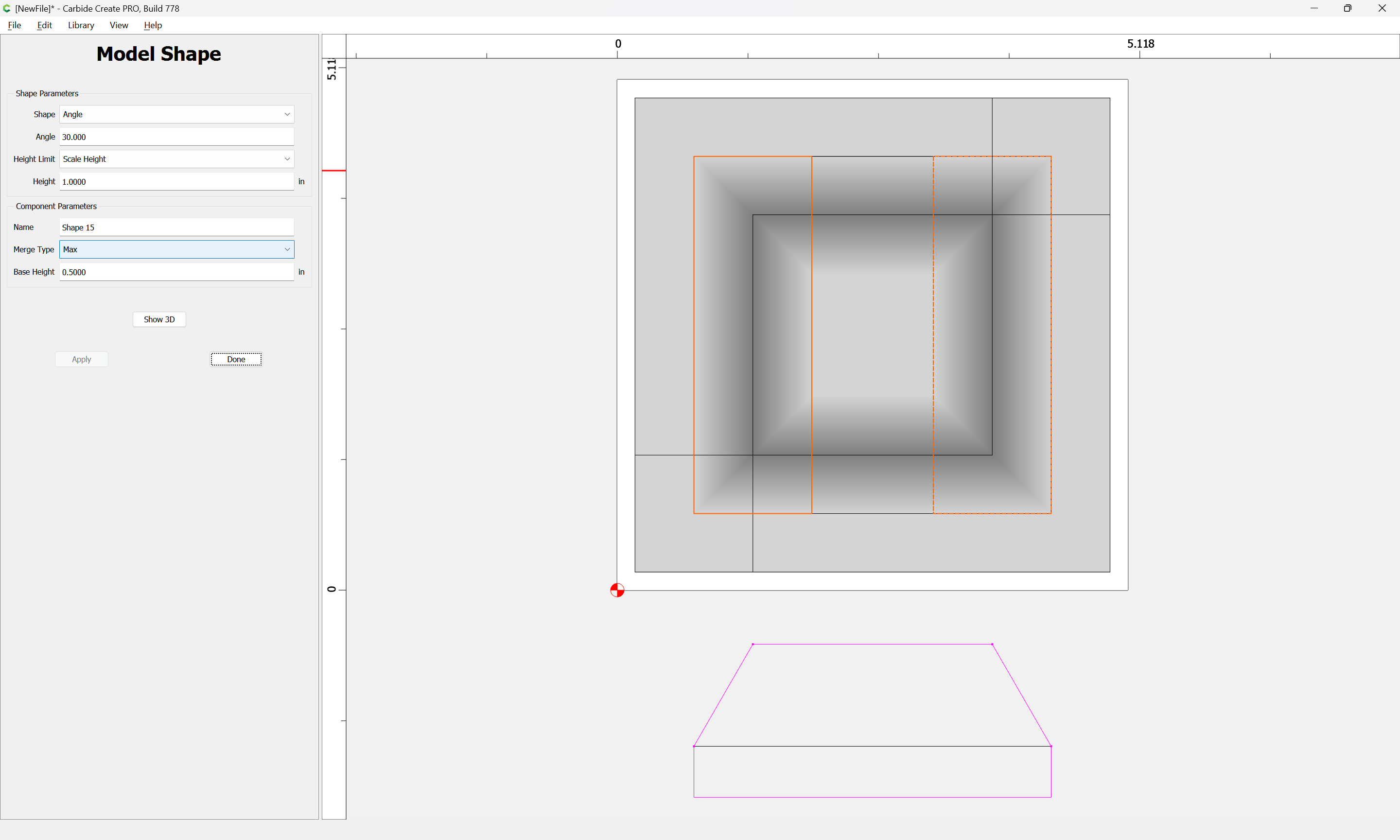
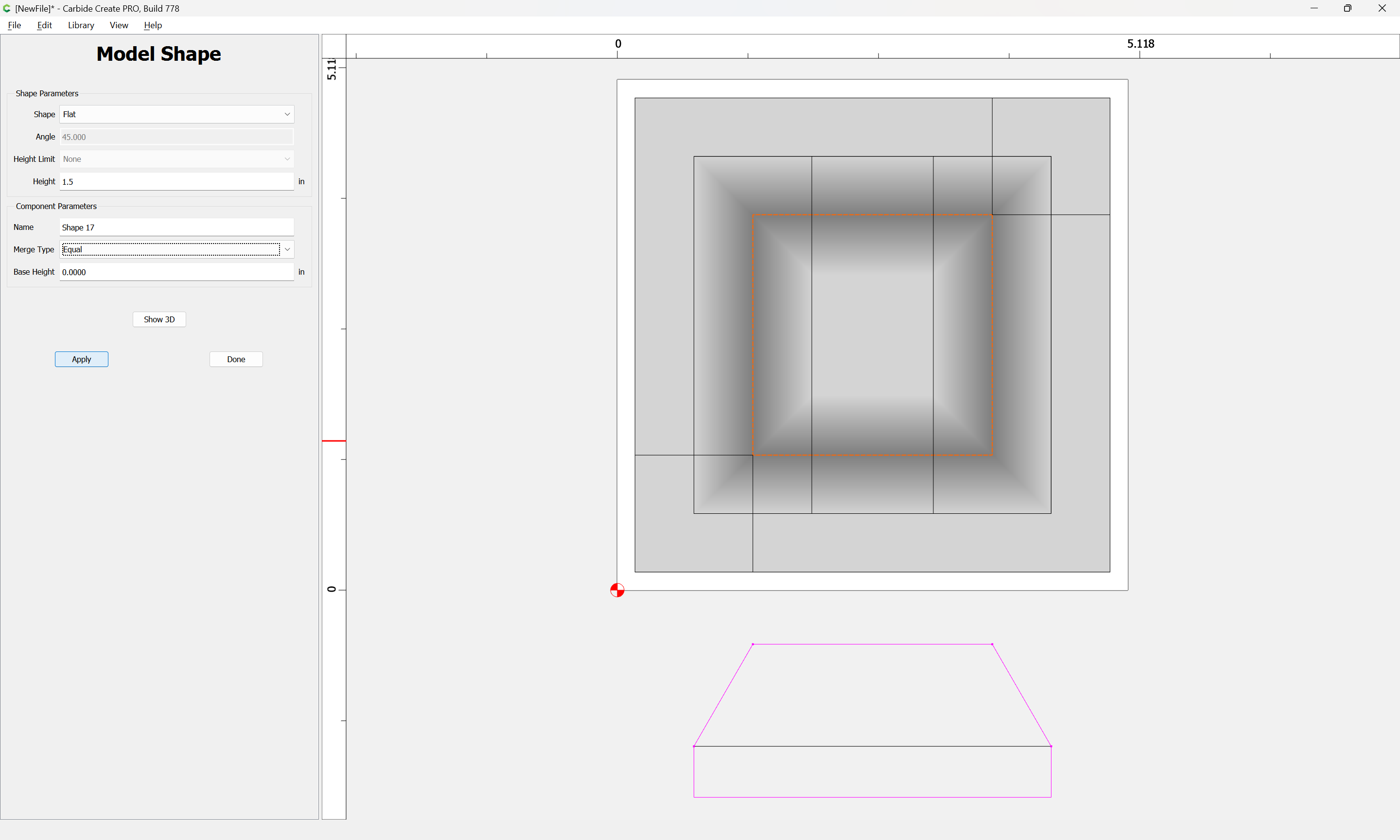
and fill in the interior:
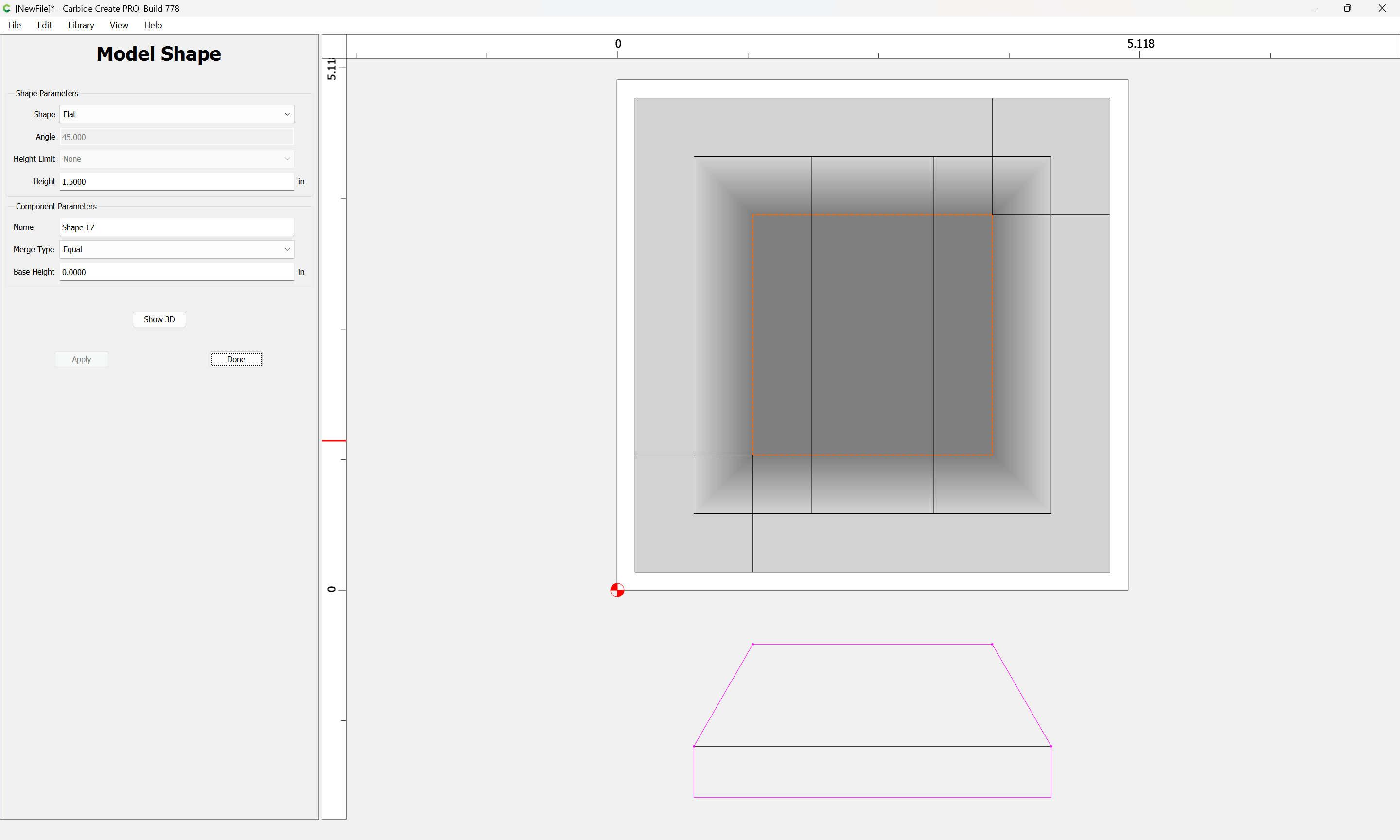
Apply
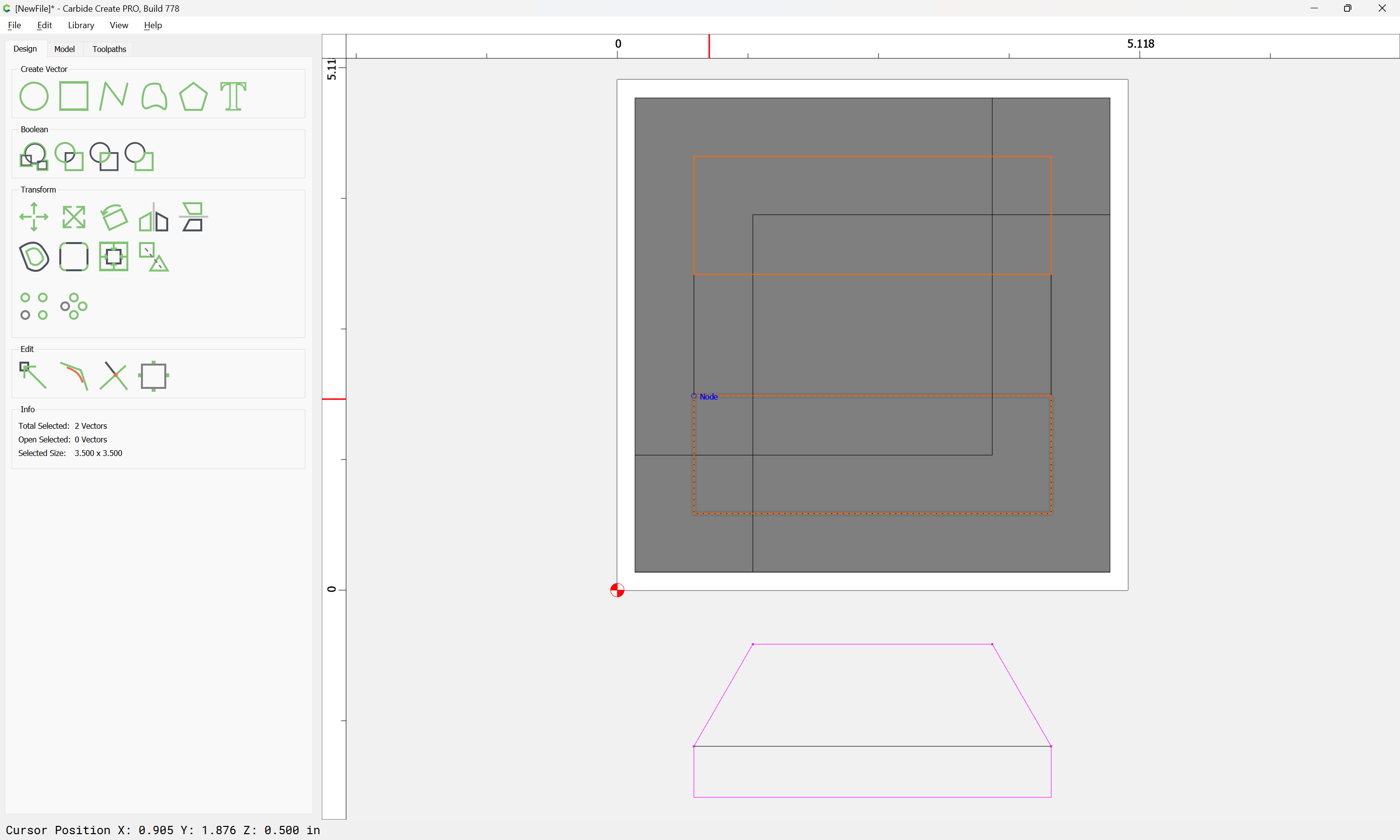
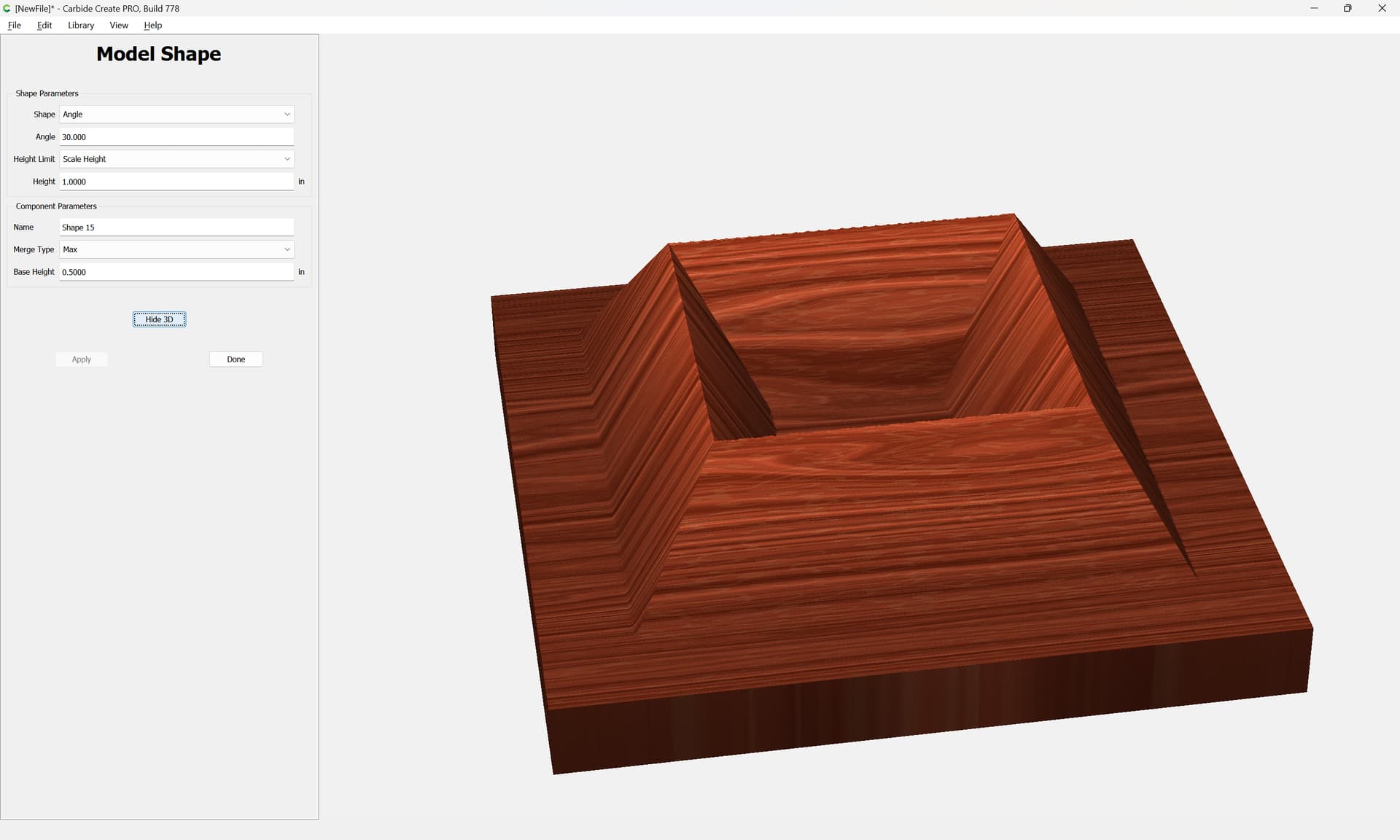
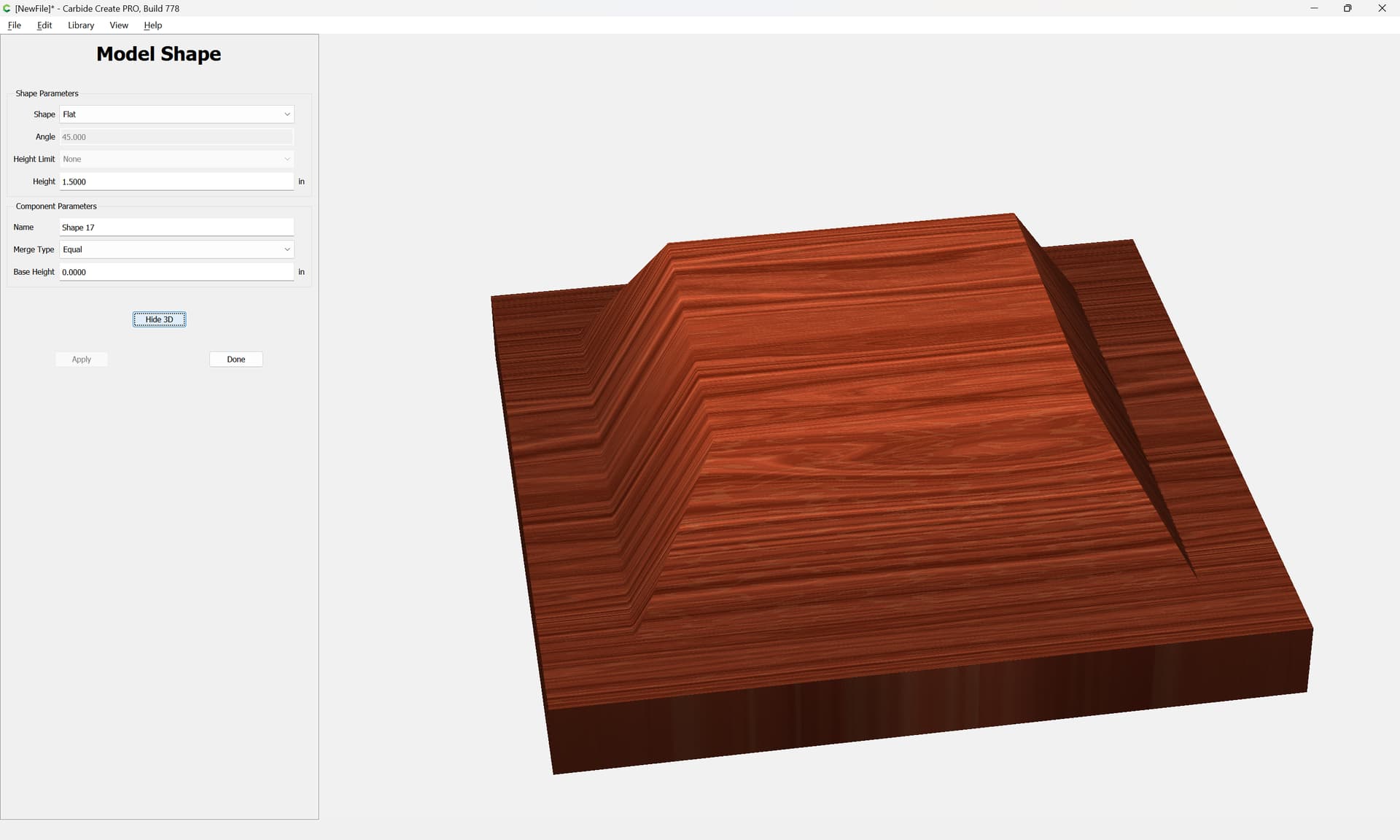
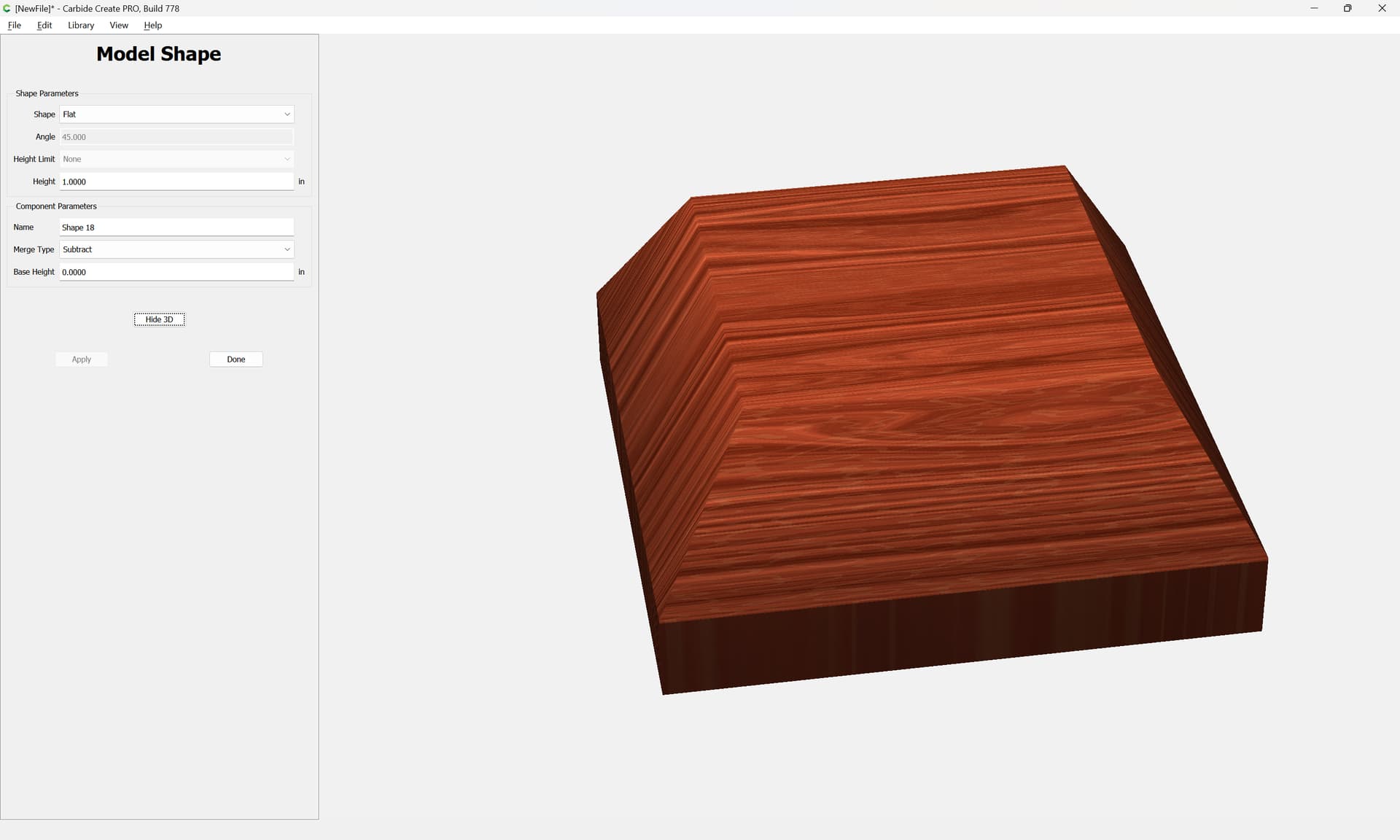
Subtract the base:
Attached as a v7 file.
pyramidal_square_v7.c2d (60 KB)
Wow, that may take me awhile to digest. Thx. I am working with wood and have a couple of long bits.
Thanks for the advice and pictures
This topic was automatically closed after 30 days. New replies are no longer allowed.