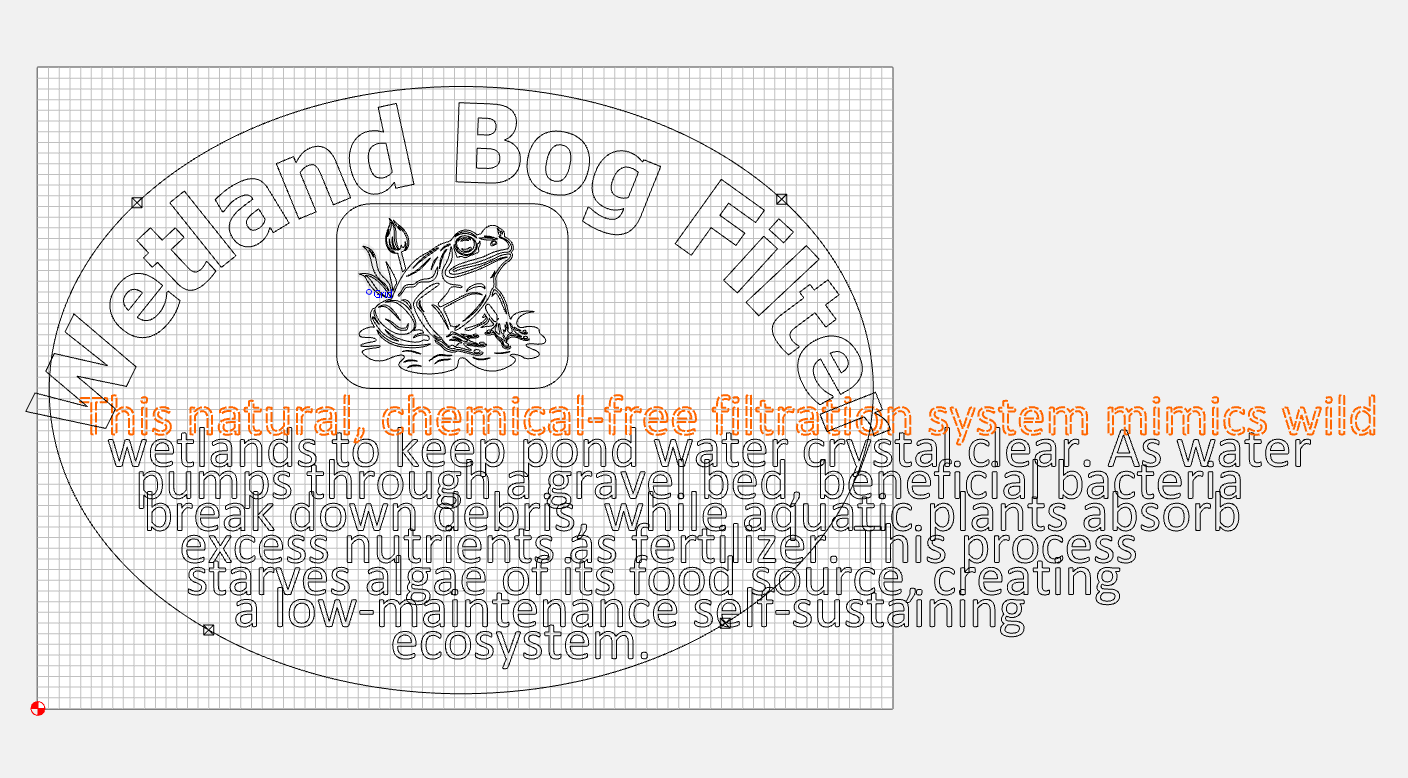
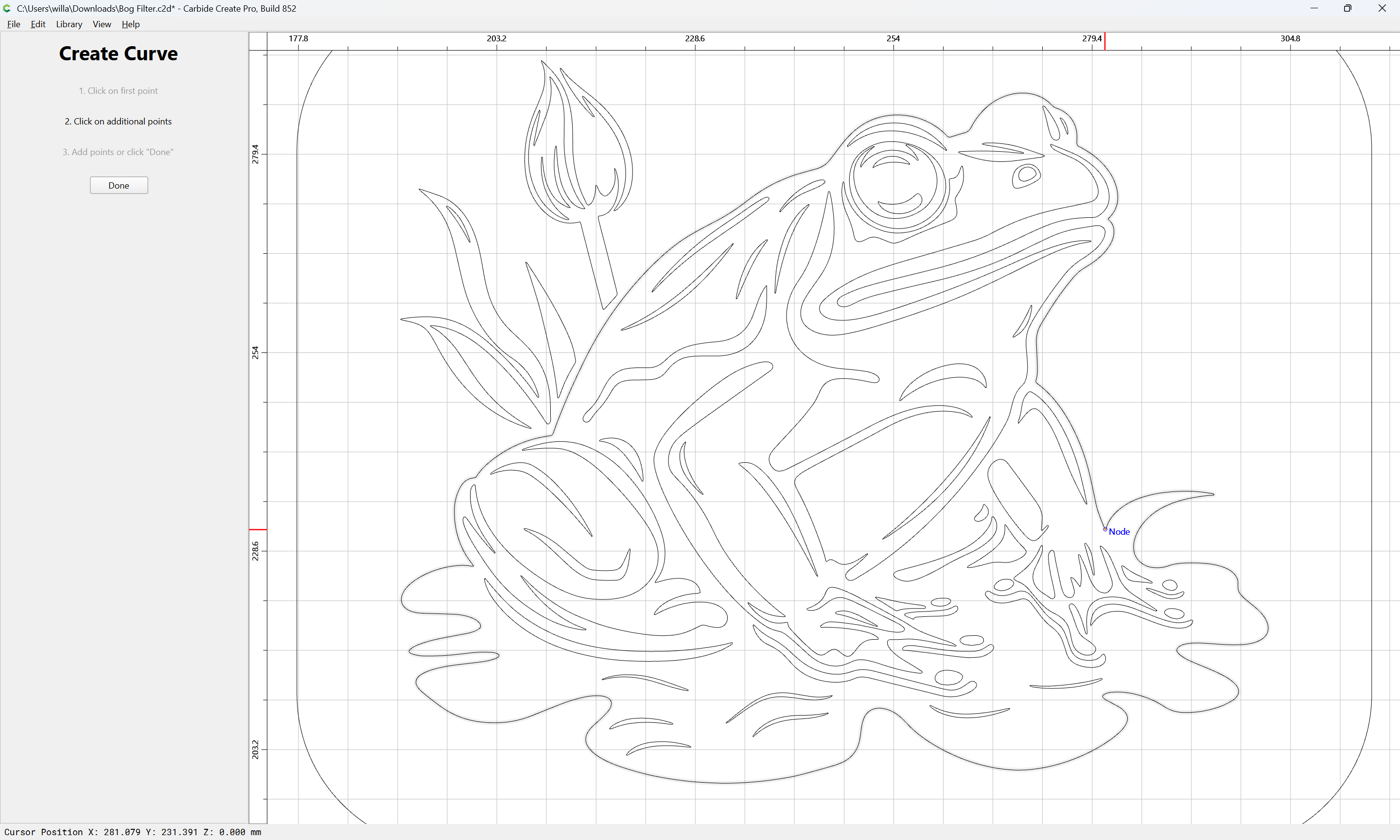
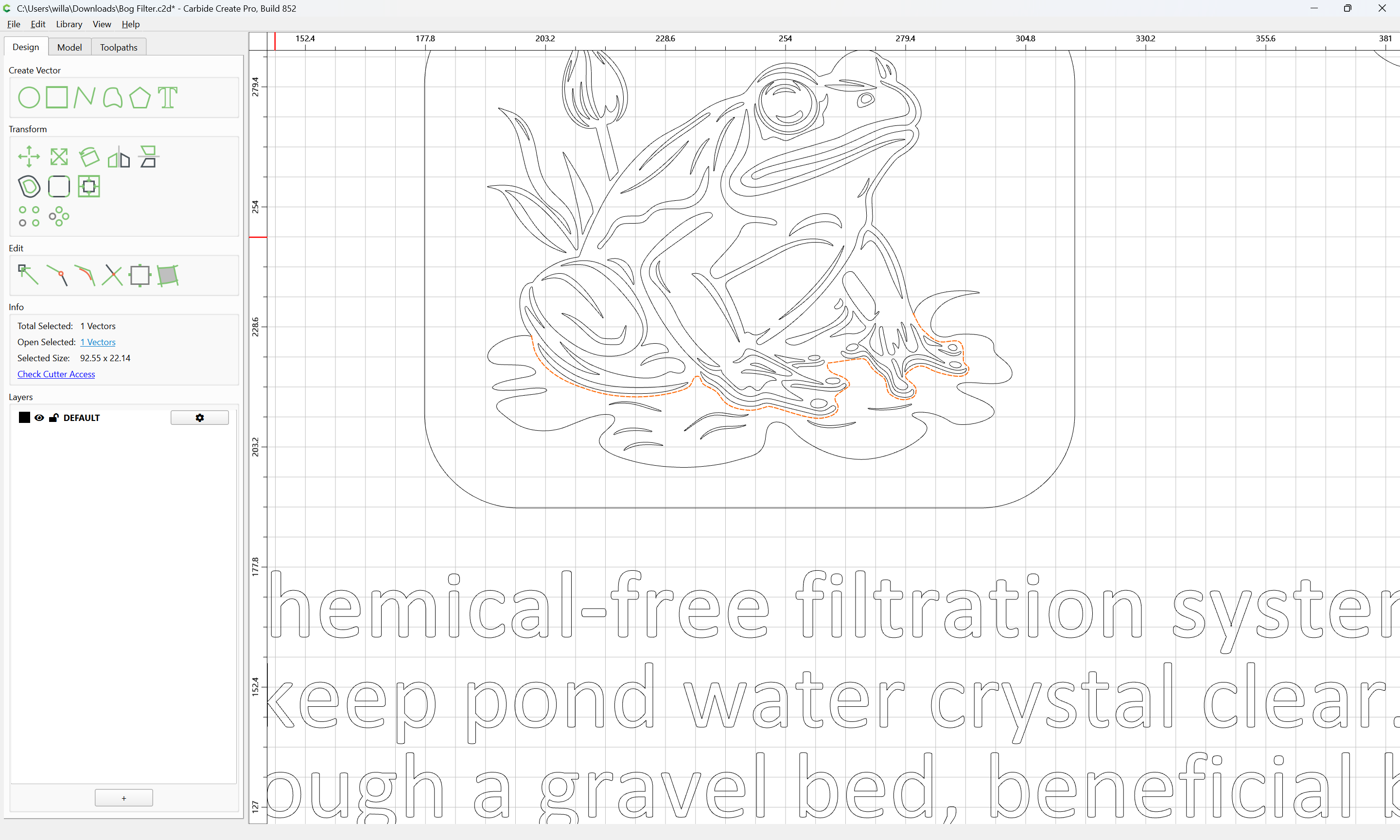
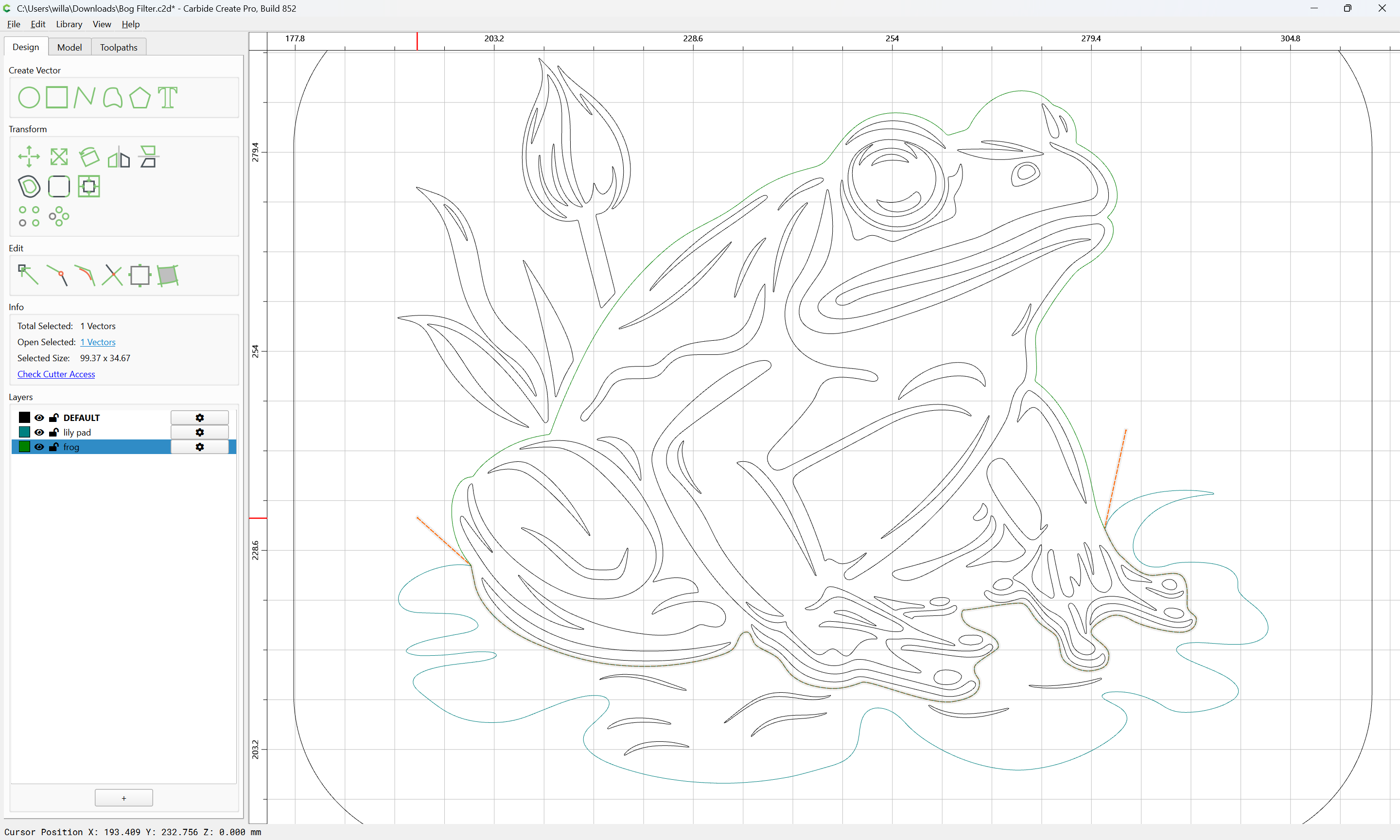
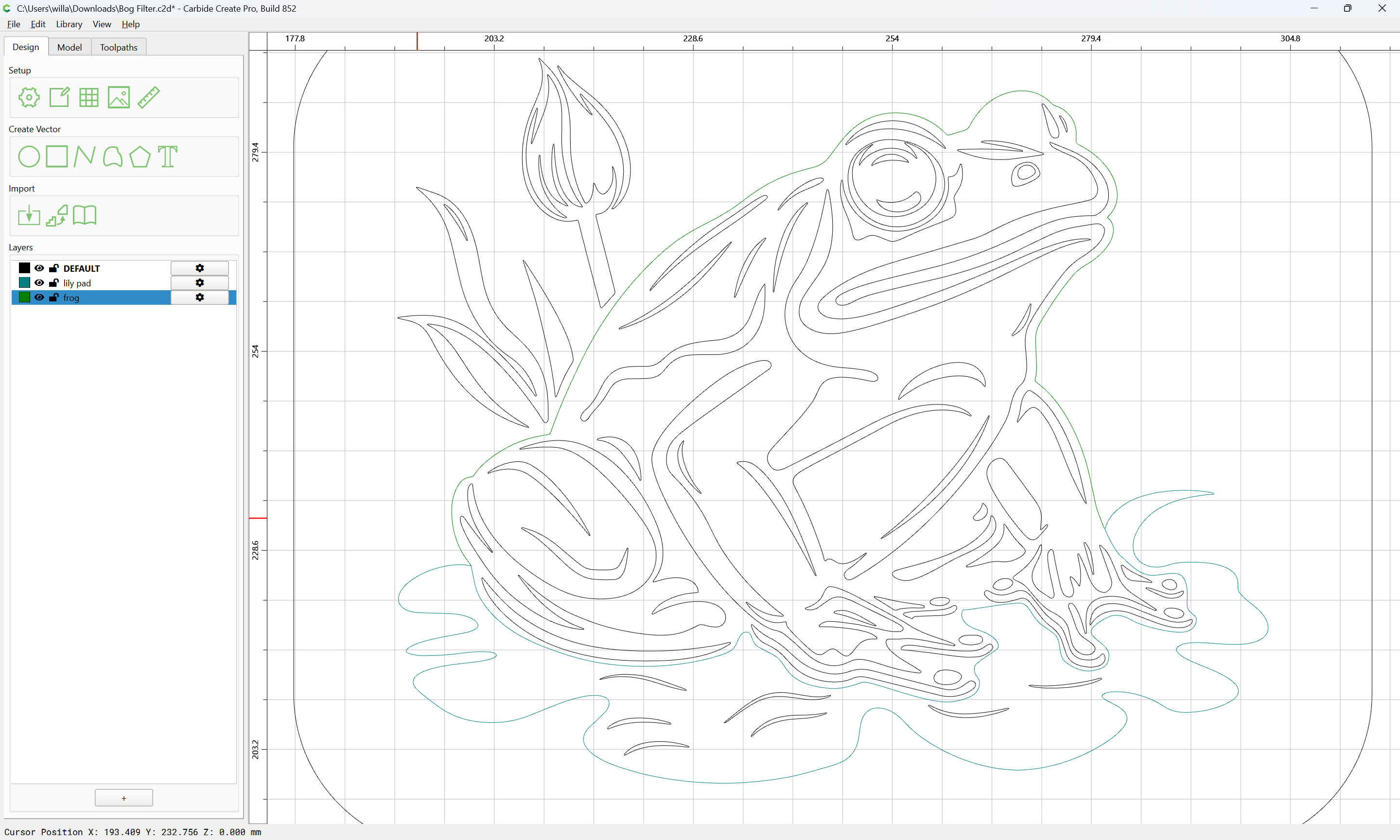
I have an svg file of a frog on a lily pad that I am placing on a sign for my son. I need to have two separate outlines around the frog and the lily pad so I can carve them separately for different colored epoxies. Could someone give me some guidance on how best to accomplish this? File is attached. Thanks in advance.
And as a side note, if it is easier to just get rid of the words altogether and just work on the frog/lily pad, that is not a problem, I can deal with that.
You can get an outline of the frog and lily pad by selecting them then grouping the vectors. From there, apply an outside offset. Will that get you the outline you need?
You’ll have a few vectors within the image to delete but you get a good outside vector.
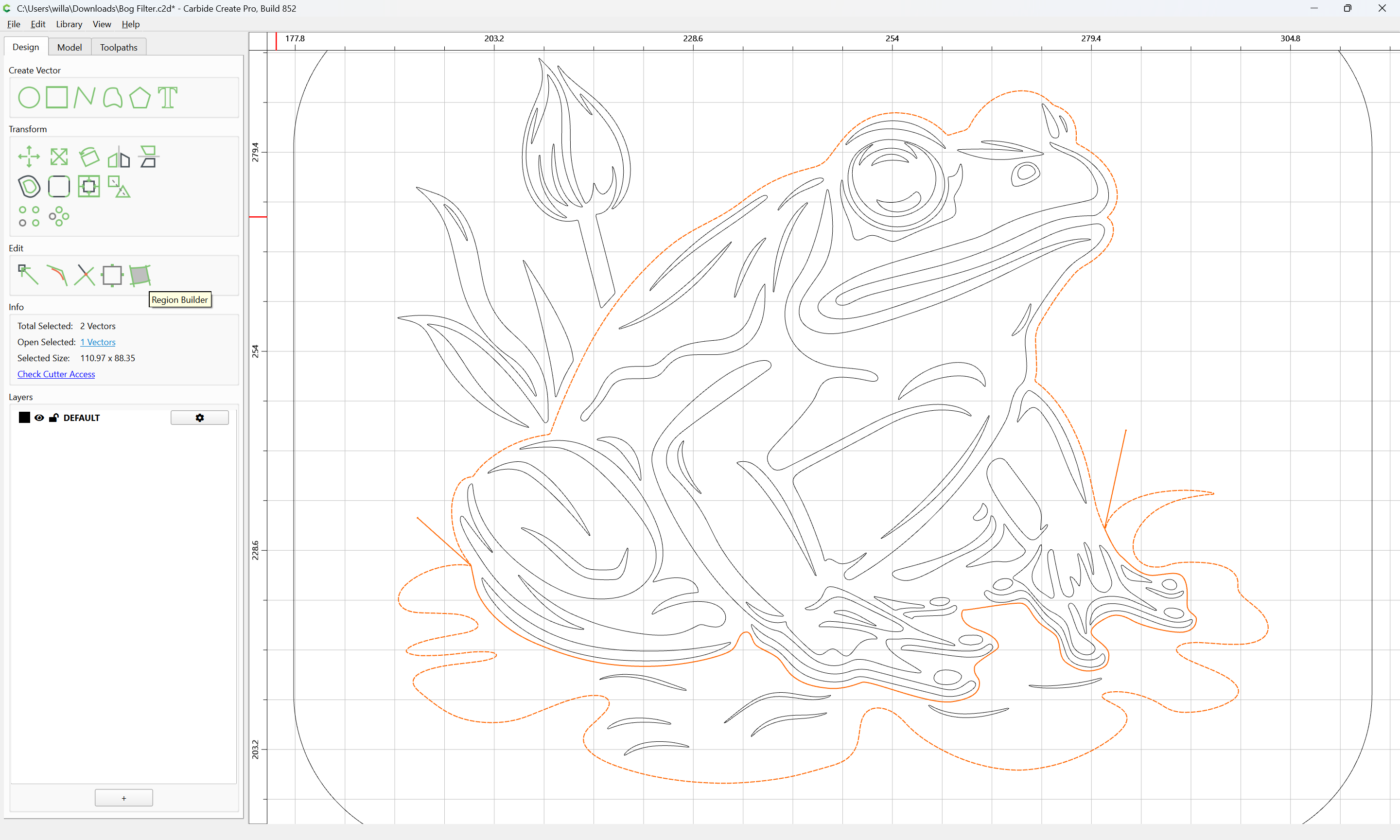
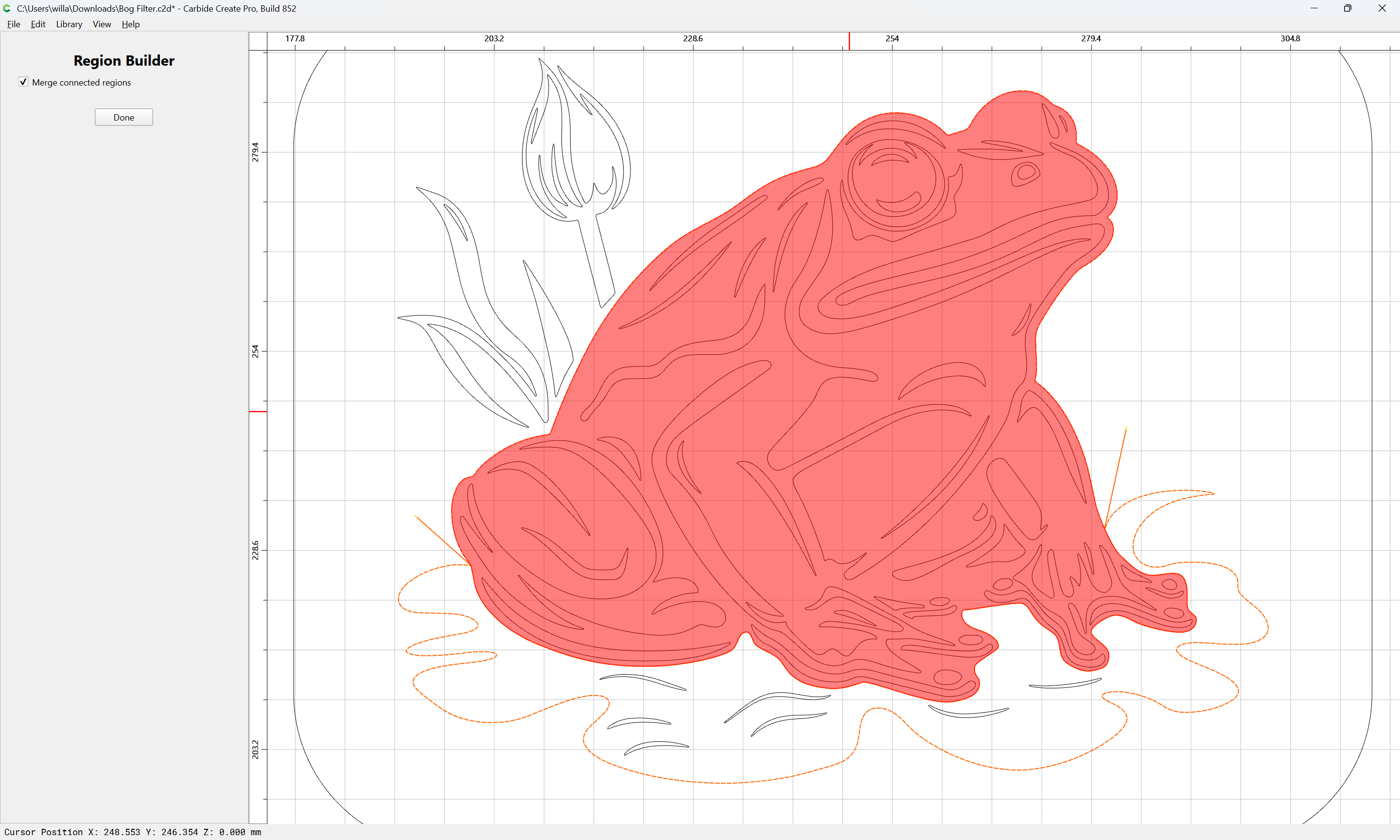
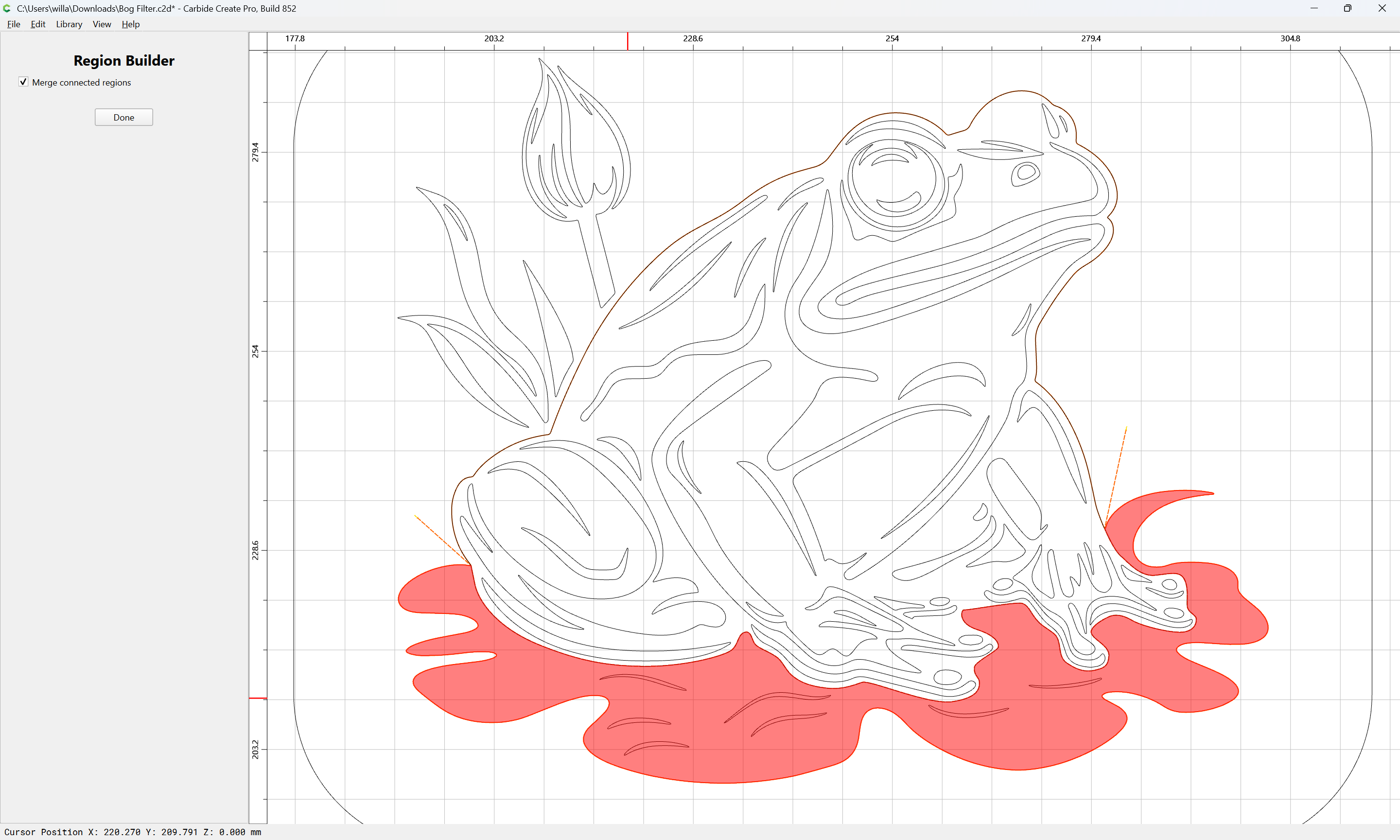
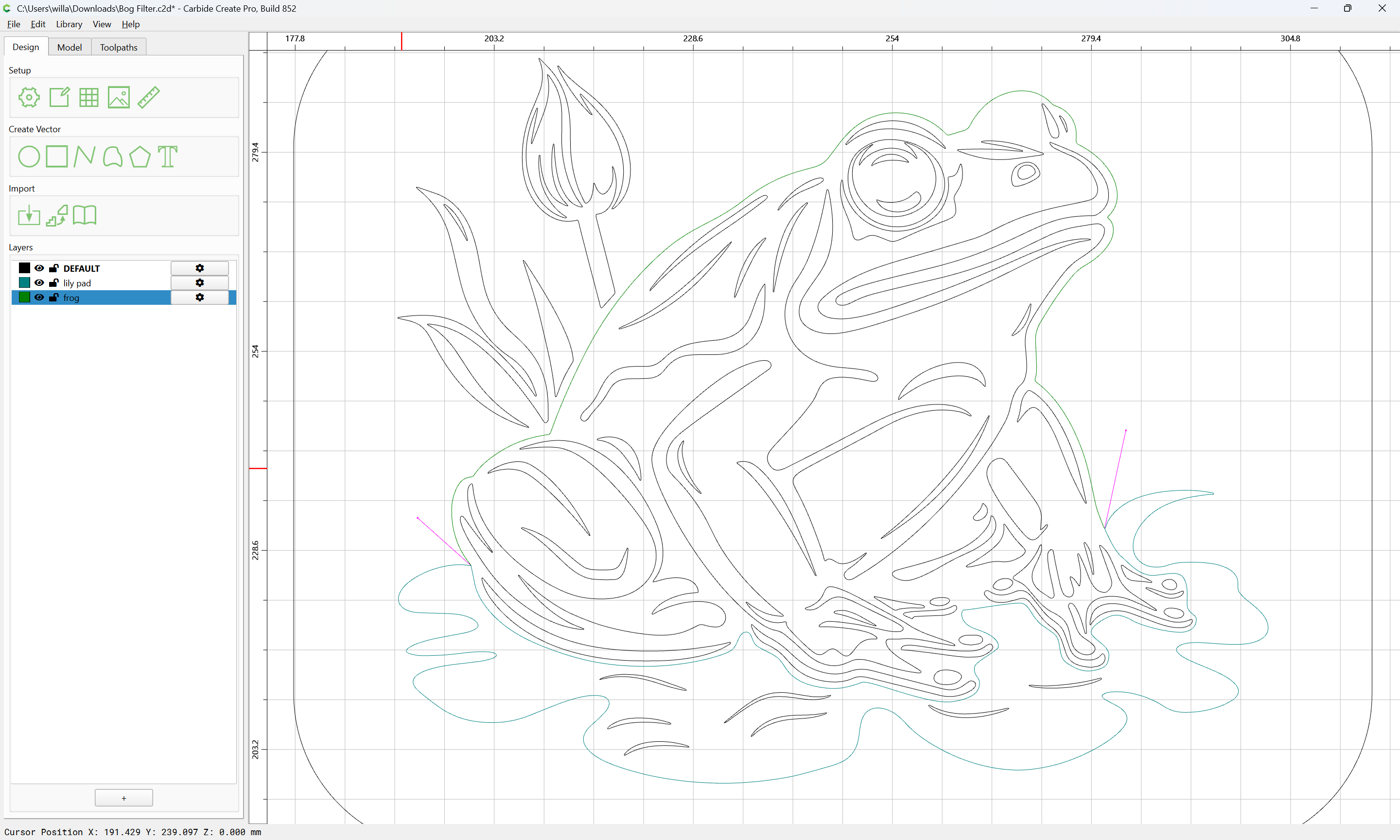
Thanks Ed, unfortunately, that doesn’t get me to my ultimate goal, which is to pocket out the frog in one step and the lily pad in a separate step as I want to be able to put in multiple colors of epoxy on the different elements.
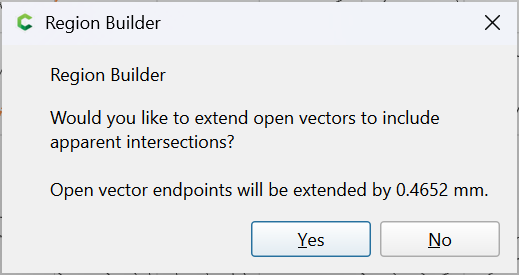
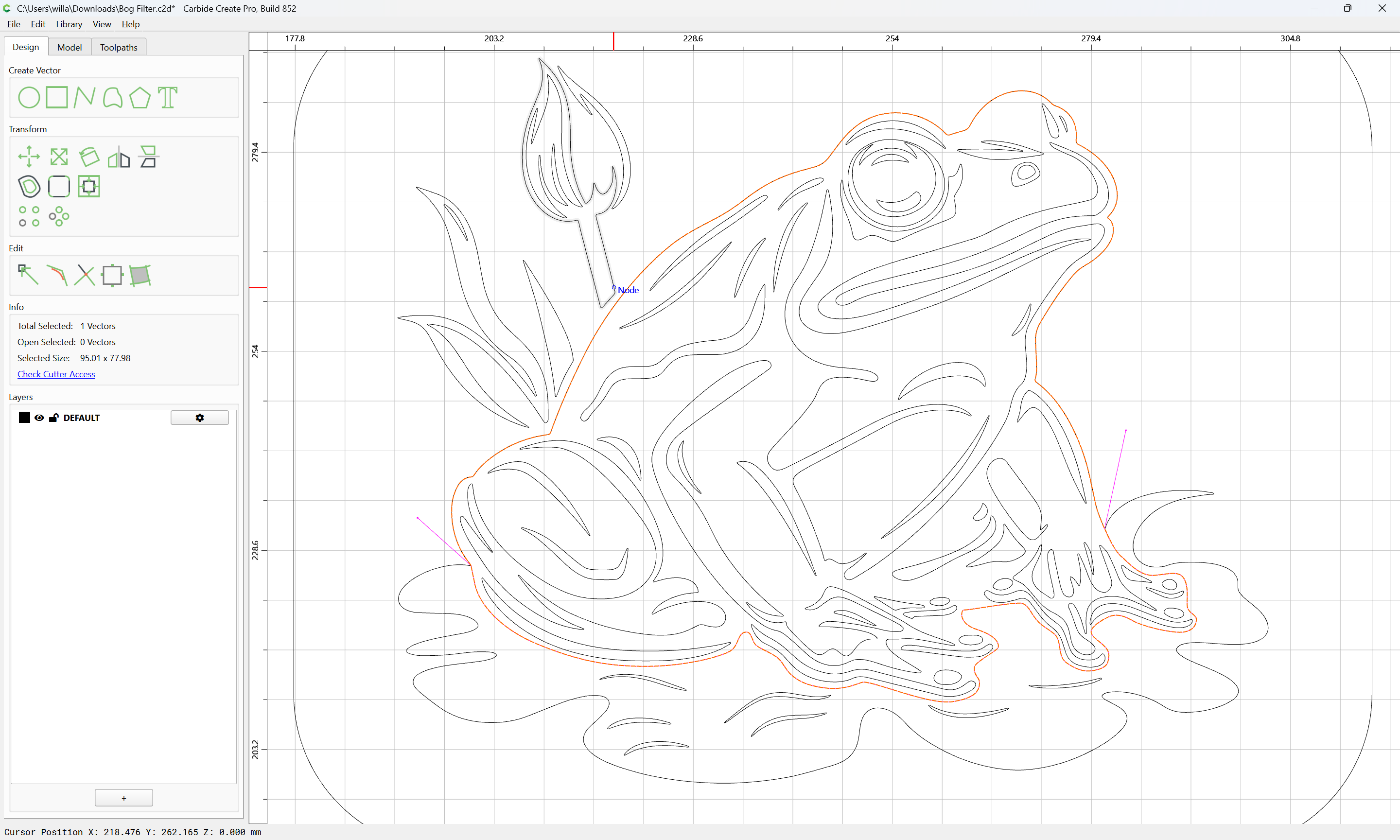
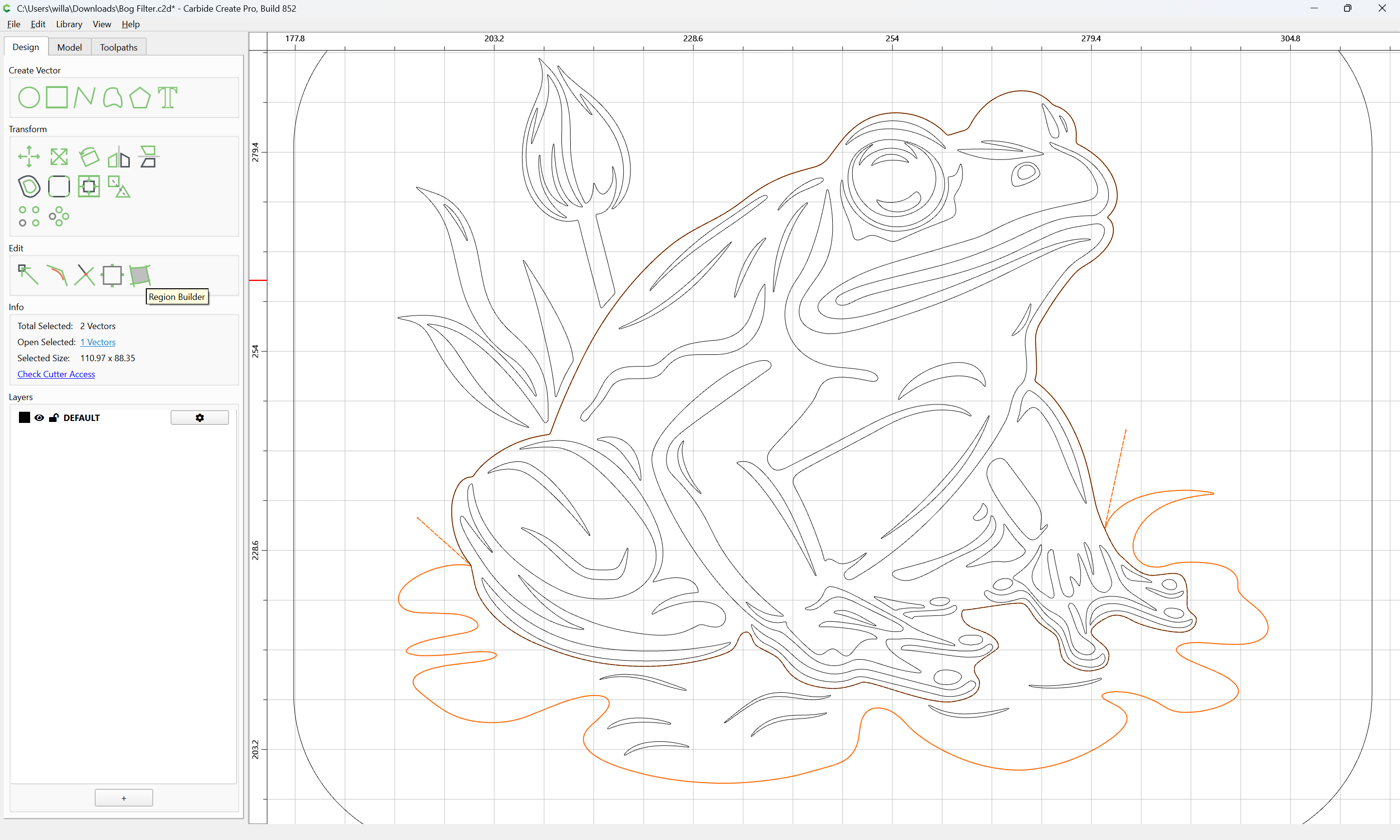
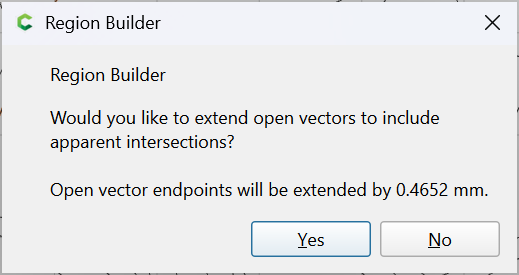
Will, you are the man!! That is exactly what I needed. I will spend some time studying how you did it. I have not used the region builder so that will be a new part of the ongoing learning curve. Much appreciated.
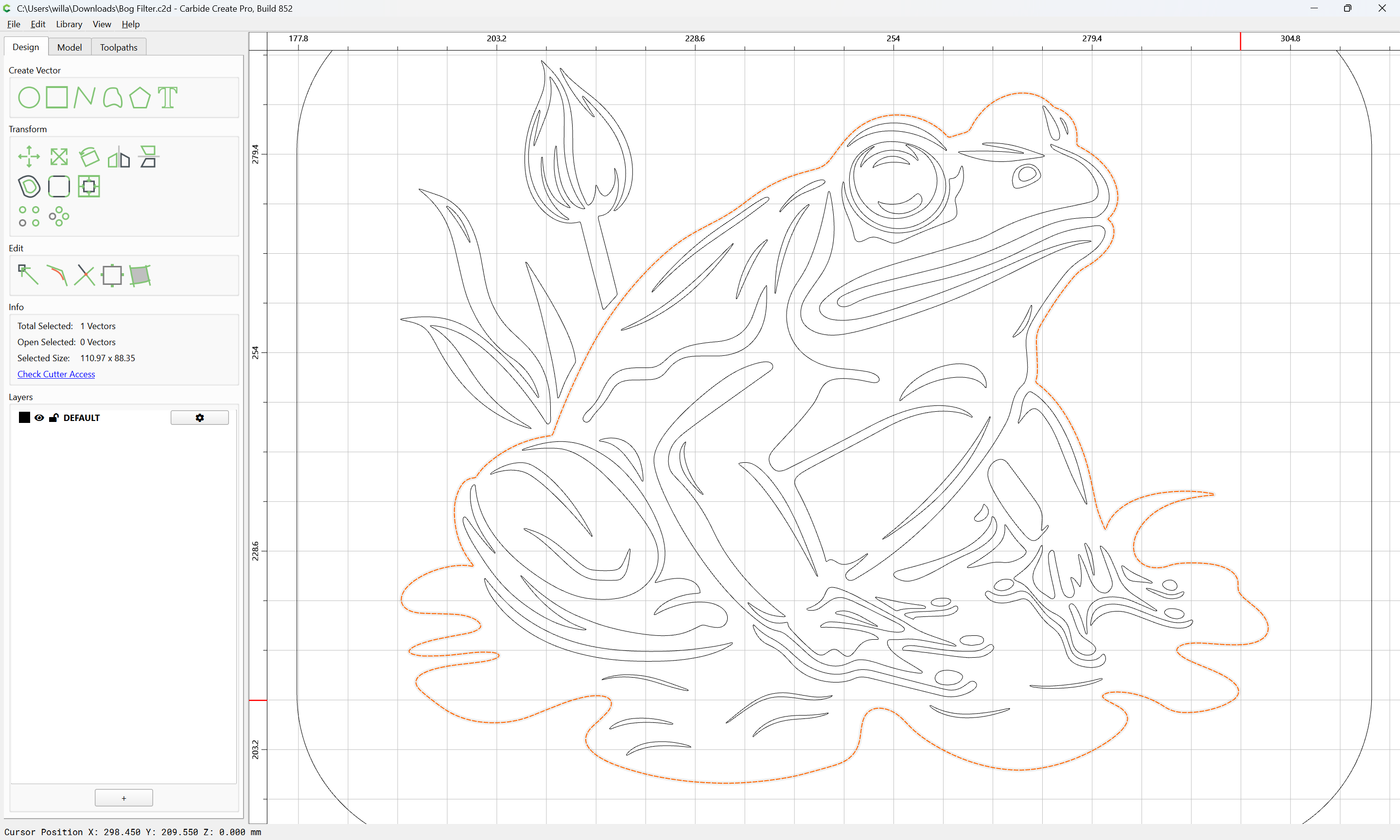
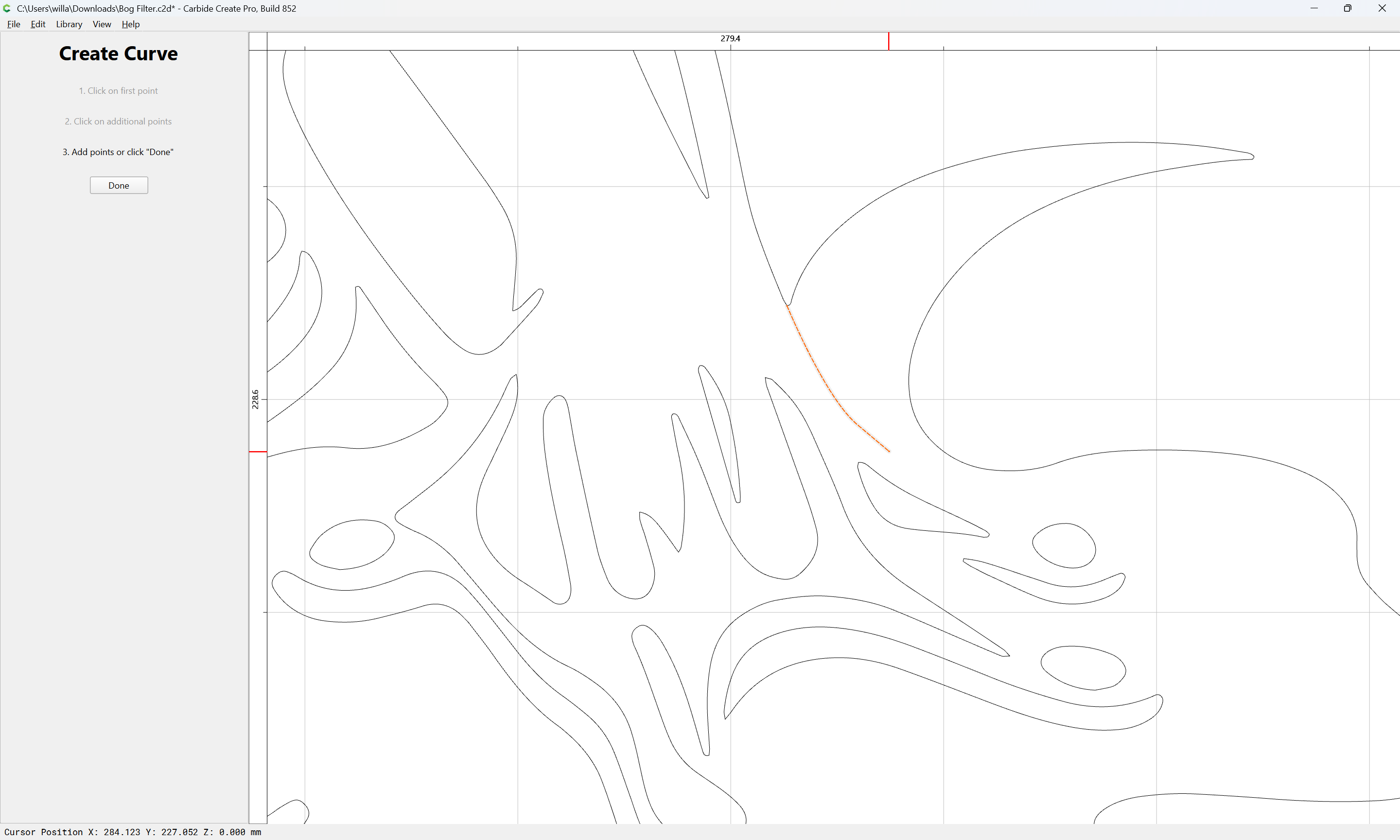
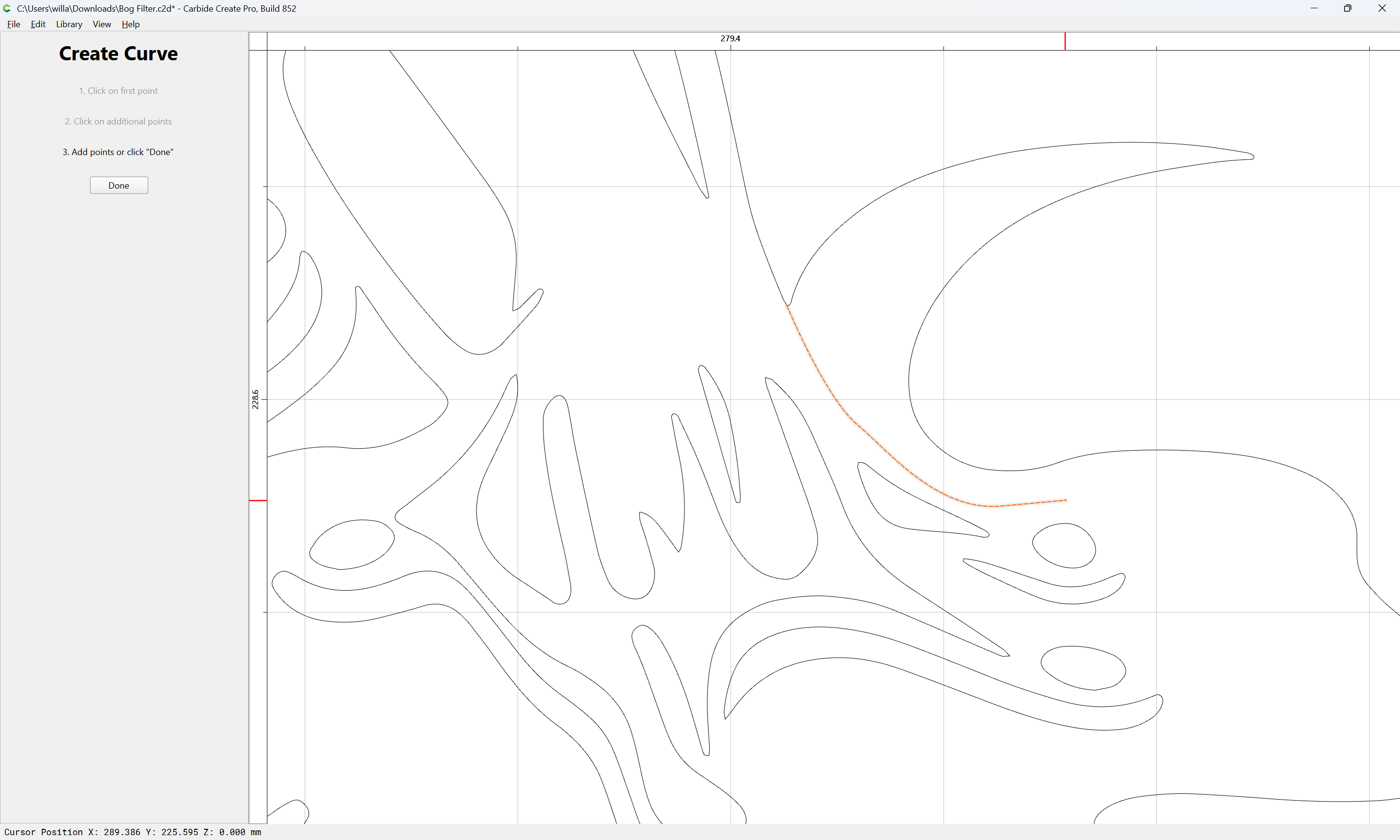
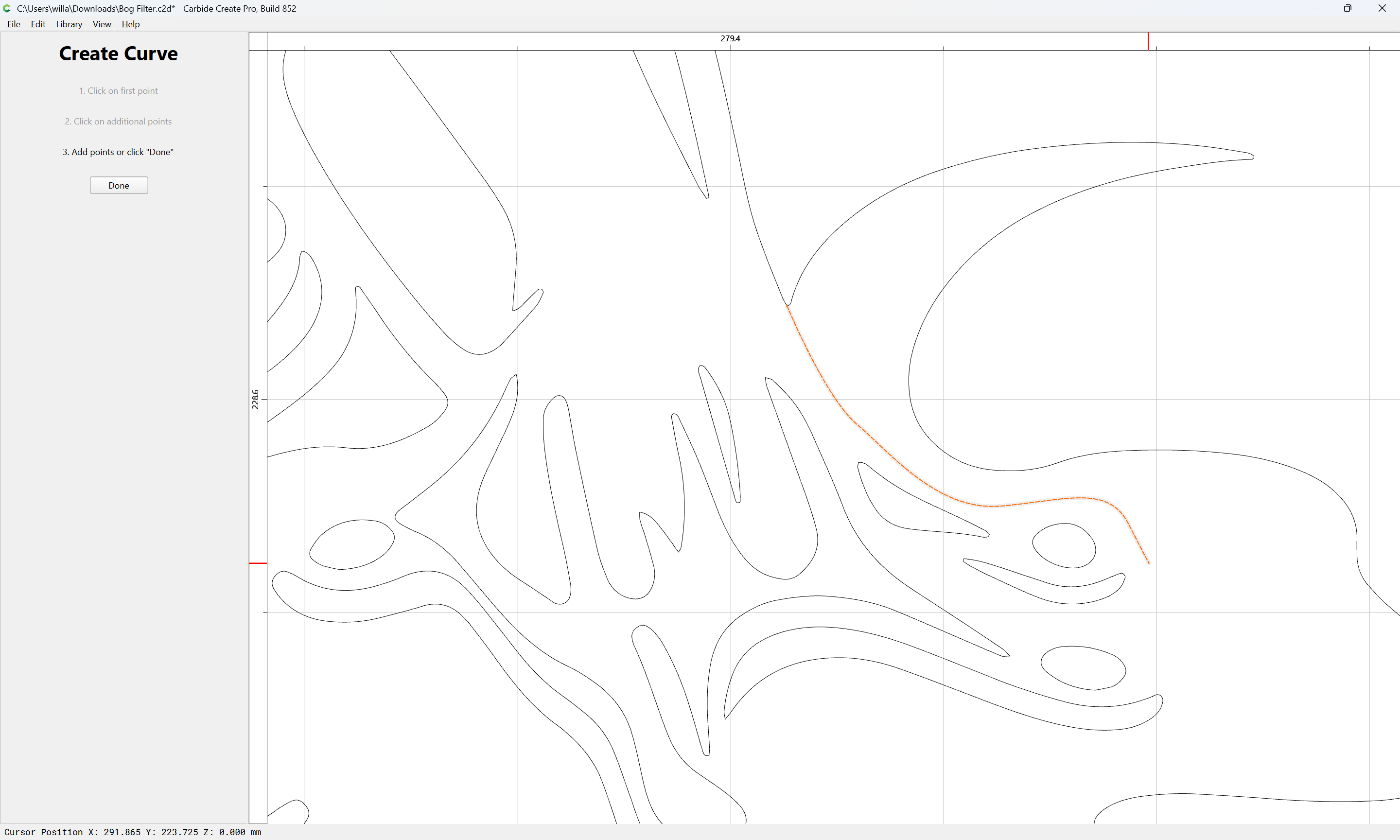
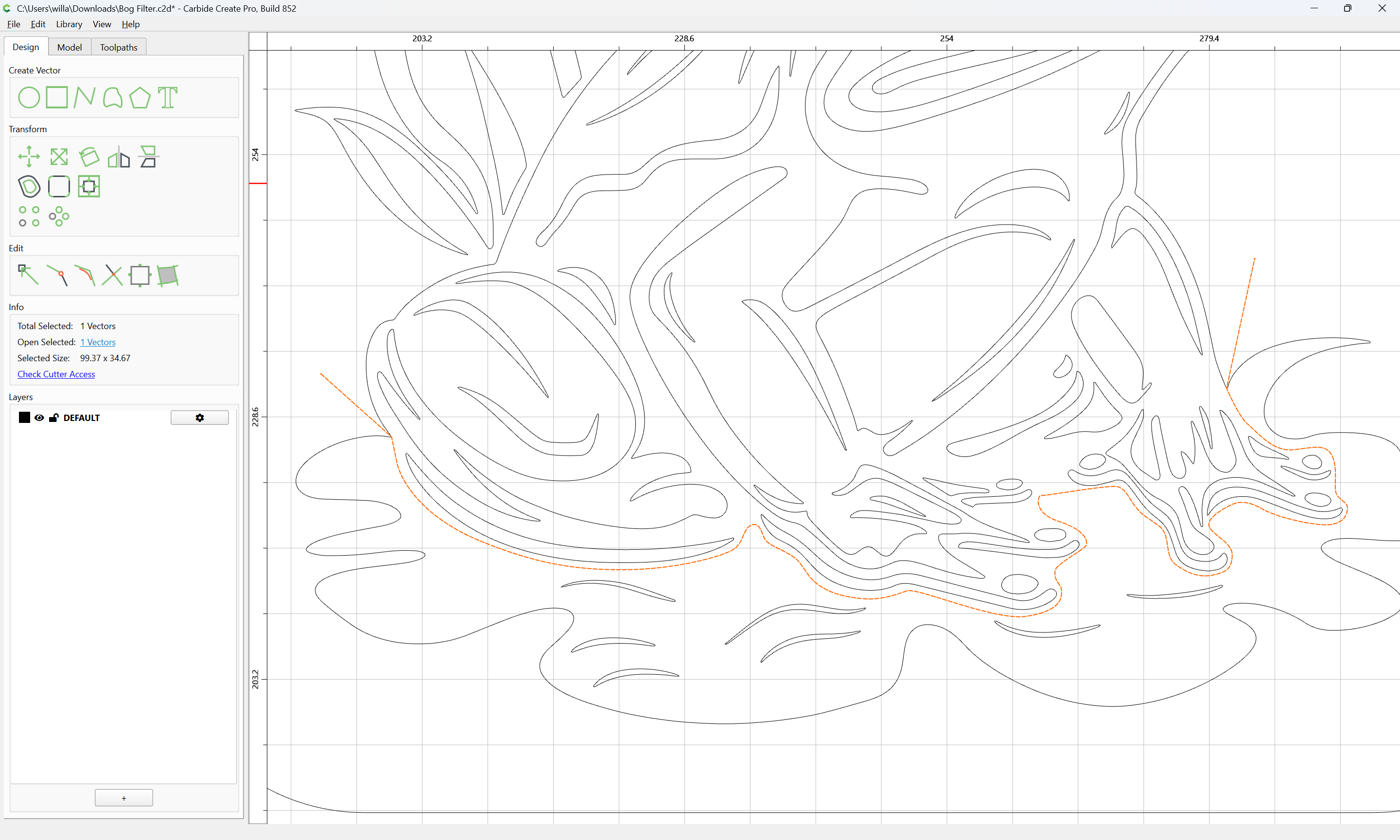
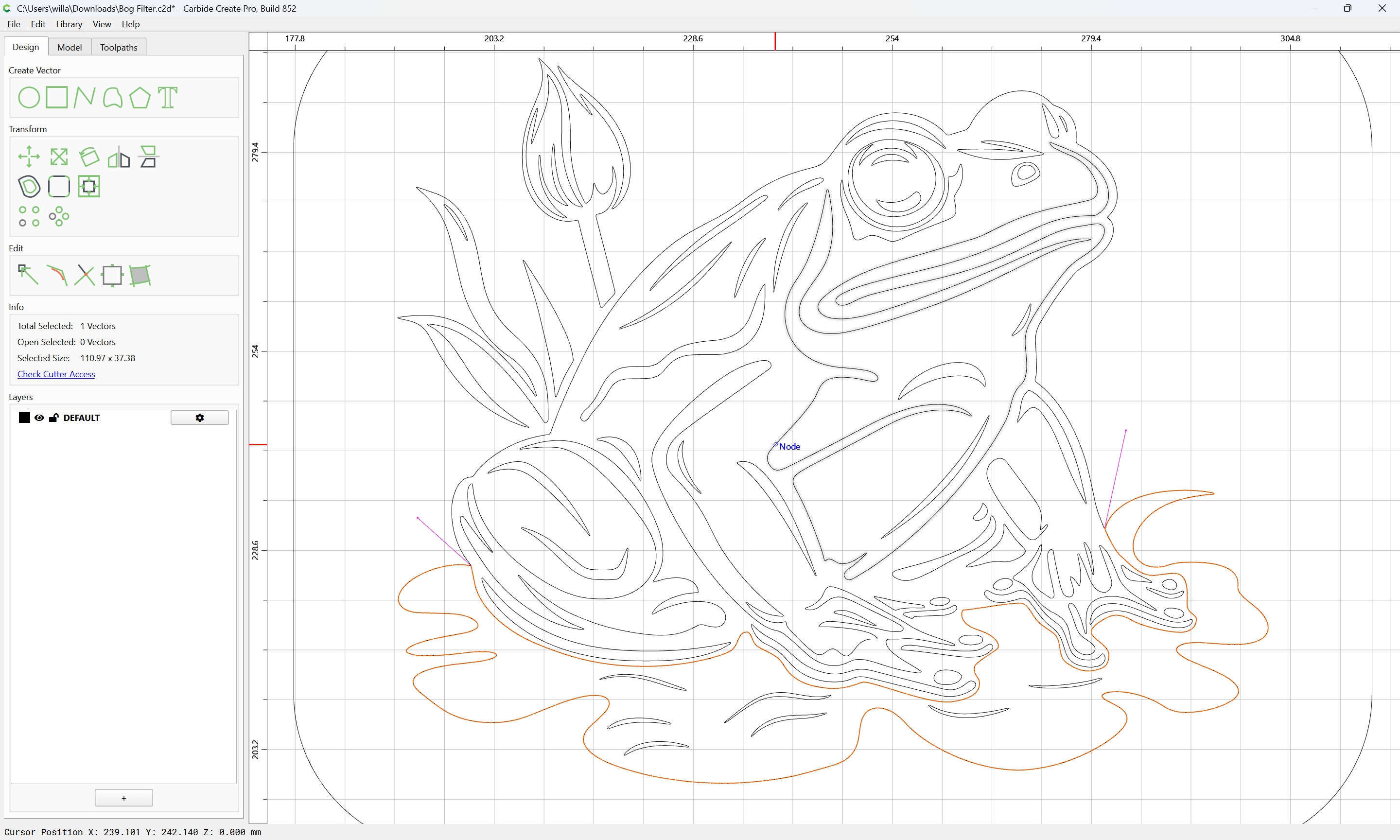
Follow up question, I am trying to duplicate what you (Will) did. Your instructions make sense, but when I try and draw a curve, the line wants to jump to existing nodes, especially when going between two very close vectors. Is there a way to prevent that from happening so I can draw a fairly respectable curve? I am using windows with CC 853 pro.
Not having looked at this, I will stick my head in here. When I edit, Zoom in to create space to work. You can Zoom in to give yourself the space needed to work.
Thanks @Zman and @WillAdams, I appreciate the suggestions and feedback. I had zoomed in, but not enough. I tried again with better success zoomed in further on the design. Ongoing proof of what a great forum and company this is to be a part of.