Hi!
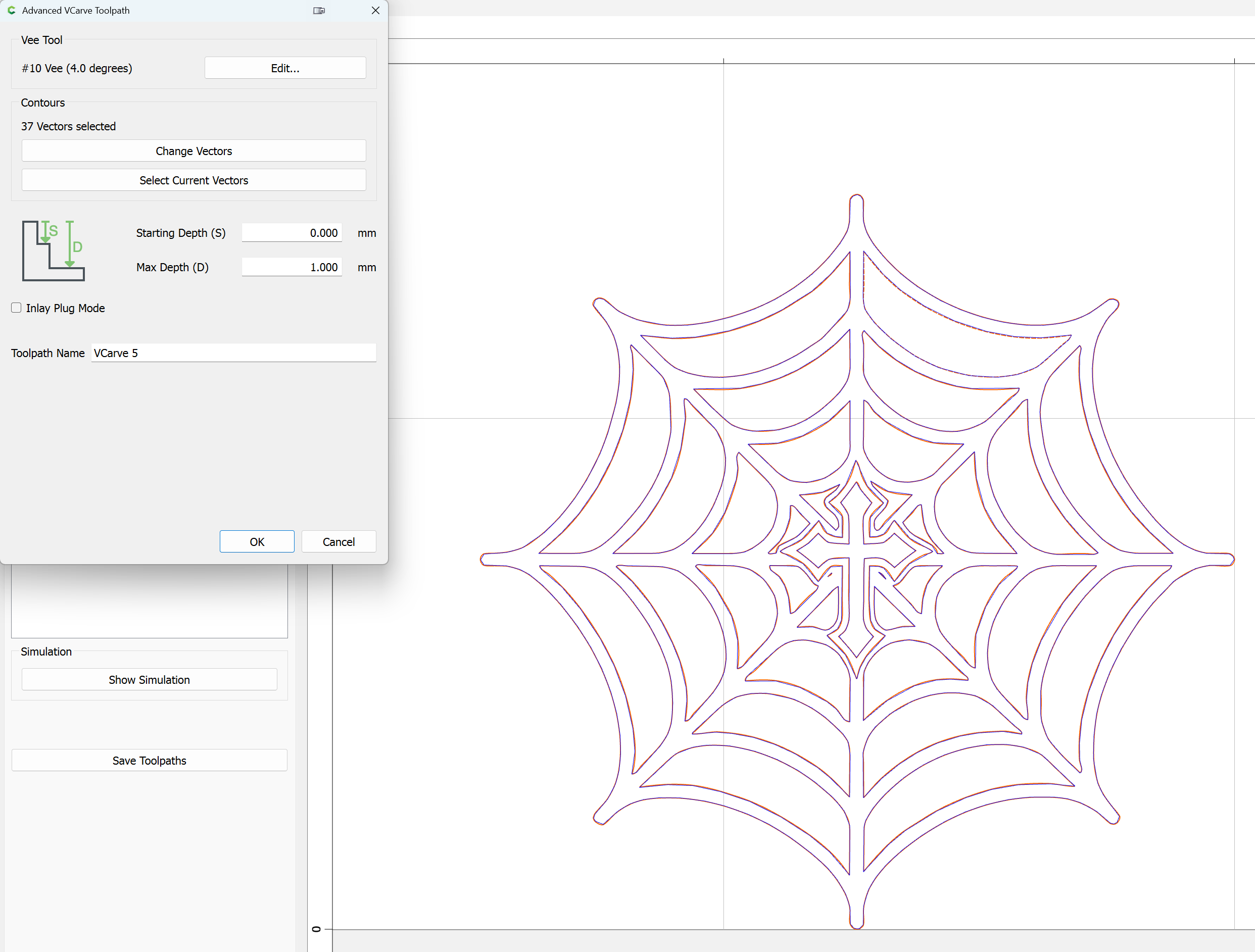
Please look at the image. It’s a small engraving that’s supposed to be made with a 4deg V-bit.
Sometimes when I engrave stuff, the blue line goes along the center of the drawing, which means it will regulate the width of the engraving by changing the depth of the bit. As it’s supposed to be.
But in this case the blue line (the simulation of where the bit will go) goes directly along the inner and outer edges of the engraving. I already know it will be a mess.
What did I do wrong and what do I do to make v-carve work like v-carve?
What is the scale of your carve? (i.e. How thick are the web filaments?) With a 4 degree V-bit and a max depth of 1mm, the bit should run only 0.035 mm from the edge of the carve.
It represents the thickness of the stock. Rather than having to type in a specific number, when you use ‘t’ the program will use the value in Stock Setup of the thickness of the material. If you change that thickness, it will automatically change in any toolpath you use it in.
Using ‘t’ here just says not to limit the depth of the VCarve. It will instead go as deep as needed to touch the design on both sides of the tool.
It is even more useful in pockets. Let’s say you are creating a tray of some kind, and want to carve down a pocket so that 1/4" of material remains at the bottom. Rather than having to enter a specific value, which you would have to change if the stock thickness changes, you can use the value t-0.25 .
There are two other ‘variables’ - w and h, which are the stock width and height. They don’t see too much use in toolpaths, but I regularly use them in the design when creating features that have to be related to the stock size.
For example, if I need to flatten the top of the stock, I will create a rectangle (any size), then edit its size (in metric) to be w+10 and h+10. Now center that rectangle, and I have the perfect size to flatten the top.
Well… If that isn’t a lovely little secret. I’ve been using the VCarve tool all wrong up until now.
I’m guessing I can use t as a variable in contours to cut out perimeters so the cut will always adjust to material thickness too?
I see all your tutorial videos, but I’m really old school and learn by reading instruction manuals. Do you have t, w, h (and any other variables) documented anywhere?
I think that’s it for variables. You can also use the constants “mm” & “in” to convert units to the current part unit. i.e. [ 2.3mm= ] the = sign forces the calculation to happen immediately.