I have CC V7 on my computer just incase I need to open a very old file that will not open in CC B838 or newer. So if I have a very old file I open it in V7 then save it and then I can open it in a new version and use the CCPro 3D tools. For some reason V7 is set as the default how do I turn this off? Photo…Here is a file that was created in CC V8 B838 (a 3D file) but it wants to open in B778 (in the get info) you see version 778 is the default version. I can use the drop down list and choose which version, but it seems it would open the version it was created in??
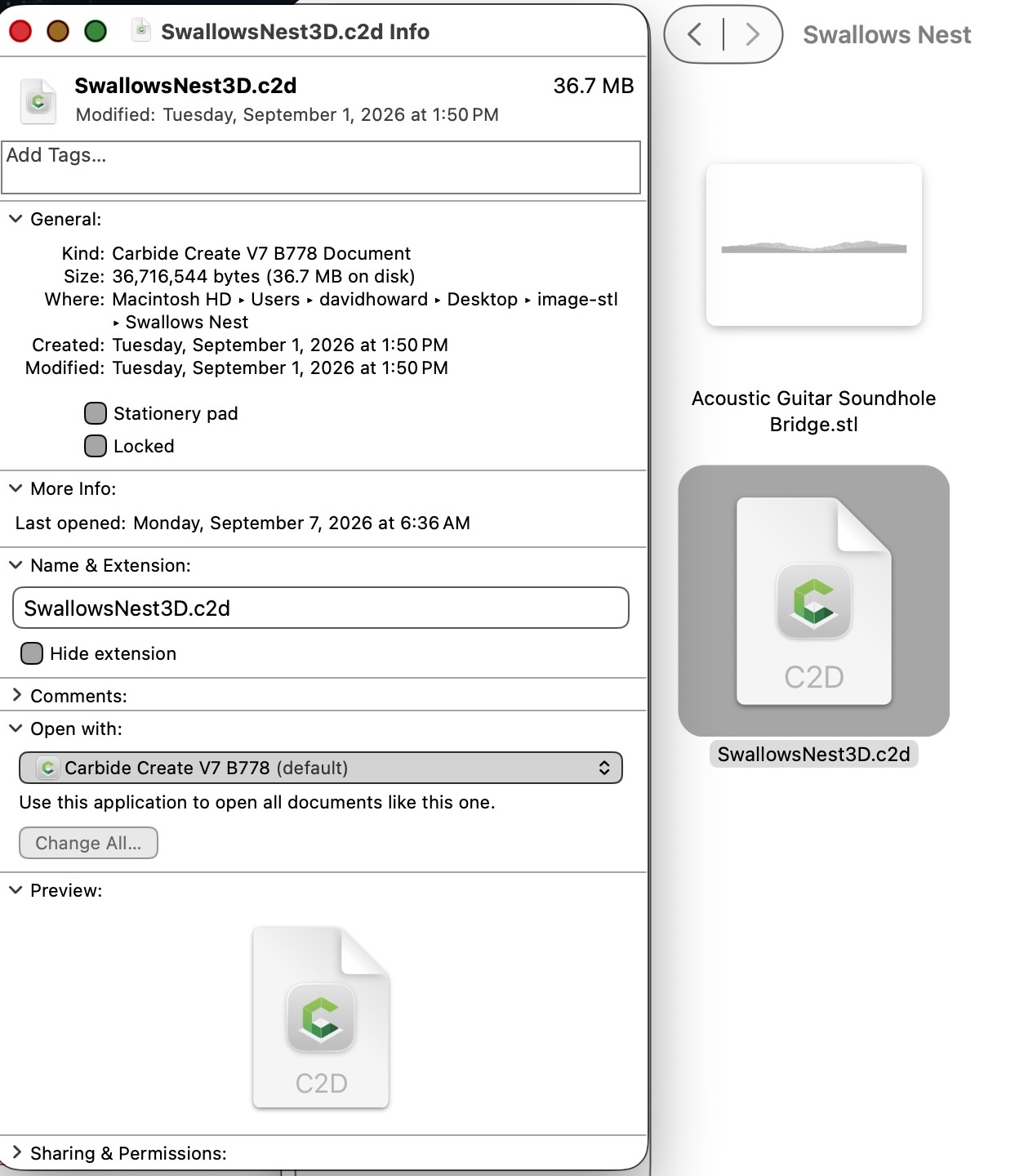

Yeah that seems logical but it doesn’t change anything, I have selected the version I want and then change all many times, and it doesn’t change all. It still has V7 B778 as default.
Ah, bummer. Looks like it SHOULD work that way. (Very similar on Windows)
I’m anti-apple, we need a Mac-Nerd. 
1 Like
Sadly, I haven’t liked the Mac OS since 10.6.8 (and haven’t like Windows since Fall Creators Update crippled styluses).
My recommendation would be to delete all of the older versions (or compress them to .zip/.dmg archives) and then delete them, then perform this with only the newer version, then restore the older versions.
Does Mac OS not work like Windows? For file types whose application associations in Explorer are persnickety, I start the program I want to use, then use its File | Open and pick the file. Especially for files like PNG, when I have probably 20 programs that can open them…
I have a Mac mini, I also have V7 and V8 on my desktop and open V7 if I need to resave V6 files and then save them as V7. I open V8 to open any of the V7 files and they get saved to V8. I do not go straight to a file and open it, I choose the version first and open the file there.
1 Like
Most Mac (and Windows) users are accustomed to just double-clicking and having the correct app open the file in question.
An alternative on the Mac OS might be to dedicate space in the Dock to each version, then drag-drop the .c2d file to the desired version.
Another alternative is to right-click or shift-right-click and if desired, populate the “Send to” menu with the desired apps.
1 Like
That is something I need to learn to do with Windows. There are file types that already have four or five “open with” entries, but usually not the ones I really want…
Yeah I was thinking the same thing, just delete the older versions, and I can recreate any old CC files. The old files are pre 3D, fairly easy to recreate, and I have the original SVG files.
This topic was automatically closed after 30 days. New replies are no longer allowed.