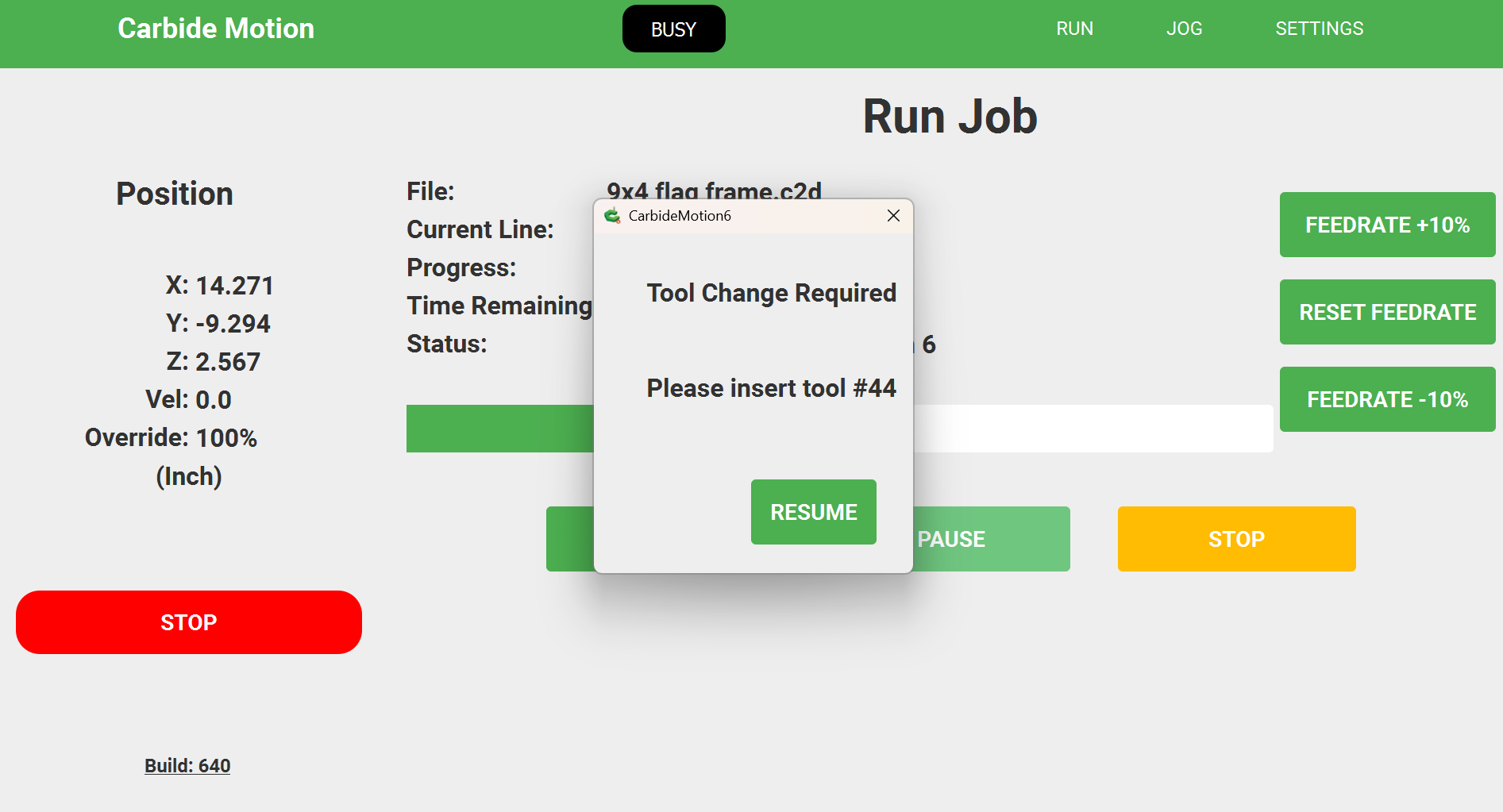
So say I’ve got a project running and I’m like, oh snap. I programmed the wrong endmill, but it’s at the point of wanting to bitset…how do I stop everything and start from home? if I hit the x in the pop up dialog, it’s going to want to bit set anyway…so do I have to hit my own kill switch?
I’m not sure what the “official” recommendation is but I hit the kill switch in these situations.
Your zero should be maintained and your till length offset should be good as well assuming you change the tool “properly” (either in the prompt dialogue you see there, or using the change tool button before starting the next job)
The nice thing is that you’ve stopped at a known point during a tool change, so you can simply disable all of the previous operations in your CAM software and repost to pick up right where you left off.
2 Likes
ok then, was just wondering if there was an offical way of doing it so I could know how, but that’s pretty much the way I’ve always had to do it, hit my kill switch and start over. Hey thanks for chiming in. At least I know I’m not the only one doing it that way ha ha
1 Like
You can also let it go with this tool but press “Pause” and “Stop” in CM before it touch the wood.
Then you can restart with the right tool.
2 Likes
When you say “hit the kill switch”, are you referring to the cutter power button on the front right of the machine, or the inline rocker switch for the power supply, or did you install your own separate kill switch?
i’m sorry, I should have said i have the older 3 XXL so I have added a kill switch to my setup.
This is the way. If you E-Stop, you need to re-initialize the machine.
The only thing to remember is to let the ‘Pause’ command finish moving before hitting ‘Stop’.
1 Like
Michael: if one after ending the tool change window clicks the ‘X’ right upper corner the program goes on, now immediately uses the pause button, waits until the machine came to a complete stop, then the yellow stop button (not the left red button) the machine does not need to be re-initialised. If one presses the yellow stop button before the machine mechanically comes to a complete stop the machine needs to be re-initialised, what wastes time, but no need for zeroing.
3 Likes
If you chose the wrong tool do as others said above and stop your machine. Go back to CC and disable any tool paths that have already run. Then edit the tool path with the wrong tool and then save your file. You would not need to reset zeros because the machine remembers from the last time you set them even if you power cycled your Shapeoko. Then go into CM and load your newly saved file and it will start from there and cut that tool path and any other tool paths you might still have in the CC file.
Always cut the least invasive tool paths first like internal pockets and so on. Then cut your contours that cut all the way through last. In CM you can drag your tool paths around to put them in the order you want. After moving them around and/or disabling tool paths be sure to save your .c2d file.
1 Like
thanks everybody. I’ve printed these steps out and put them up where i can always reference
I appreciate it.
you do what you do, how you do it, for so long, it feels good to find out how everyone else does it ha ha. Anyway, thanks
2 Likes
It would be nice to be able to stop the cut at any point and be able to back it up to any G-code line and restart it from there. Including using all the jog functions too while stopped.
This would be a great software help other then focusing on all the other stuff right now.
Just my 2¢ worth. KAP
There is a feature for that:
Build 642 New First pass at program restart.
Build 643 Fix Fix error when restarting on a tool change line.
Build 644 New Modify restart window to show the G-code that will run before the restart.
Just make a note of the current line/estimate where you want to restart at, stop the cut, then resume it.
2 Likes
WA … Could you make a short YT video on how that actually works. Would be very helpful. Thanks.
I’m afraid I’m not up to doing videos — perhaps @wmoy or @KevBarn14 would be able to do this.
This topic was automatically closed after 30 days. New replies are no longer allowed.