I have drawn in some vectors to be able to carve this simple drawing. I’ve read through every previous discussion on this topic, and updated my carbide create. The “join” and “close vector” functions do not work. What am I missing?

Here is the file, I appreciate you looking at these 6 vectors and why I can’t close them.


I am unsure exactly what you wanted so I gave you a few options.
Let me know if this works

Step 1.
Select all three teeth. Do an offset Vector at .01" until it matches close enough. I did 2x .01 offset vectors.

Step 2.
Select Teeth again; this time, do an offset vector at .01.
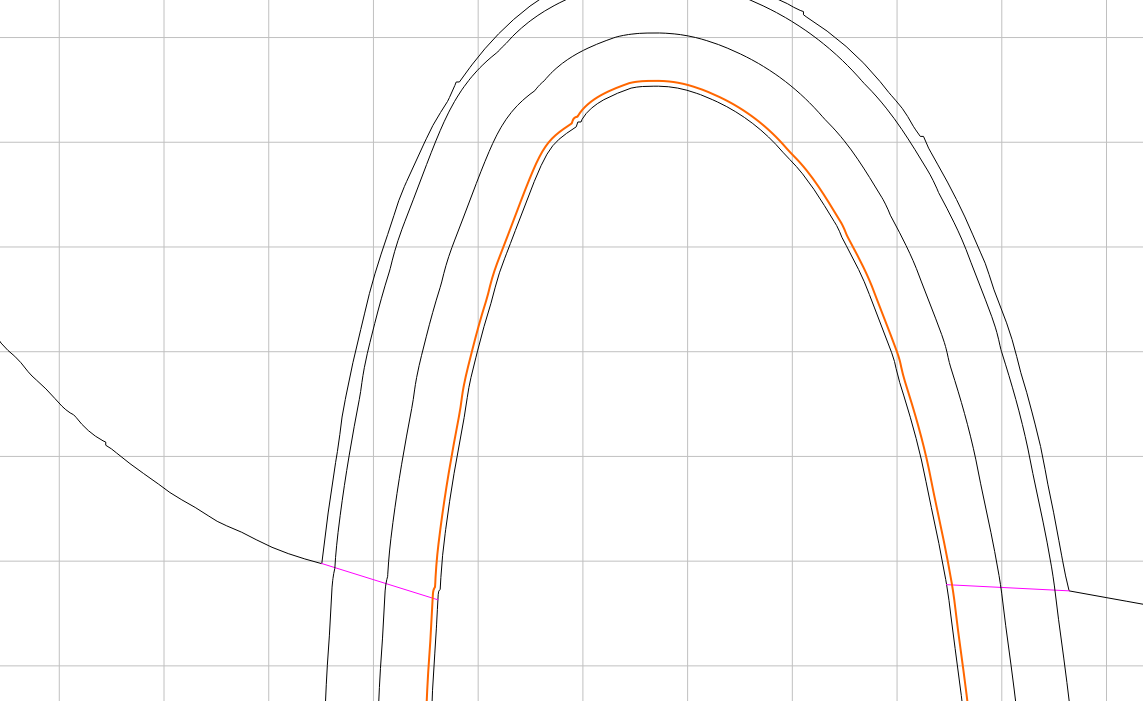
Step 3. Group the open Vector. Group offset vector: Select offset vectors, then select open vectors.
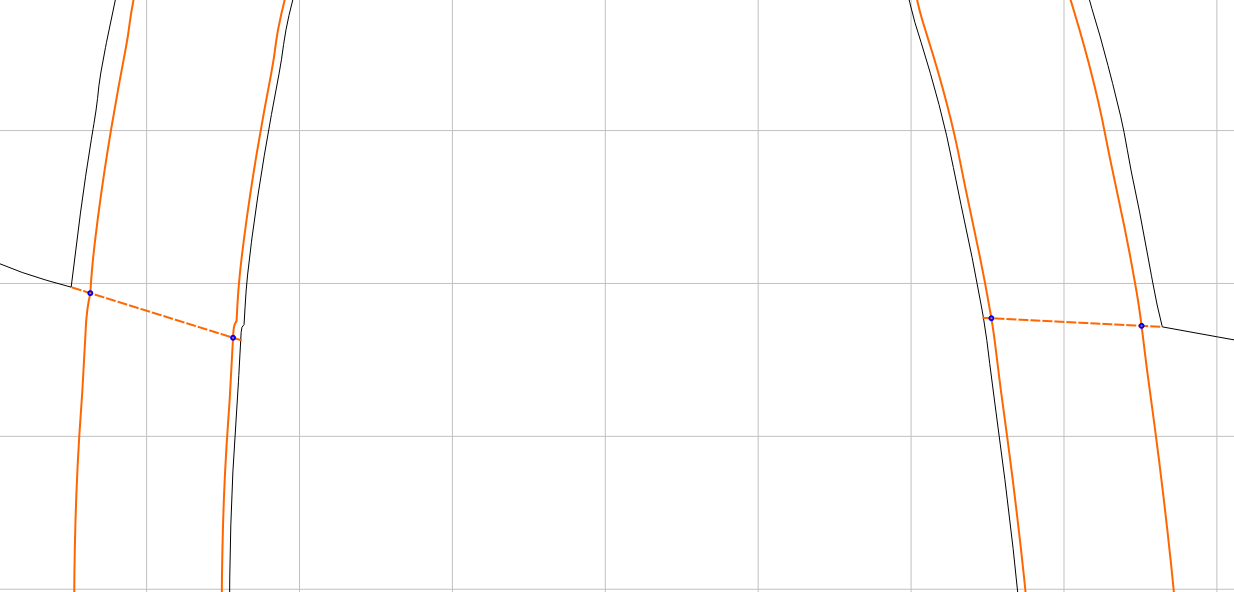
Step 4: Select Trim Vectors and click on offset vectors below the main tooth.

It’s the same process for the Stem, but just to the .01 Offset Vector for the Main Skull and then the little stem piece inside the skull.

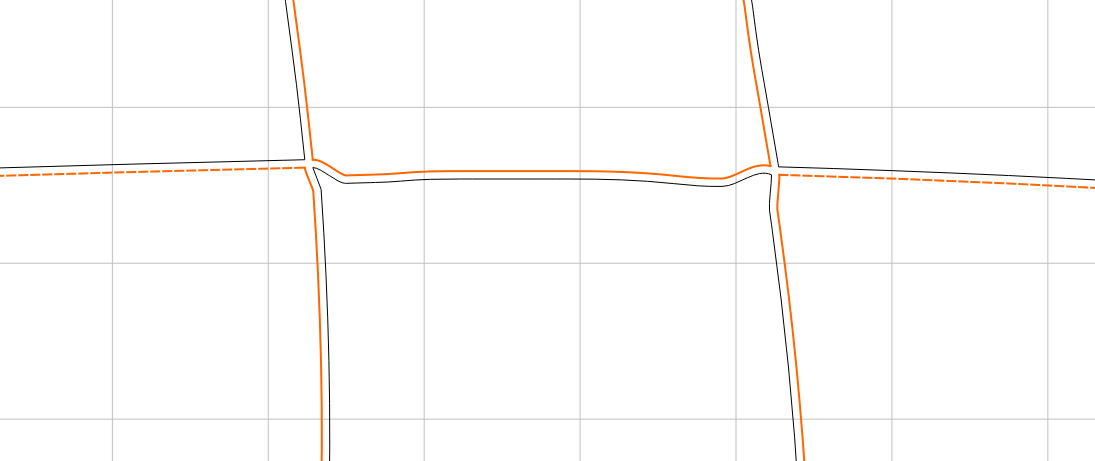

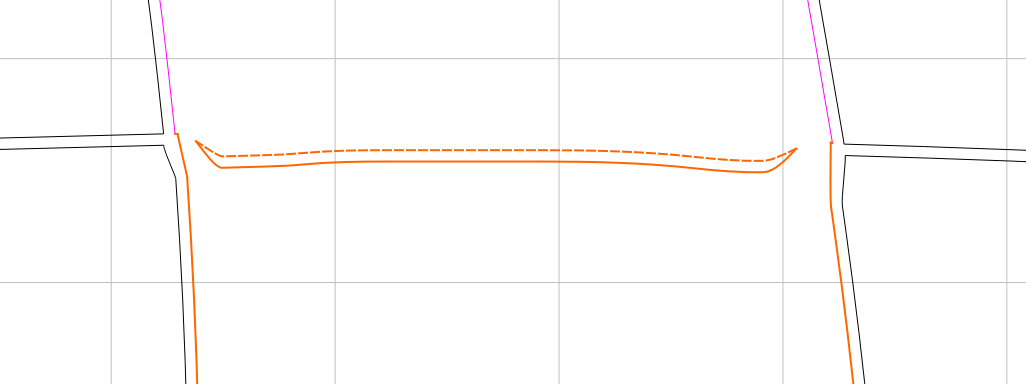

I had added vectors where I need them to be able to contour the outside edge and still pocket down the gums and the inner hairpiece. How do I make the vectors I added be closed and/or joined?
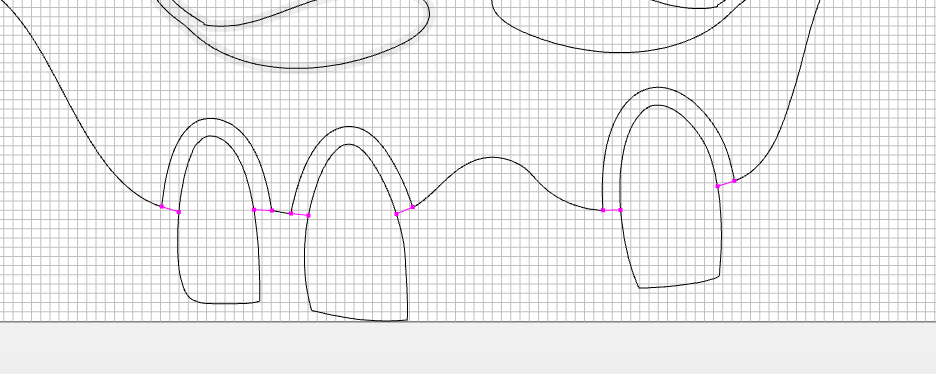
can you post the carbide file?
C2D attached here
skull attempt.c2d (2.4 MB)
I think I understand.
That way will not work. I suggest doing an offset vector for the whole skull and then doing a contour toolpath on the new outside vector.
skull attempt sd guy.c2d (976 KB)
If I make an offset vector end mill width around the outside features to use as a full surround contour. Then contour around each tooth I don’t need vectors for the gums actually. Yup, thanks. I still wish I knew why I can join some vectors and not others.
1 Like
You can’t join unclosed (magenta) vectors to already joined (black) vectors.
The intent of ‘Join Vectors’ is to take 2 or more unclosed vectors, and make them into one closed vector.
A closed vector can enclose only one region, and the vector has no branches.
1 Like
What region do you want closed?
If it’s the gum area between the teeth and skull you will need to duplicate the geometry which defines the area you want:

Probably easier to duplicate everything:

and draw in geometry which defines the regions which need to be isolate:


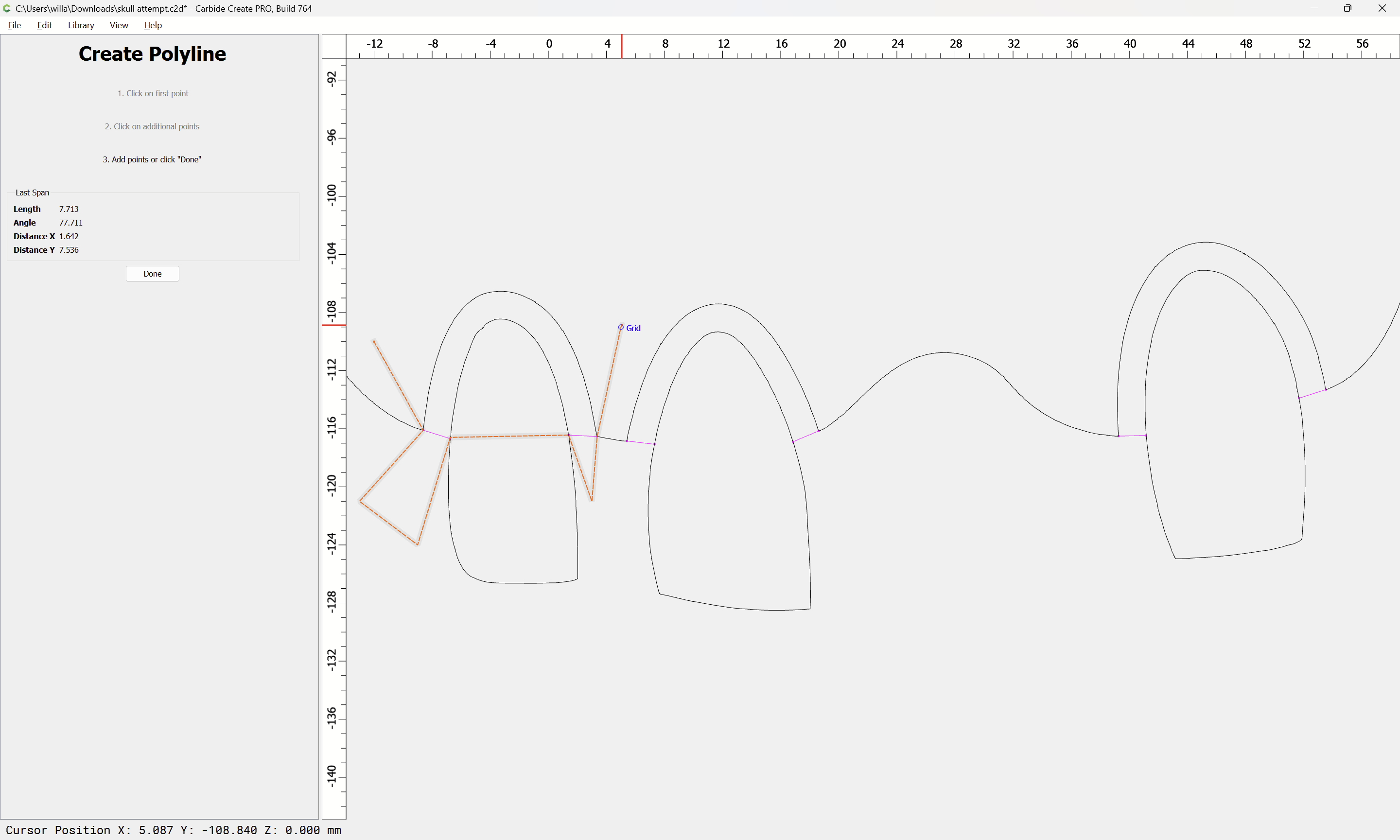
until one arrives at:
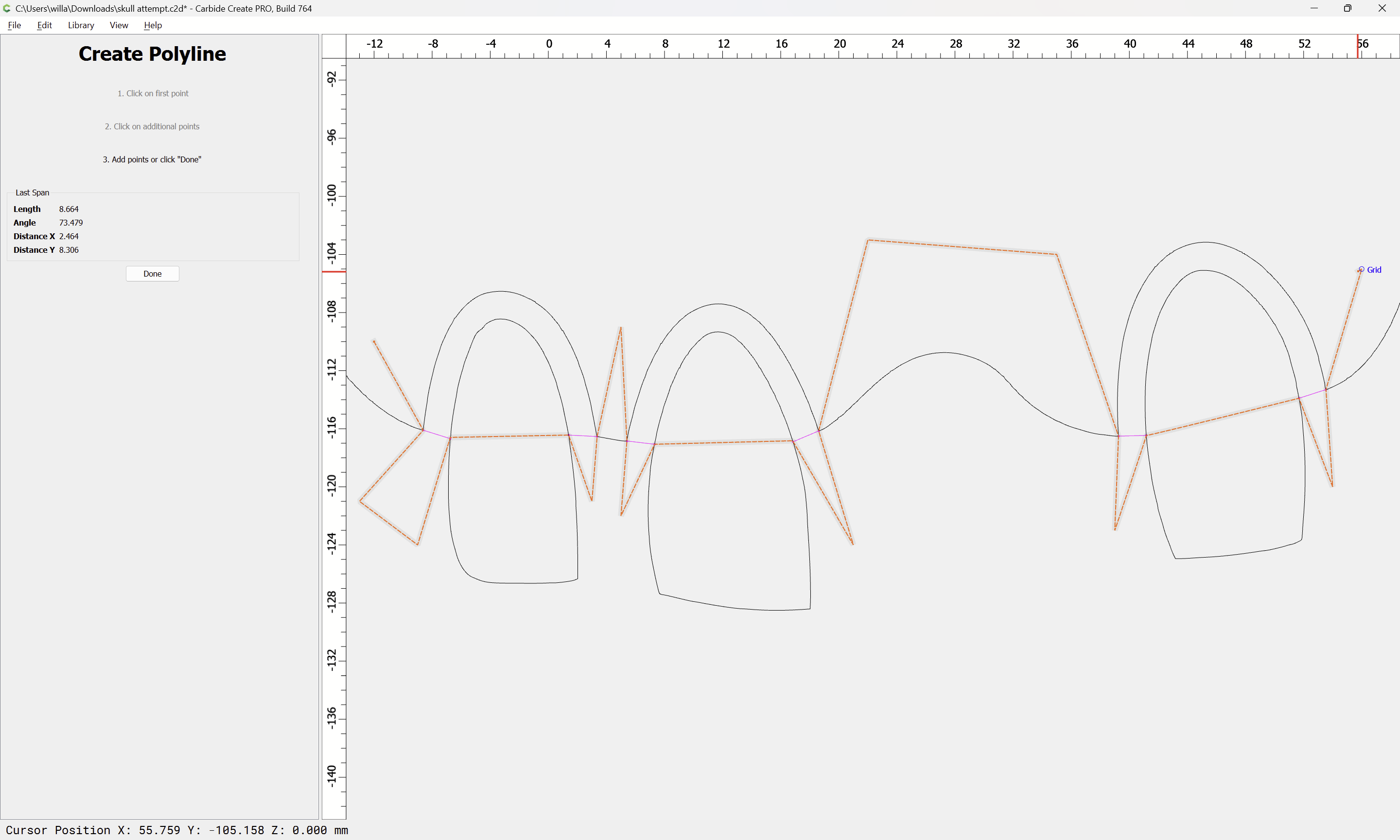
Done

Select everything:

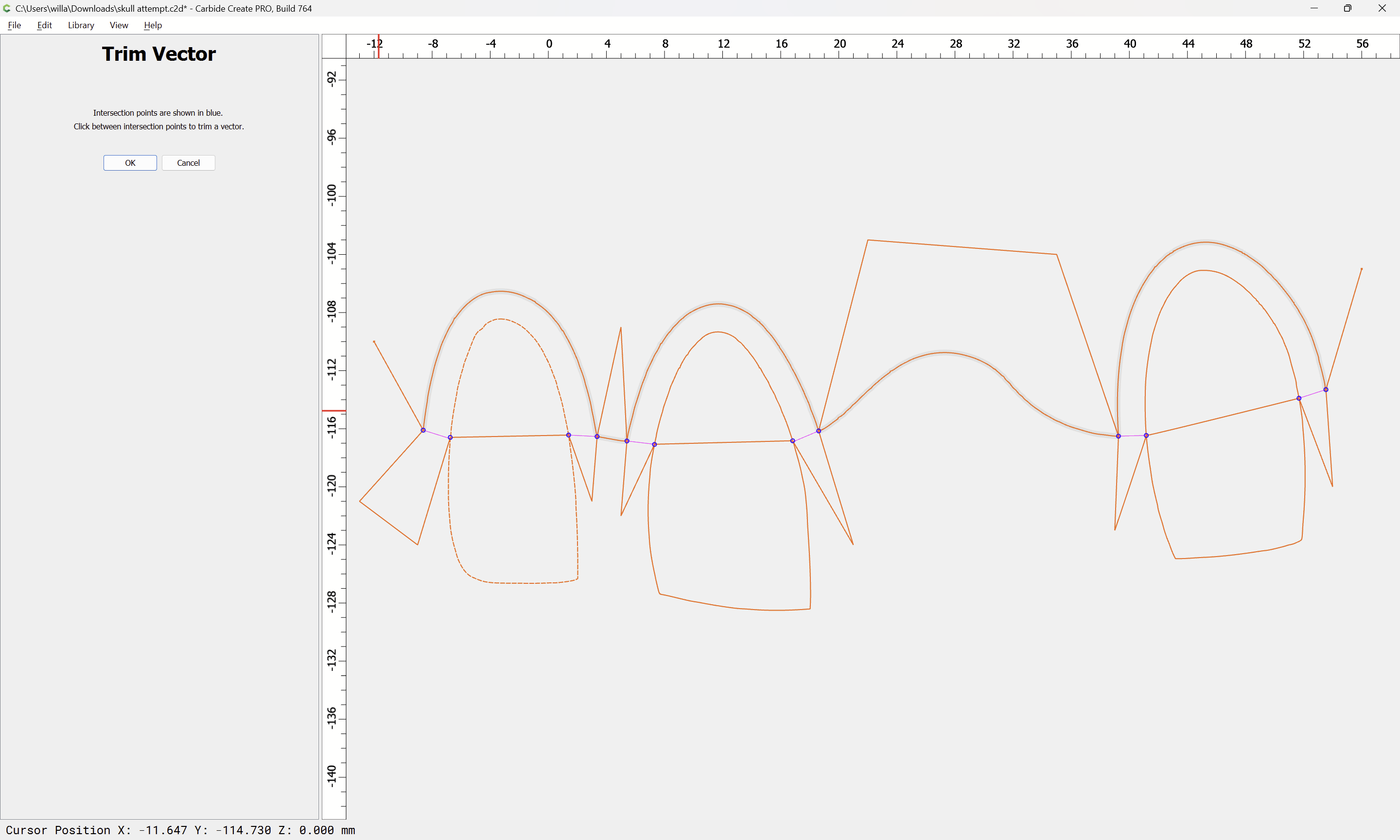
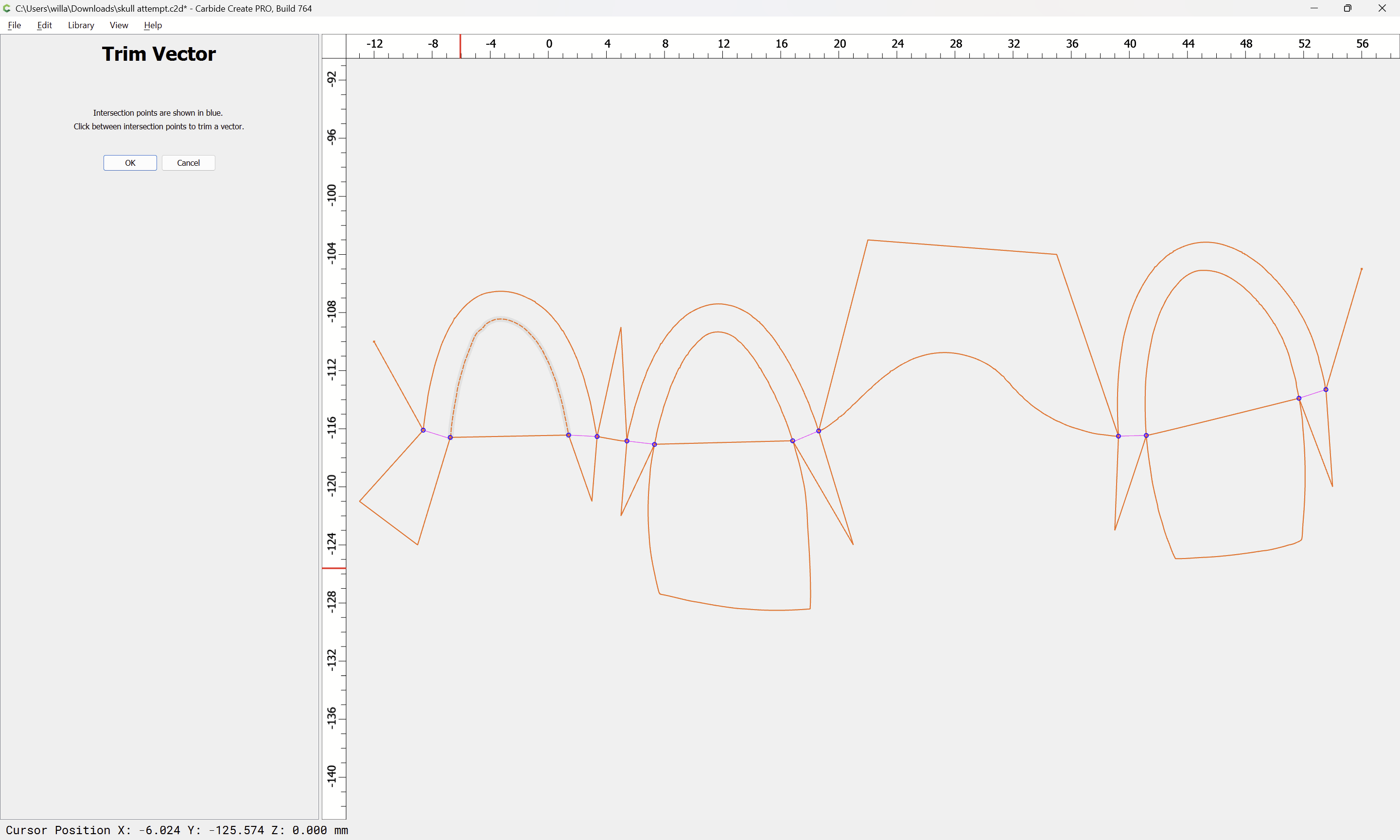
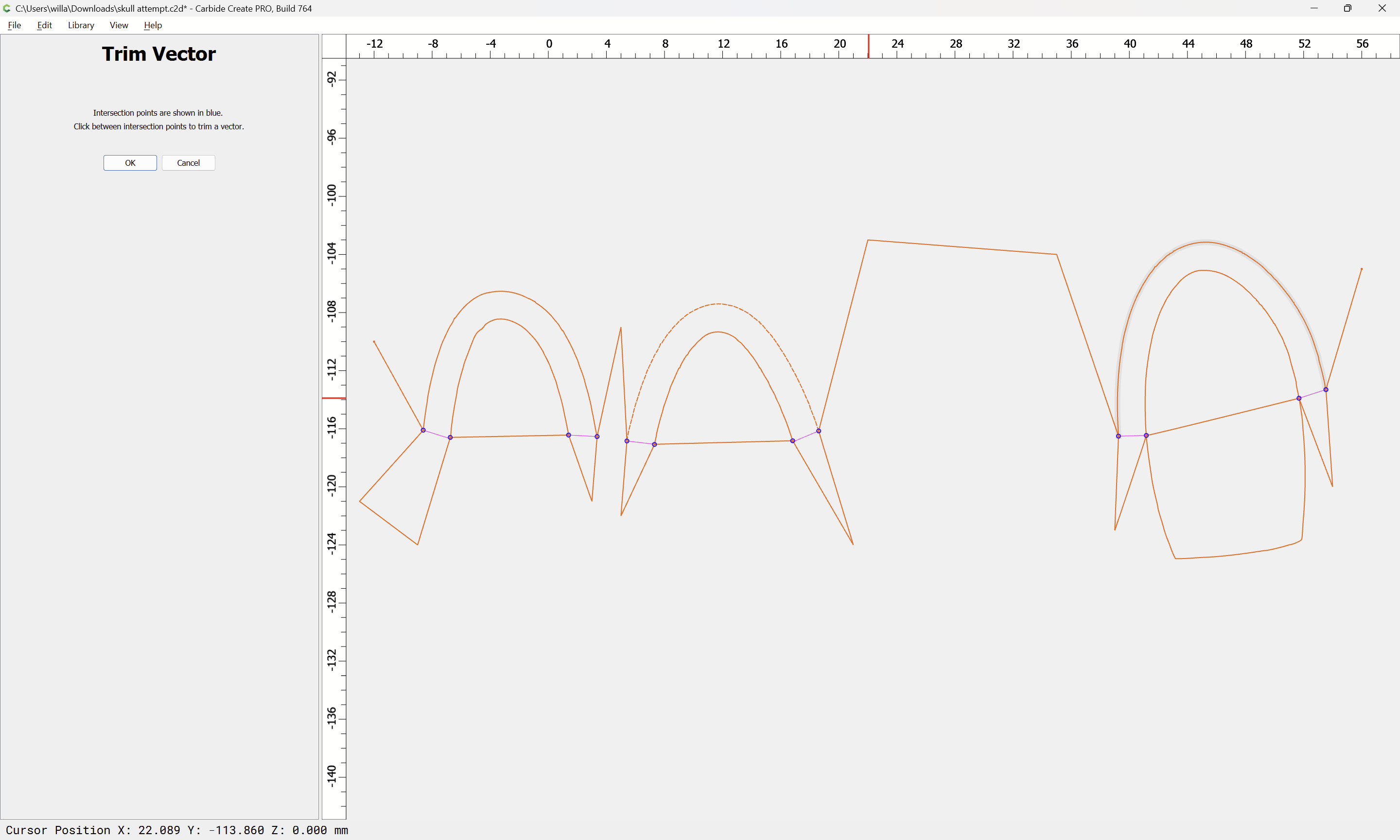
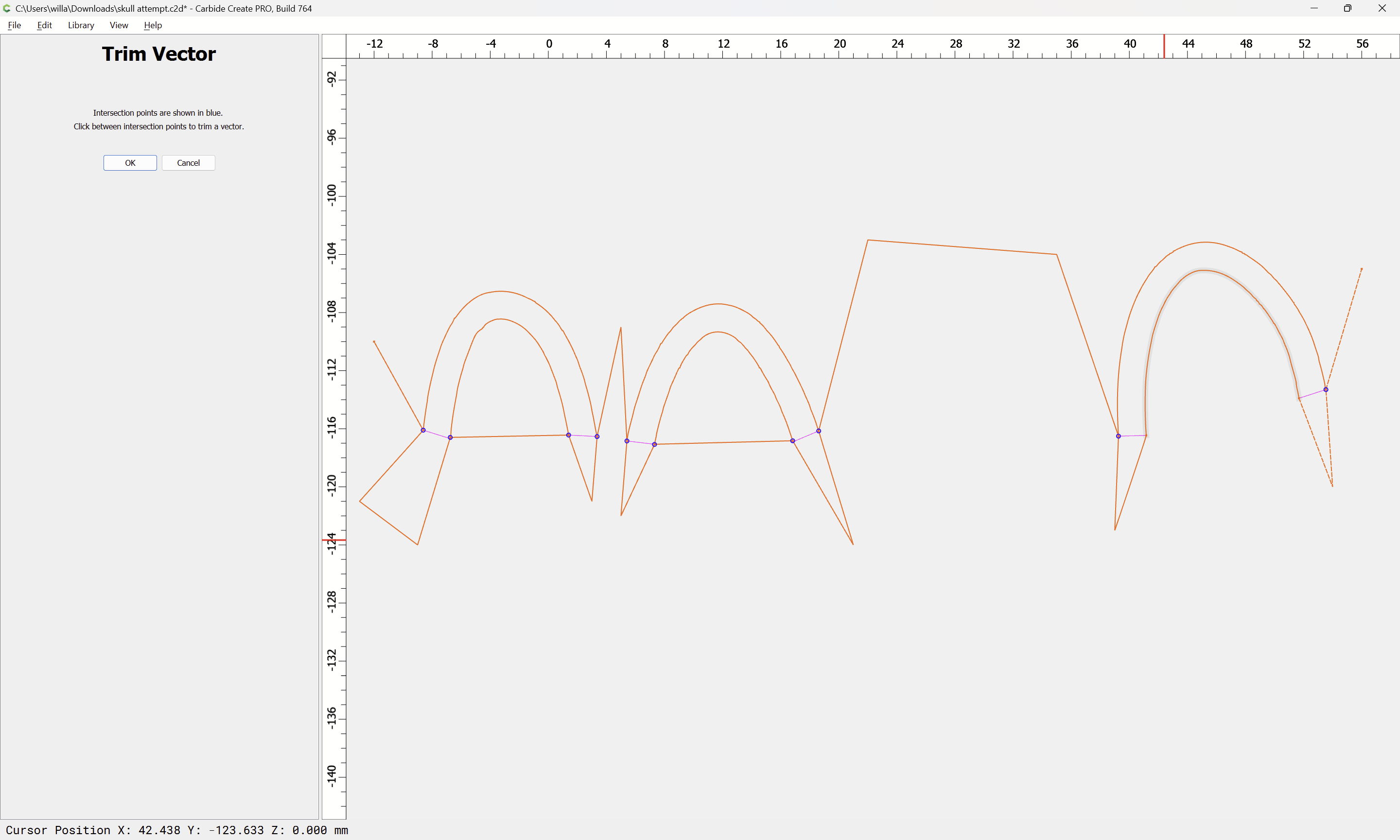
Trim Vectors:
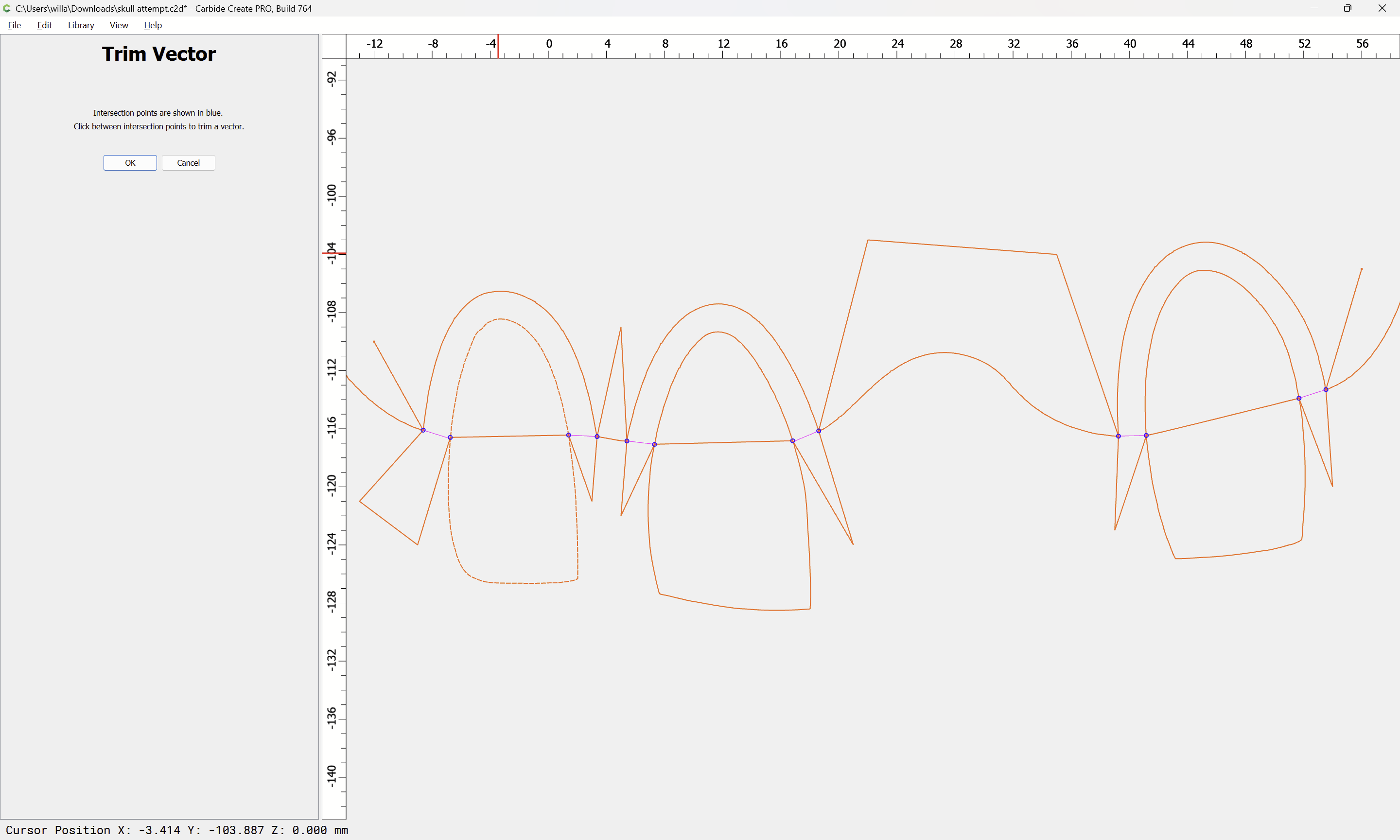
and click to remove what is not wanted:



OK
e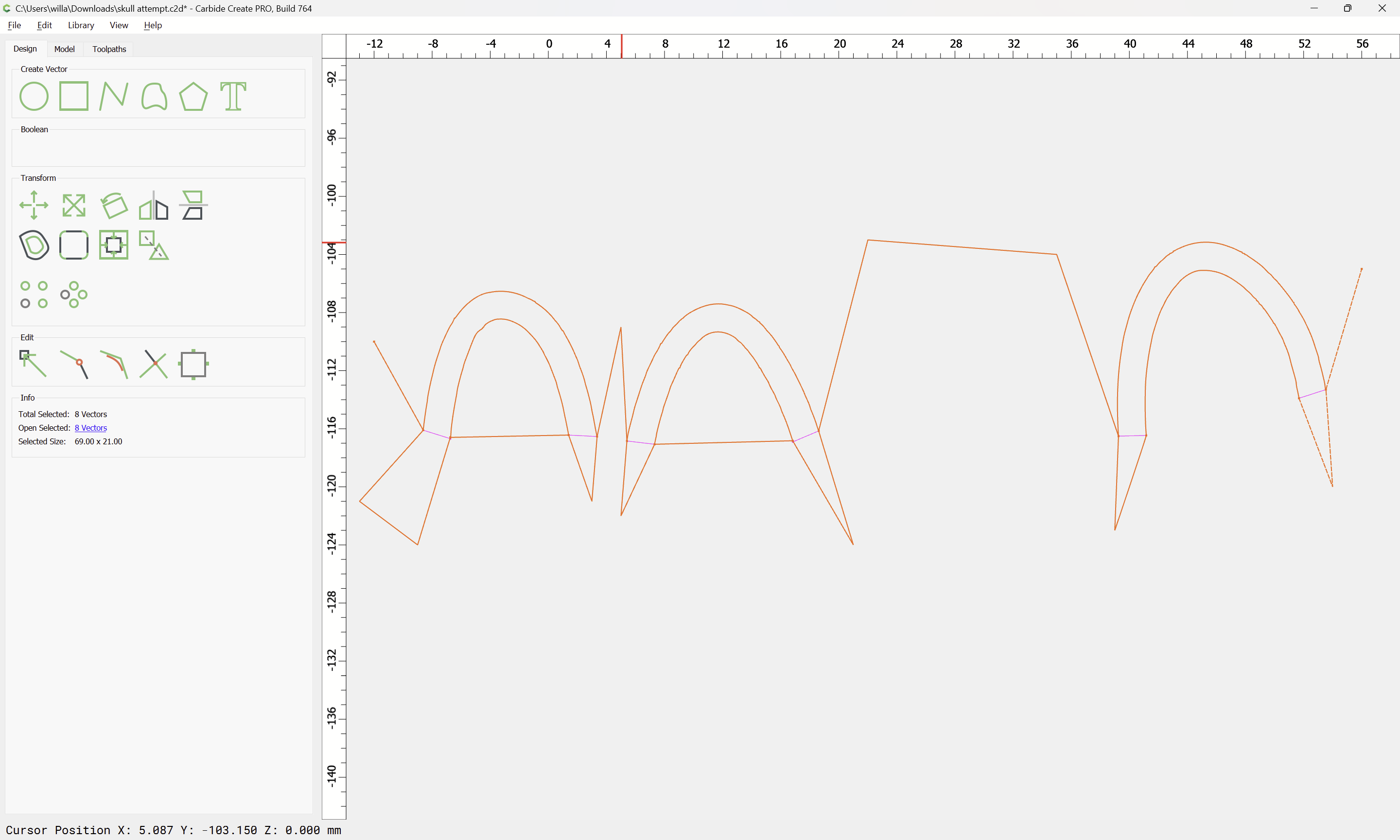

Select the dividing geometry:

and delete it:
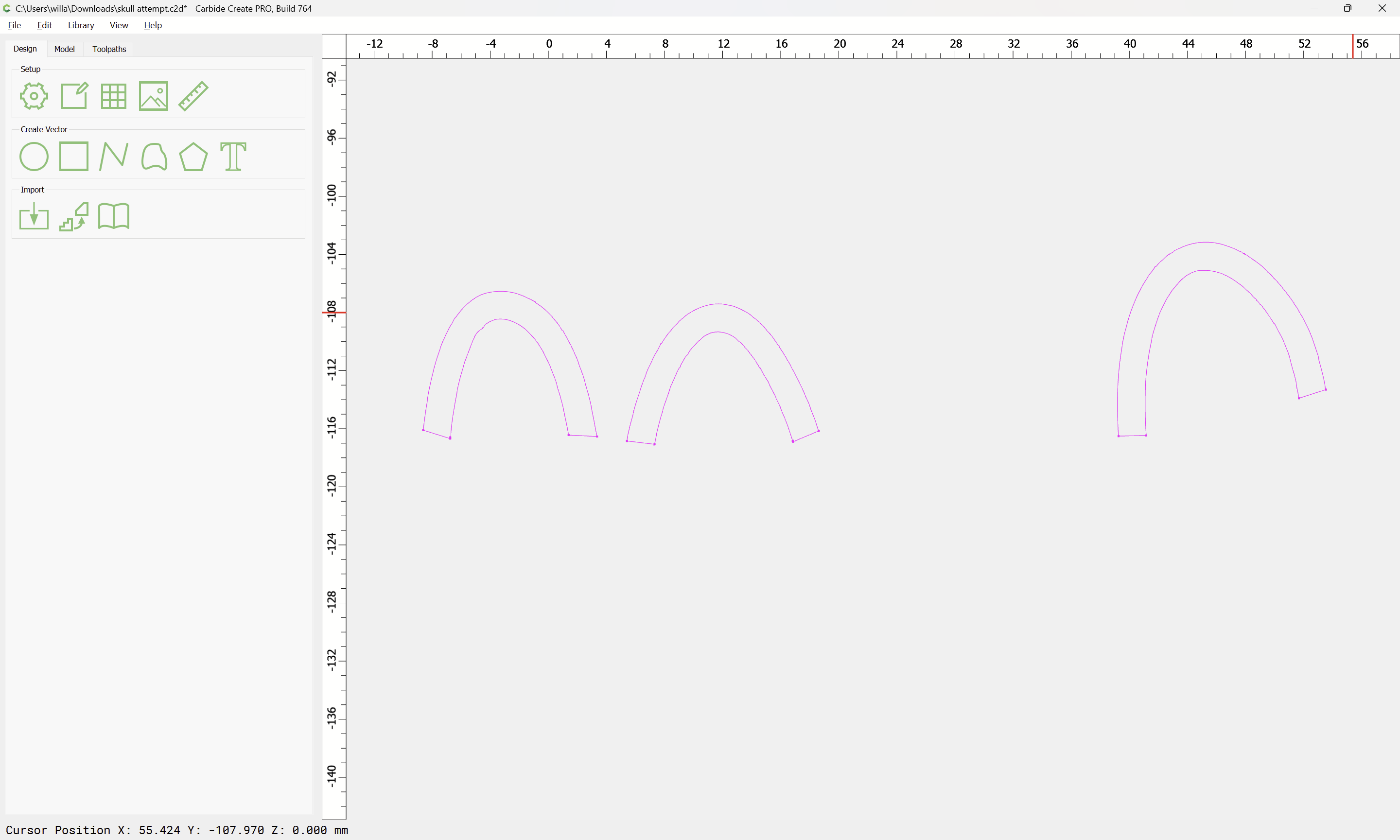
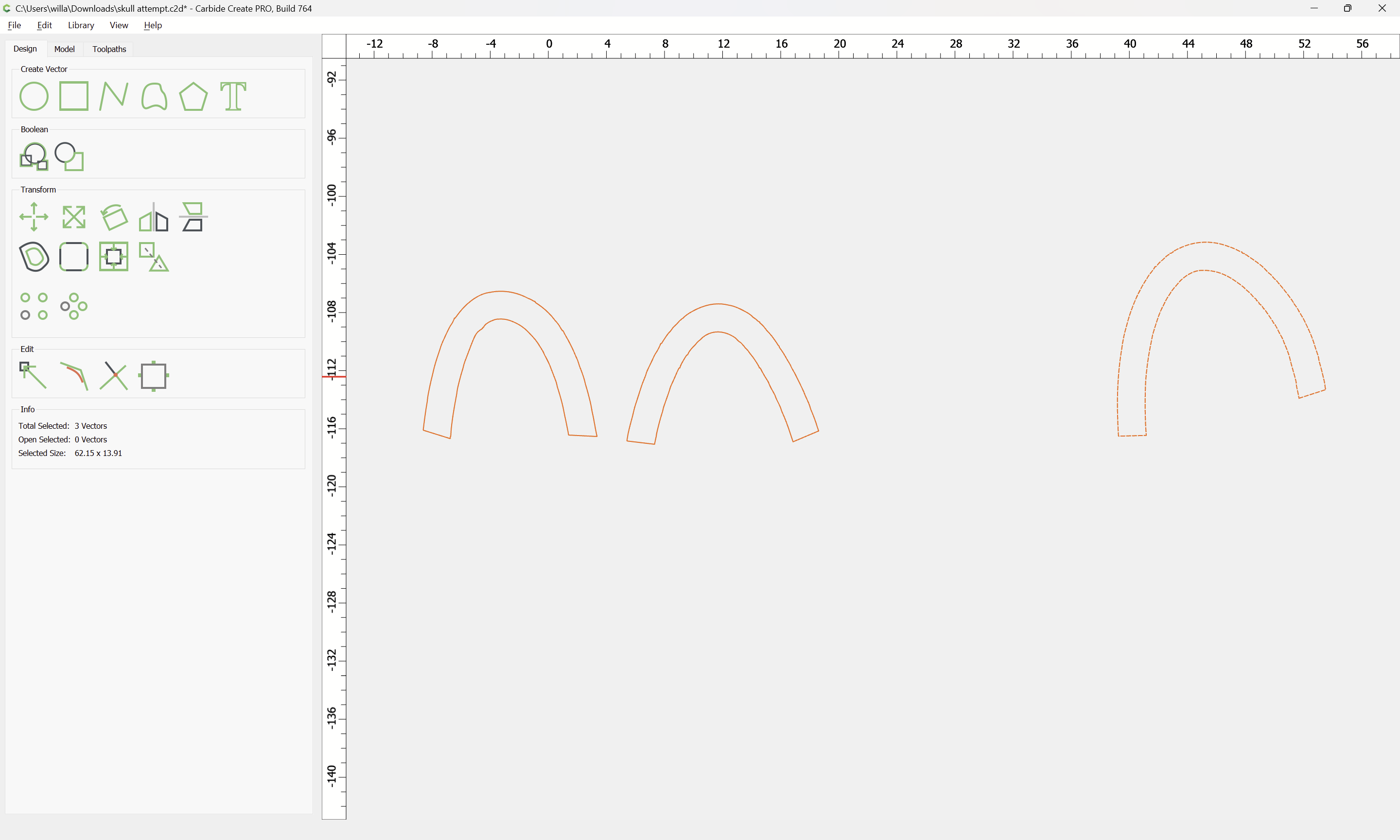
Select the geometry which one wishes to close:

and use Join Vectors:

until things are closed:

Drag the geometry into registration with the original:

Select the open geometry:
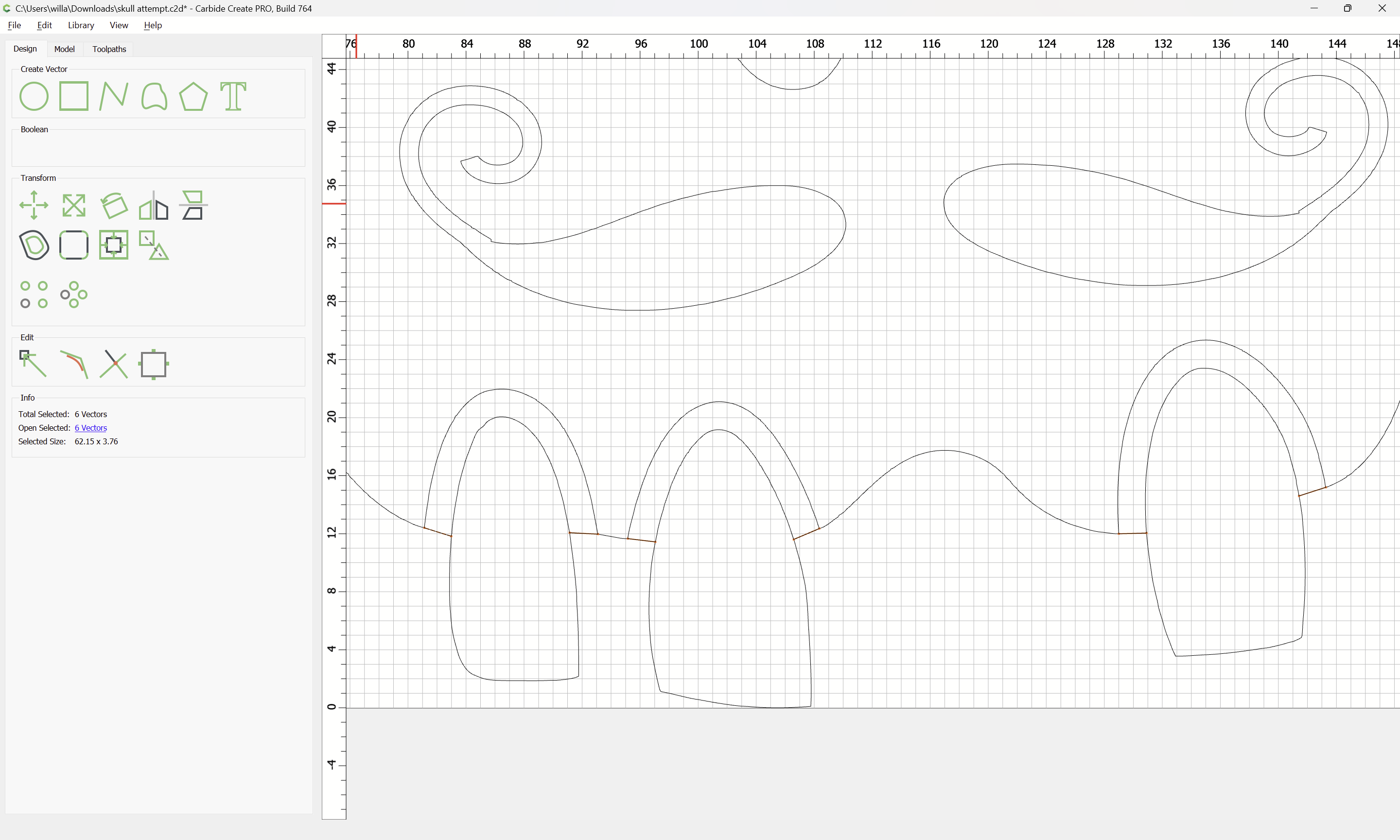
and delete it.

Attached as a v7 file:
skull attempt_v7.c2d (696 KB)
This topic was automatically closed after 30 days. New replies are no longer allowed.