I have several friends interested in doing text engraving using their native tongue (other than English and using different alphabets).
CC has a multitude of fonts. My understanding is that the fonts within the program are drawing on the font library embedded in Windows. Please correct me if I’m off base here.
CC does not have language options in the Text command. Is it possible to draw upon a language embedded in Windows (similar to fonts) so a text will appear using a different alphabet in CC?
As noted, Carbide Create uses the fonts which are installed in the operating system which it is granted access to.
Moreover, it is only able to make use of ISO-Latin-1 character sets, so no Unicode support.
In order to use other character sets it will be necessary to set the text in a vector drawing tool which works with the desired character set, convert to paths, save as an SVG, then import that file and use the geometry directly.
I had a font that was required by SFA University so I found it in a zip format. I unzipped it but there was no installer. So I placed the fonts in the fonts folder in CC. To gain access the folder open CC and then Help. Open Data Directory and under the CC directory there is a fonts directory. I copied the fonts there and restarted CC and they showed up in my font list. This was Windows 11. I am sure there is a way to install the font to the system but I was in a hurry. If that does not work you can always just delete the fonts in that directory.
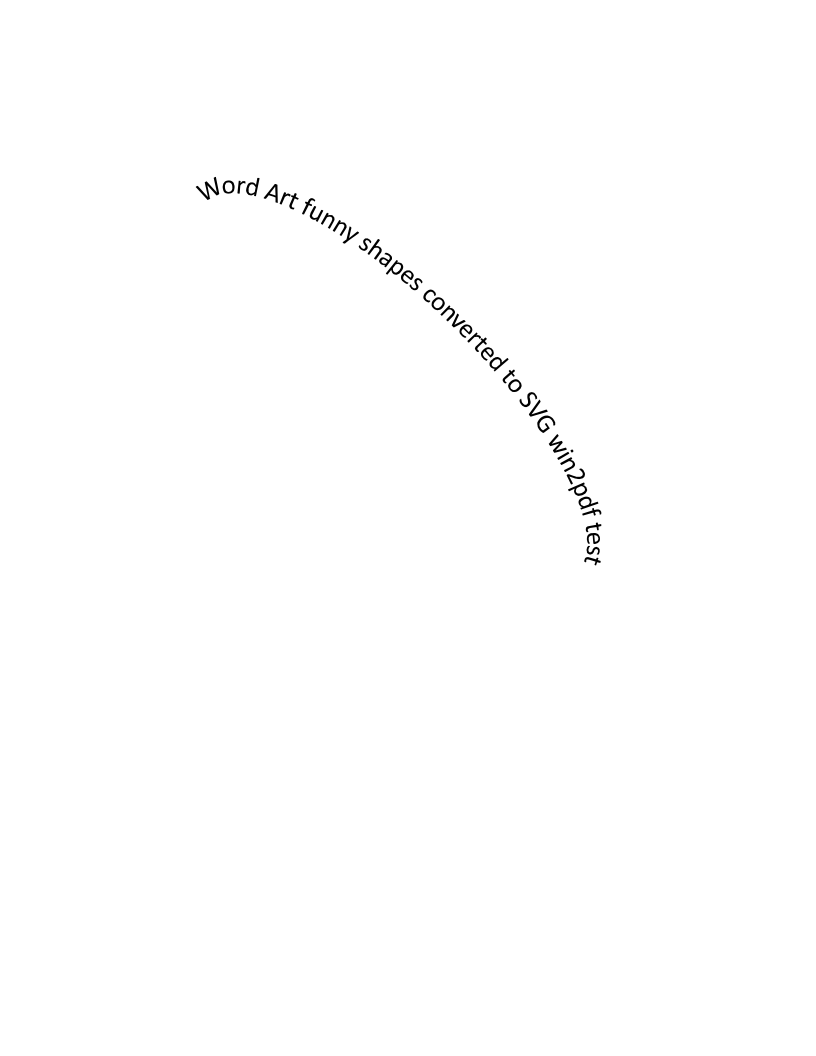
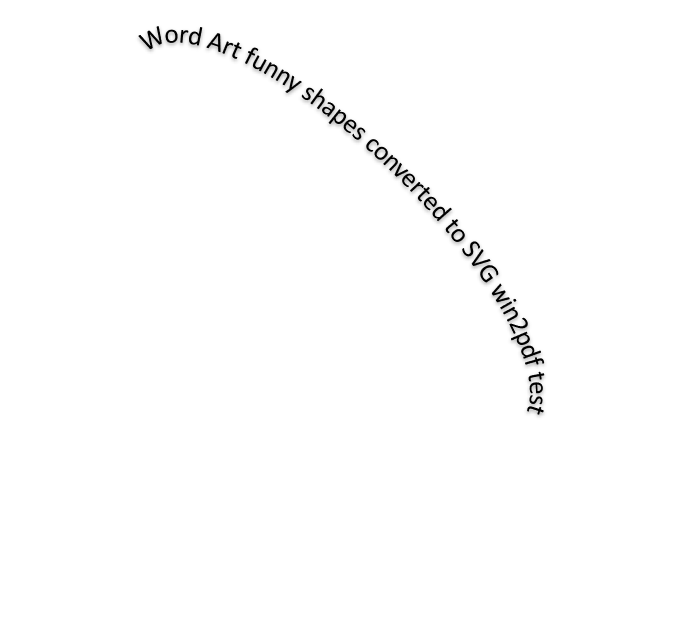
They should be able to install this on their PC. They can use their word processor to type up their engraving and use Win2PDF to print directly to an SVG format, which can be imported into CC.