Just what the title says.
I really cant believe this software slows my machine down.
I have an 8 gen i7 paired with a 3070ti.
Sure a little on the older side but this machine that plays todays high end games.
But Vcarve slows it down to where waiting to finish, i did need to go eat some lunch.
I have searched this up an down the net, can’t find any setting possible I missed.
Advise???
Watch the Task Manager and confirm if CC is using the nNvidia GPU.
My Dell have two , an Intel and a nVidia. Your maybe GPU 0 or 1
On this PC, the nVidia is GPU 0
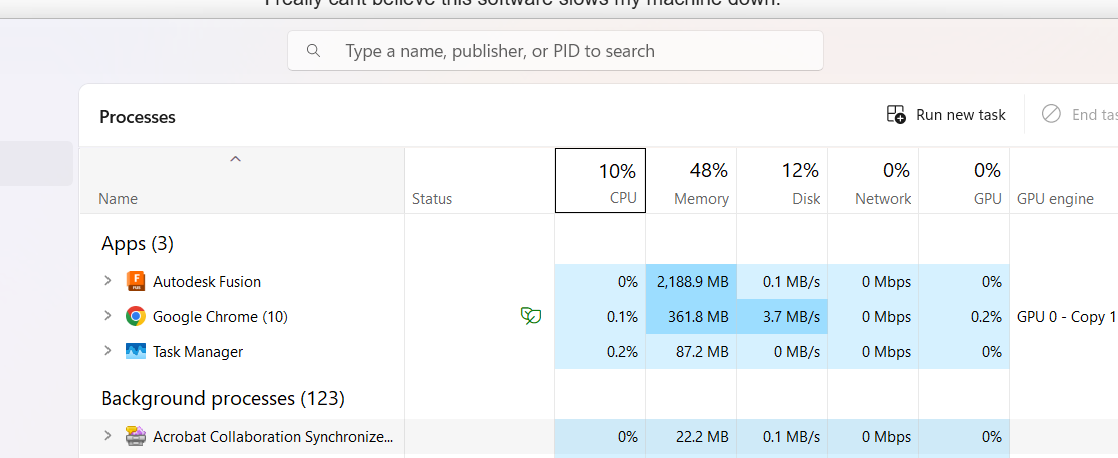
Graphics Settings
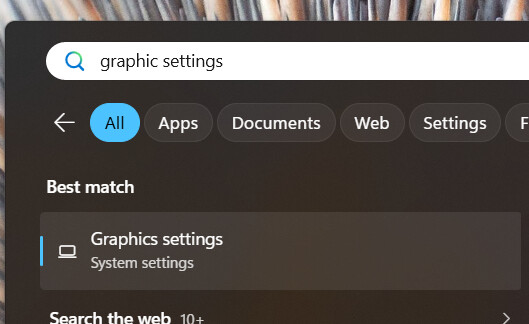
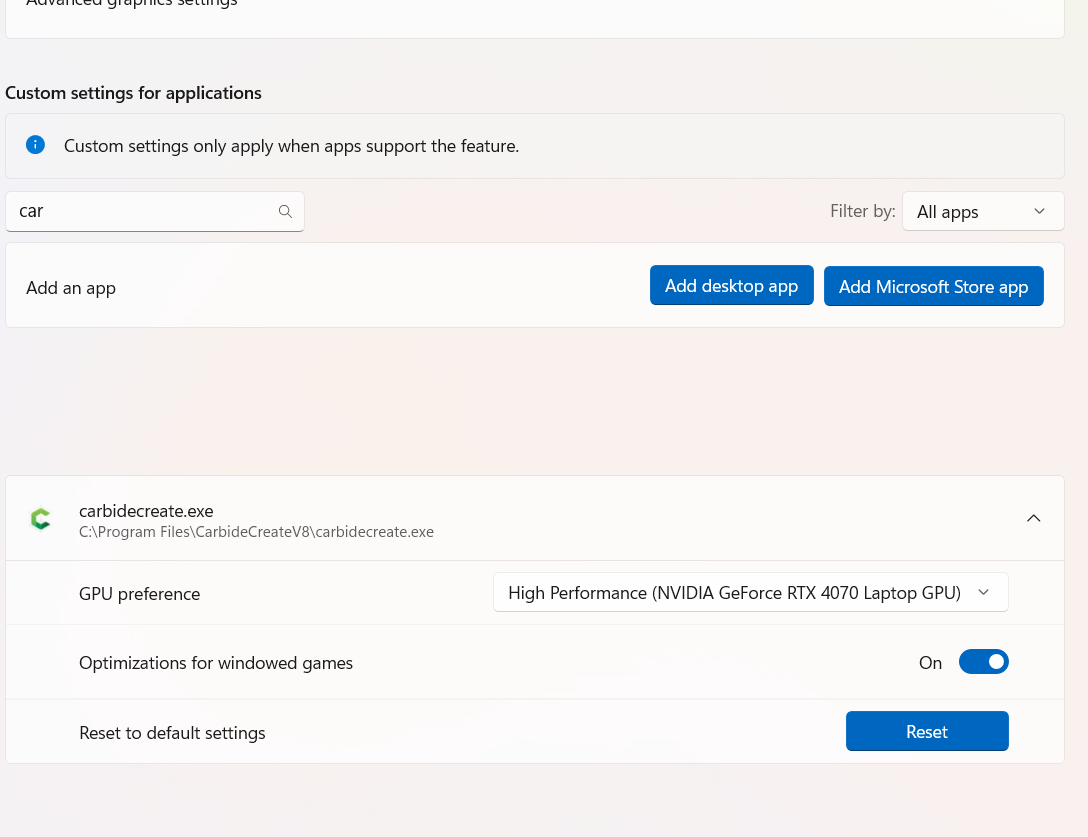
Recheck the Task manager.
Even when this is set, you sometimes have to Reset and then select the nVidia gpu again.
I have also had to remove the application and reselect it sometimes.
What do you have the modeling resolution set to? What size is your material? Is it a a 2d or 3D job?
What version of VCarve?
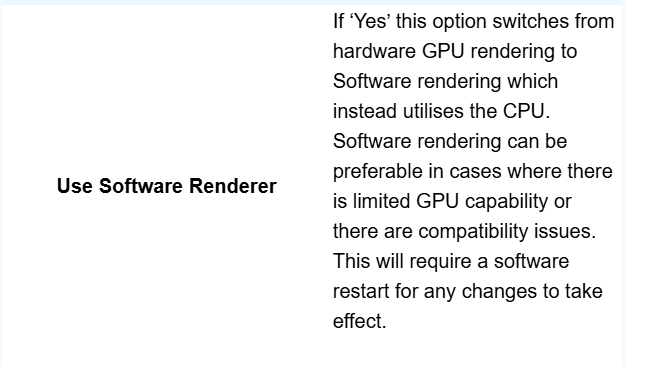
In 11 or newer there’s an option to use hardware GPU vs software render. There’s no universal answer what works better. Varies by machine. Usually in Vectric forums when someone says super slow its when Software Renderer is set to Yes and huge 3D toolpaths. Setting it to No will use GPU.
Under Edit > Options > 3D View Settings scroll down to Use Software Renderer. Whatever its set to can’t hurt to try switching and restart VC.
In a video from Learn Your CNC as part of the master class he talks about the resolution setting in the job setup screen and how that defines the number of pixels used for the workspace and how that combined with the size of the material can impact the performance.
There is even a “secret” setting that is higher than than the “very high” setting. I can’t remember the method to get to it. I will try to find that part again and report back. But of course that would make your problem worse.
OK, read though all your replies.
I do have my modeling Resolution set to standard. that was the 1st thing I checked.
Then I want to do what Jim suggested.
I did this just see to if Vcarve was using GPU.
Started a tool path, 3D, and was very slow again. Went to Task manager.
GPU is NOT being use, however, Very high power was being used.
I also did what Jim suggested about the advanced GPU settings and added Vcarve to it.
No change, GPU still not being used.
Also checked Carbide Create, it is using GPU.
Oh, I did change the setting under the 3D setting under option. No differences.
But it least I did find out GPU is not being used. It a start to where to go from here.
Appreciate all the replies! 
I have have iffy success on the GPU thing.
There is a setting in Aspire
https://docs.vectric.com/docs/V12.0/Aspire/ENU/Help/form/options-dialog/
Looks like this should be NO
Shift while opening a new file opens highest resolution. I use it all the time for 3d creation. The toolpath simulation is in the drop down menu. These are different settings. The file creation setting is only available at initial setup.
Well Mates!
Great news for me.
Thank you all for your input!!!
For some brain~fart moment, Mookie, suggested checking a setting in vcarve.
So I turned Software Renderer “Off”
Why didn’t I check this out? I really don’t know, Actually, I don’t remember reading it.
Sorry Mookie…
However, THAT WAS the Problem!!
Jim mentioned to check this too. Vcavre 3D is working great now.
I also confirmed in my Task Manager, it IS bring used.
I love it when a plan come together. The people in Forums are priceless!
You just can not buy THAT kind experience.
Hopeful someday I can repay the favor to someone else here.
Mookie, I owe you a beer!
Thanks mates!
2 Likes
fantastic, glad it worked out! 
This is not the video from the class but has similar content.
So it seems that the toolpath preview resolution determines the number of pixels to be used and the size of the material then determines the size of each “pixel” (yea bad terminology in this case I know, maybe just call it units) by figuring out how large they need to be to fit the amount to the material.
I think the maximum that he shows here is that normally hidden size at least in 12+ that you need to use the shift on open option to enable that you mentioned.