Hi Will not sure,not home at the moment will check when I get home
Just checked the keyboard settings and getting exactly the same as ED
Worked for me on Win 10.
Screen shot with Windows:
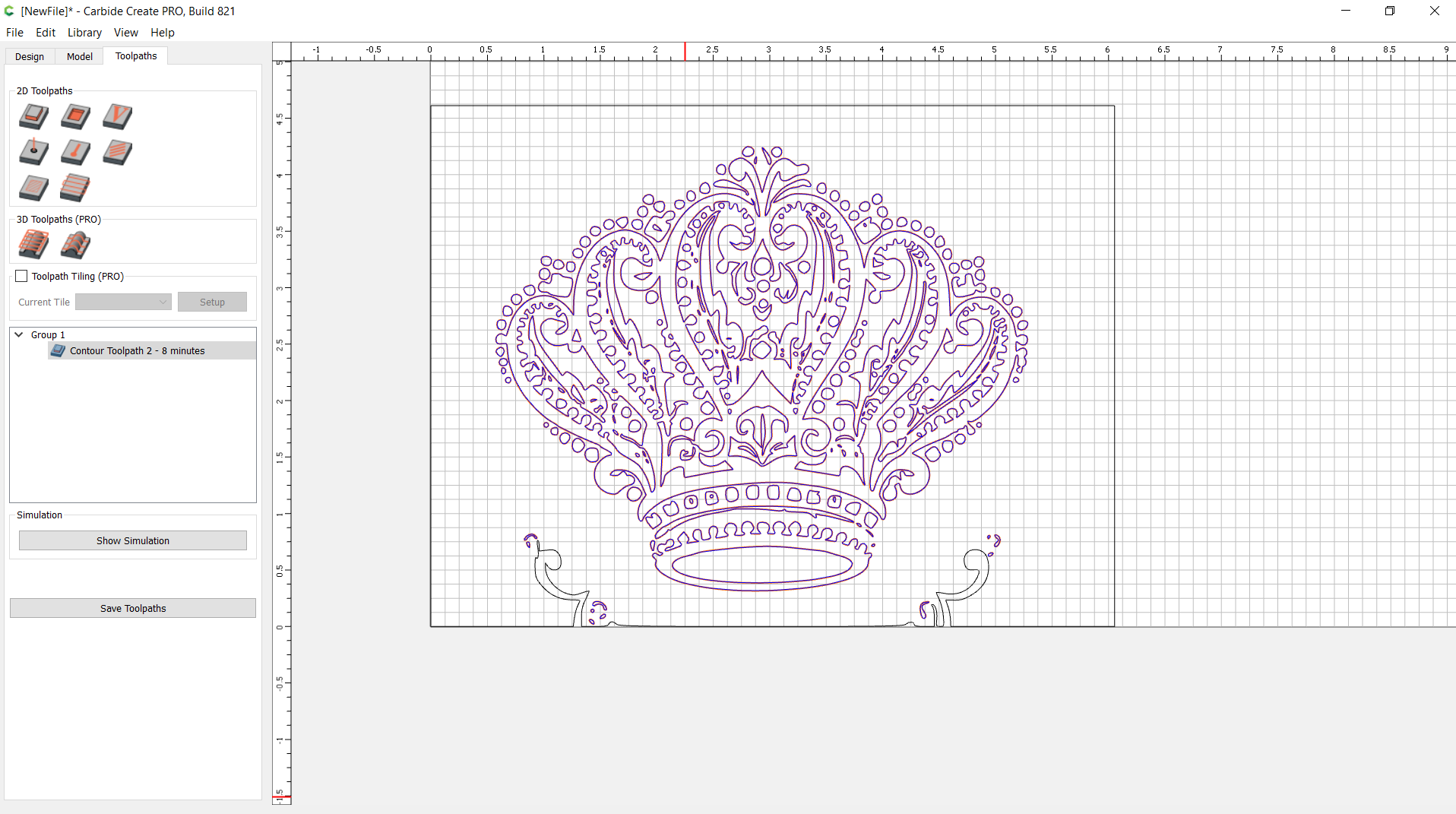
With F12
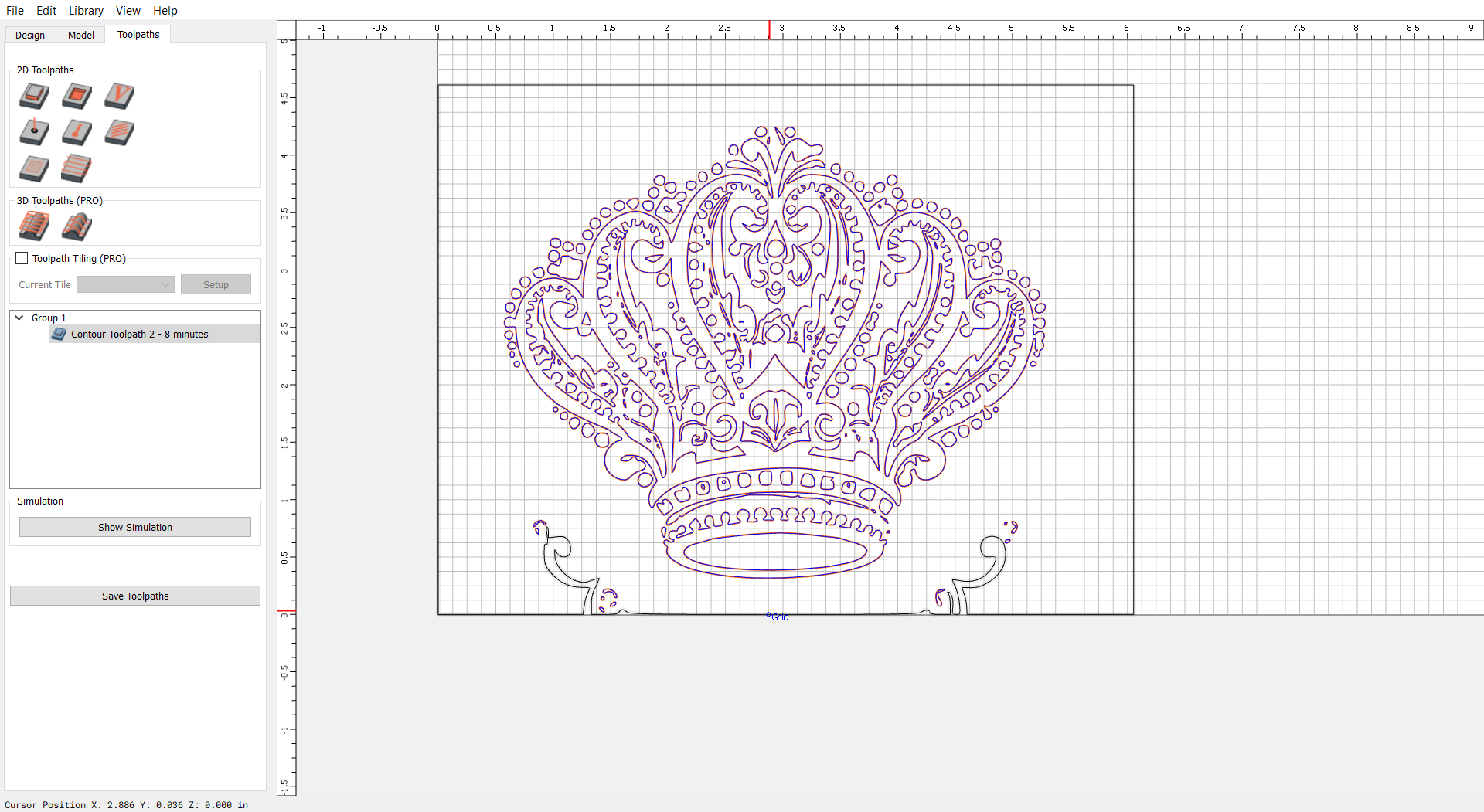
Are the folks who are having problems using a hard keyed F12 or a laptop (FN-F12 combination)? Because sometimes, those are set to copying the active window and not the full screen. Perhaps?
I’m using the FN-F12 combo.
I have a windows 11 desktop PC. I want a screenshot of the image below which is captured with the windows snipping tool. So, capturing a screenshot from my windows desktop works.
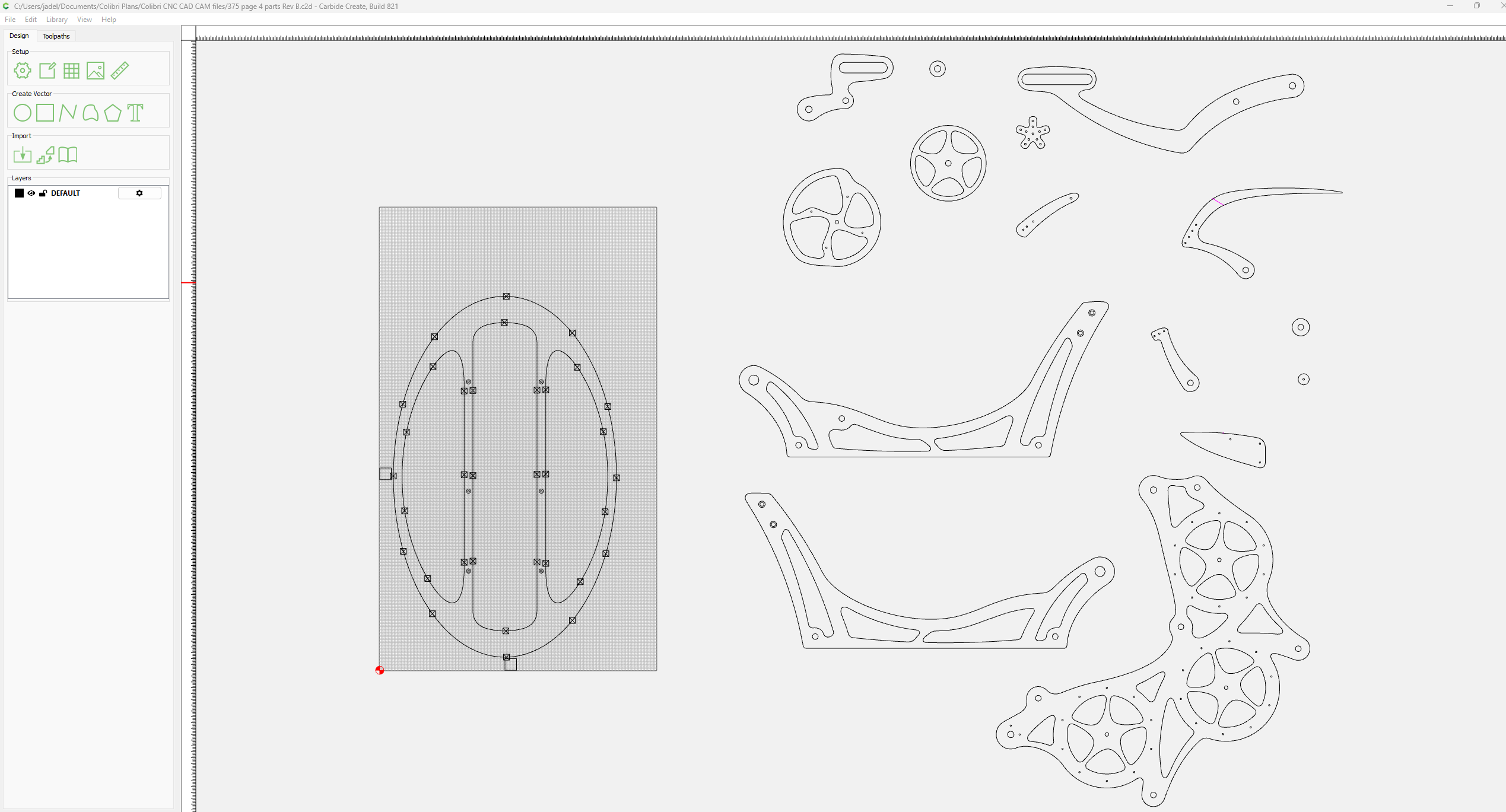
Using the screenshot feature in CC, I then hit the F12 key to get the screenshot of the CC file opened above to capture it and I save it to a filename. So, the screenshot feature does get a screenshot to save. However, below is what the screenshot looks like when the file is uploaded to this forum post.
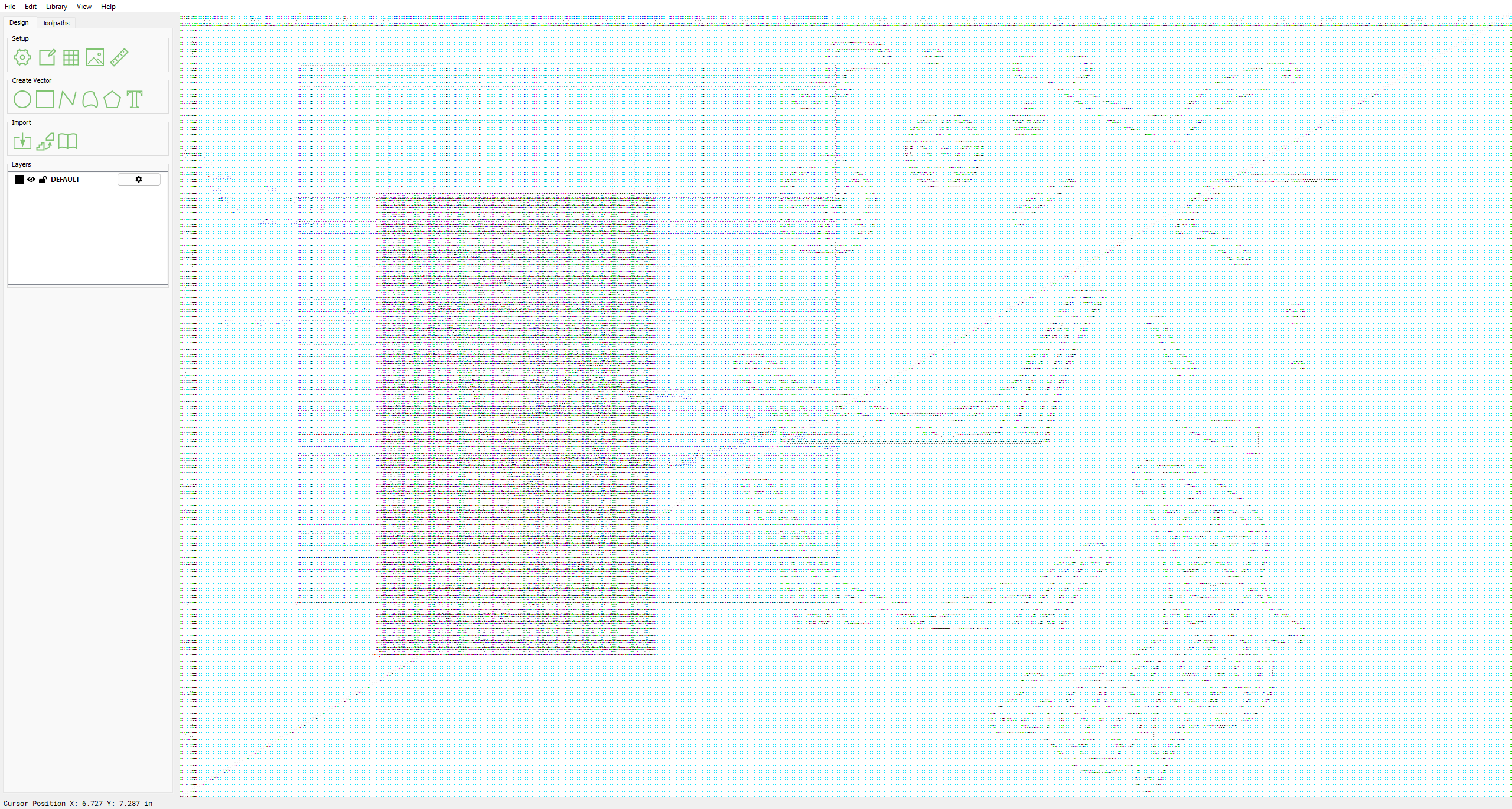
Obviously, this is not right.
or if I open the saved CC screenshot file from my desktop and use the windows snipping tool to add the image to this post, it looks like this below, which is what I see on my display. There is a bluish background in this image and very poor looking detail that is being created by this feature in CC.
Obviously, this is not right either.
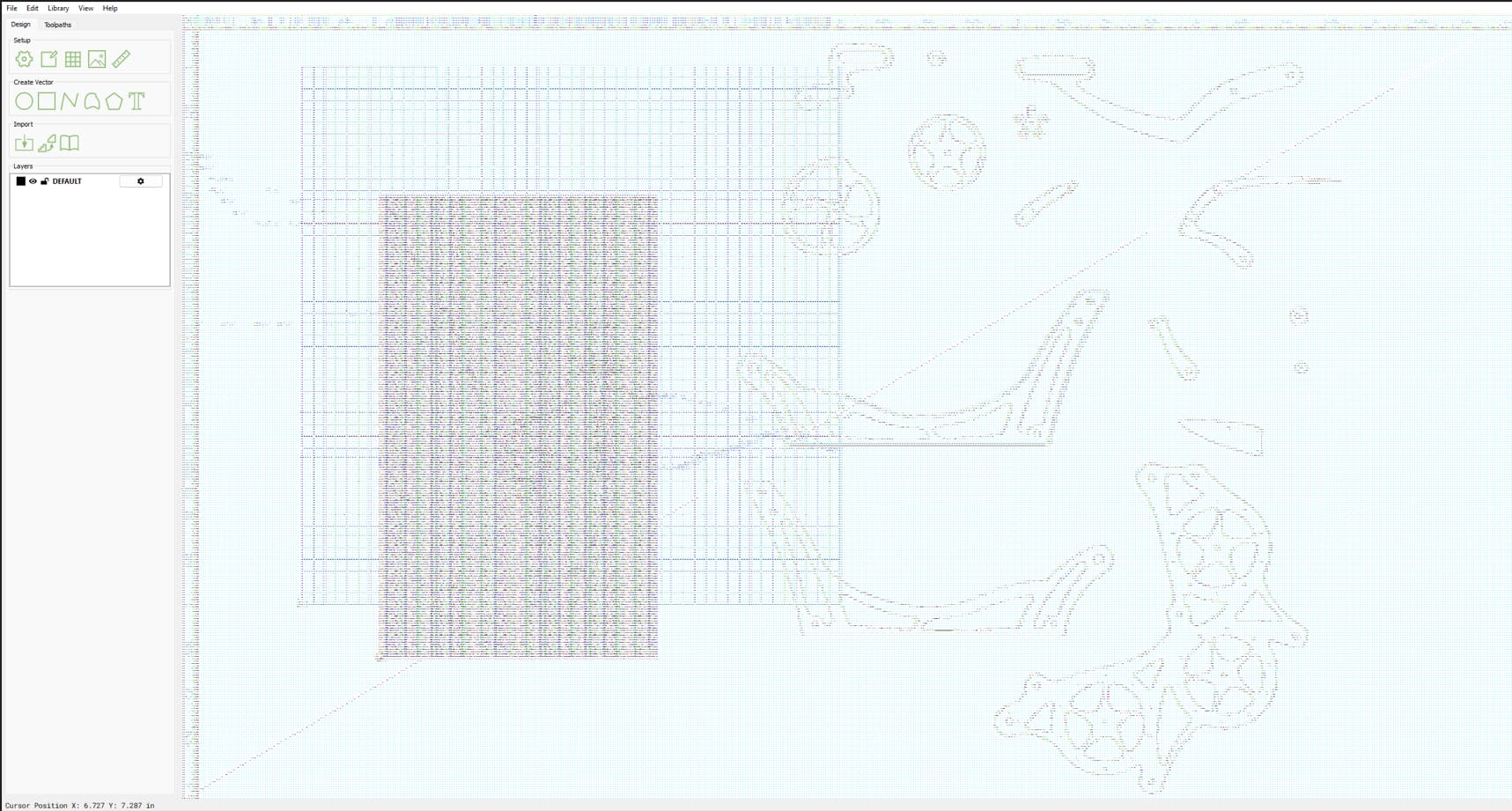
So, although I know that my window 11 desktop PC is capable of capturing an accurate screenshot image, the new screenshot feature in CC version 820-821 is not working right.
2 Likes
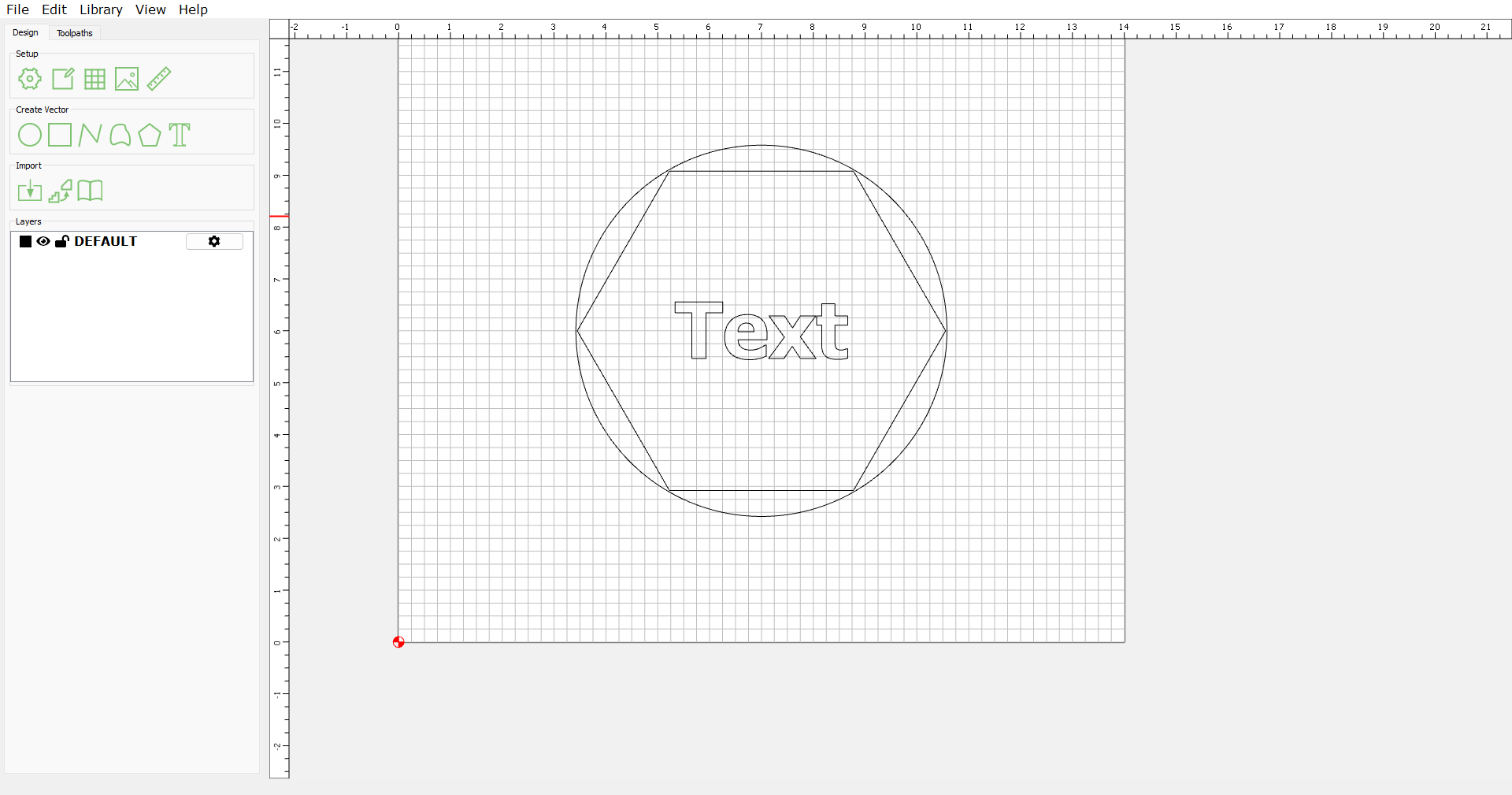
I have a Desktop computer running Windows 11. Results are below.
File created using PrintScreen (snipit tool)
File created using CC F12
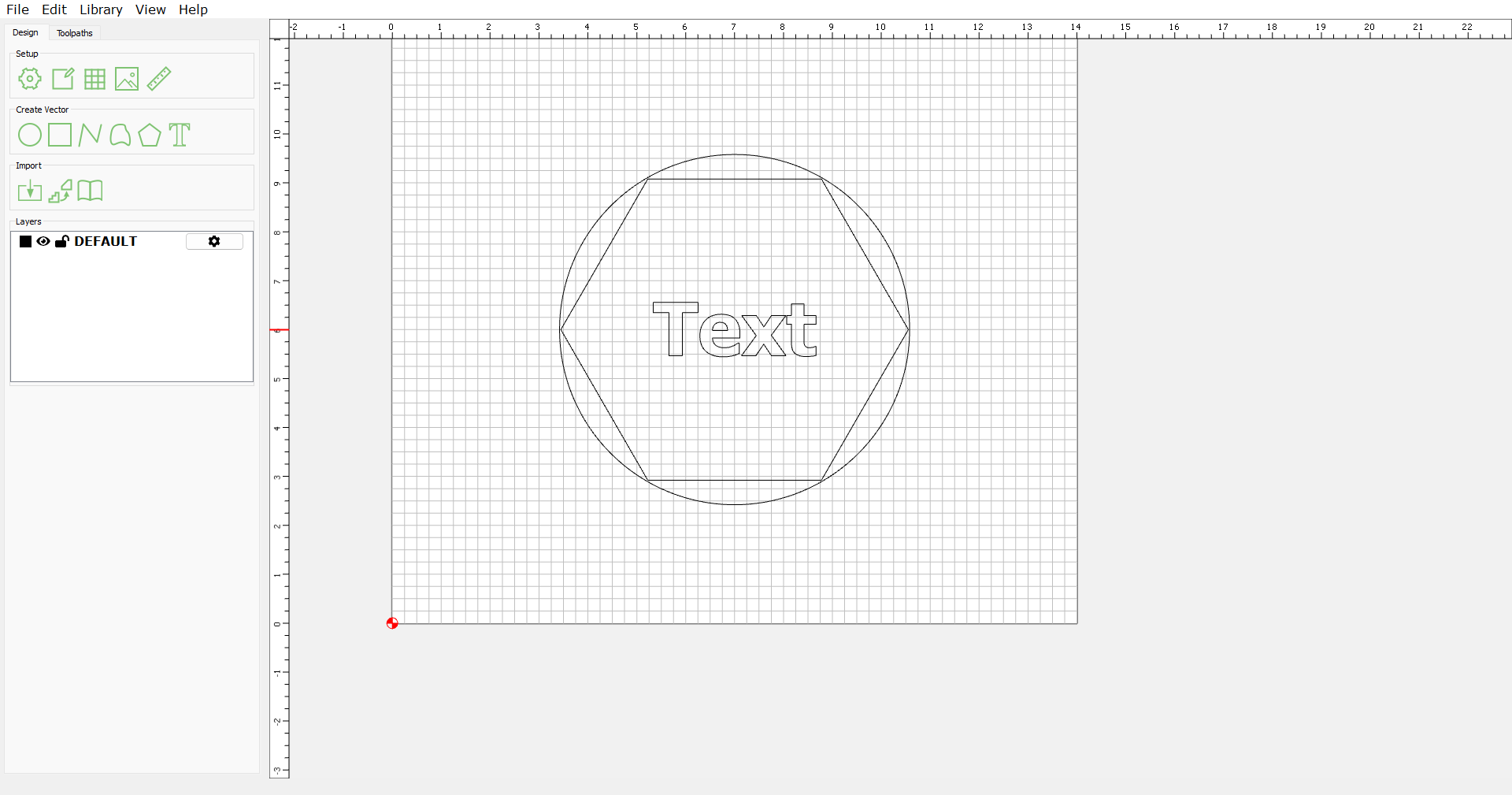
The rendering artifacts are caused by the way the operating system is rendering the OpenGL drawing window from the GPU when the screenshot is taken.
This was a throwaway feature added for @WillAdams, for all of the tutorials that he ends up posting (it’s only something like 10-20 lines of code). We’ll give it another shot in the next release and see if it can be fixed. If not, we’ll have to pass on this feature because we can’t take on the burden of dealing with every GPU/PC permutation for a just-for-fun feature. (Outdated Dell GPU drivers alone have cost us more than a month of work in the past.)
3 Likes
On windows machines, in CC I have found the Intel gpu does not render correctly sometimes.
I force CC to use a nVidia card.
It maybe valid to ask Windows users what GPU they are using.
We’ve seen some machines where the Intel and dedicated GPUs “fight” with each other frame-to-frame, causing a ton of lines to appear in the window. This was explained to us by a Dell engineer, who admitted that they tend to use outdated drivers.
Whenever you see strange lines through a GPU-rendered window, it can usually be removed by pinning the application to the dedicated GPU. We’ve never seen this in a computer with only an Intel GPU.
This is unrelated to the screenshot images, though.
2 Likes
I can confirm that Dell is a solid machine, but they are WAY late on GPU updates.
At times only when a GPU driver security issue comes up.
For awhile they blocked non Dell GPU drivers from nVidia and were not updating theirs.
Frustrating when the app vendor says update your drivers.
Using Graphics Settings dialog
I do assign CC, Fusion and Inkscape to the nVidia GPU.
I have 3 Dell gaming laptops of varying vintage. All made the Win11 test.
2 Older PC’s have the nVidia GPU as 1
The latest one has the nVidia GPU as 0
I have to reassign the setting from time to time, this is not a CC issue, Fusion, Inkscape all will do the same. Watching Task manager I will notice that the wrong GPU is being used.
I am not sure what events cause this, but it happens enough that I watch all the time.
When correcting the setting, it’s a matter of resetting even though the setting looks correct.
Sometimes I have to remove the app, then add it back and assign the GPU.
Again watching Task Manager to confirm the new setting.
It’s a PIA .
1 Like
821 - can’t drag a circle or rectangle by it’s center point
Invisible/phantom nodes are still there.
1 Like
Yeah…who cares about him anyway?
(@WillAdams Don’t tell anyone, but I’m secretly on your side)
3 Likes
I asked about this on team chat and it was explained that these should be intentional — nodes which were in place for snapping to are persistent until the operation is compleat in case they are useful.
This didn’t happen in 815 & prior.
Make any object/vector.
Turn off Snap to Grid
Grab a node & move the object.
In 817+, it’s own nodes are still existent in their original position.
In 815-, Only the nodes for other objects are ‘snappable’.
Correct, it is an intentional new feature which is being tried out.
It’s troublesome if you’re trying to move something a small amount.
1 Like
Does zooming in further mitigate this?
Could you provide a file and a screengrab showing a desired movement which this interferes with?
Is you move arbitrary or a specific distance along a vector ?
I think it was on this part, trying to align the larger circles to be tangent with 2 smaller circles.
I did it geometrically, but it still wouldn’t trim. I’ve regressed to 815
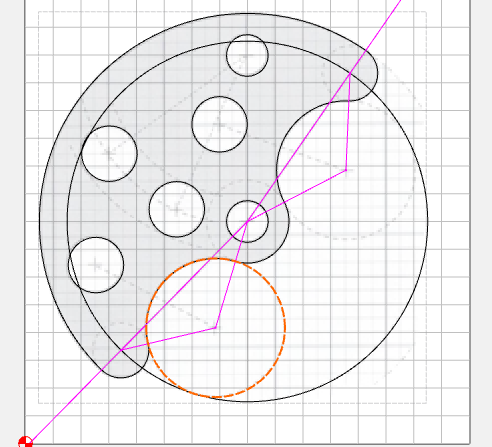
I had that same problem (though on a different circle) (and a couple of others) all of which I filed bug reports on.
Please provide that file to support or upload it here — I suspect comparing the twain will be quite helpful.