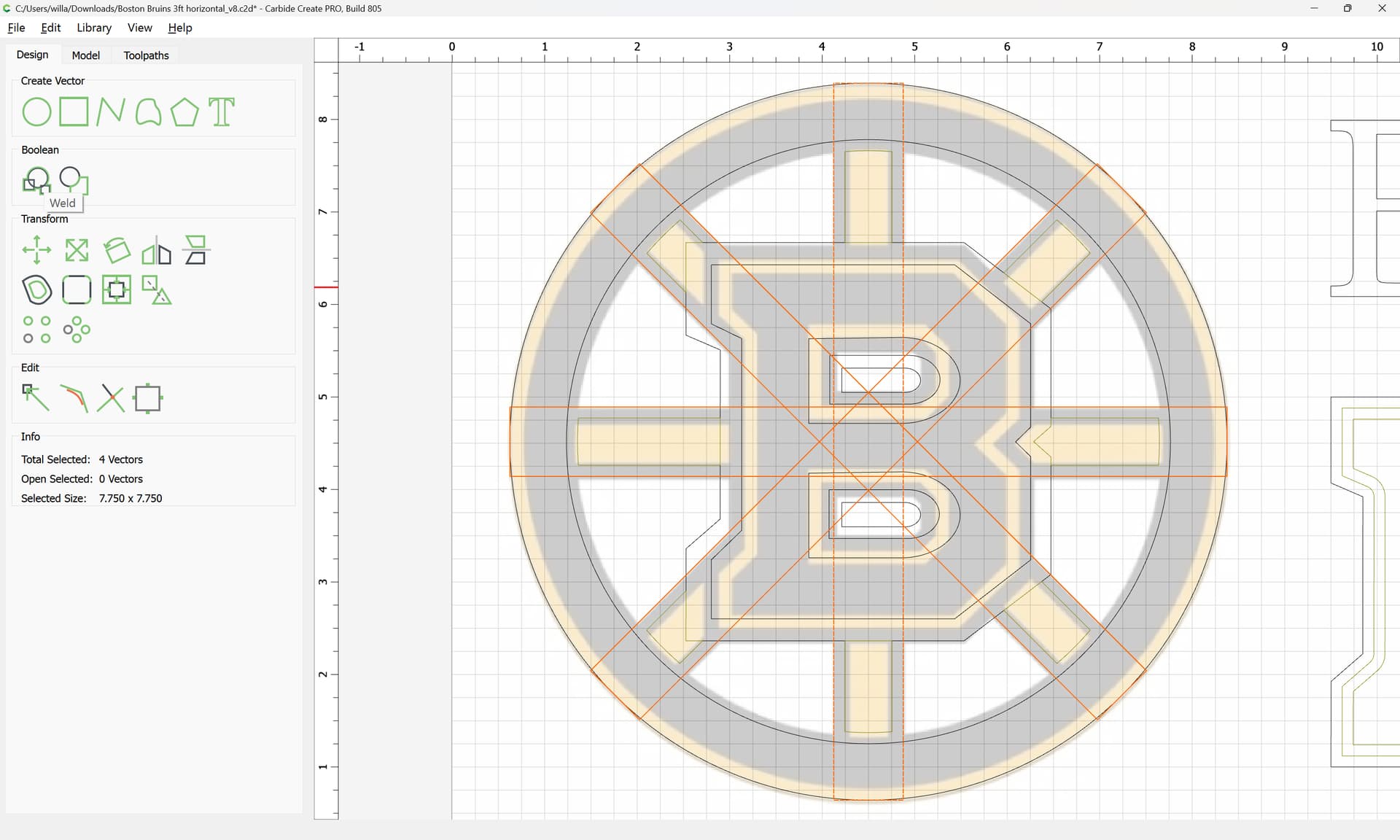
Given the file:
we simplify down to:
and import the pixel image for reference:
Done
It will be simple to set up the text, and using layers will make the later work simpler, so we switch to that:
We take a quick measurement:
select the text, and inset by that dimension twice:
Note that when offsetting, things will get rounded off — it will be desirable to address that.
For now, we make a new Layer:
and move the geometry in question to it:
Unfortunately, there isn’t a sharpen corner tool to match the various filleting options, so fixing this is a matter of drawing:
d
d
Done
Join Vectors:
Yes
Repeat where necessary (this will be left as an exercise for the reader).
For the logo itself:
The problem is that there is a series of open vectors, and the various regions are not fully described. It will be necessary to create geometry which describes the various regions and use Trim Vectors to get down to geometry which may be joined together:
Easiest way to do this is to get a dimension:
then use ctrl-click corner-to-corner drawing:
to get a rectangle:
which may be set to that dimension:
Duplicate it in place thrice:
select one:
and rotate it:
Done
Repeat until one arrives at:
Select the geometries which interact, duplicating the circle and the letter outline:
and use the Trim Vectors tool:
to remove what is not wanted:
Until one arrives at:
OK
which regions may be joined:
Yes
and the redundant geometry removed:
This new geometry may now be inset:
Note that it will need to be extended a bit — duplicate the letter outline again:
Draw in polylines to restore the needed areas:
and again, use Trim Vectors to get down to what is actually needed — this will be easier if the geometries are Boolean Unioned:
OK
arriving at:
OK
OK
Join Vectors
Yes
Repeat for the other regions and move to the new layer:
With the inset area done, it will be necessary to re-create the outline:
Join Vectors:
It is necessary to trim things down a bit to line up, so we draw in a circle:
OK
Join Vectors
Yes
Duplicate the circle:
and move it and the original to the Gold layer:
Lastly it is necessary to trim the outer edges of the letter to allow the geometries to describe the black region:
As before this will be a bit simpler if things are Boolean Unioned:
OK
Repeat
Trim Vectors
OK
Join Vectors
Select and delete unwanted geometry:
Move things to the appropriate layers:
and where necessary inset:
Apply
Attached as a v8 file:
Boston Bruins 3ft horizontal_v8.c2d (788 KB)