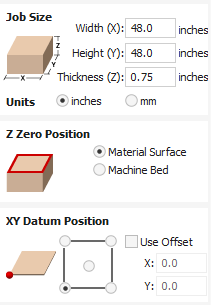
Where should I assign the X/Y datum point, on a Shapeoko 5 Pro (for Vcarve Pro setup page)? (Front left, etc?)
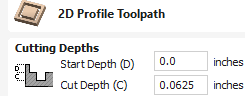
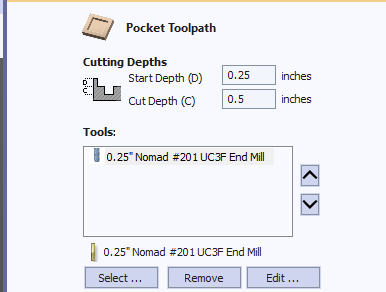
Also, anyone have a guess as to why the Z height is spitting out a different height, in the Gcode it generates?
Make sure your post processor is setup for the right machine. The Z-Plus and the HDZ have different steps per MM so if you have the wrong Z your Z zero will be off. That is in the setup for CM or if using a 3rd party gcode sender you may have to also tell it what your machine configuration is.
Try making a job in the free CC and see how things turn out. That may help you to determine what needs to be setup in Vetric/gcode sender. If things work in CC and CM but not in Vetric you can post on the Vetric forums and get help from people that use that software all the time.
set it to the lower left for starters. (and what Guy said is also relevant). If you have correctly set up the machine for what you actually have, then set up the XY in the lower left both in the software and litteraly where you set the xy on your machine must match.
Thx!
Does the Z need to be set manually w every material change (or is smart enough to be able to reference off of wasteboard and the material thickness you provide)?
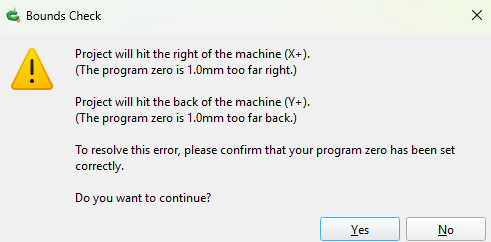
Separately, is this a stopper, or does the 1mm matter?
Thank you again.
You need to set Z with pretty much every job unless you haven’t changed the bit.
You can zero Z off the machine bed or material surface. Your choice but make sure what you do in the software matches what you do in the physical world.
General guidance would be set Z zero on material surface of you are not cutting all the way through your material. If you are cutting through setting Z zero to the spoilboard will minimize the chances that you cut into the board.
Material thickness is much more critical if you set Z to the material surface and cut all the way through. If your measurement is off you could cut too deep.
Some folks will set up a corner locating fixture and always cut stock of the same thickness (or they use shims so as to bring the stock up to the same height? or the use bottom of stock?) and after setting zero once, never set it again.
On our old Camaster, we never had to use the paper technique- just give it the correct spcs in Vcarve, and it would allows respect the wasteboard location (and cut .002 into it)…
Got to get used to these hobby machines again haha.
Right, do the training session with Carbide Create, learn the concepts, then apply the concepts to the third party software.
You’re trying to learn how to use a Carbide 3D machine — start by using the basic/bundled/included Carbide Create software — once you’ve got the basics down in it you can try third-party software.
It doesn’t know where the wasteboard is unless you tell it. Keep in mind that you can resurface the spoilboard so the surface level relative to the Z acis can change and the stick out of the bit changes as well. So there is no consistent wasteboard position.
Hovering over the toolpath is just a summary its not gcode. Save that toolpath to a file. Then open the .nc or .gcode file in a text editor and take a screenshot which shows the initial Z plunge.
Sure, the machine could be hardcoded to remember where the spoilboard surface is, but what would be the point. It won’t be many jobs before spoilboard has to be surfaced. Then that parameter would be wrong. I don’t know how other competing machines handle this…
I second the suggestion to start with free Carbide Create to get a feel for the machine fundamentals. I had worked with an older industrial machine before I bought my Shapeoko. I knew I was going to use Vectric but I had to forget several things I was used to and learn the “Shapeoko way” to do things first. It was easier to do with Create.
The only time I’ve seen VCarve show a different Cut Depth in the summary then what’s entered in the toolpath dialog is when you use a start depth other than zero. This is by design. Example in this toolpath, the mouseover summary and the Gcode will show a cut depth of .75. The only reason to use this is when a previous toolpath has removed material so there’s no need to cut the top .25 again. I use this if I need to mill a smaller pocket or hole inside the perimeter of a larger pocket already cut. If you’re not doing that then just ignore this