Hi all and whomever can help. I don’t know how to take the attached file and convert it to a SVG file so it can be sent to CC and I can carve it. I imported it to inkscape and saved it as a SVG file, but when I try to load it, nothing happens, no image nothing. I’m fairly new to this so any help would be greatly appreciated. Explain it to me like I am a small child. Thanks in advance. Clint

Harding_Trace.c2d (132 KB)
If you trace it as I did in the attached file you will have some clean up to do. Personally I believe you need to spend the time to become familiar with your machine and software. This place is inundated with knowledge so take advantage of it. I hope this helps.
2 Likes
Thanks for the assist. How did you trace it? I’m an infant when it comes to all this.
If you’d rather take a different approach there are sites out there that will convert a file to an svg.
I’m open to all suggestions Sir. I’ve used my cnc for about a year. Mainly cutting custom vent hoods. A builder asked me to make a new sign for his office. I am on the struggle bus on how to take the pdf he sent and make it usable. I just don’t know how to do any of these things. I want to learn. I need a Yoda to guide me.
Ideally, you would get a vector original of the file.
Another consideration is that that image is made more complex by the 3D effect — if you’re not planning on re-creating or incorporating that into the 3D version, then it will add unwanted complexity.
The site does have a b/w version:

and since it’s mostly text and straight lines, it should be pretty straight-forward to identify the fonts and re-create.
Working with the file you have, you would want to trace it — Carbide Create has a feature for that:
and the provided file is decently high-resolution, so should trace well:
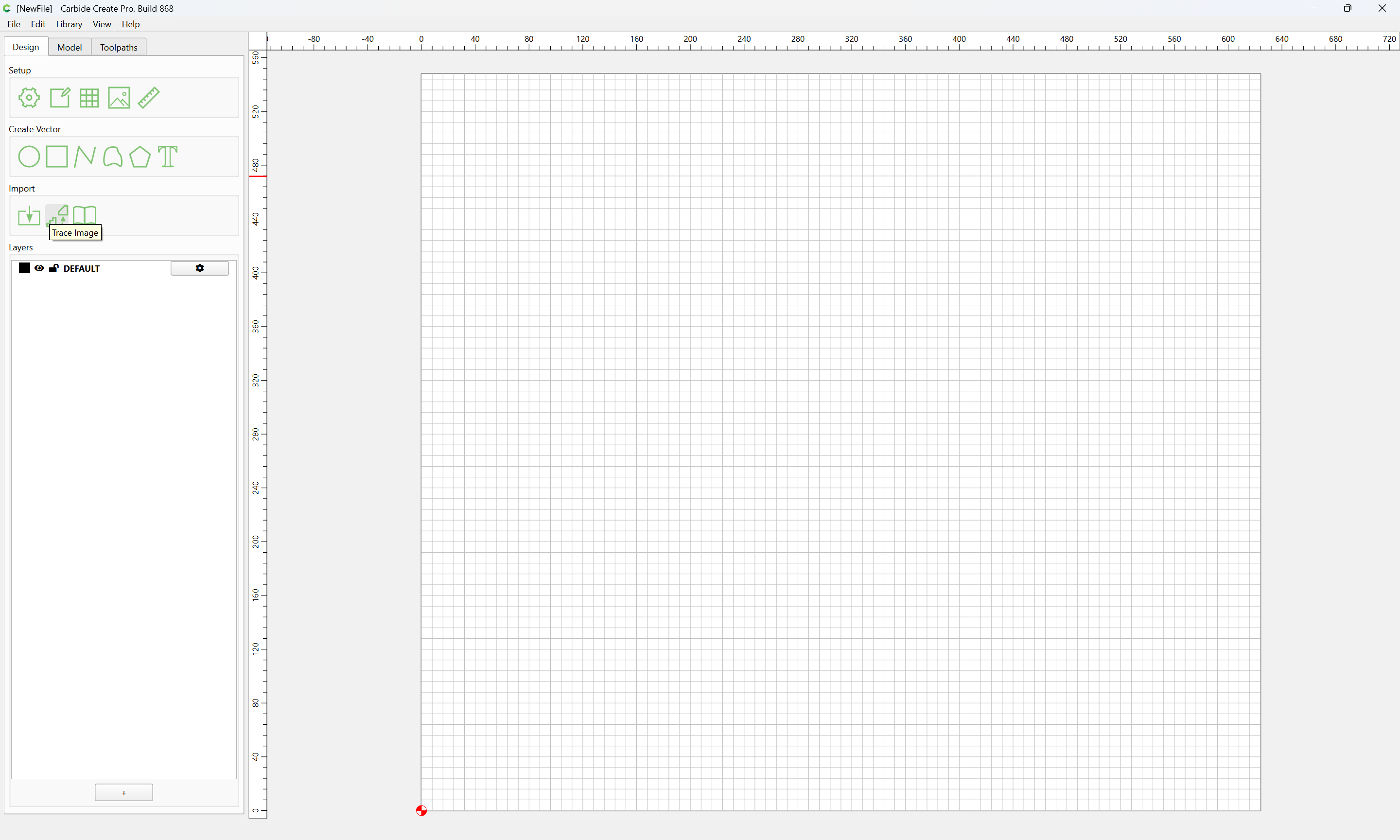
Trace Image (and select the file in question)
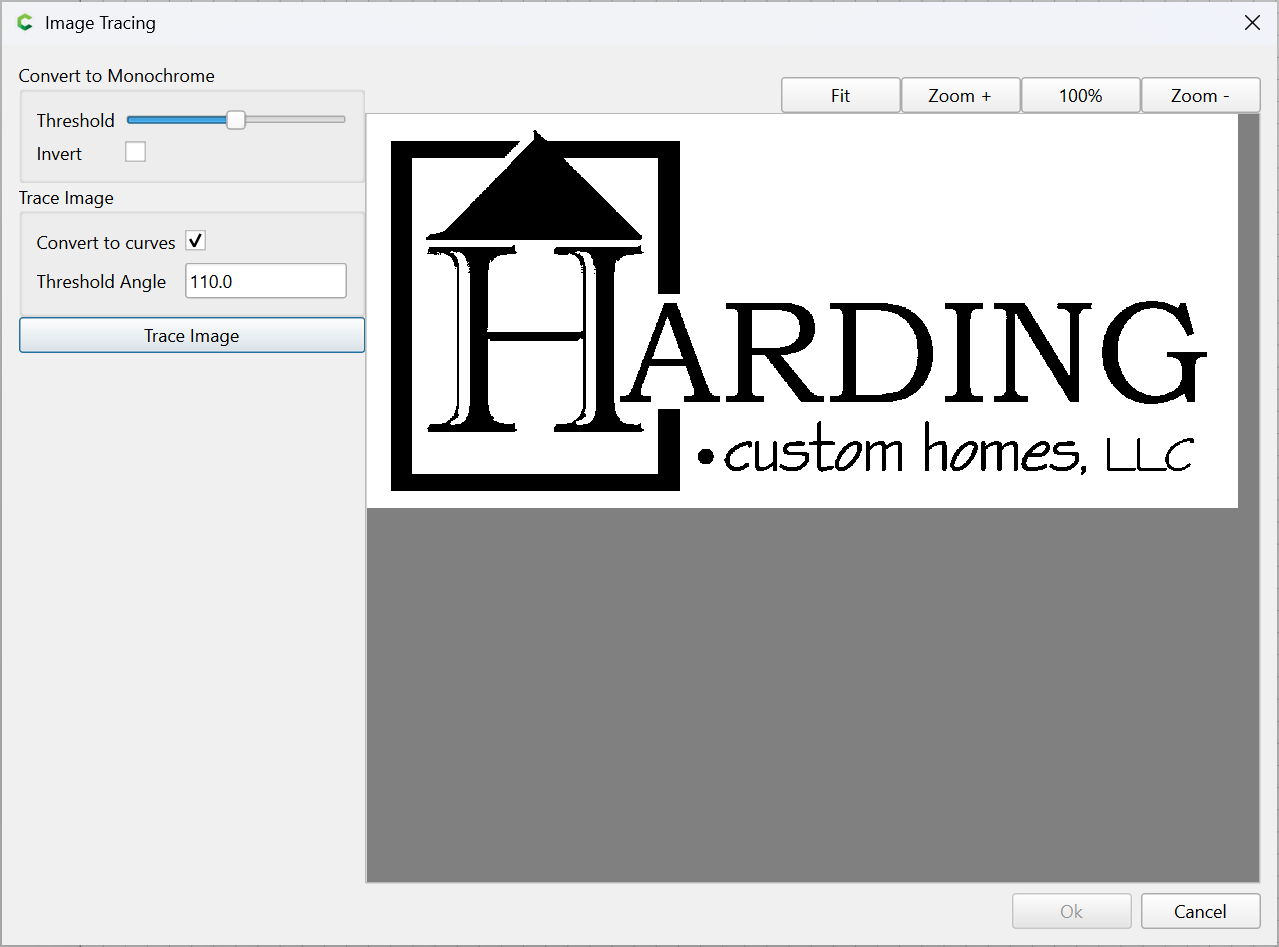
Adjust the threshold as desired:
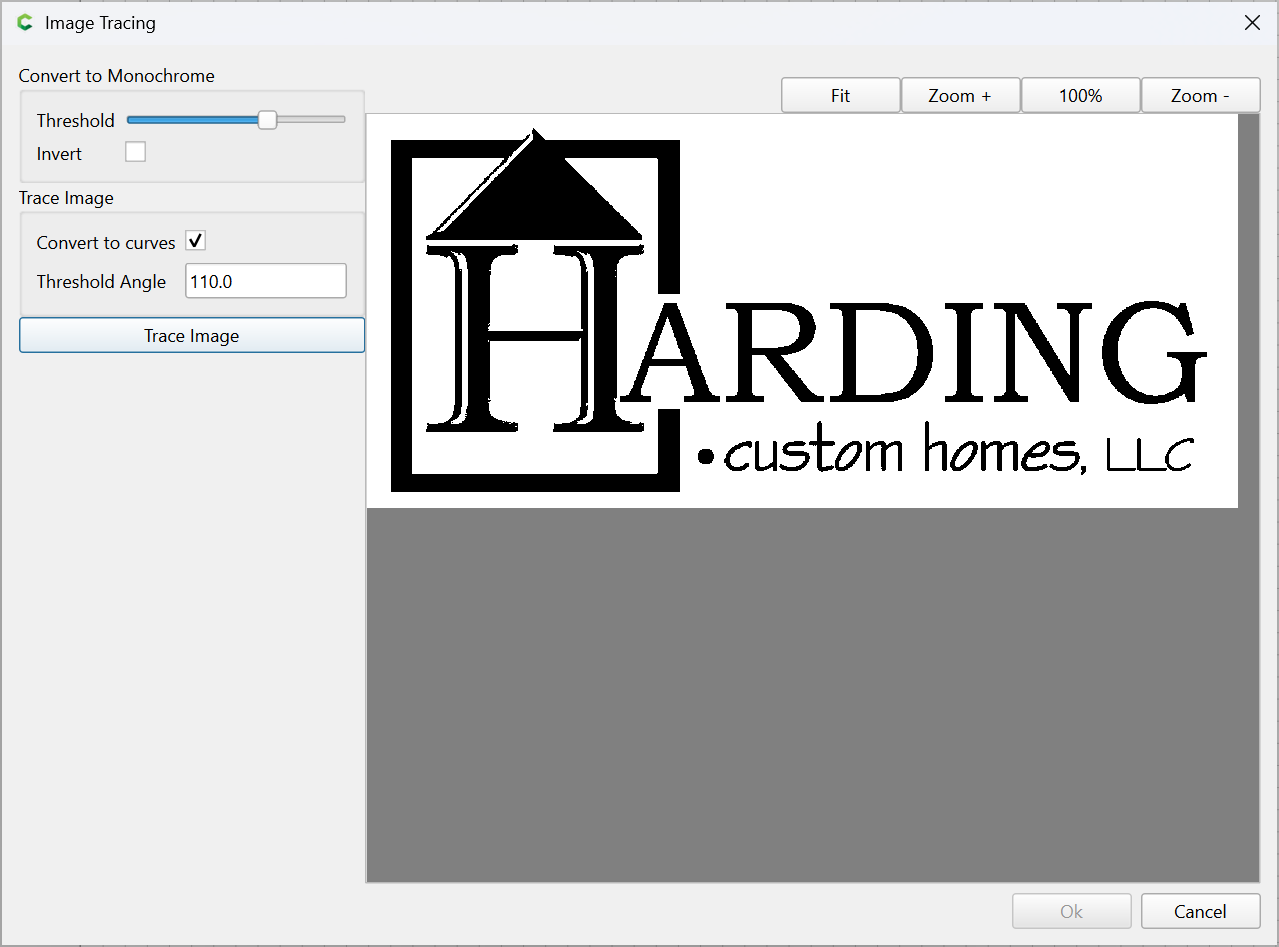
click “Trace Image”

Ok
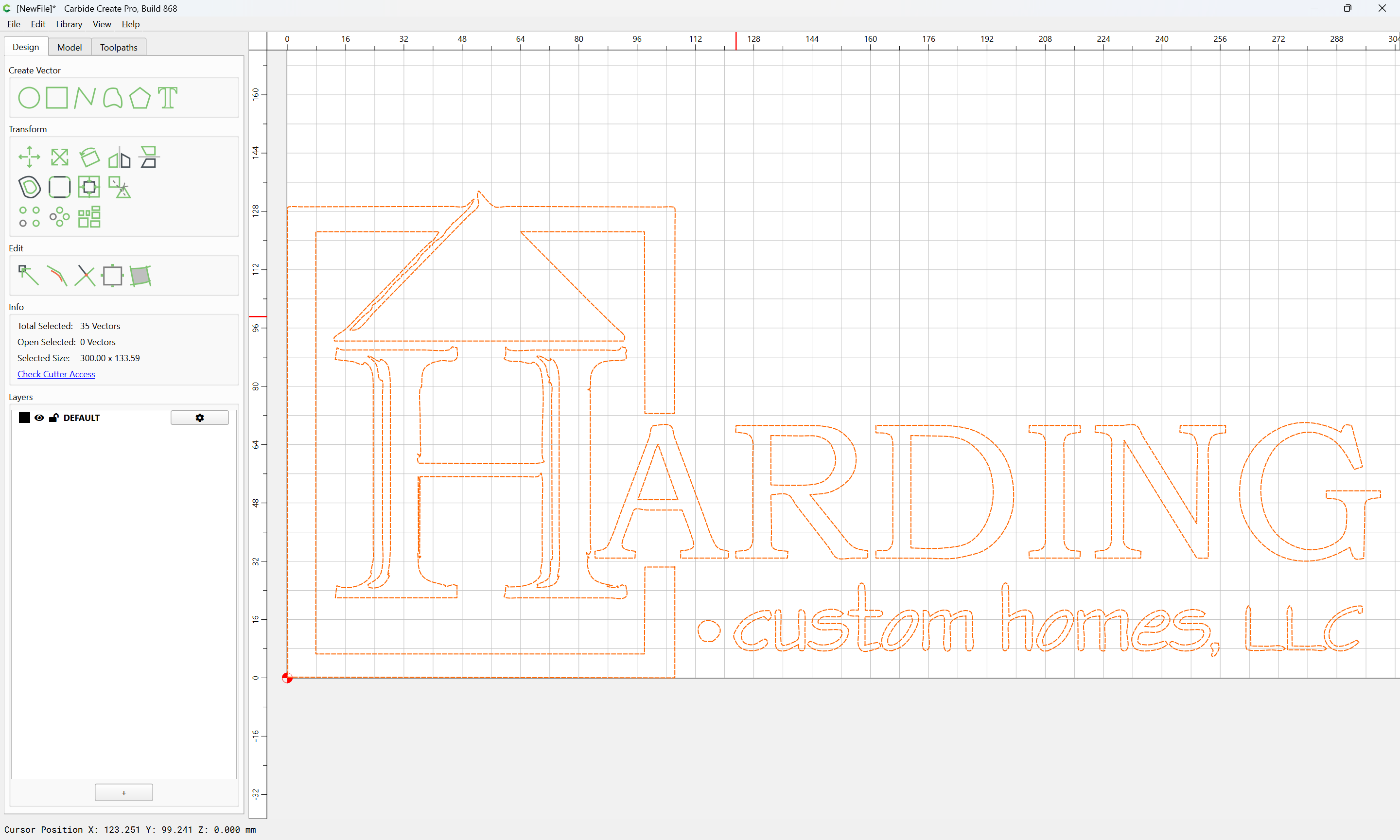
Then, import the original image:
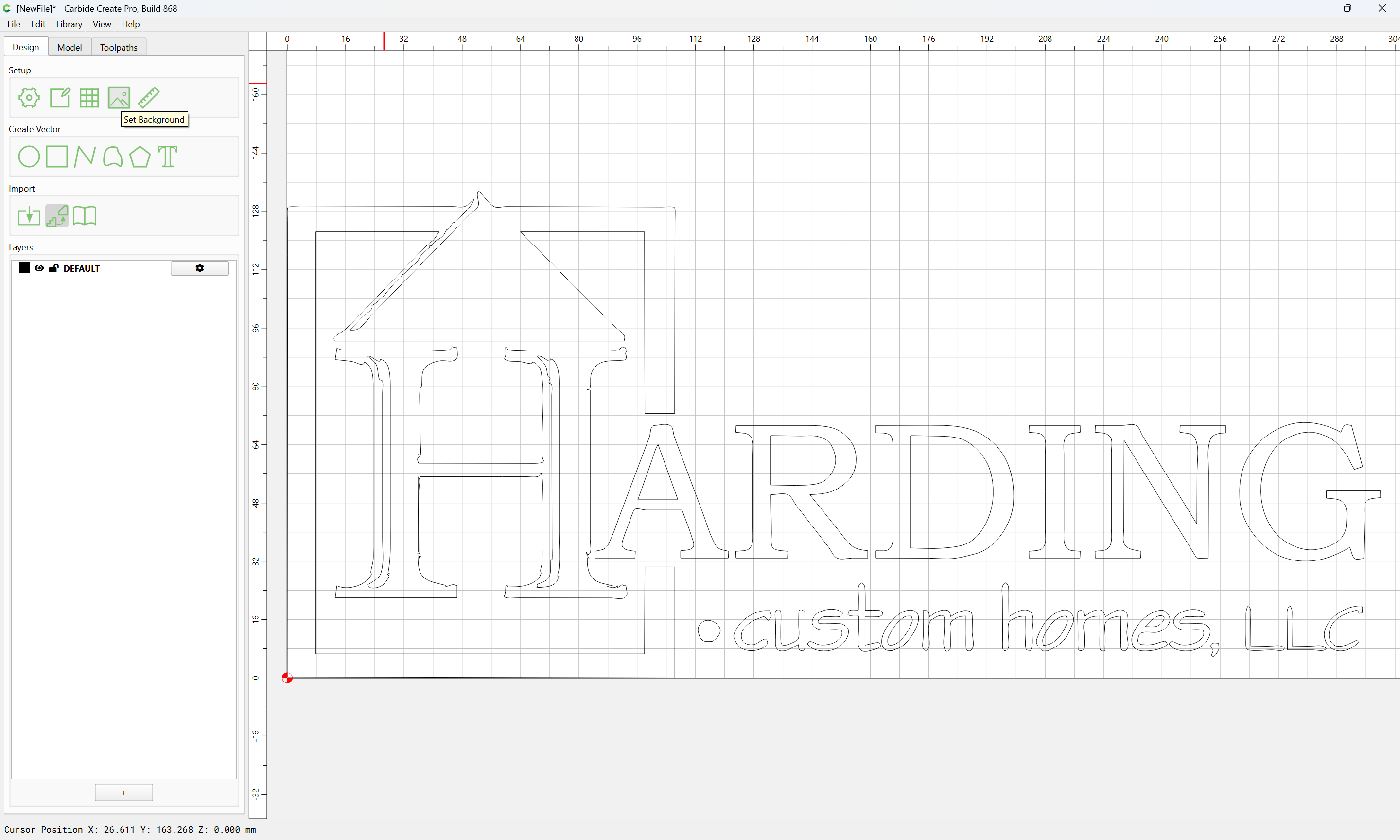
Set Background
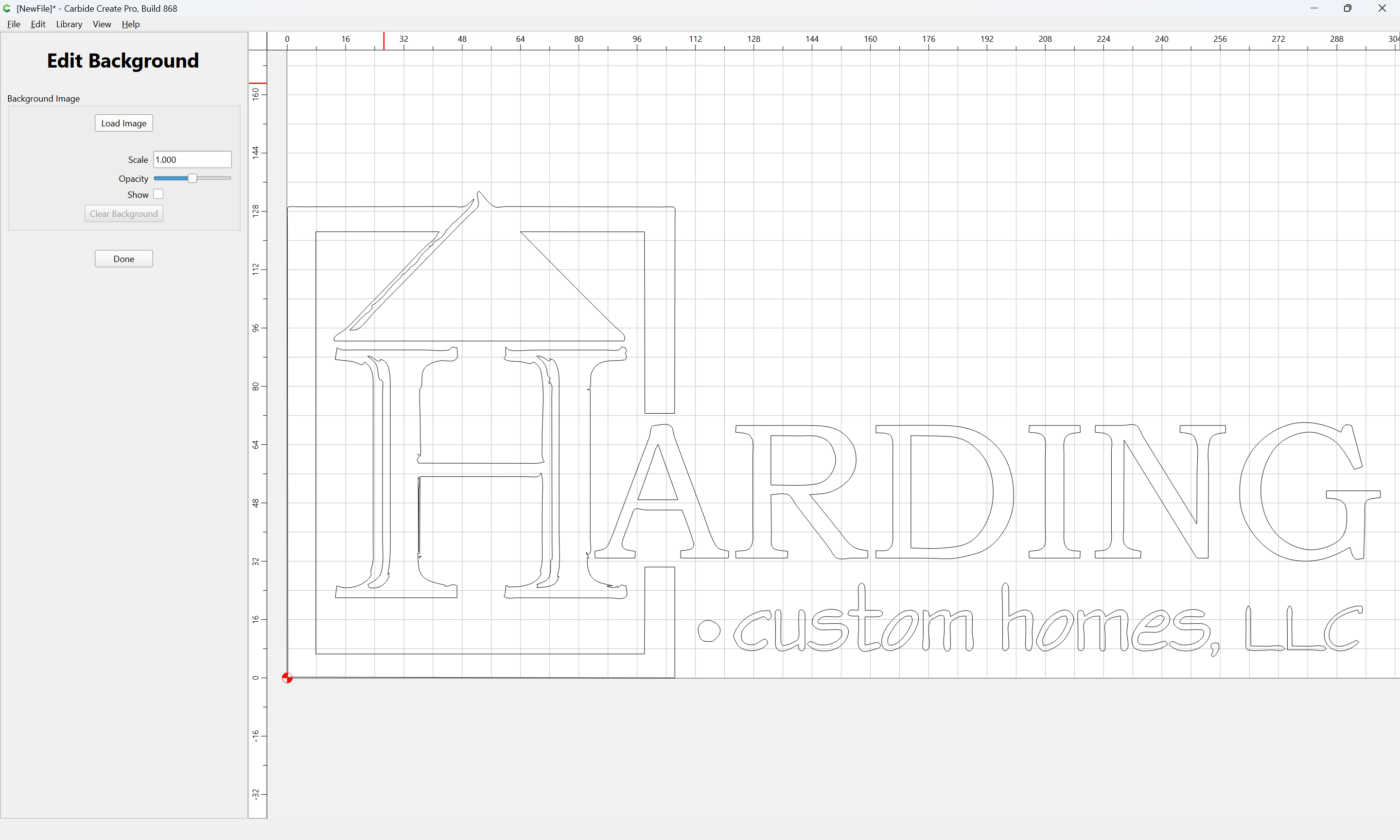
Load Image
(selecting the original)
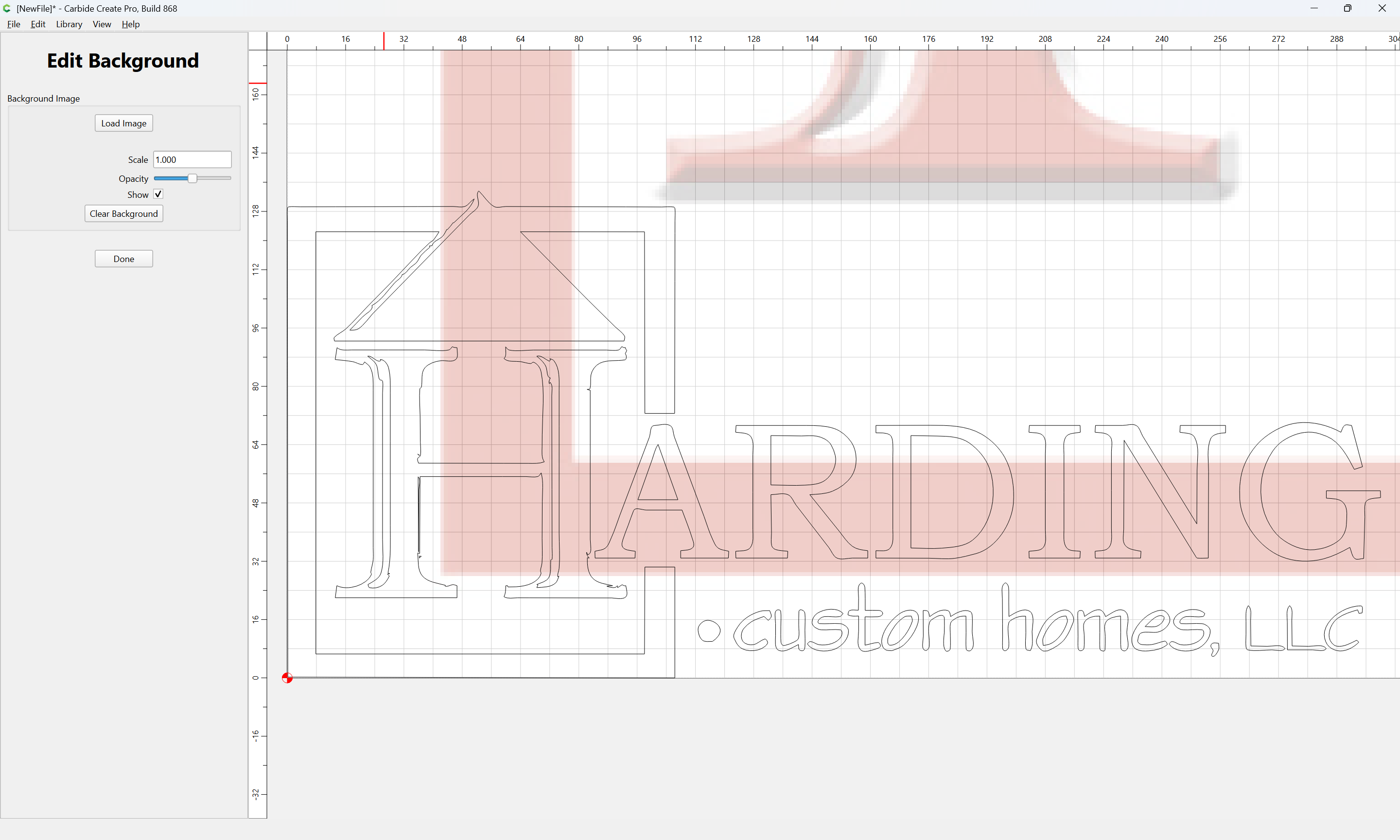
and adjust until things line up:
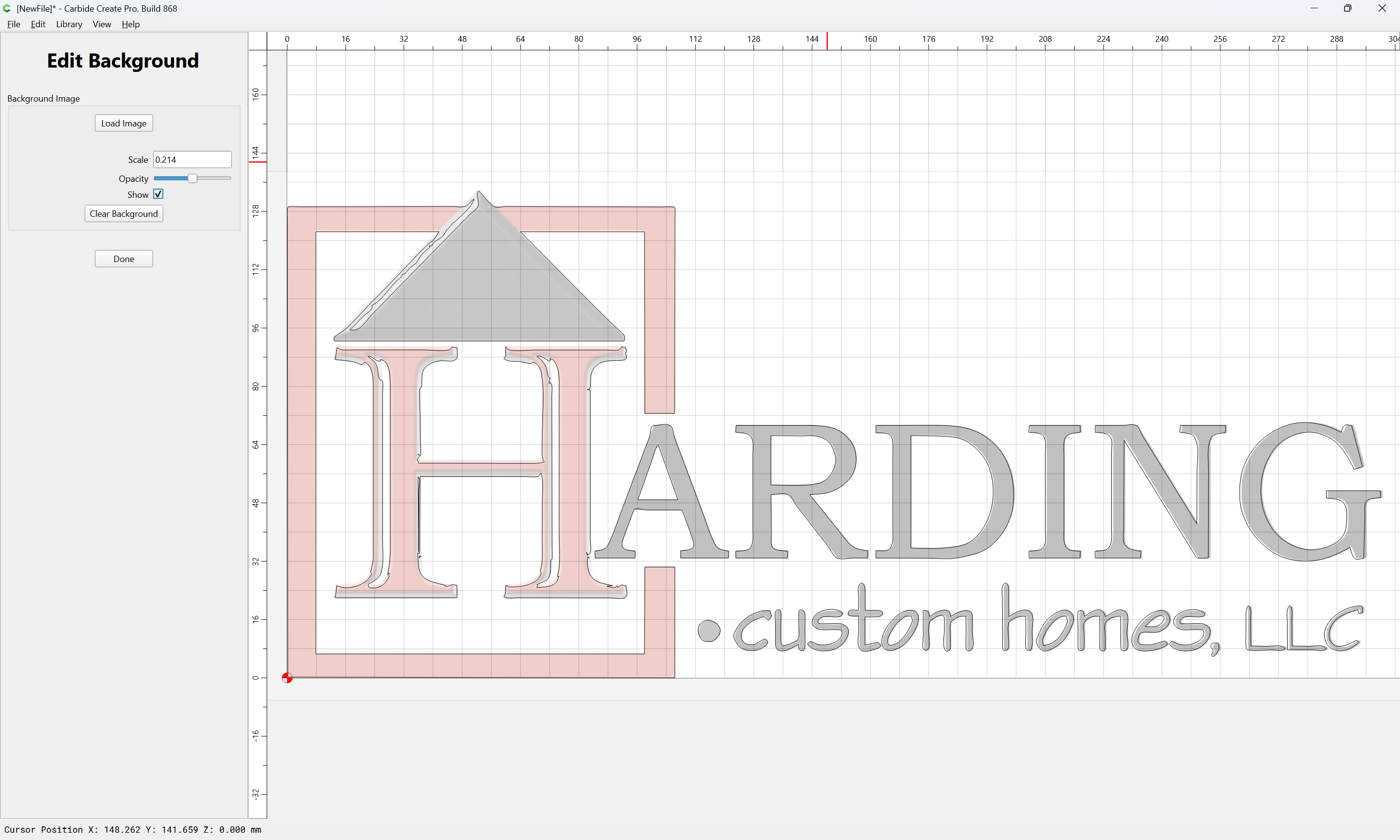
Done
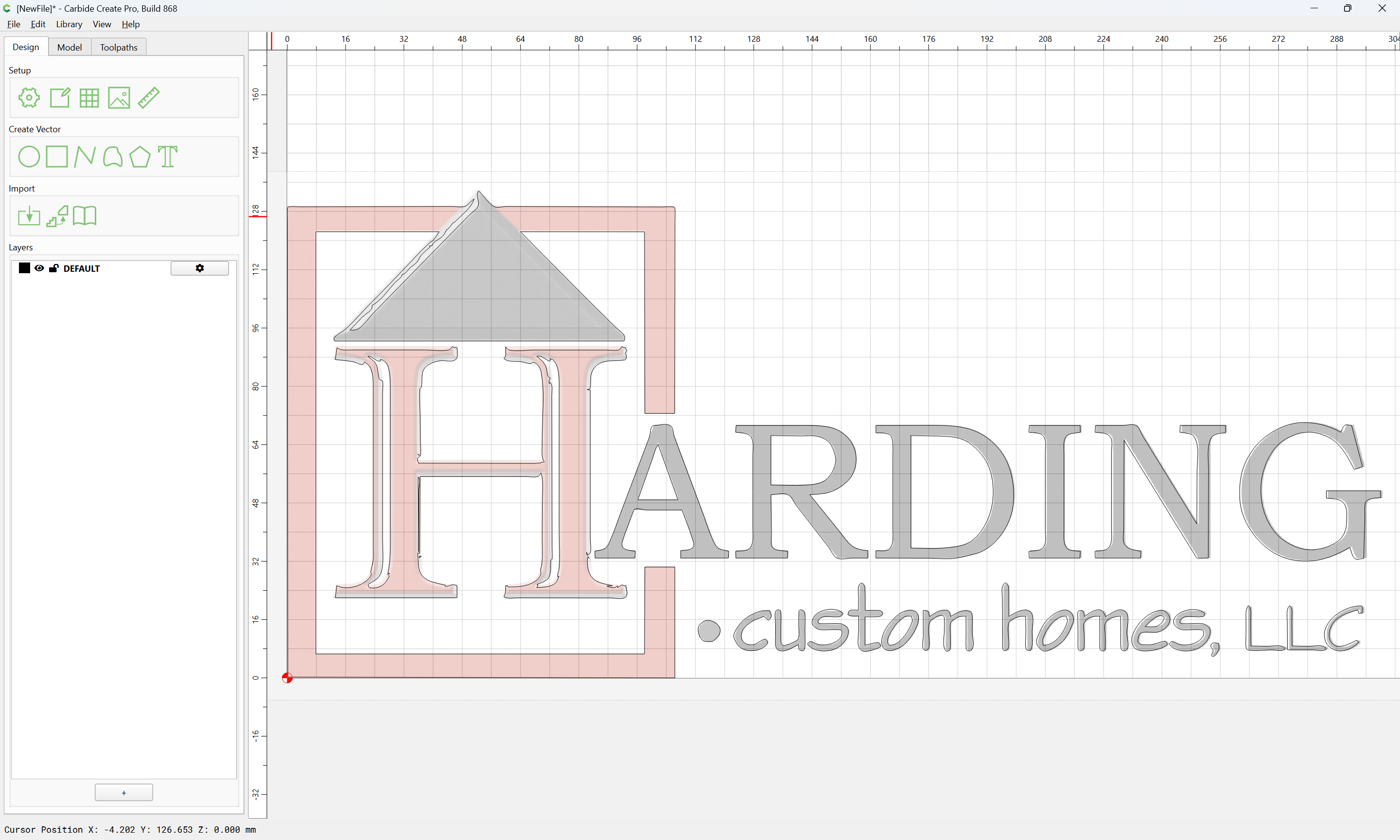
Then, use Node Editing to adjust things as desired:
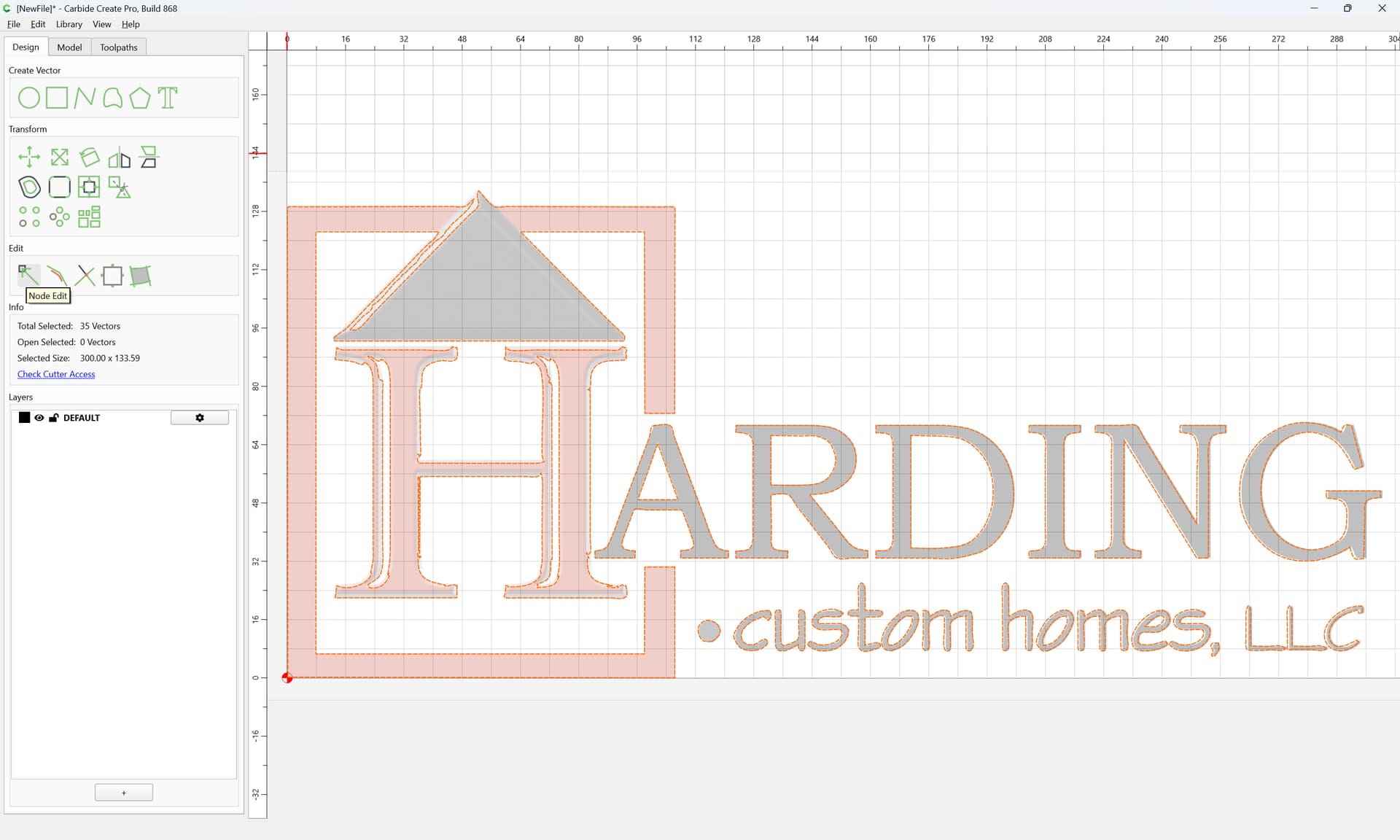
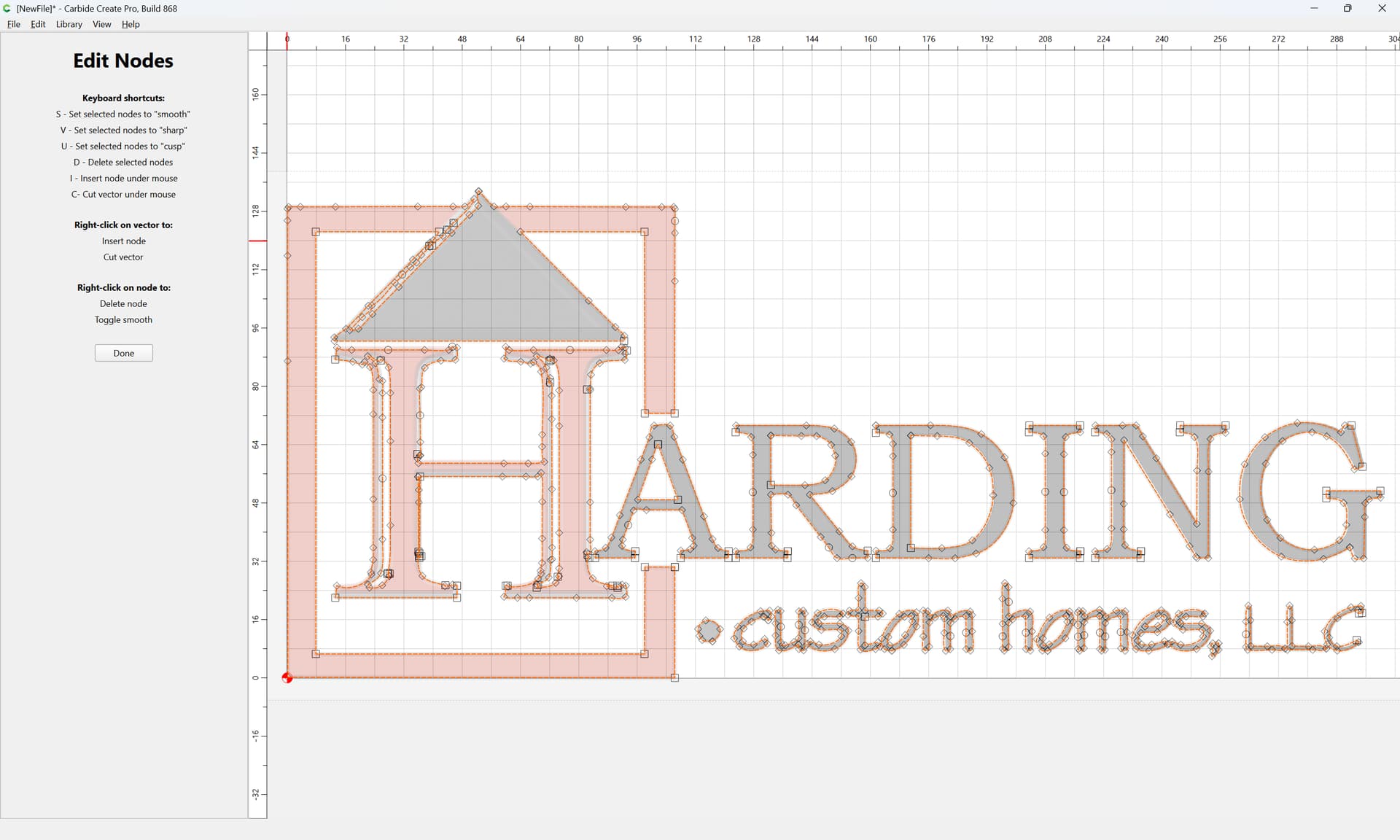
For more on this sort of thing see:
and
2 Likes
Here is your image made into an SVG. I used Inkscape to convert the jpg to an SVG.

You will need to likely clean up some parts.
2 Likes
WOW! Thank you so very much. I don’t think ppl realized I needed it explained to me like i am a small child. This helps so much. I’ve watched about 50 youtube videos trying to figure this out. You Sir, are a rockstar.
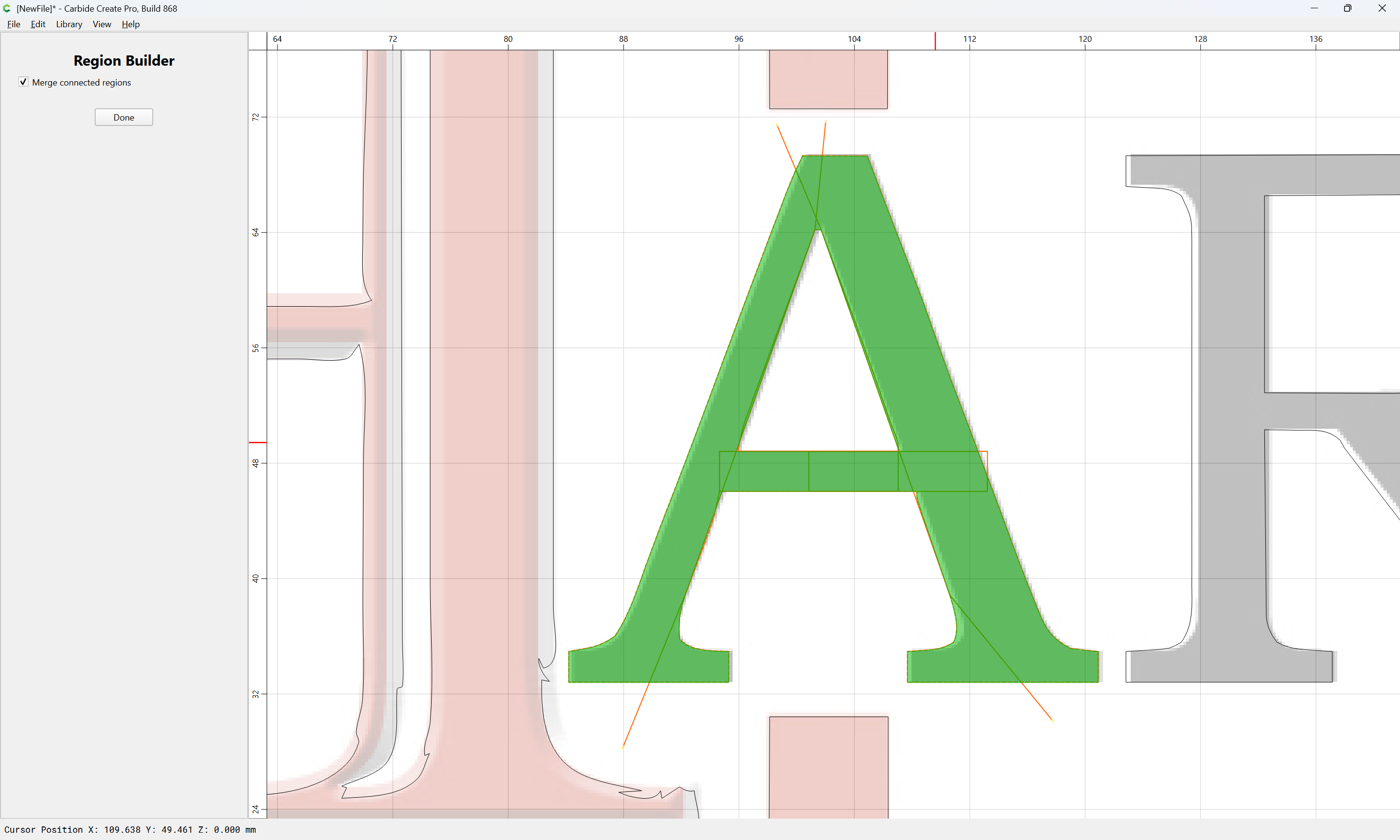
One interesting thought on cleaning up is that one can draw additional geometry, then use the Region Builder to avail one’s self of it to clean up the scanned image:
2 Likes
2 Likes
All of you ppl are awesome. Thank you so very much. Like my kid says, I’m learning to much, my head might explode.
If you bring in the b/w version, things get quite a bit simpler:
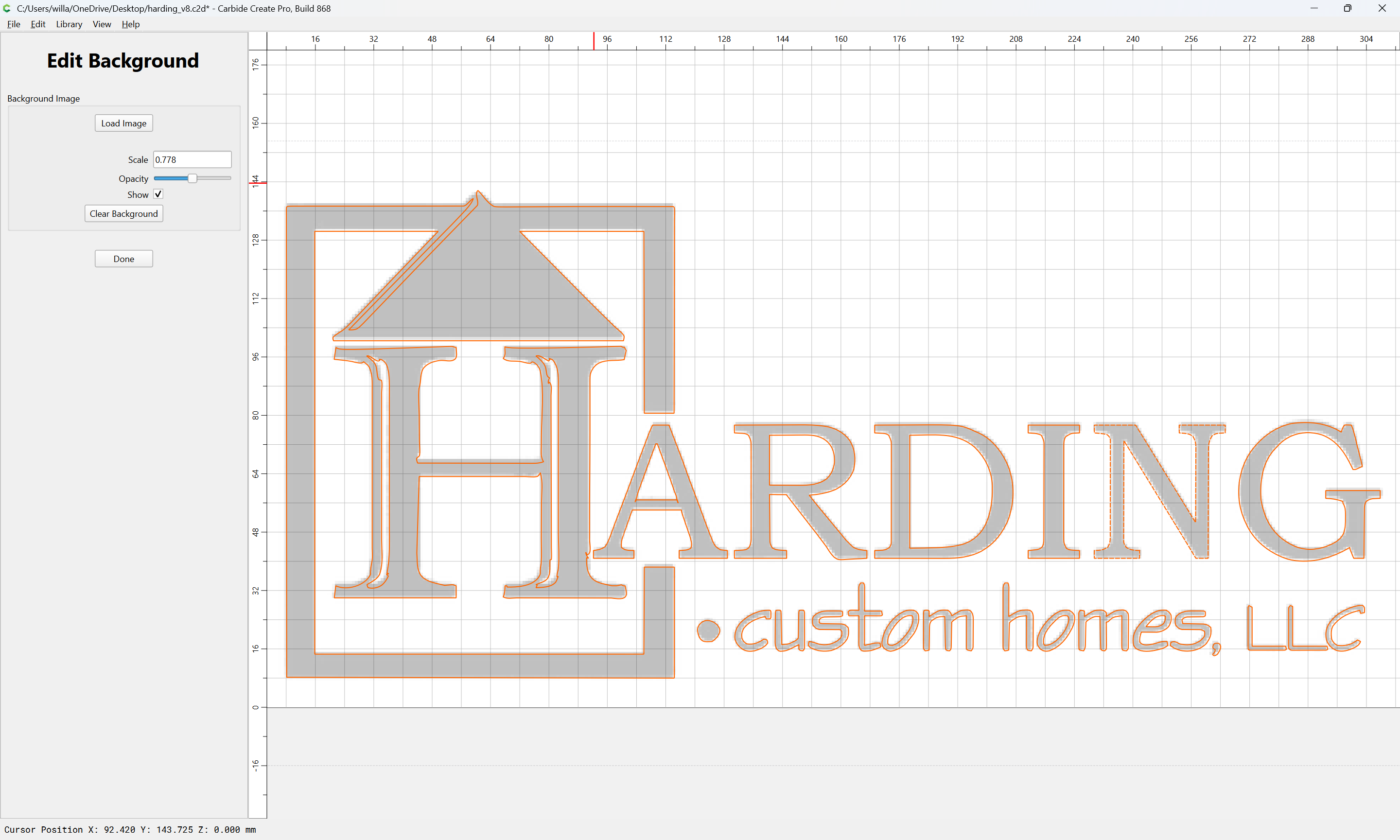
and if you could get a high-resolution version of it, then you’d be better able to clean things up — a nice vector would be the real solution though.
1 Like
I would encourage people to use the tracing built into Create. We’ve seen a lot of files from online converters and they don’t necessarily output the best files for CNC use. Some of them are pathologically bad.
Create uses an algorithm similar to Inkscape, but we tweaked it to be better for CNC use, so you’ll typically get better results from Carbide Create using “normal-sized” images. Inkscape is better at taking very low resolution image (think icon-sized) and creating a vector, but those are rarely useful when scaled up to a usable dimension. (This is not a fault of the algorithm in Inkscape; it’s actually pretty neat, but it’s not what most people are looking for).
3 Likes
The H is pretty easily drawn up using rectangles:
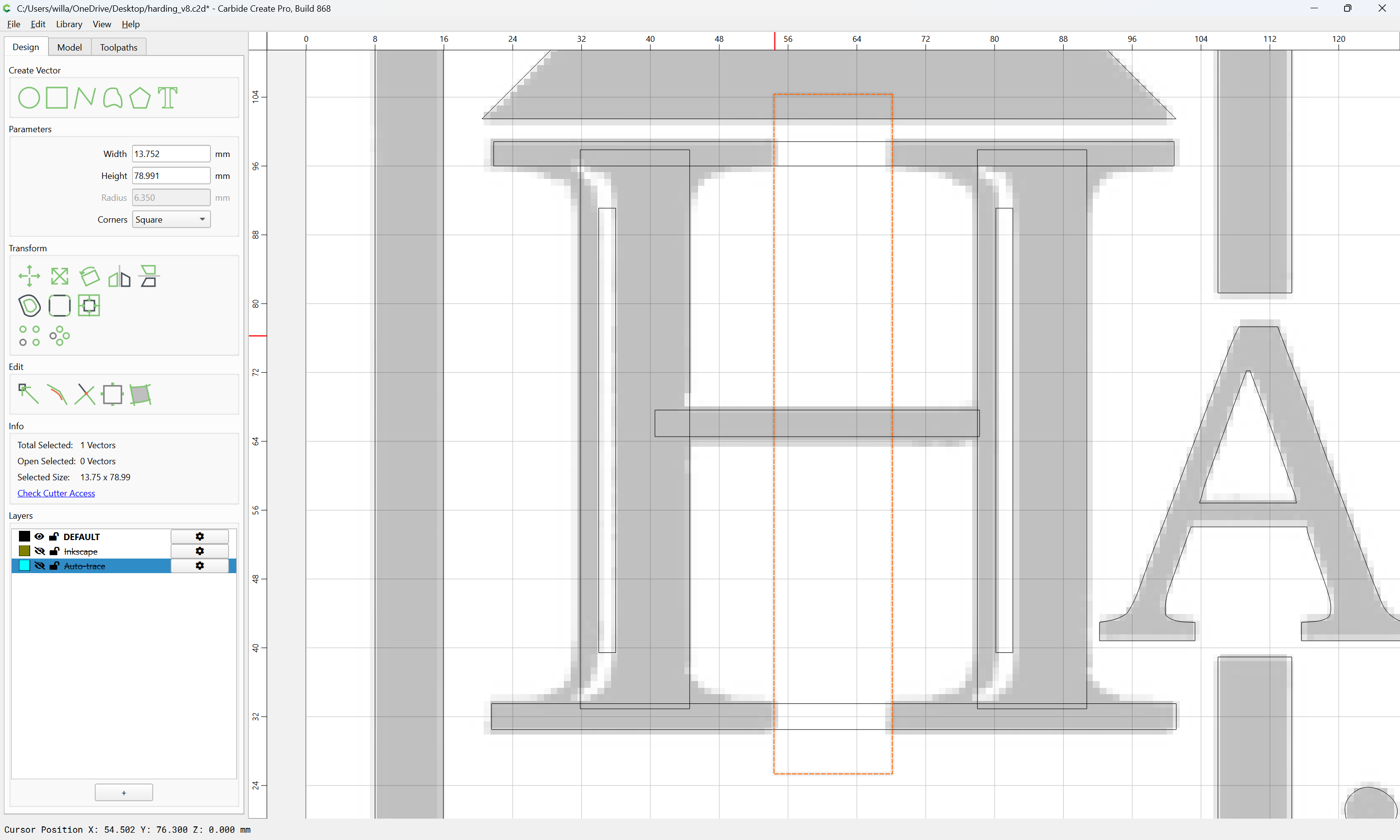
and then constructed using the Region Builder:
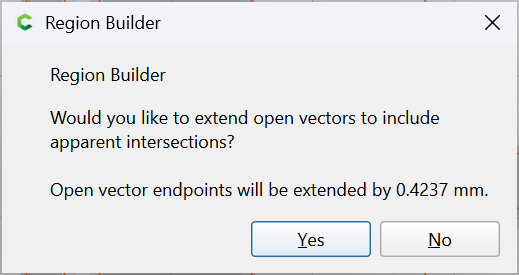
Yes
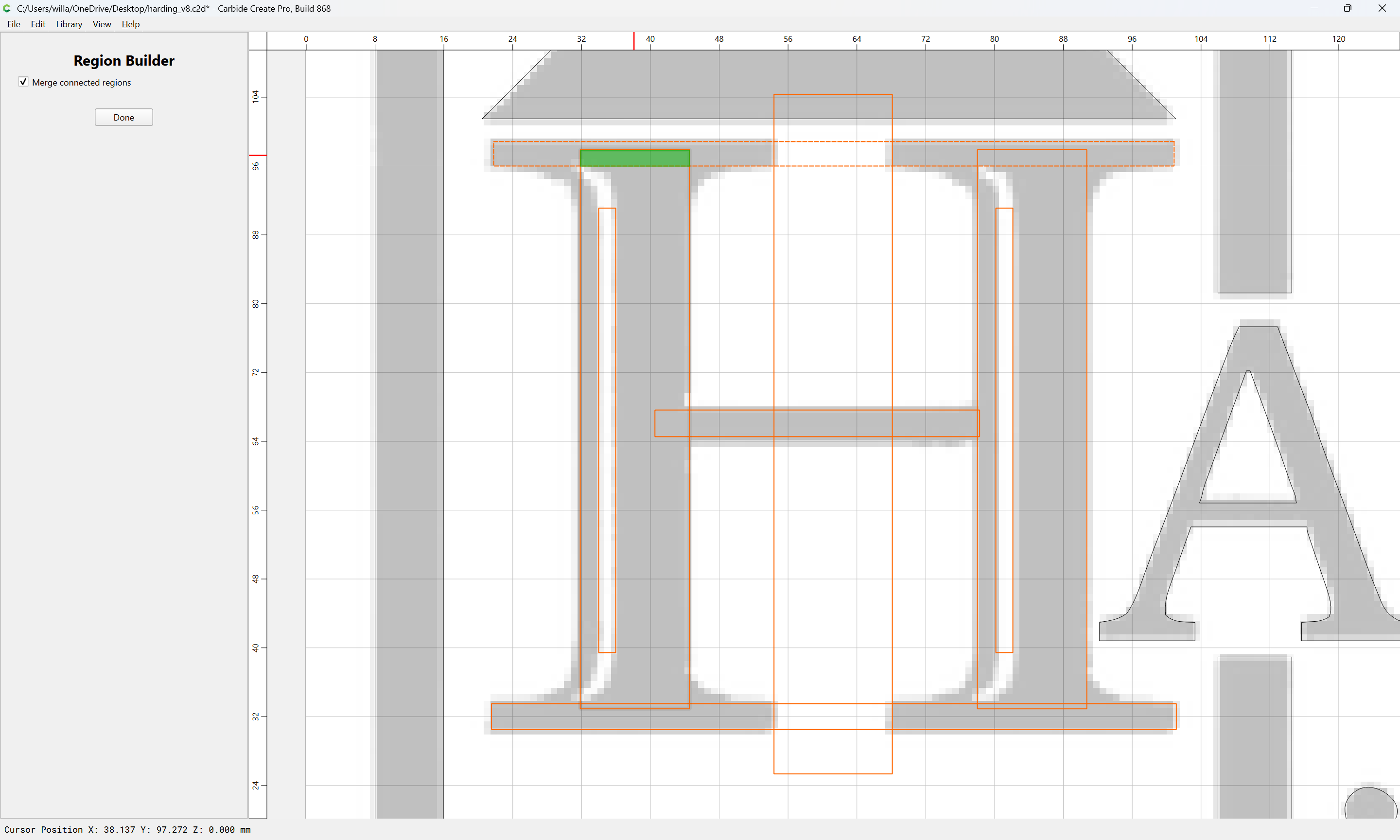

Done
Or, use Boolean Operations:
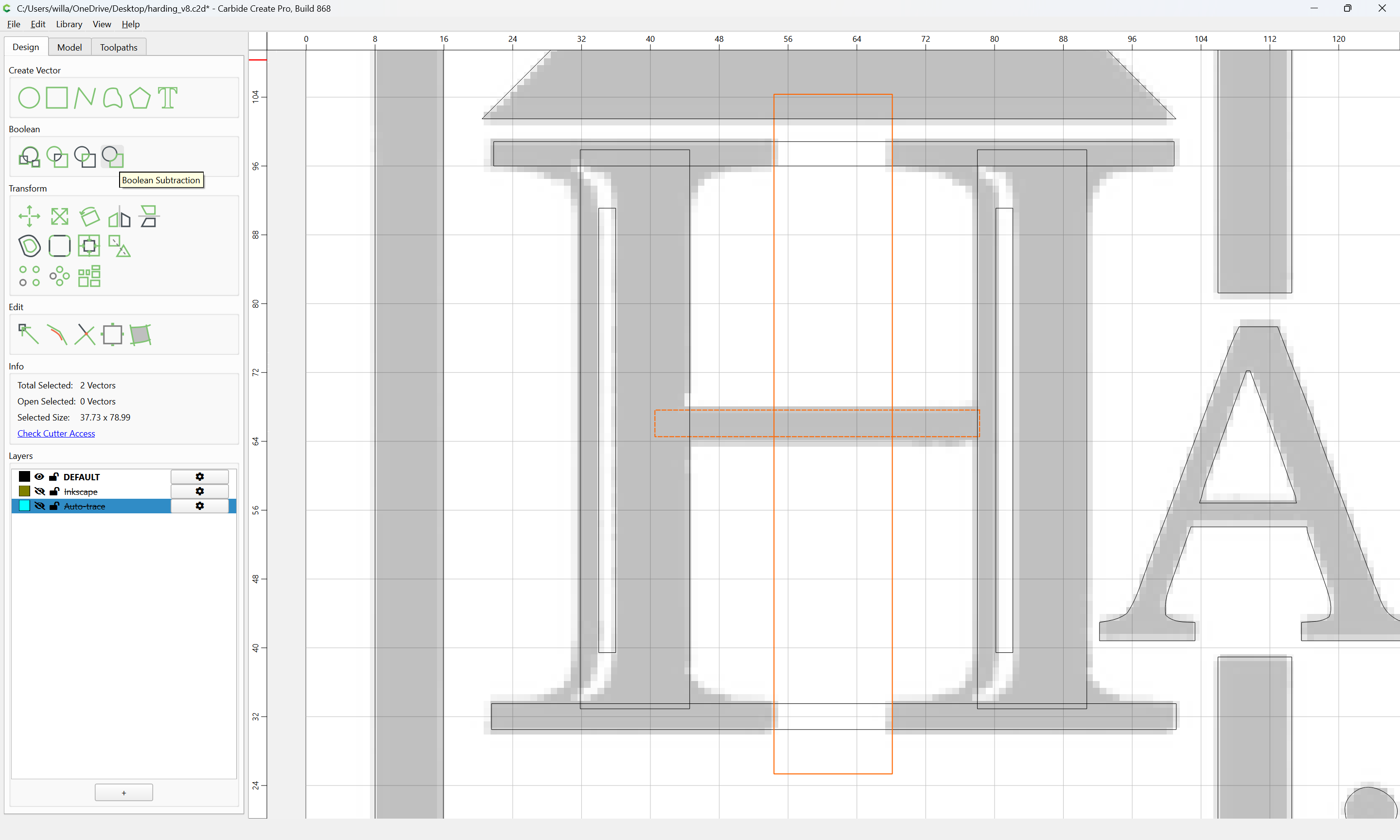
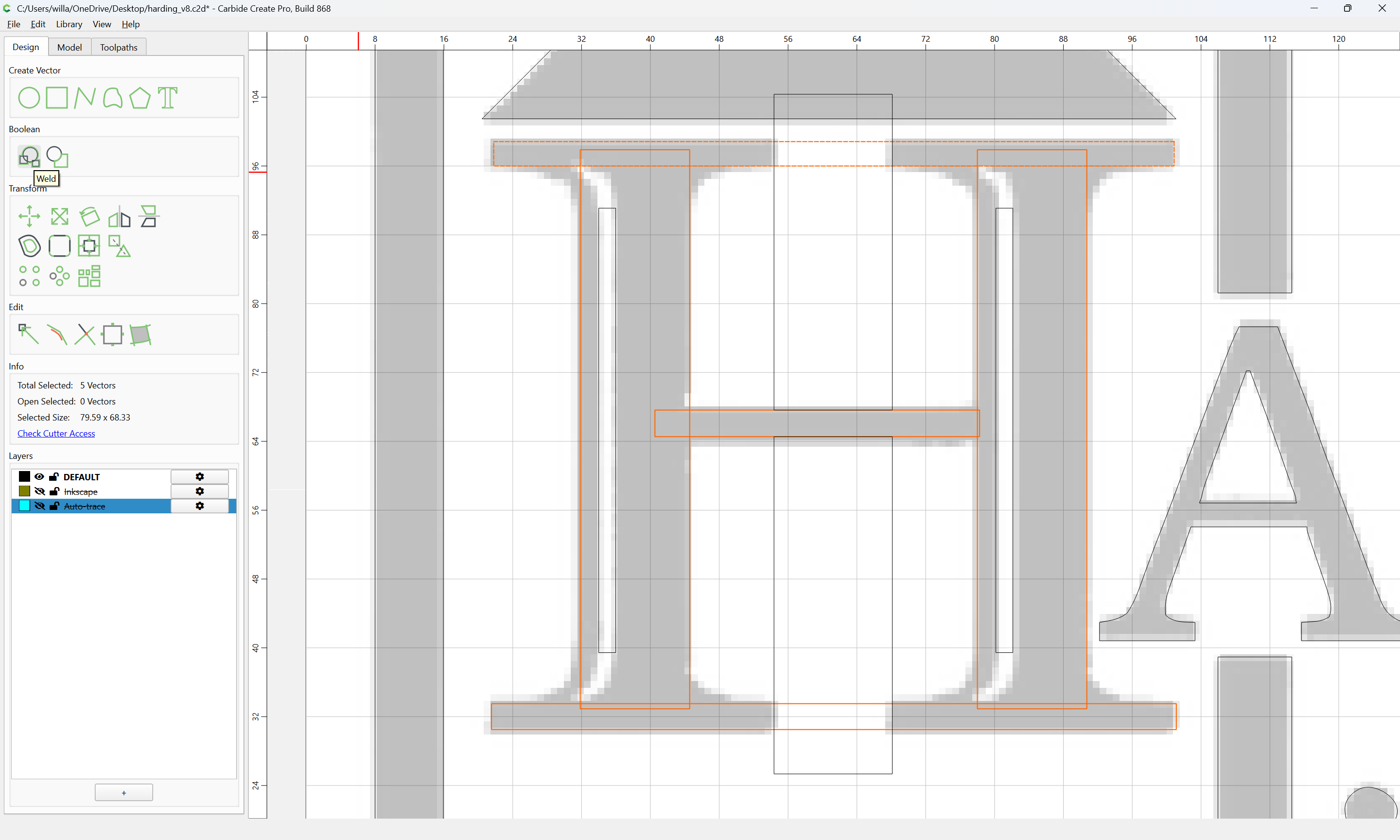
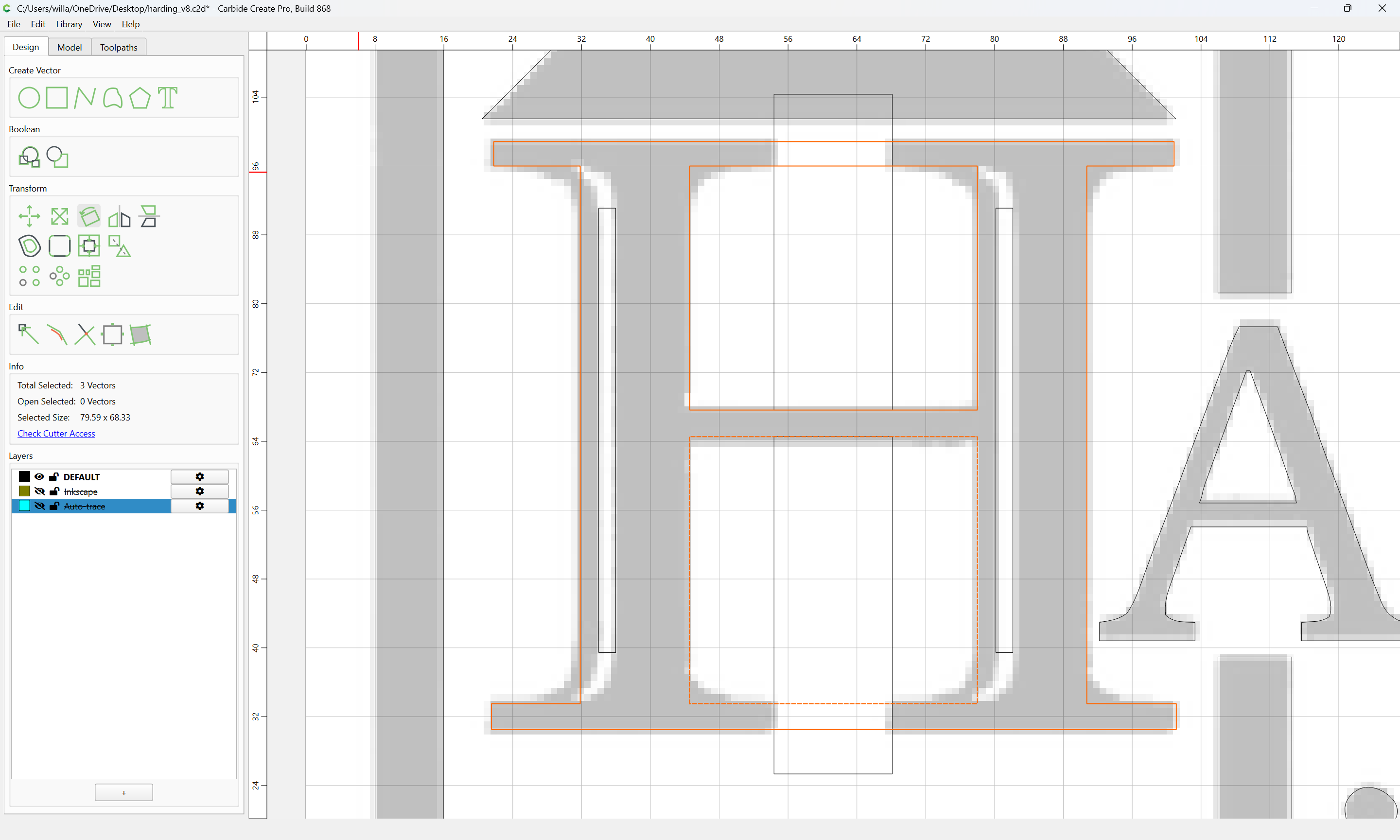
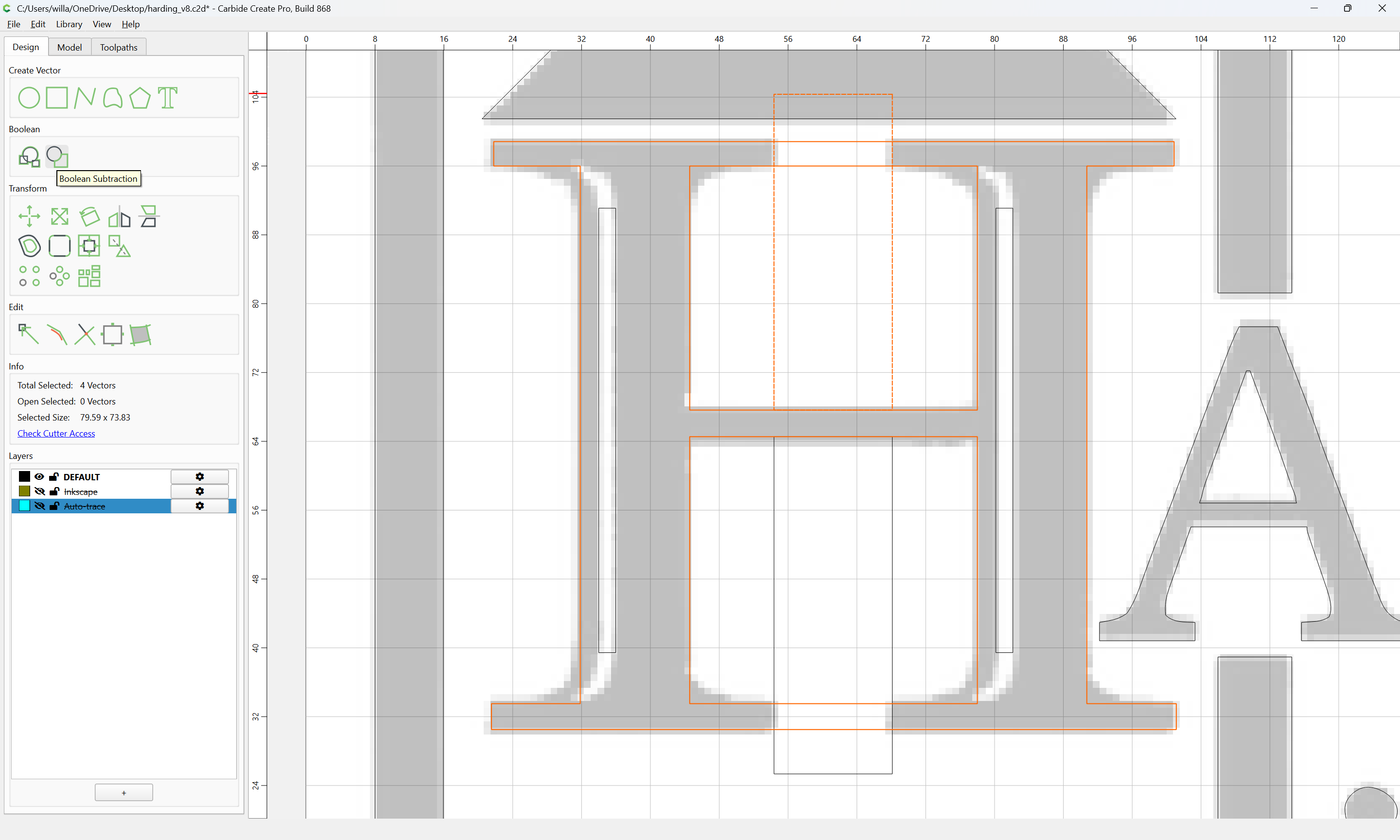
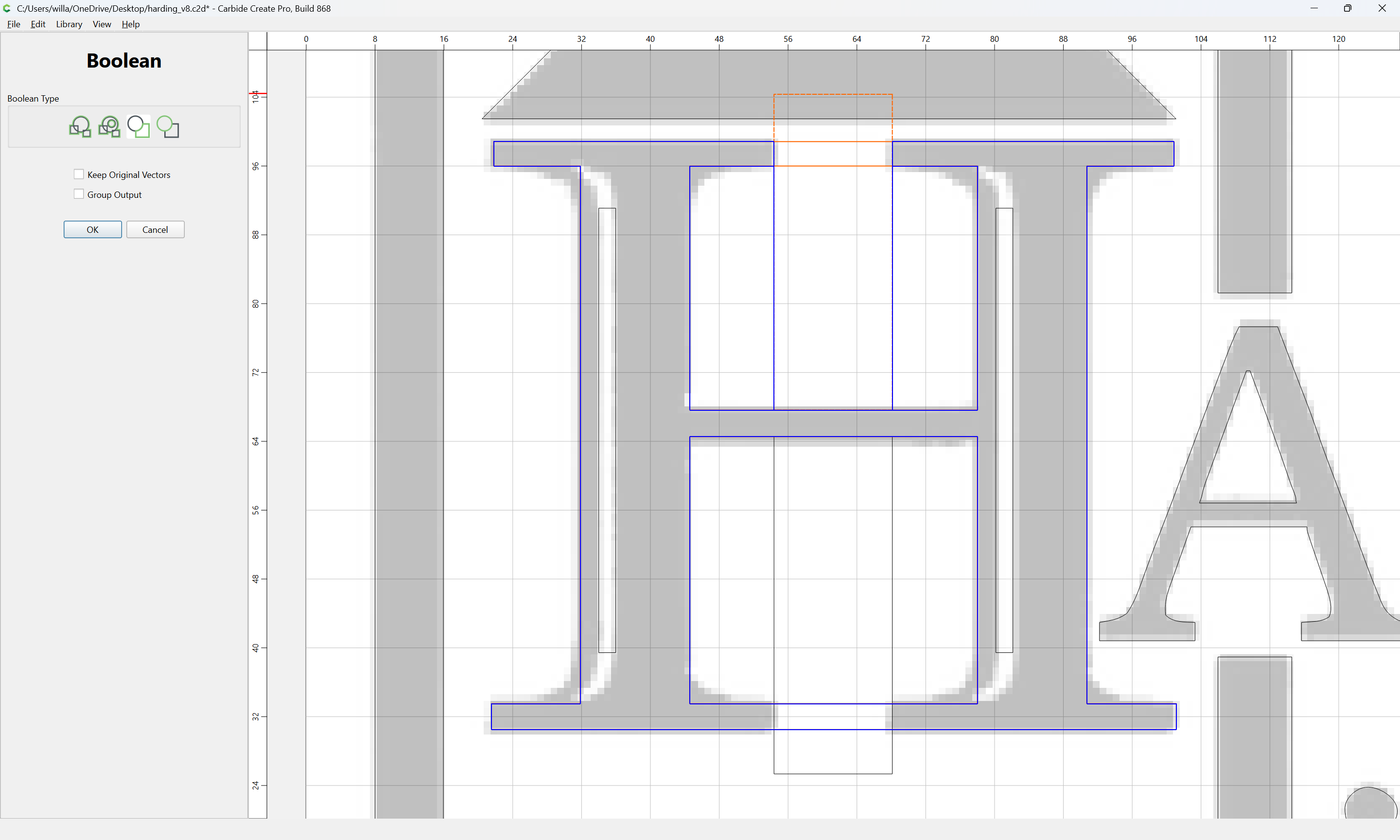
and then apply the Region Builder:
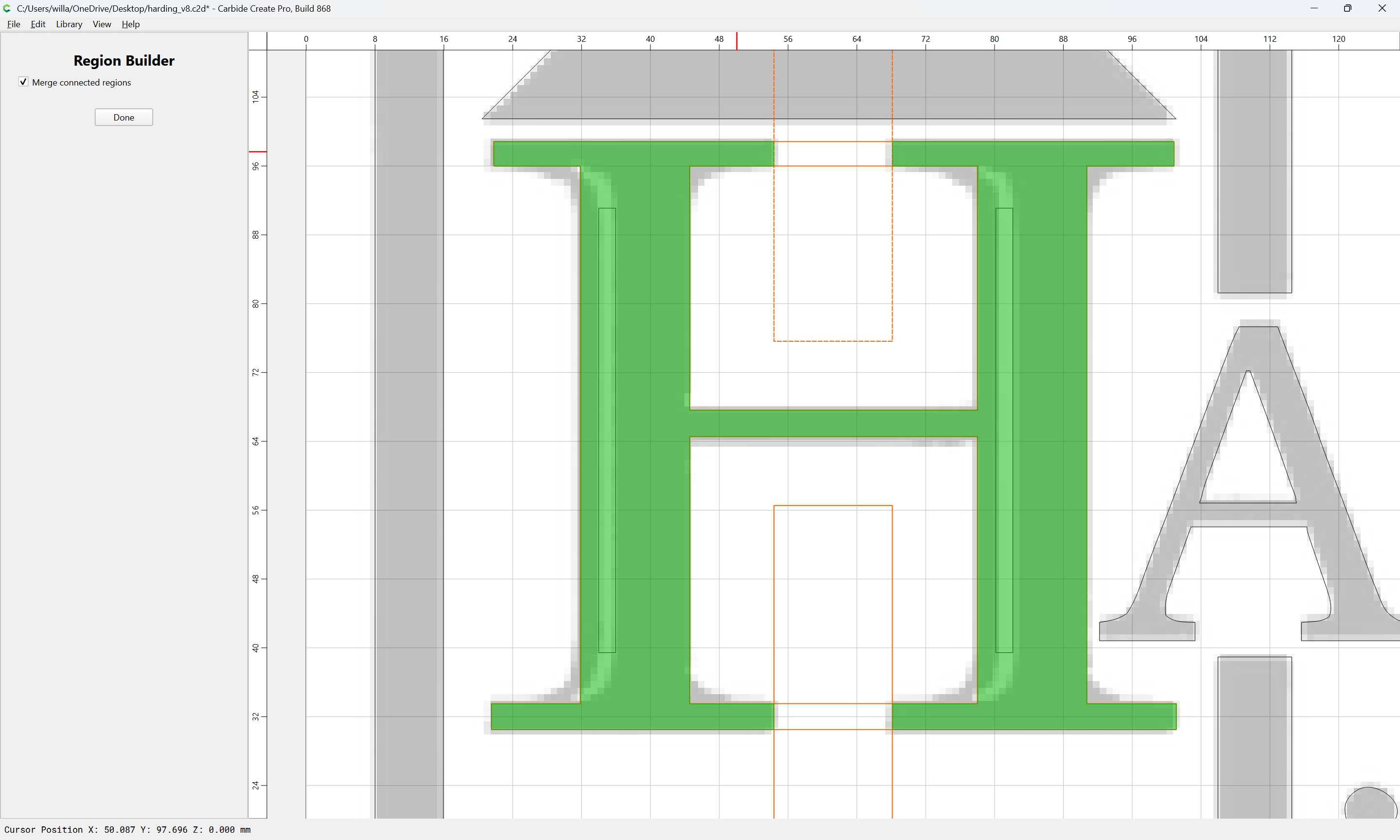
Then use the Corner Tool to round things off:
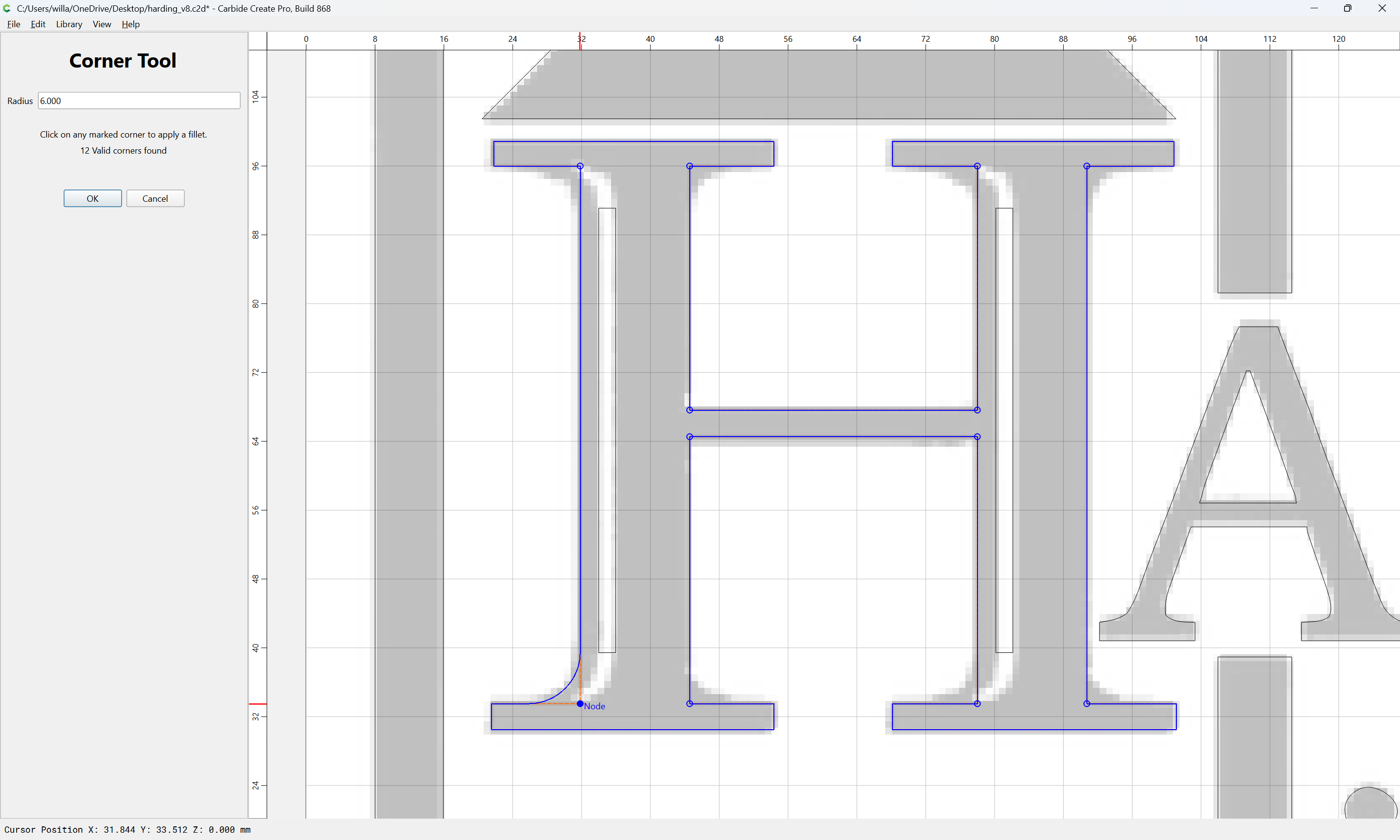
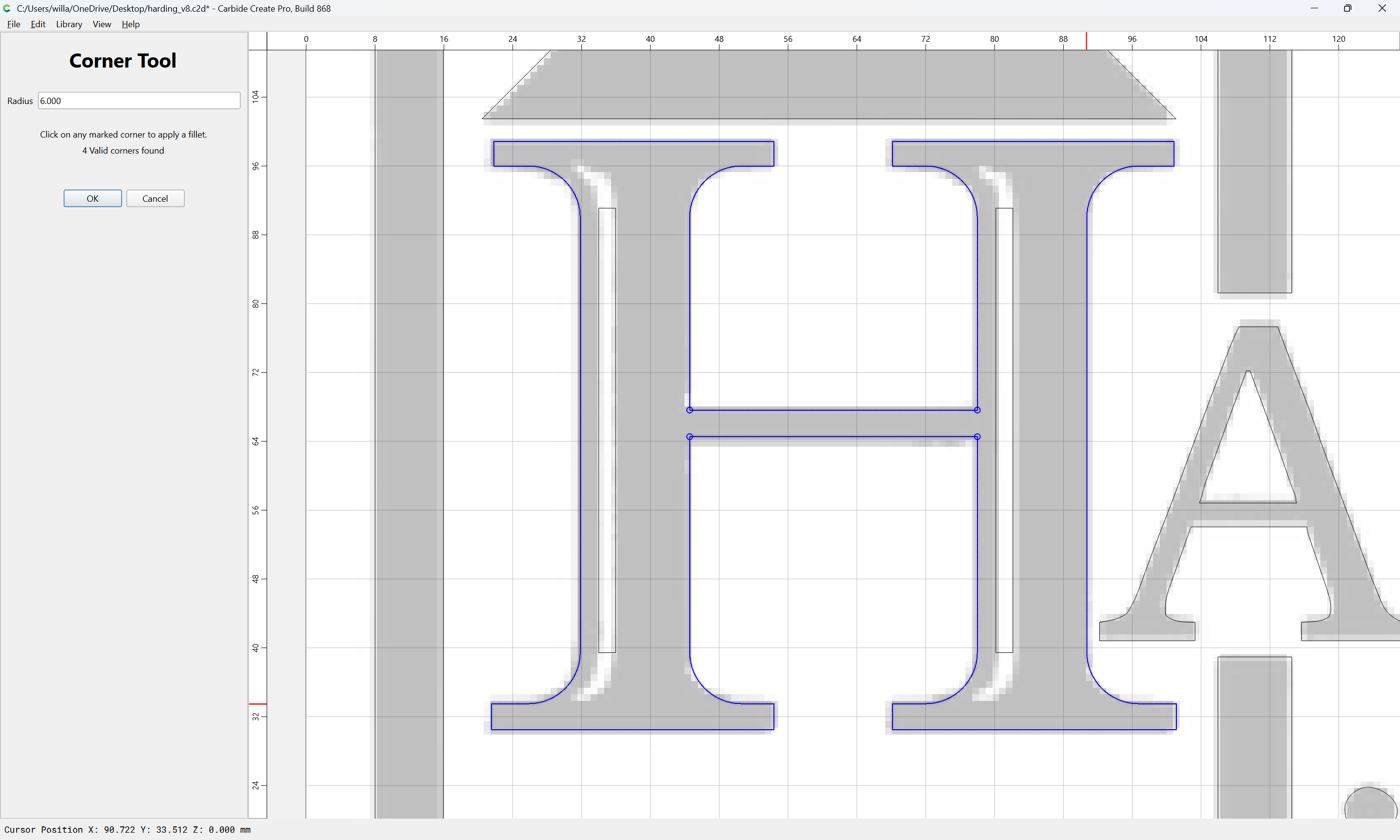
OK
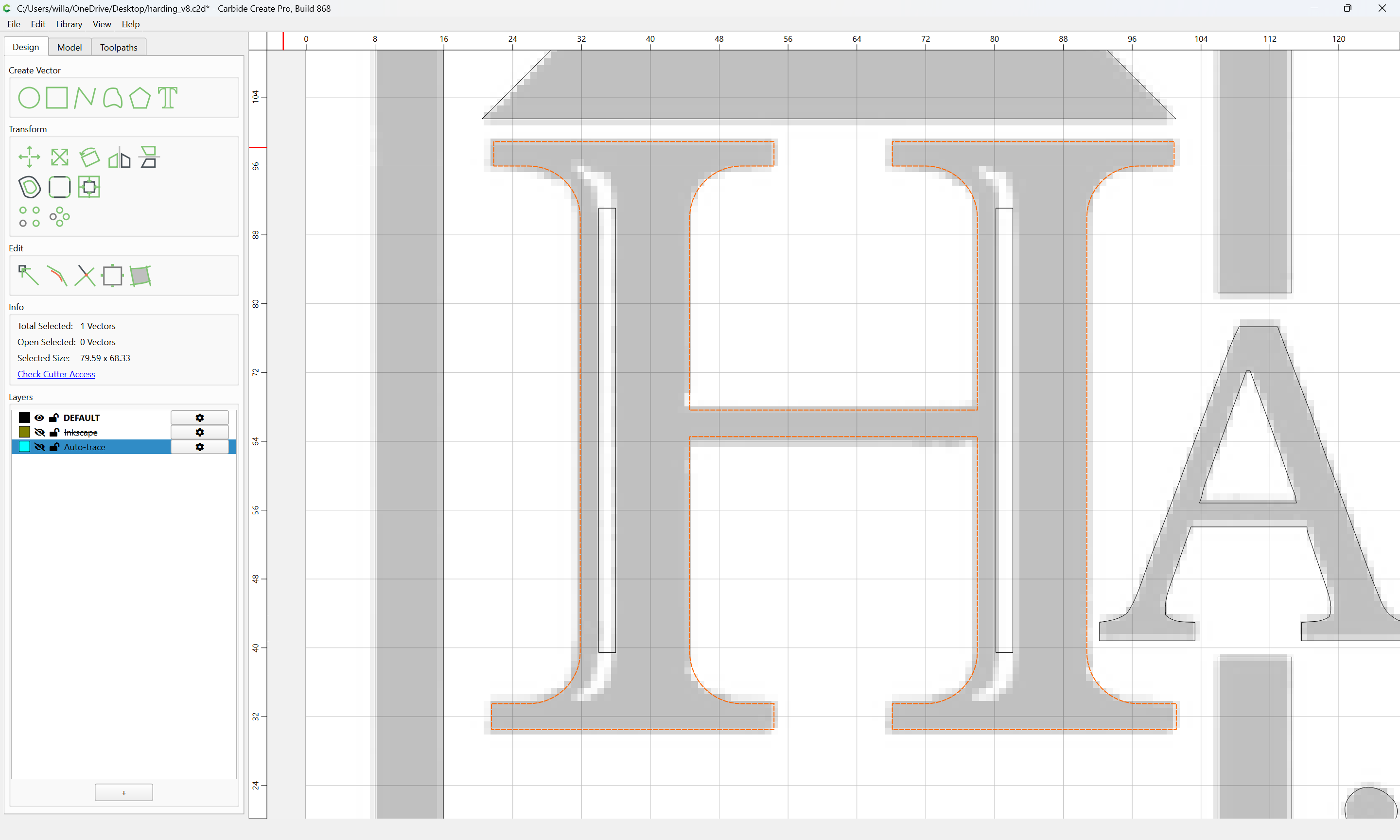
Then copy-paste what one has:
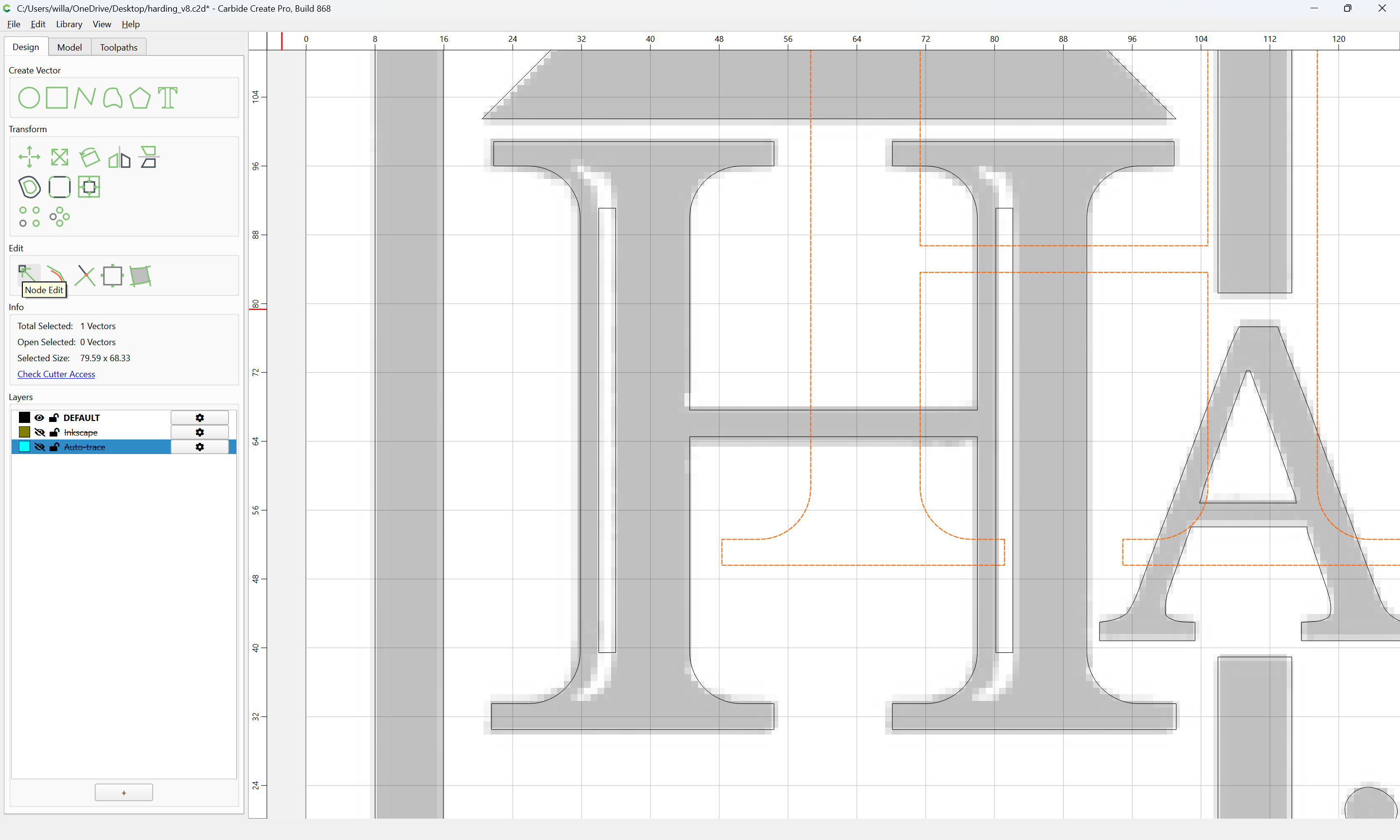
and use Node Editing to isolate a rounded portion:
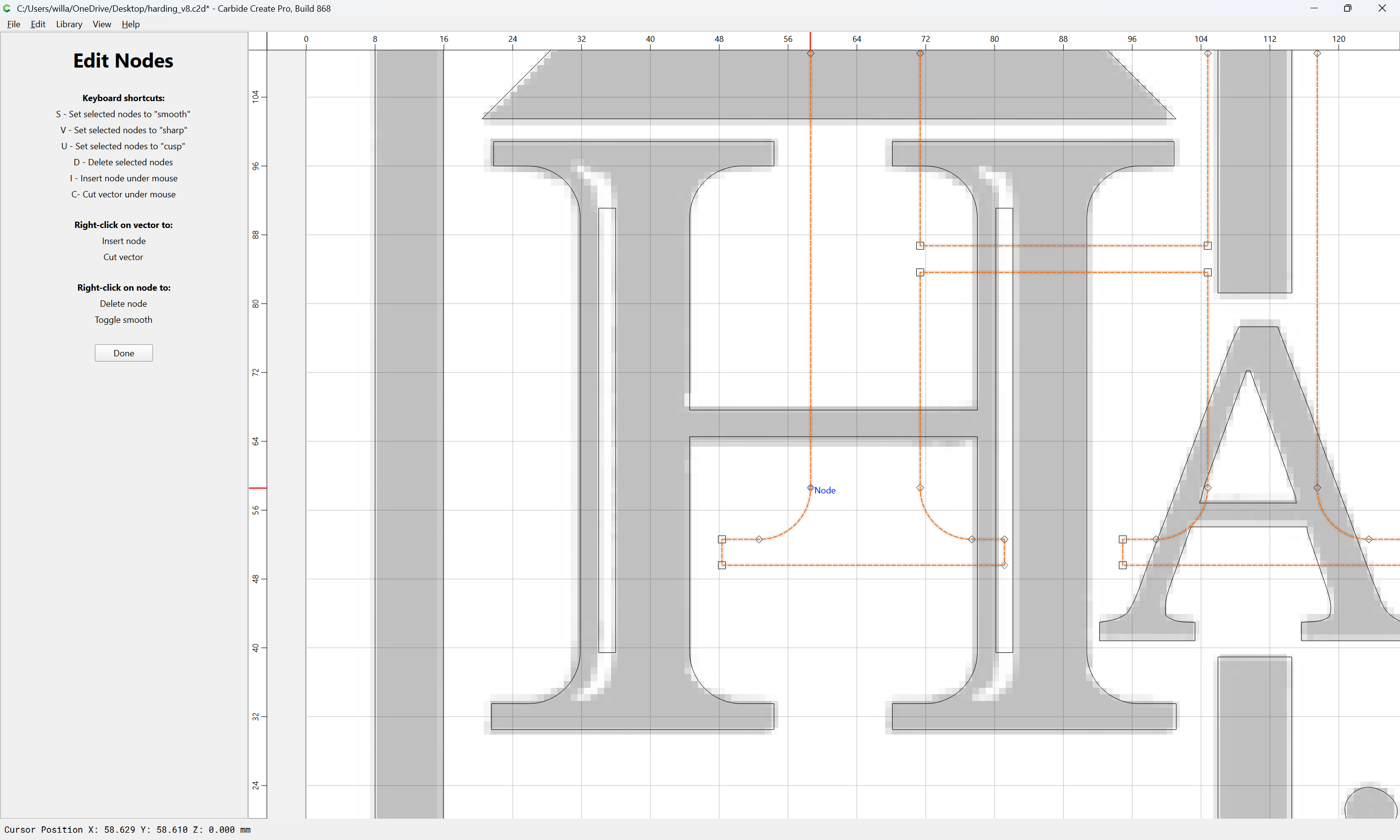
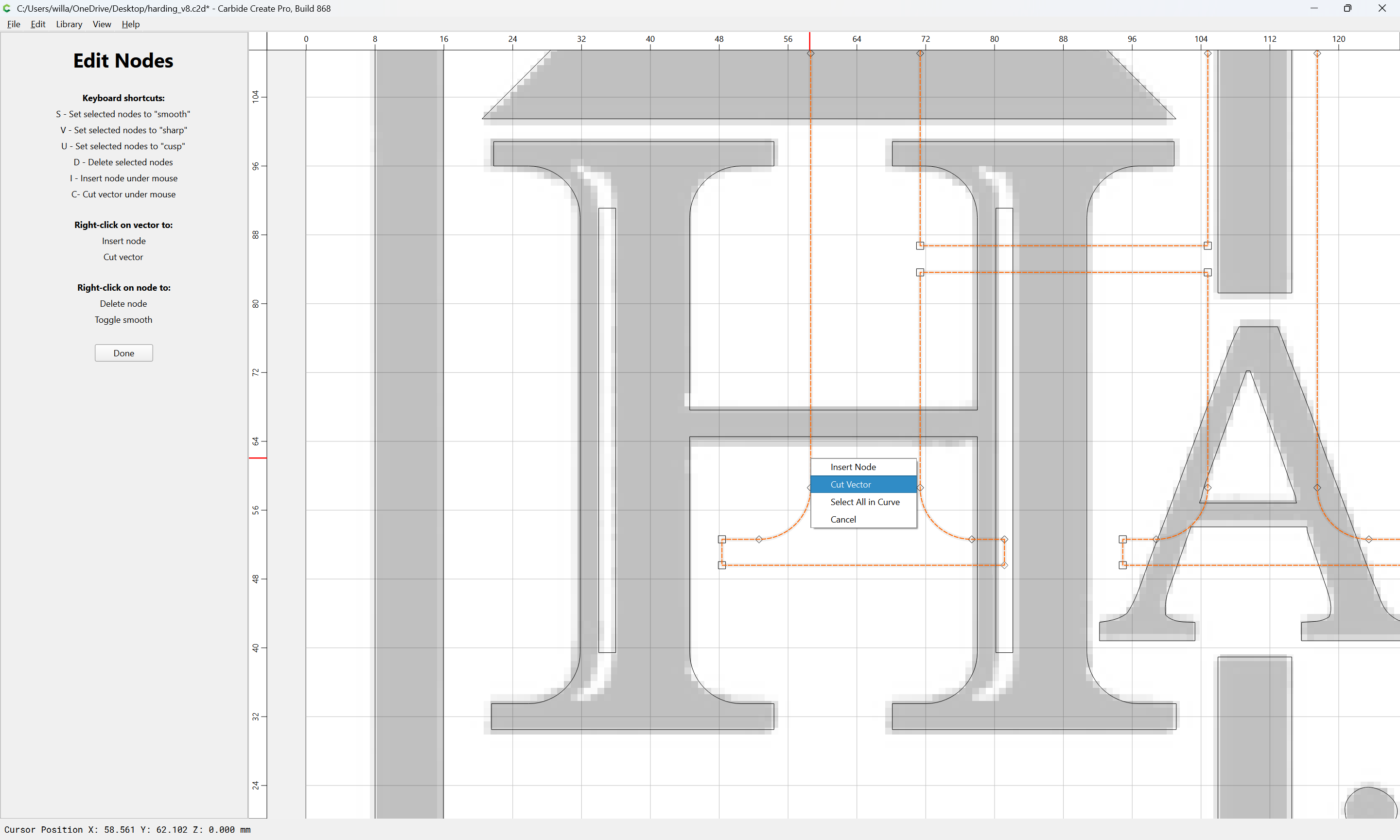
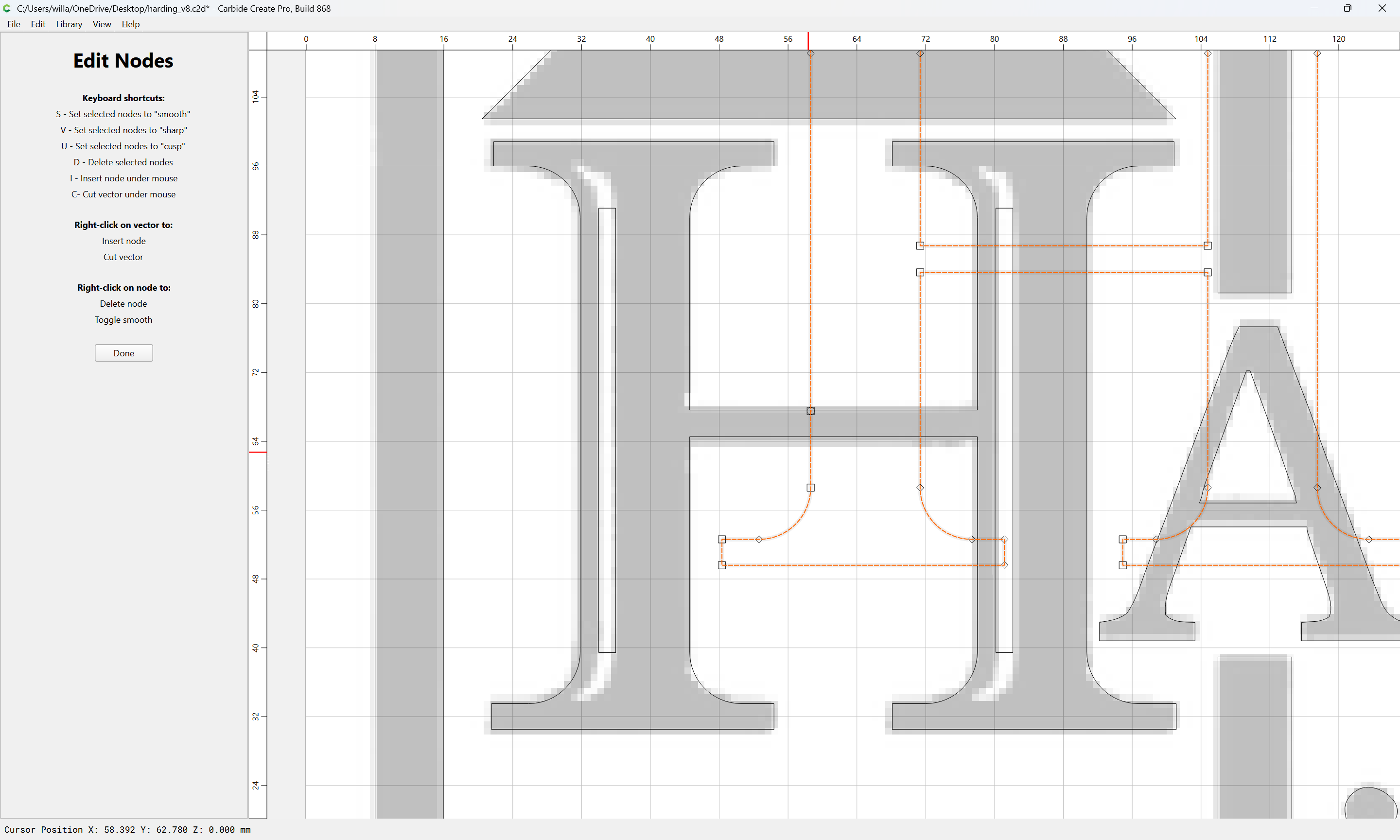
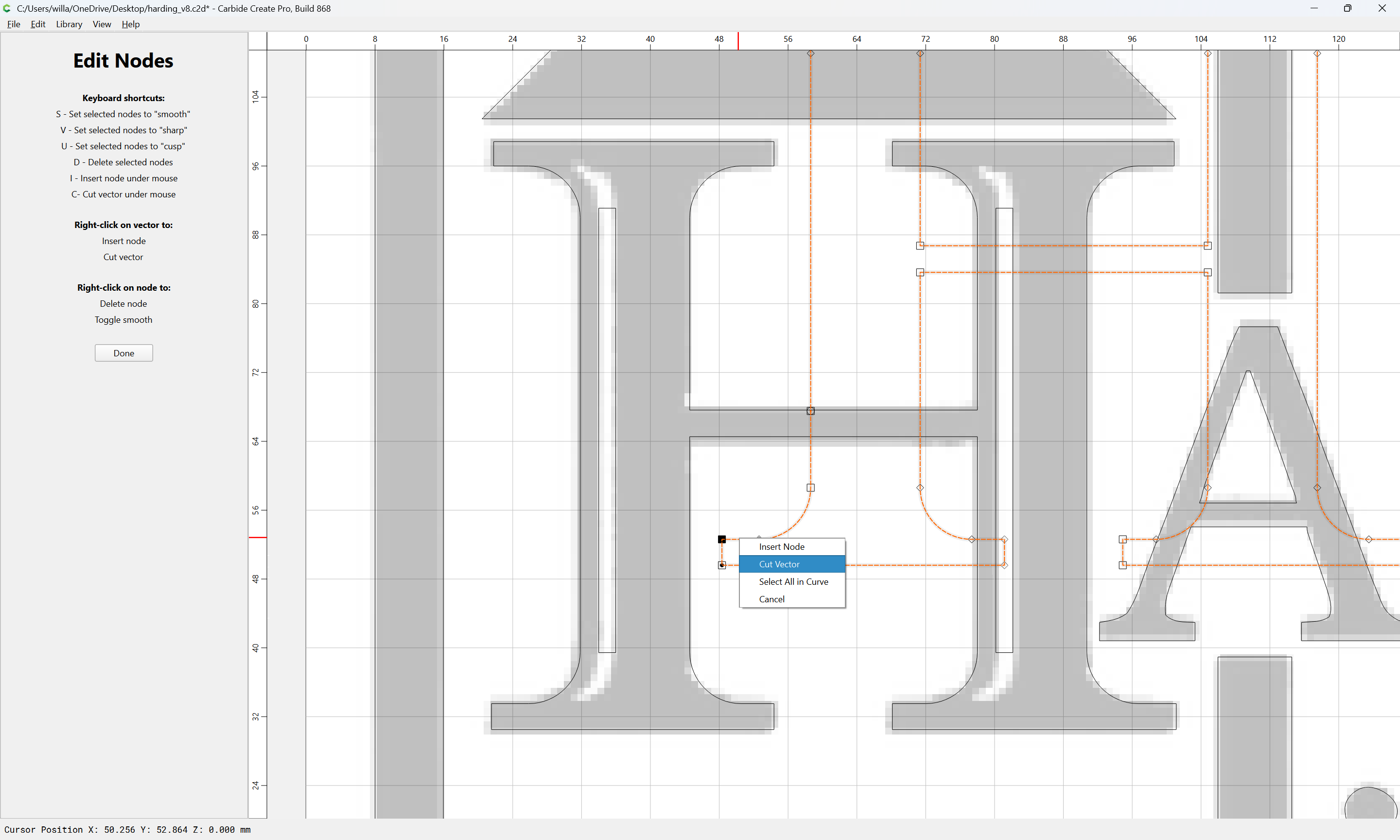
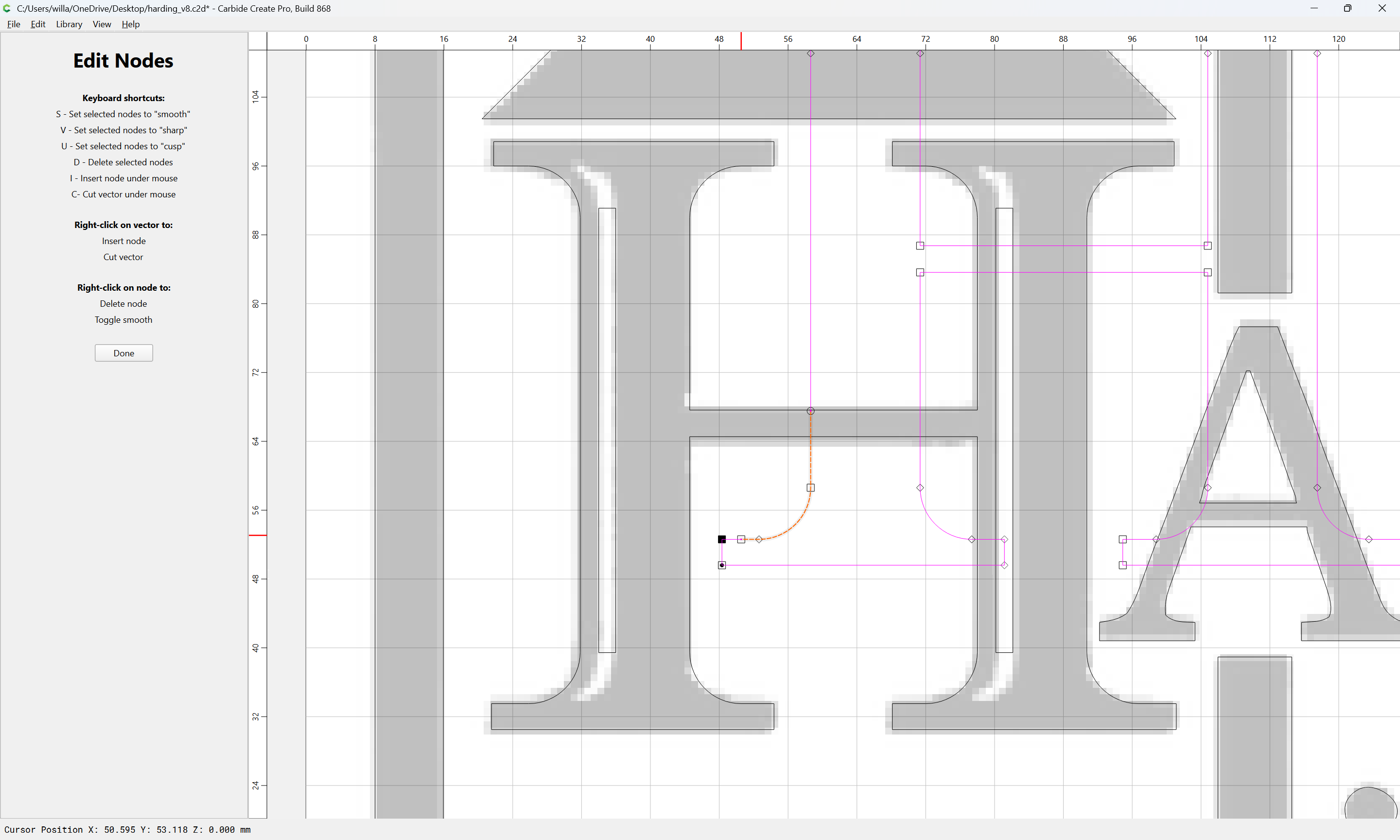
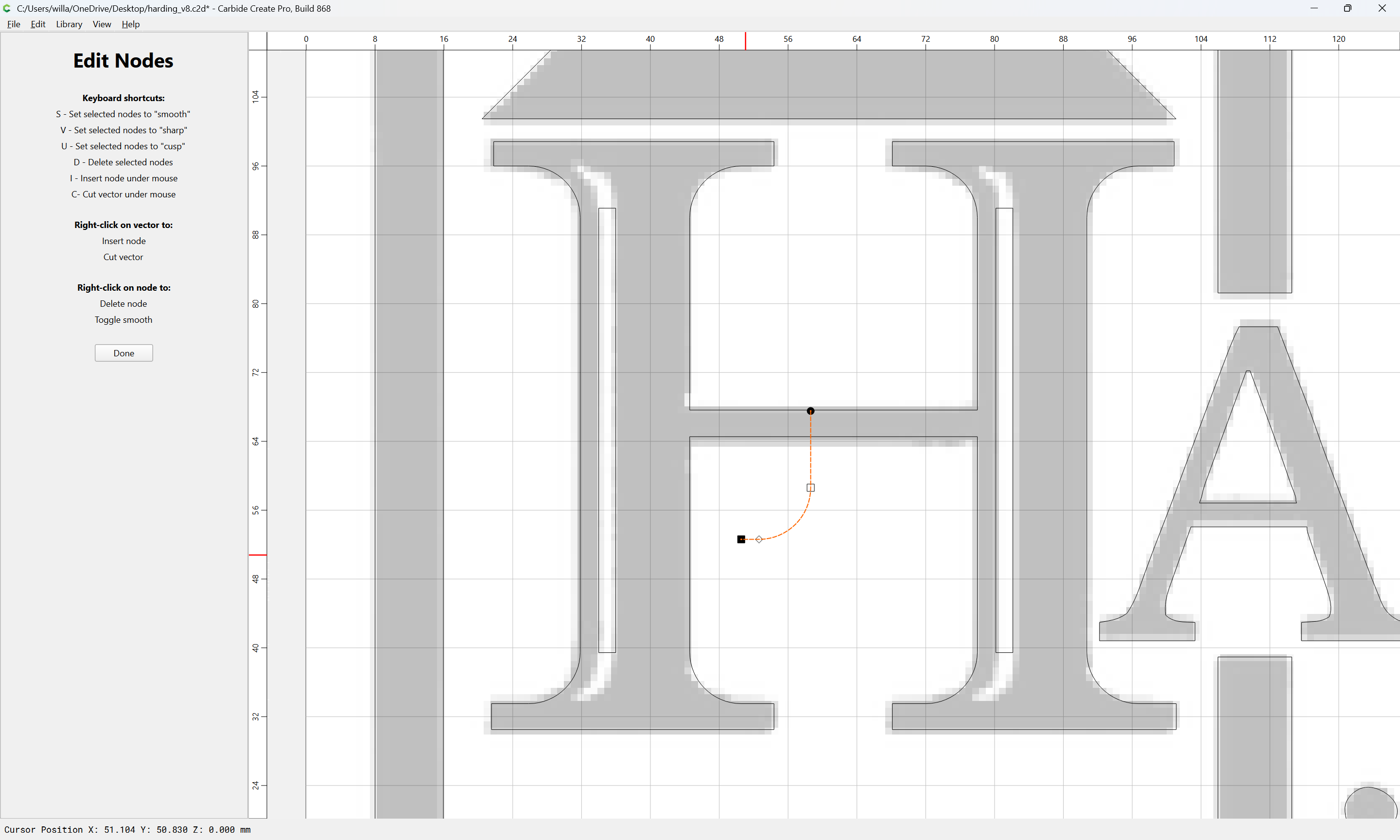
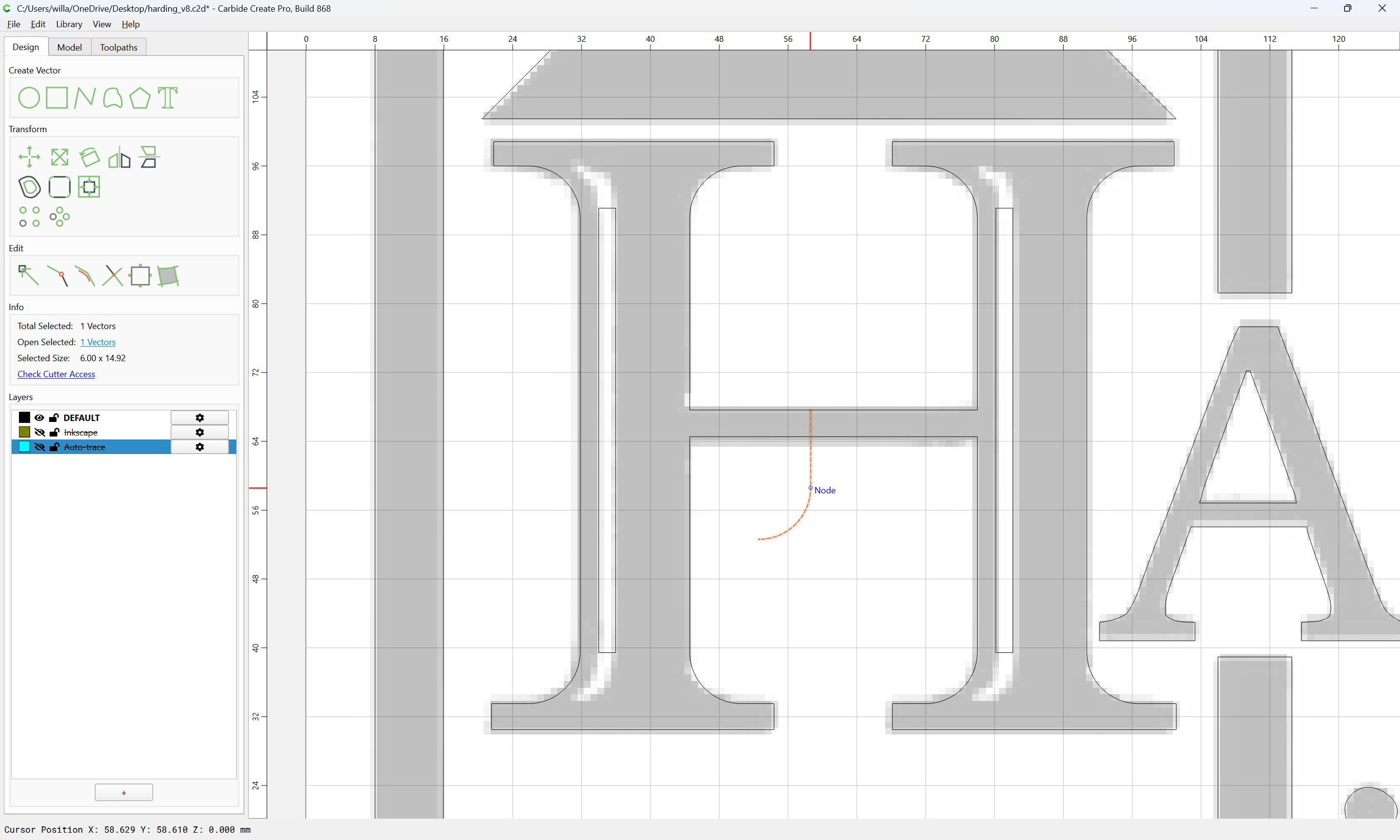
Drag it into alignment:
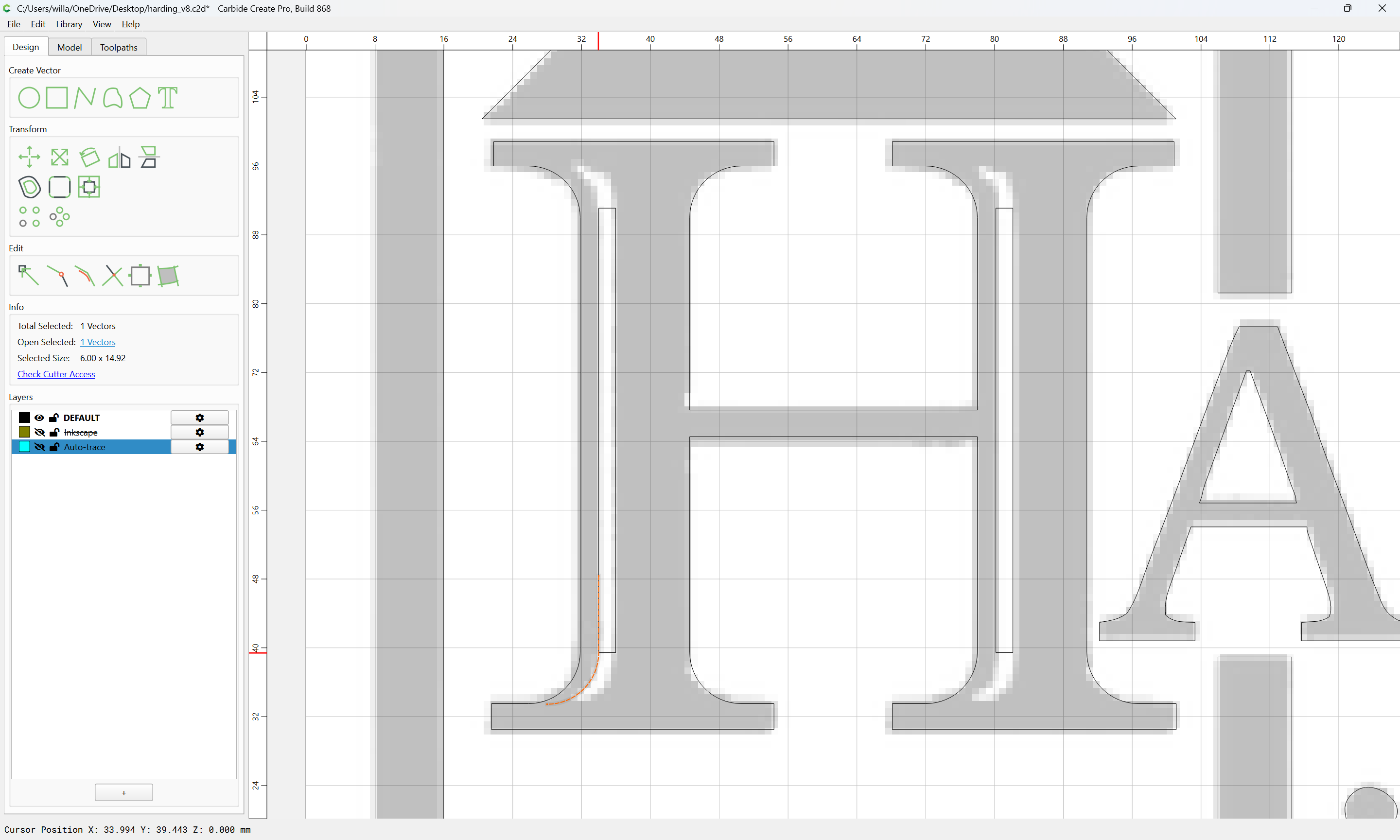
and duplicate and reposition as need be:
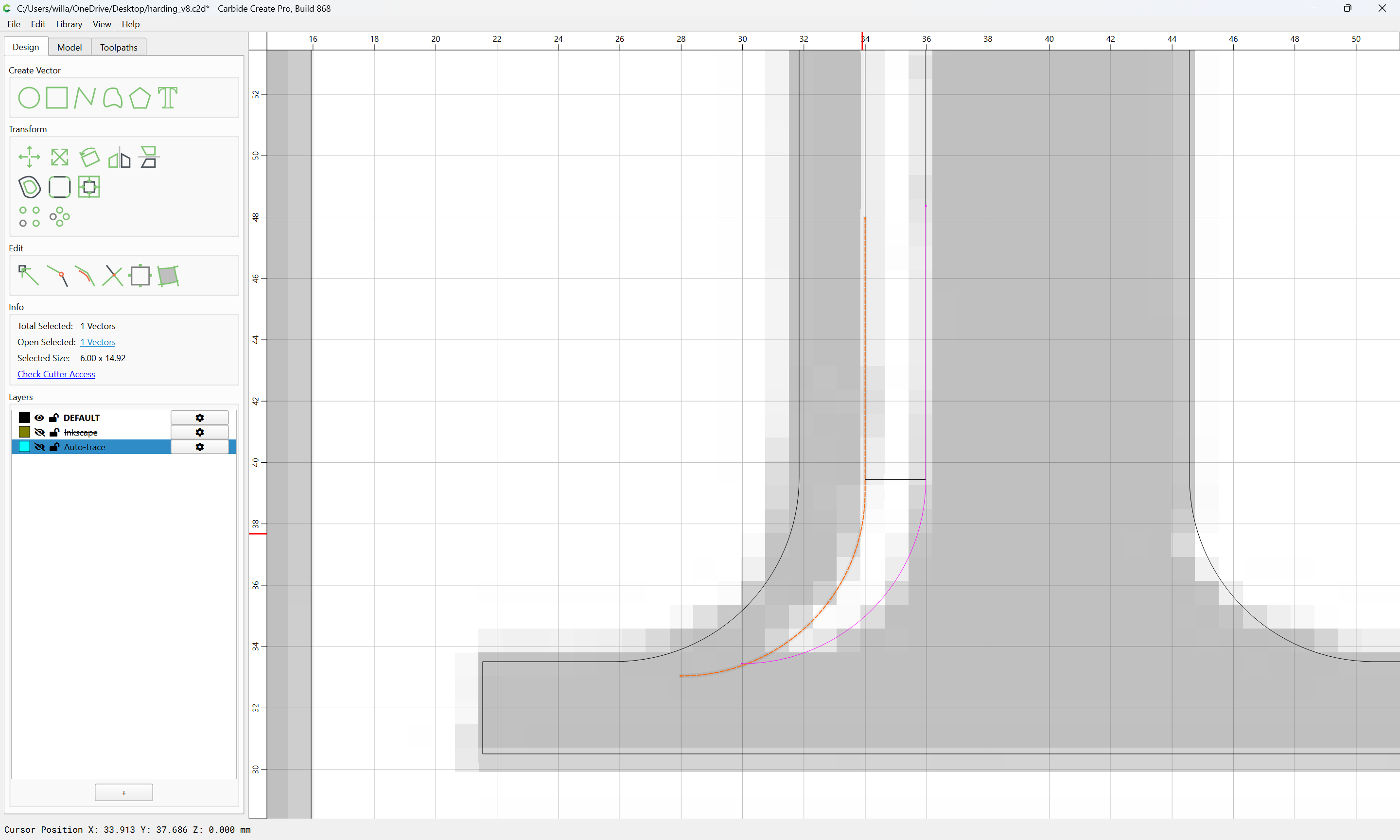
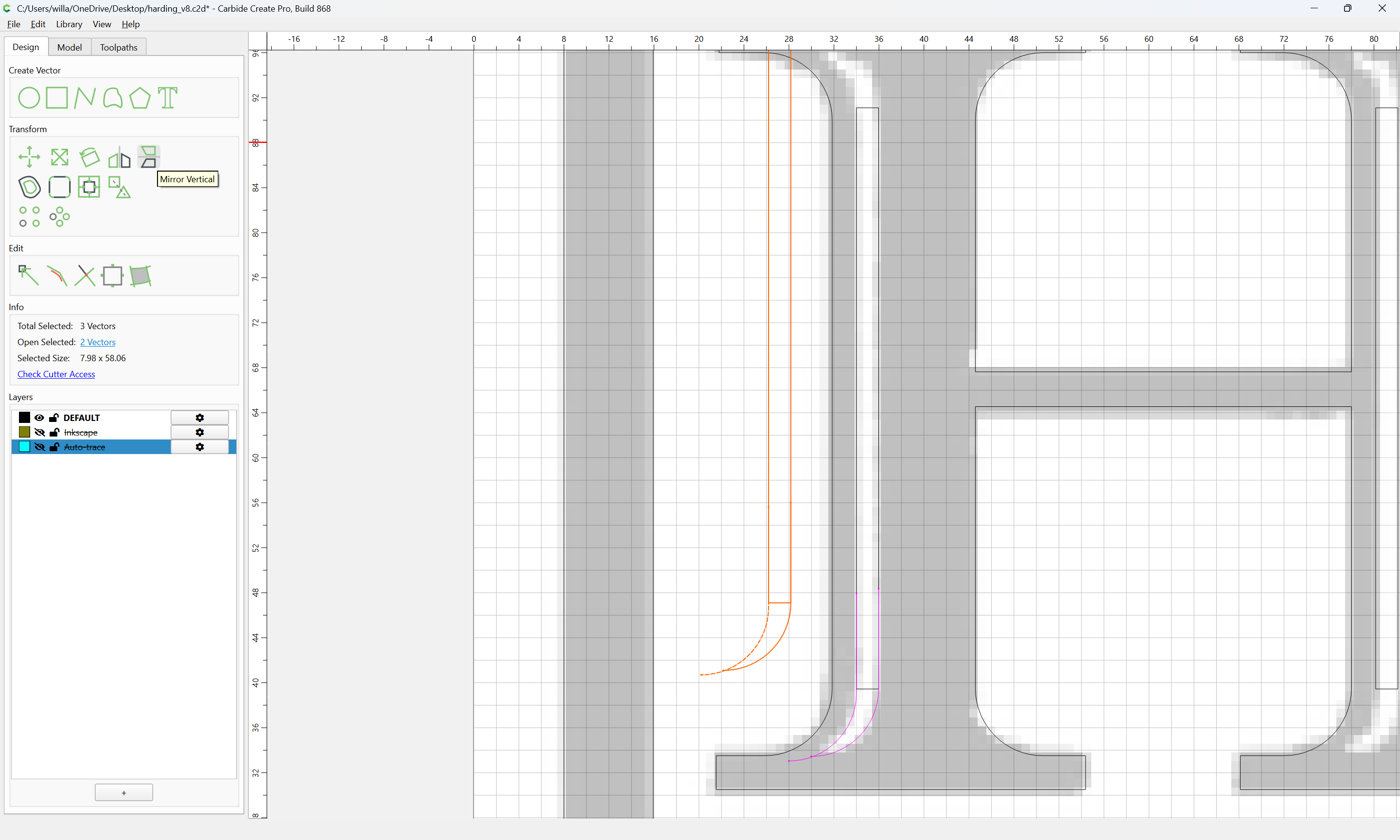
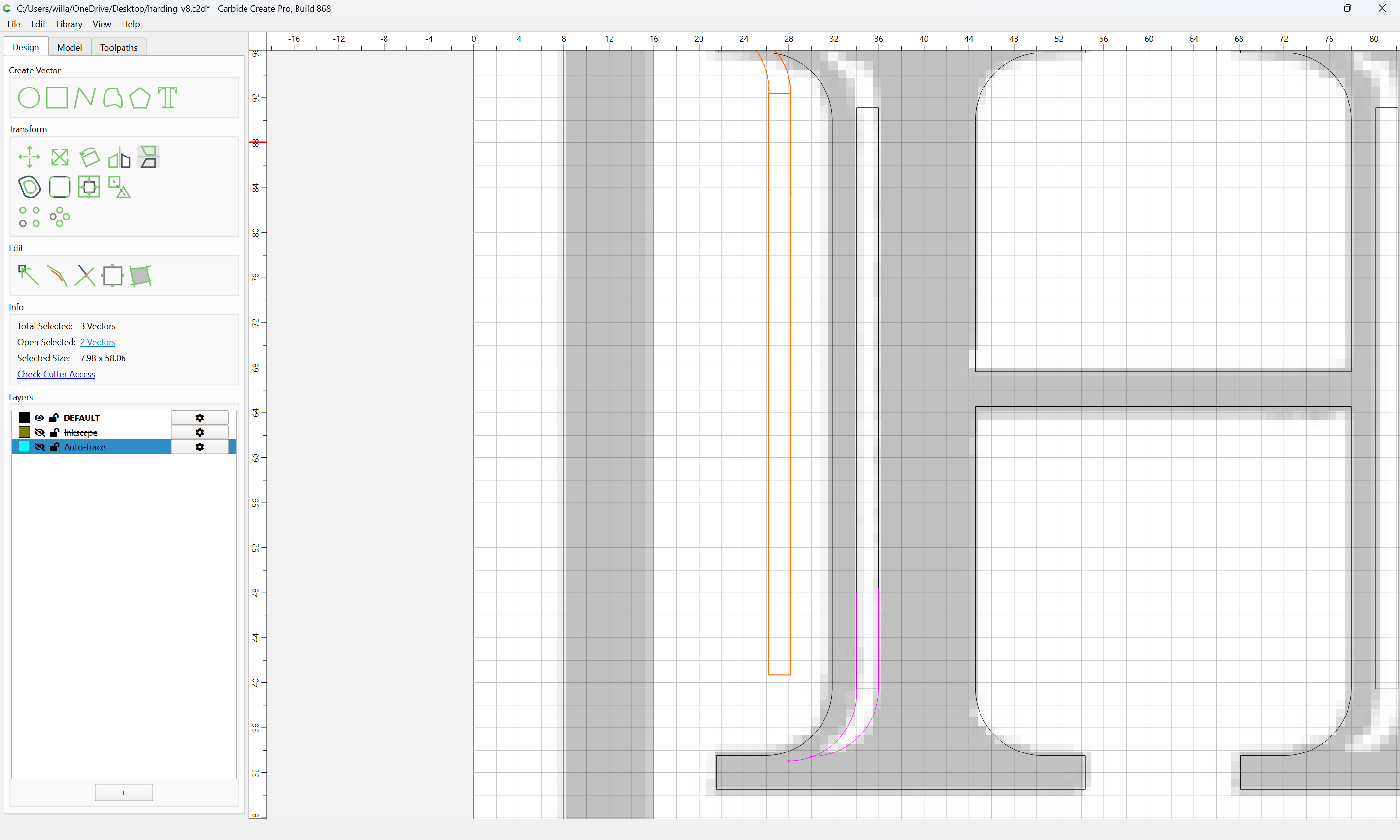
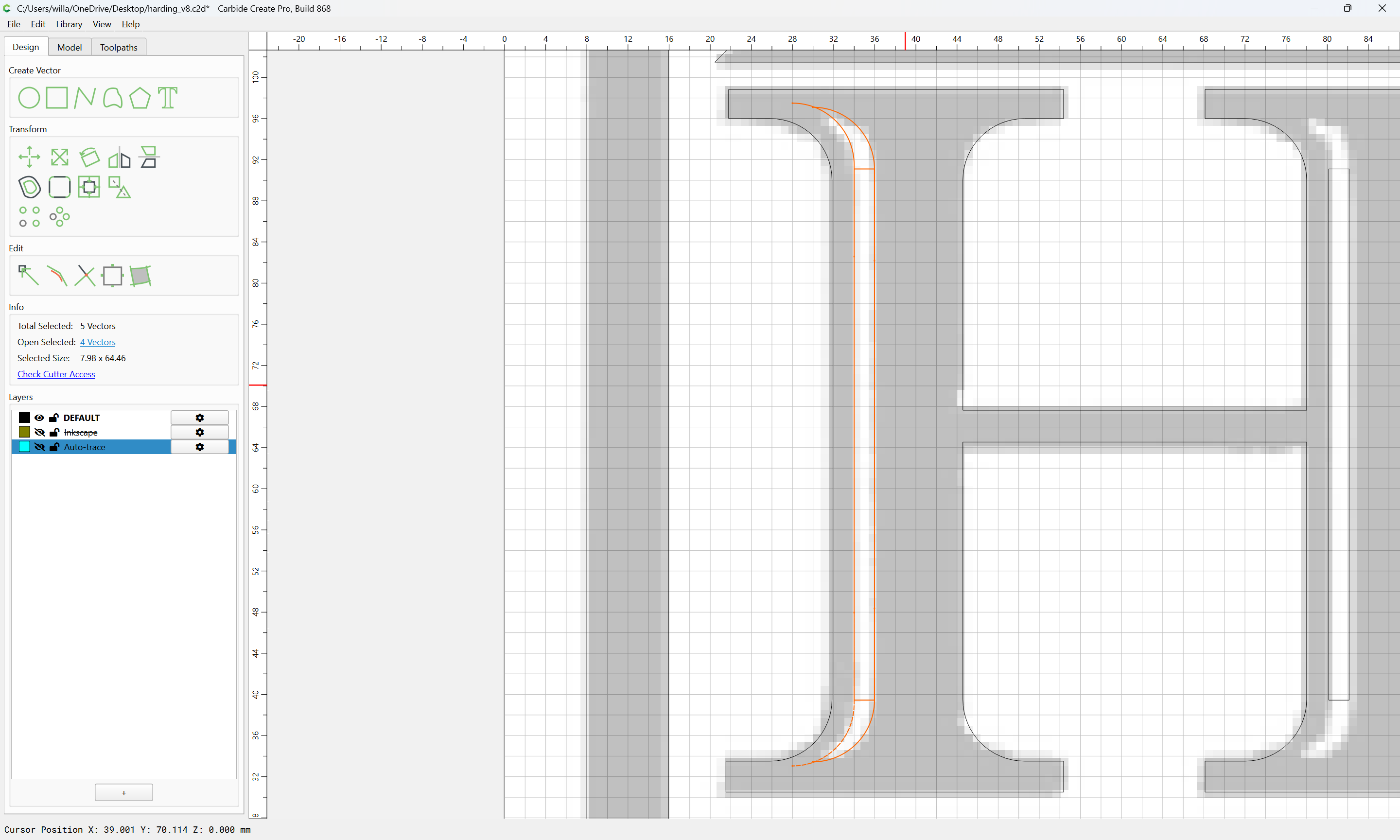
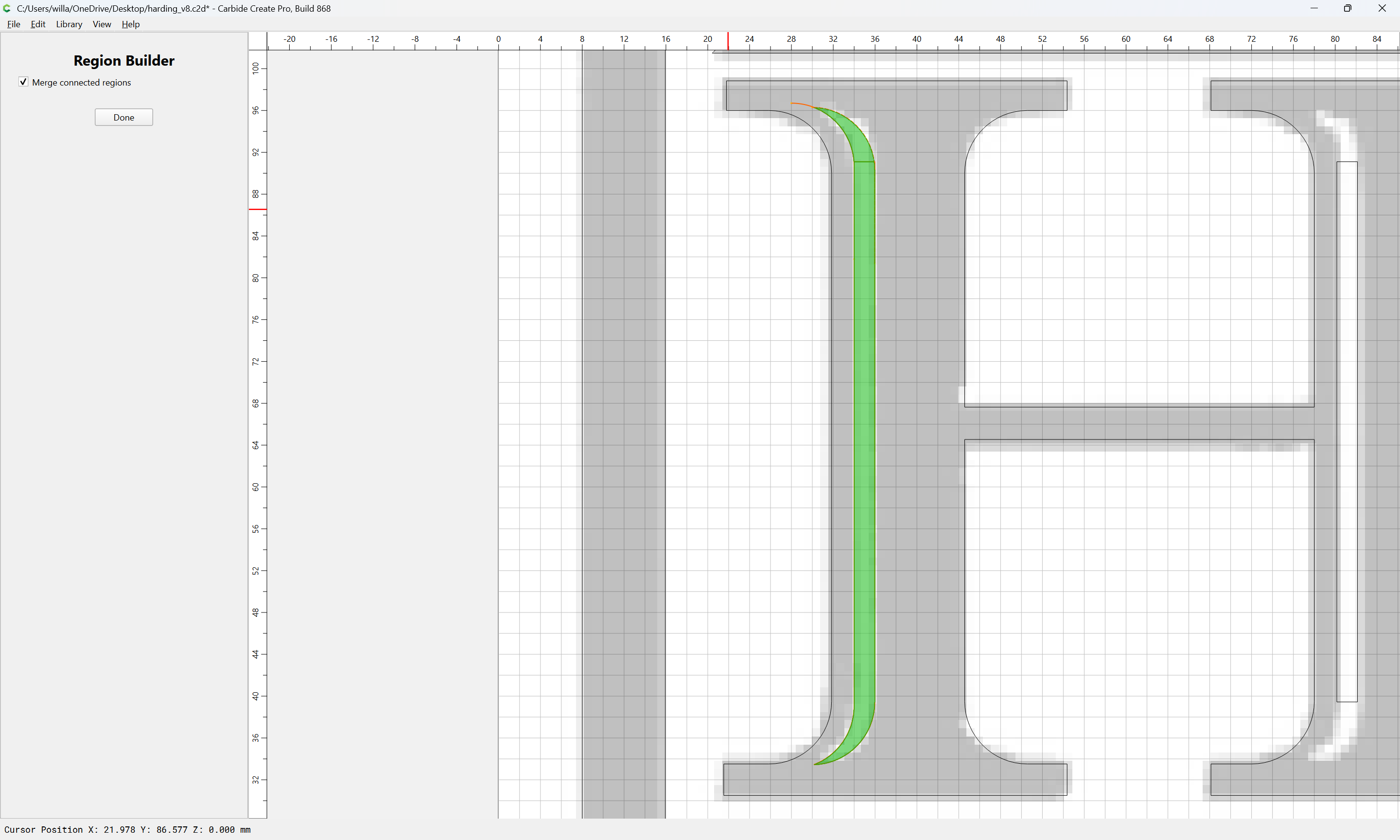
Eventually one arrives at something like:
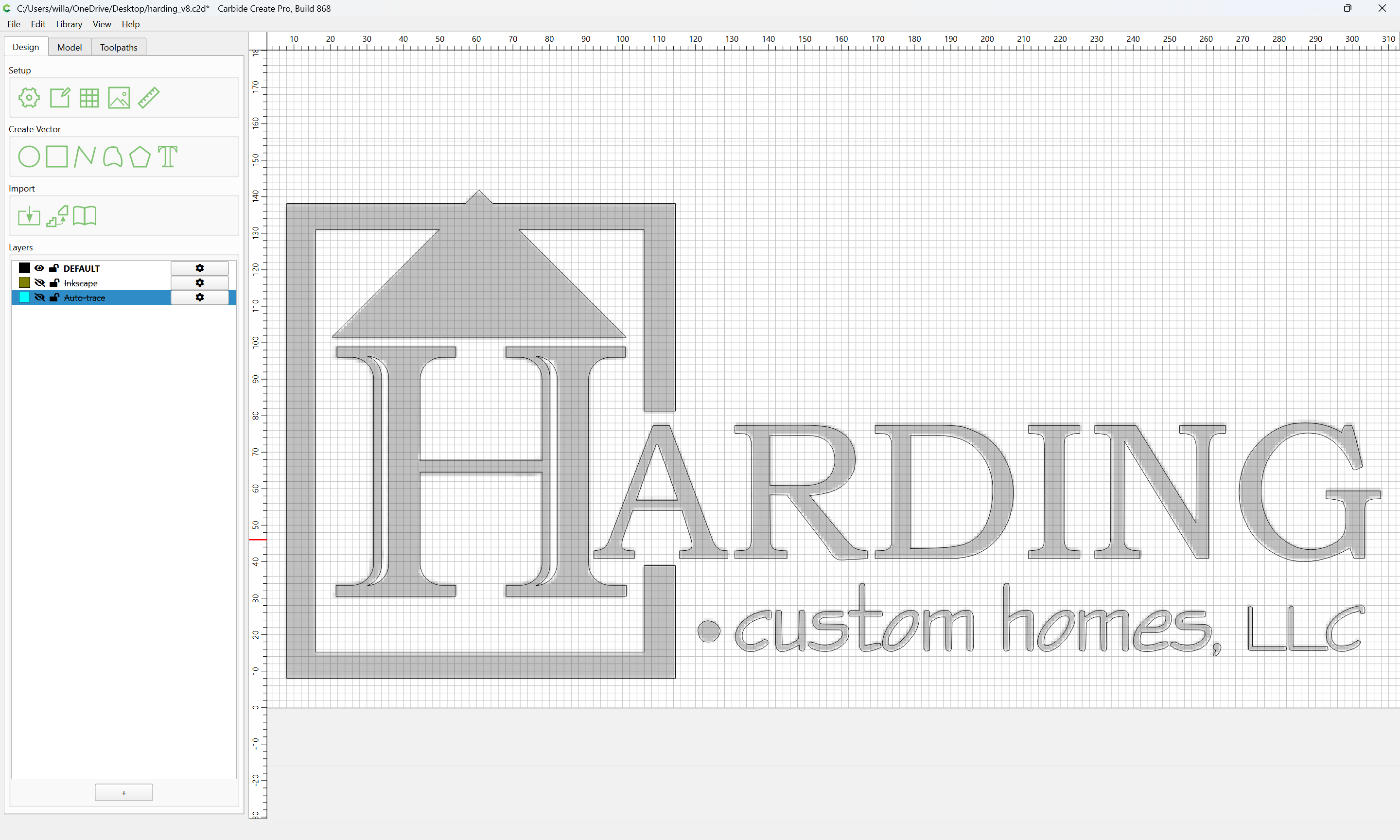
Attached as a v8 file, w/ the other versions on hidden layers for comparison/inspection.
harding_v8.c2d (288 KB)
3 Likes
I don’t disagree at all. I prefer the trace feature but was just offering an option.
1 Like
Ya’ll, I am very grateful for all the help and teaching you all did. Thank you so much. I was able to get a quote sent over to the client. This was the first time I’ve posted on here seeking help and you all delivered. Thanks again
1 Like
Our pleasure!
If you have any difficulty w/ the (inevitable) customer edits, just let us know and we will do our best to assist.
This topic was automatically closed 30 days after the last reply. New replies are no longer allowed.