WillAdams
September 5, 2026, 1:11pm
1
as requested on support…
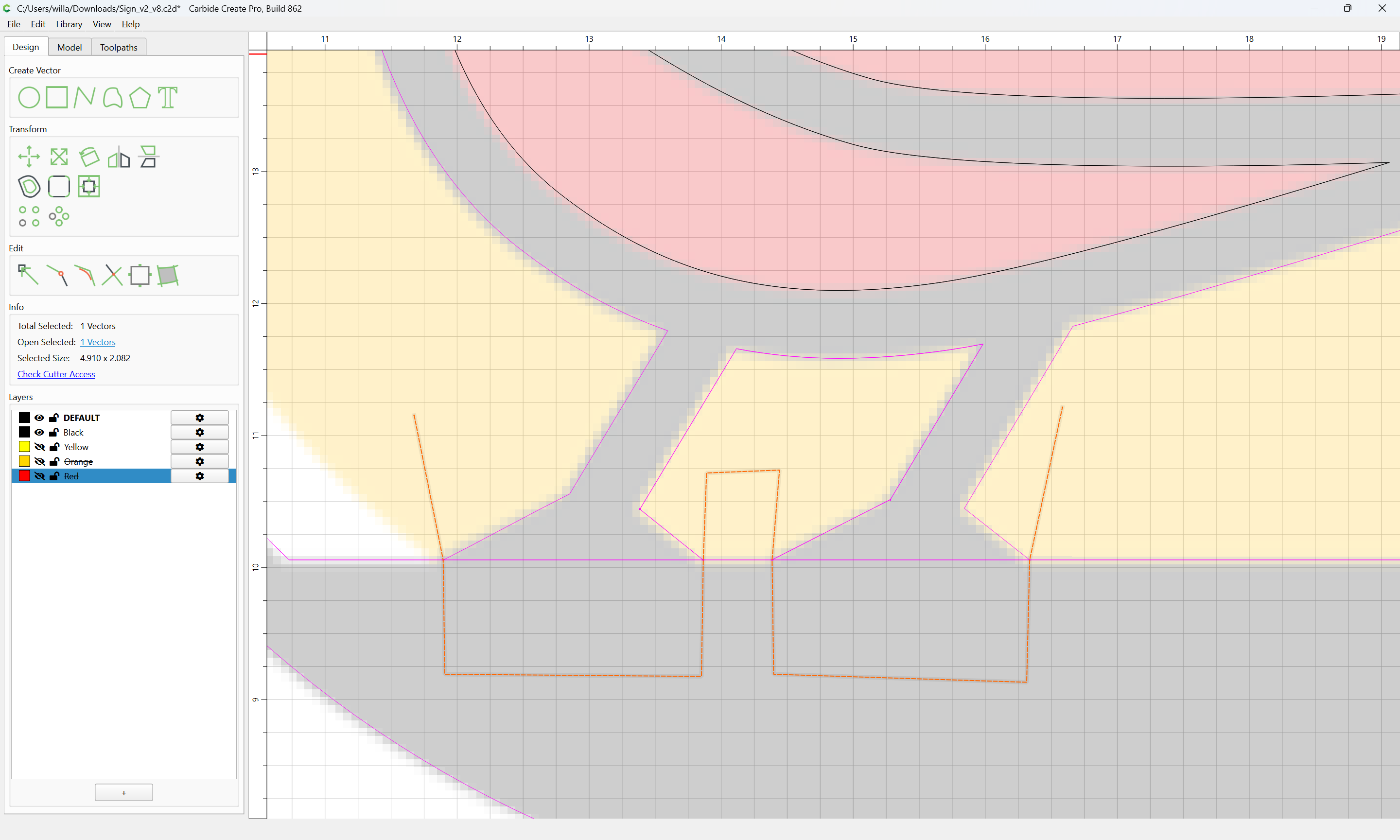
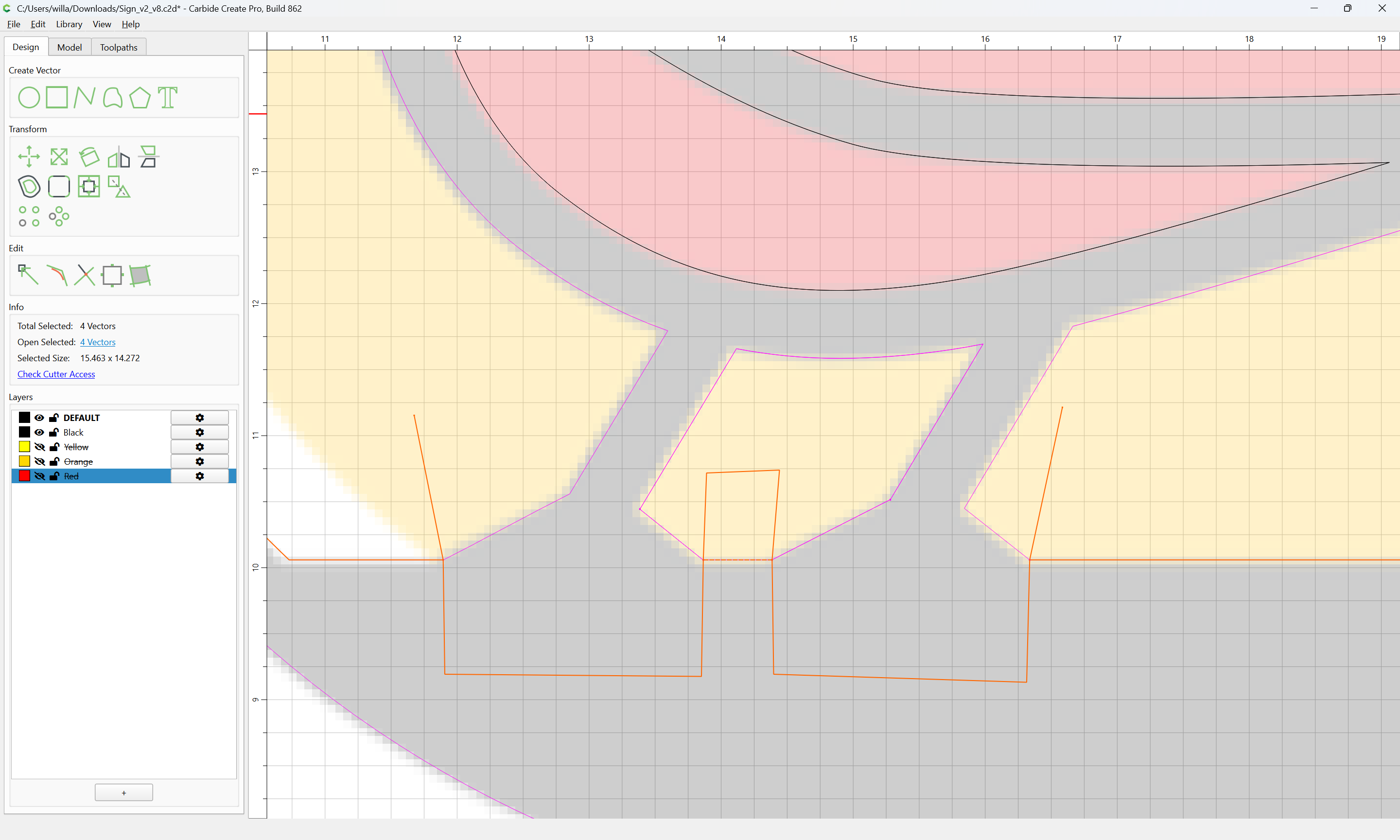
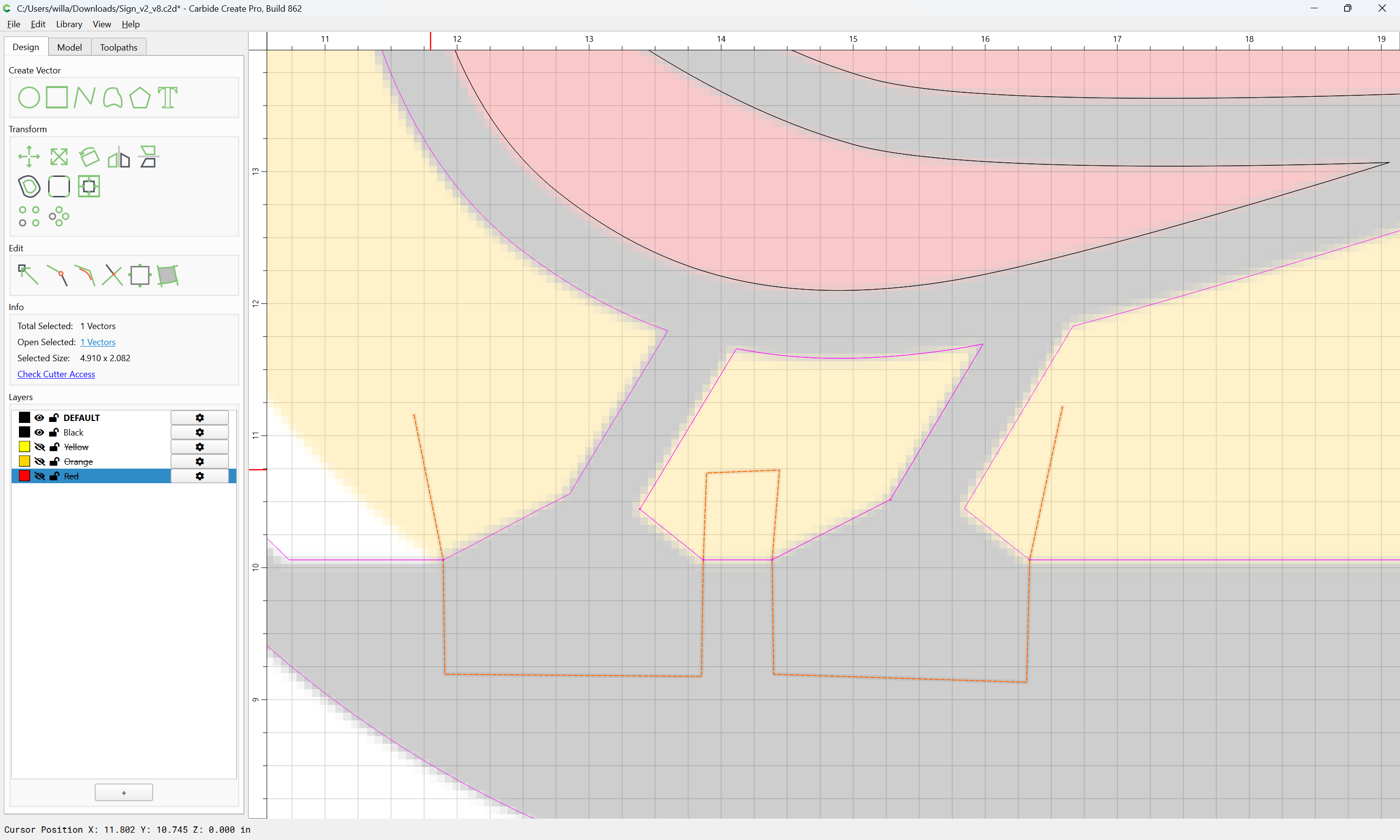
…having some trouble getting the vectors right for my design. Basically I am unsure how to close the open shapes so I can pocket them correctly.
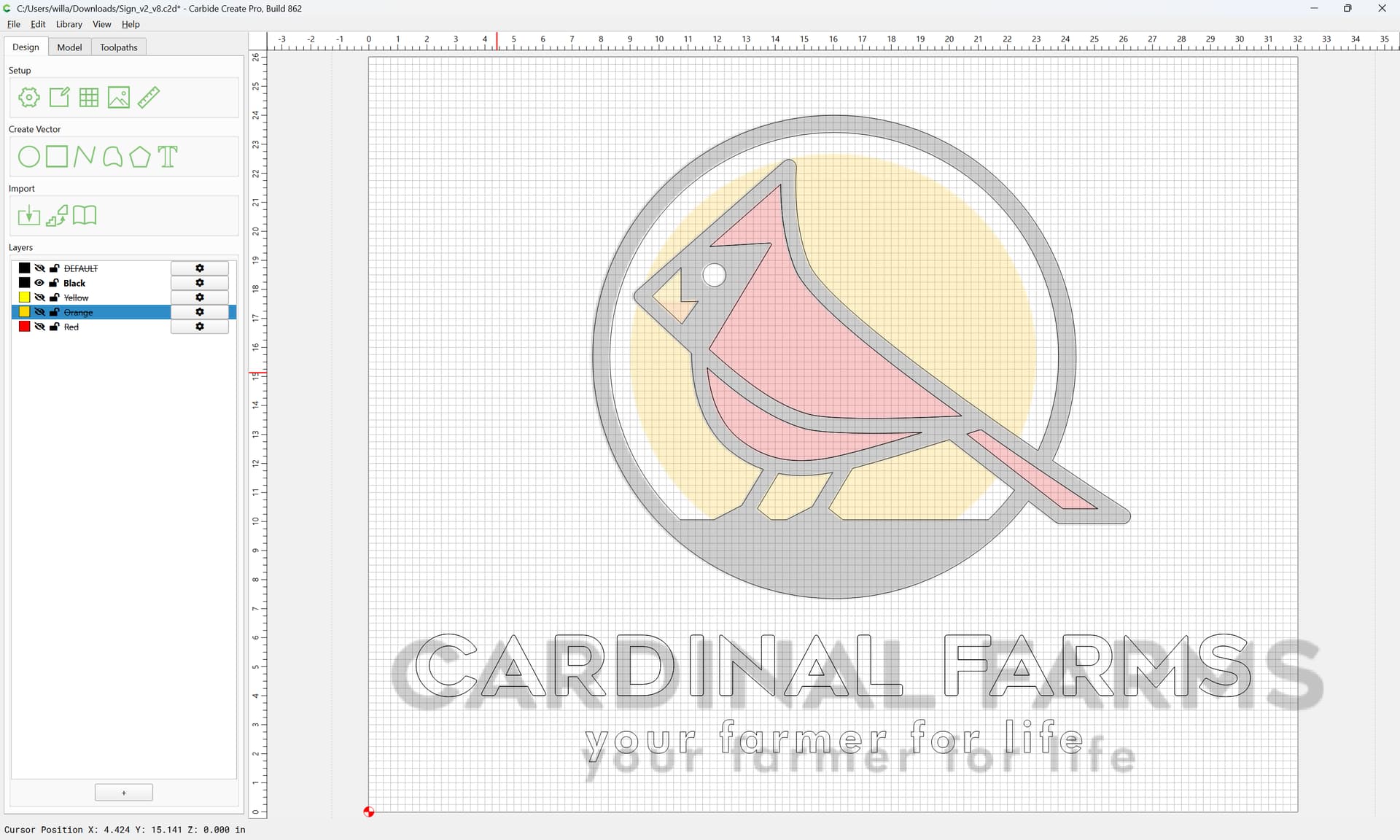
The sign will be cut from 1/2" think (color core) HDPE - white/black/white. The bird (red) will be pocketed and the pockets will receive mating shapes from 1/4" HDPE. Same for the yellow and orange parts.
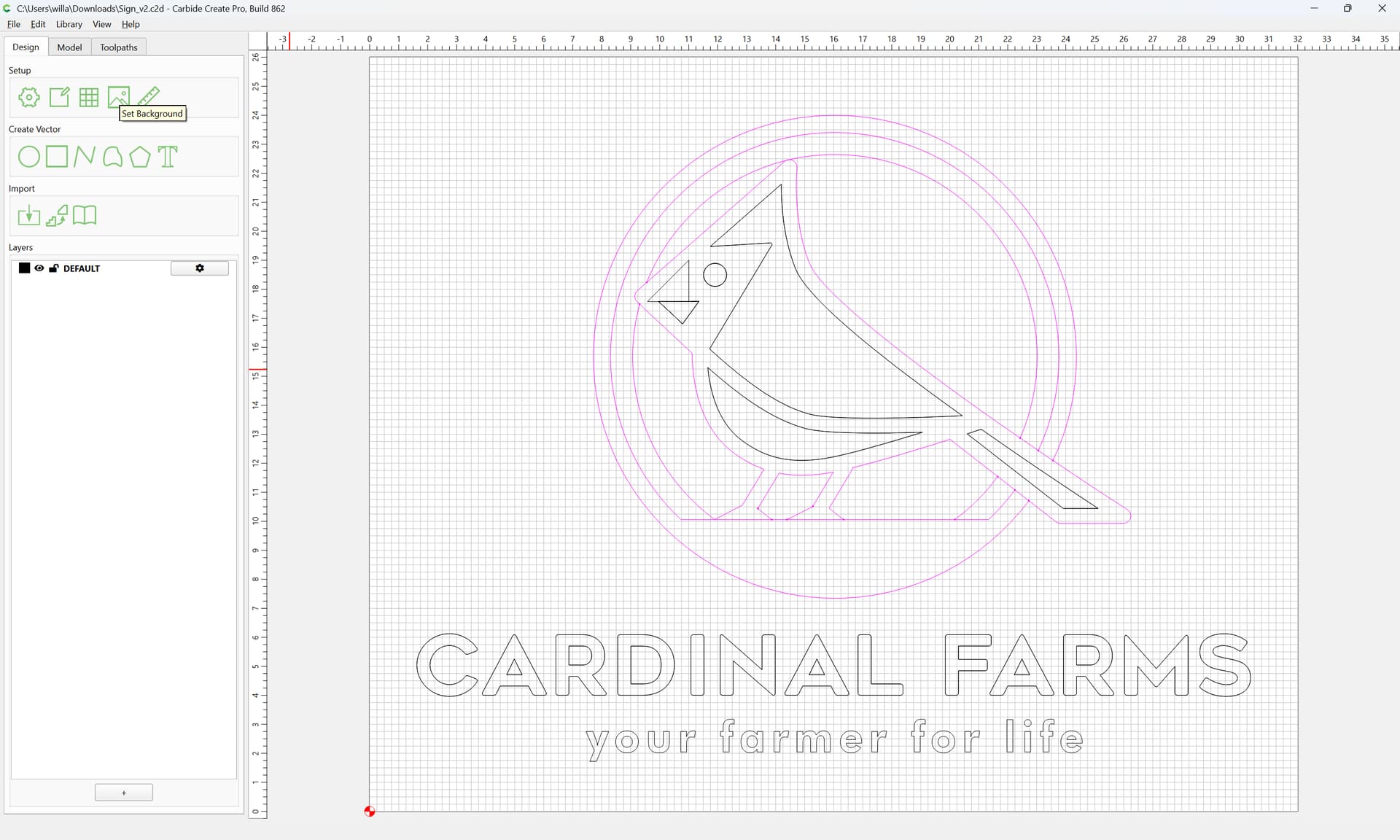
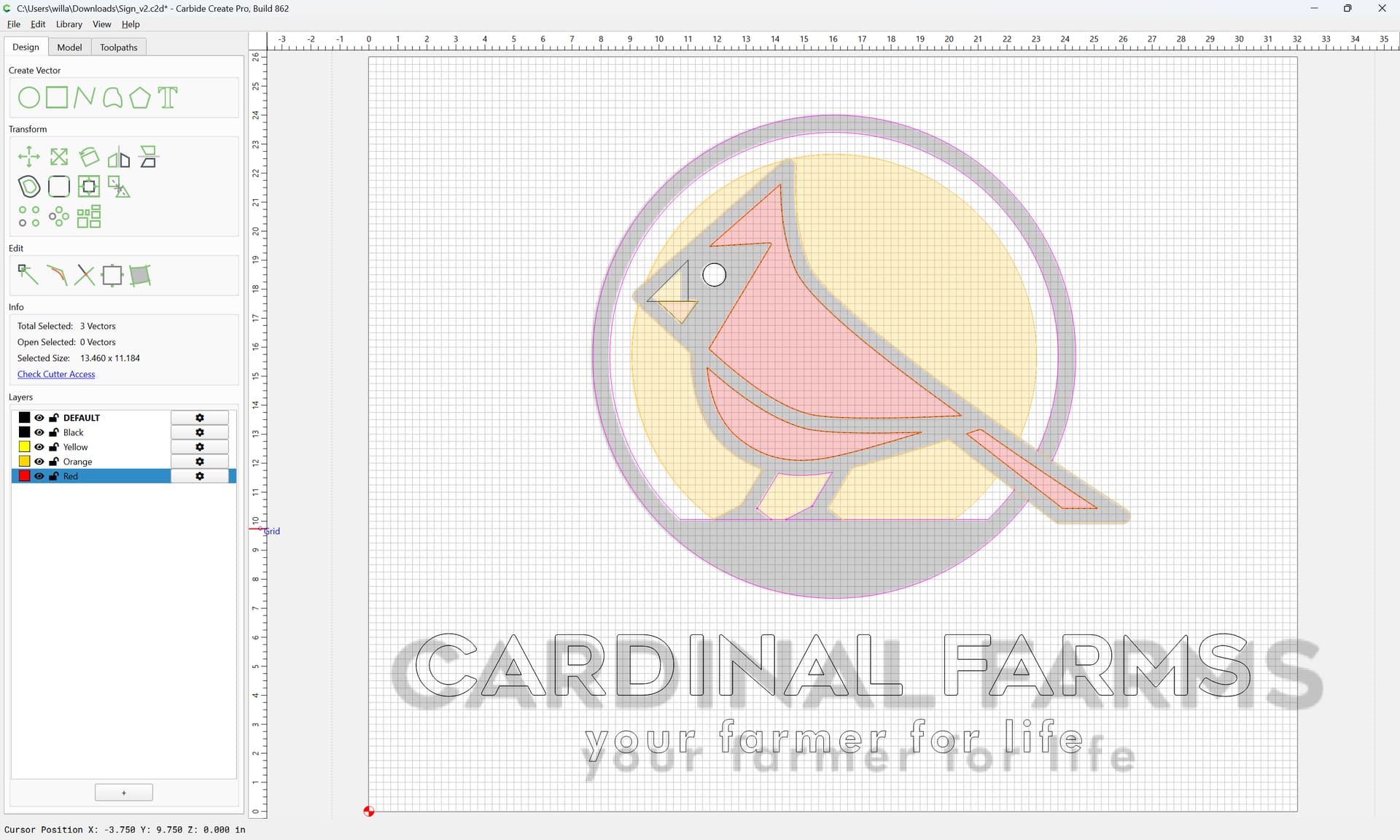
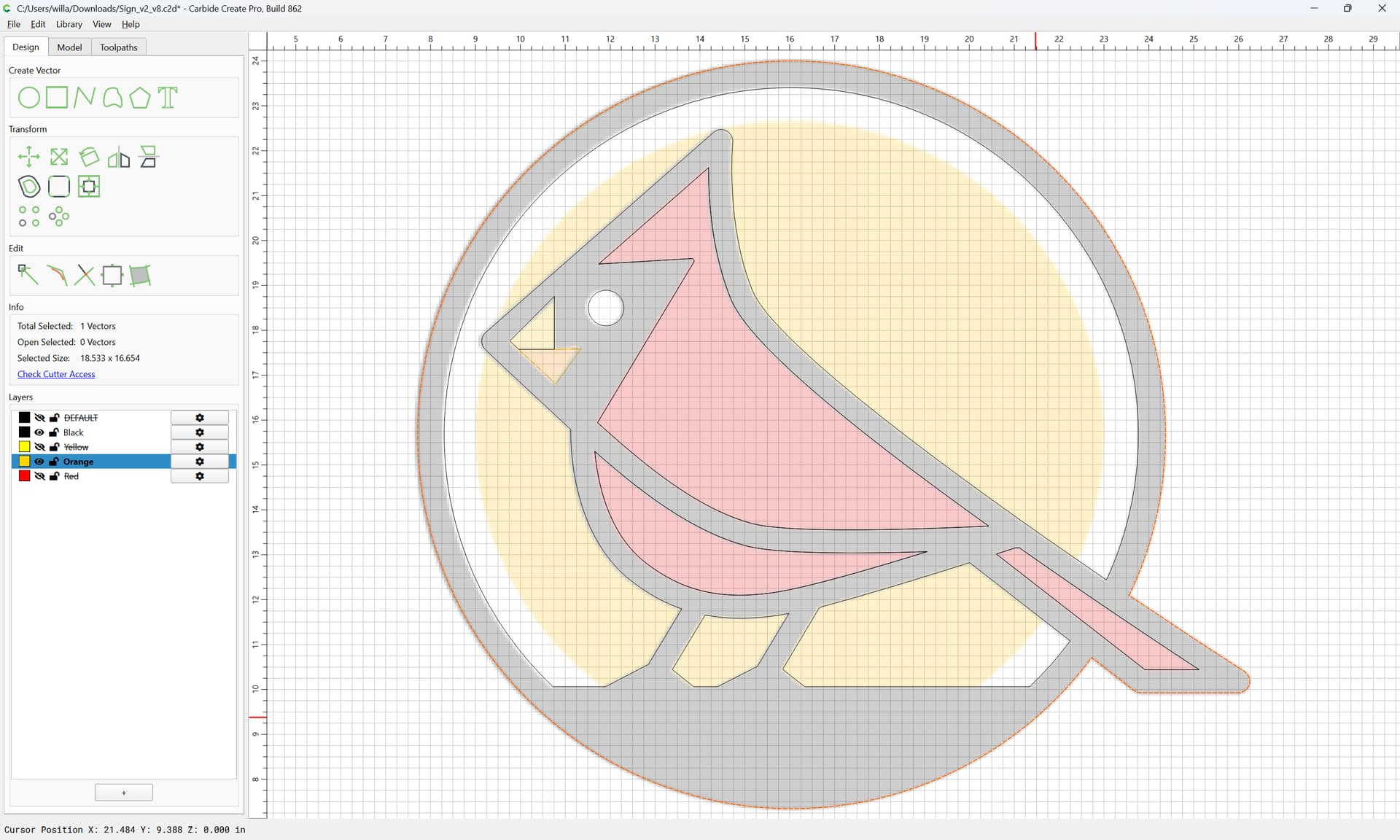
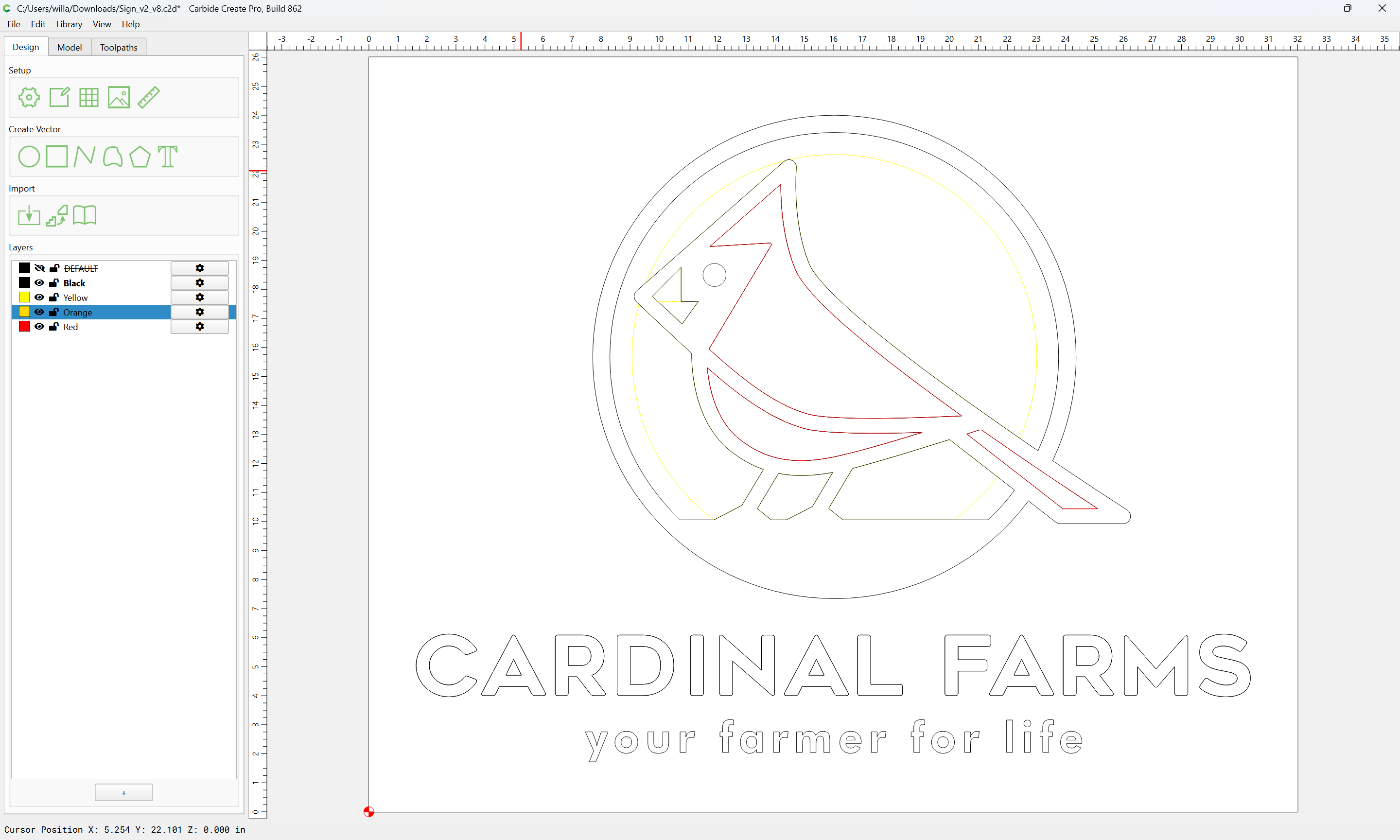
where the current state of the file is:
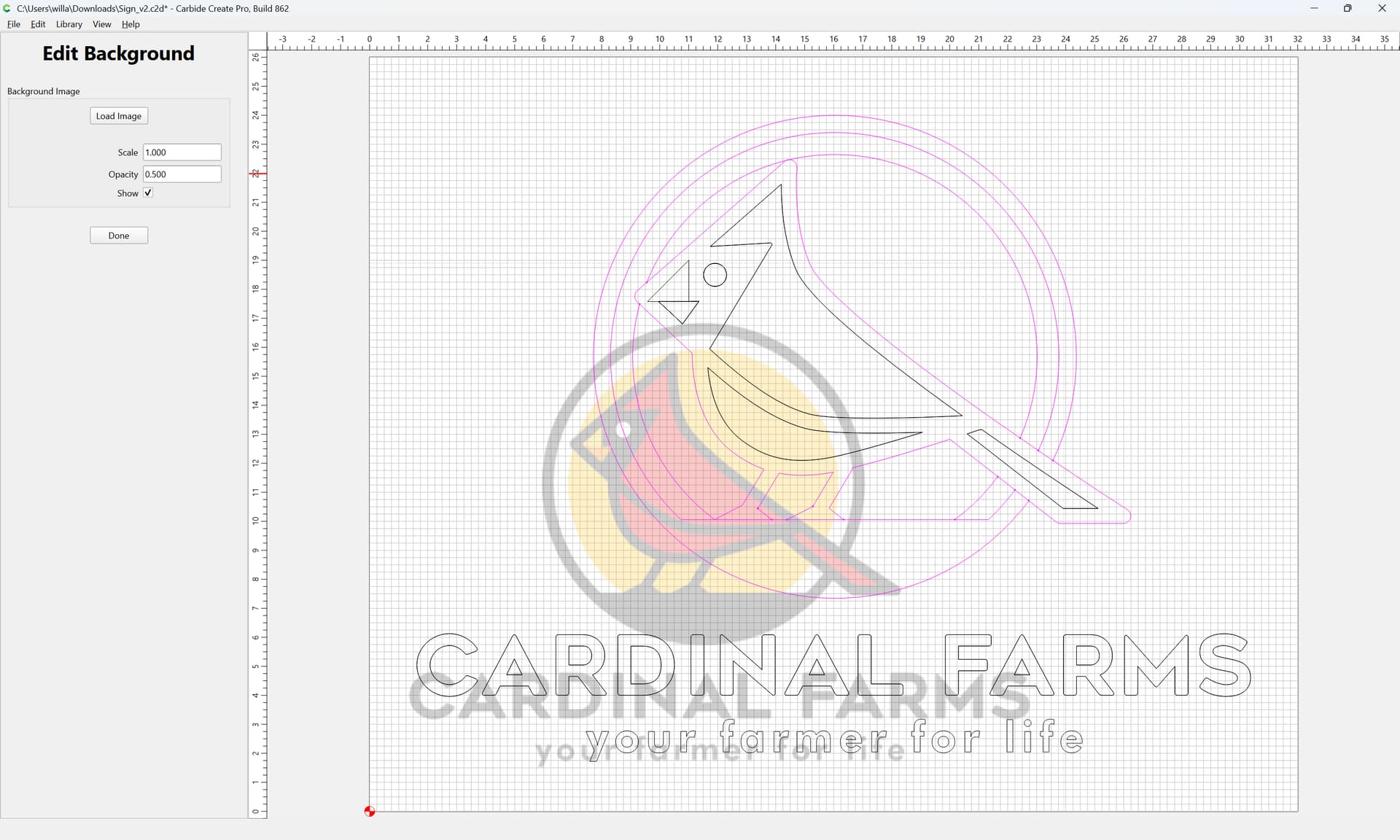
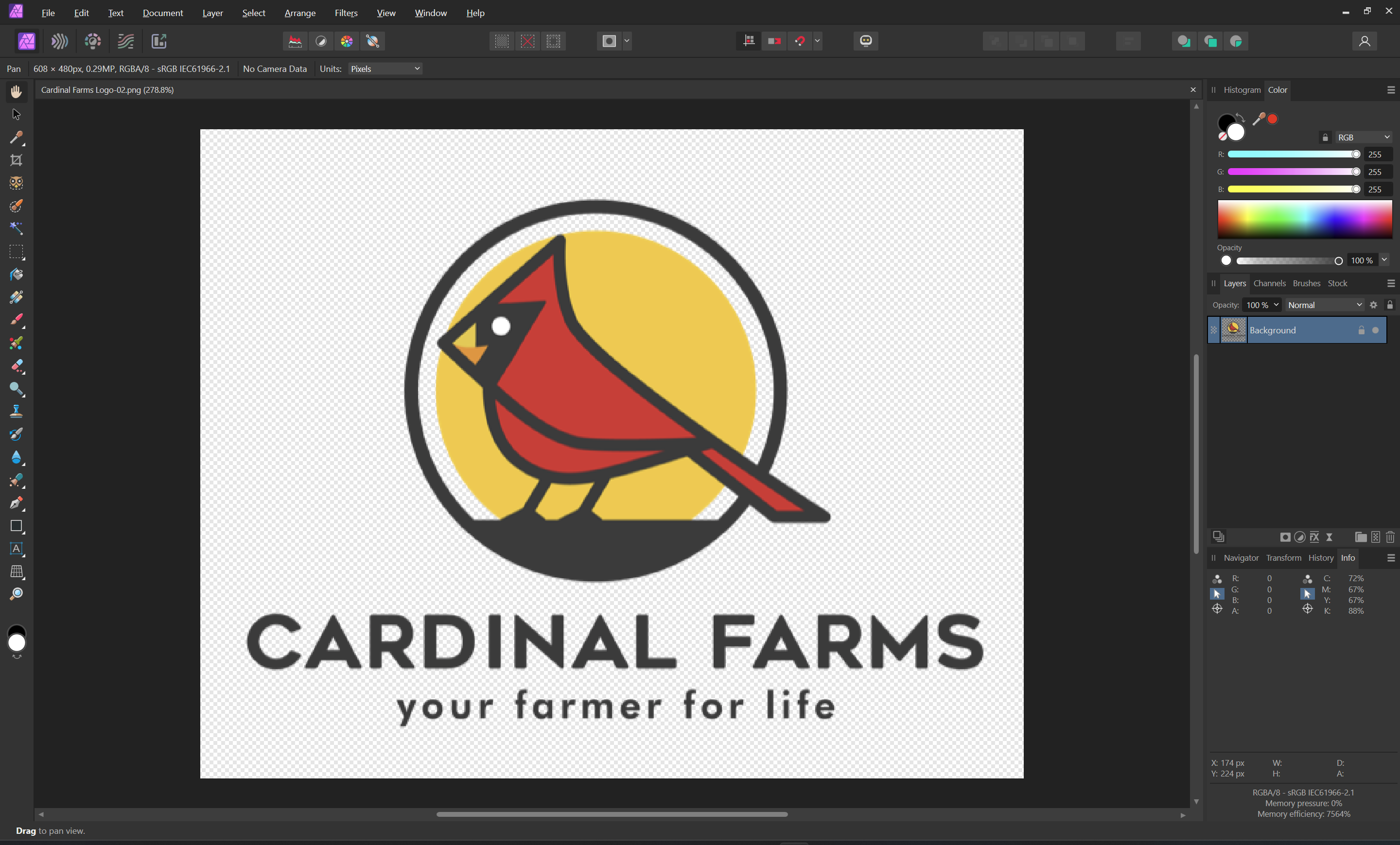
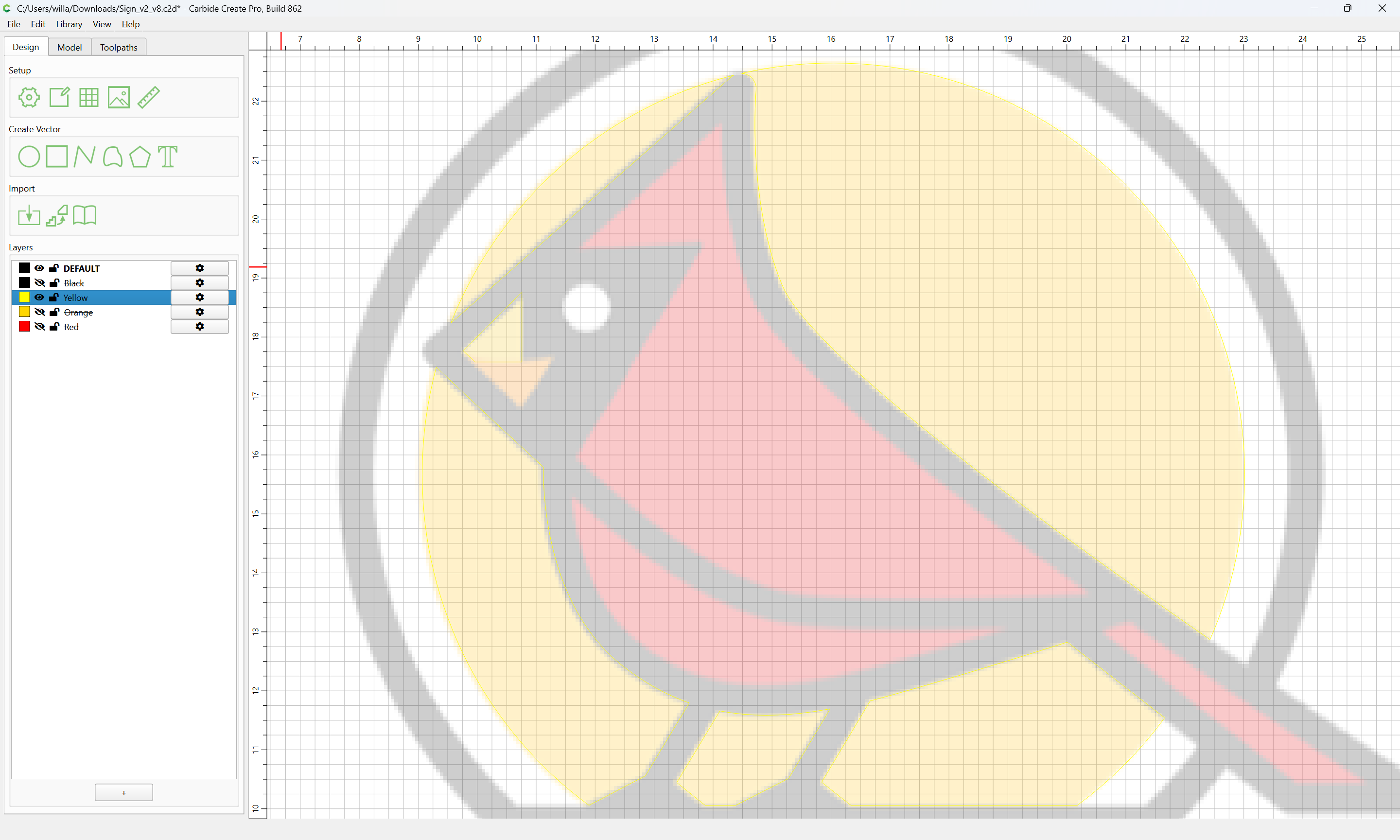
First, we import a pixel image for reference.
See:
and
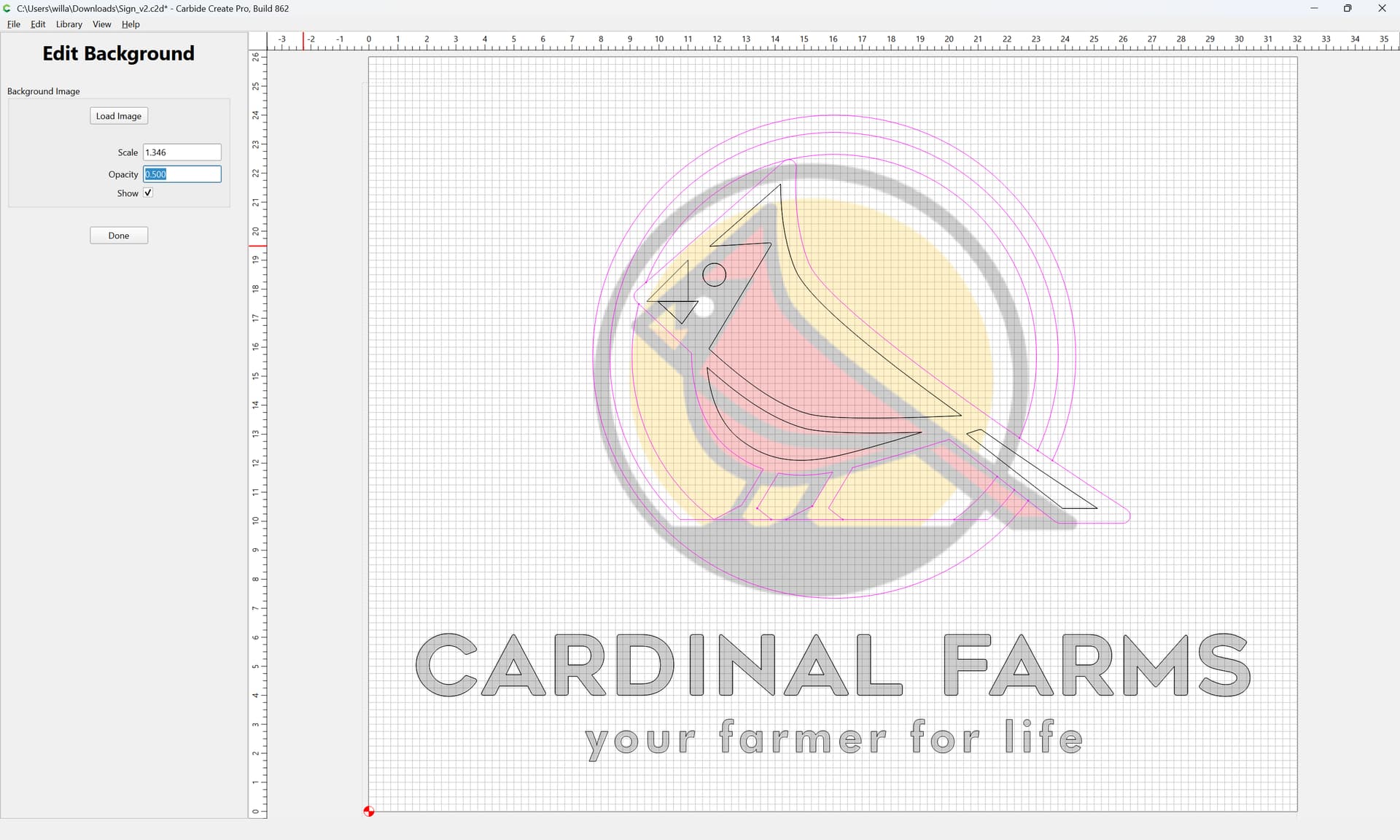
Set Background and Load Image
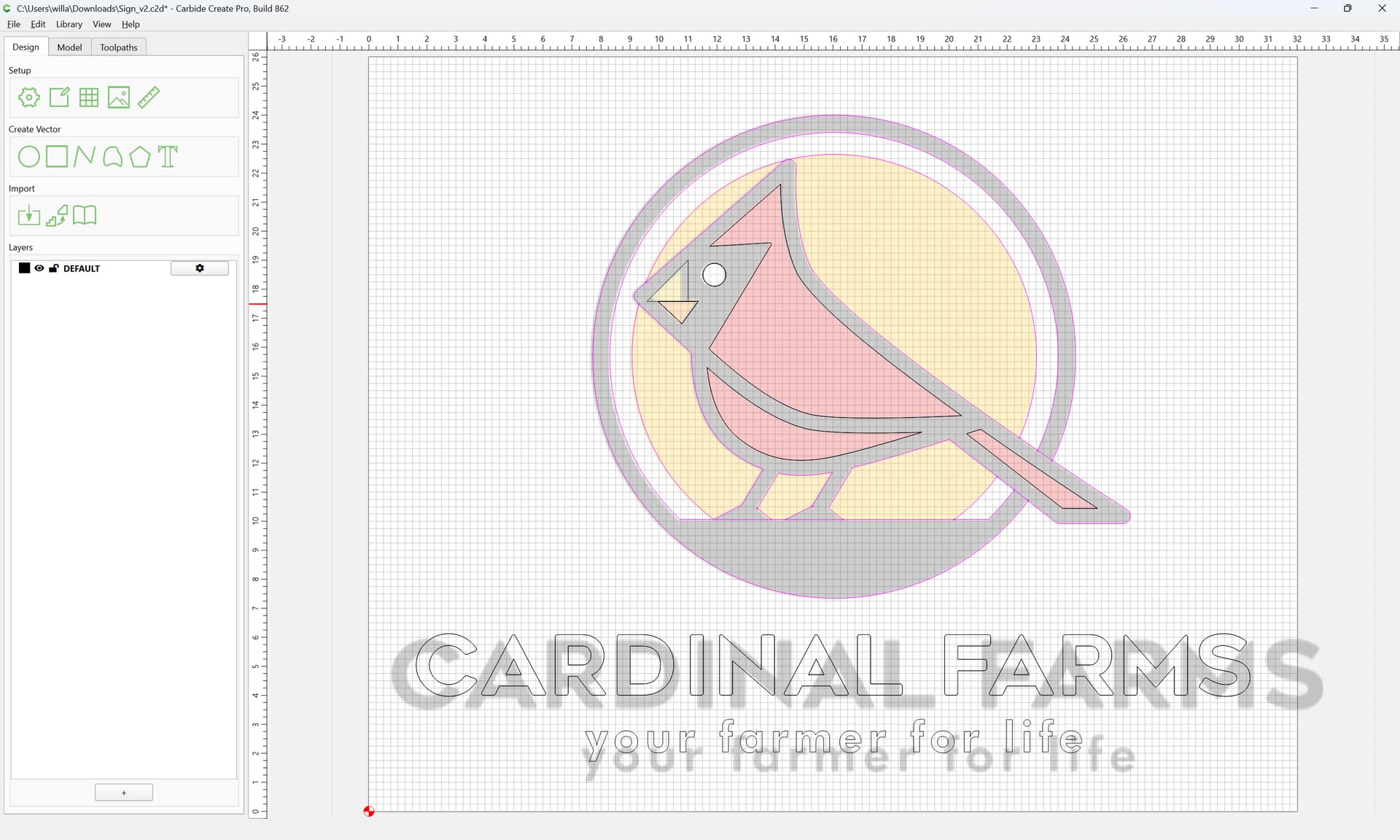
and adjust position and size
Done
verifying the colours of the image in a pixel editor shows:
then it is simply a matter of making a layer for each colour, duplicating the geometry for each colour to the matching layer, then editing things to allow closing…
WillAdams
September 5, 2026, 1:47pm
2
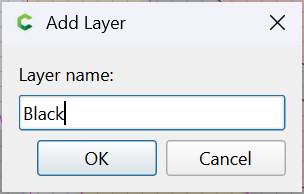
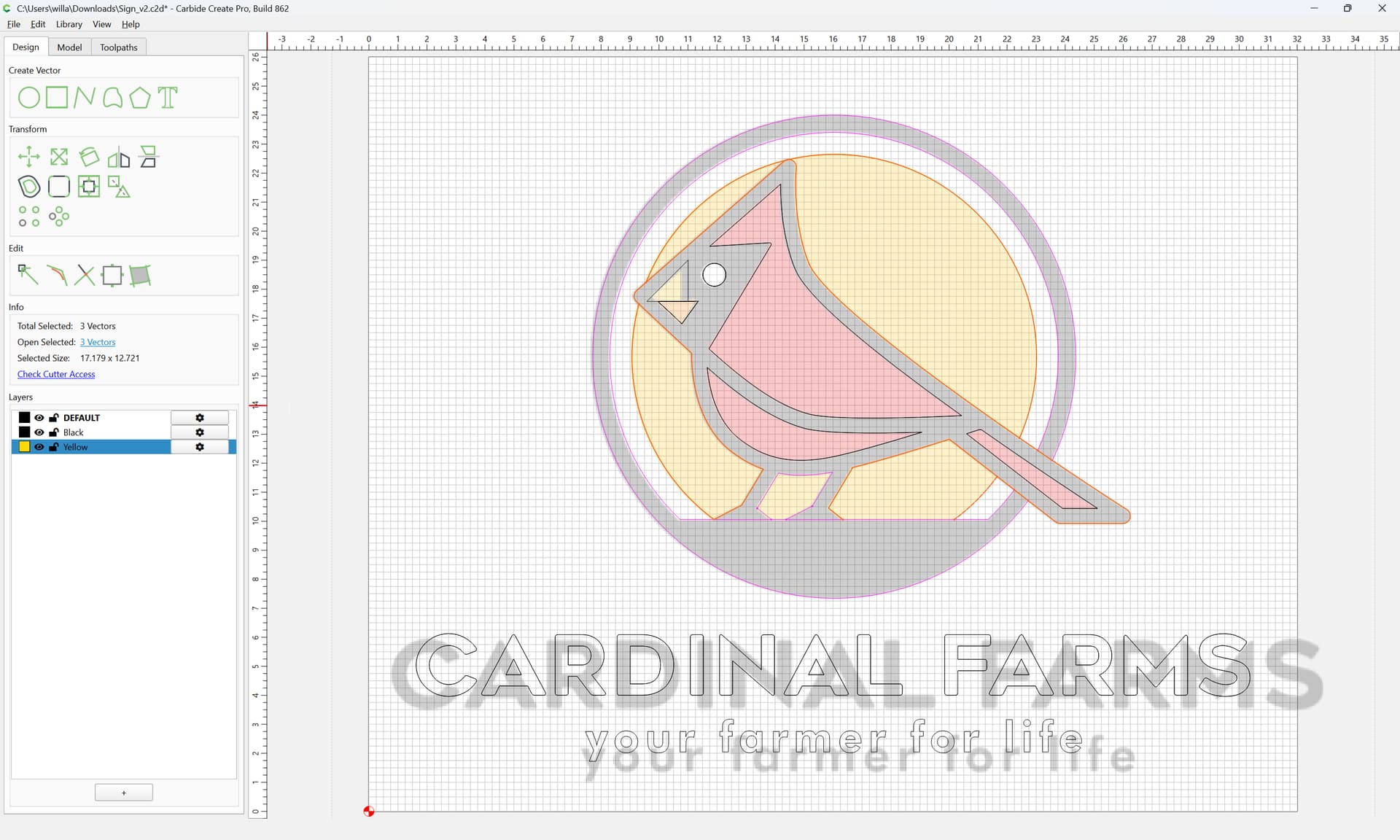
First step is to make a layer for each colour:
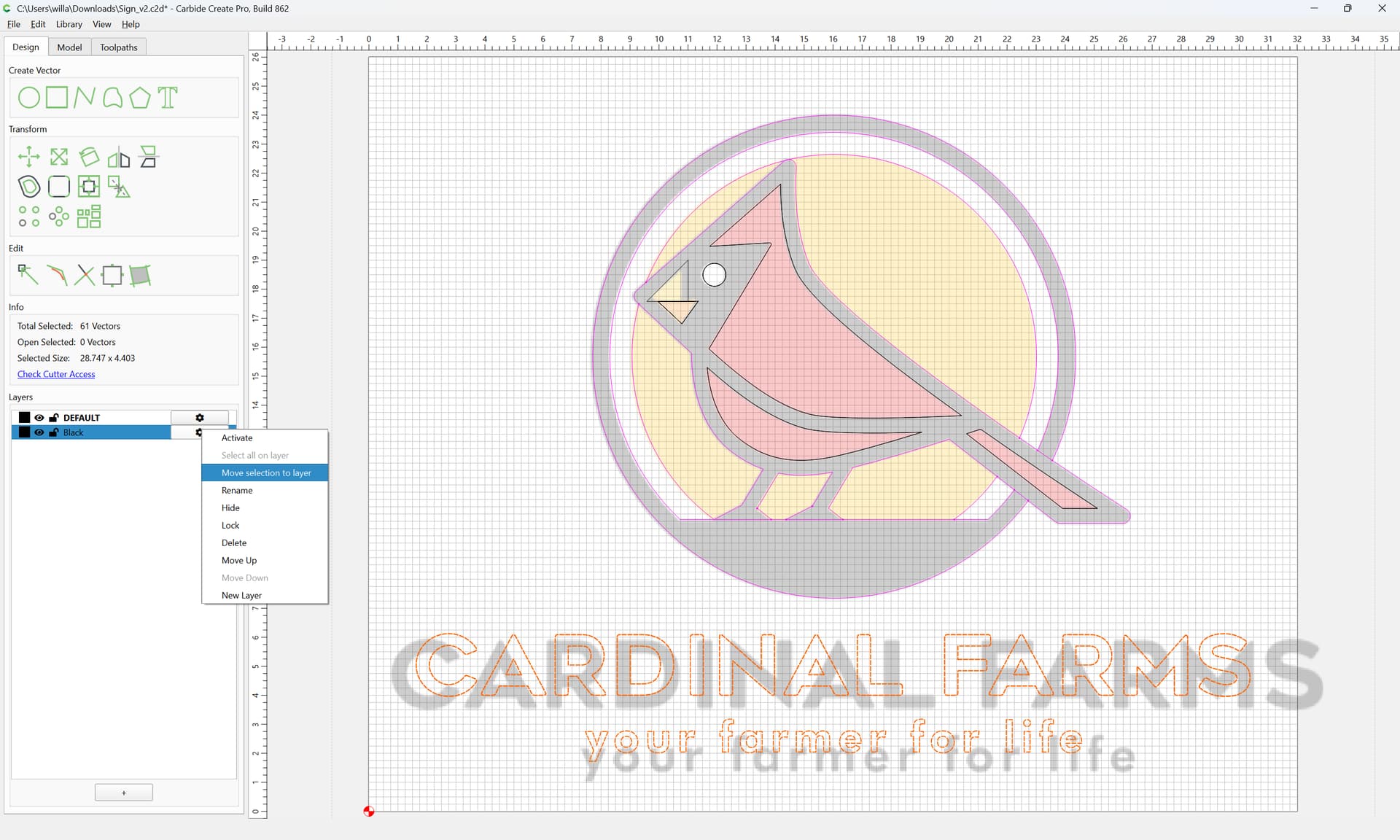
and move the geometry to that layer:
then, duplicate geometry as needed:
and move the duplicate to the appropriate layer, repeating until we arrive at:
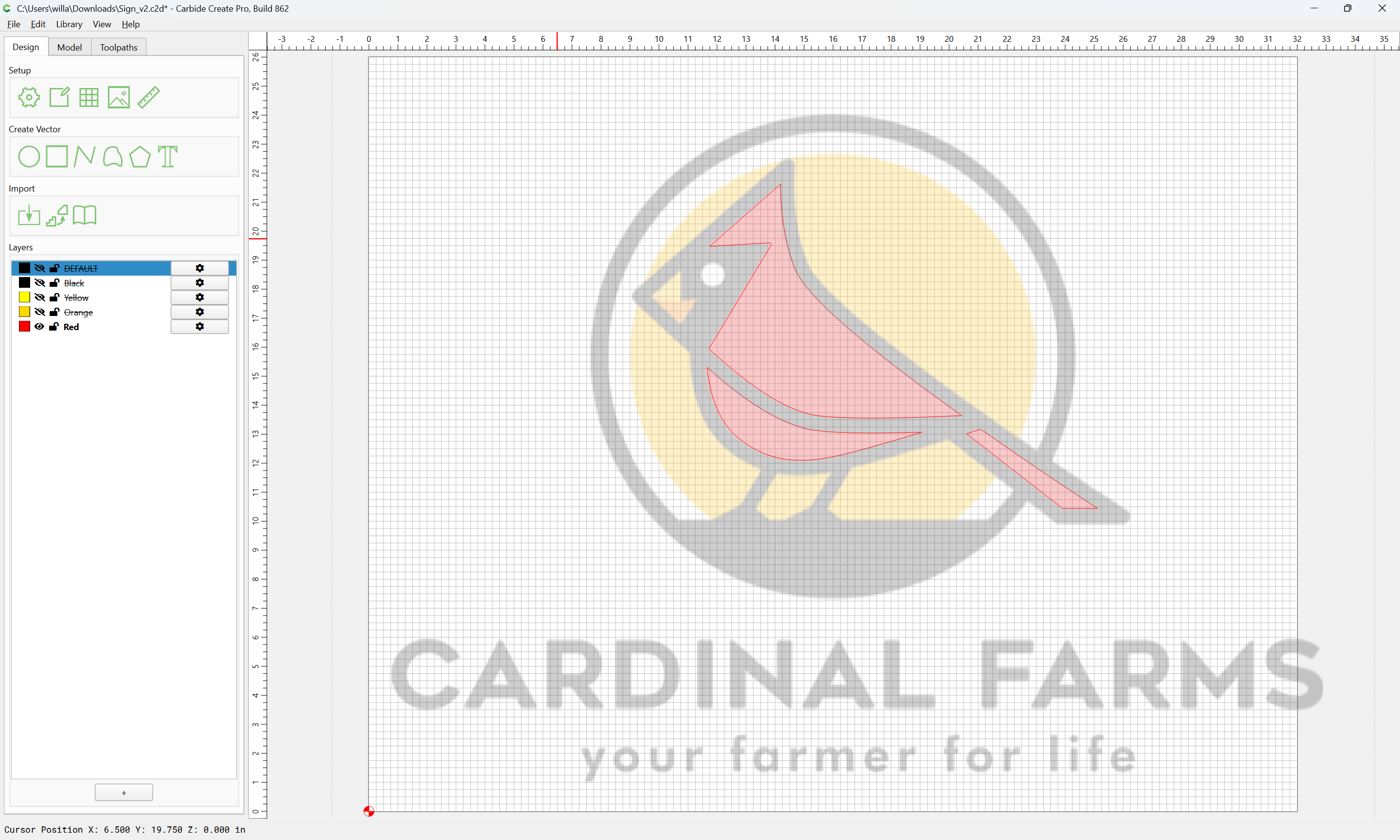
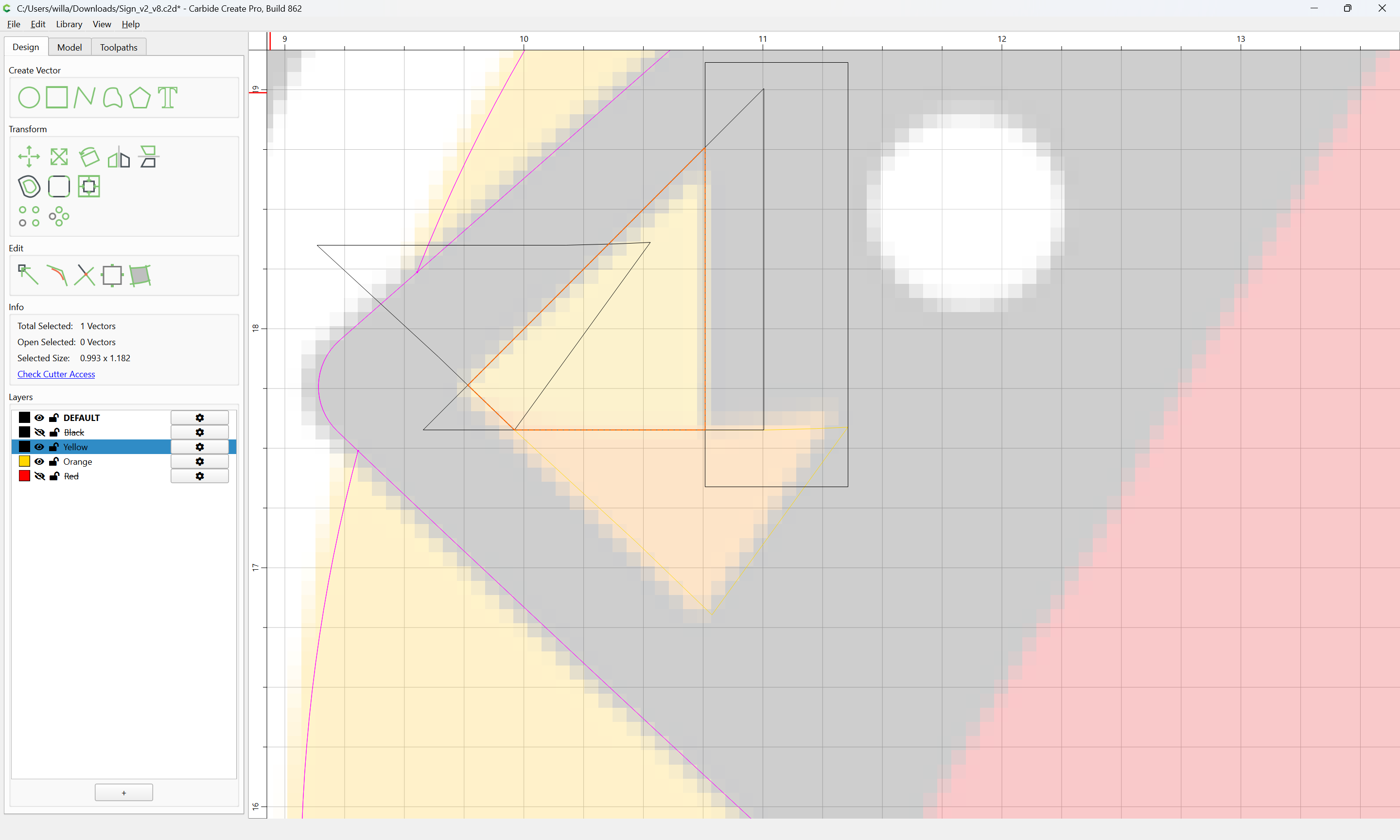
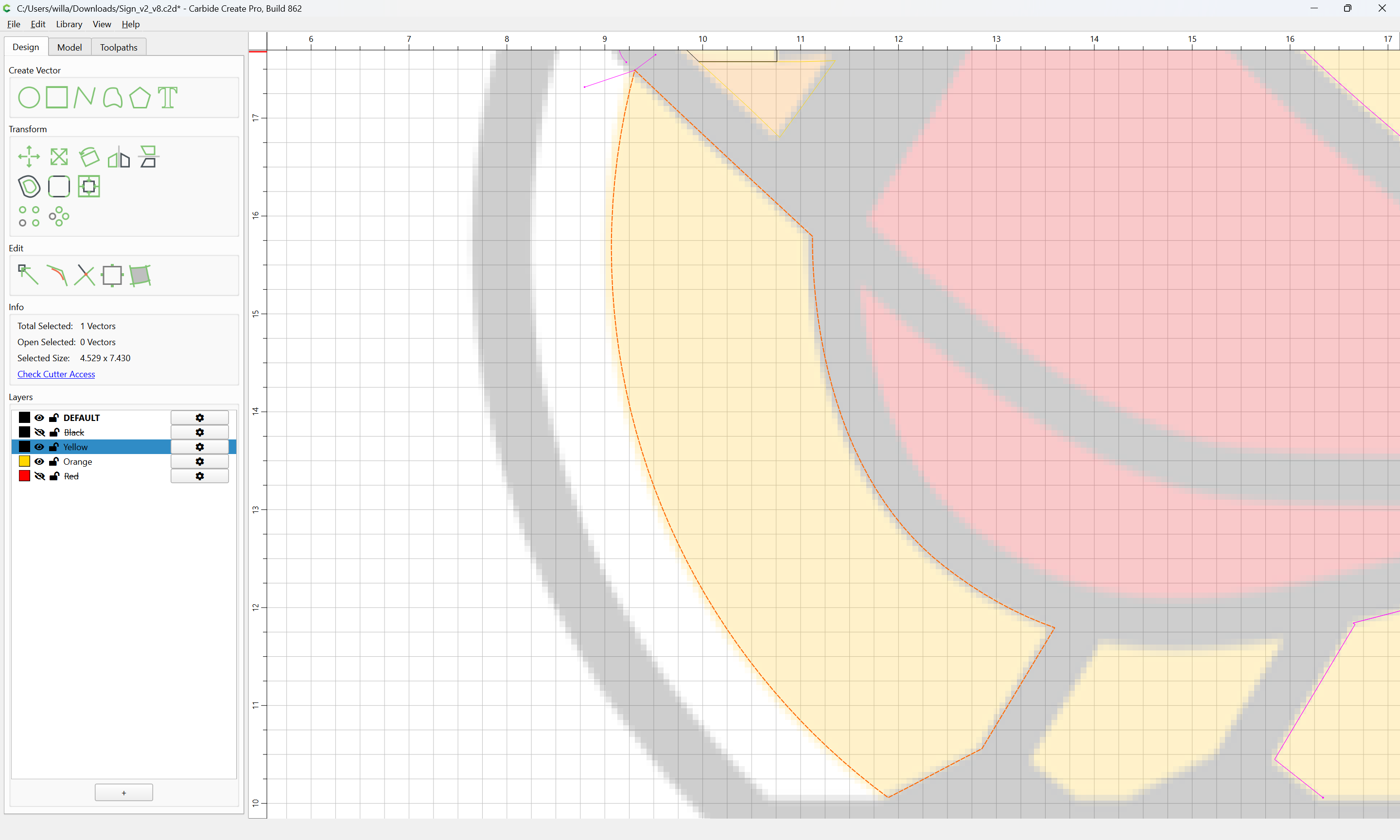
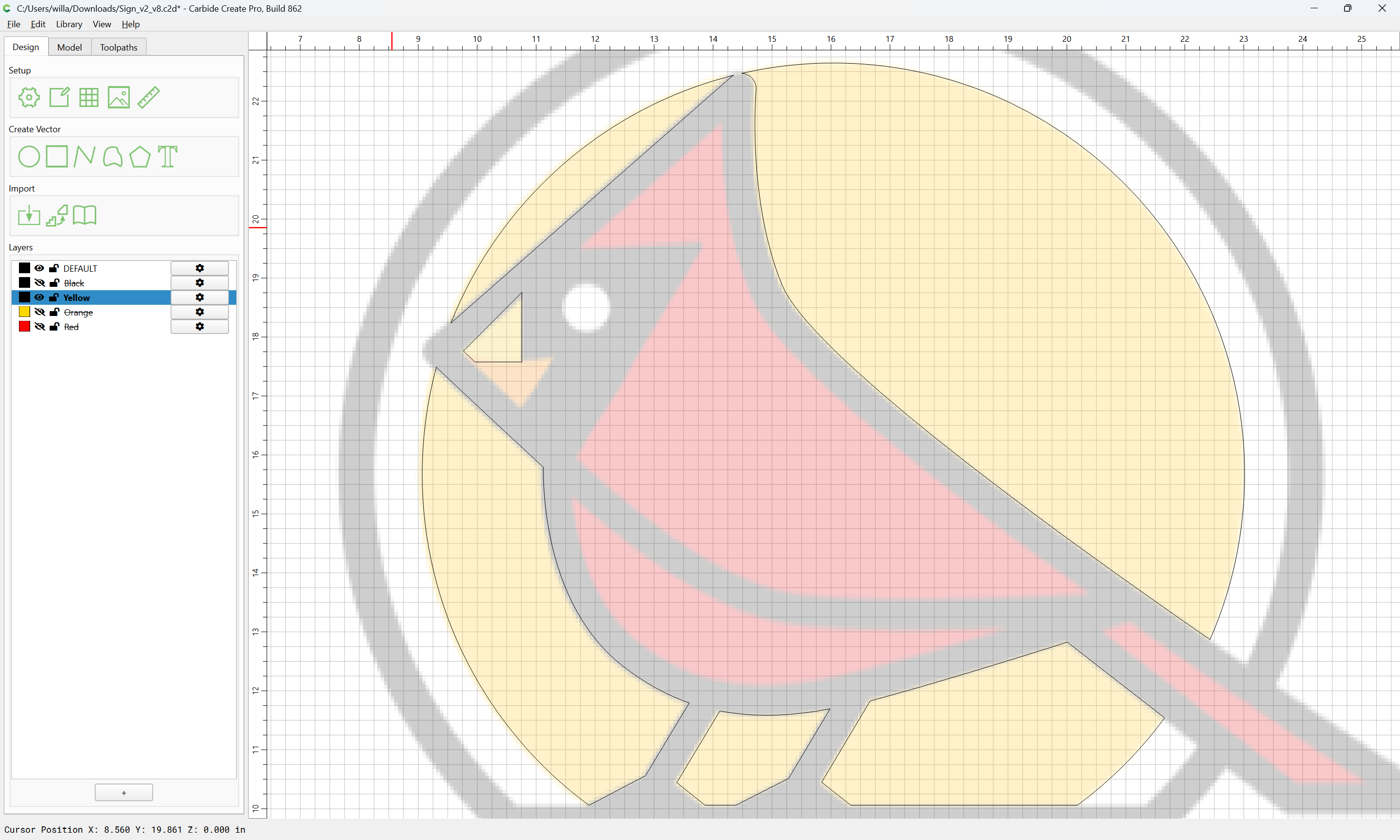
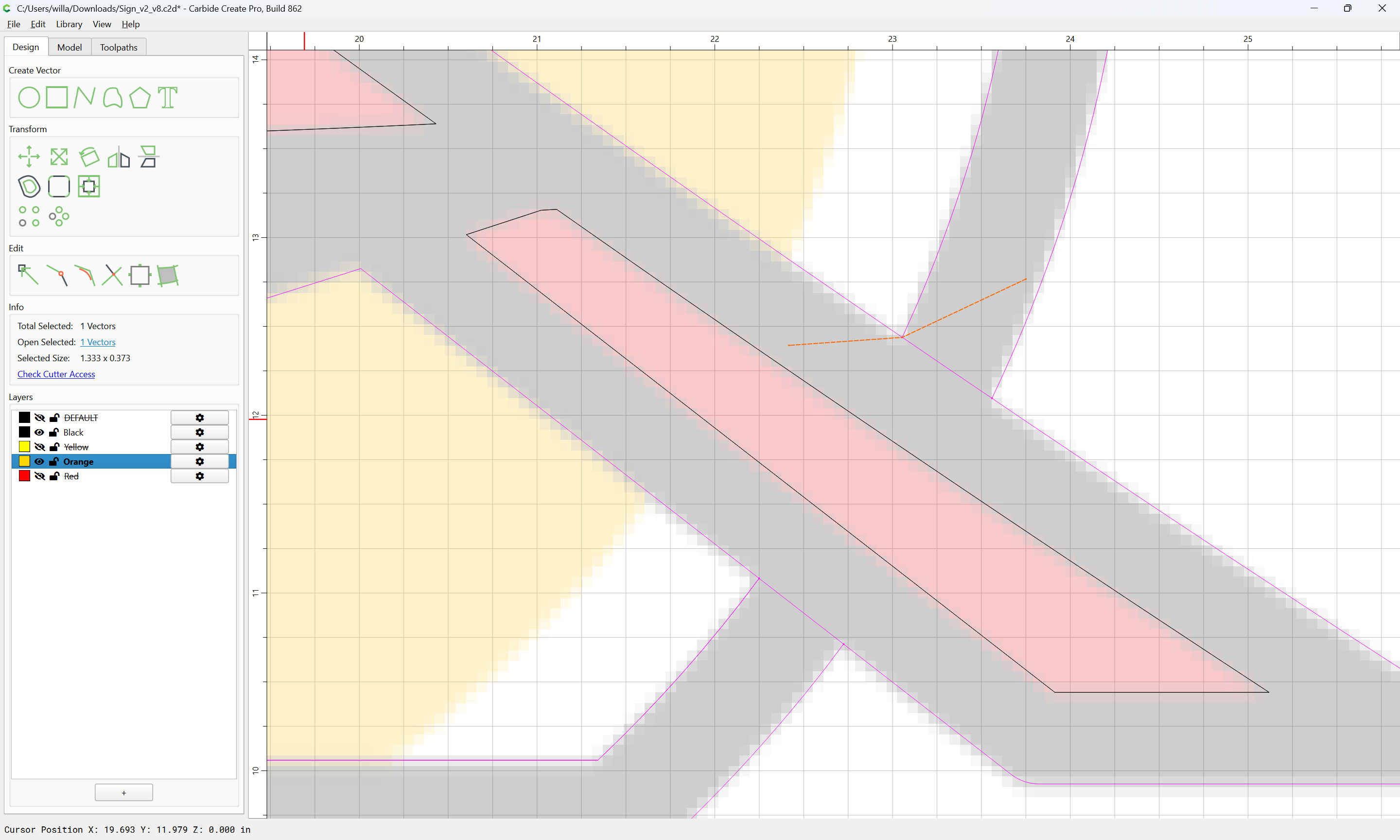
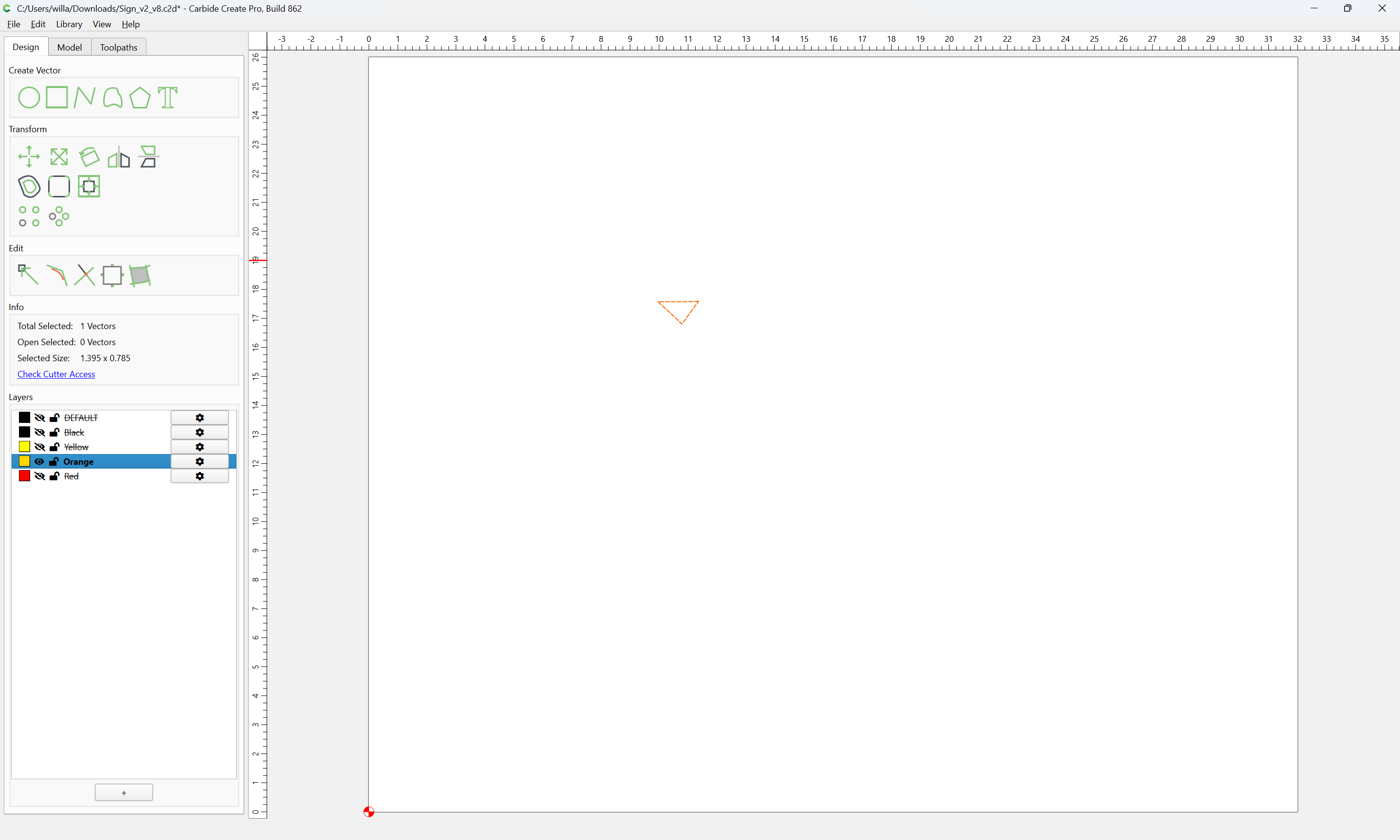
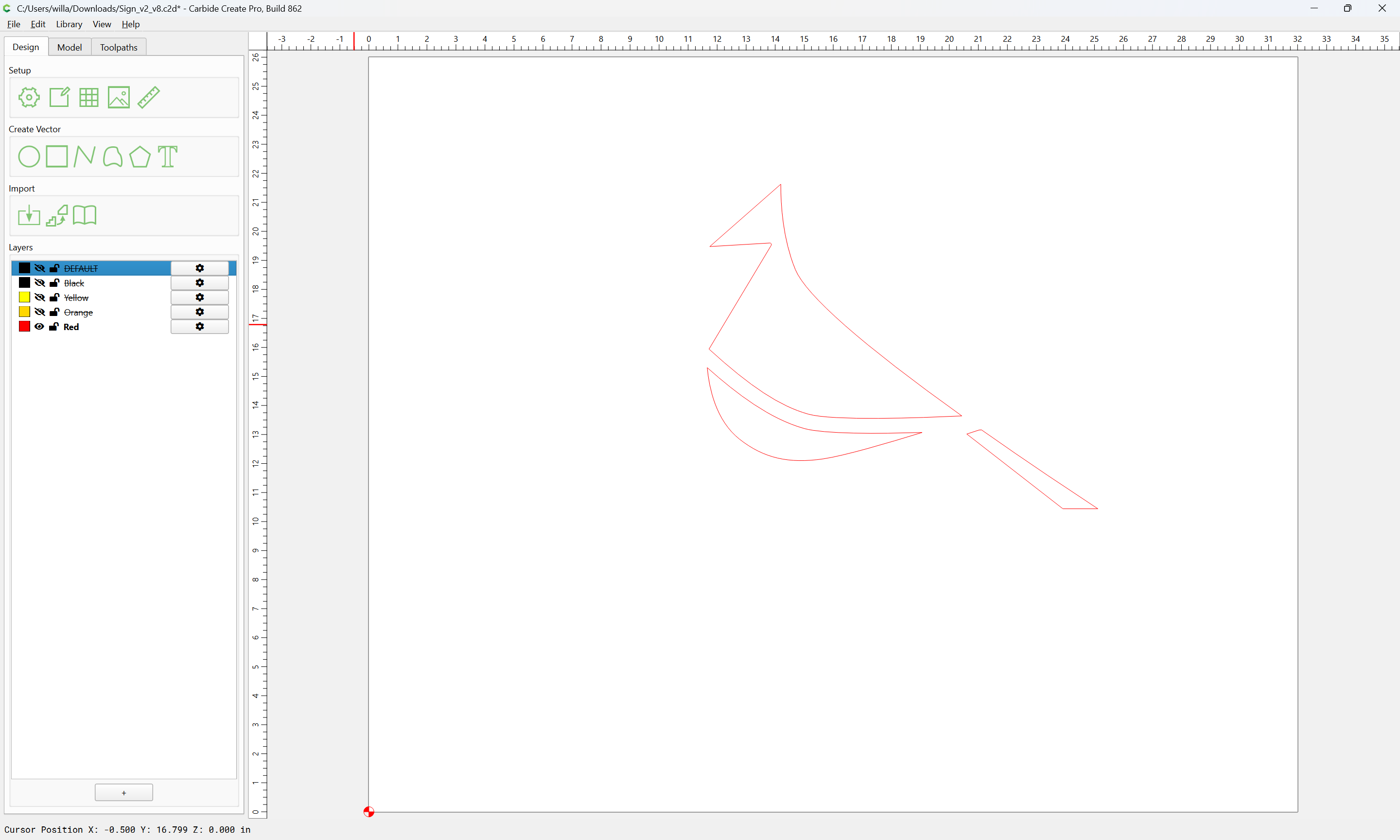
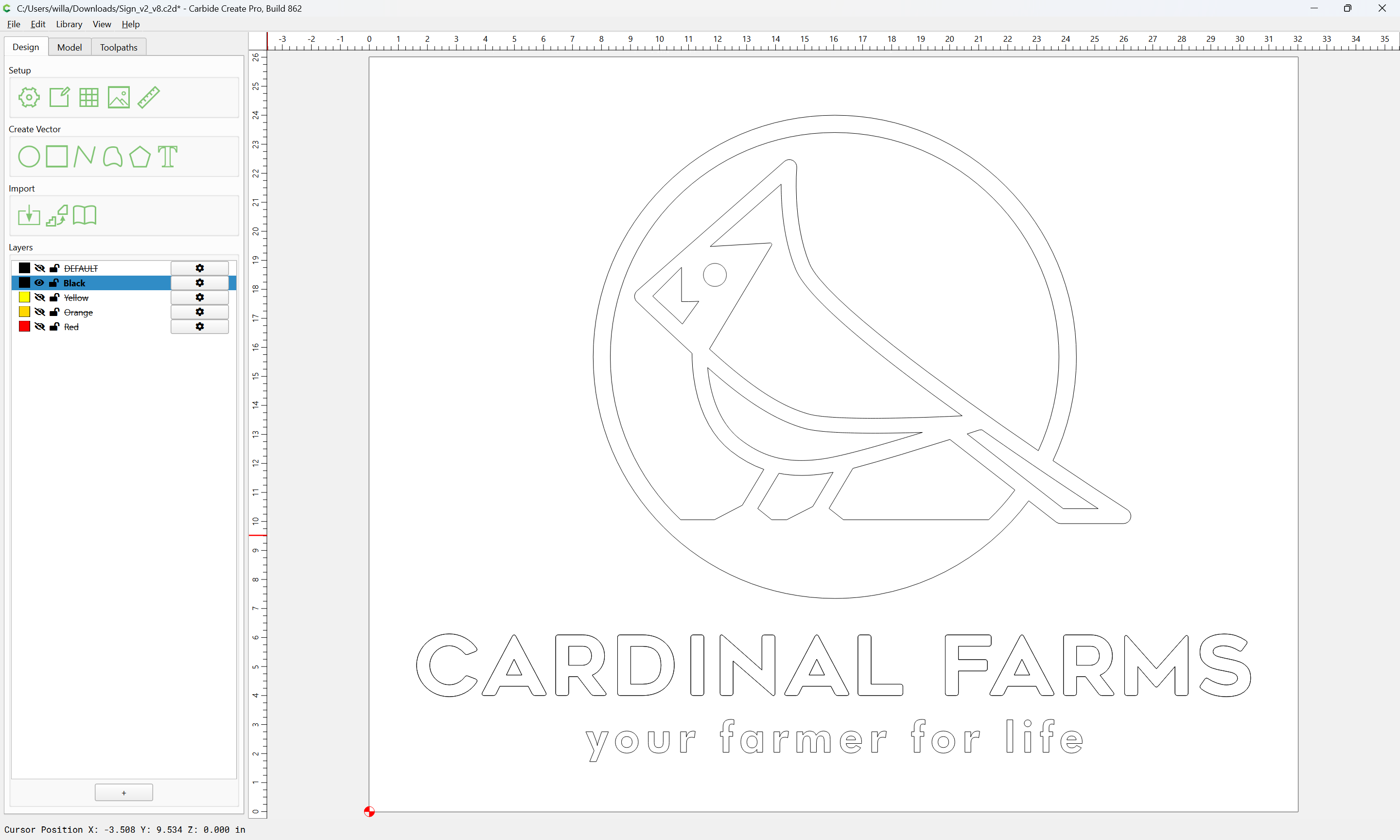
Then, layers may be shown or hidden to work with them:
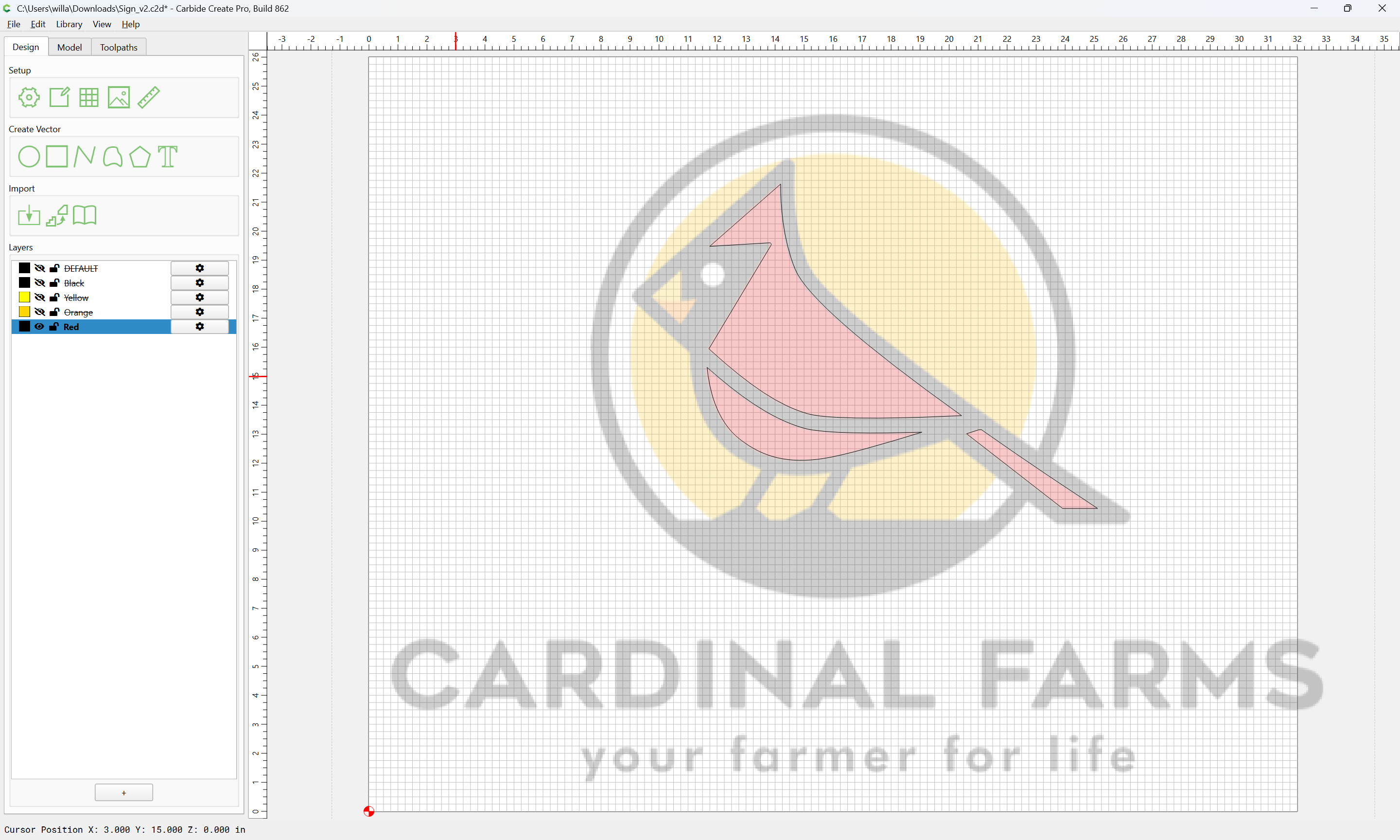
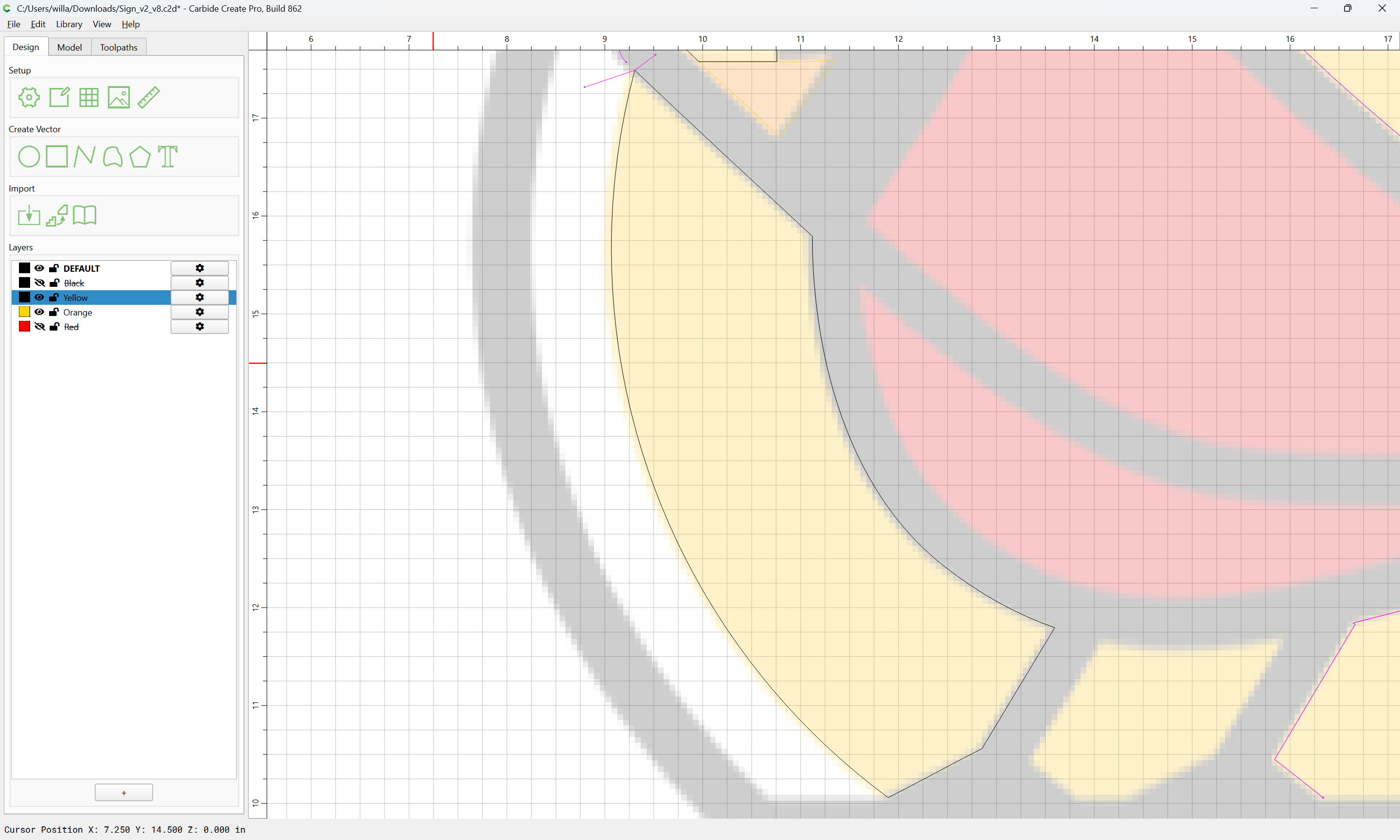
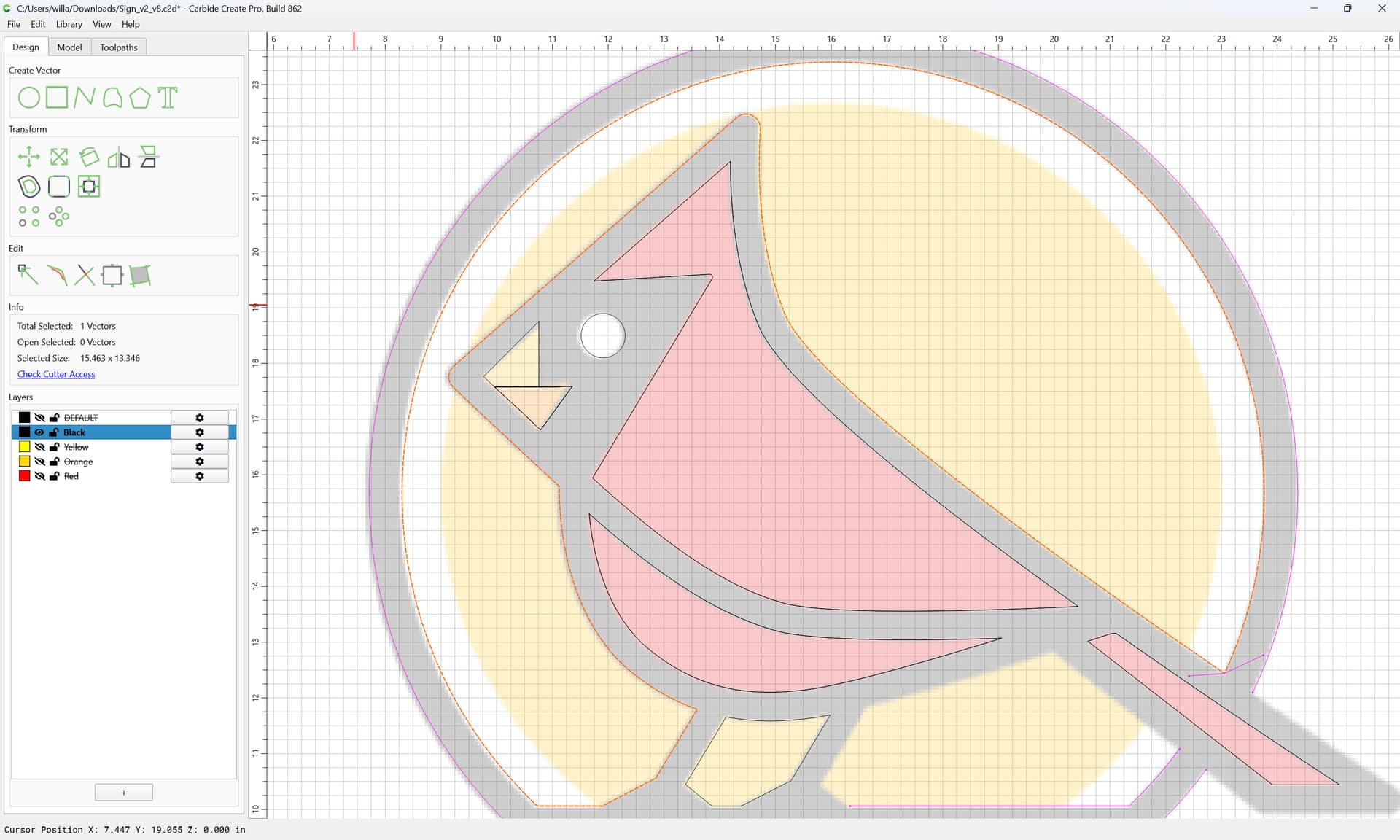
and temporarily set to Black:
to verify that things are closed and done, at which point a layer may be hidden.
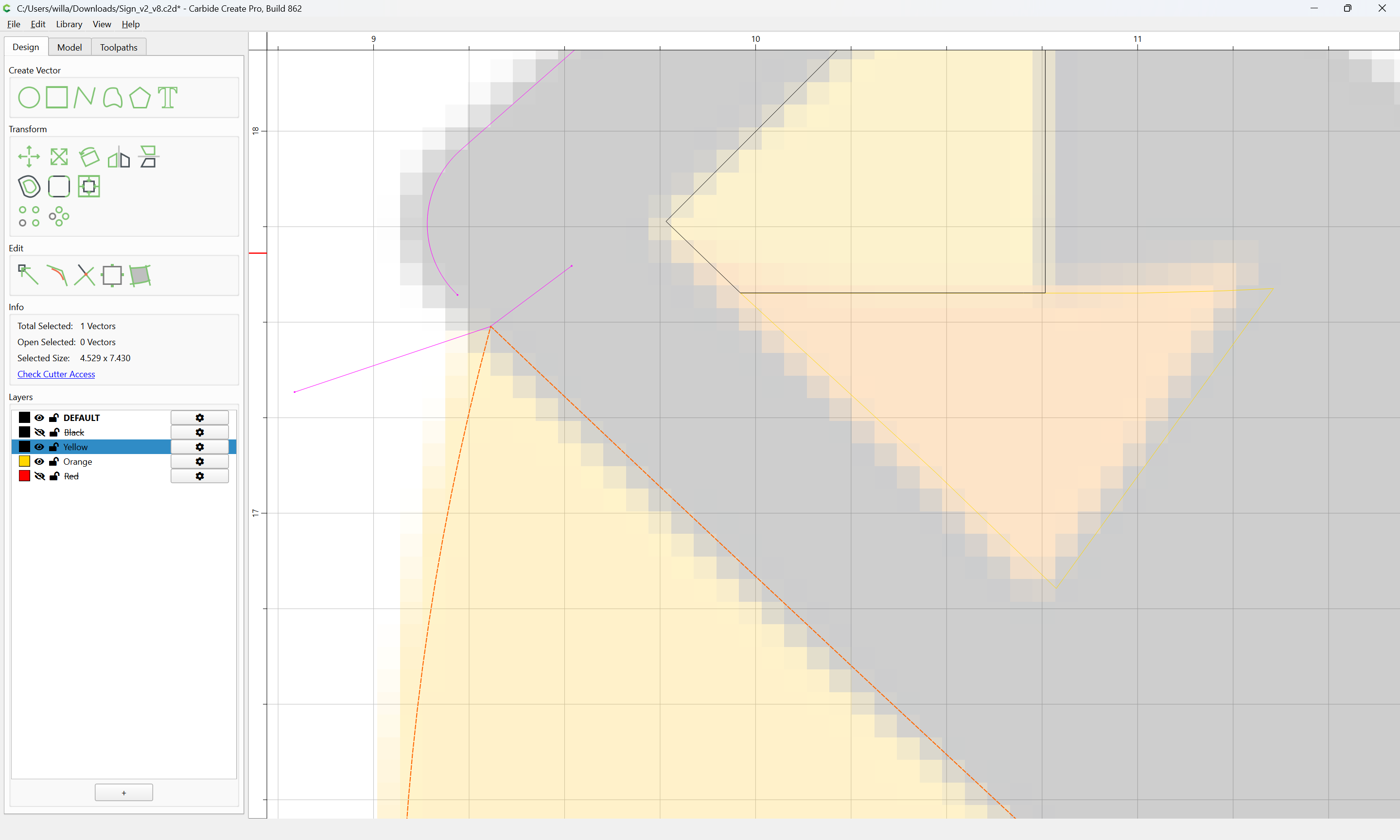
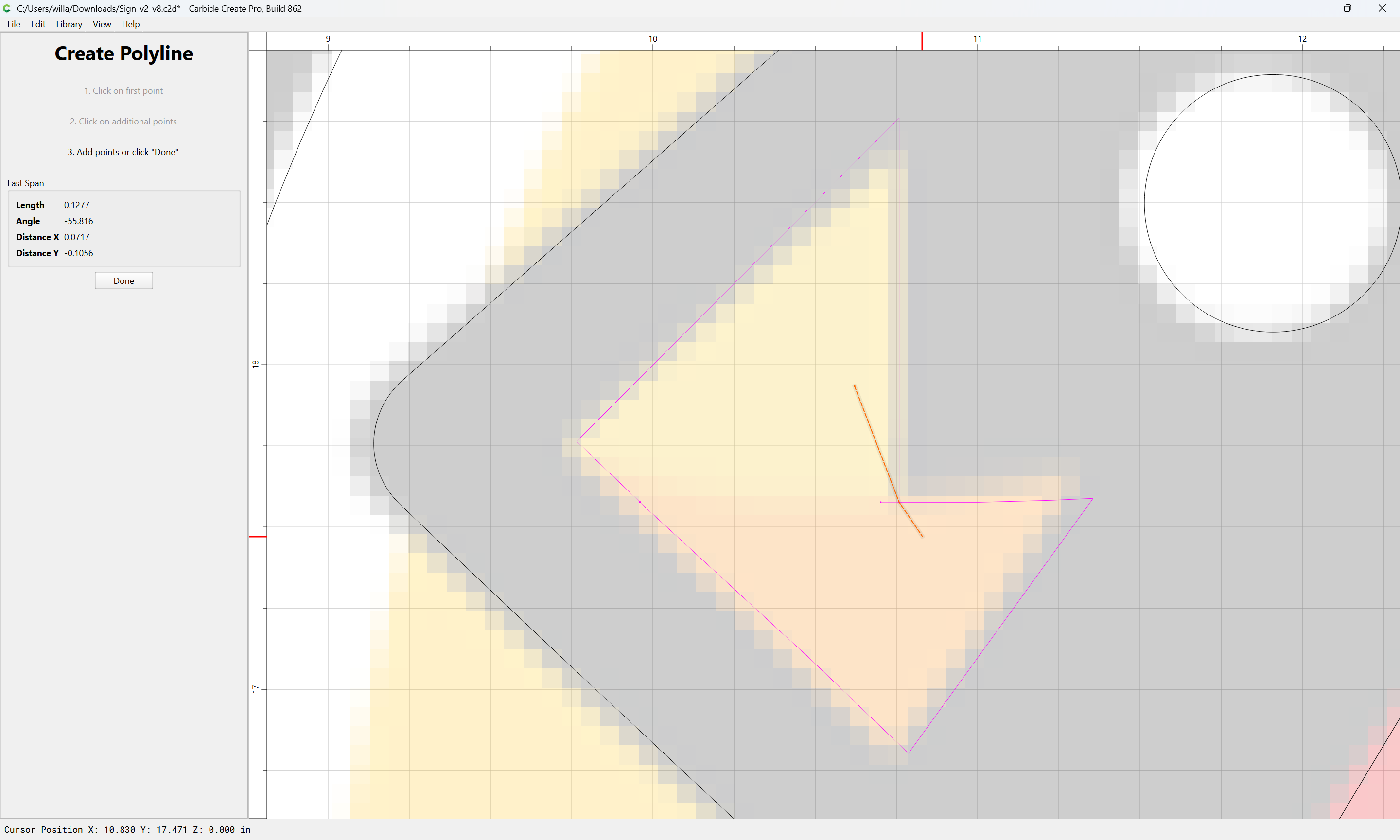
where necessary, duplicate geometry and draw in additional geometry:
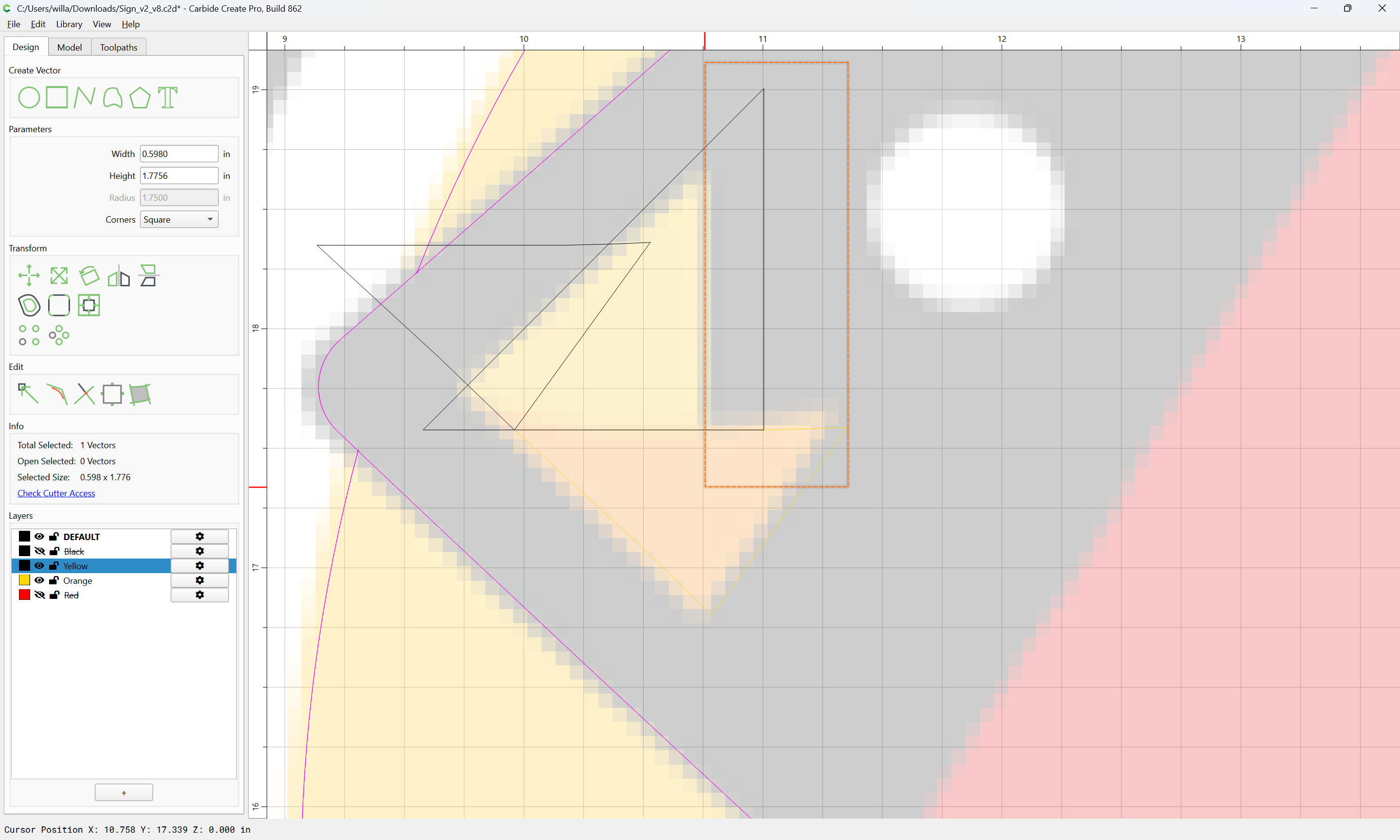
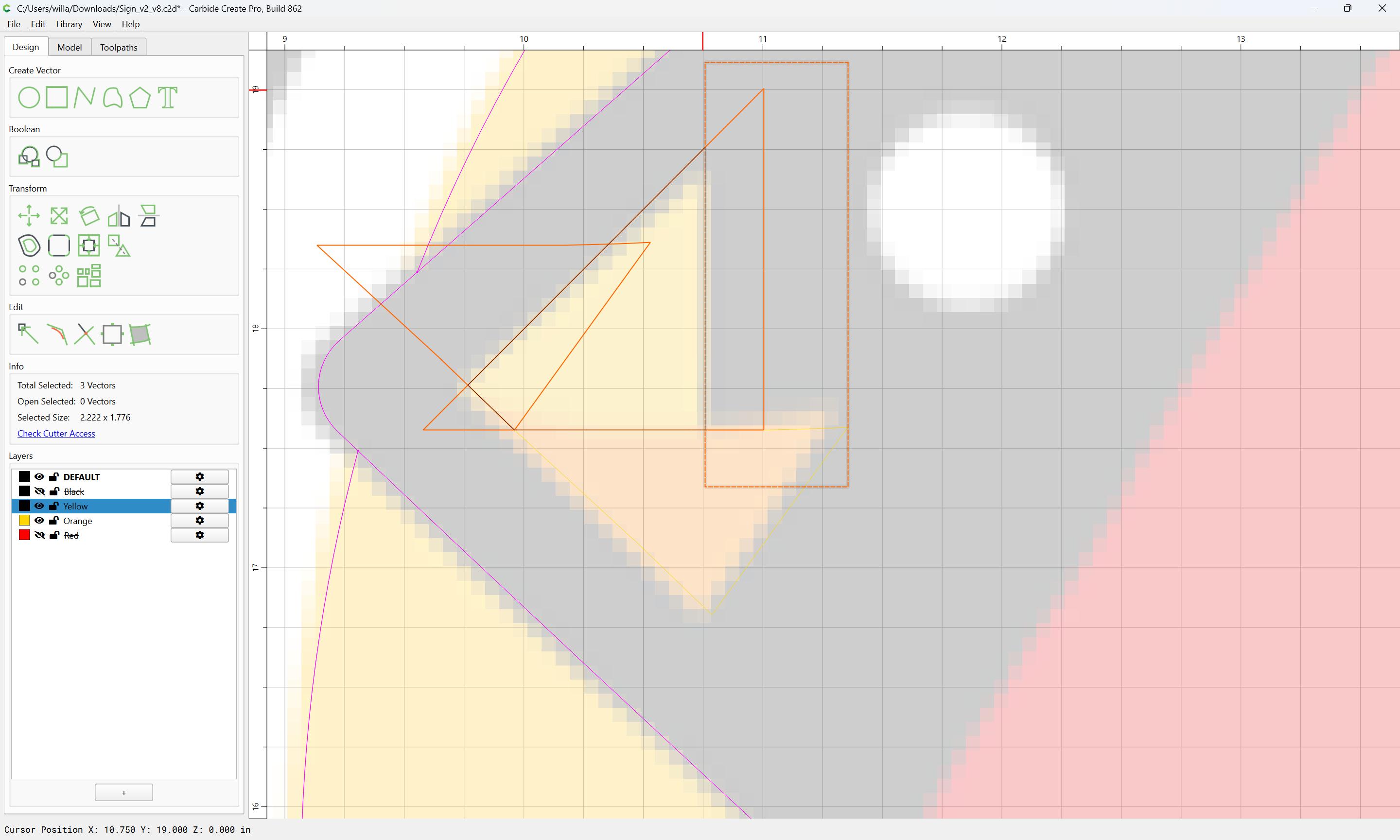
and then select things:
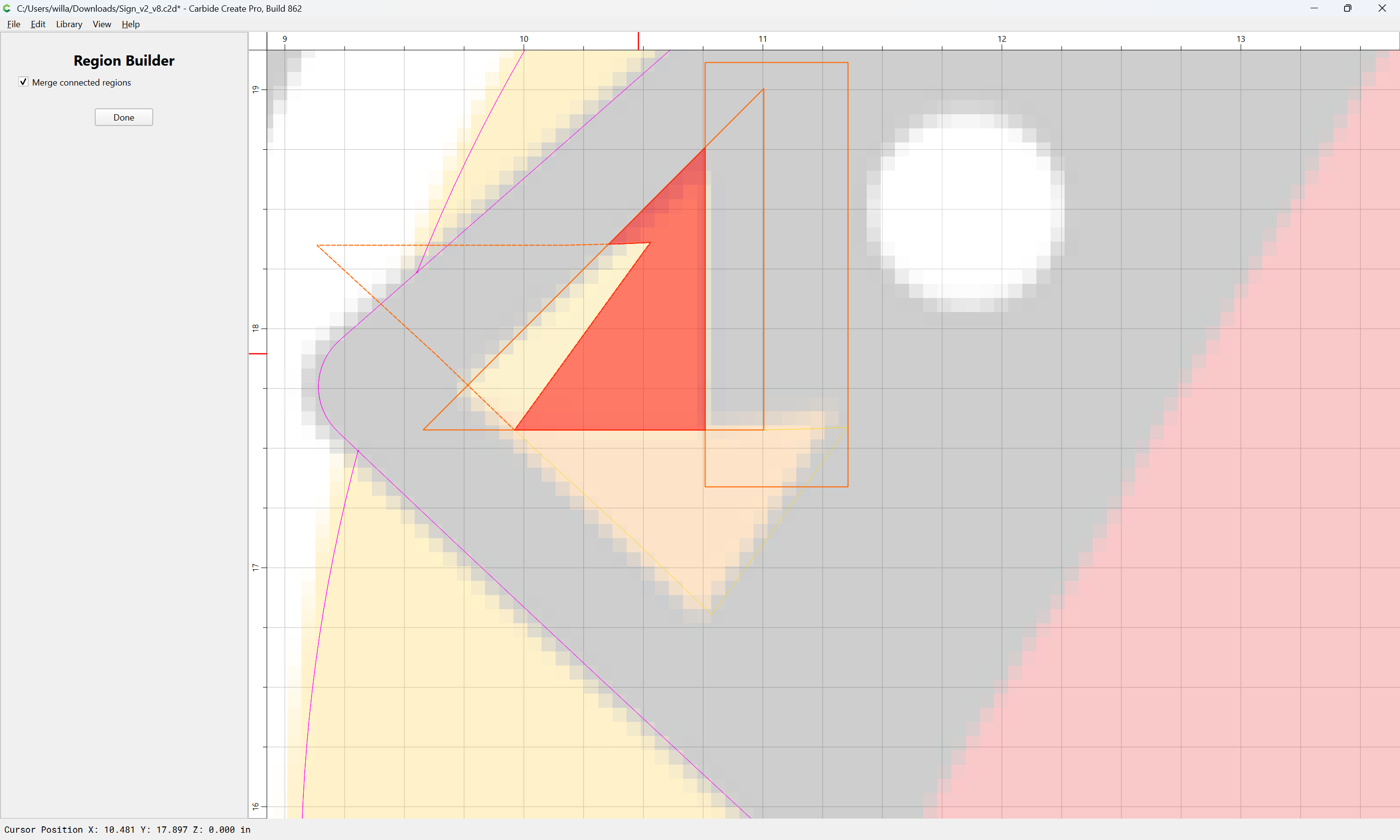
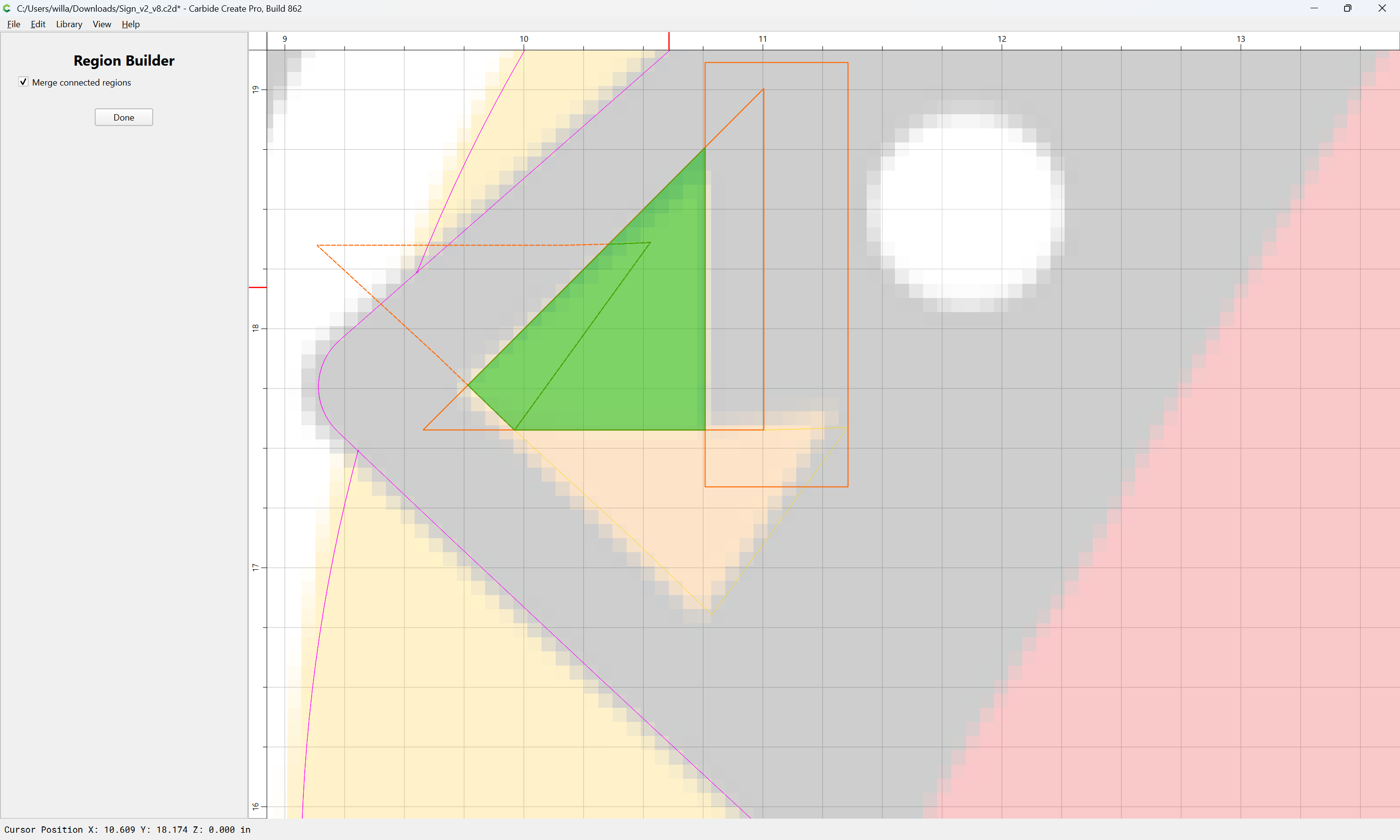
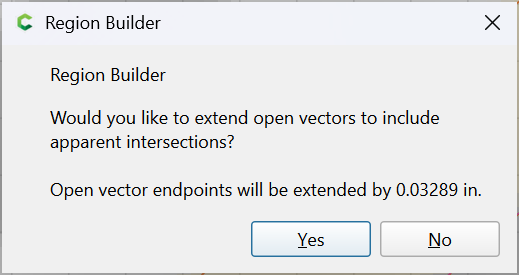
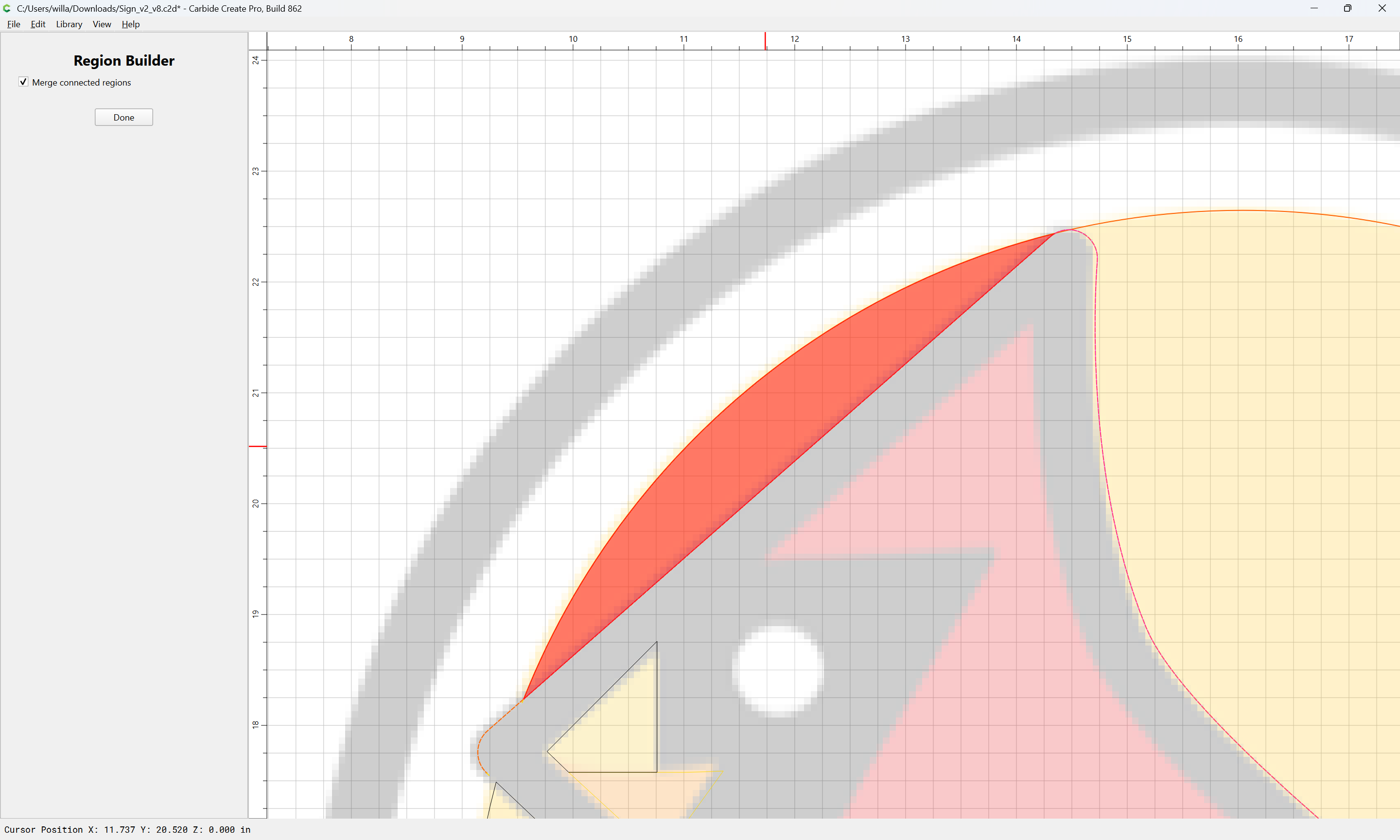
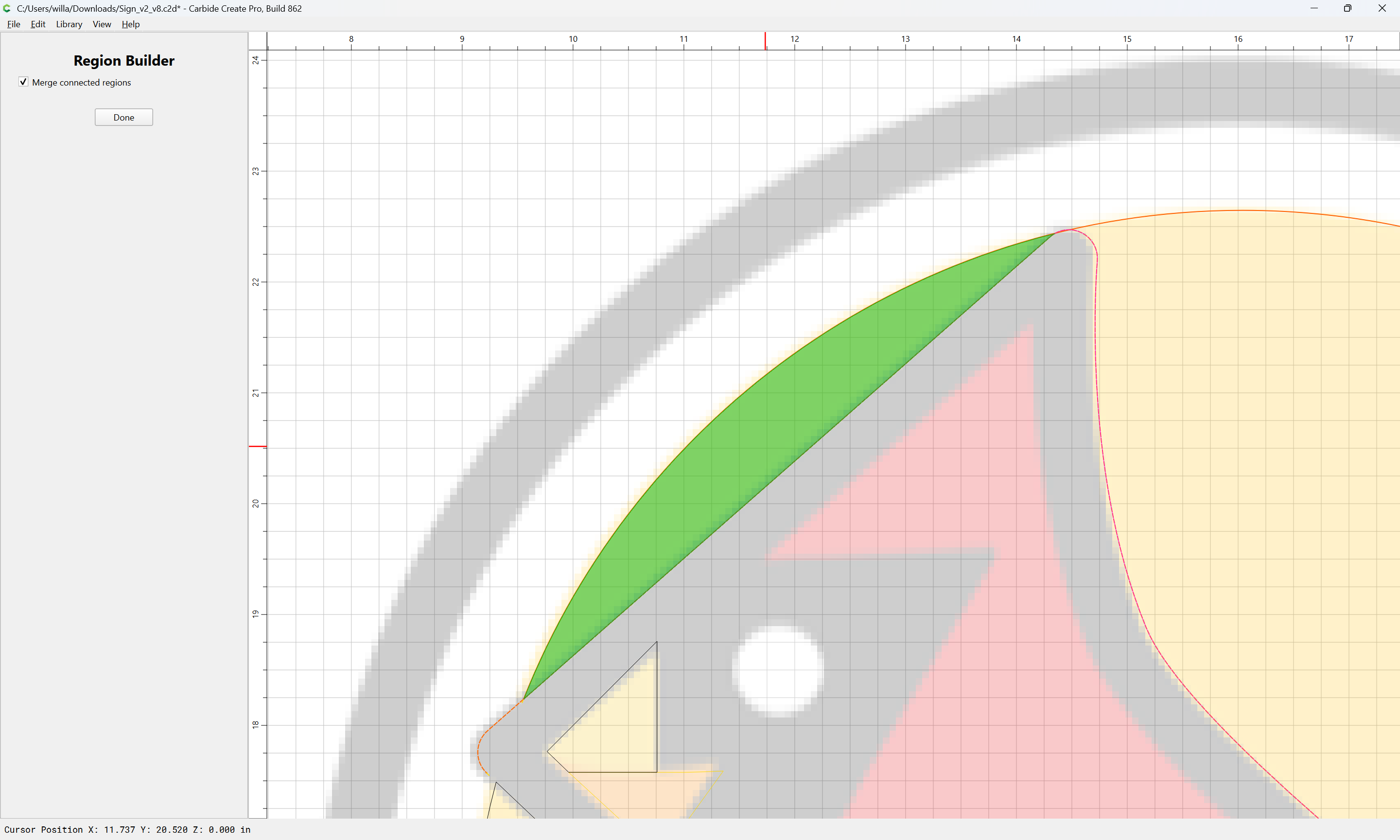
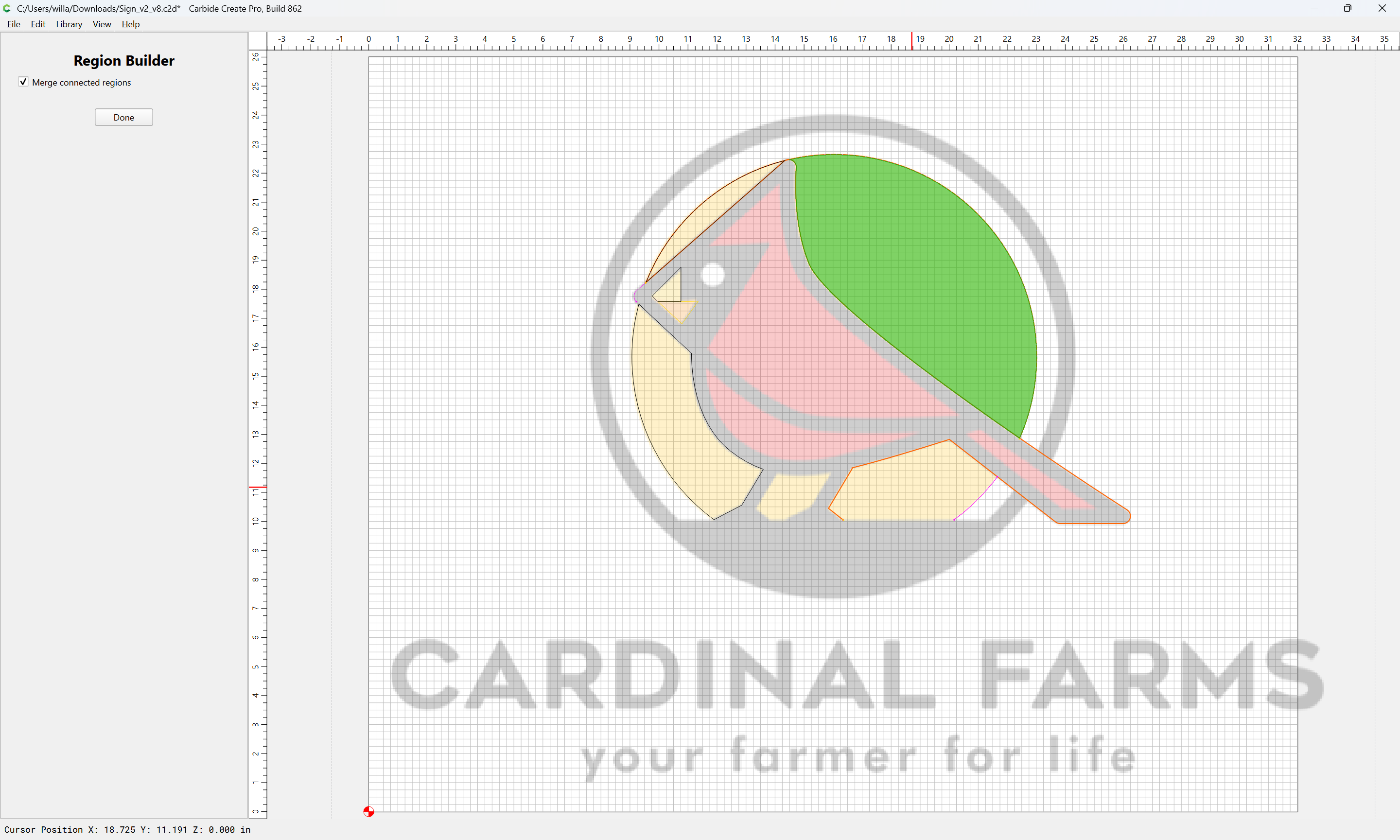
and use Region Builder to arrive at the geometry which is wanted:
Yes
Done
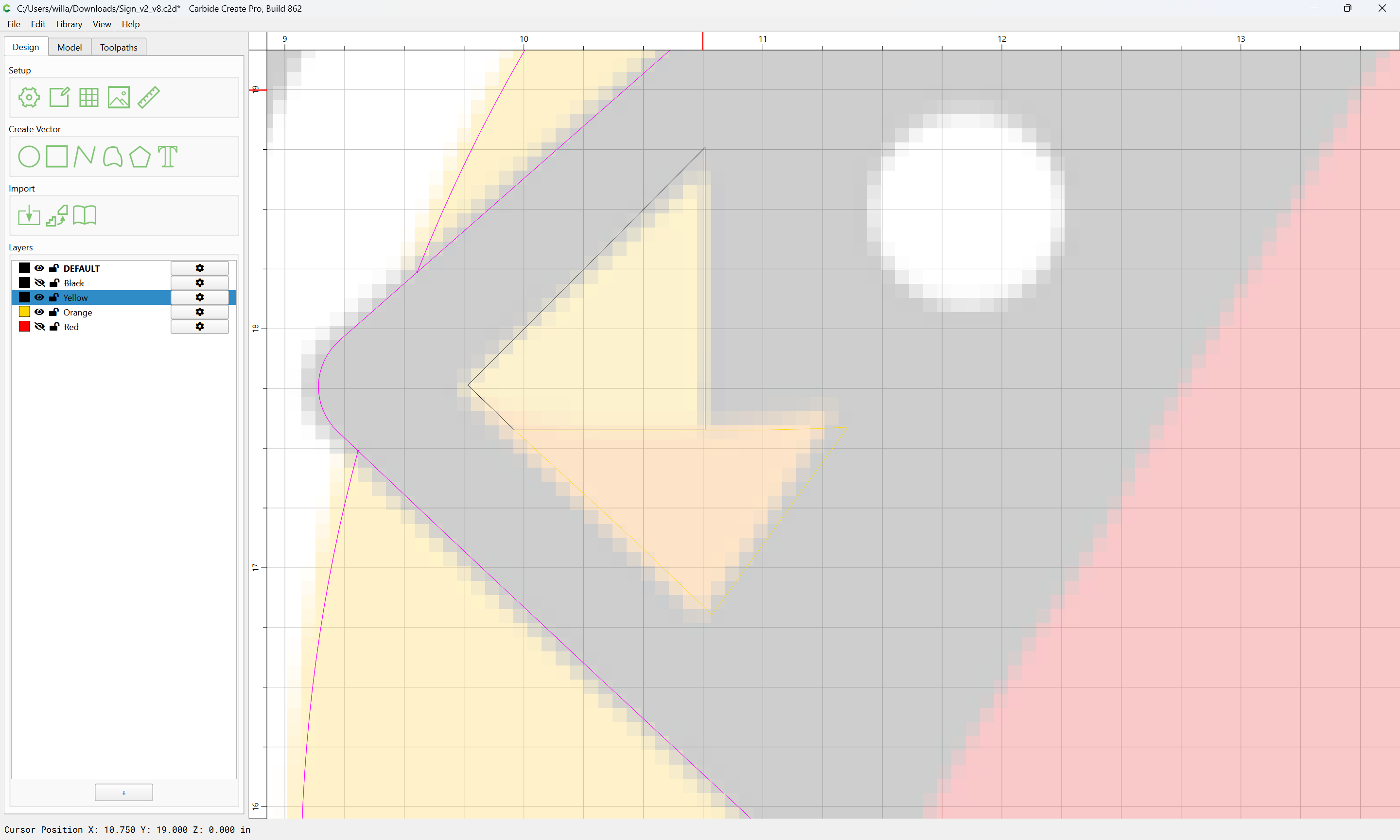
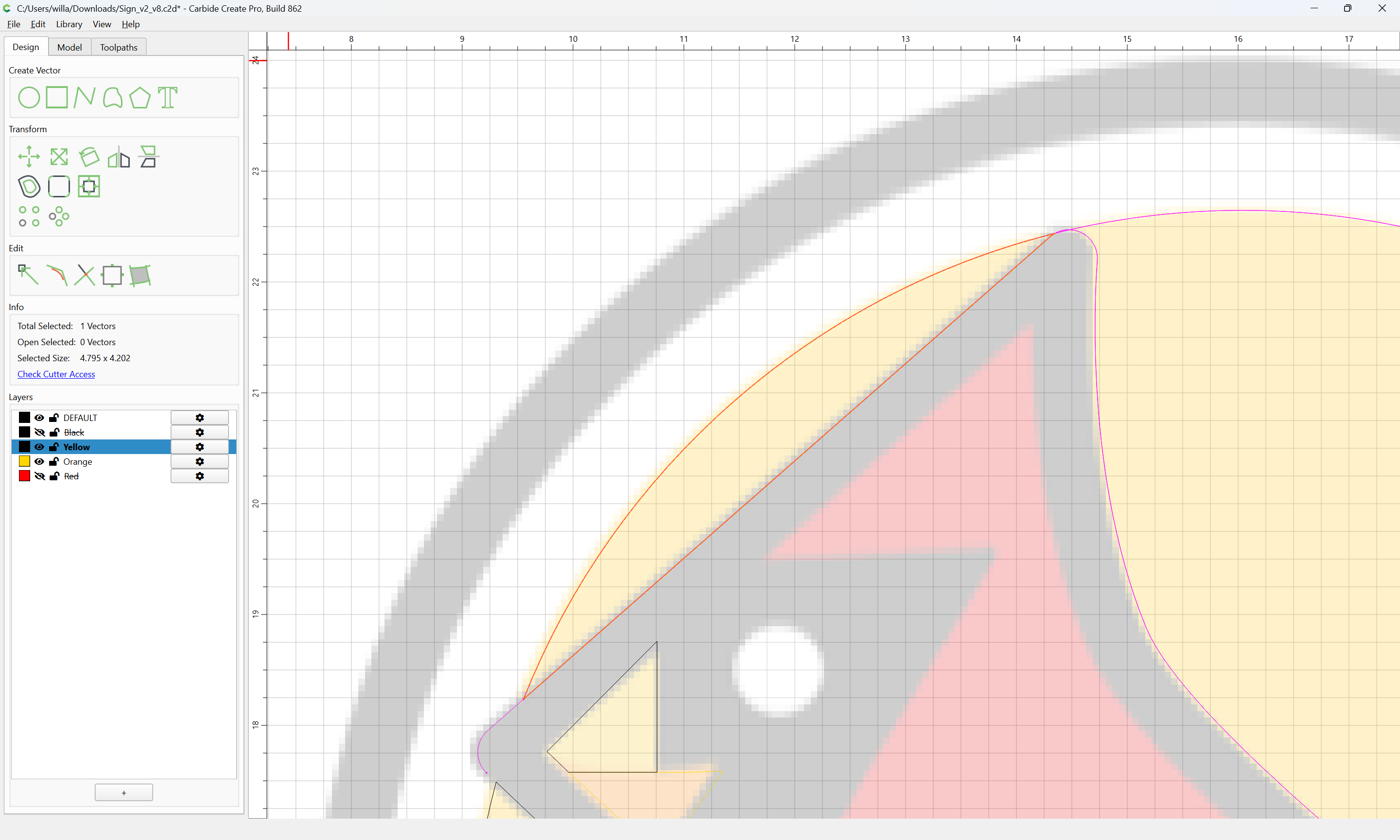
and the unneeded geometry may be selected:
and deleted:
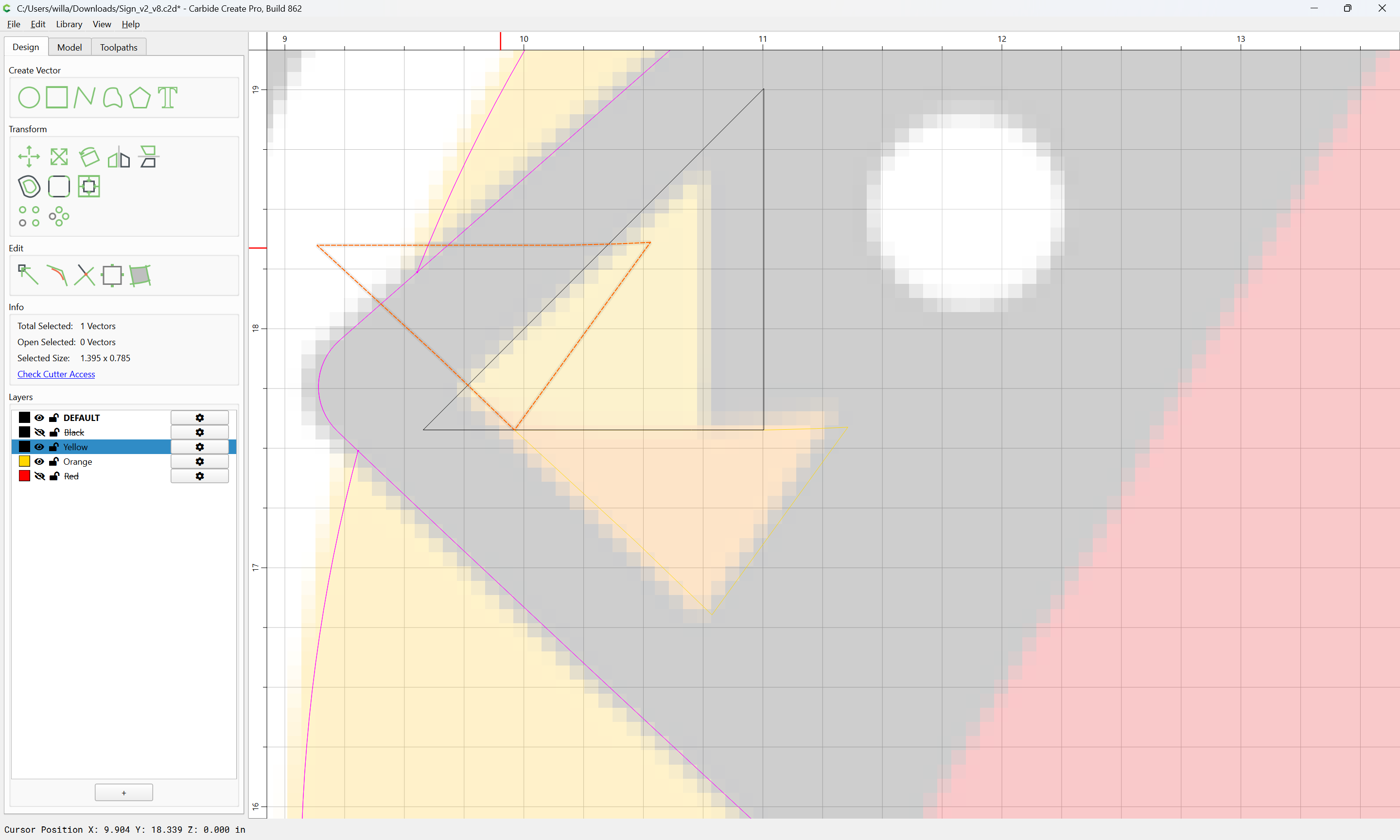
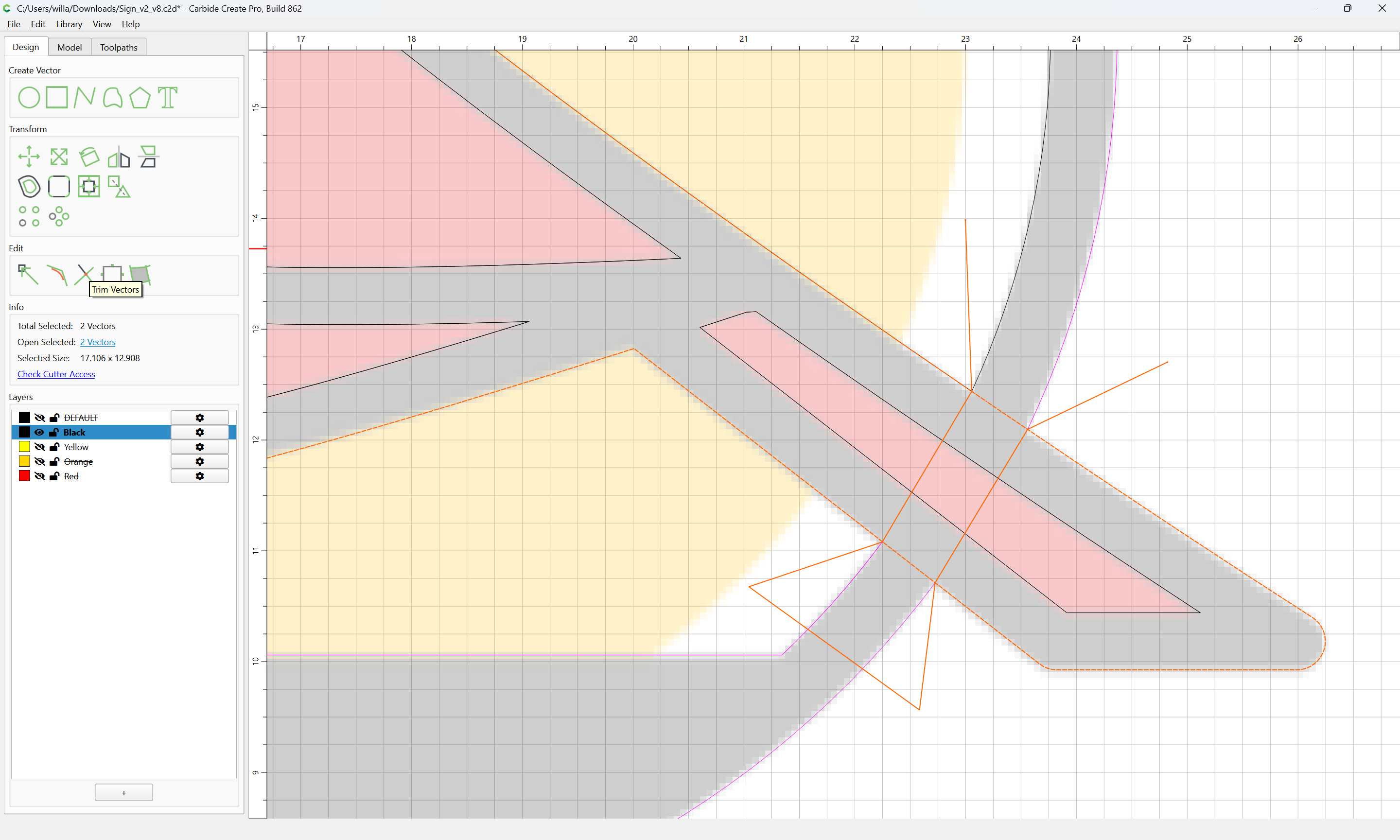
For a given bit of geometry which describes more than it ought:
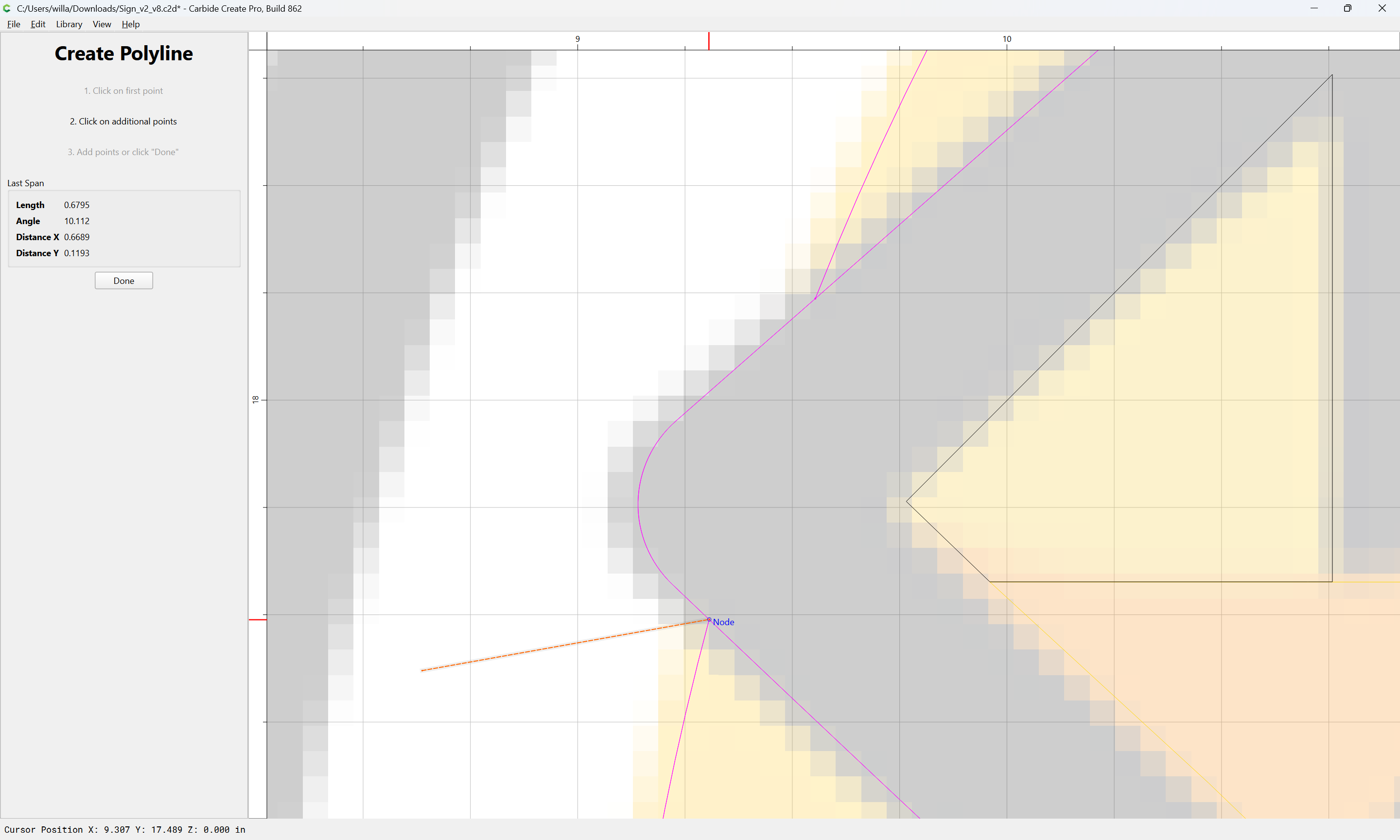
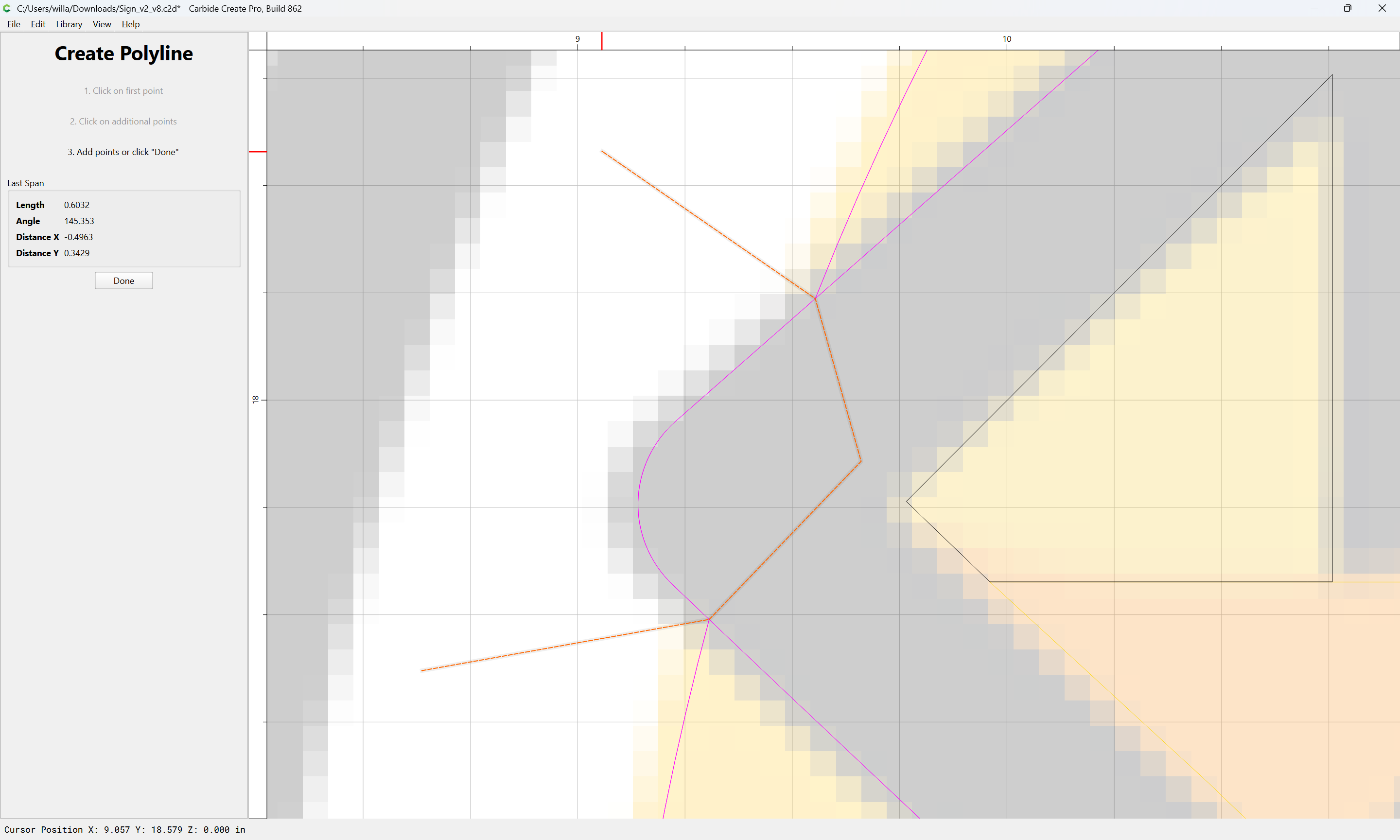
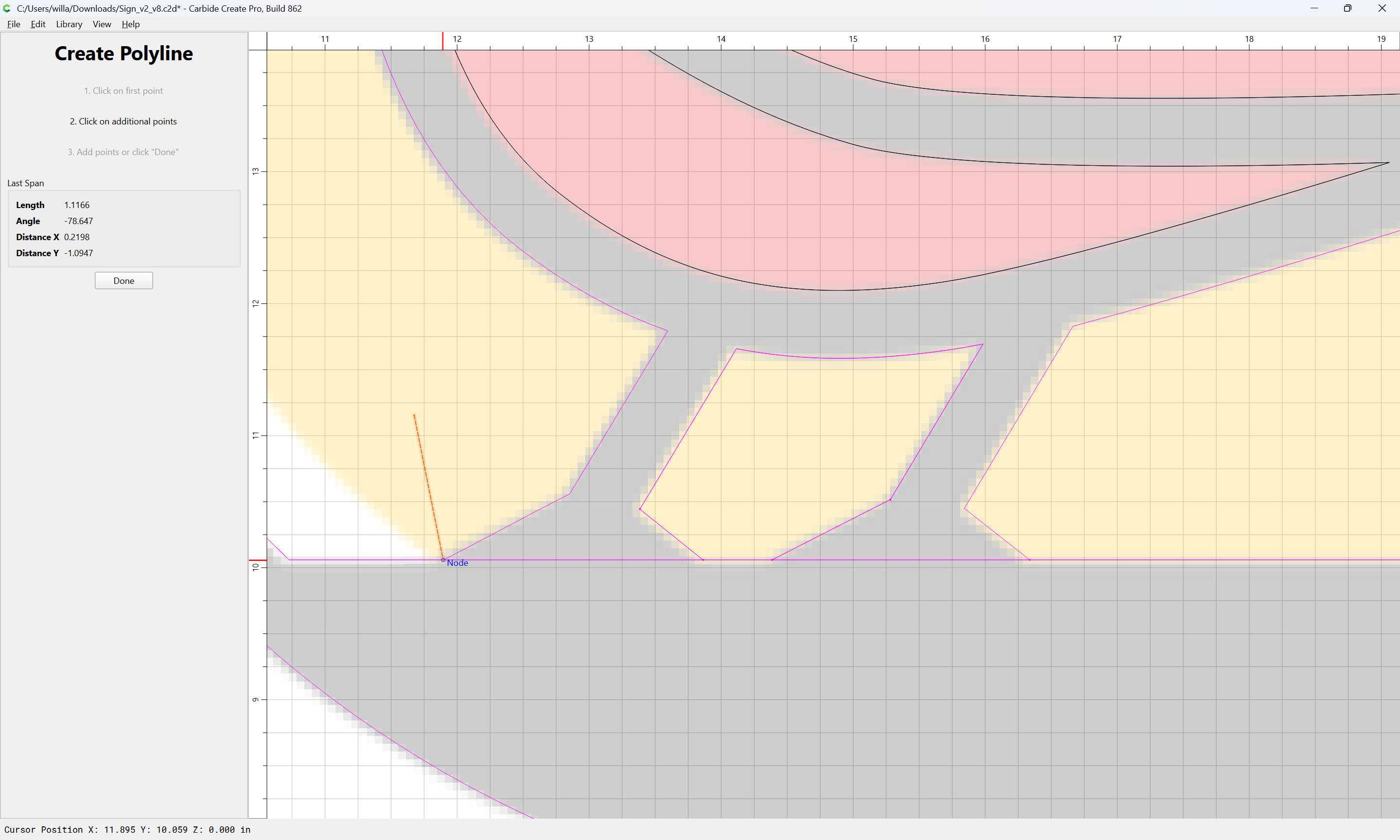
draw in geometry to define where things begin/end:
Done
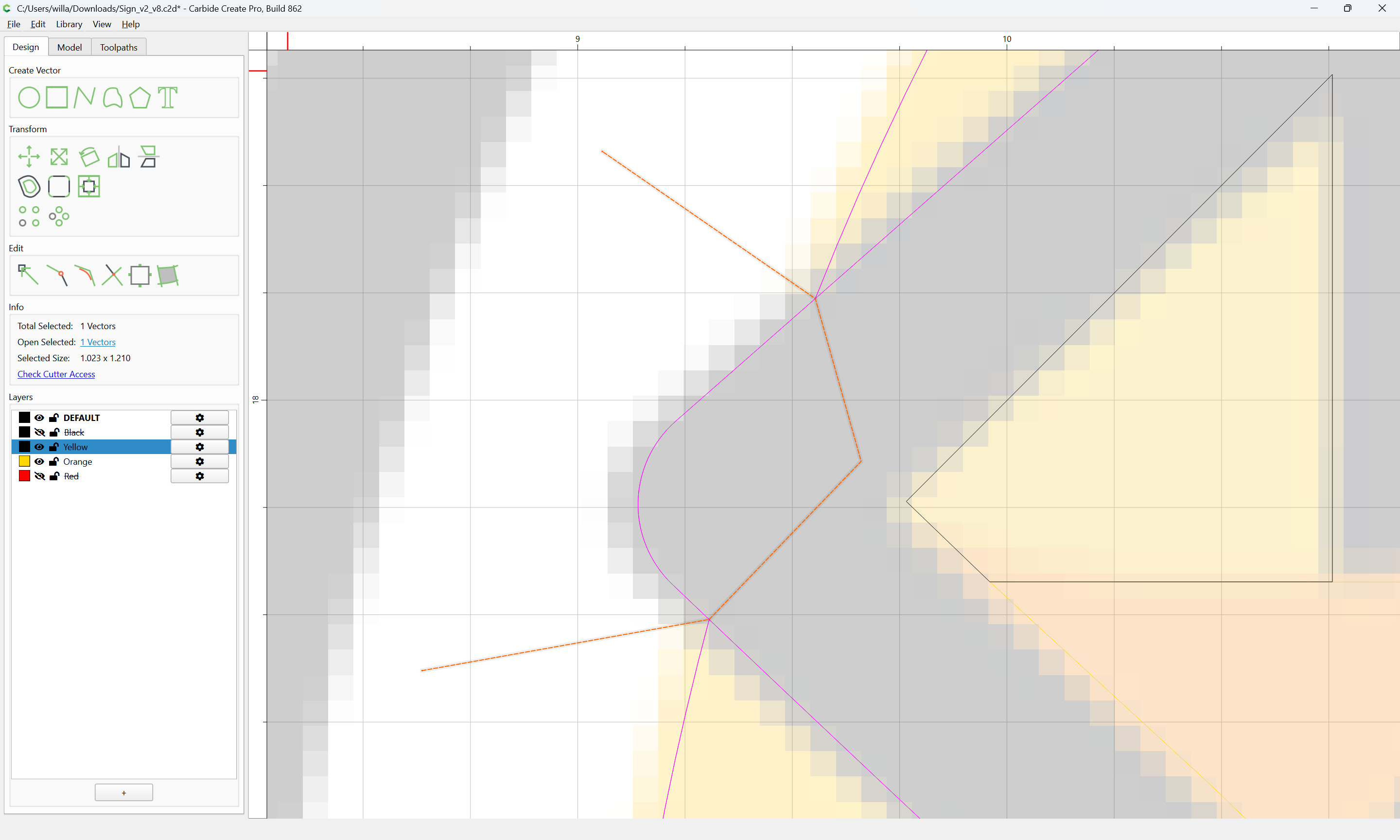
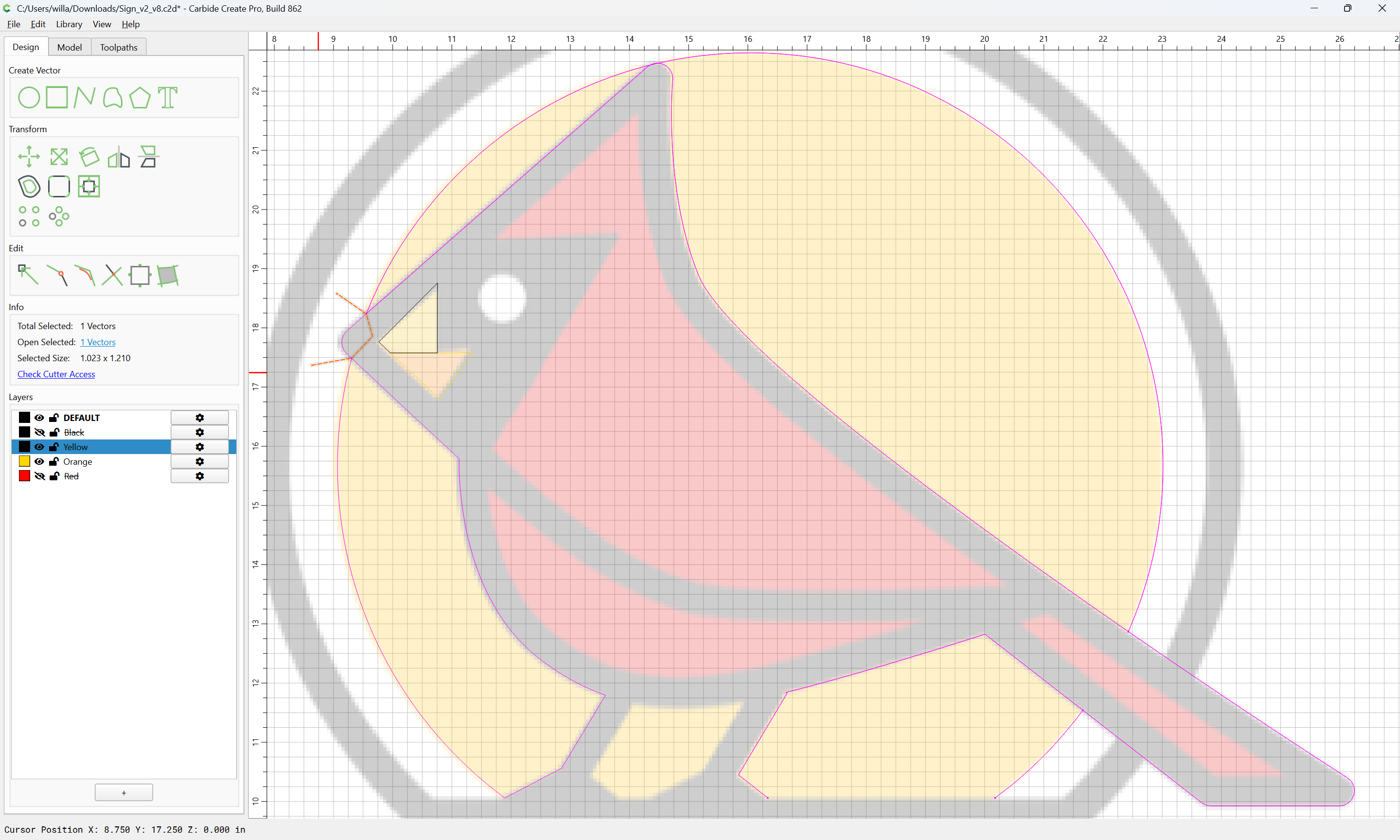
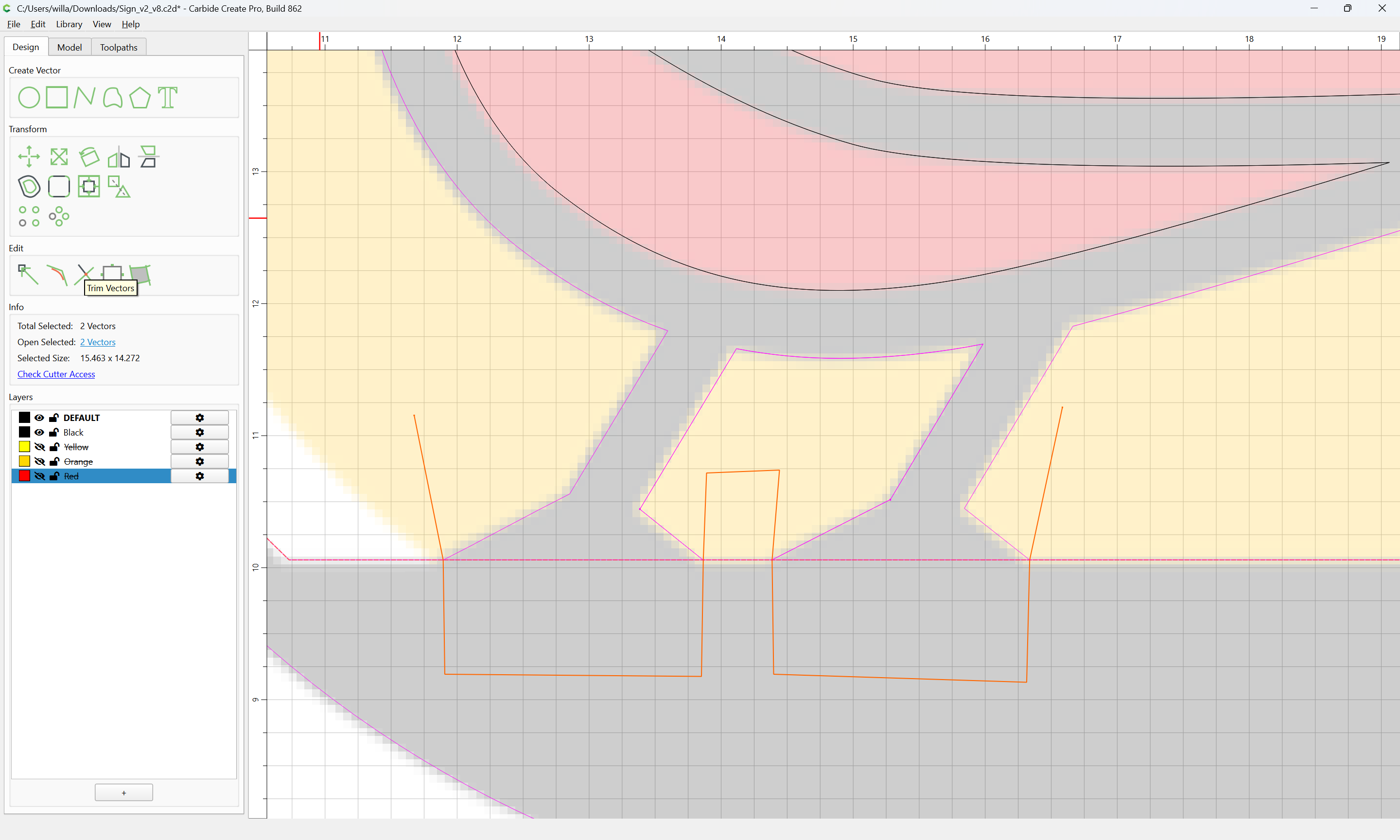
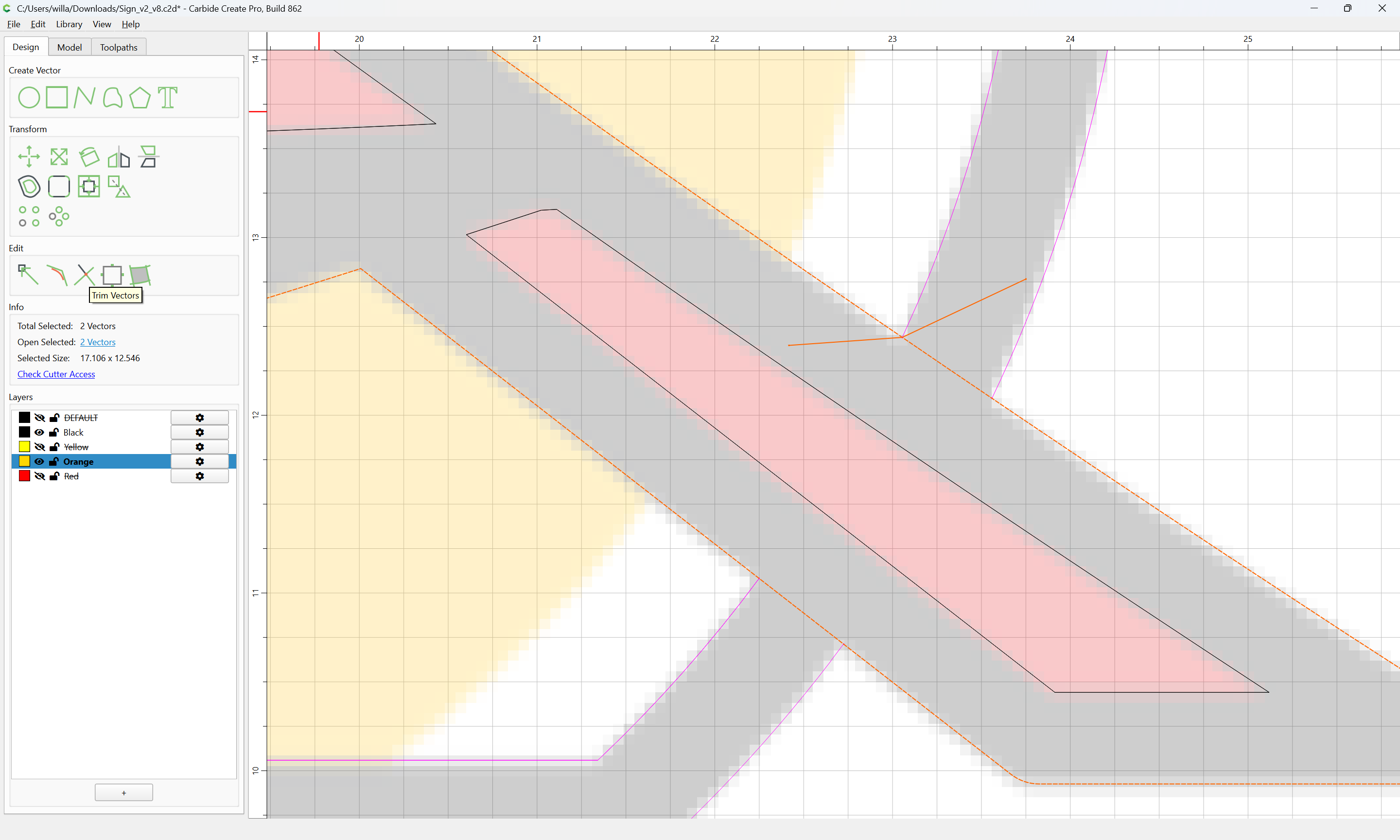
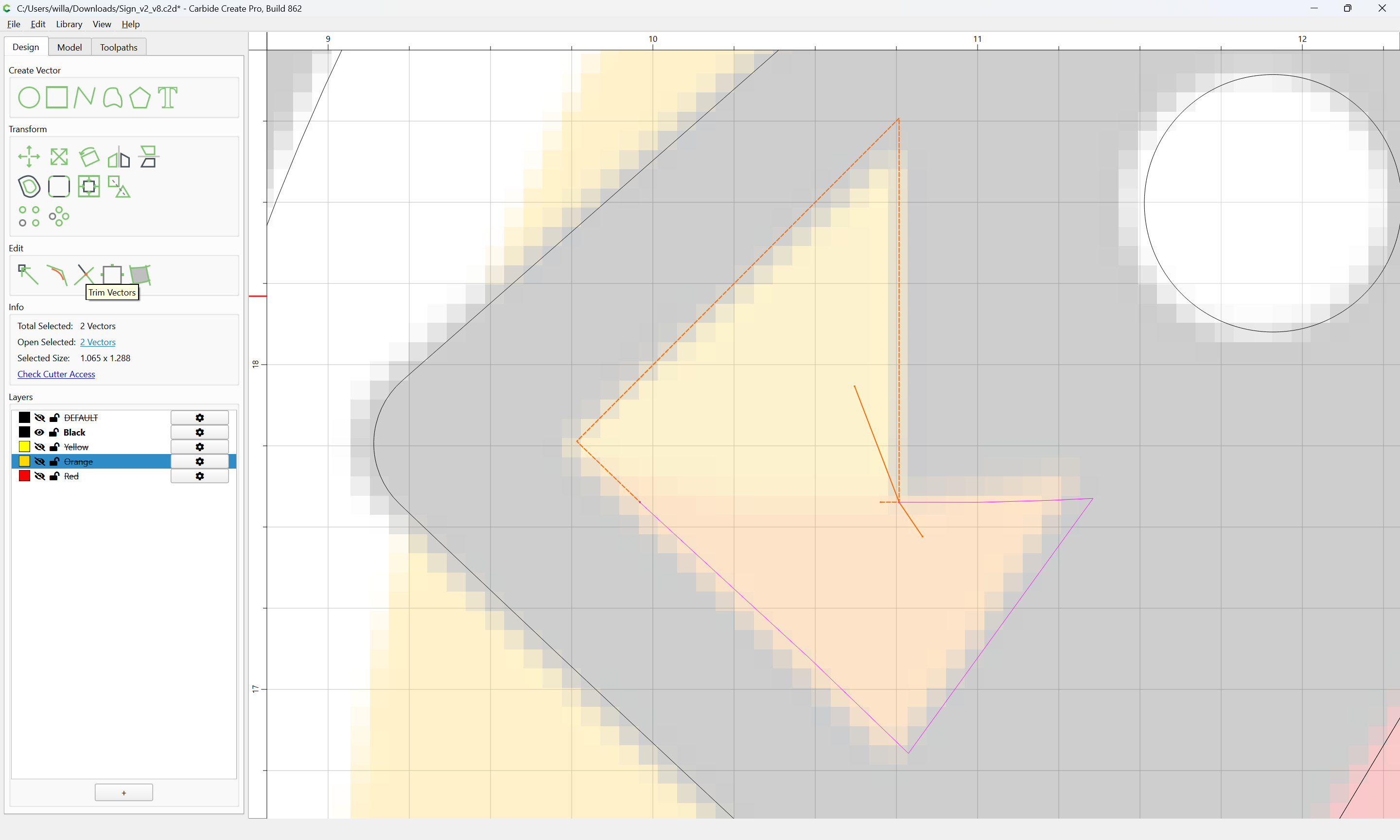
Then select the geometry which includes what needs to be removed:
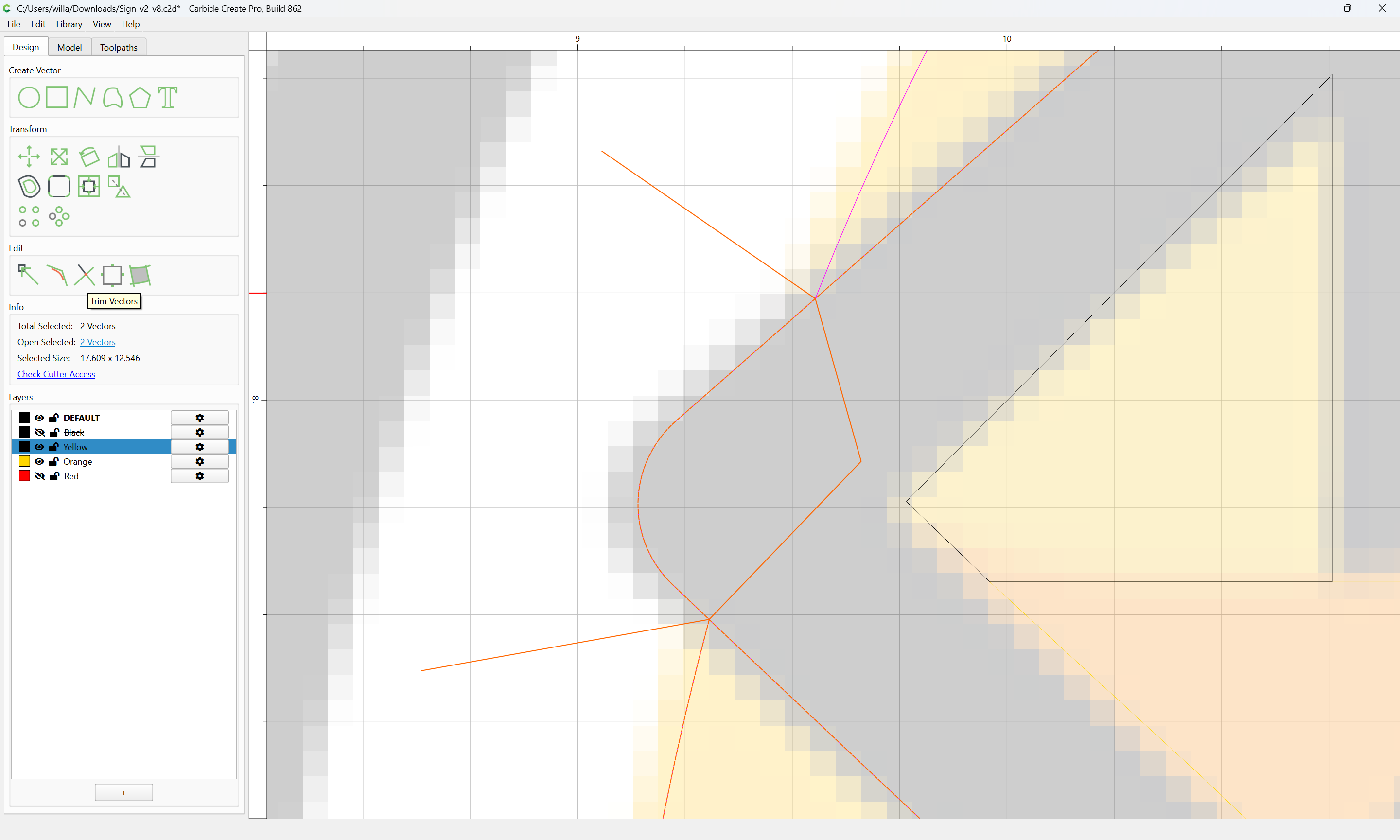
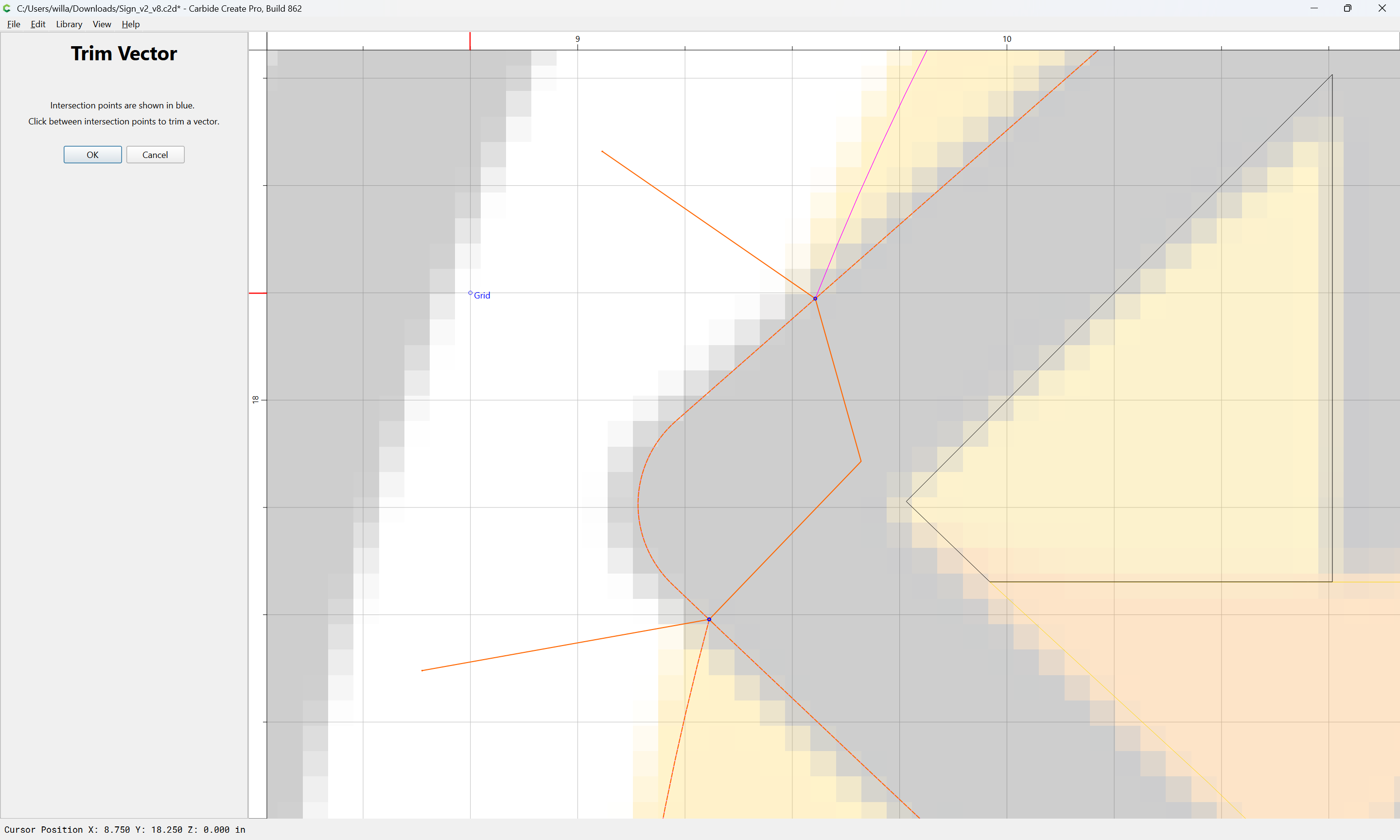
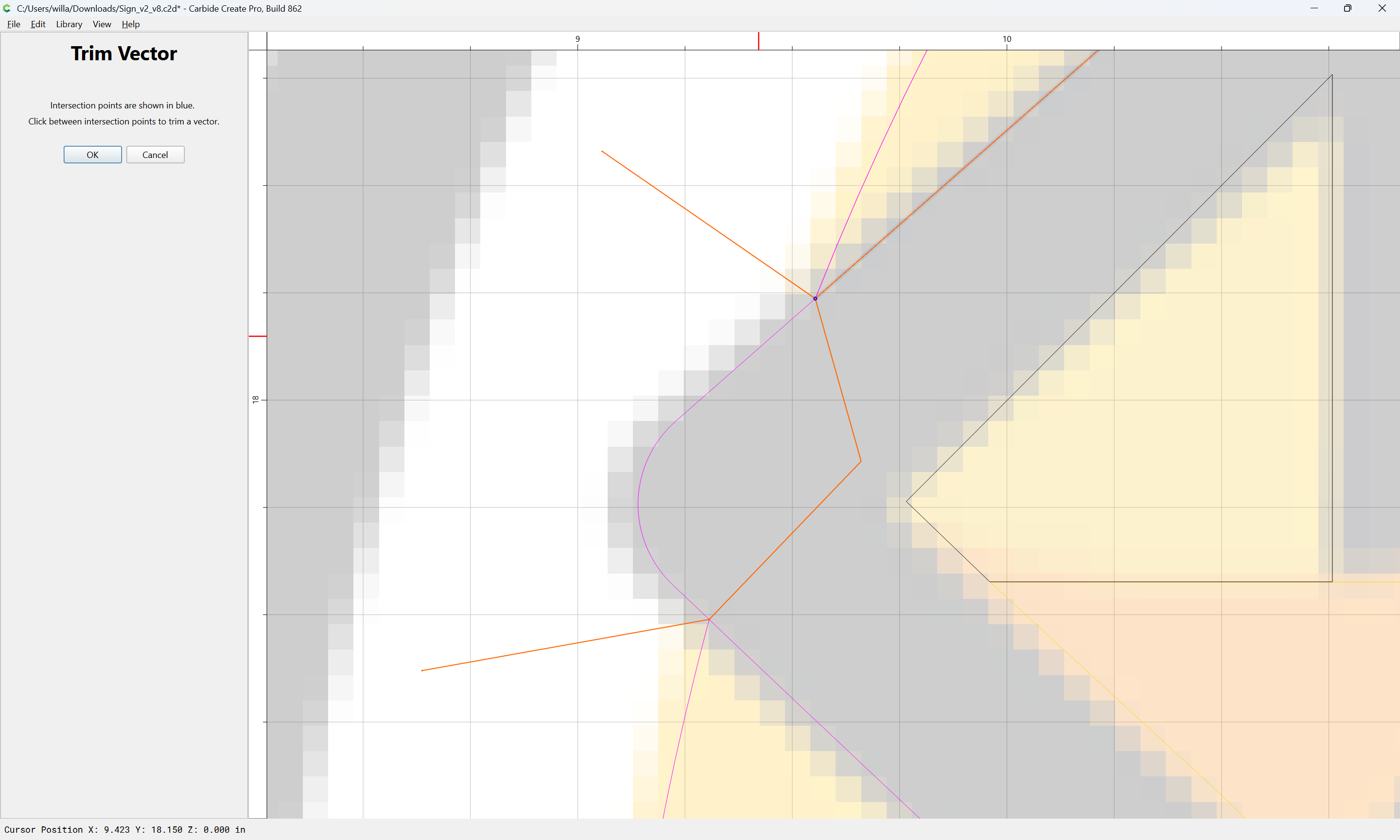
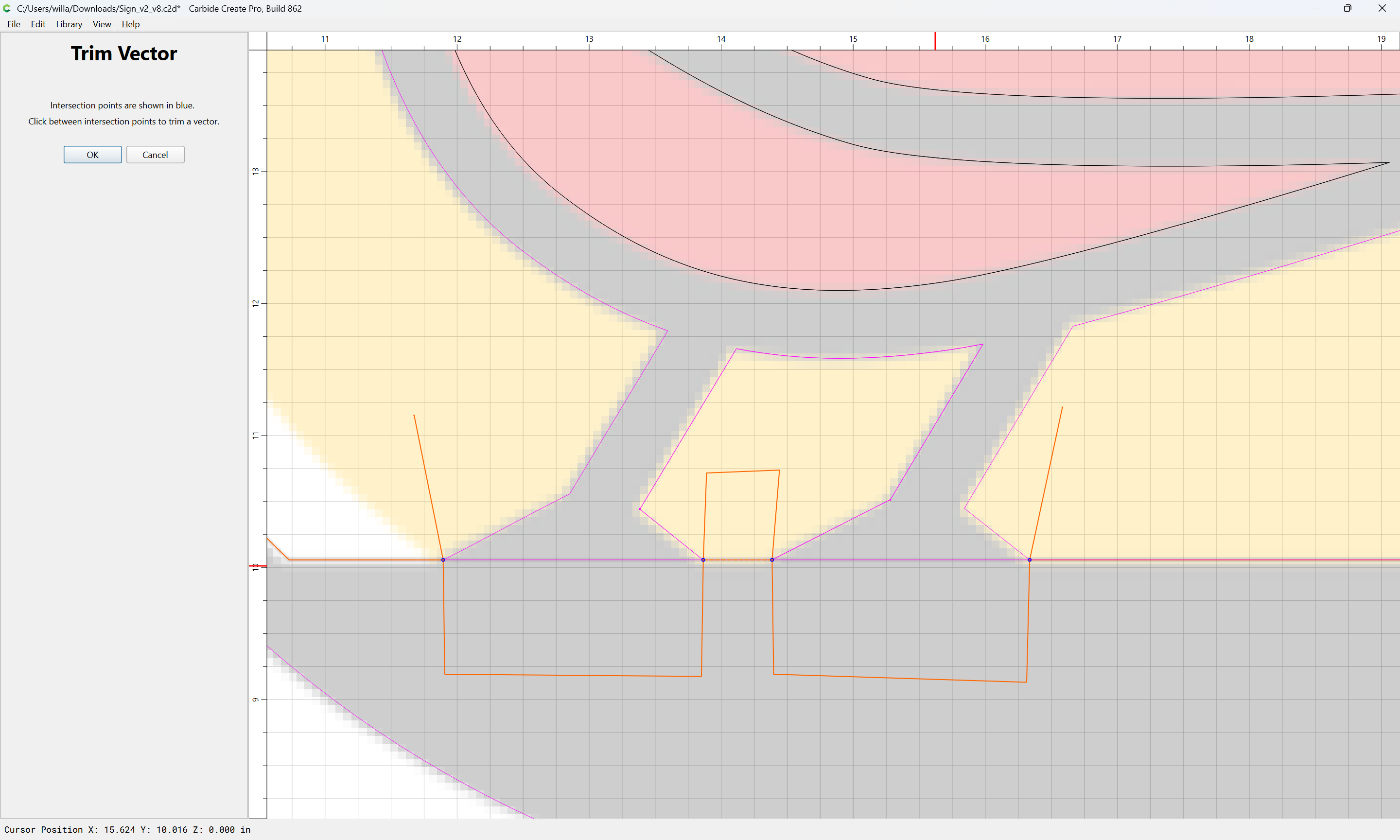
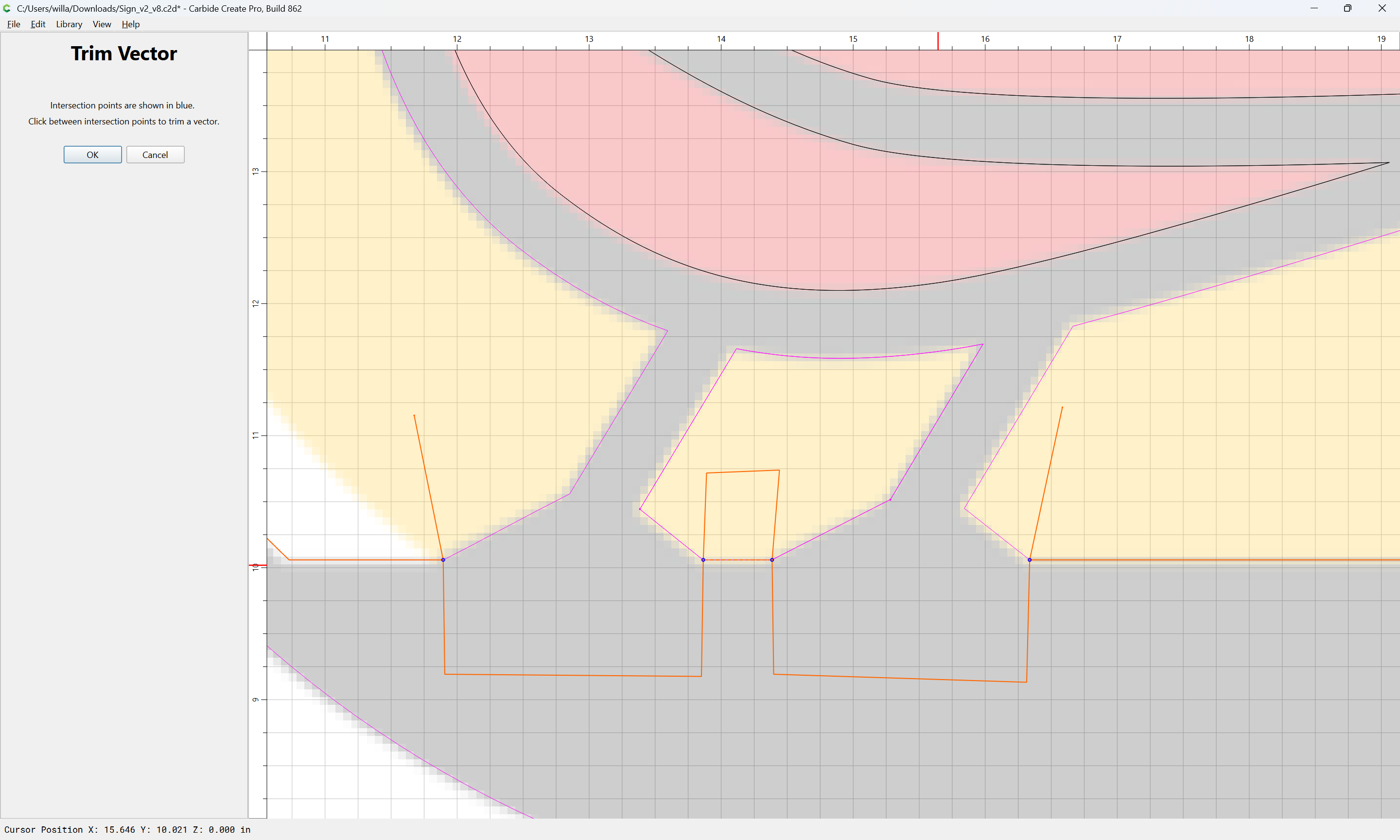
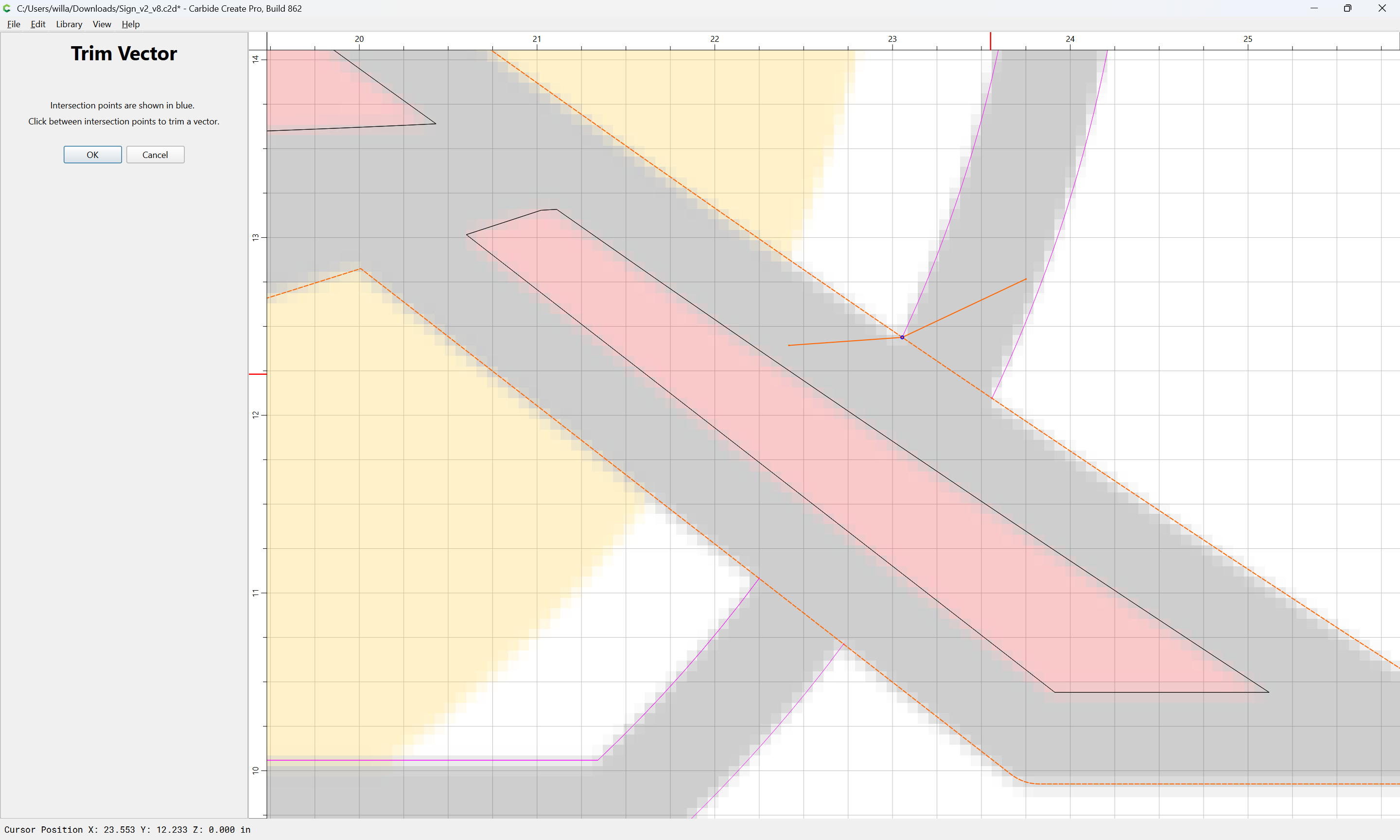
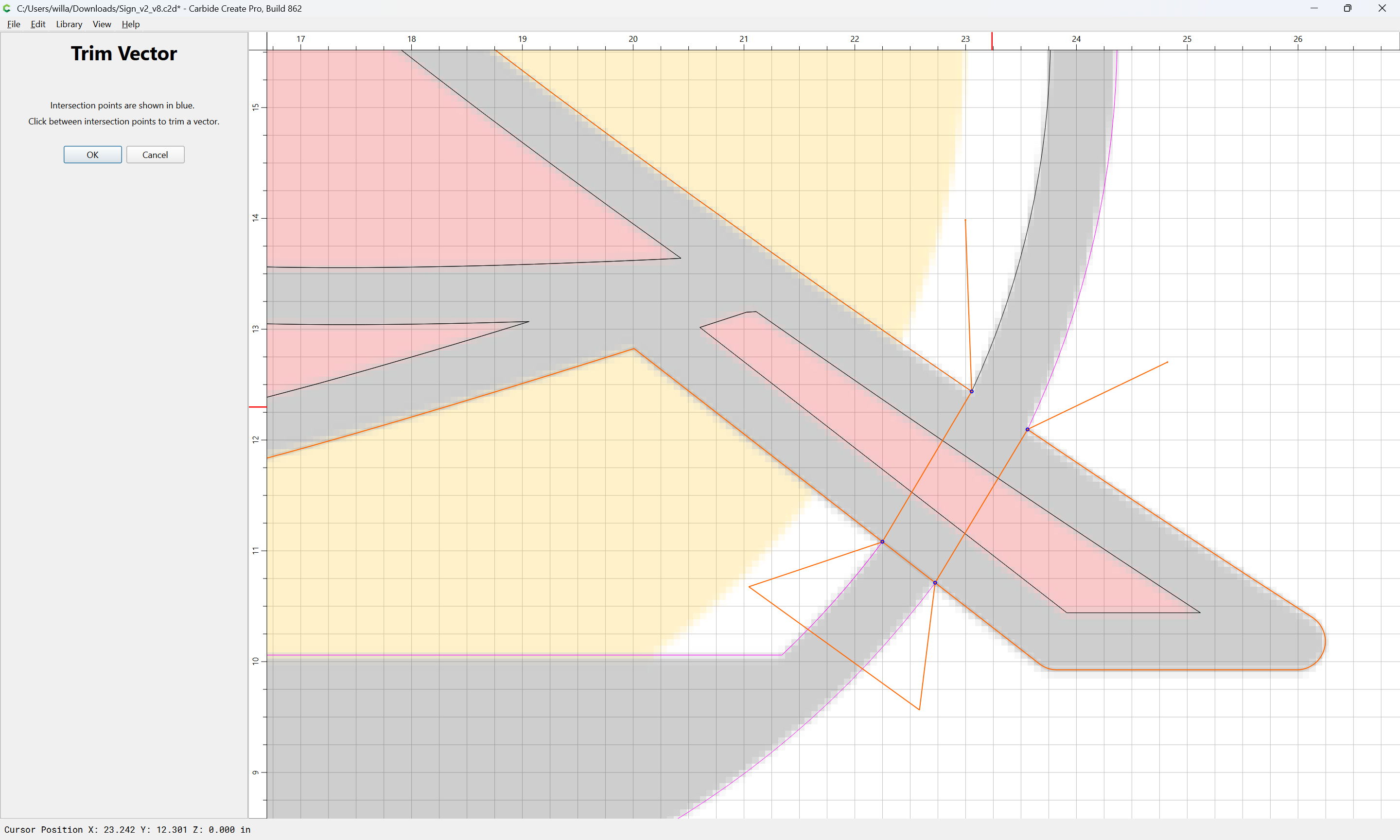
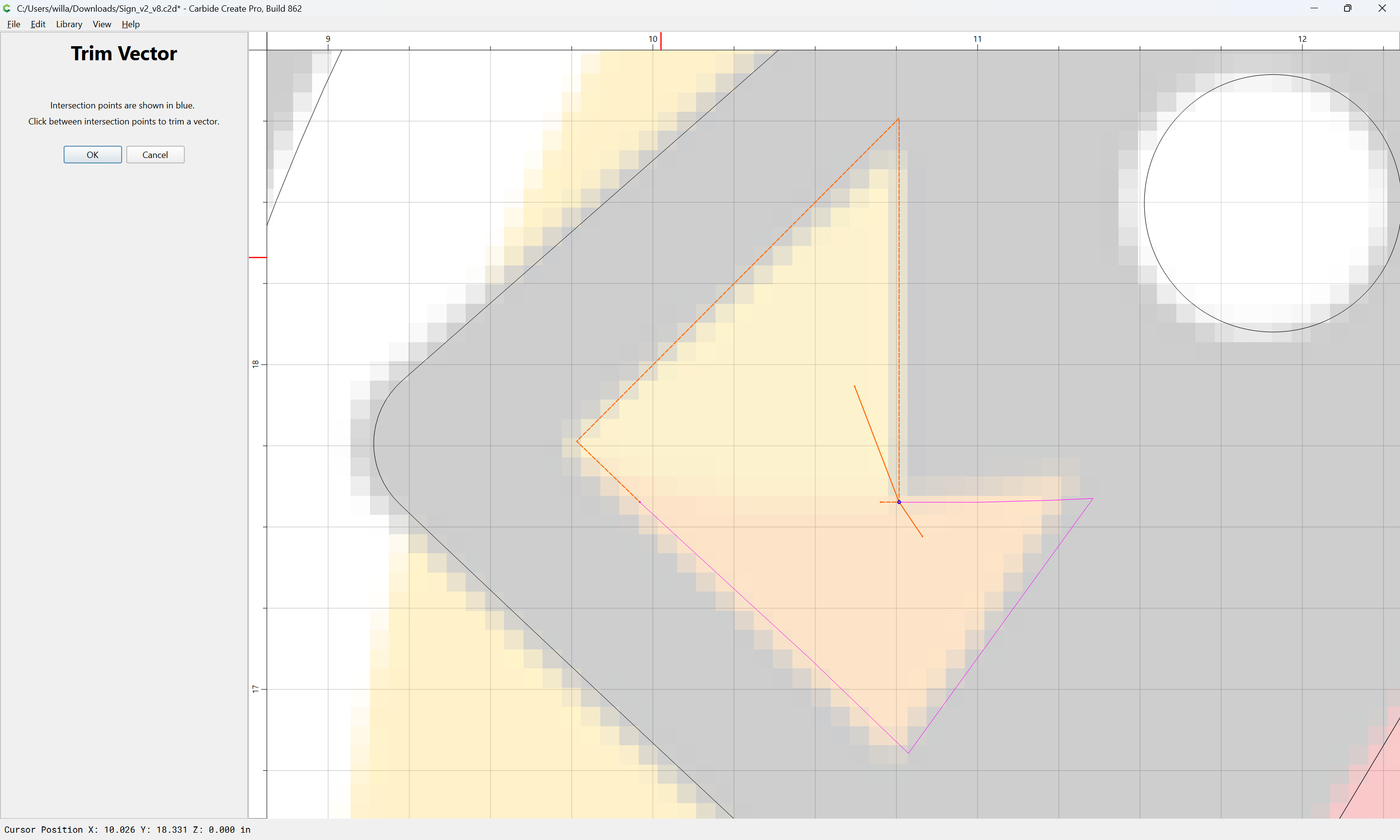
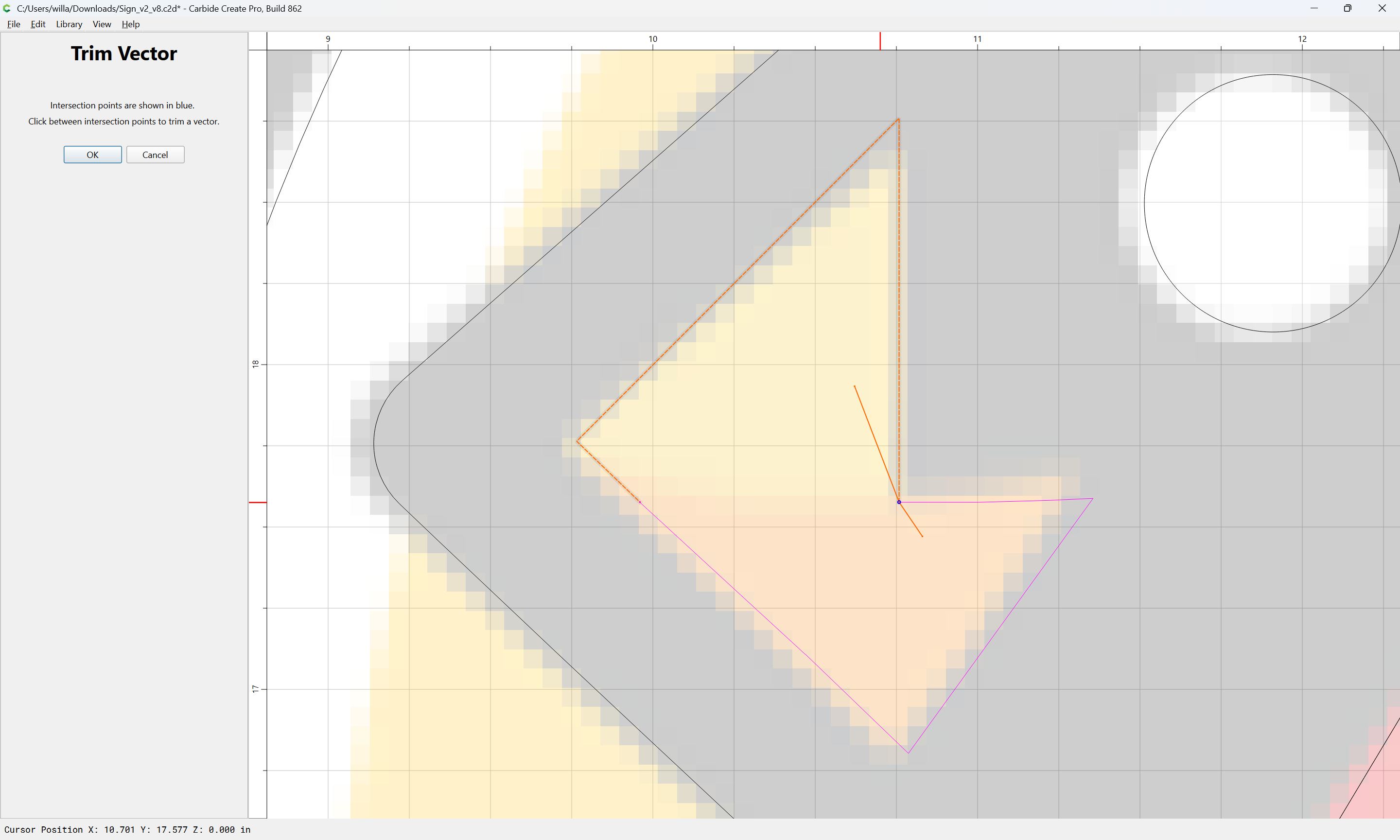
and use Trim Vectors:
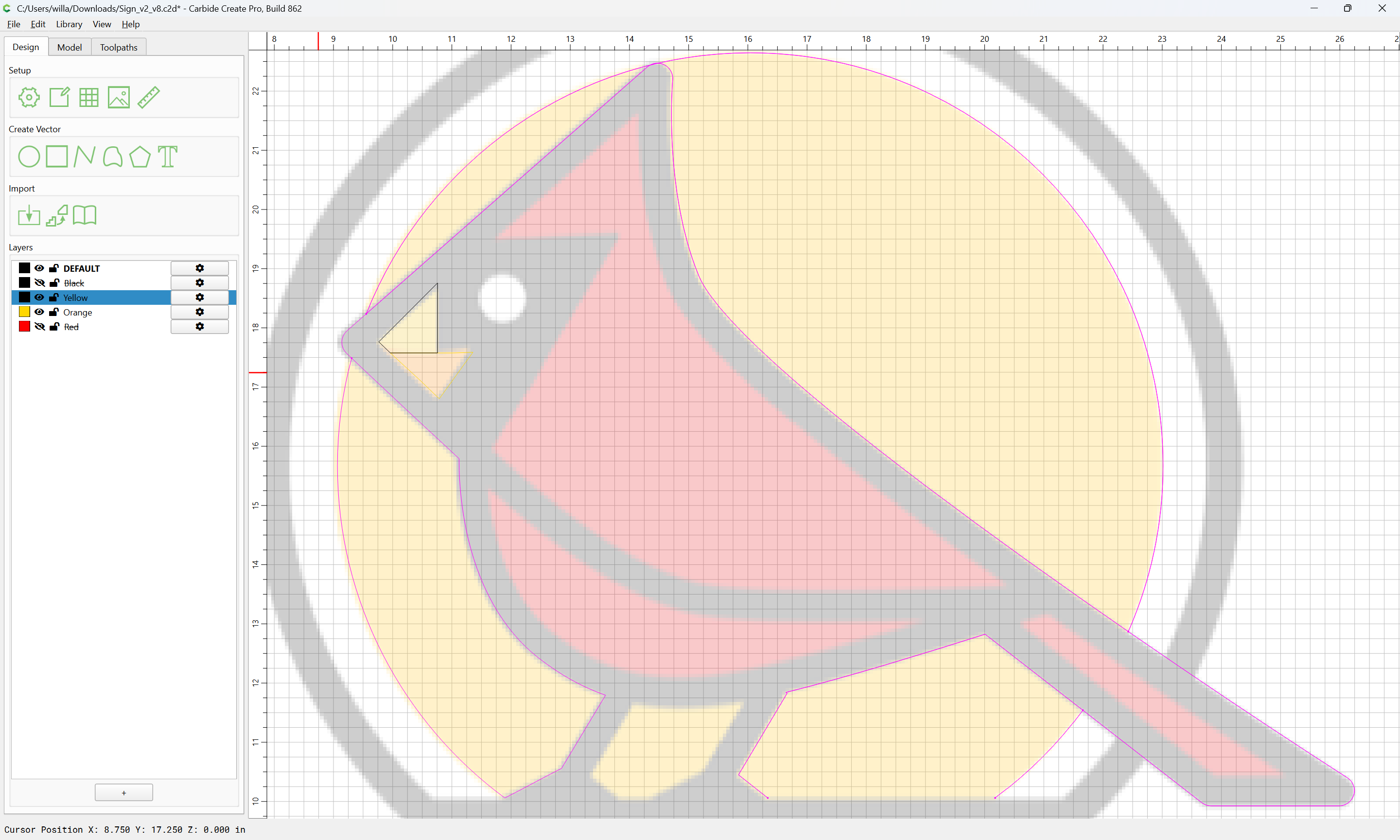
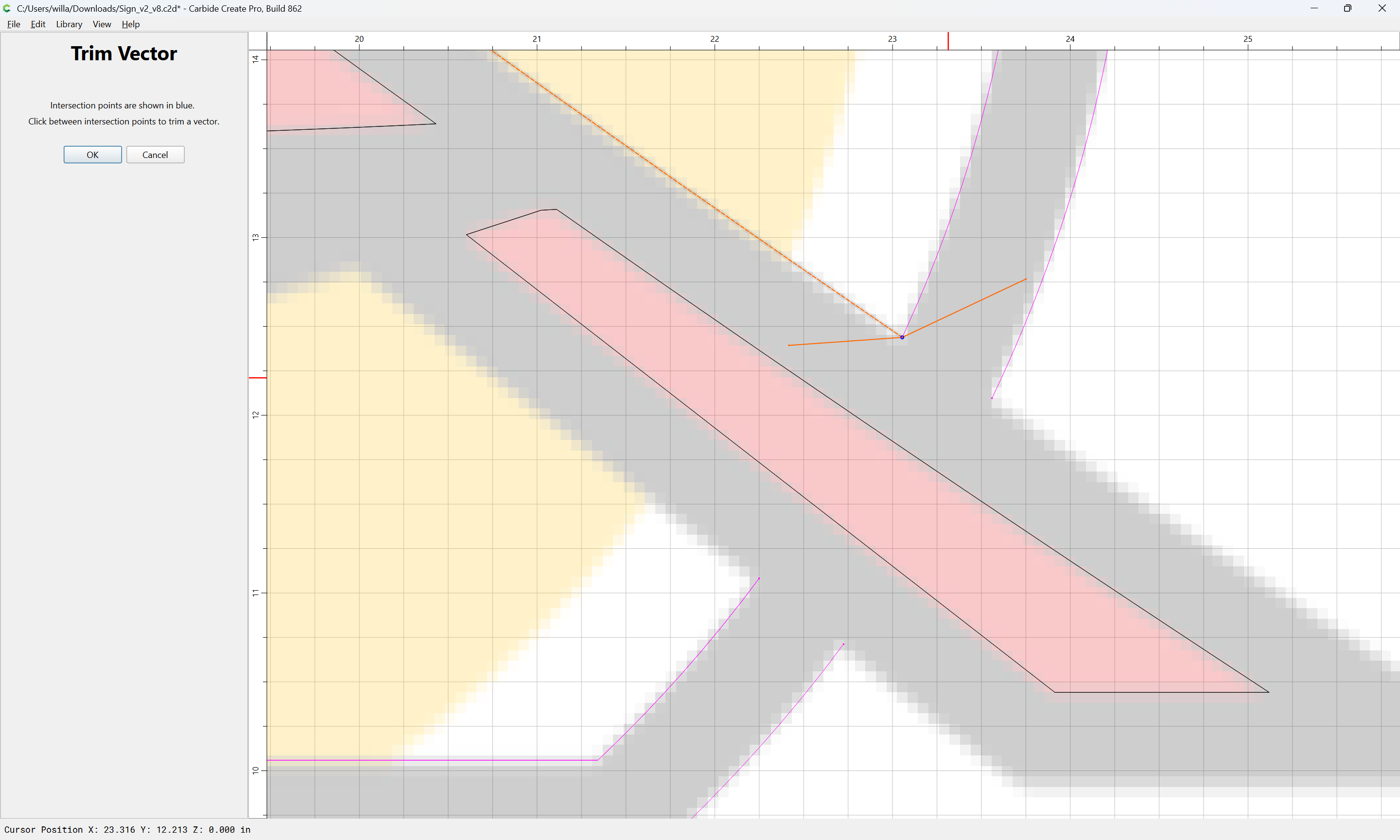
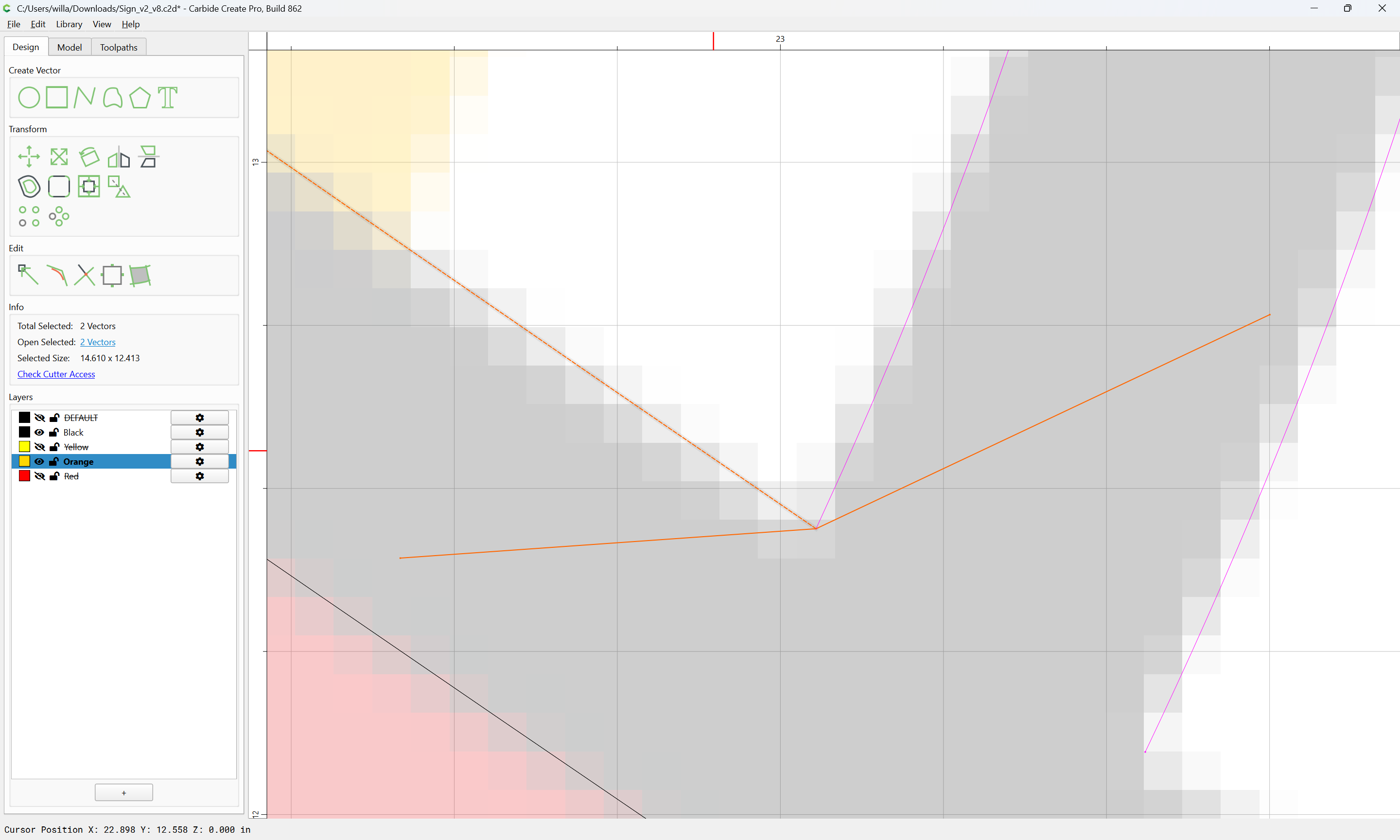
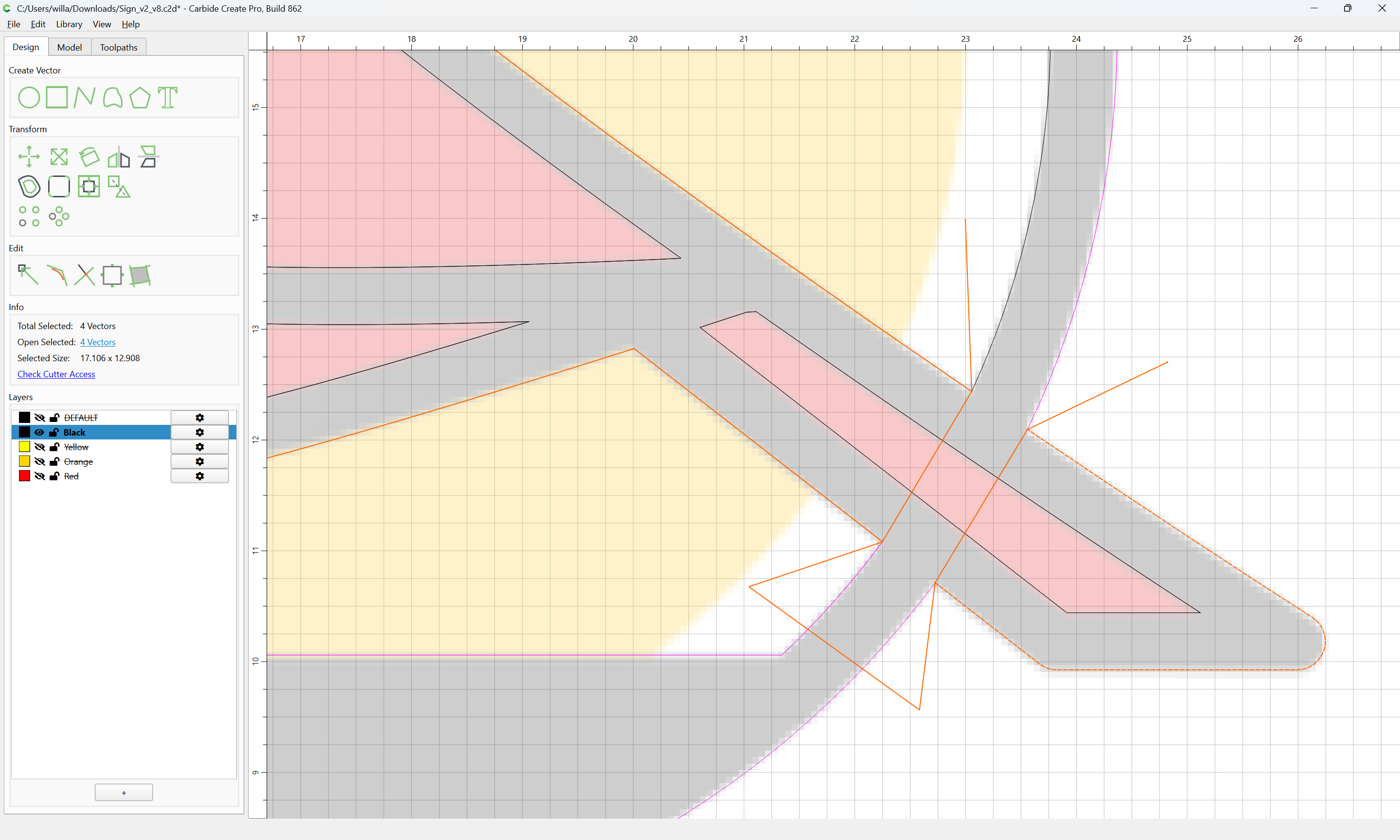
to remove what is not wanted:
OK
then select the geometry which was drawn:
and delete it:
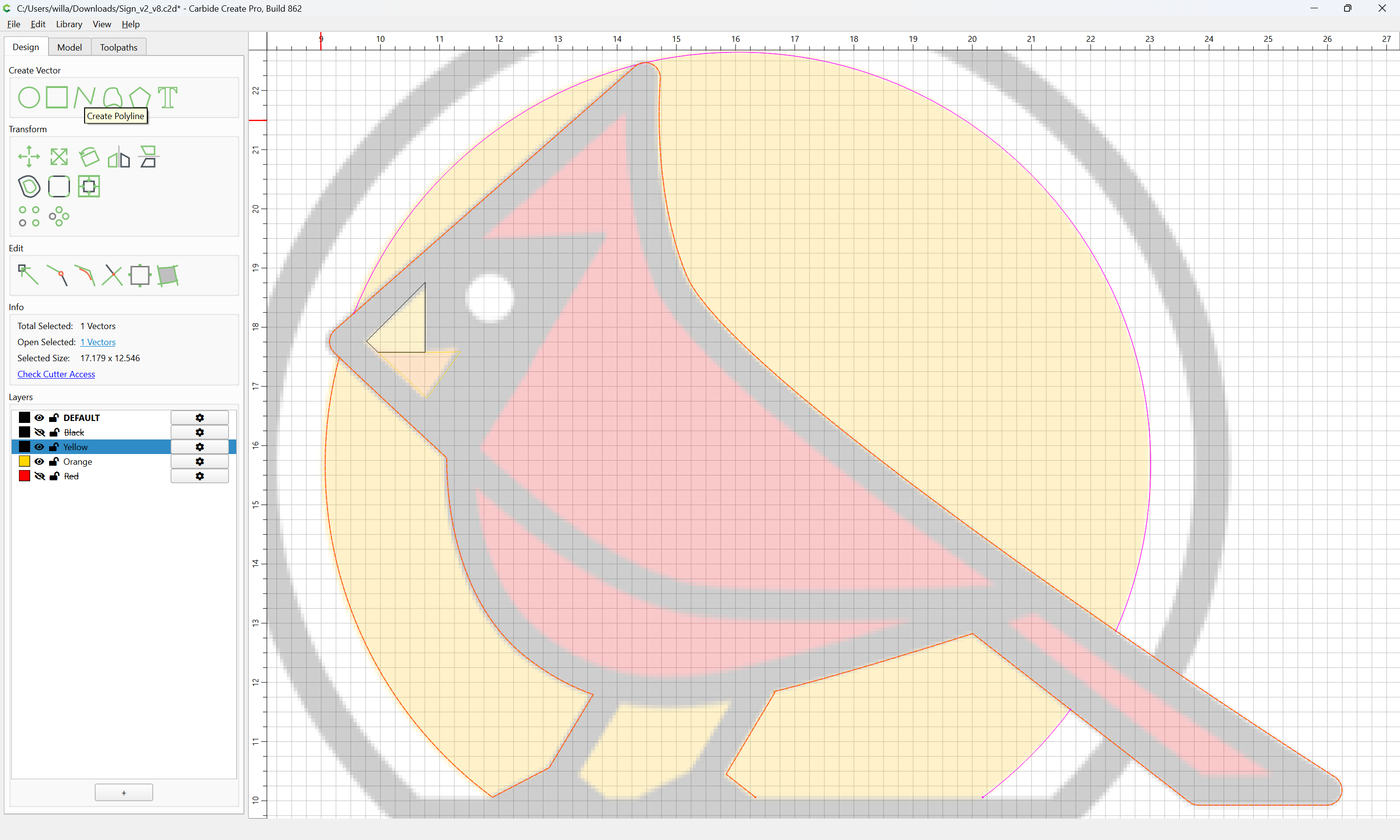
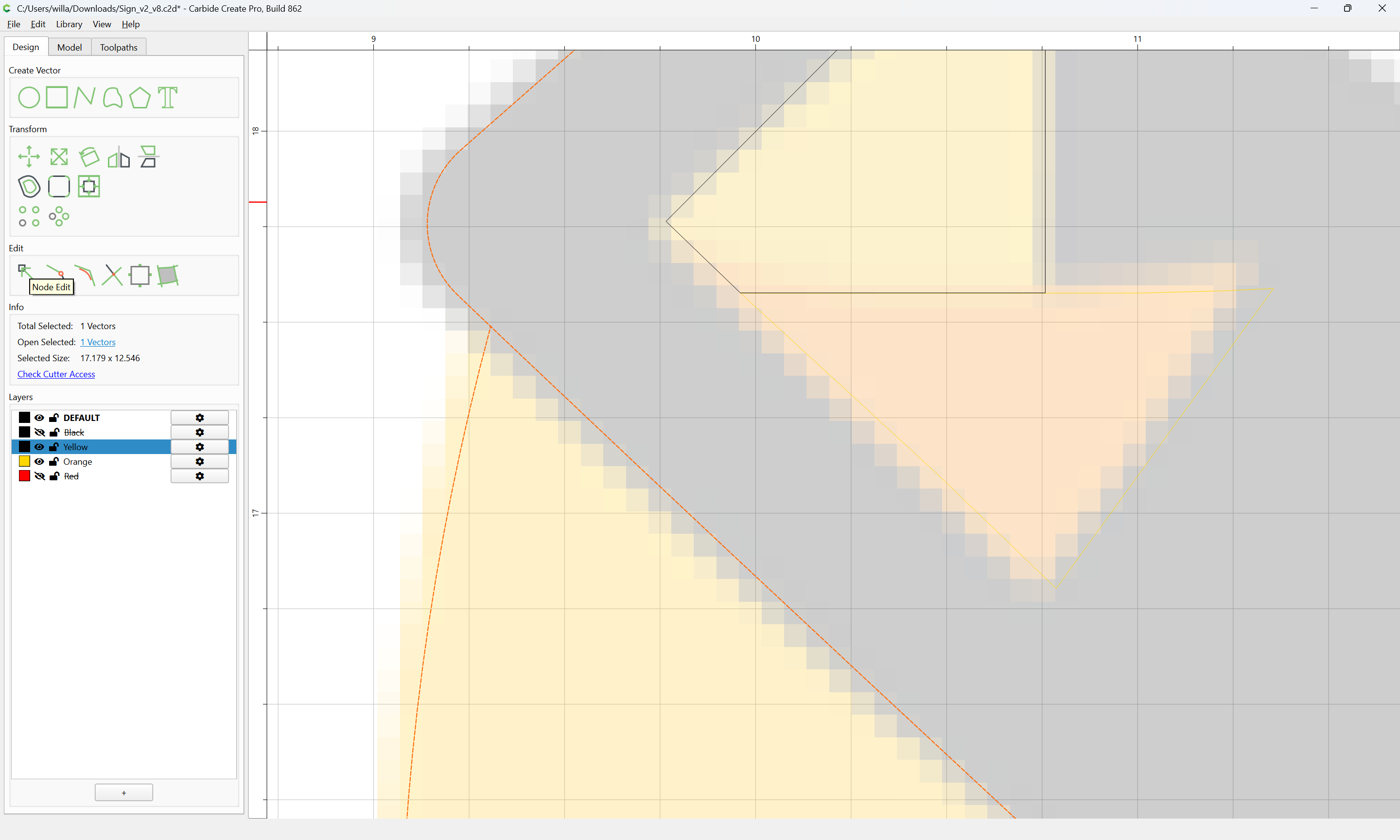
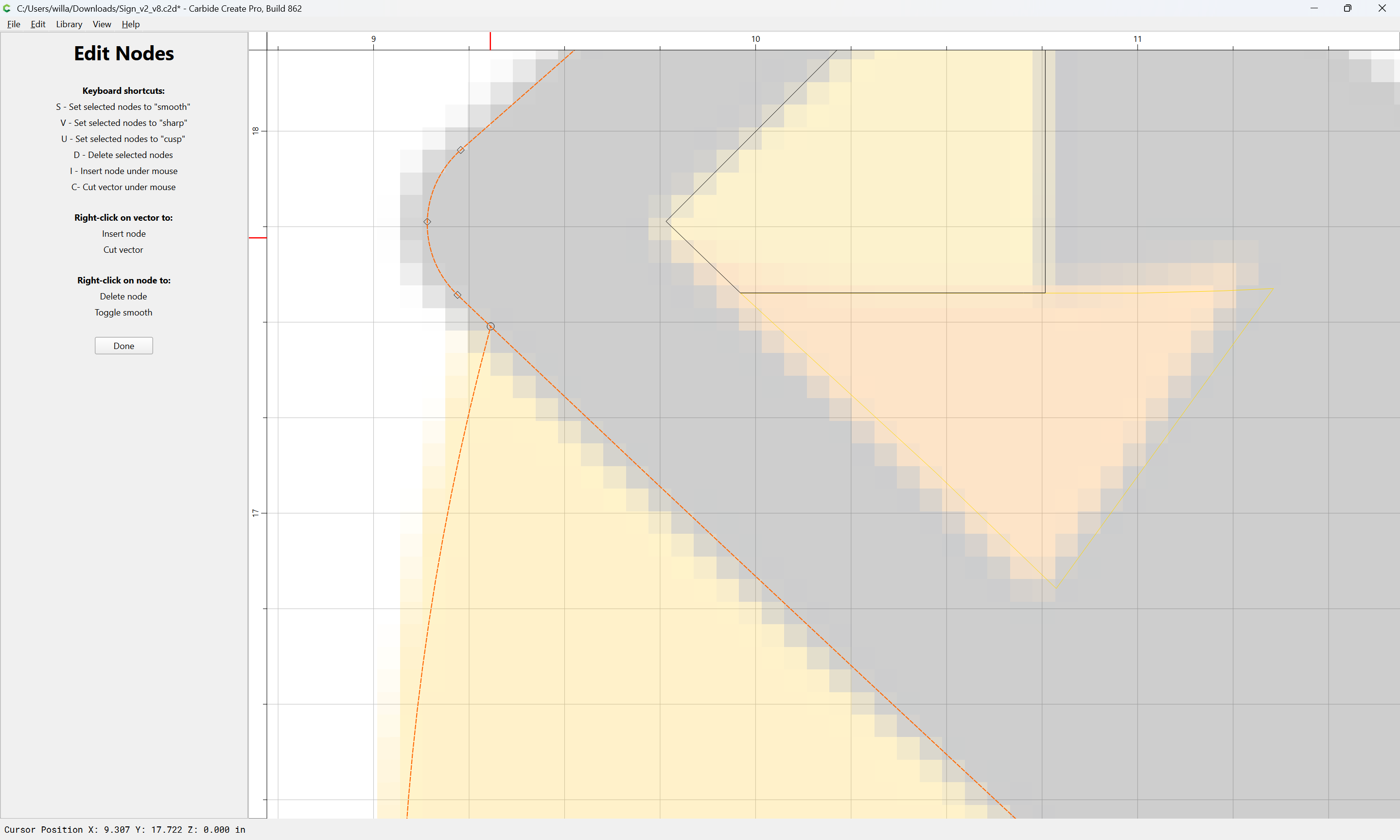
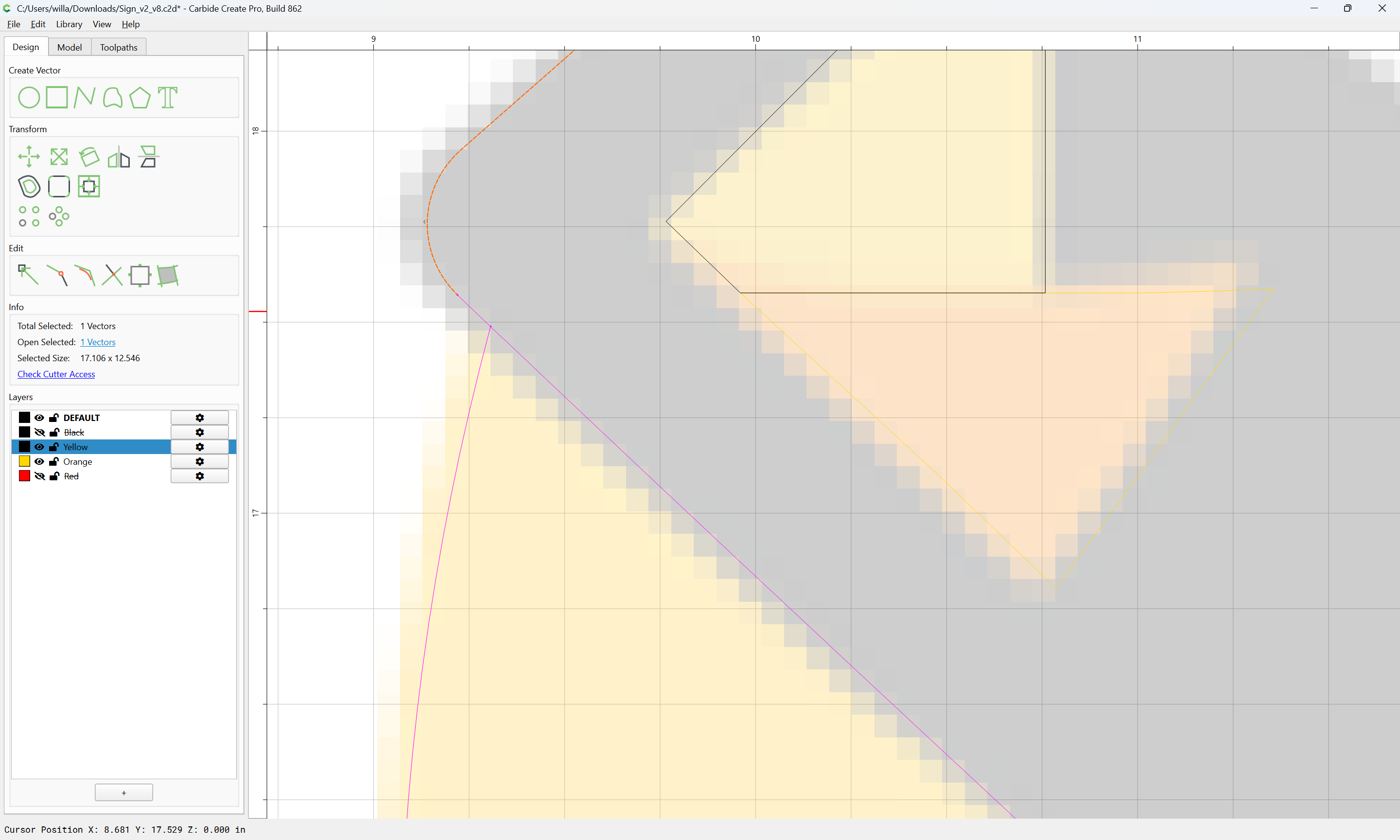
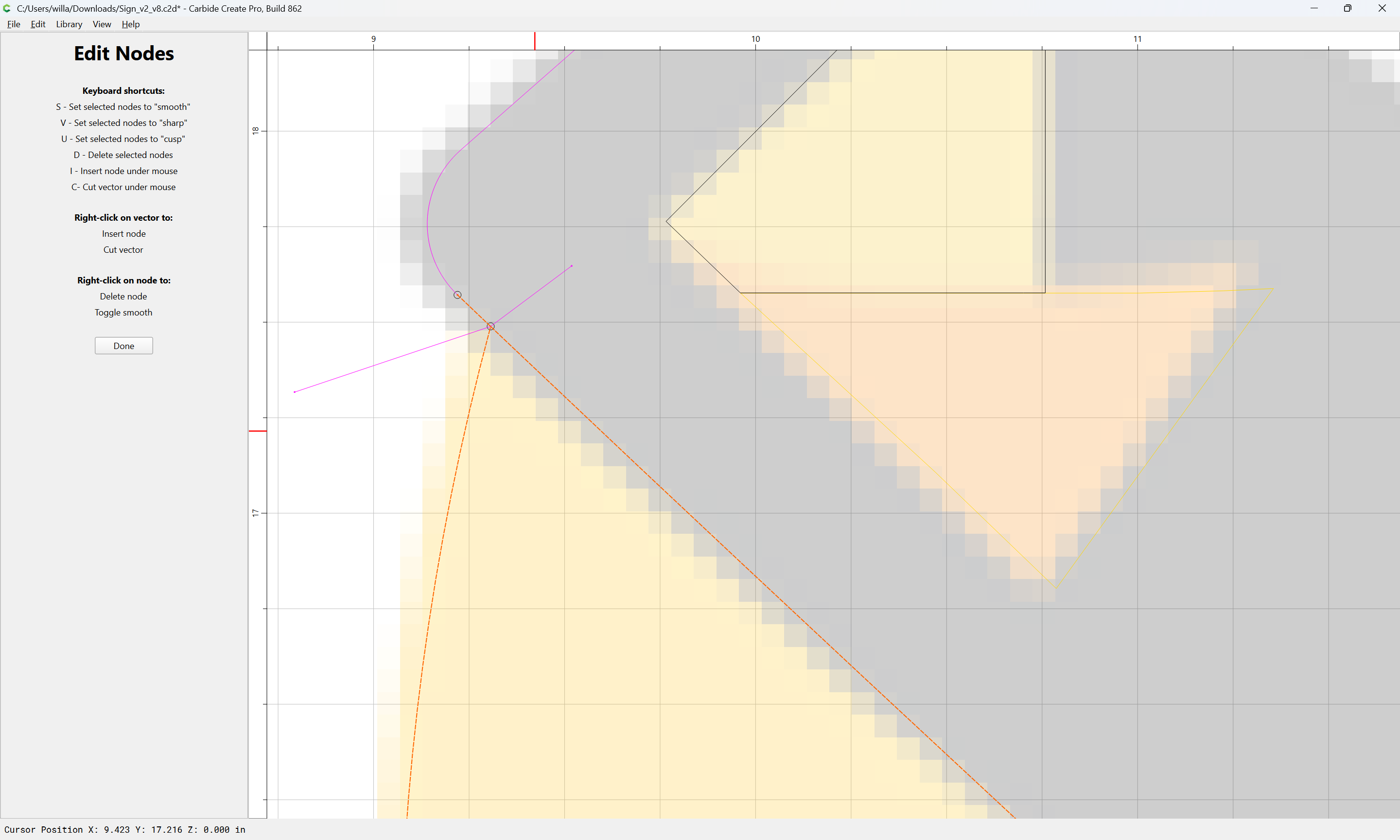
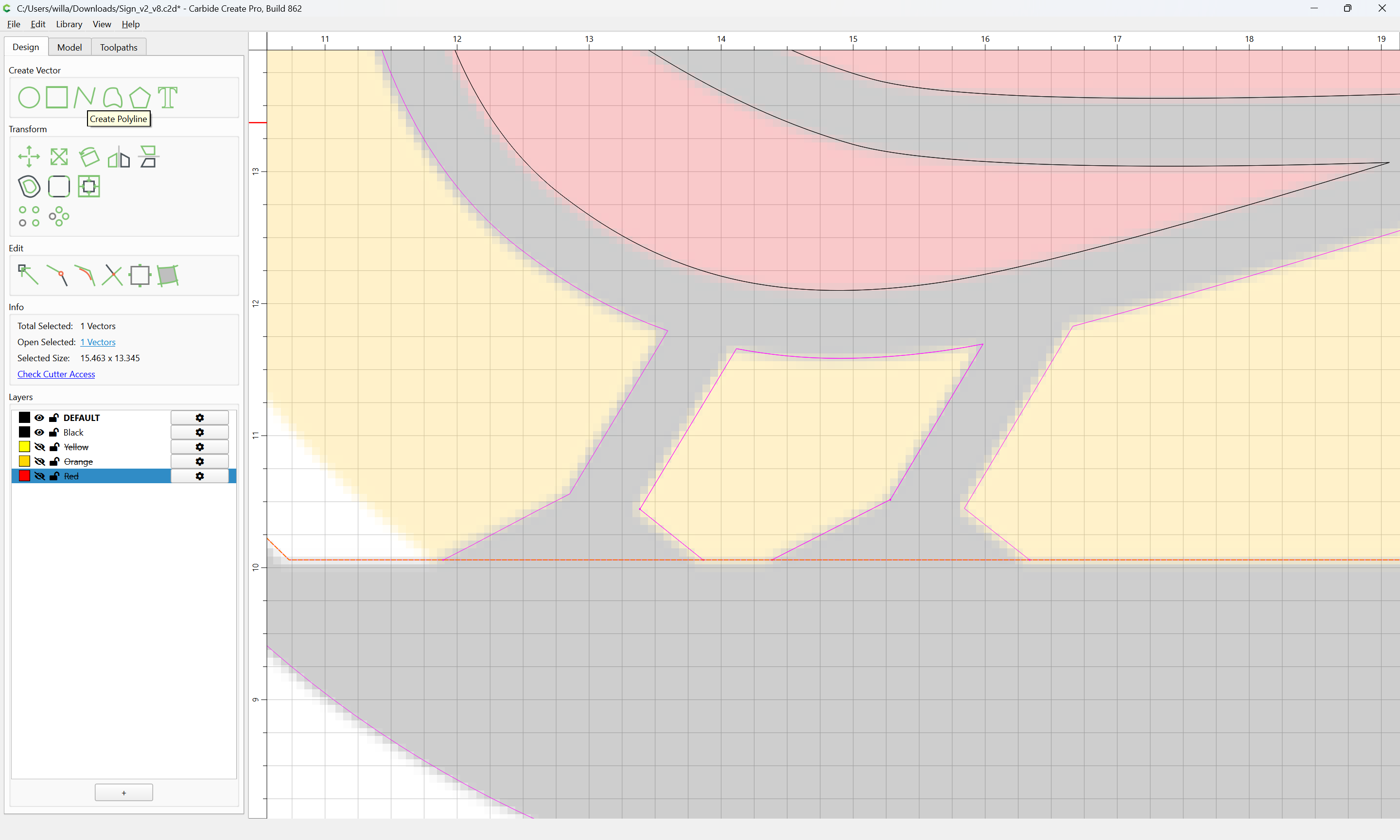
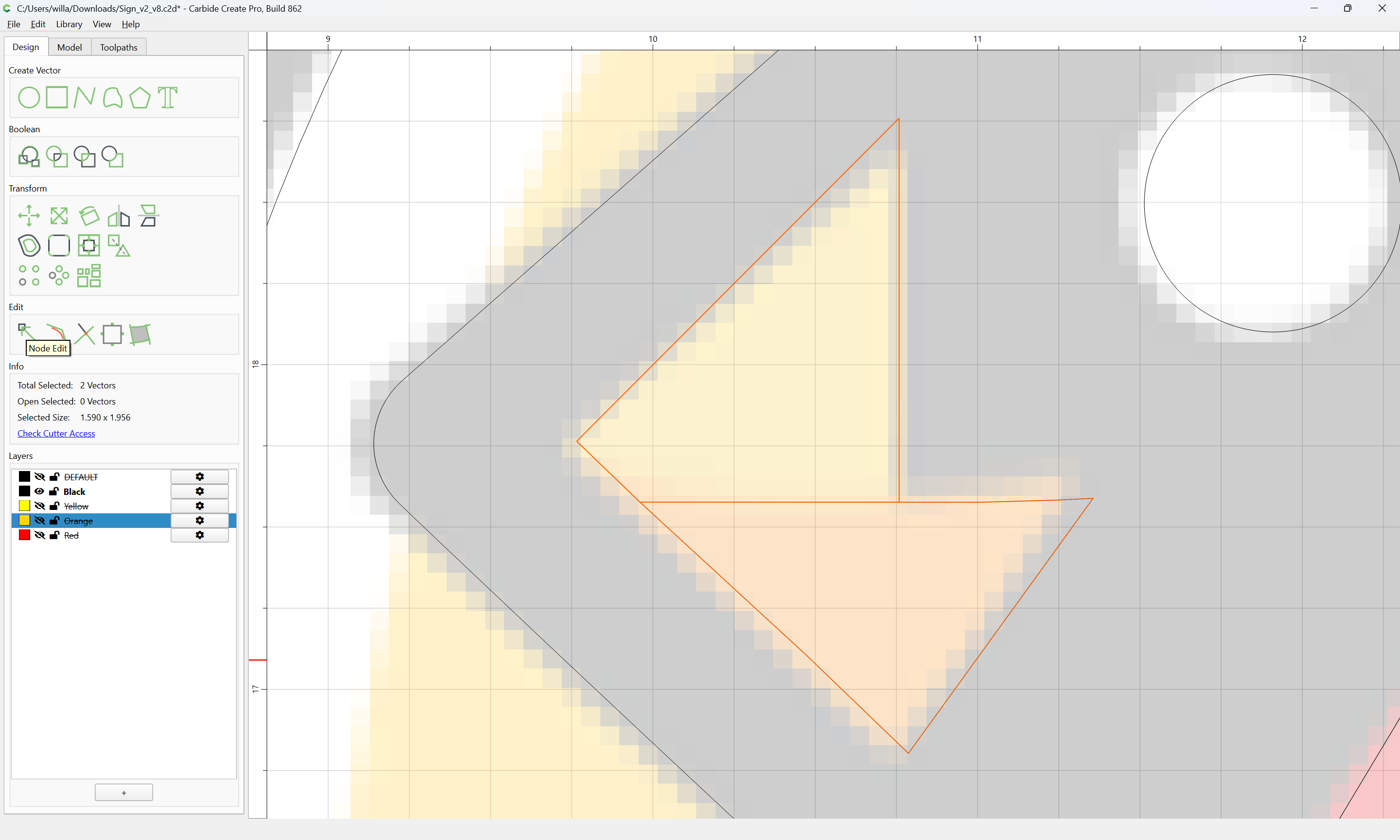
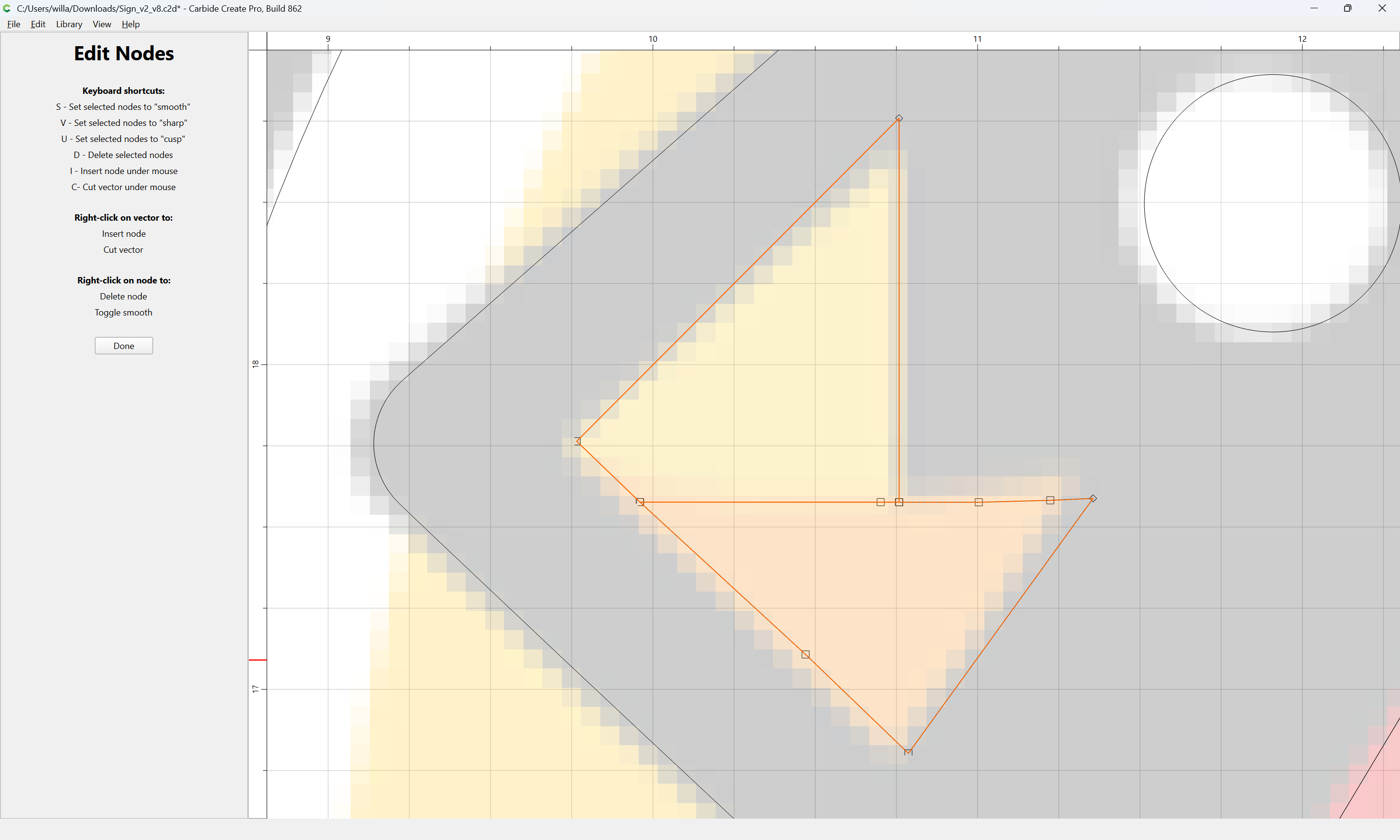
If need be, go into Node Editing:
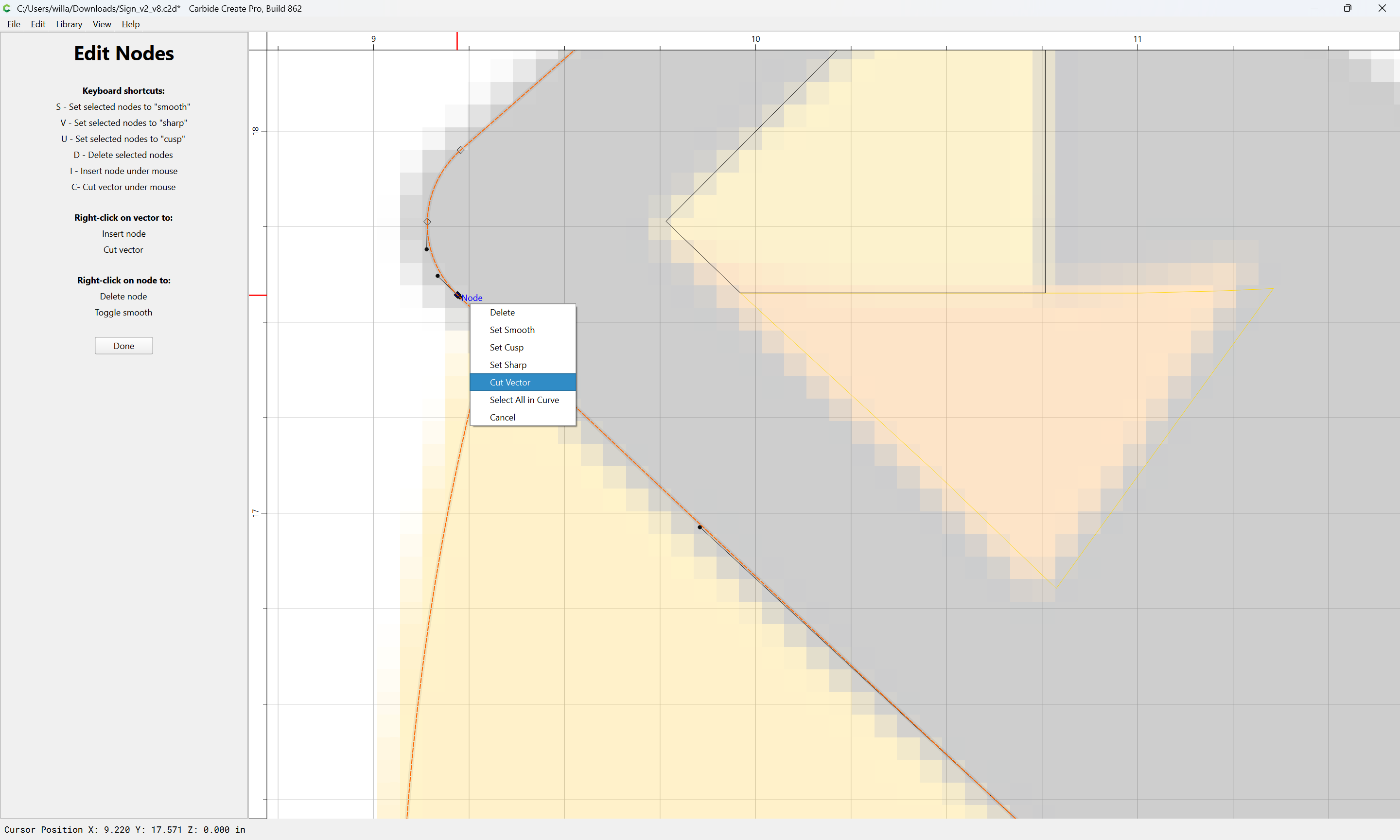
right-click
Done
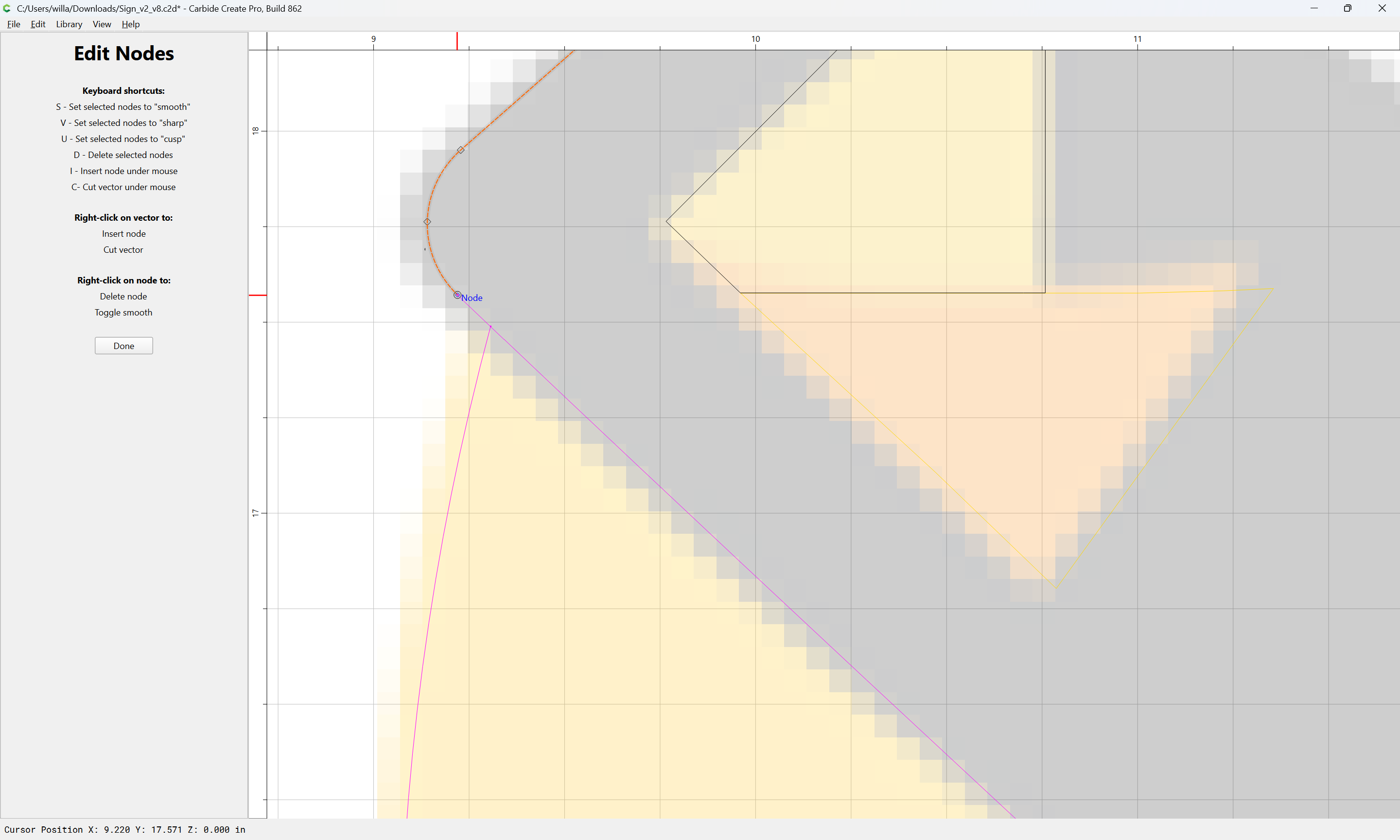
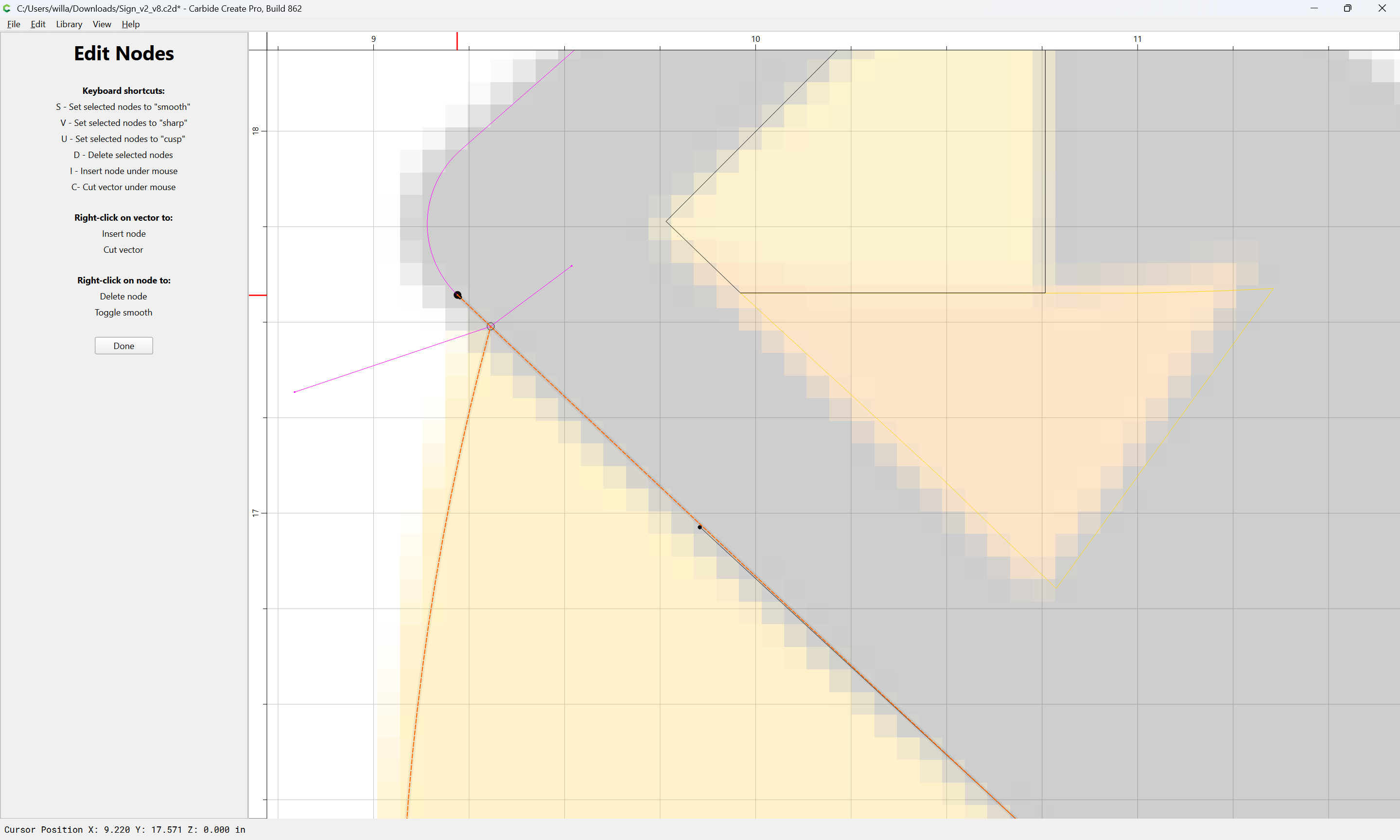
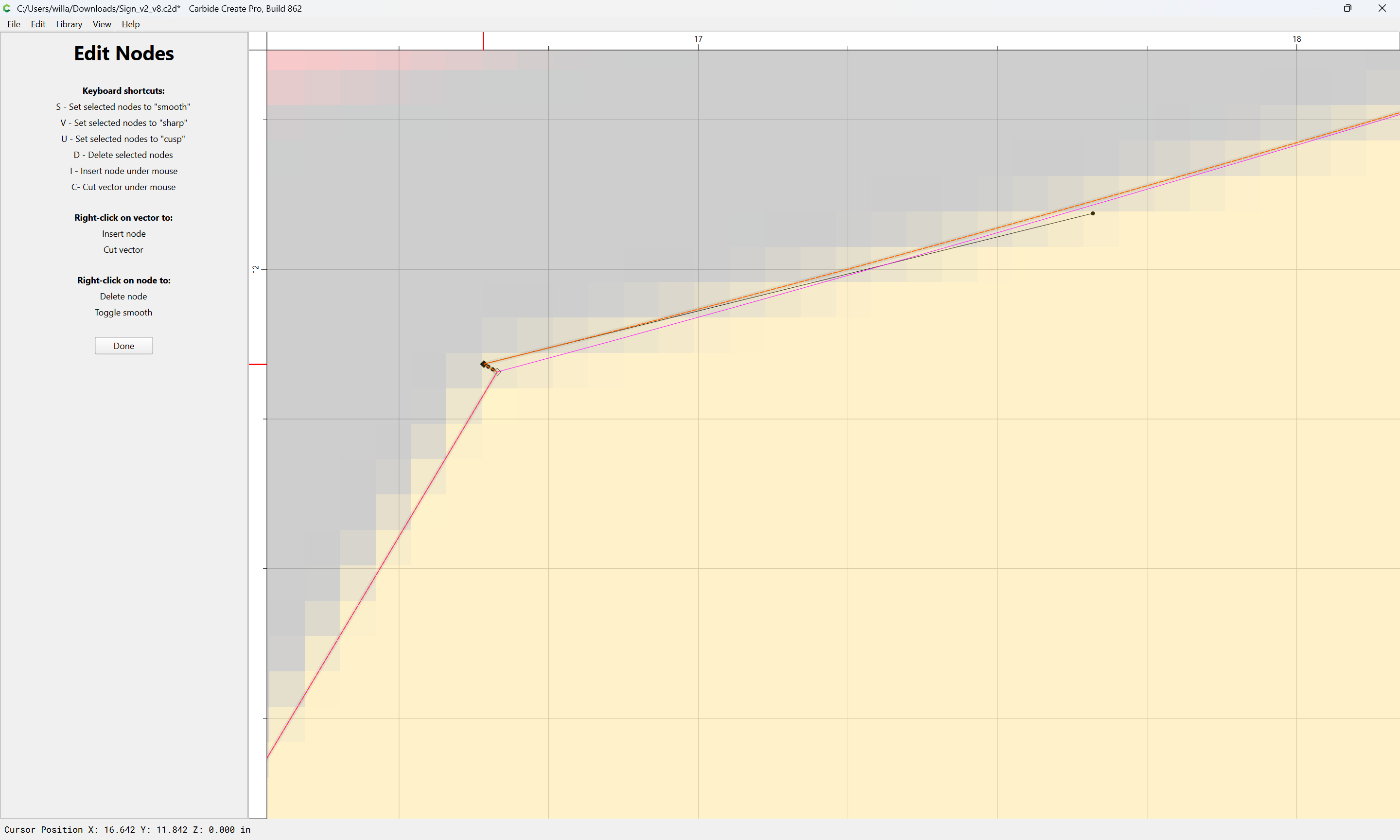
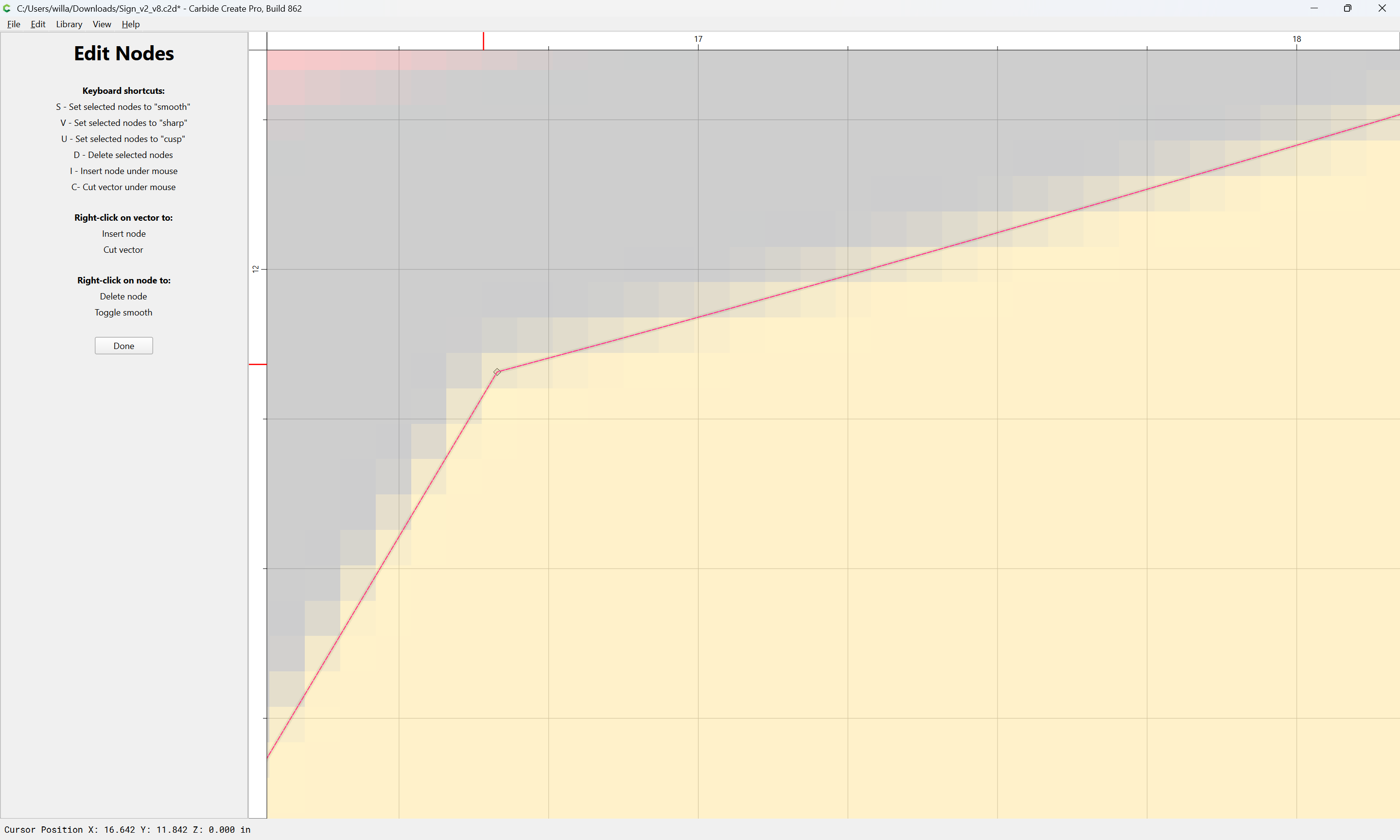
and if need be, shift things using Node Editing:
Done
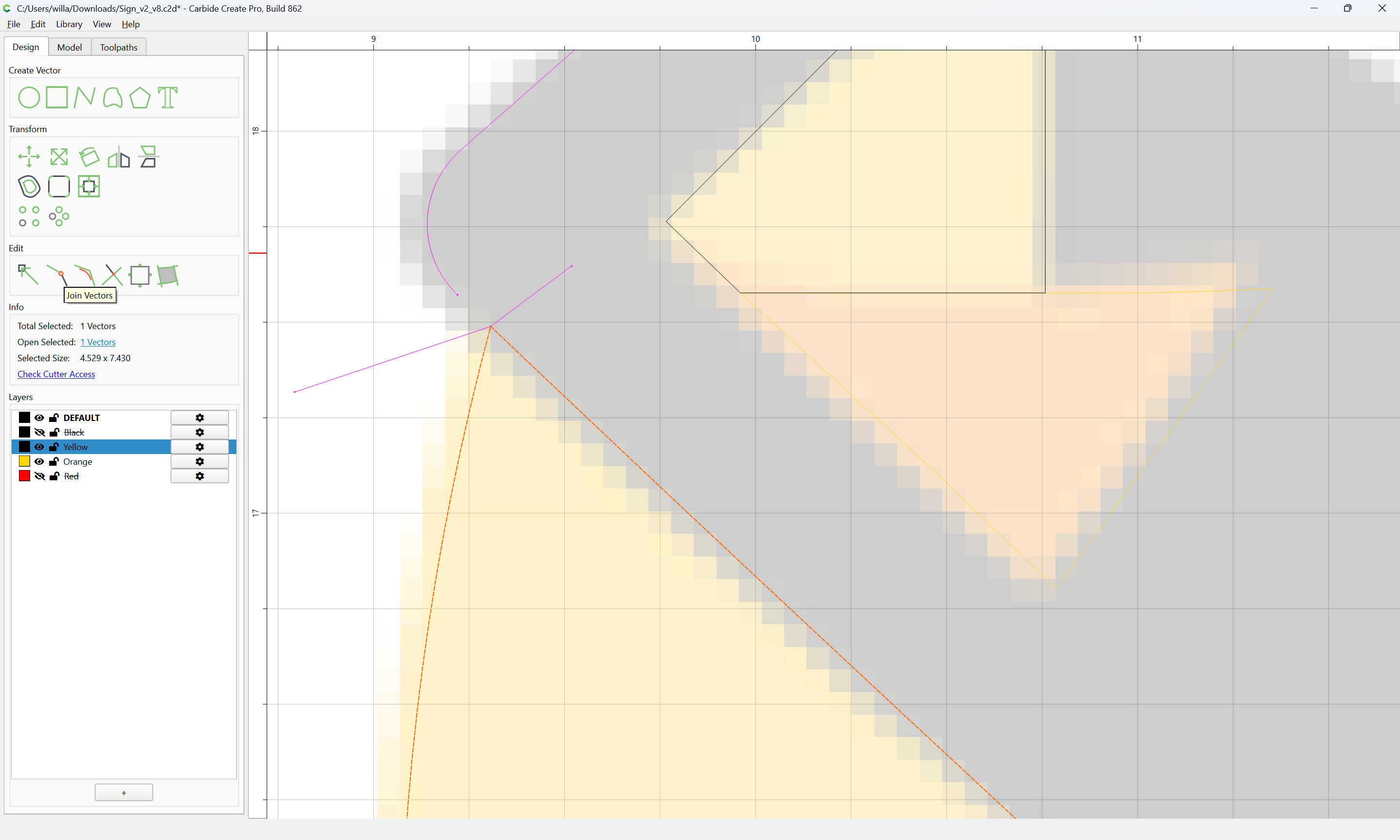
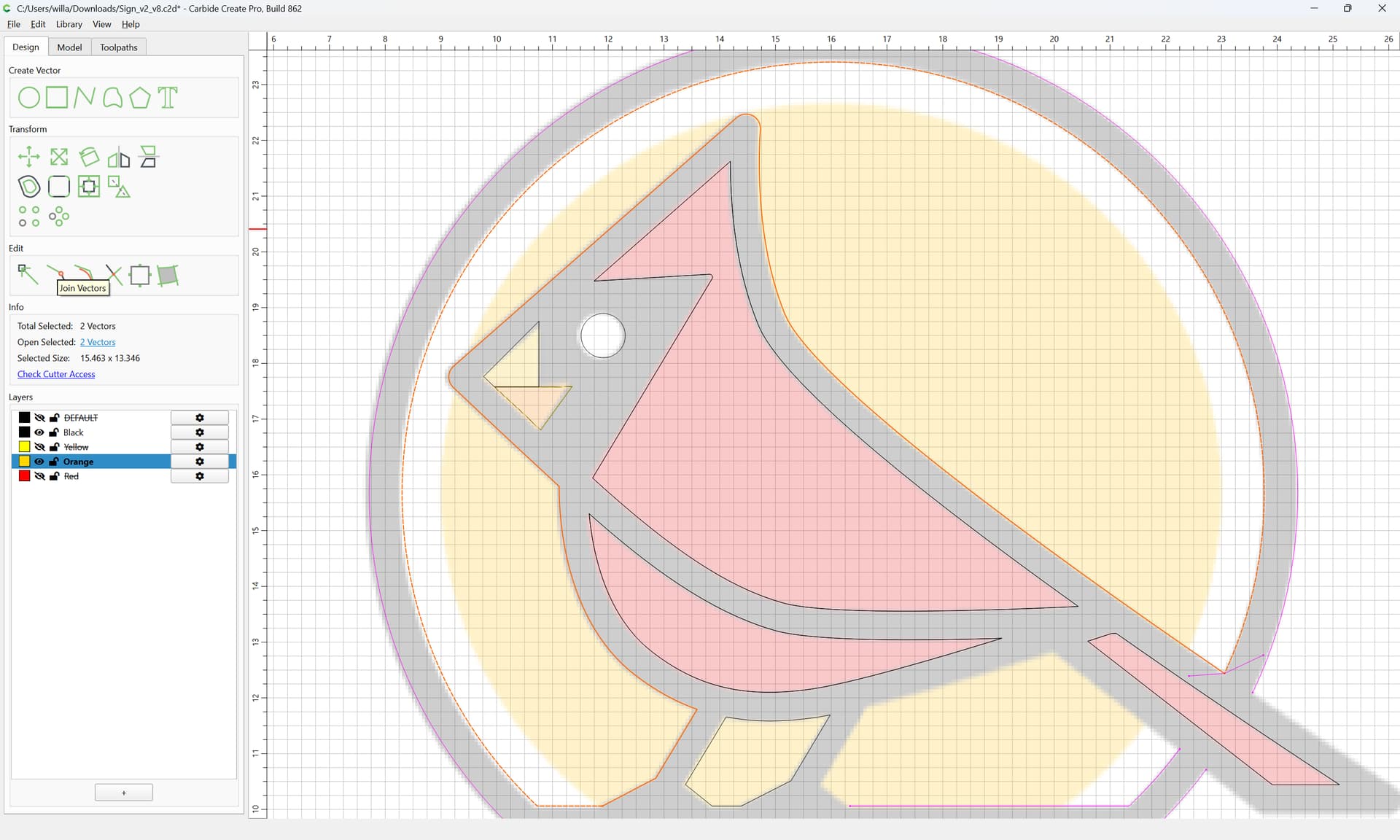
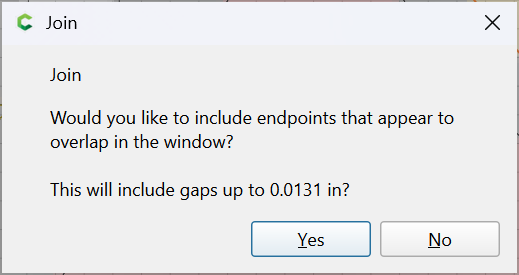
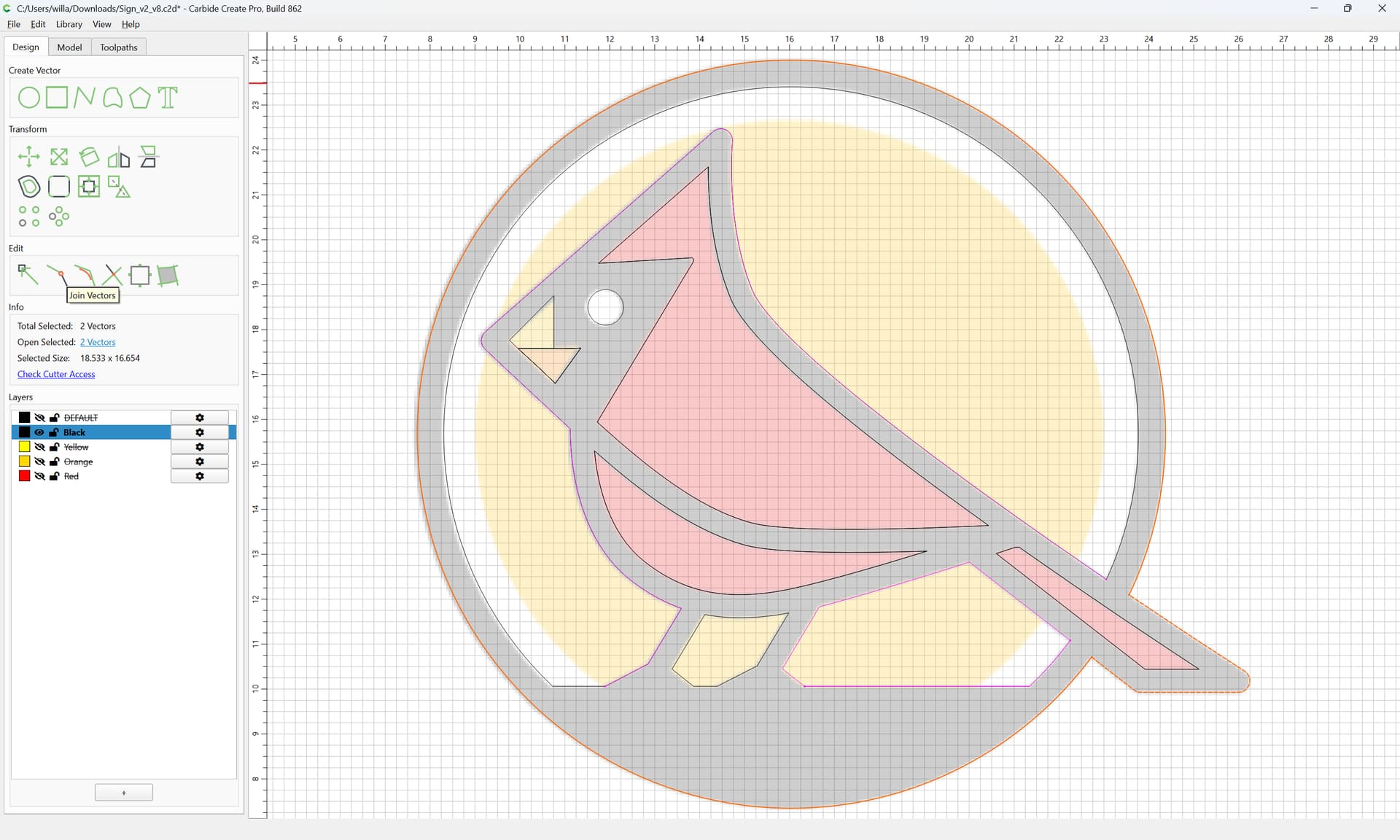
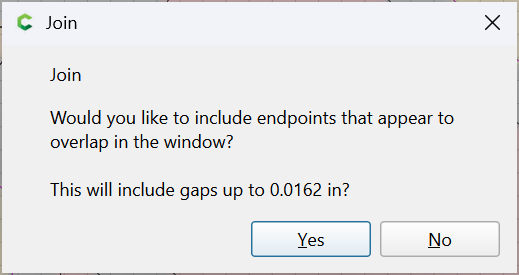
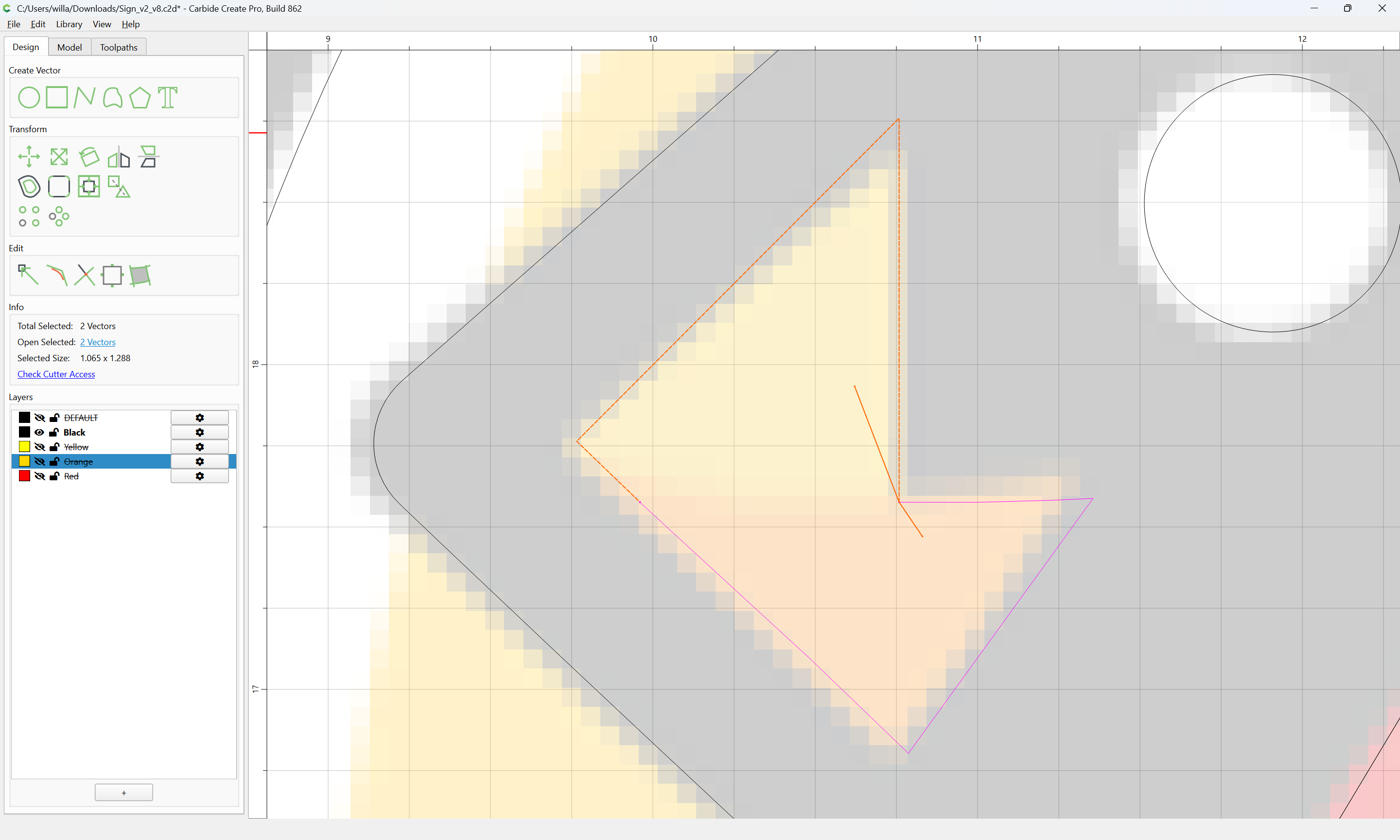
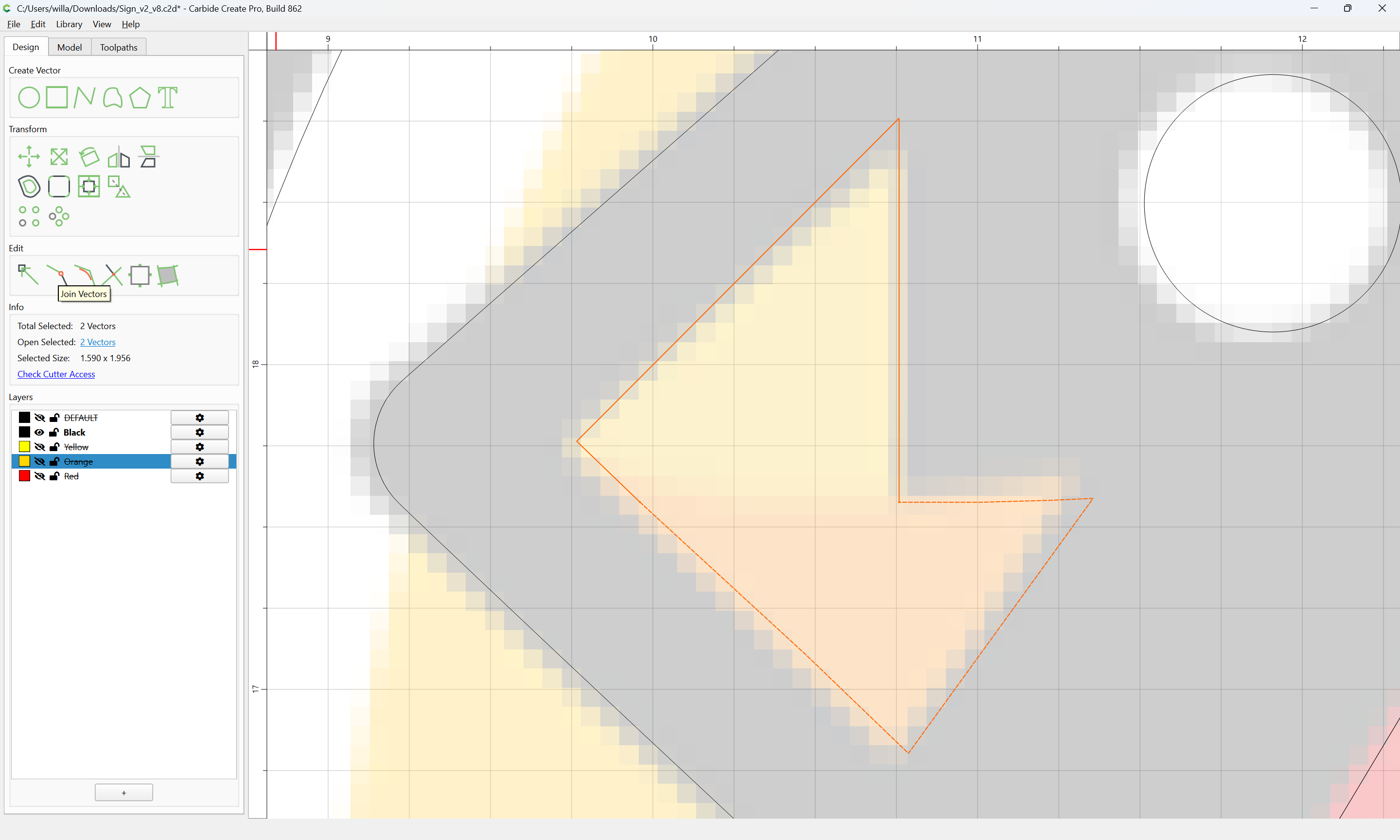
at which point in time it should be possible to use Join Vectors
to close
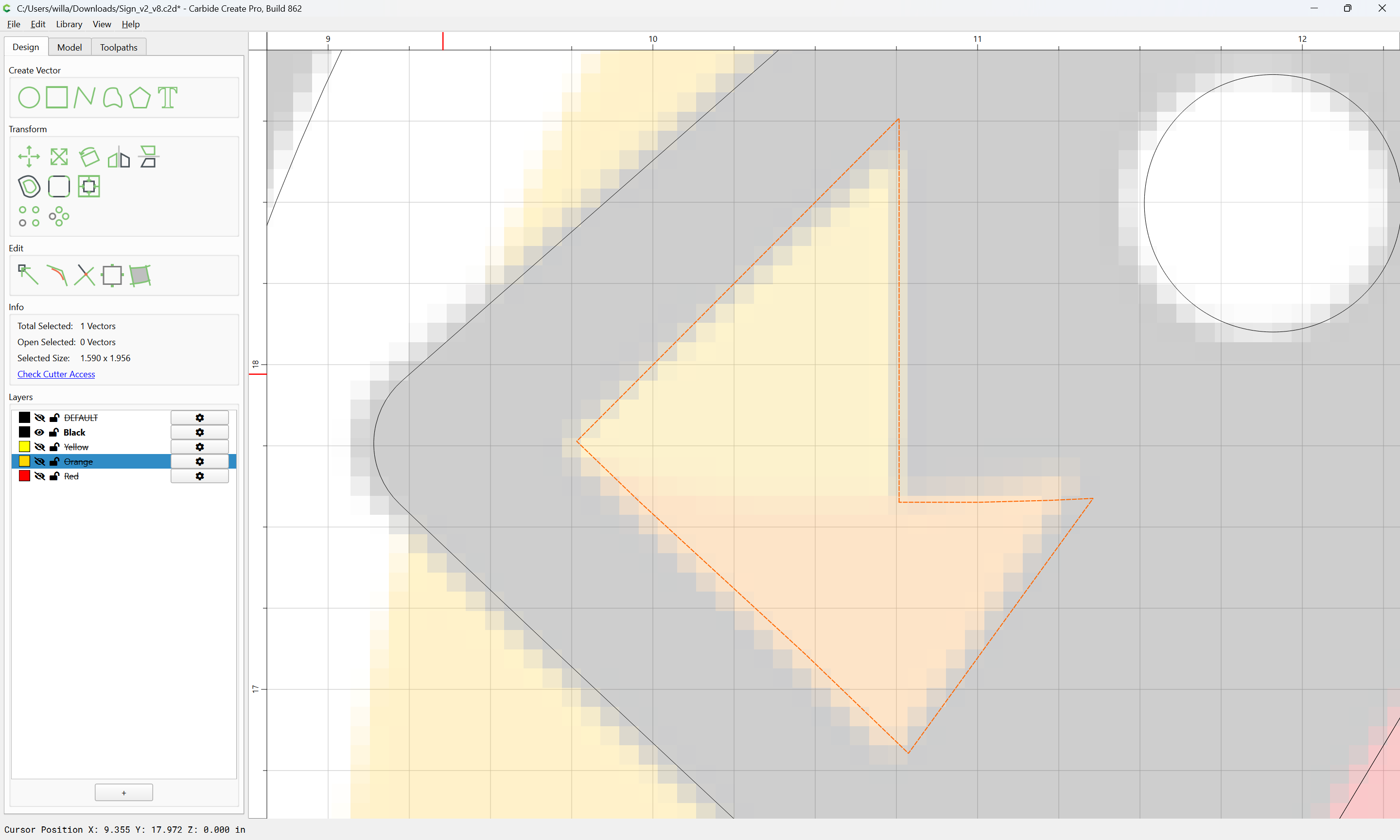
Repeat that for each section of colour
WillAdams
September 5, 2026, 2:01pm
3
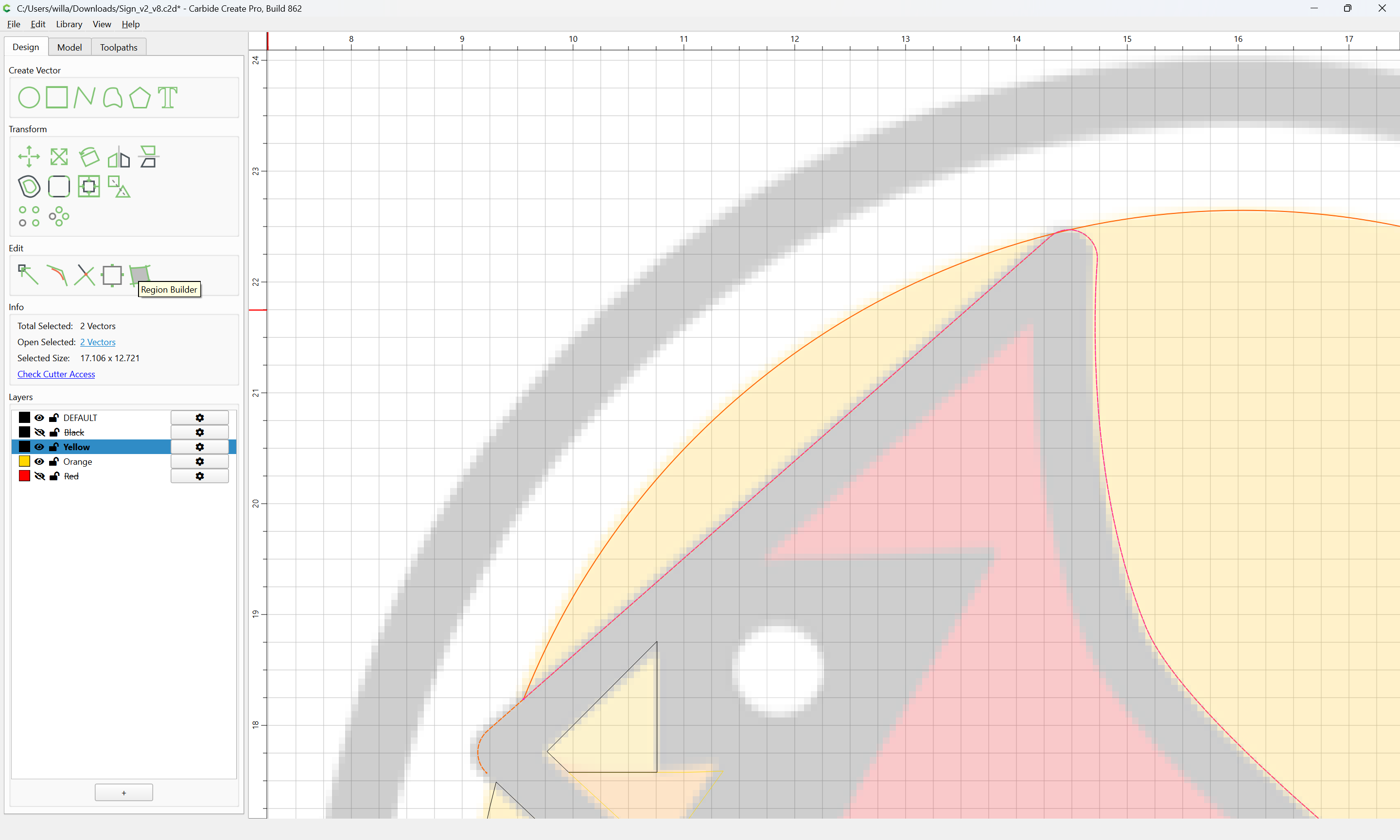
Note that for some areas it may be possible to use Region Builder:
Yes
Done
At some places, it may be appropriate to adjust using Node Editing:
d
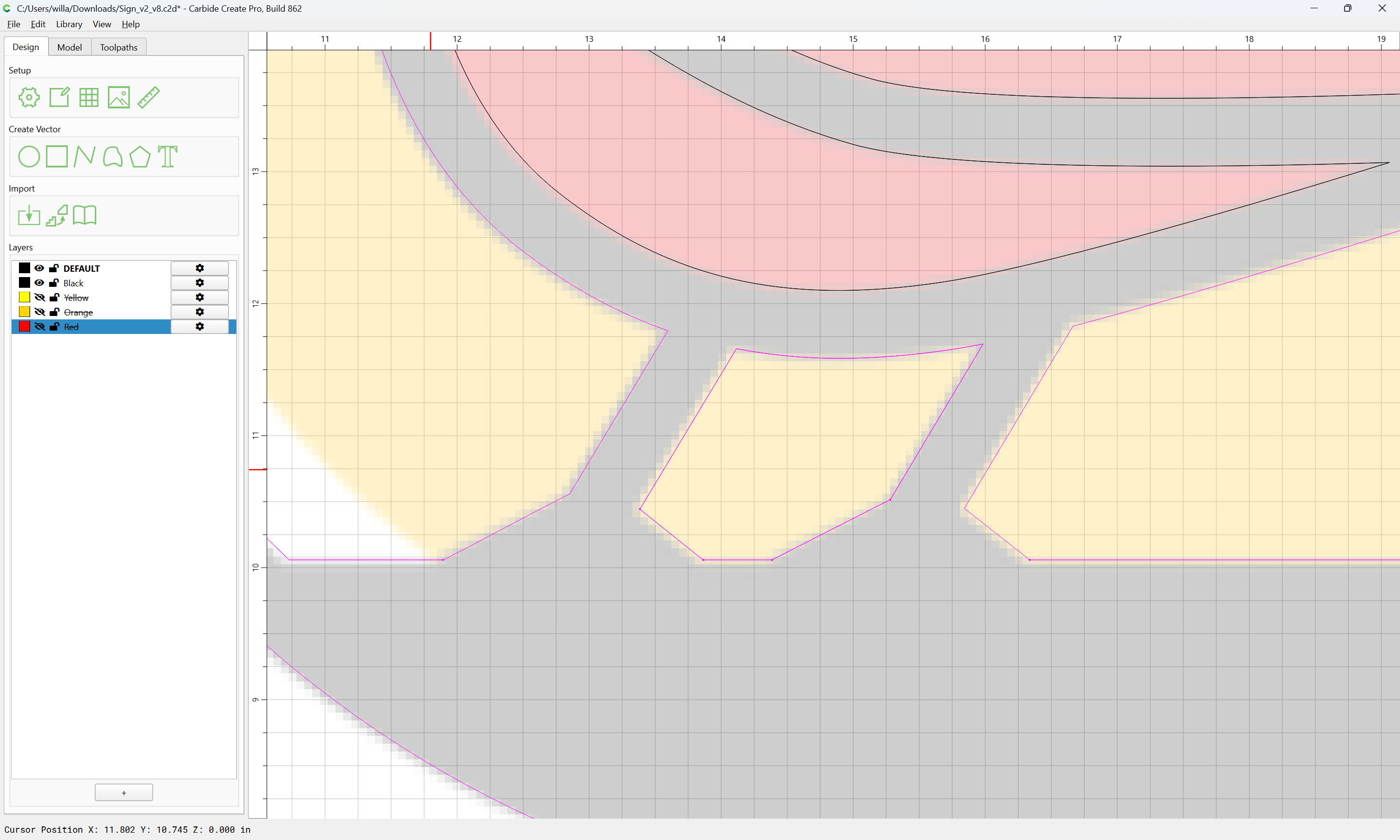
where necessary, clean up by selecting redundant geometry and deleting it until one arrives at only what is wanted for a given layer:
at which point it may have its colour re-set and be hidden
WillAdams
September 5, 2026, 2:33pm
4
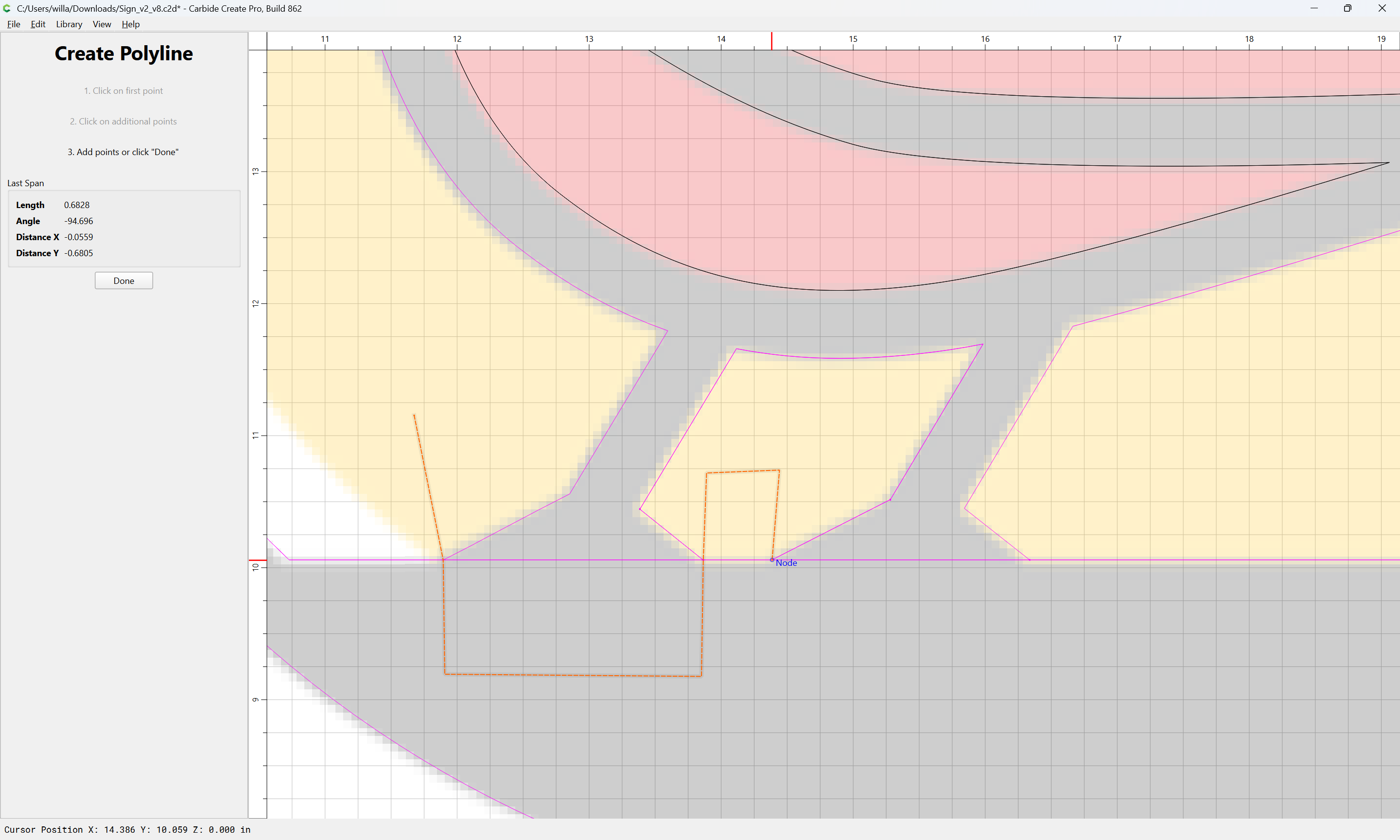
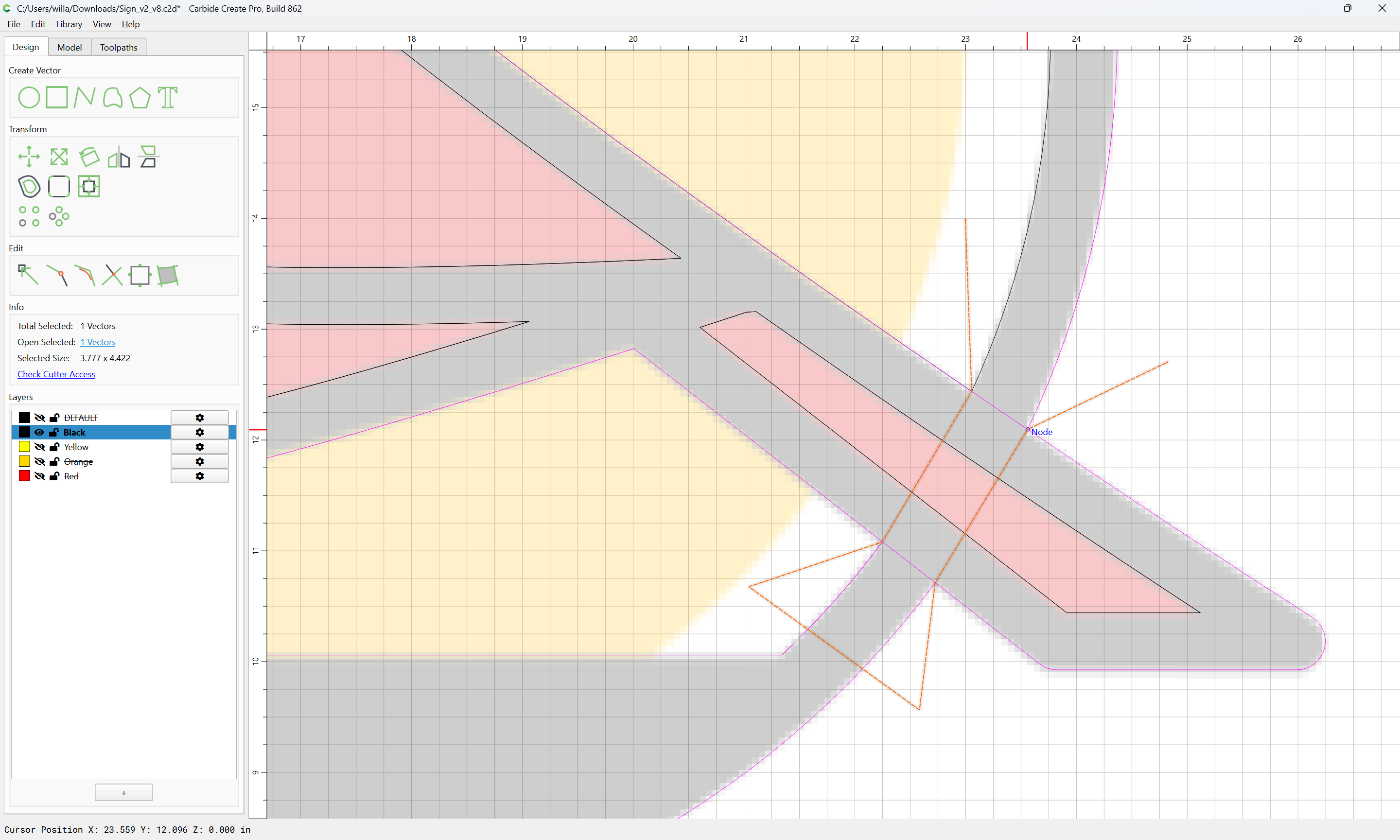
Where a line crosses a region which it should not, draw in geometry to define the ends:
Done
and then use Trim Vectors to remove what is not wanted:
OK
then clean up by removing the drawn geometry
As before, where necessary, draw in geometry to define where a line should end:
and then add that line to the selection by shift-clicking:
and use Trim Vectors
to remove it
OK
It should then work to select the desired geometry:
and use Join Vectors to close
Yes
Repeat drawing geometry to isolate lines:
and use it to remove what is not wanted:
OK
and then join what is wanted:
Yes
For regions defined by adjacent vectors select them:
and use Node Editing
and then Trim Vectors
OK
to get down to only what is wanted which may then be joined:
Eventually, one should be able to hide the grid and image
and to selectively view each layer:
3 Likes
MrWilson
October 2, 2026, 12:38am
5
This is unbelievably helpful! Thank you!!!
system
November 1, 2026, 12:38am
6
This topic was automatically closed 30 days after the last reply. New replies are no longer allowed.