When downloaded from:
imports as:
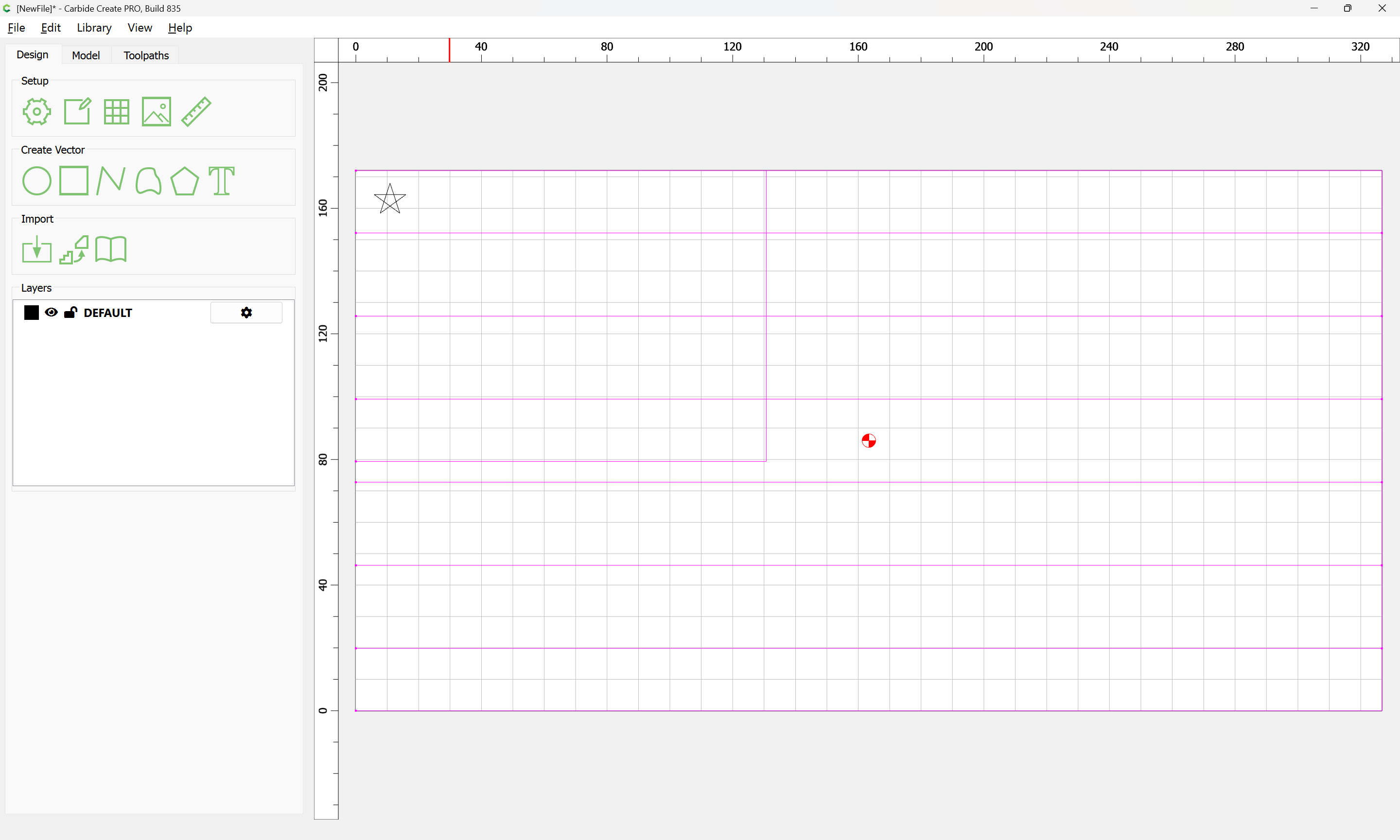
Fixing this is pretty straight-forward in newer versions of Carbide Create:
Create a new layer for each element:
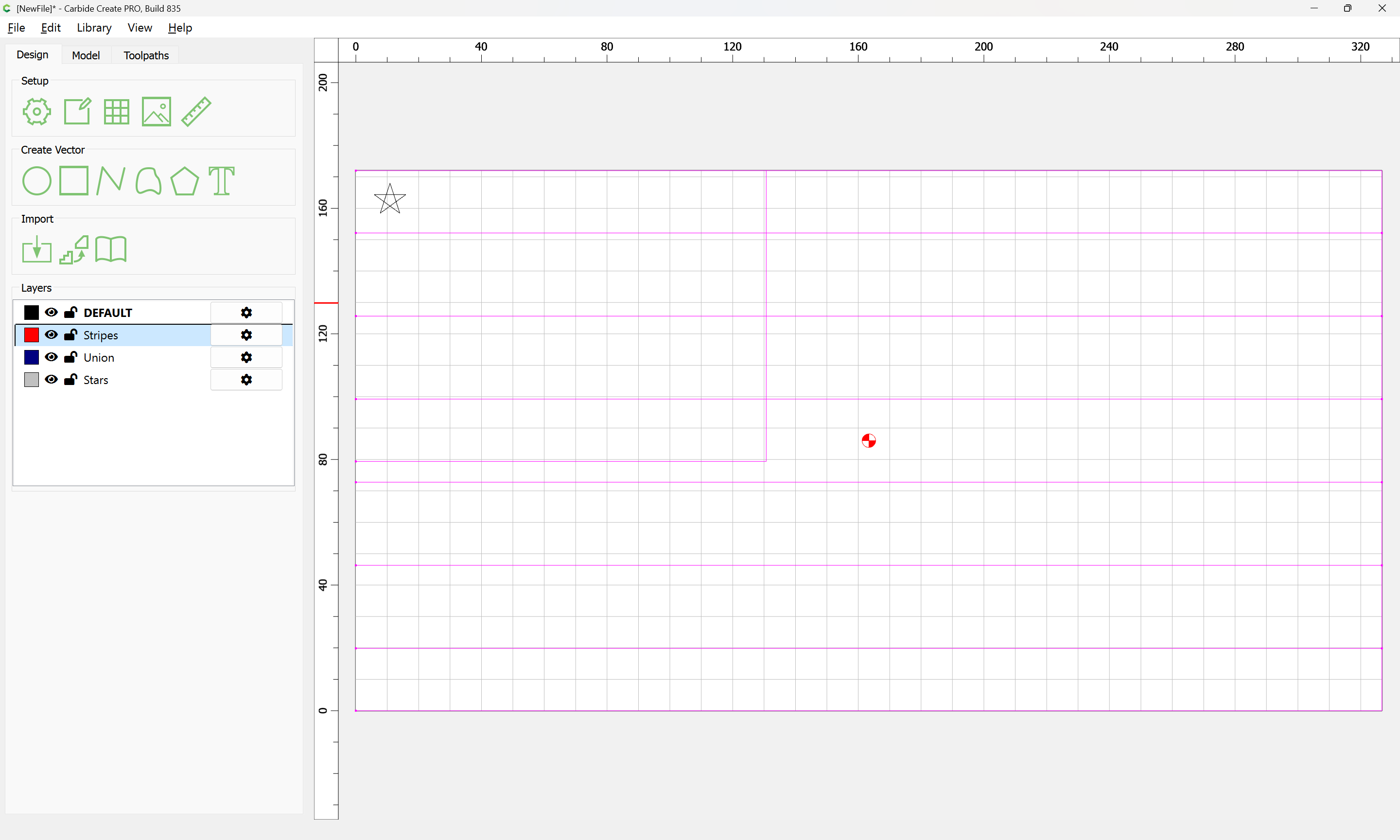
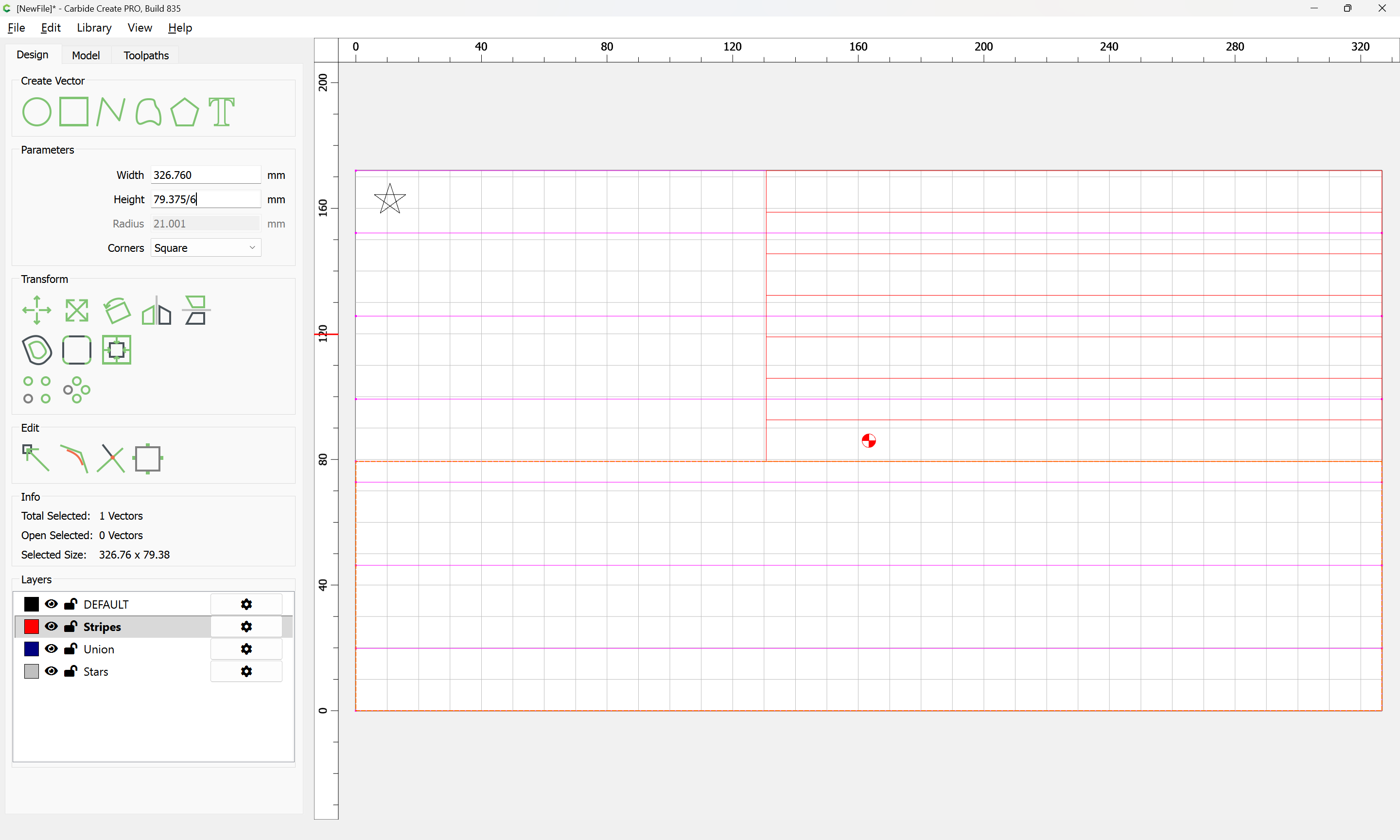
For the stripes, draw a rectangles for each length needed:
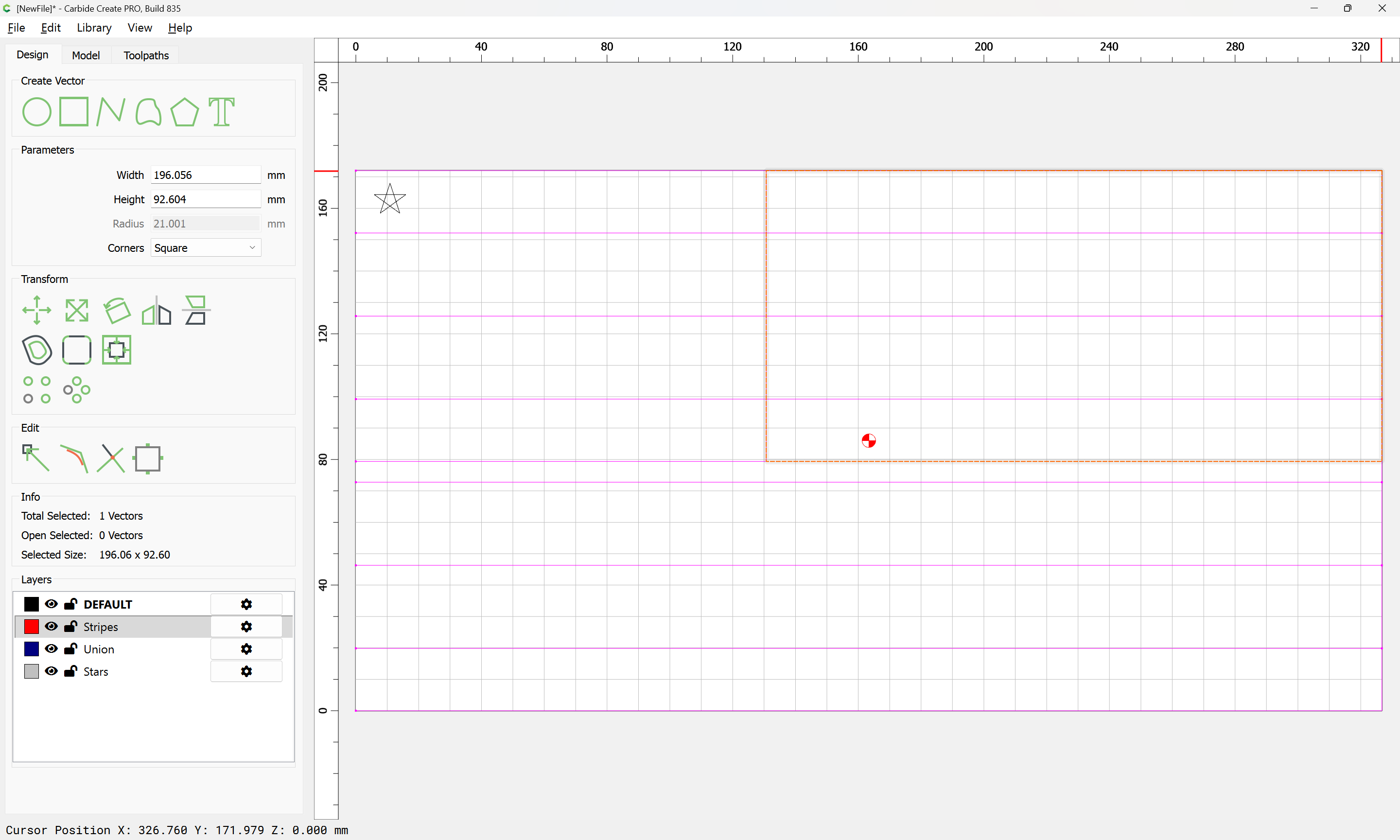
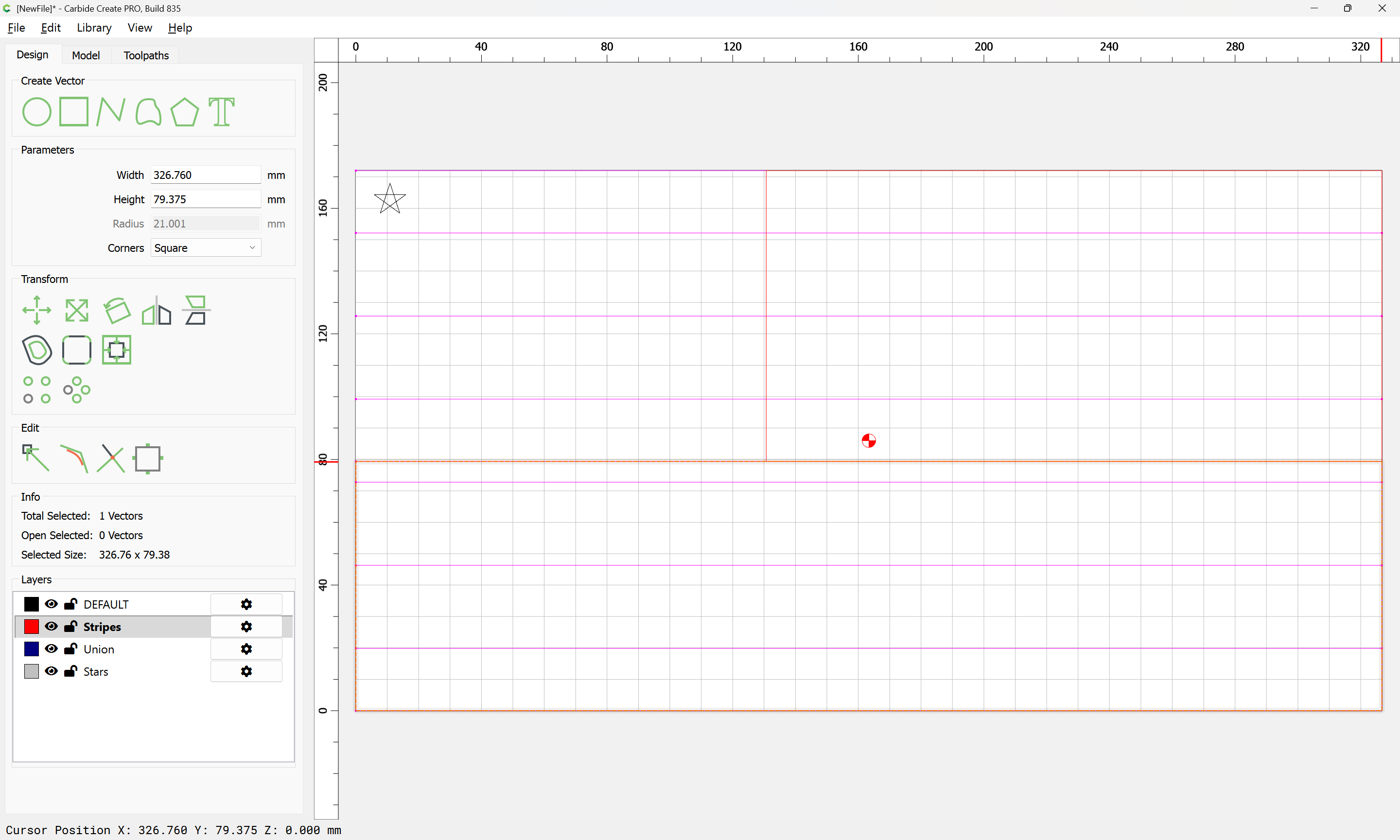
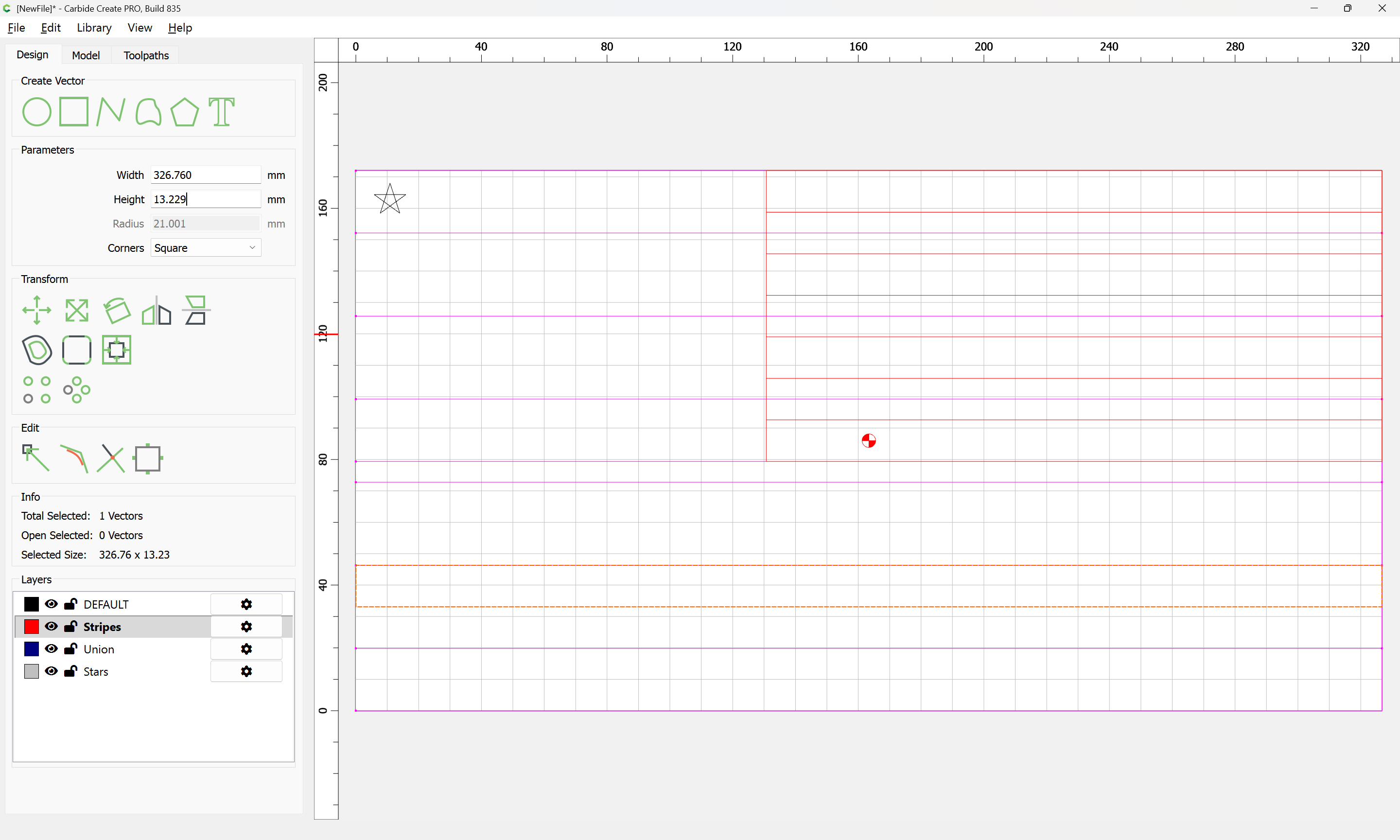
Count the number of stripes of each length and scale asymmetrically:
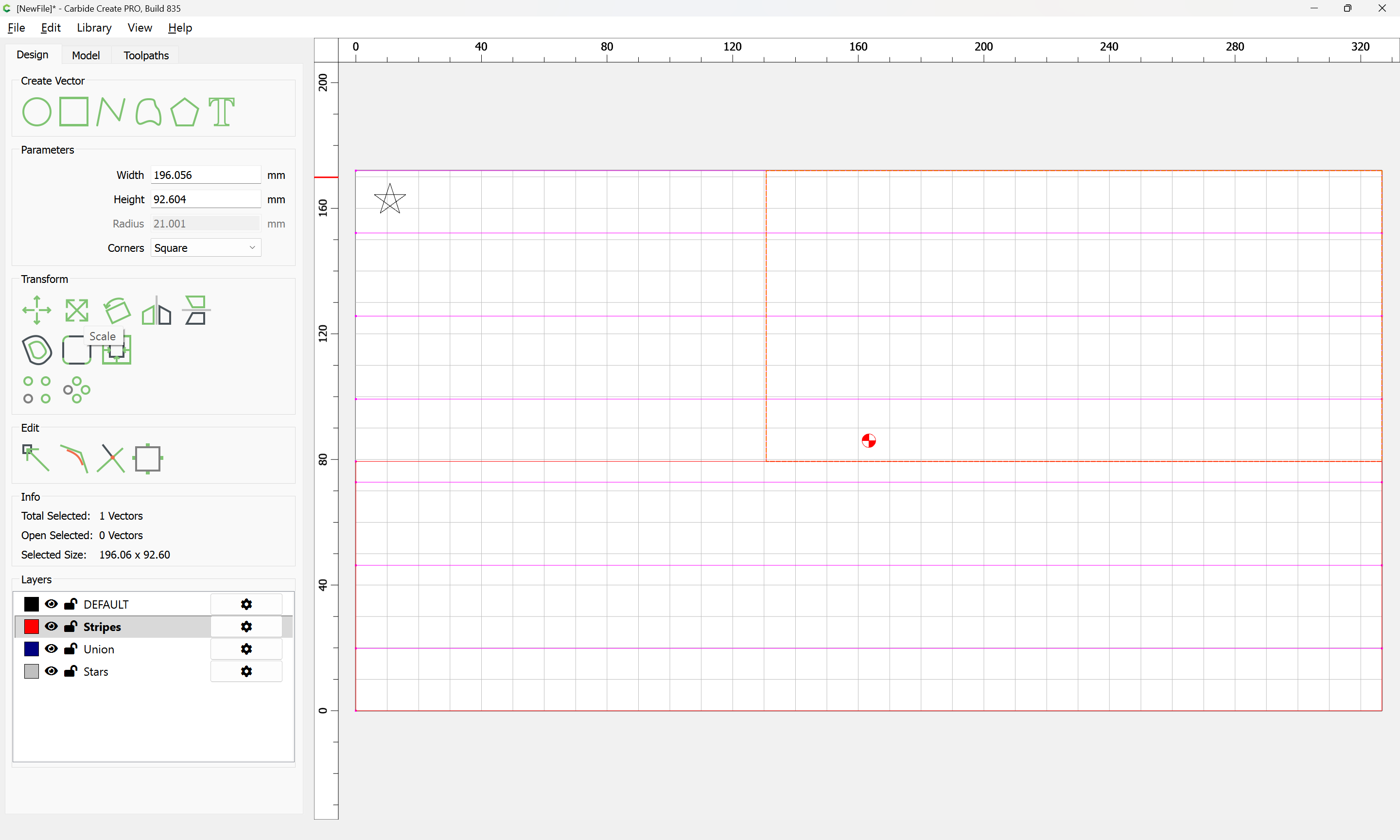
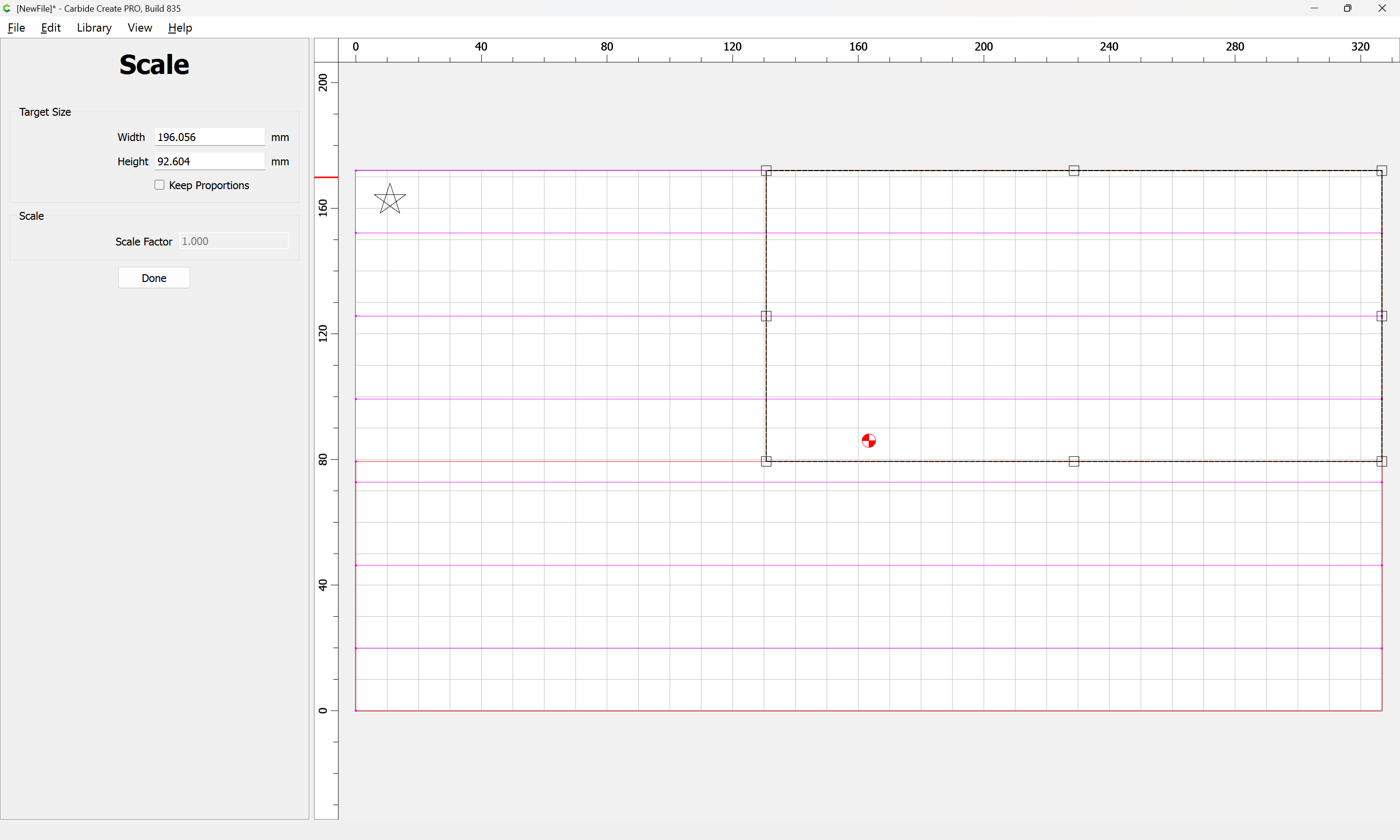
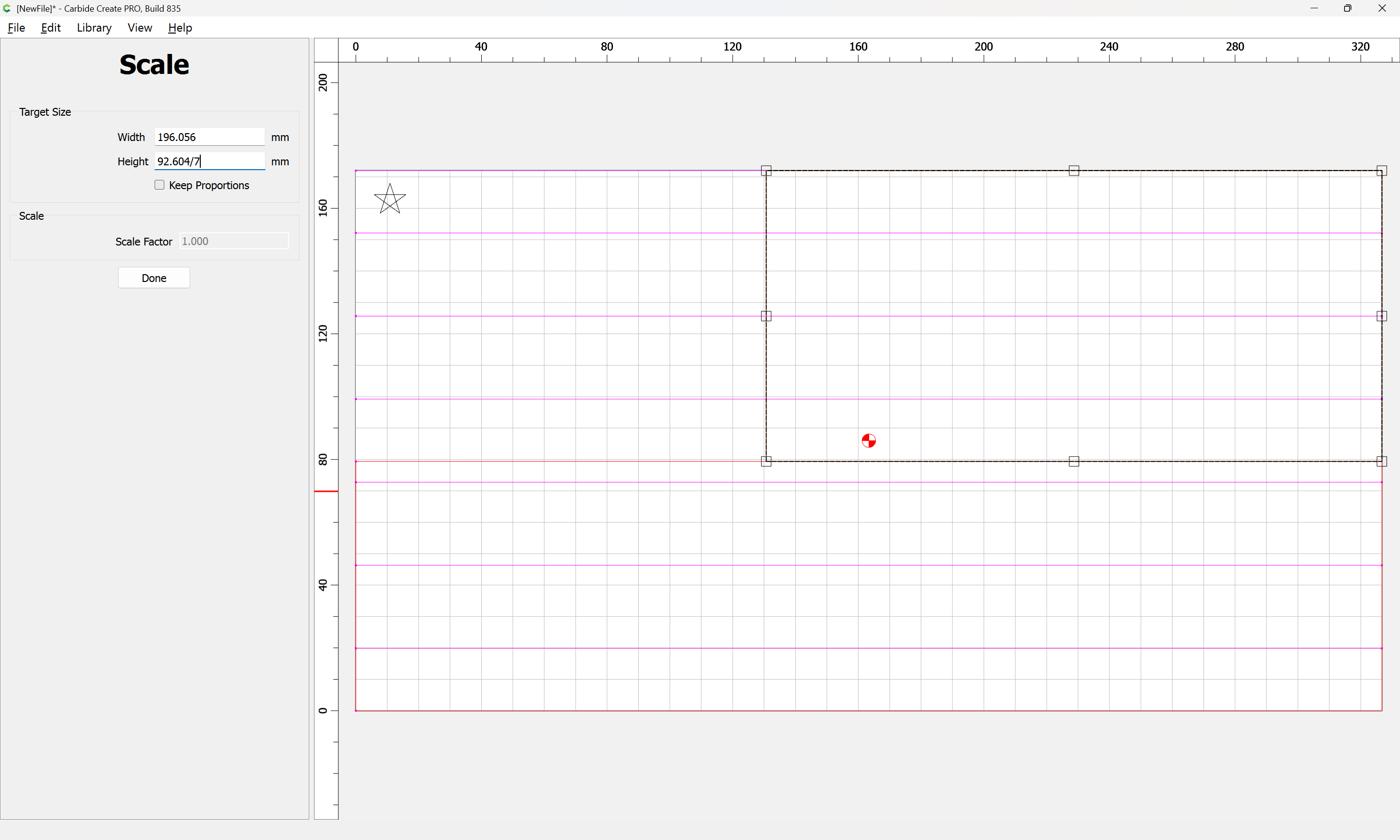
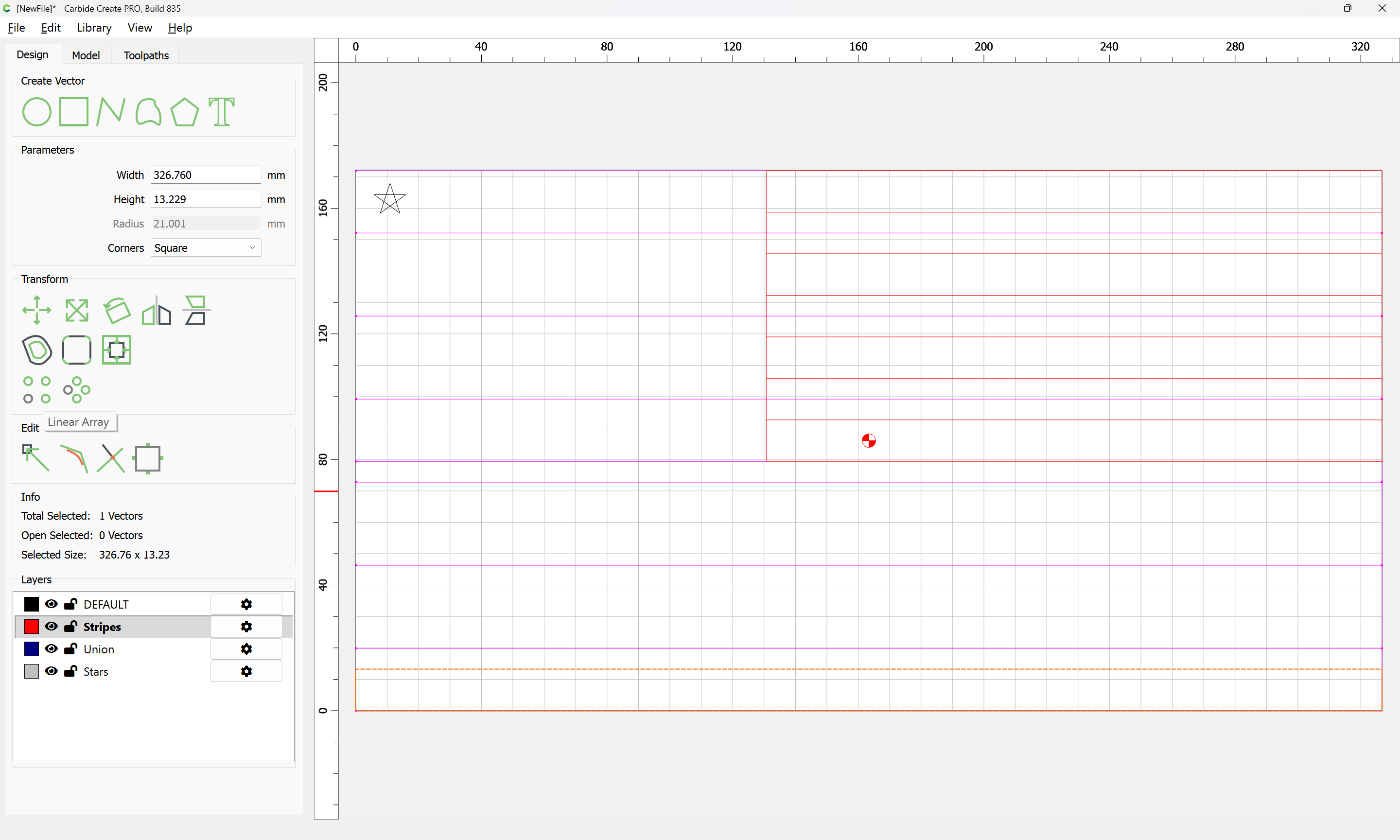
then drag into alignment:
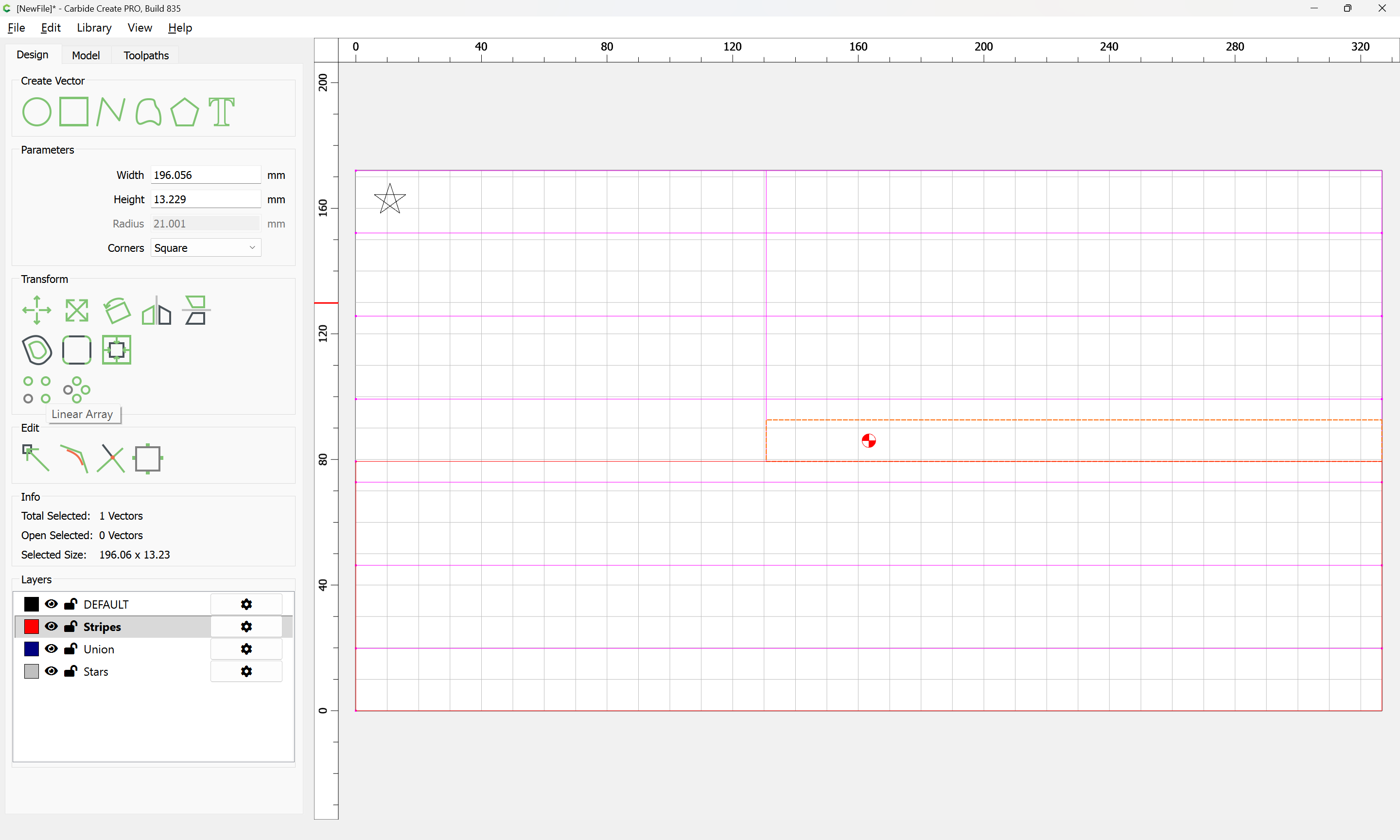
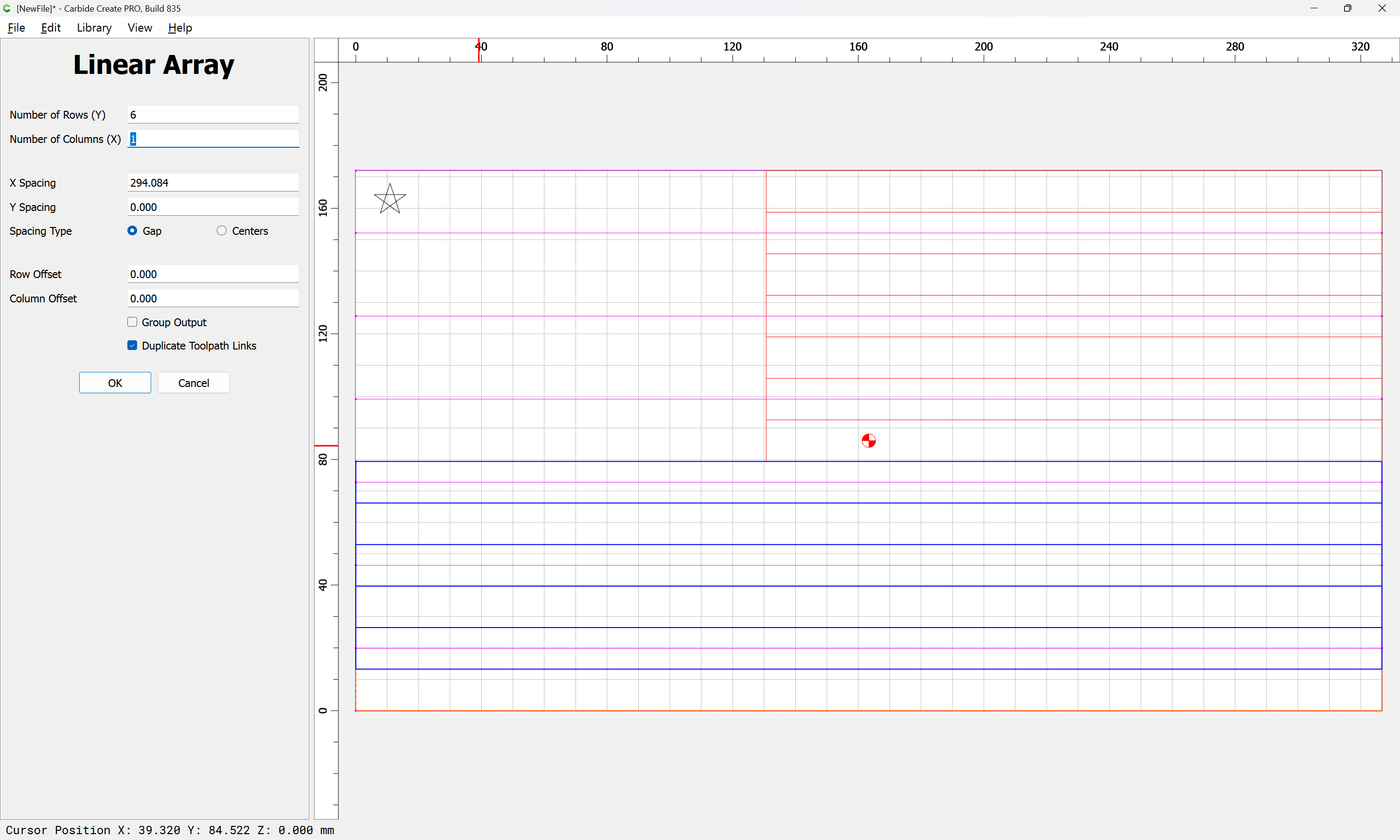
and use Linear Array to replicate as needed:

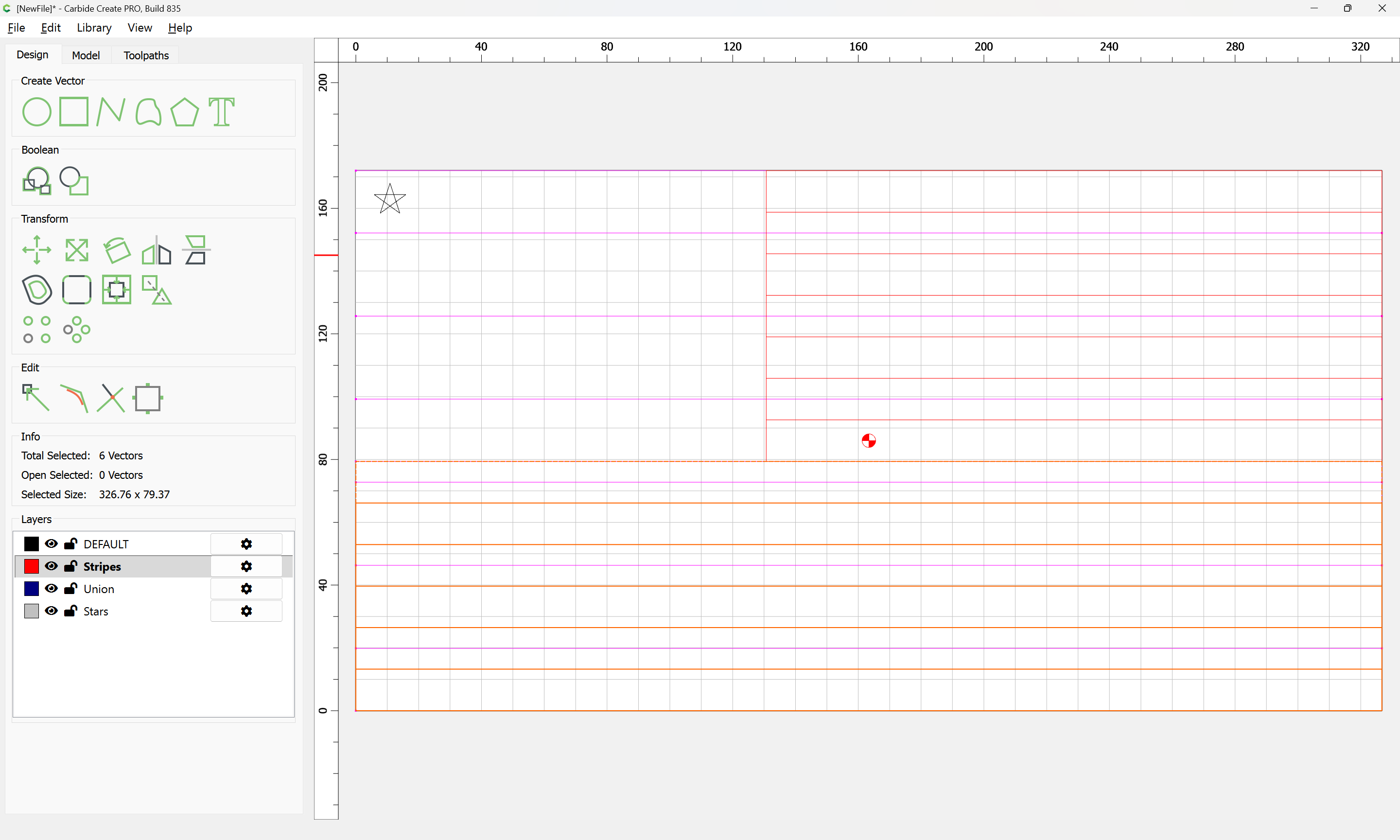
Then for the stars, just use the polyline tool to re-draw by snapping to the nodes:
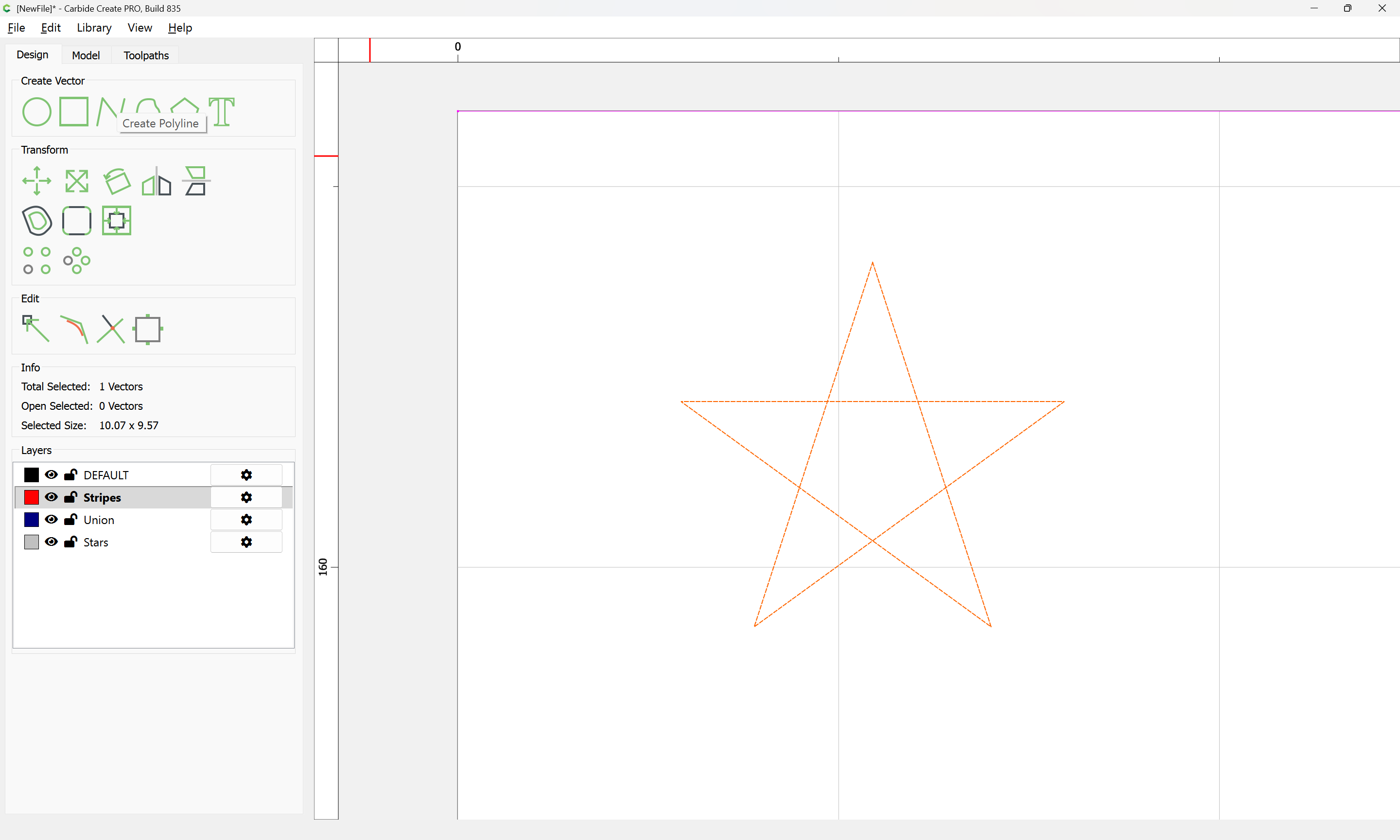
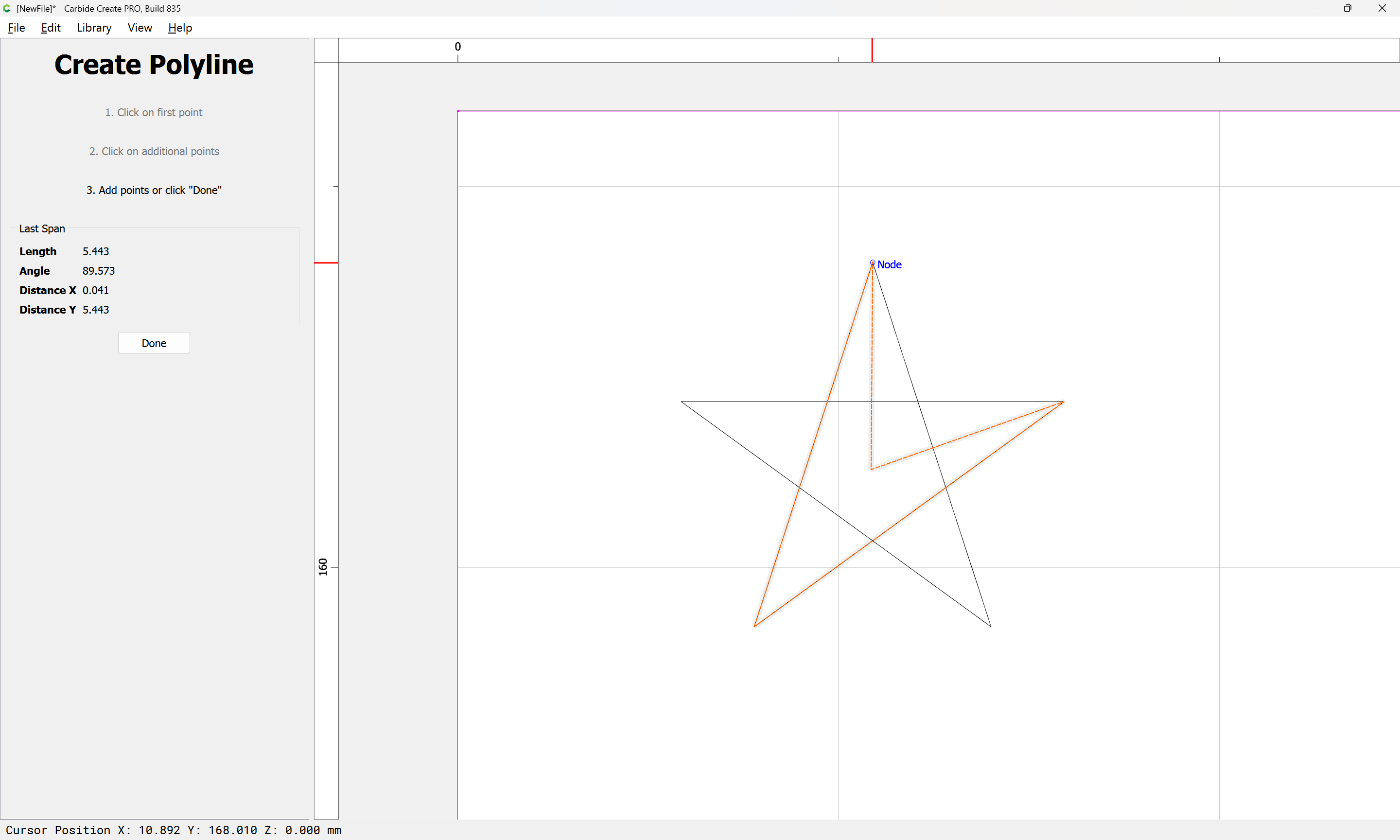
creating three overlapping regions which define the star:
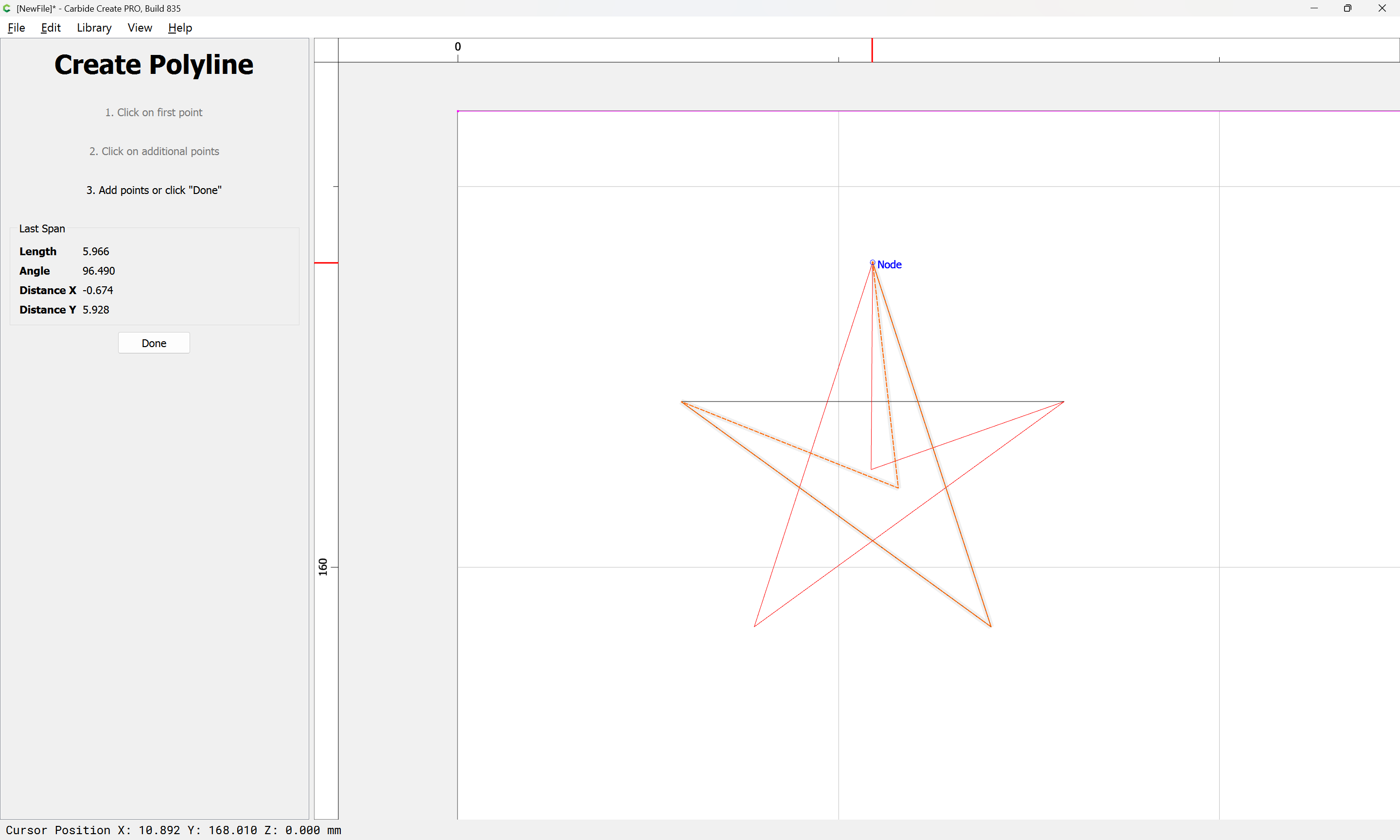

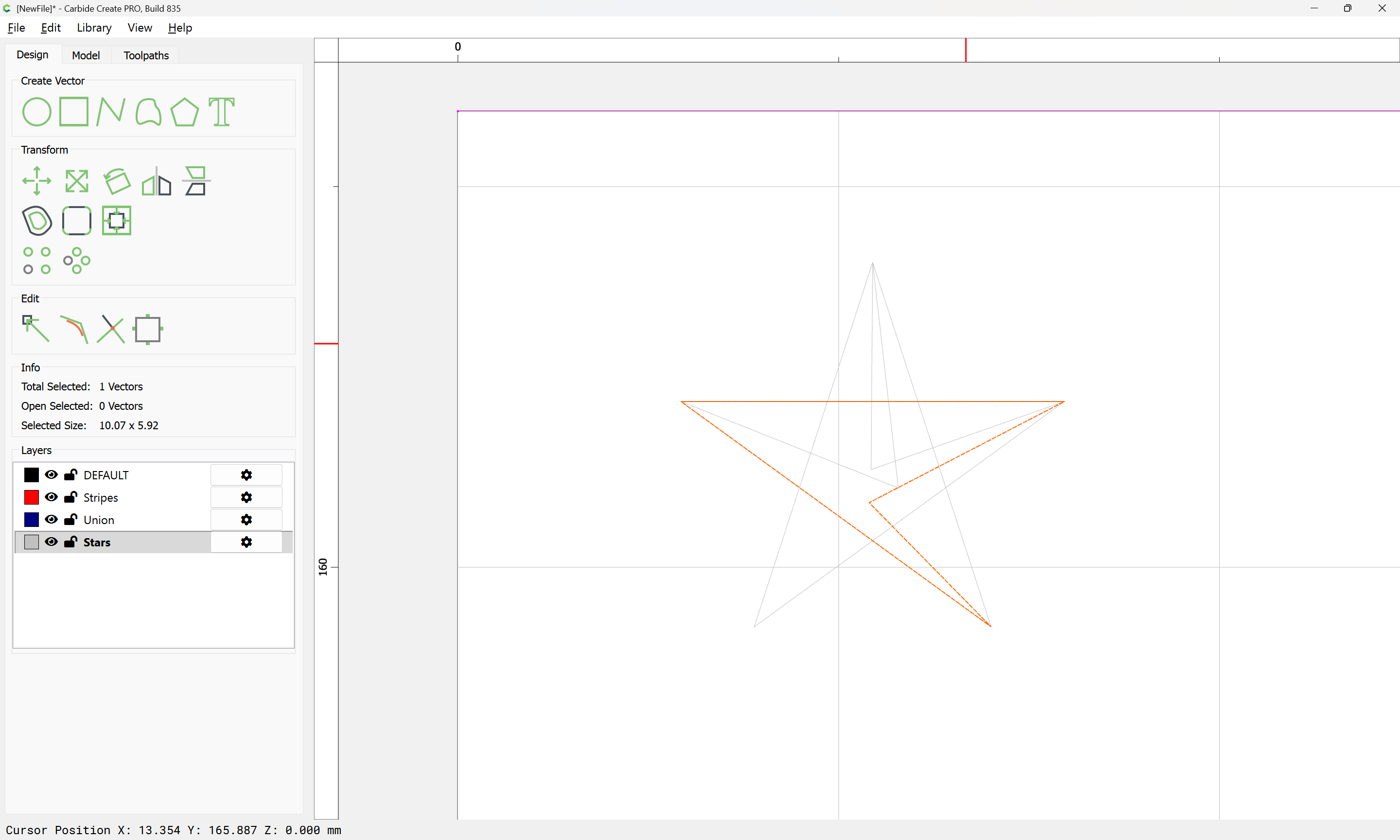
Select all three and Boolean Union:
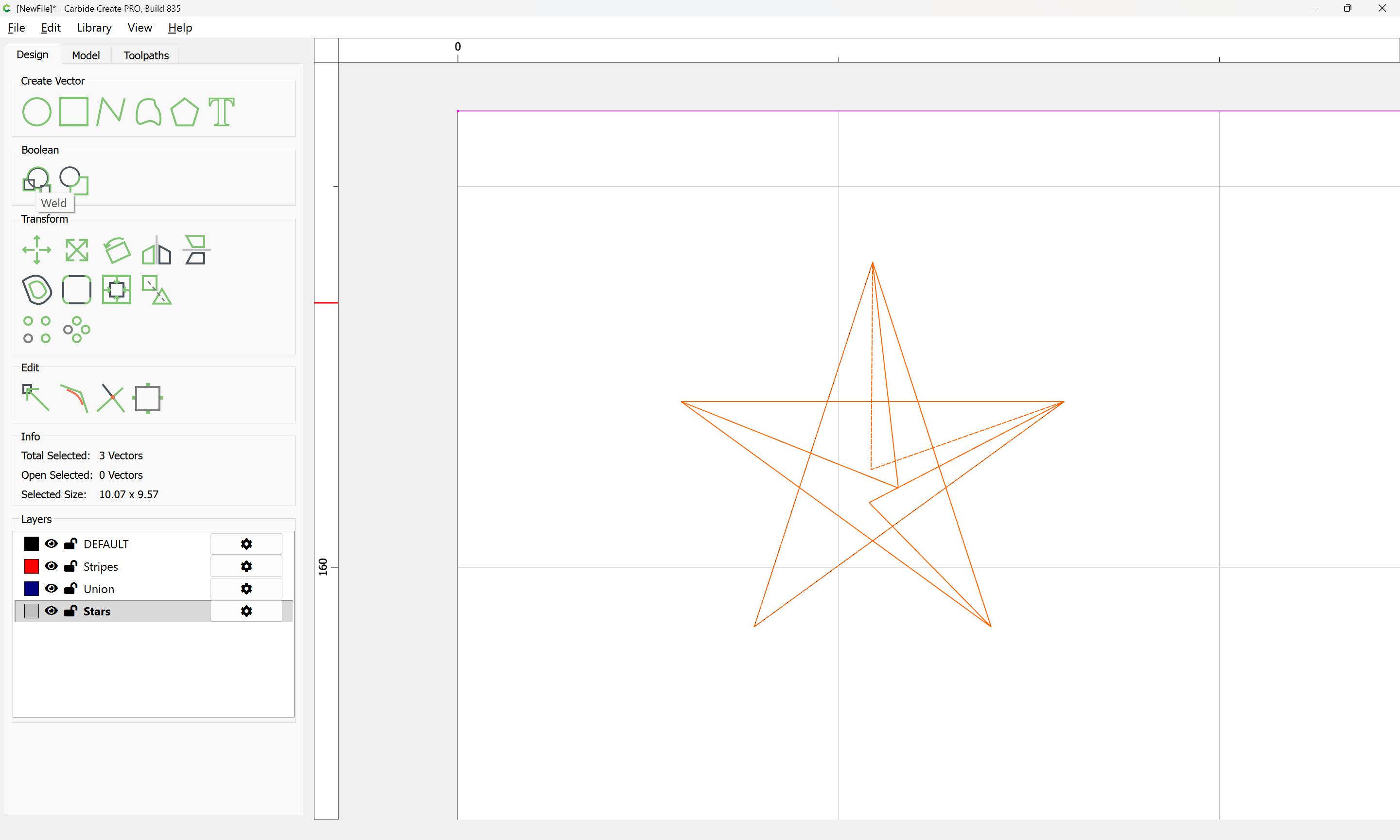

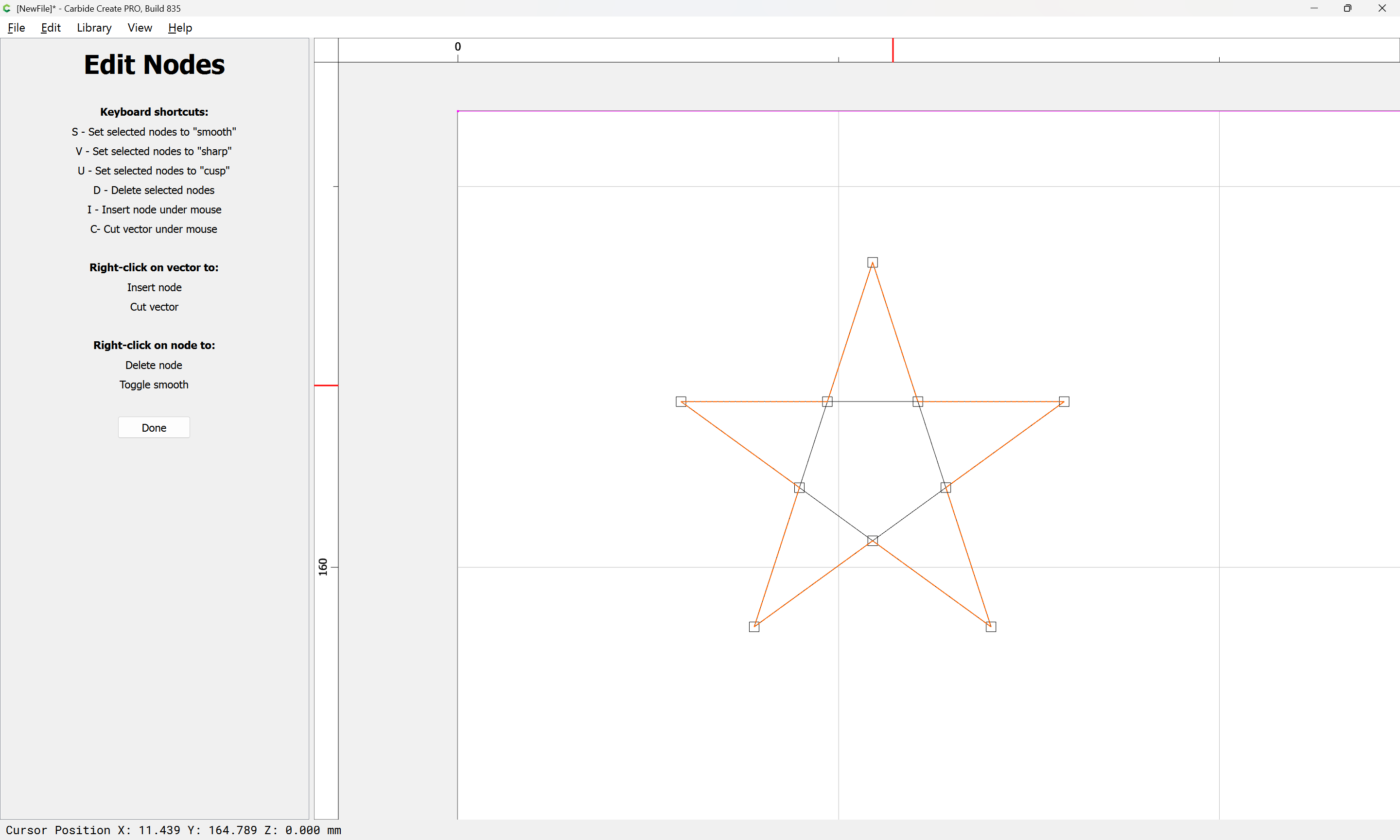
If the overlaps aren’t right, go into Node Editing mode and clean up:

Draw in the Union:
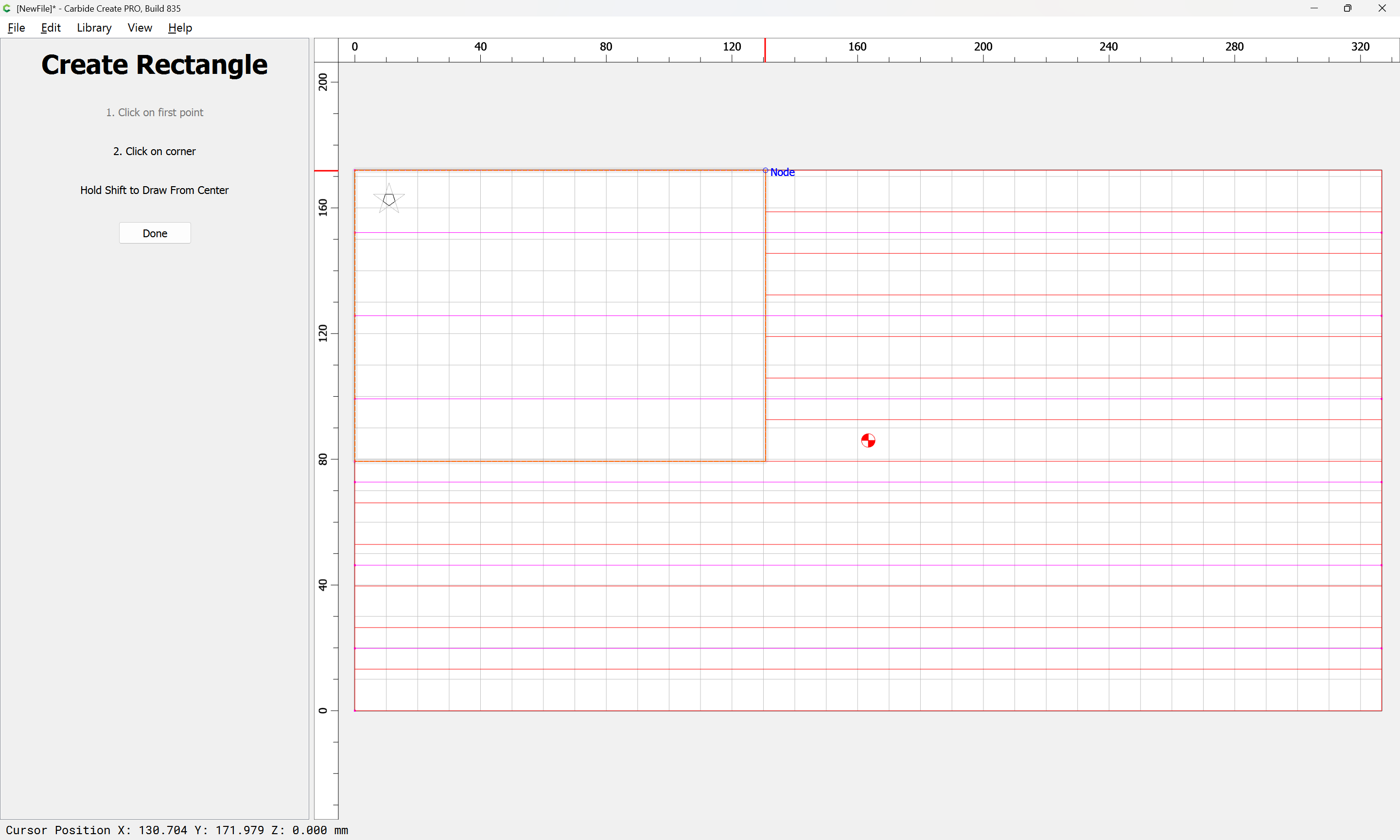
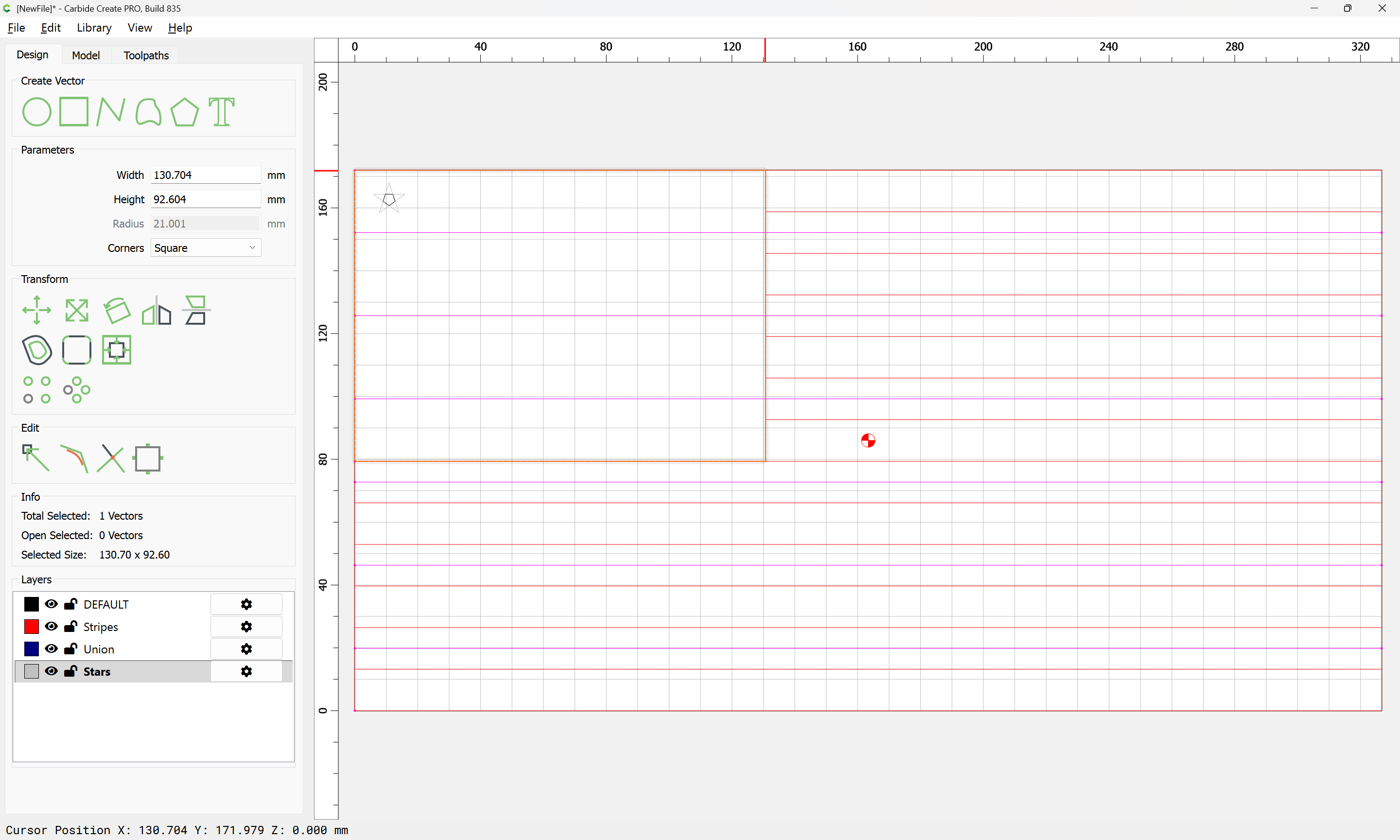
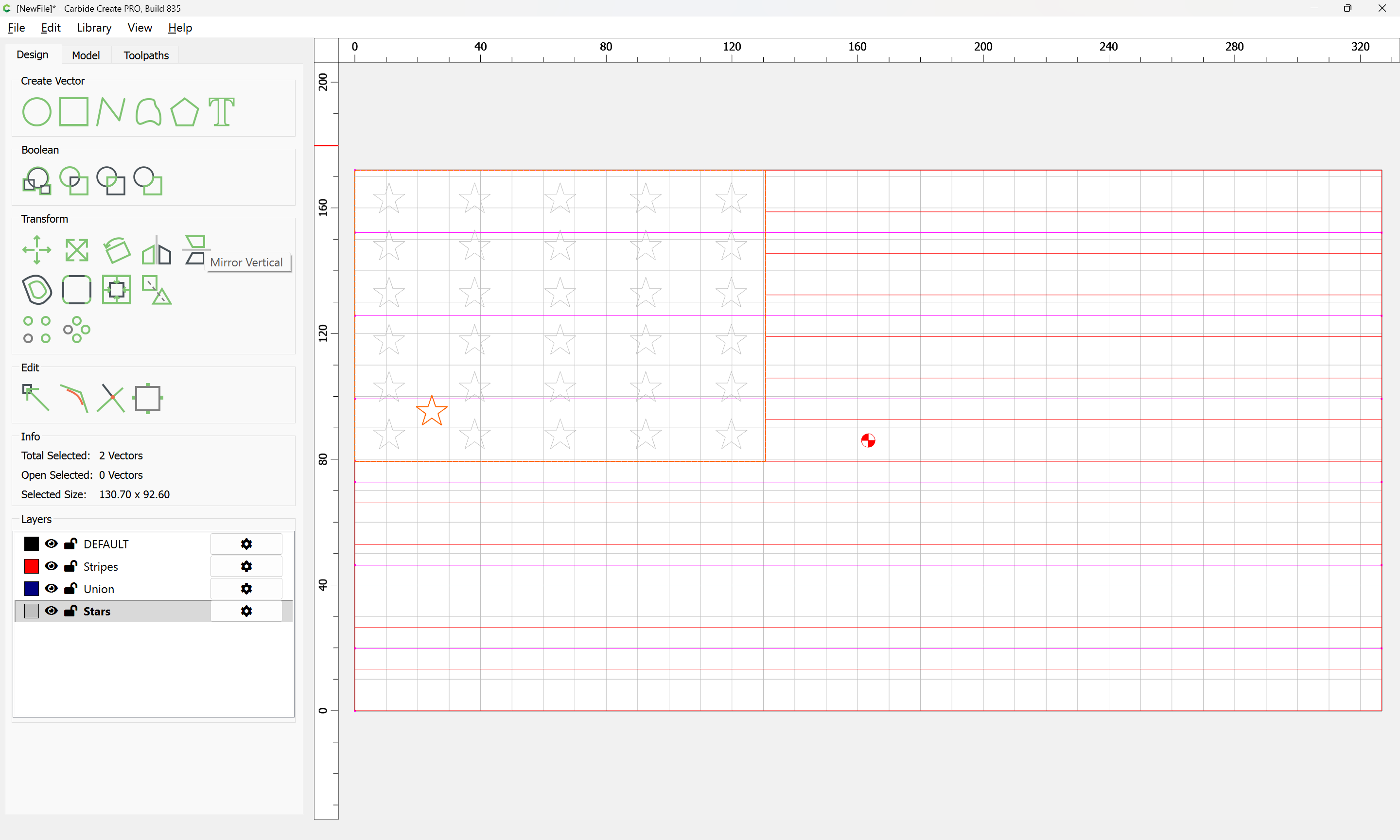
Then copy-paste the star to get a duplicate in register:
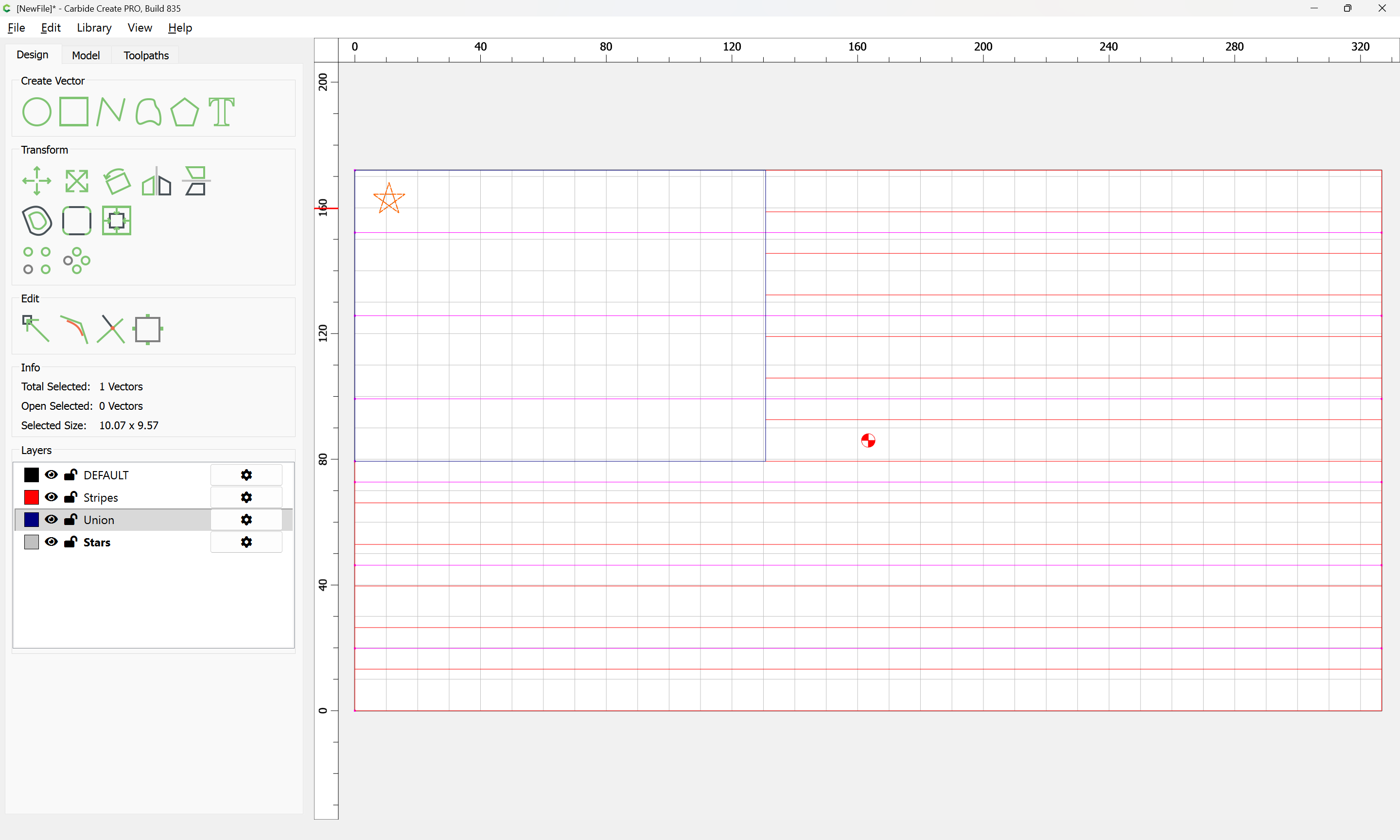
Select both the duplicate star and the Union:
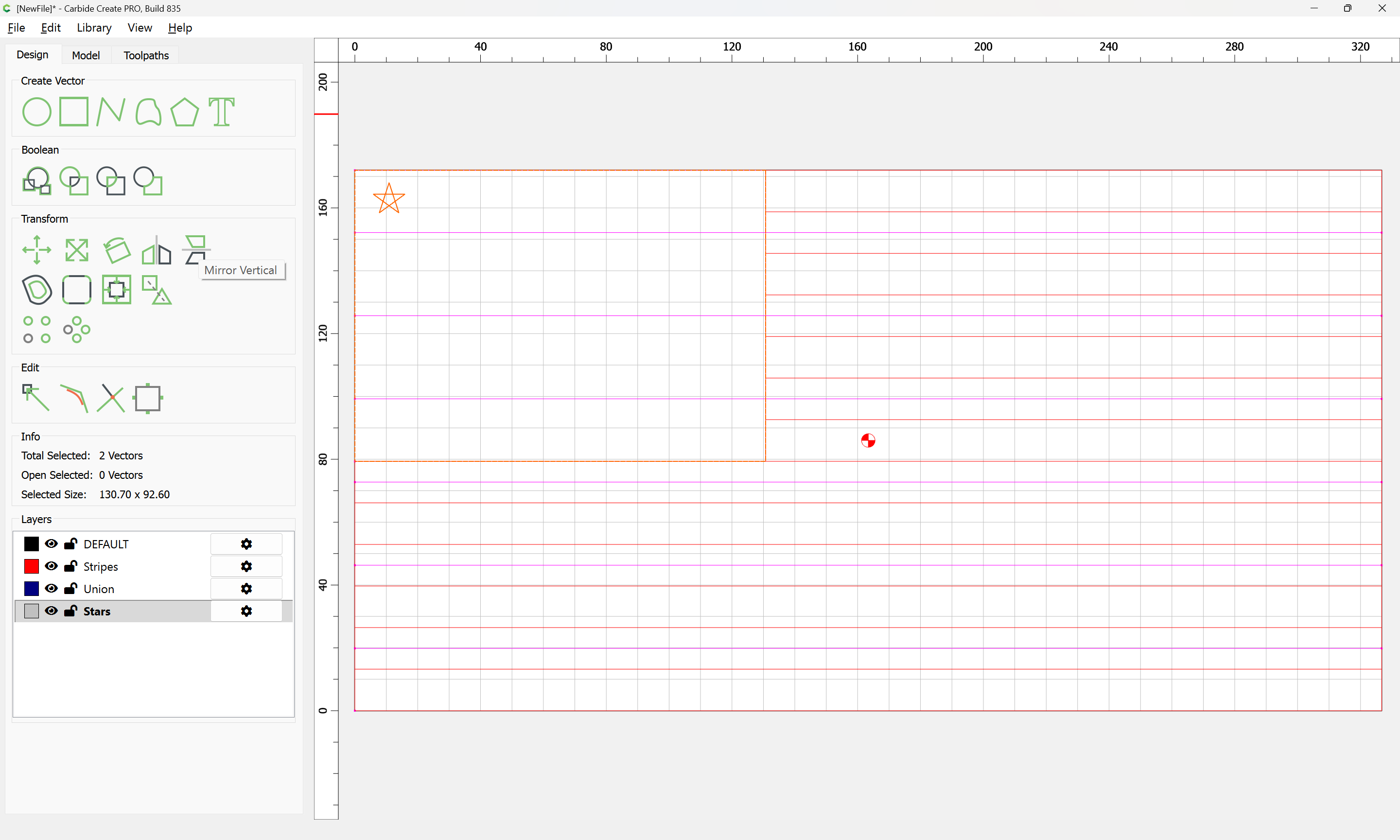
and mirror them horizontally:
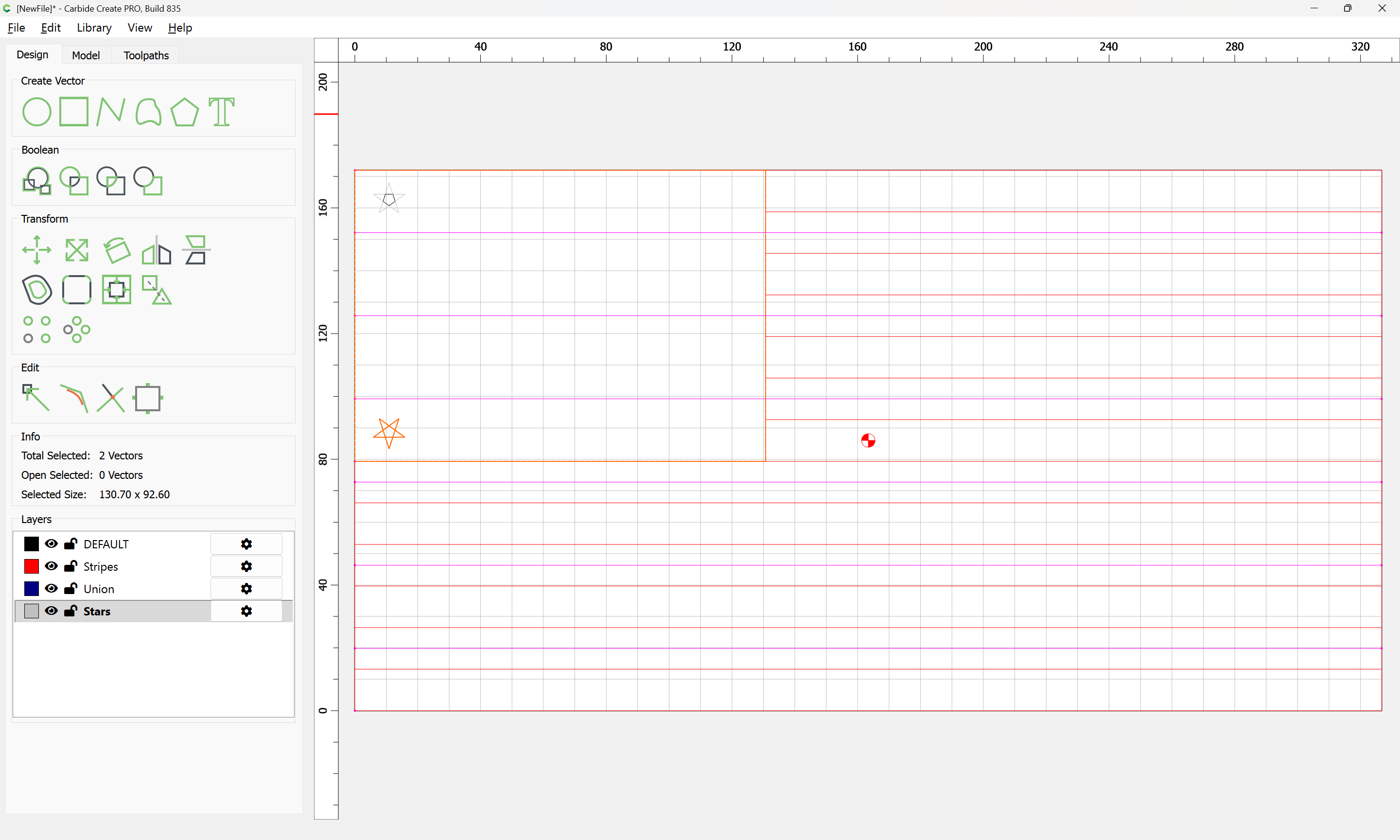
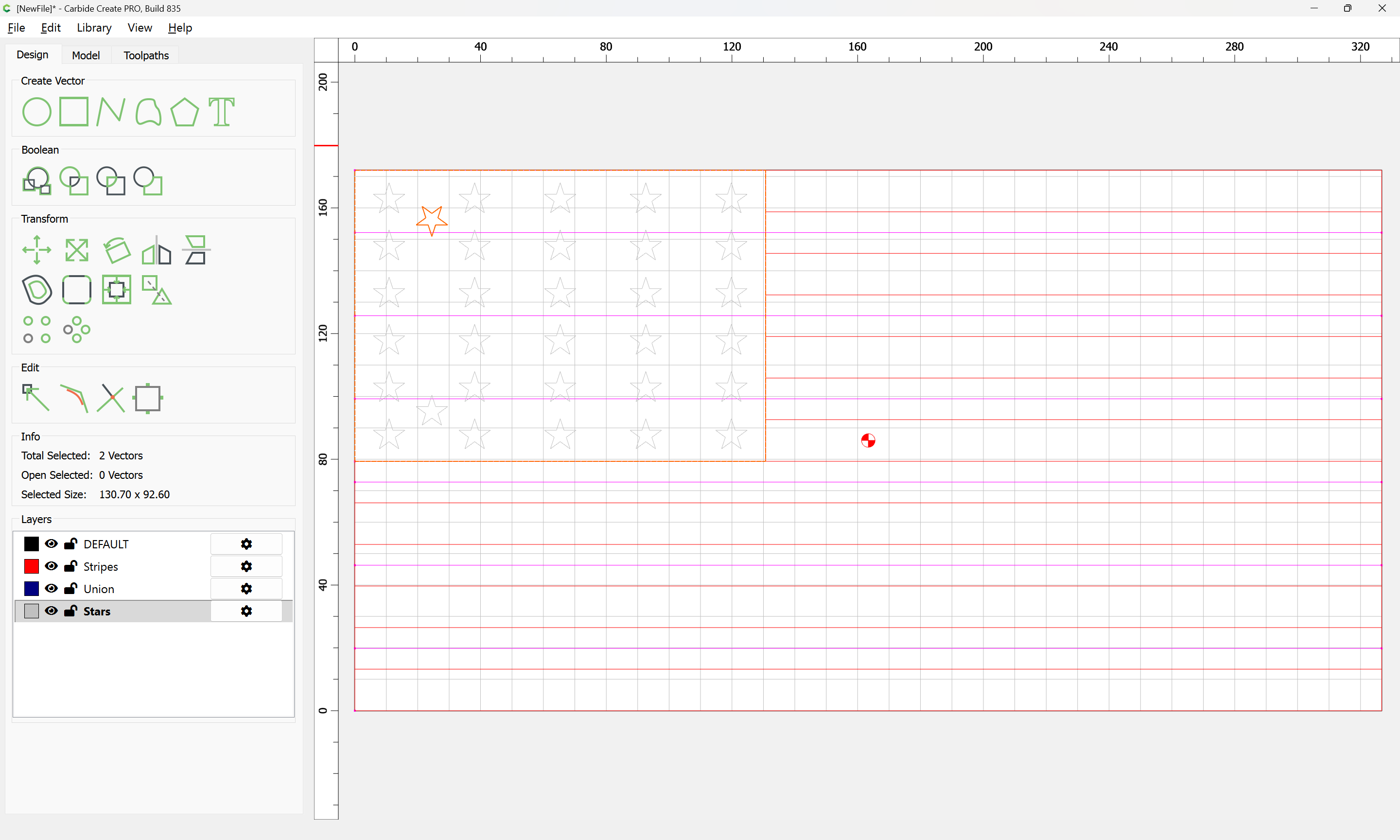
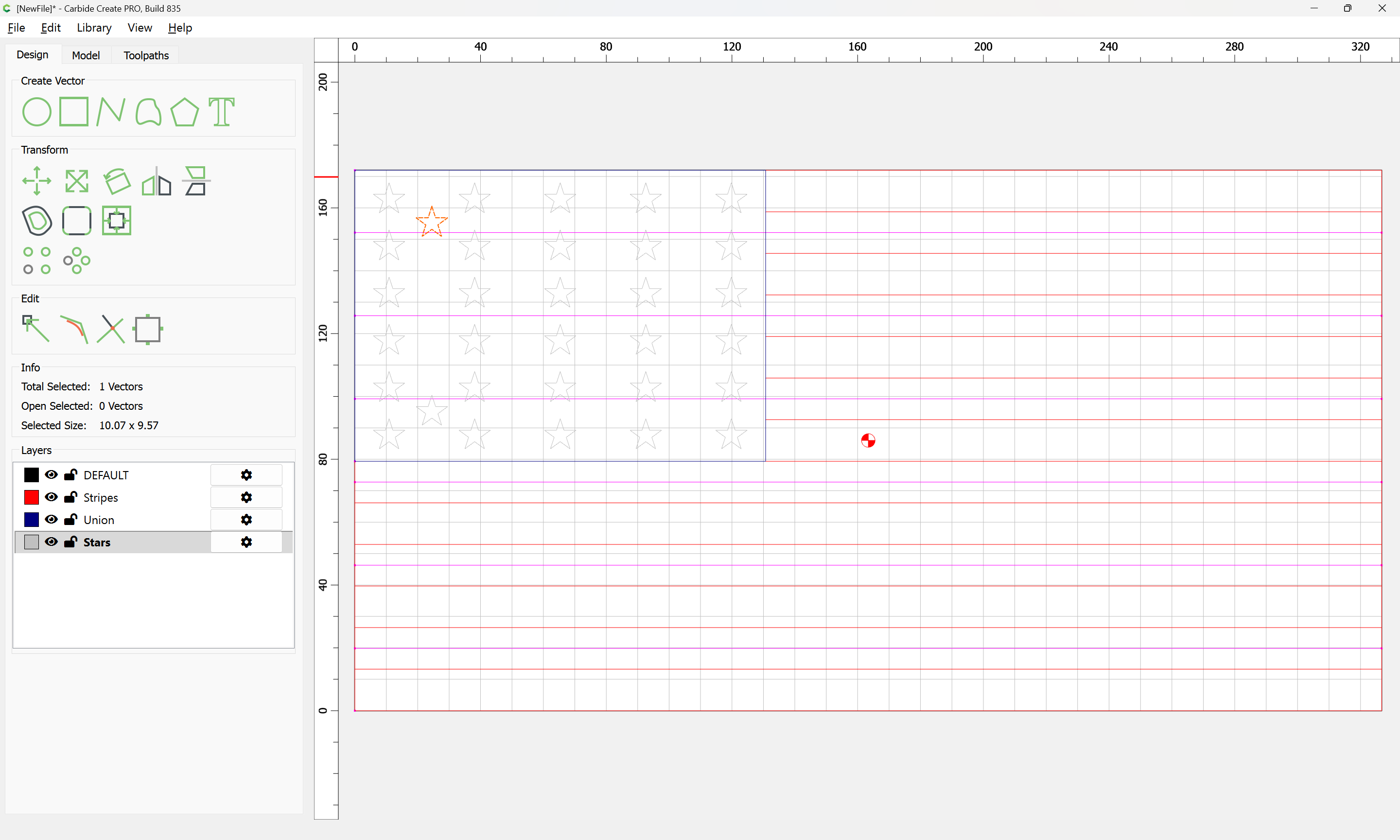
Then select only the mirrored star:
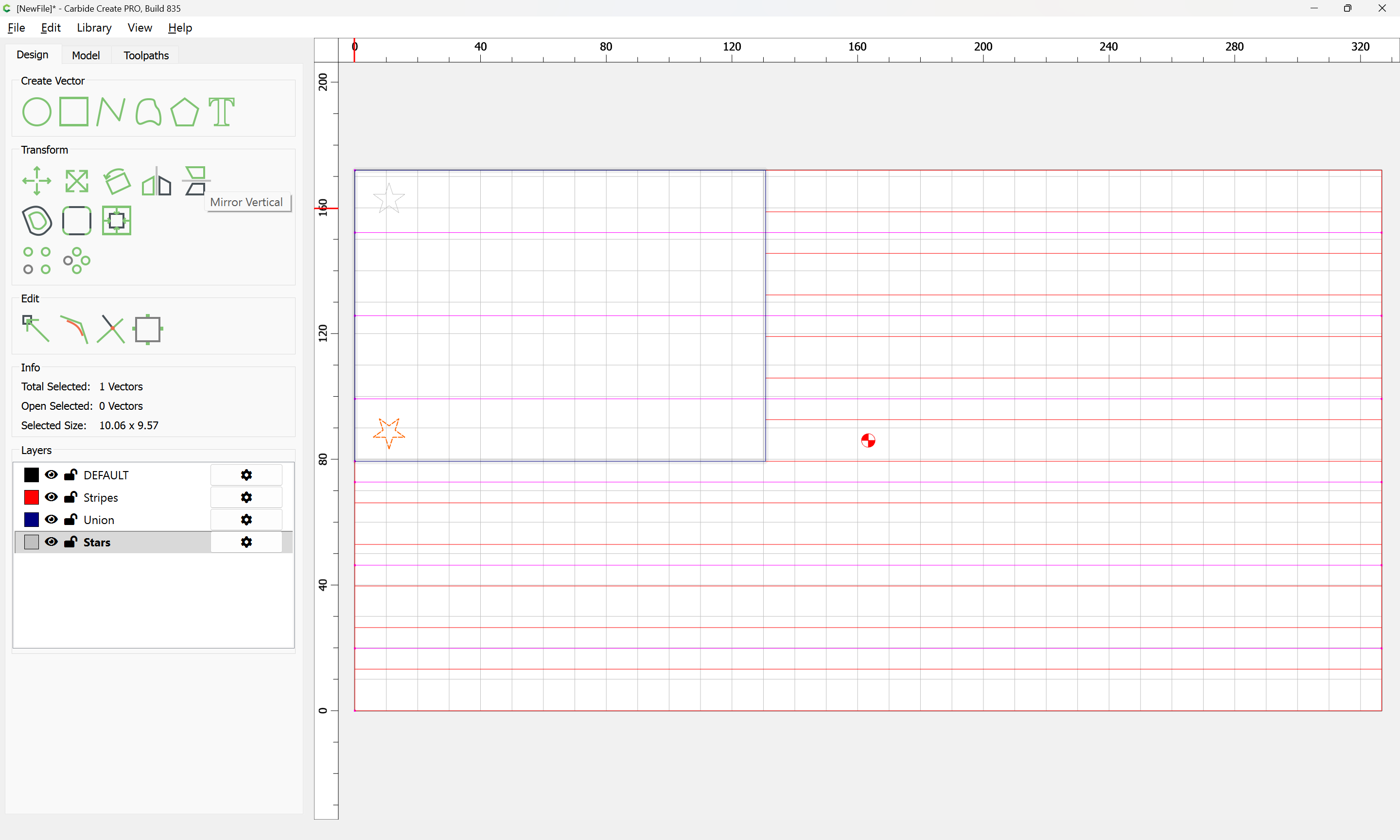
and reverse the mirroring:
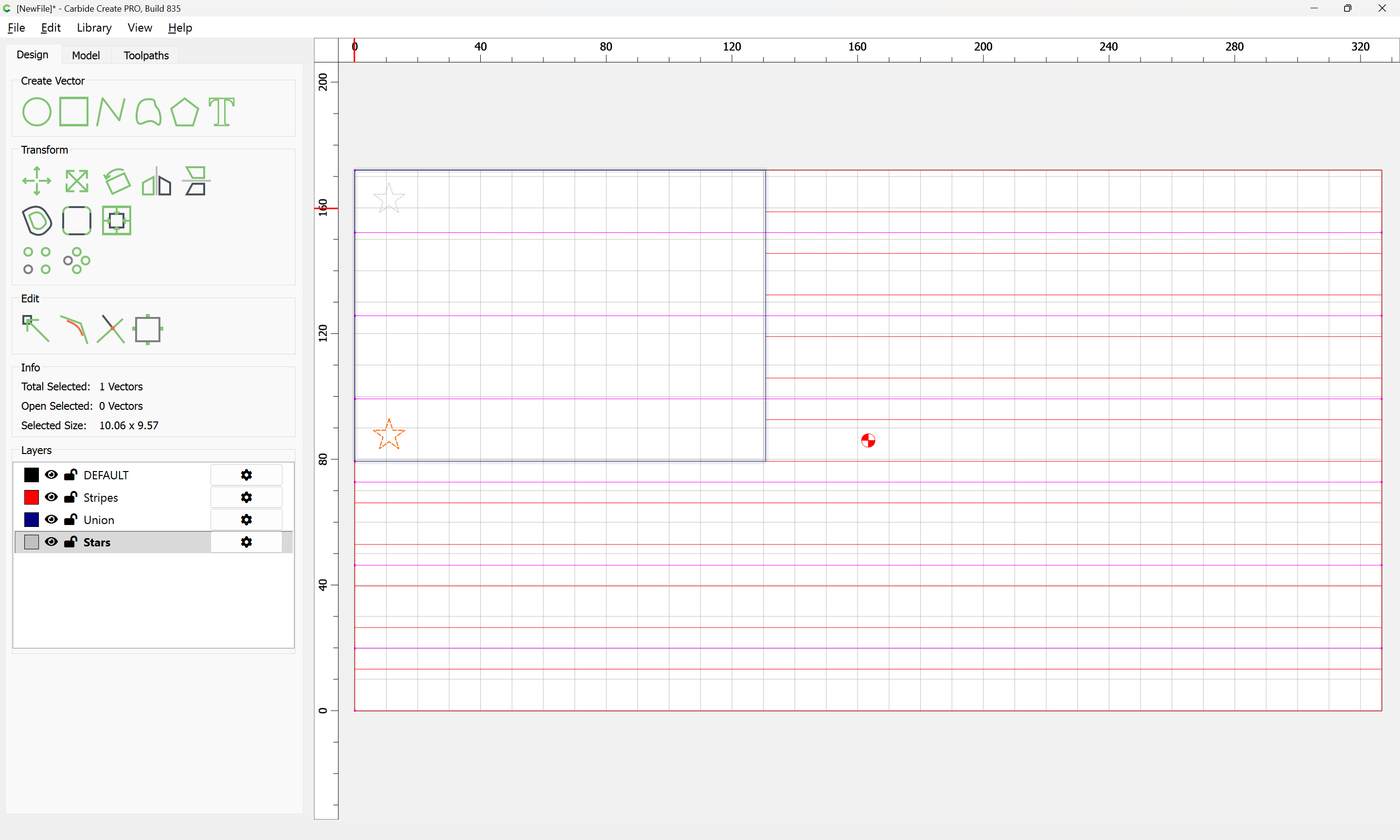
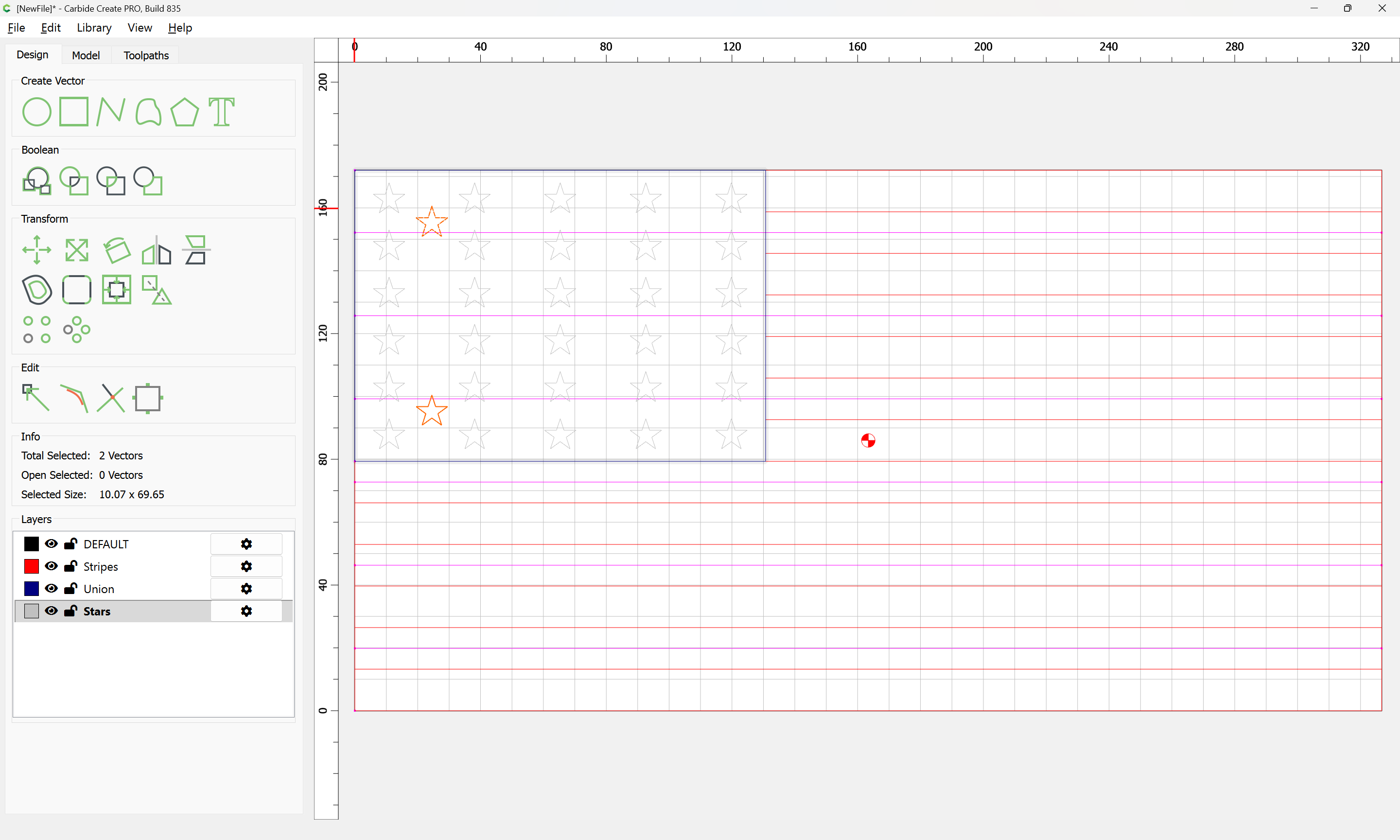
Duplicate both stars:
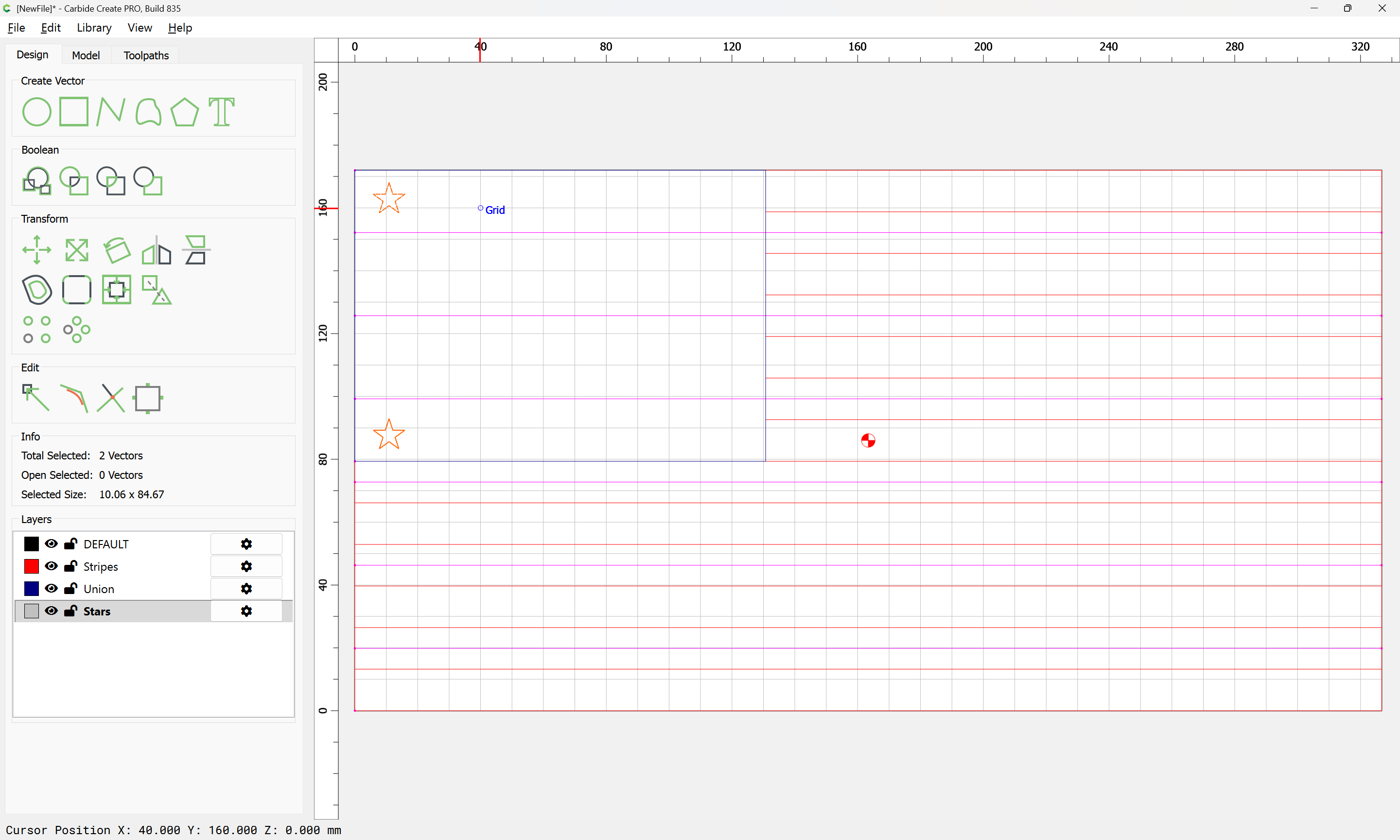
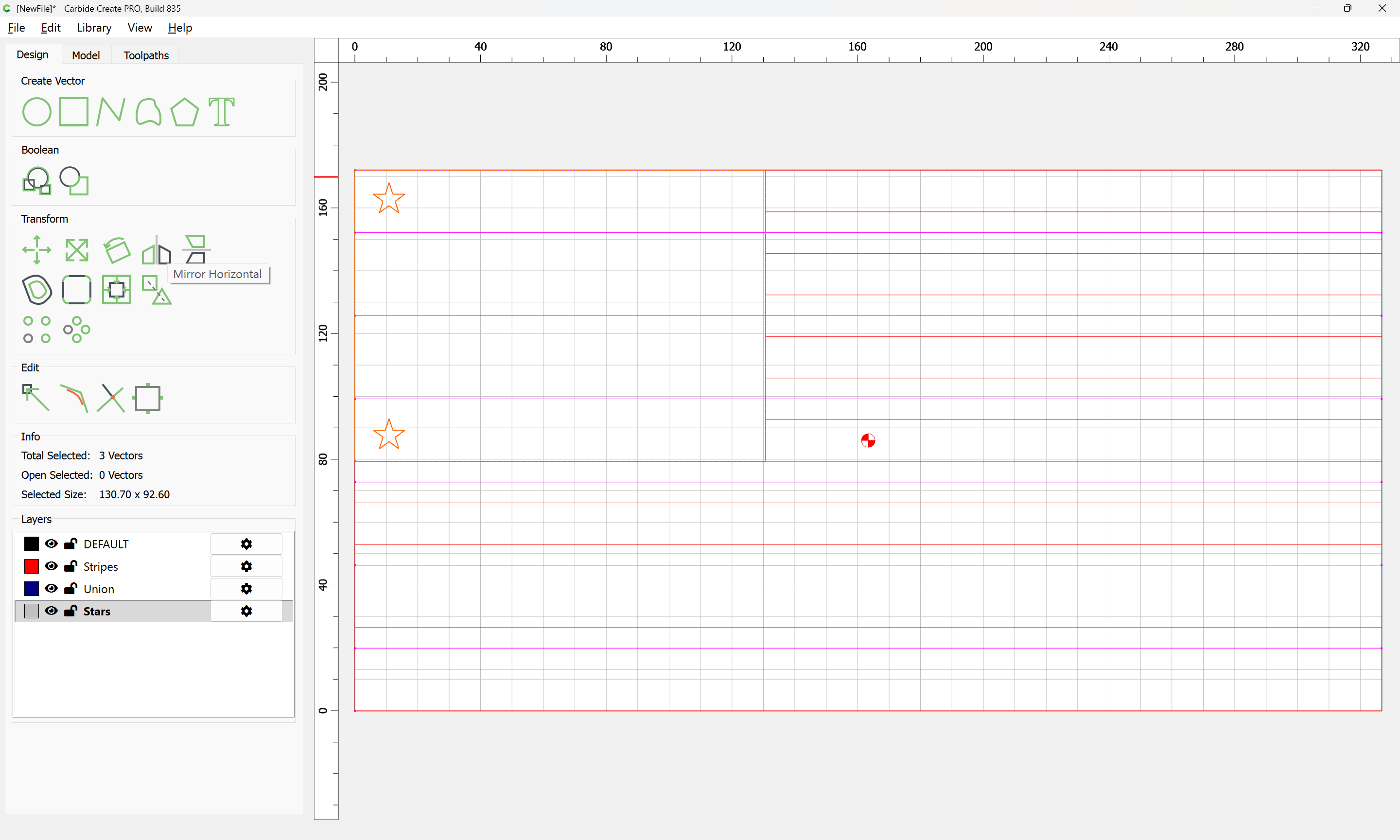
and Mirror Horizontal:
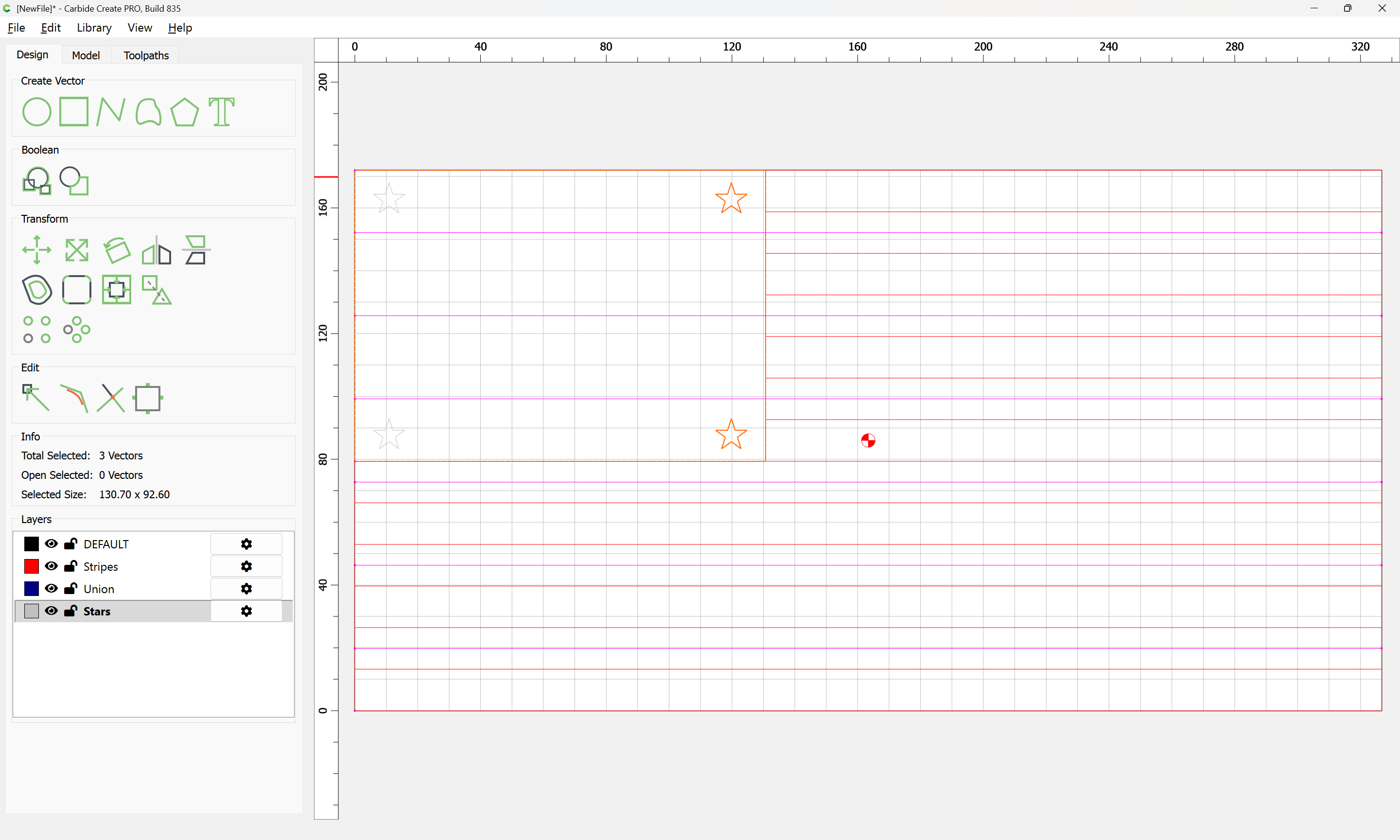
Measure the distances between the stars:
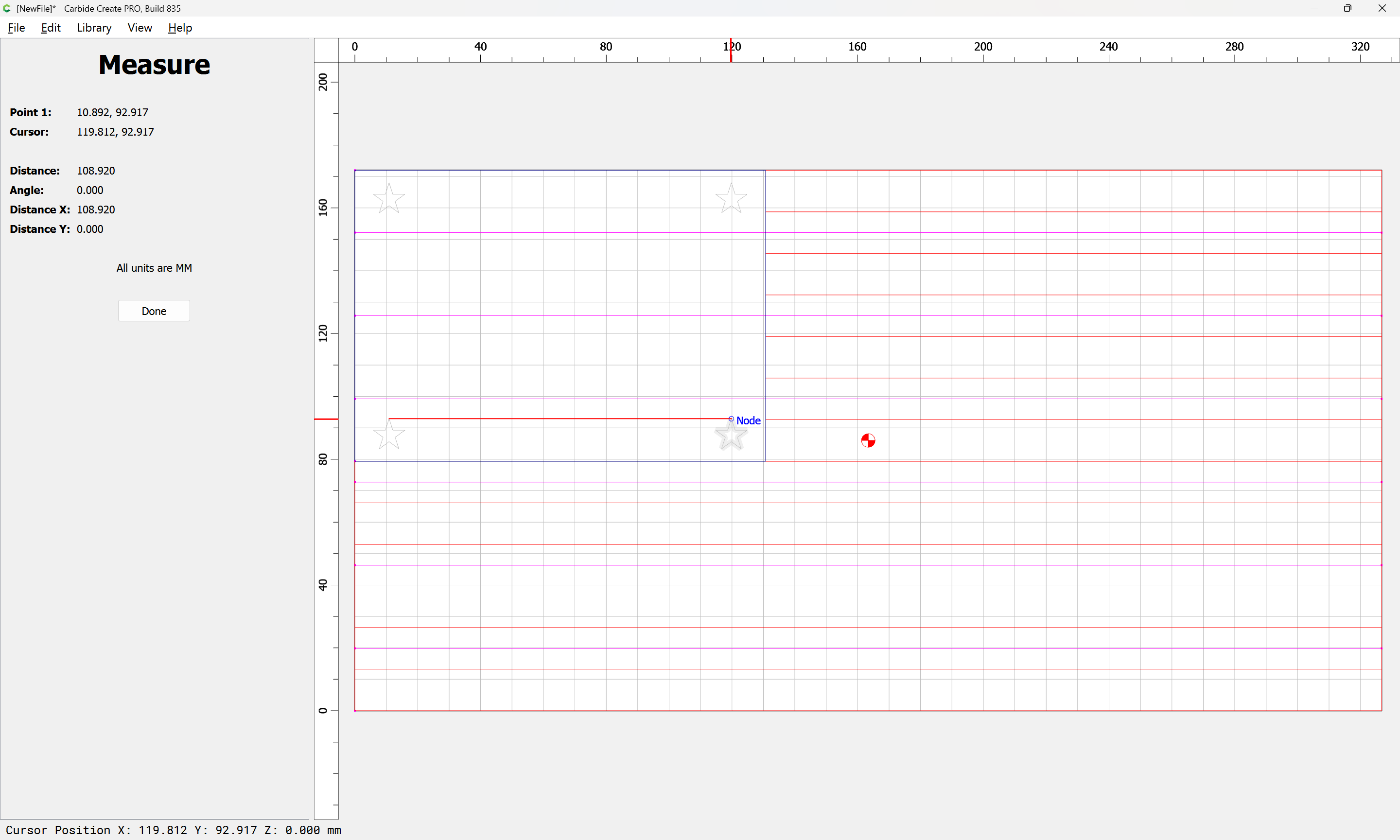
108.92
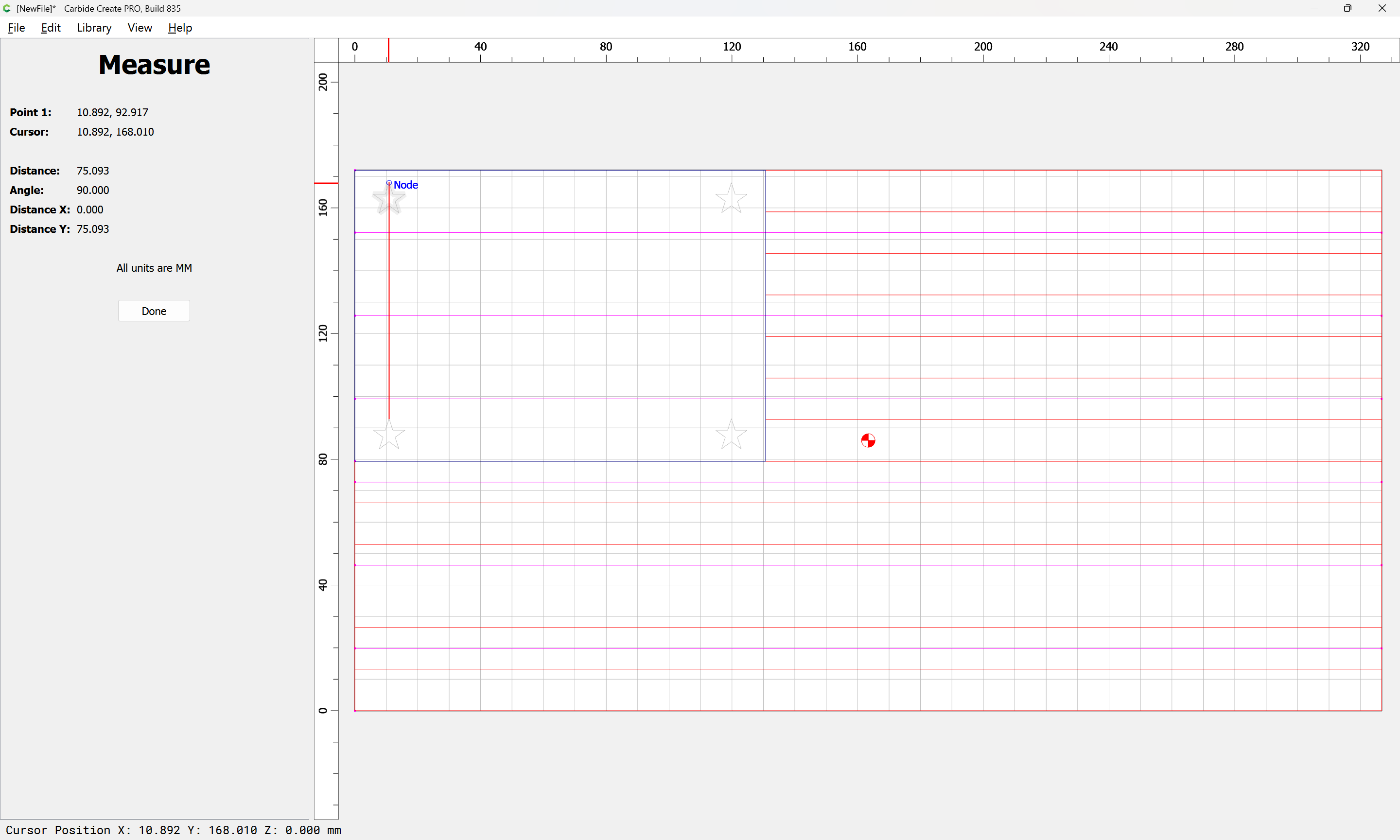
75.093
Then select only the star at the lower-left:
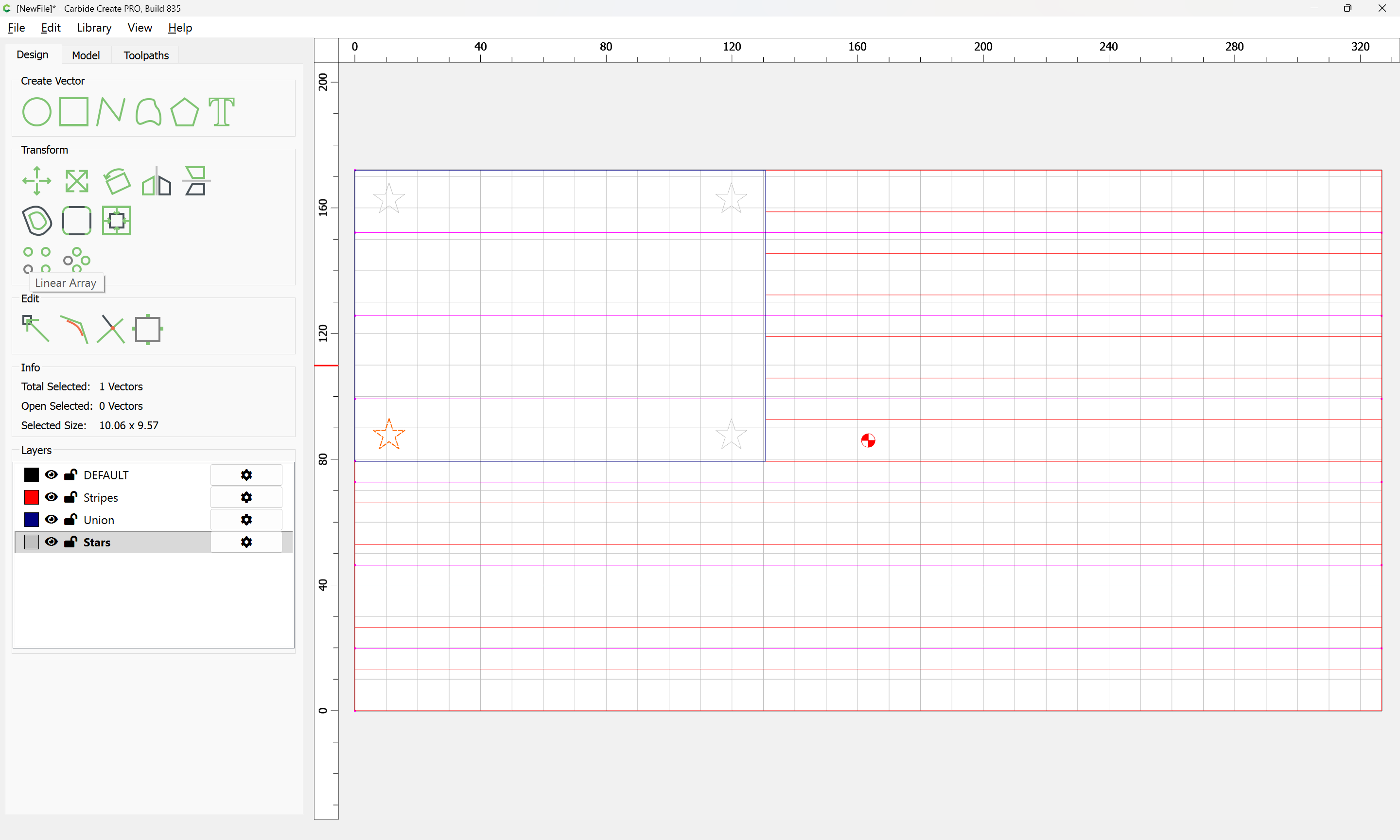
and use Linear Array:
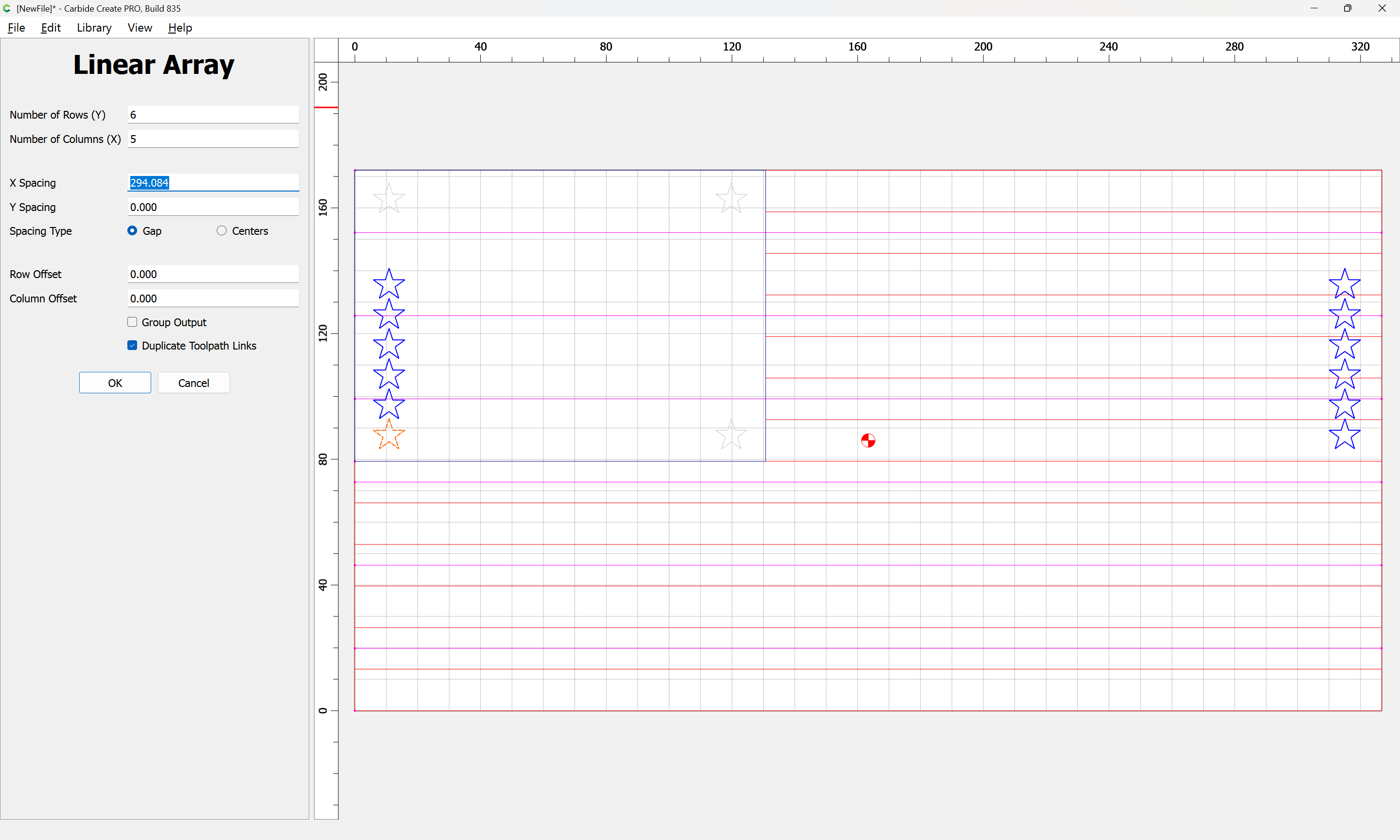
to make the correct number of stars and use the measurements:

to correct the spacing:
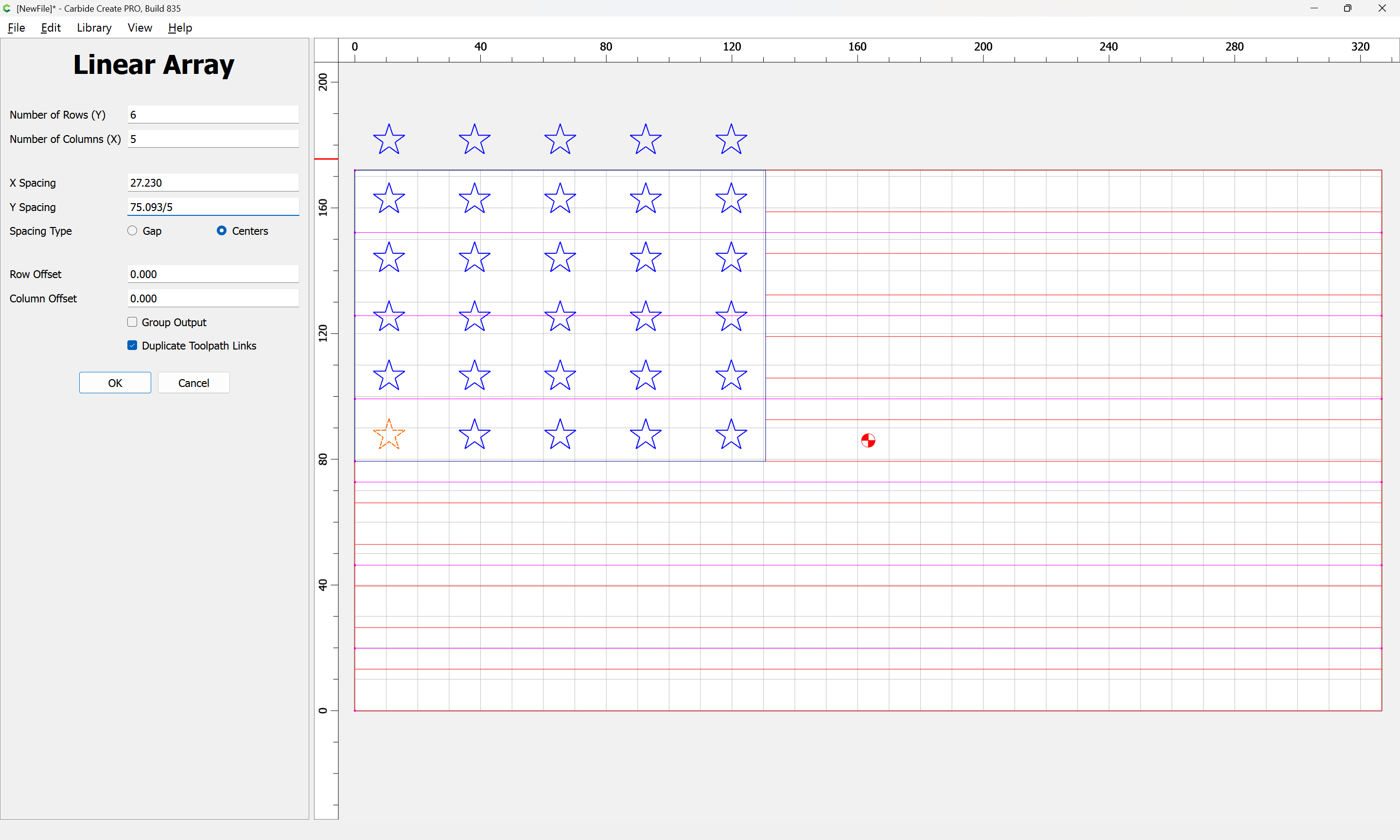
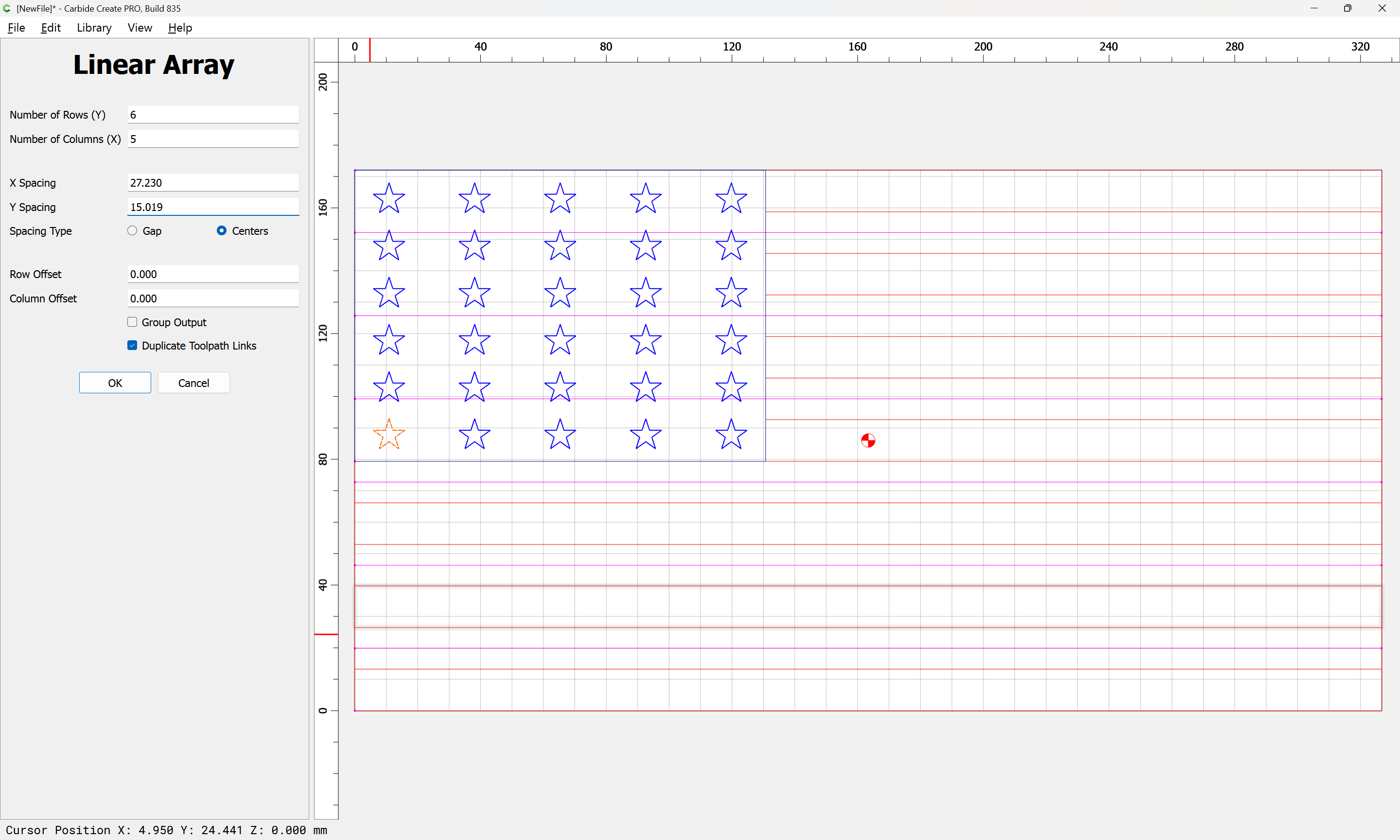
OK
copy-paste one star and place it at the lower-left between the 4 stars at the lower-left:
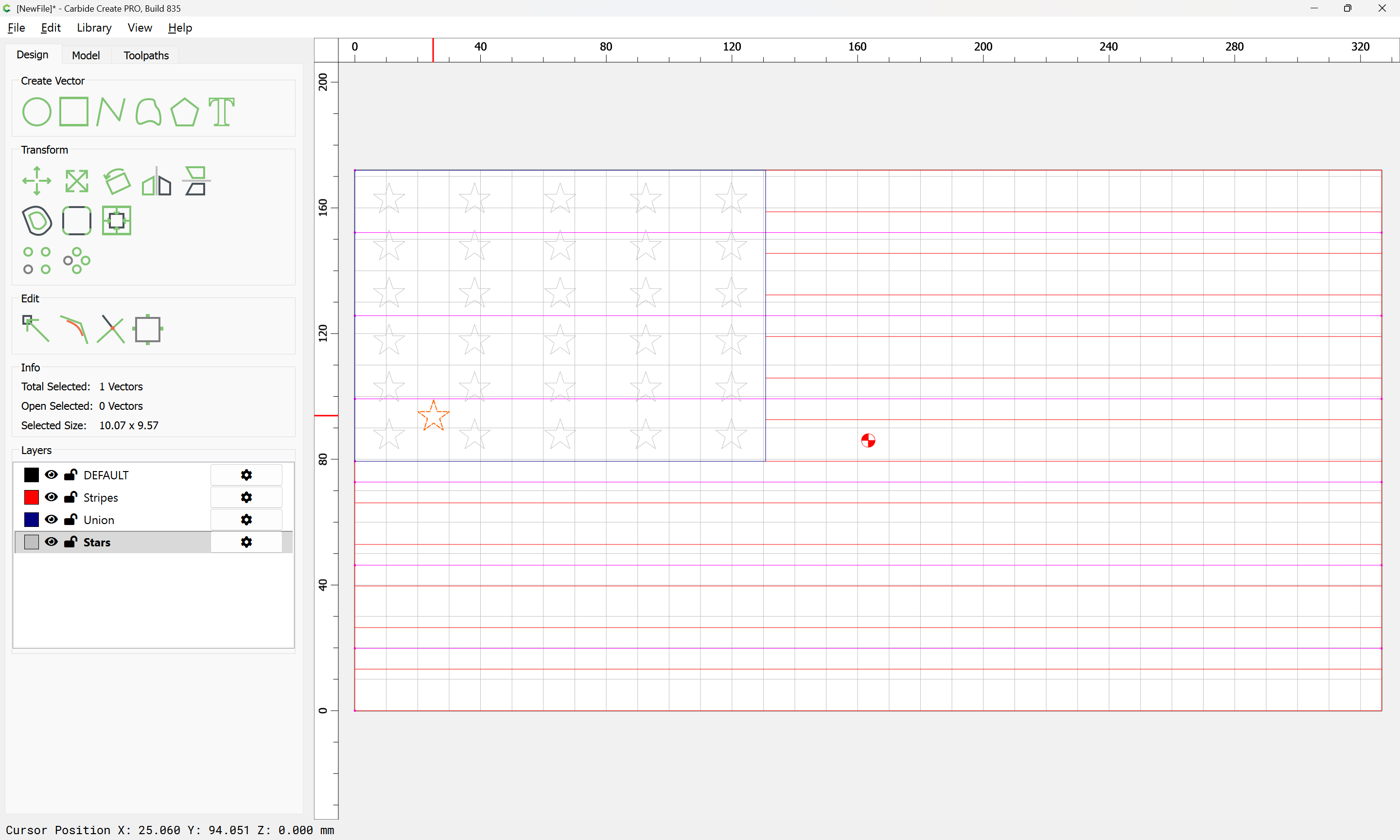
Select the afore-mentioned 4 stars:
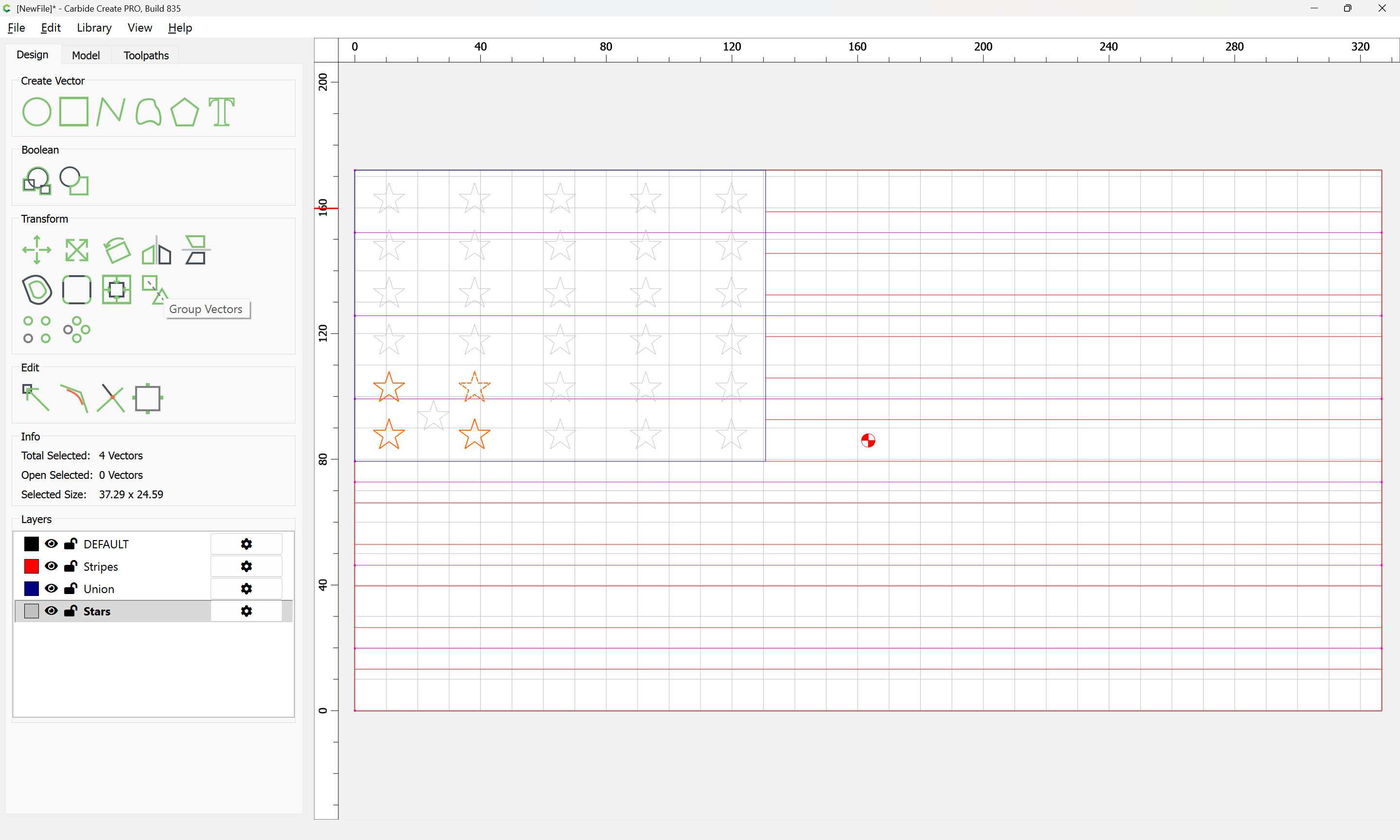
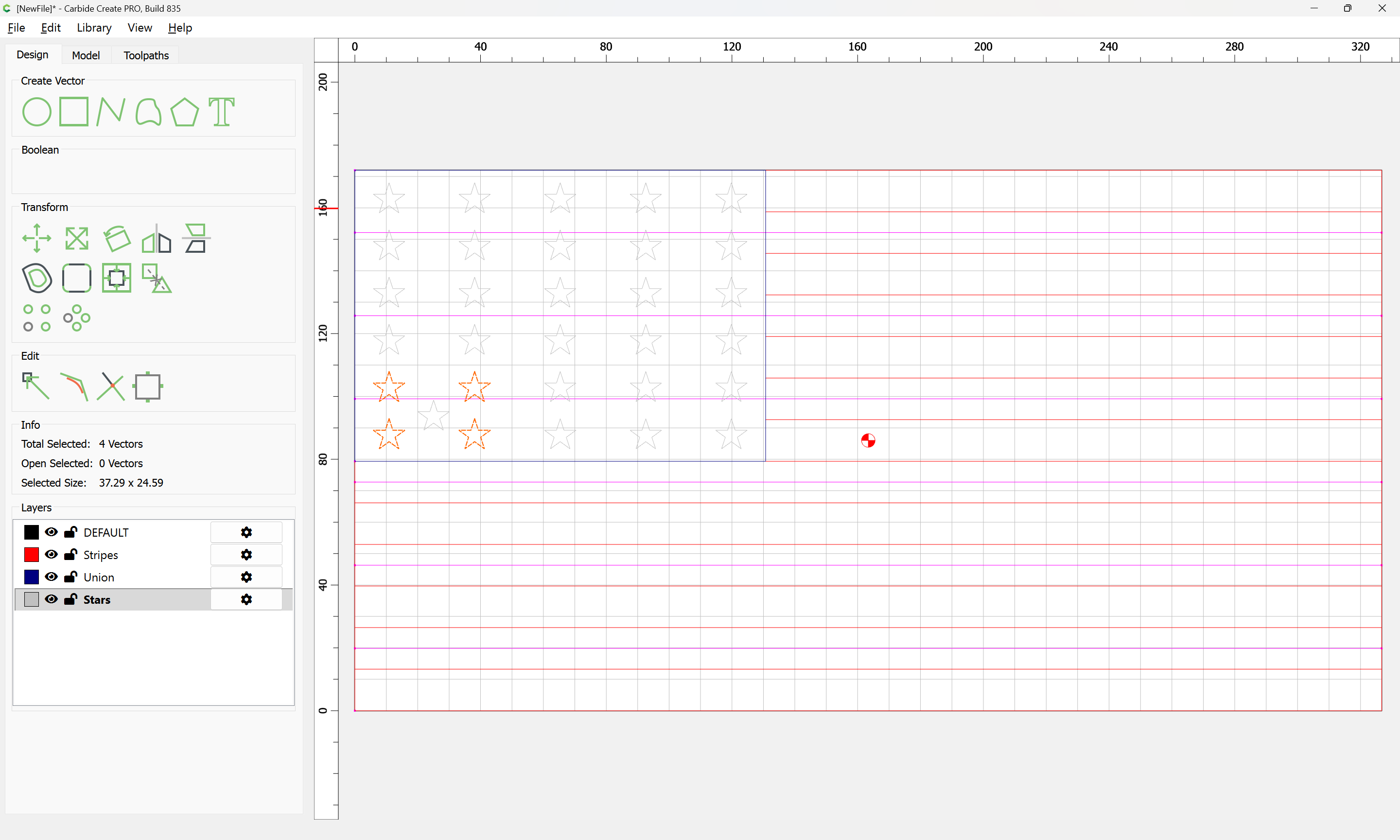
and group them:
Select the out-of-position star:
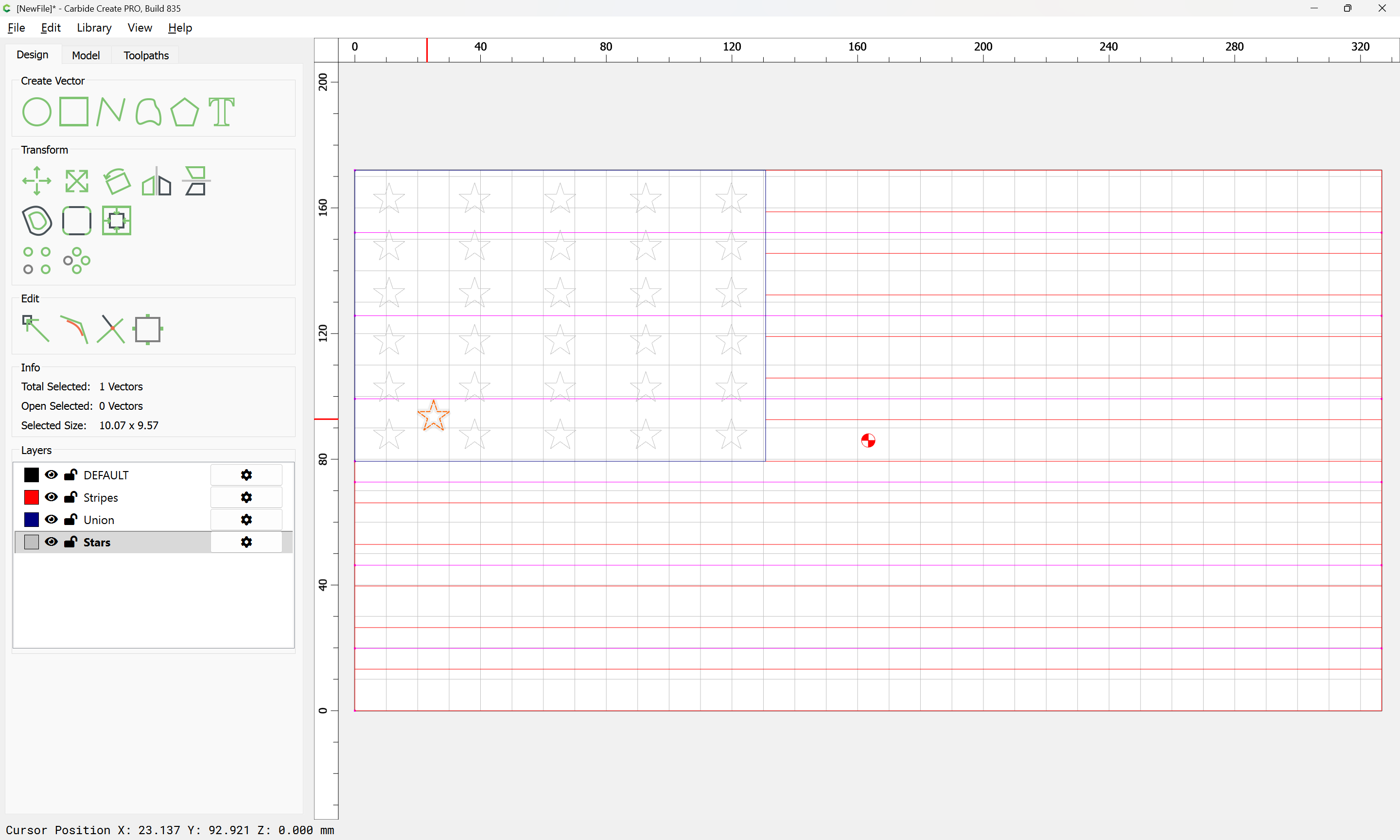
and shift-click on the group to add it to the selection:
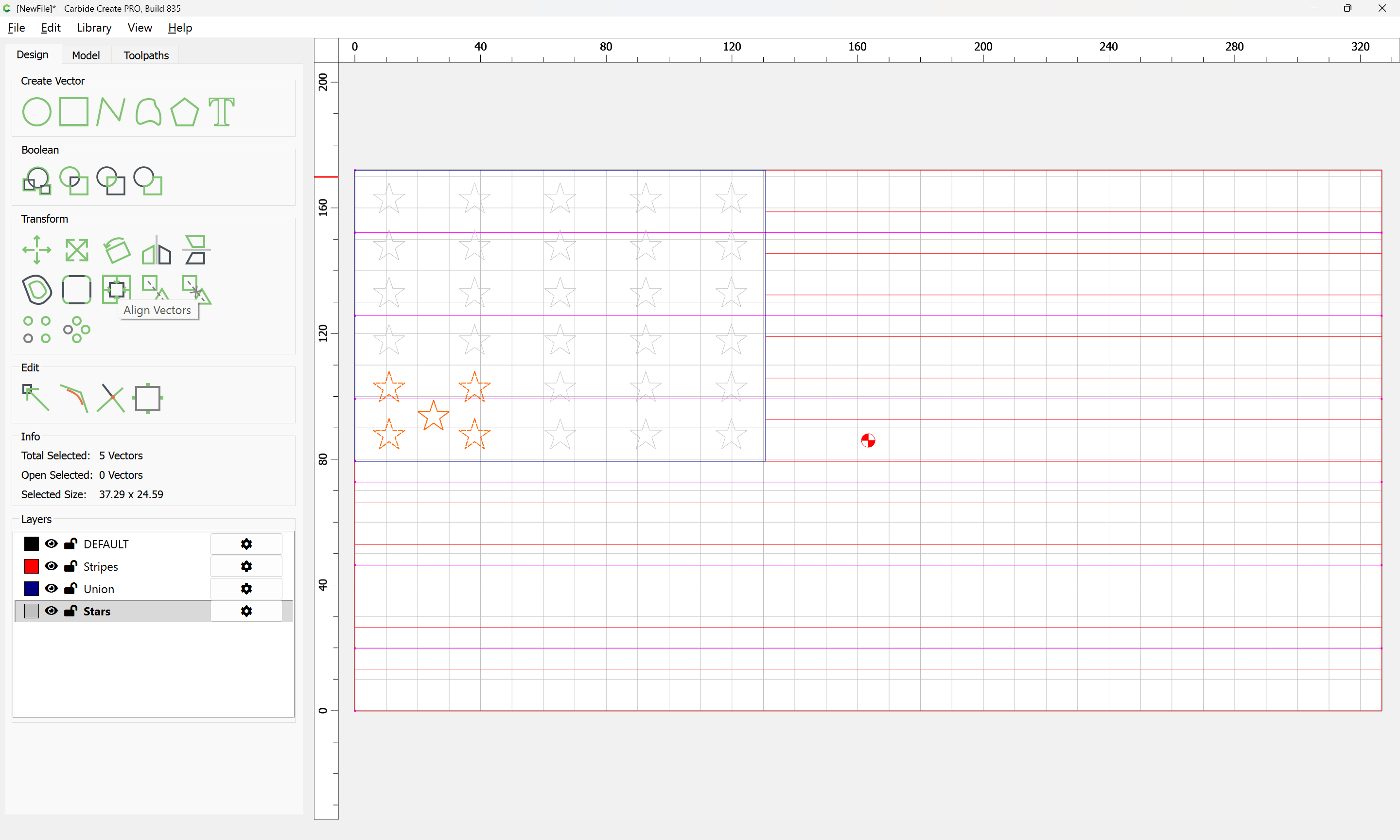
and use Align Vectors:
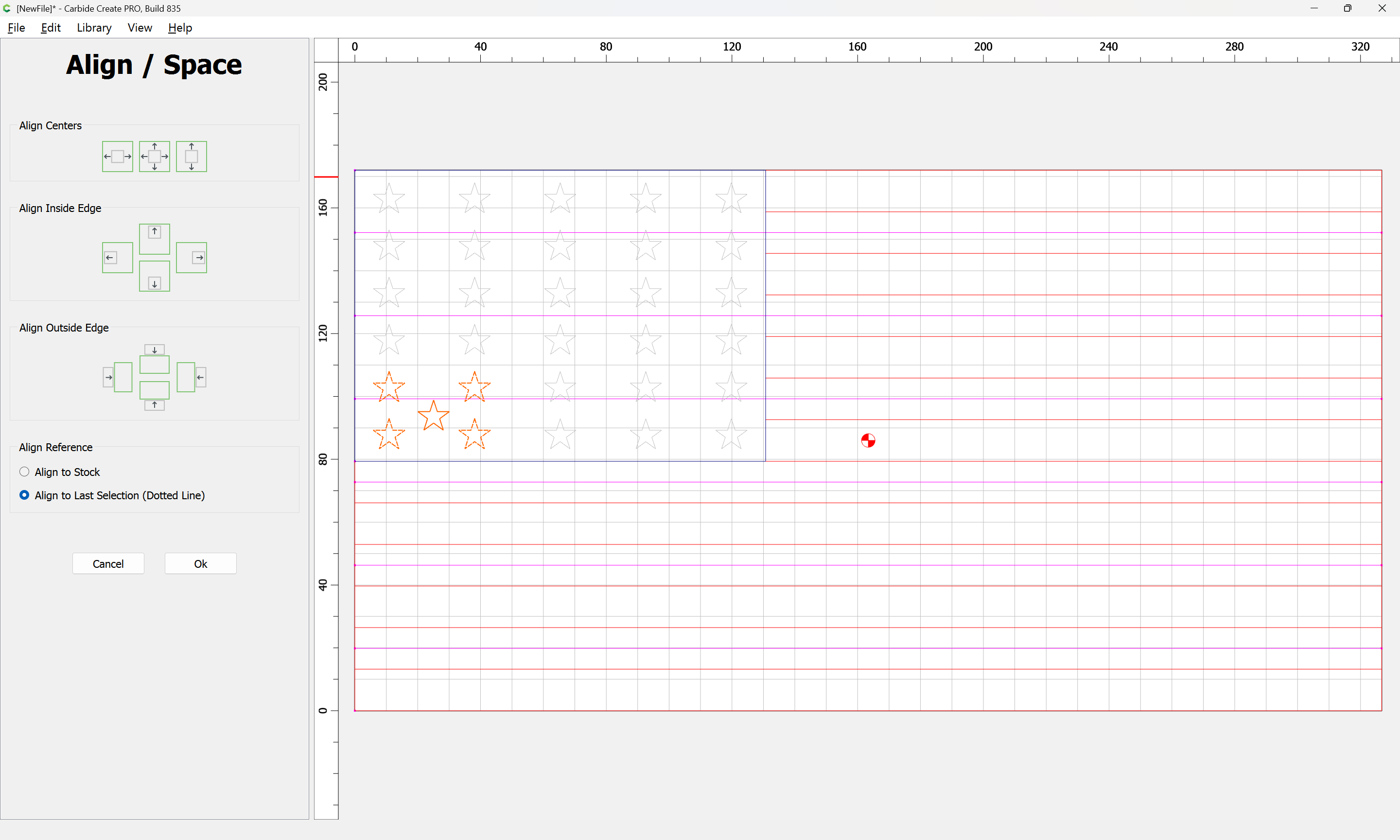
to center it:
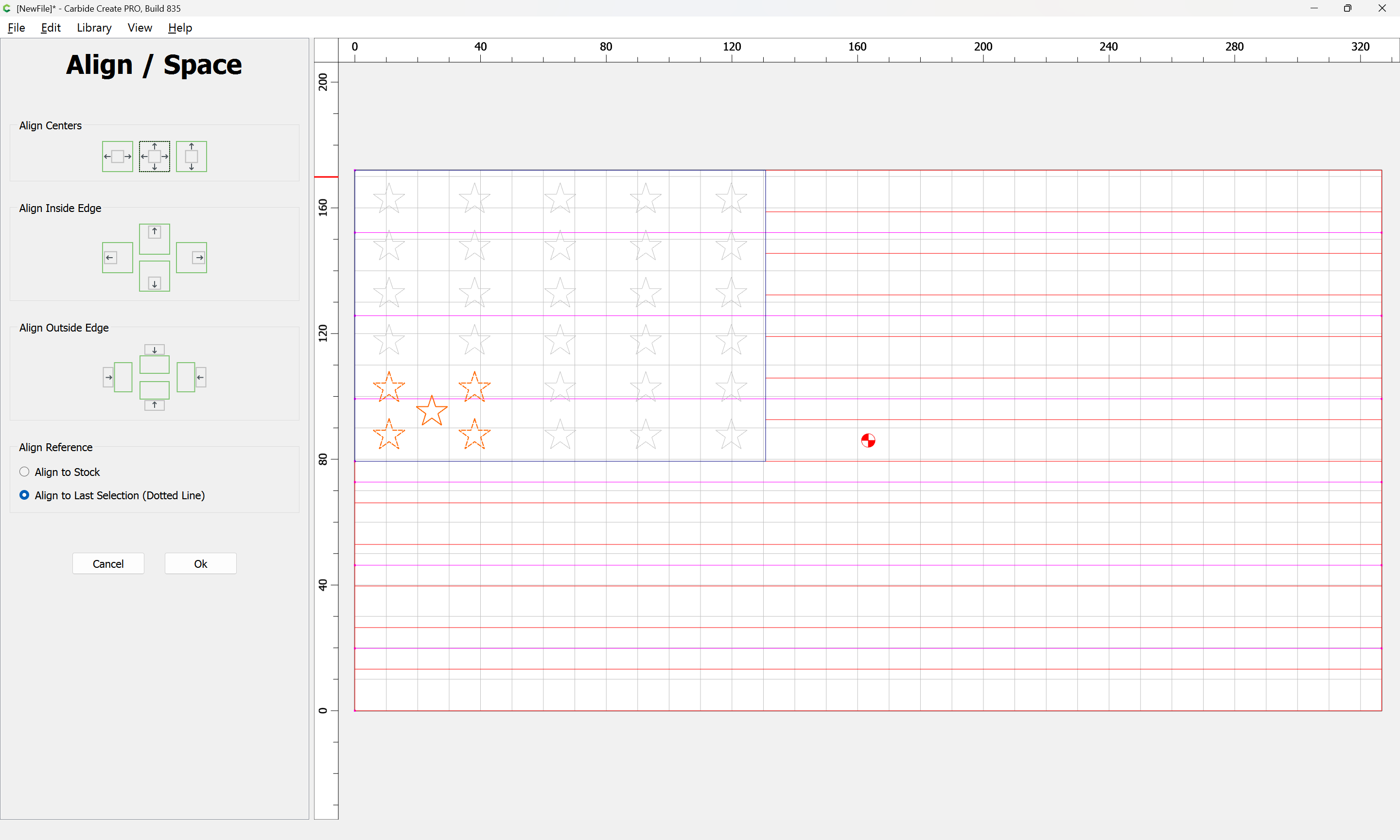
Ok
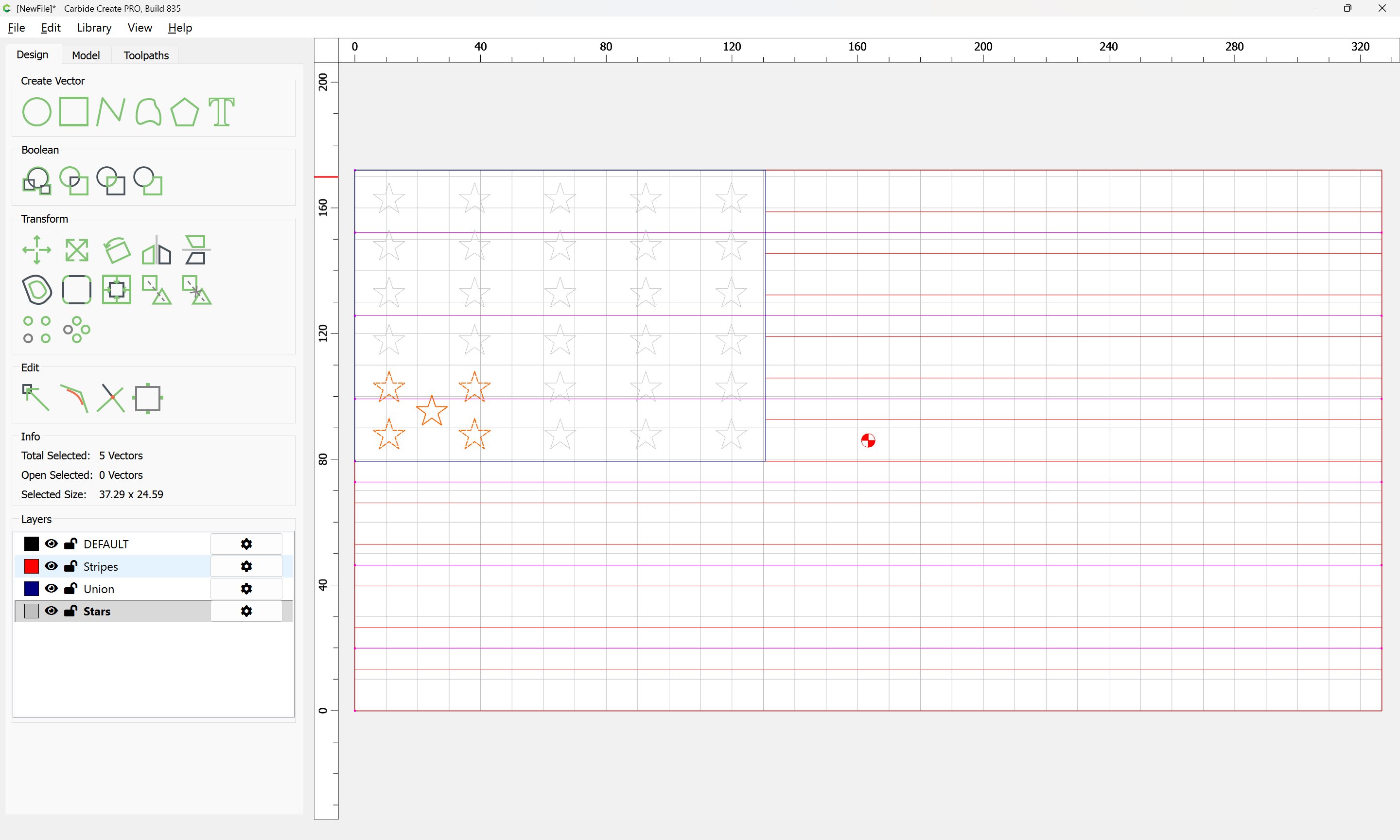
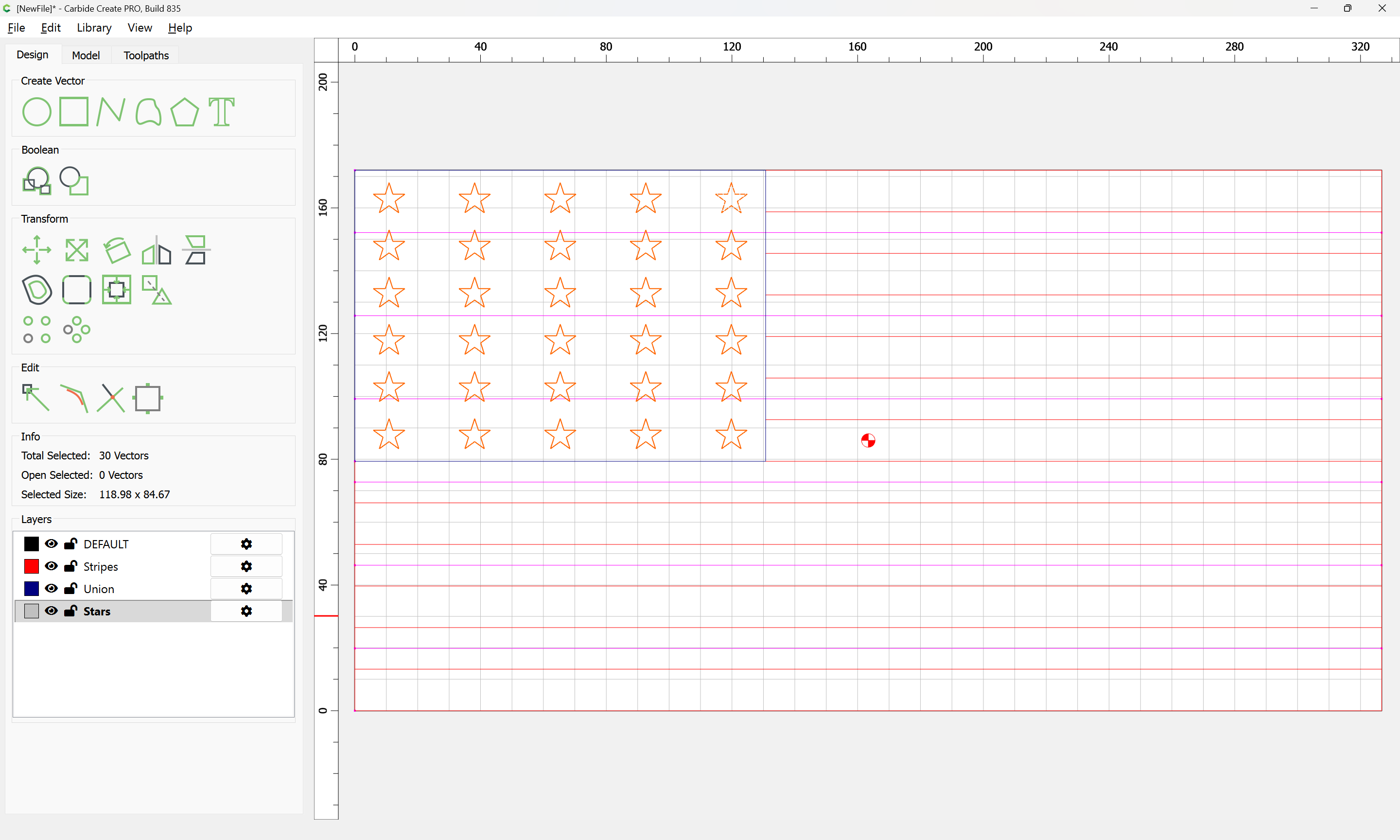
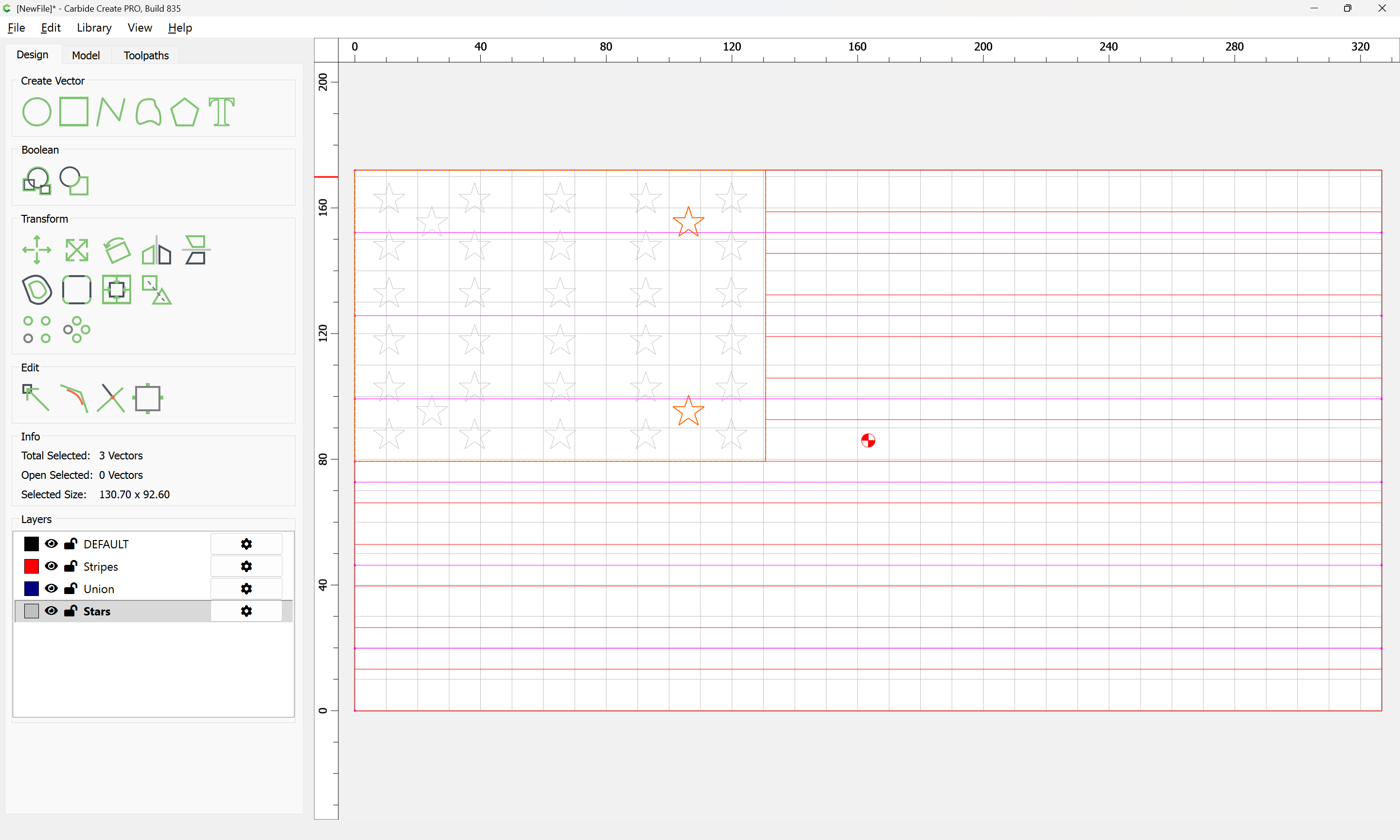
Repeat this process for the balance of the stars:

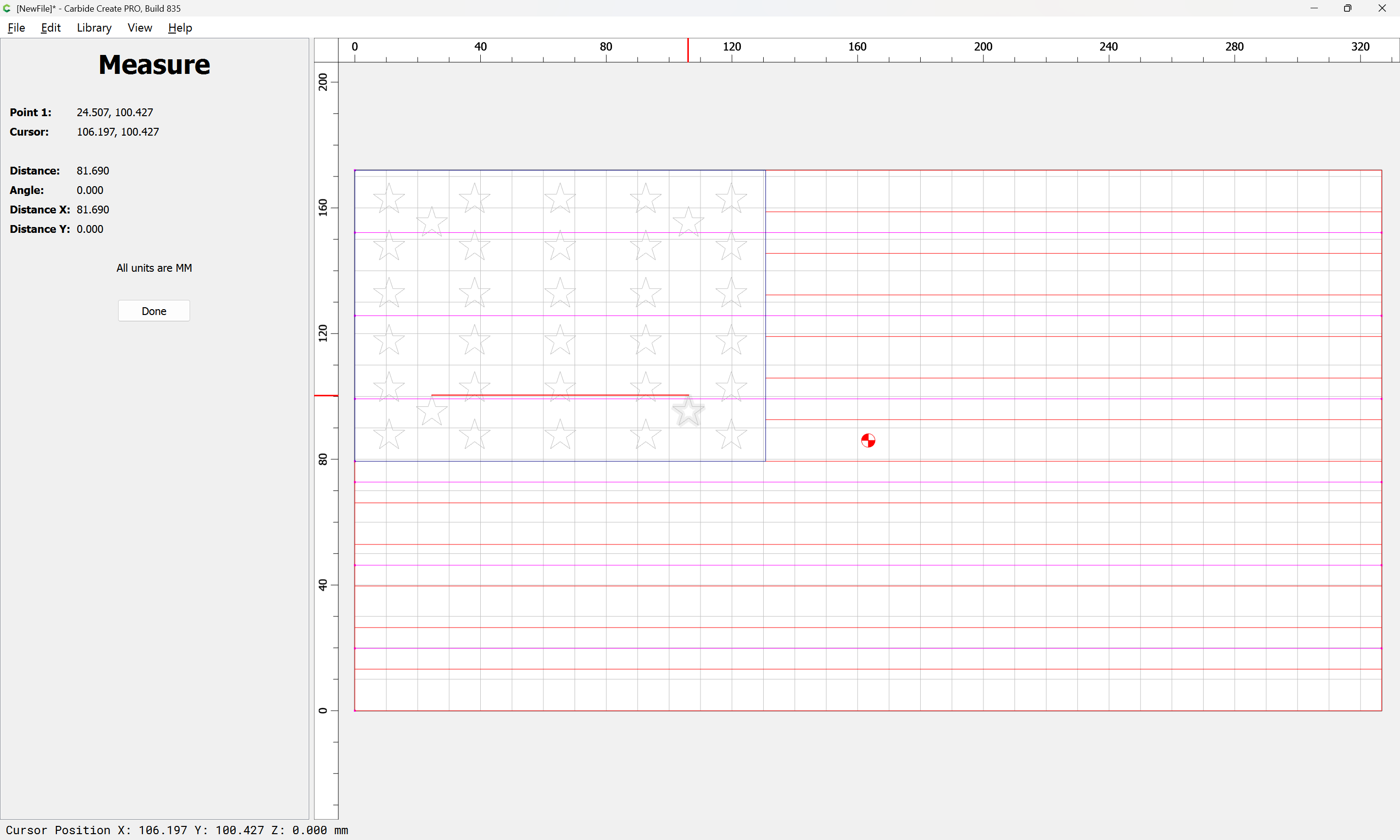
81.69
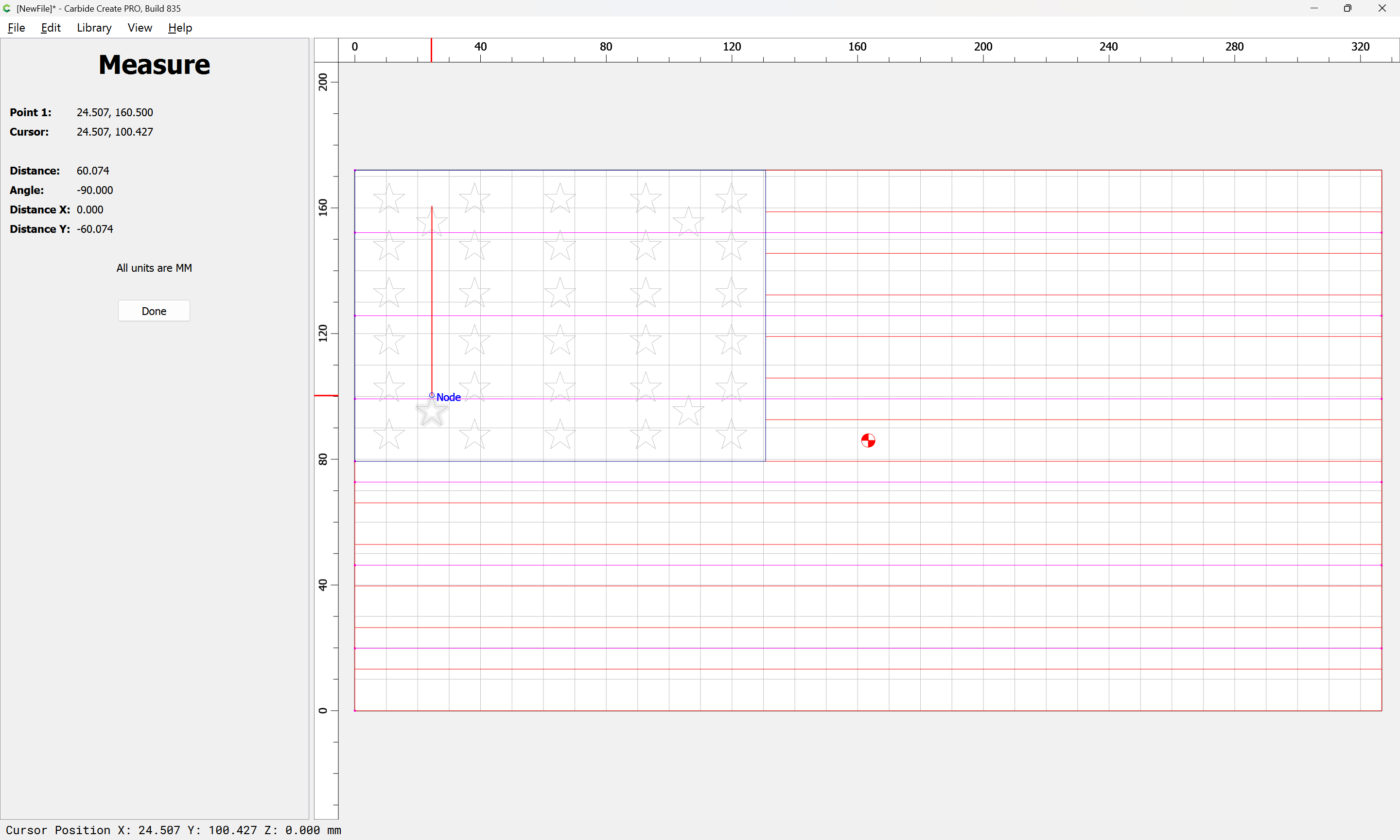
60.074
but since the spacing is uniform, the correct values auto-fill and it is simply necessary to reduce the number of rows/columns:
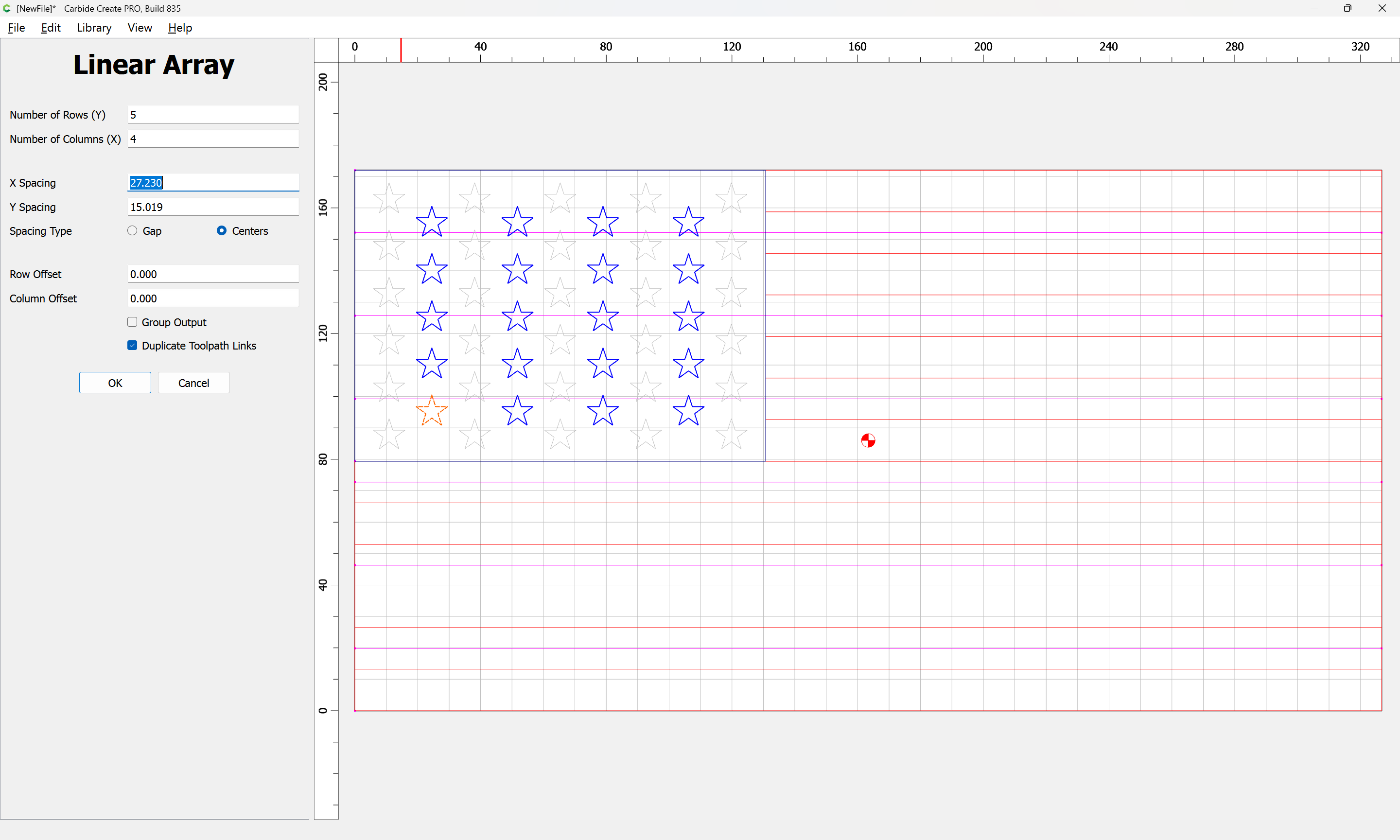
OK
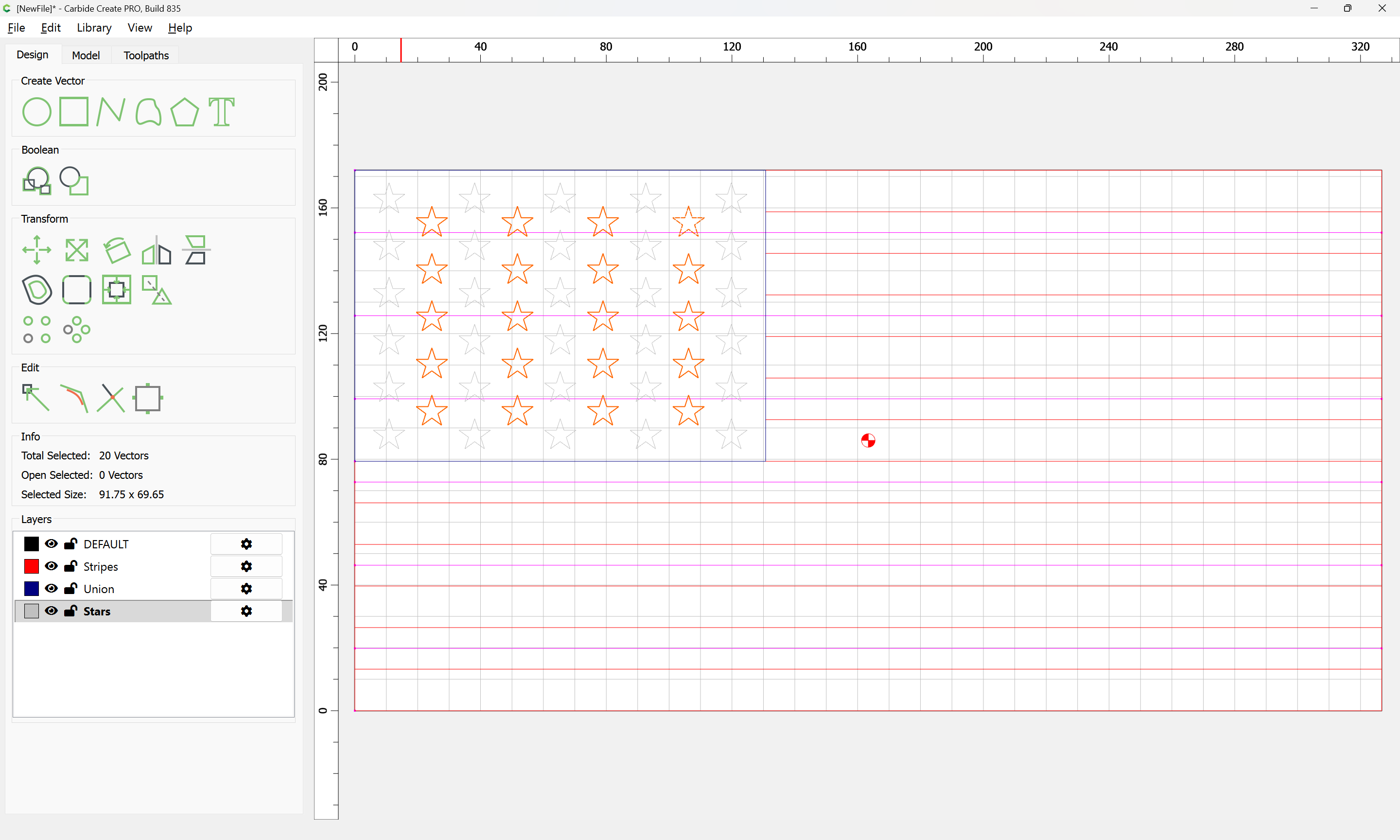
Select the imported geometry and delete it:
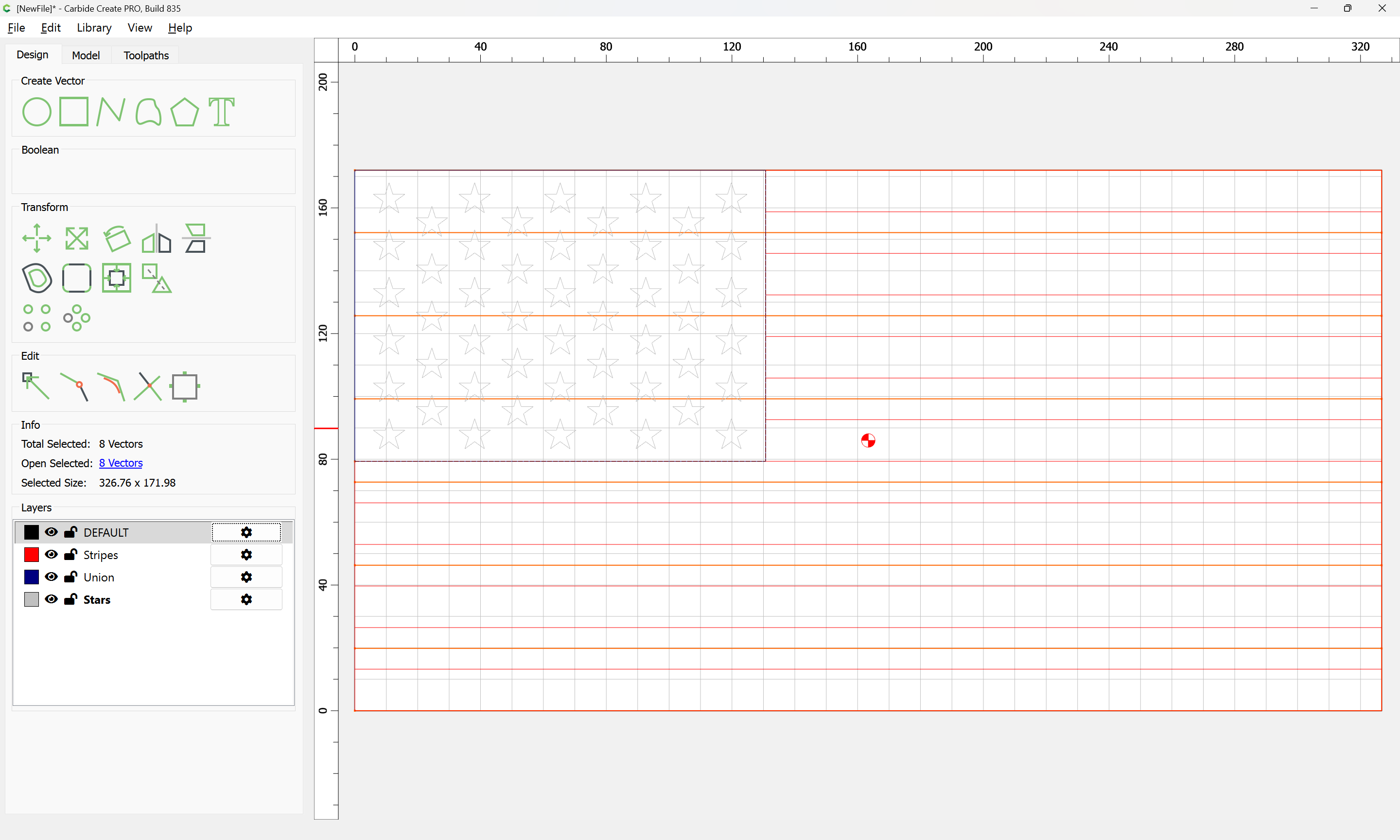
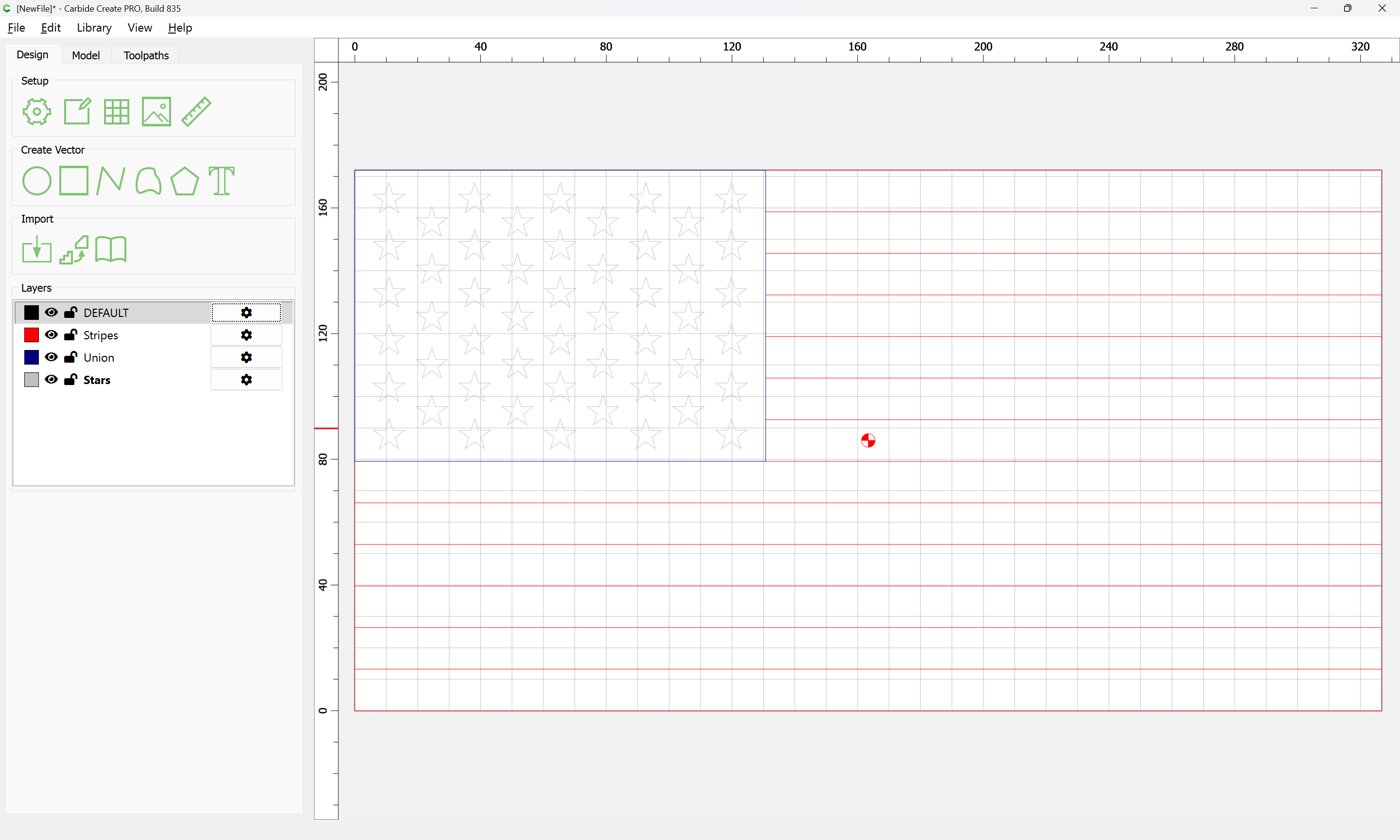
and re-draw the outer boundary.
Fixed flag:

attached as a v8 file:
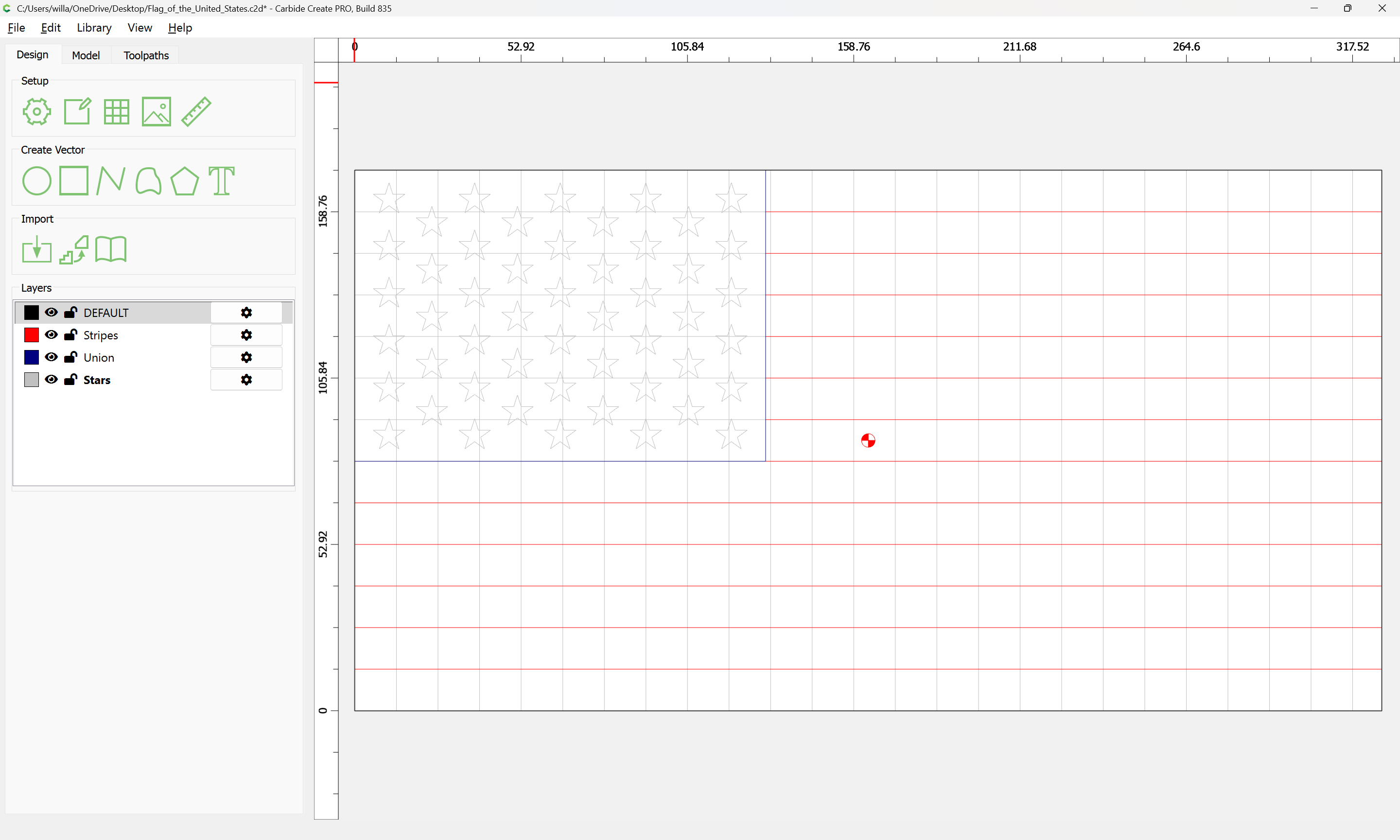
Flag_of_the_United_States.c2d (92 KB)